


A contract asks the customer to sign an agreement for their event — separate from any quote or payment. Add one from the Contracts tab on their booking request, on your venue's Events page. You can send a contract before, after, or without ever sending a quote.
Send a contract
-
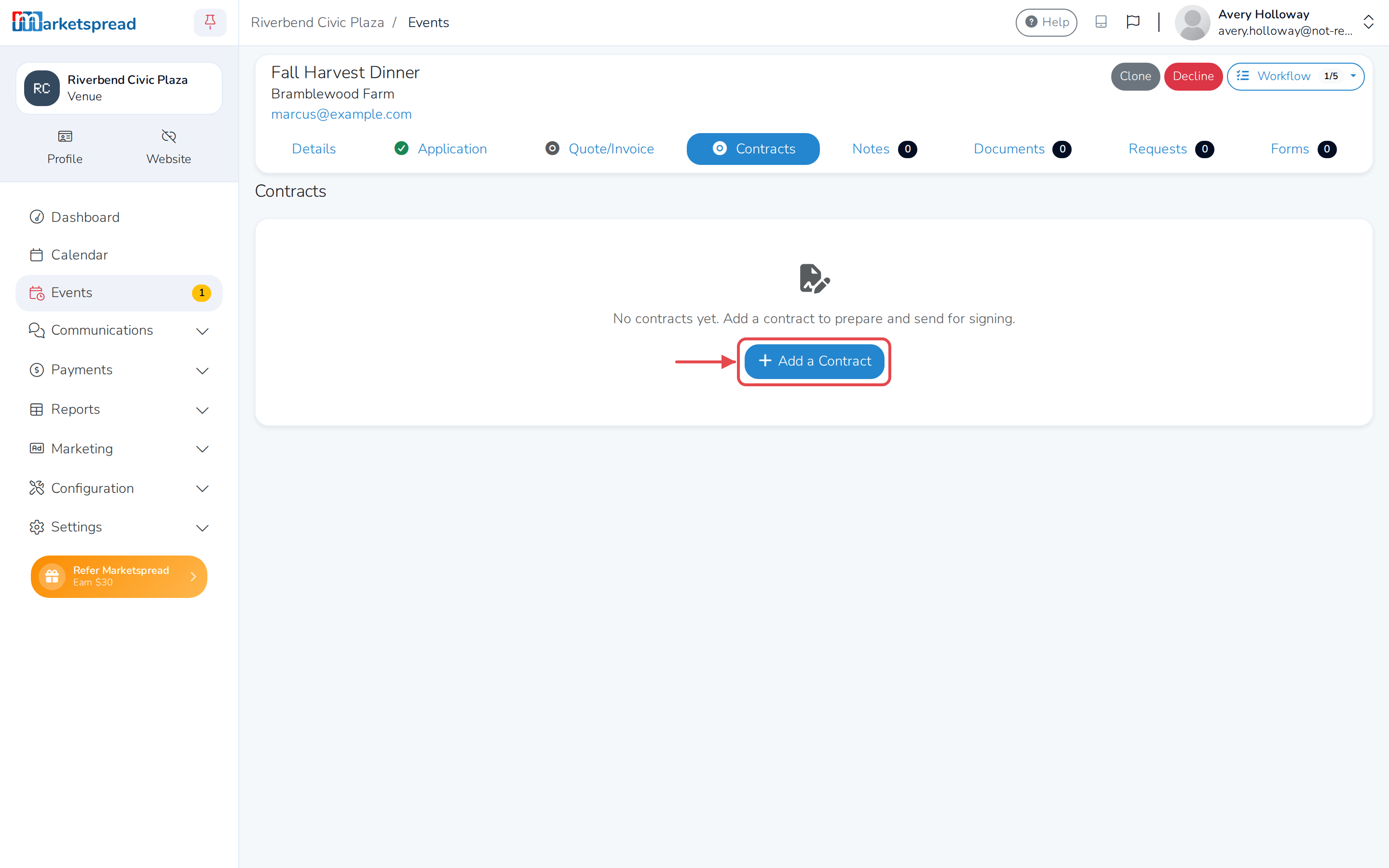
Open the booking request and click the Contracts tab.
-
If there's no contract yet, click Add a Contract.
-
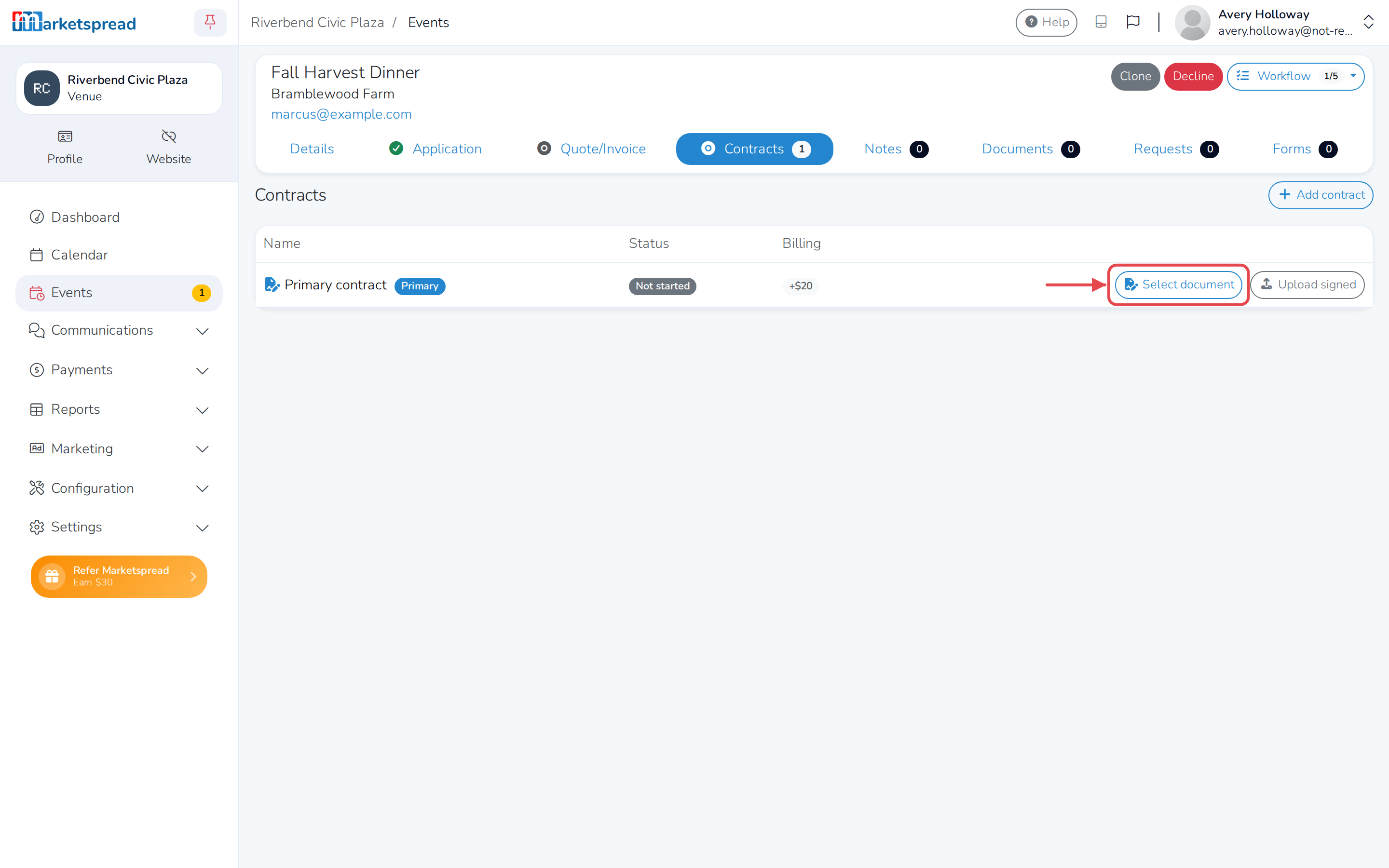
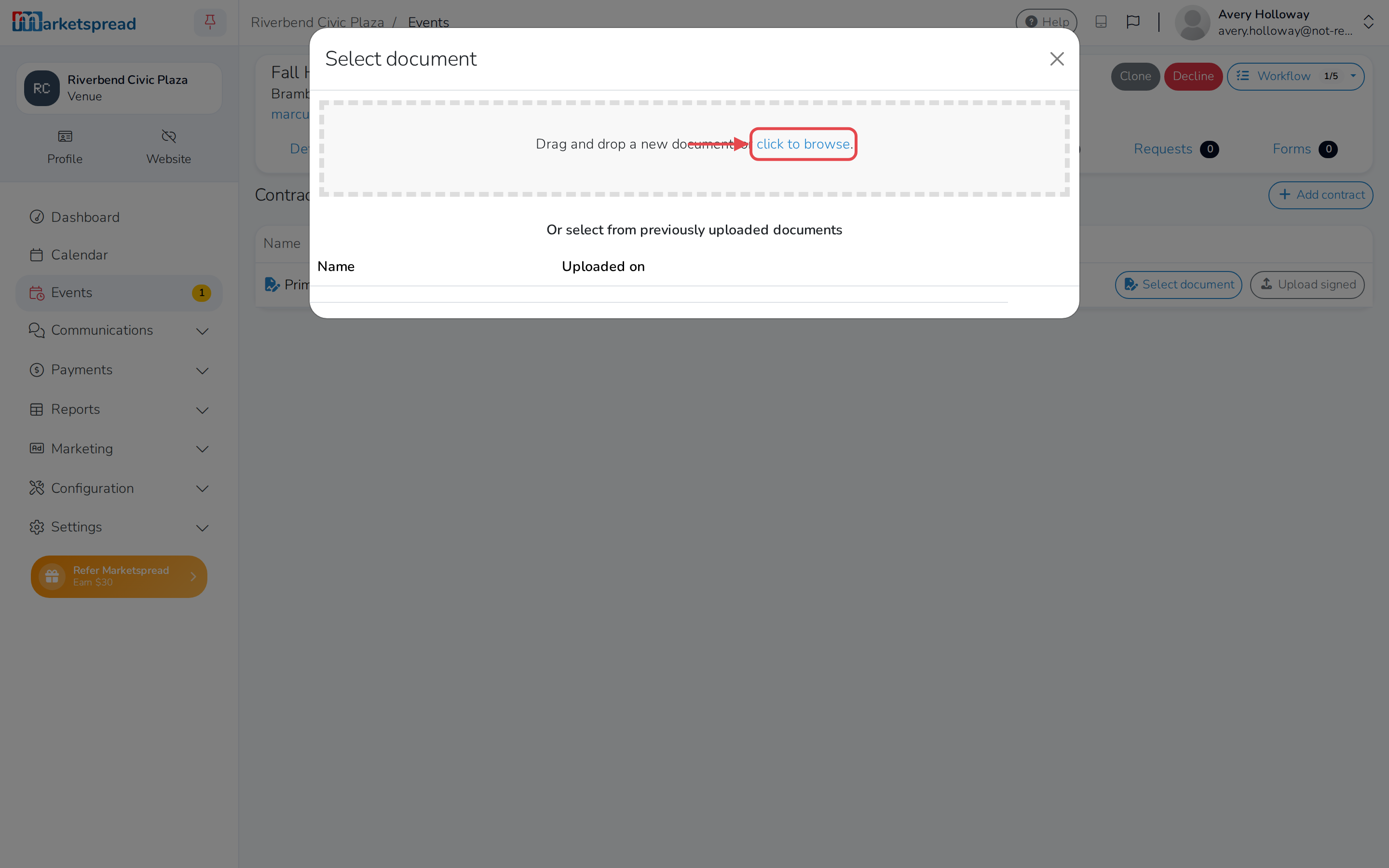
Click Select document, then choose the file to send — drag one in, use click to browse to upload a new one, or pick one you've used before.
-
The contract now shows as Draft. Click Prepare to open it.
-
Set up the document for signing.
-
Click Send to Customer.
The customer gets an email asking them to sign, with a link back to their booking.
Check whether it's been signed
- Open the booking request and click the Contracts tab.
- Find the contract in the list. Its Status shows Not started, Draft, Sent or Signed, along with how many signers have signed so far.
If something went wrong — the customer declined, the signing request expired, or the email bounced — the status shows that too. Once it's Signed, click the download icon on the row to get a copy.
Remind the customer to sign
SignWell automatically reminds a customer who hasn't signed — 3, 6 and 10 days after you send a contract. To send a reminder sooner:
- Open the booking request and click the Workflow menu, near the top of the page.
- Next to Contract, click Resend Emails.
- Click Resend Emails again to confirm.