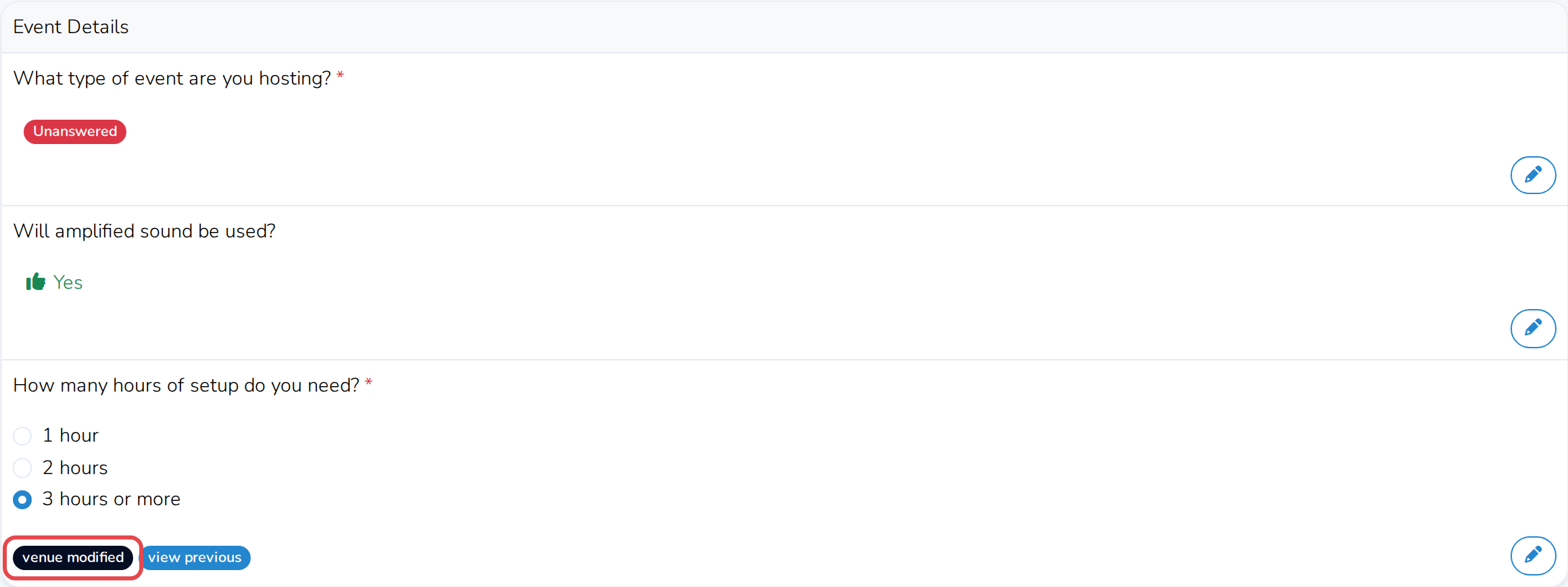
If you ask customers questions on your application form, their answers show up on the Application tab of their booking request. Open it to see what they told you, alongside the rest of their request.
Open the Application tab
-
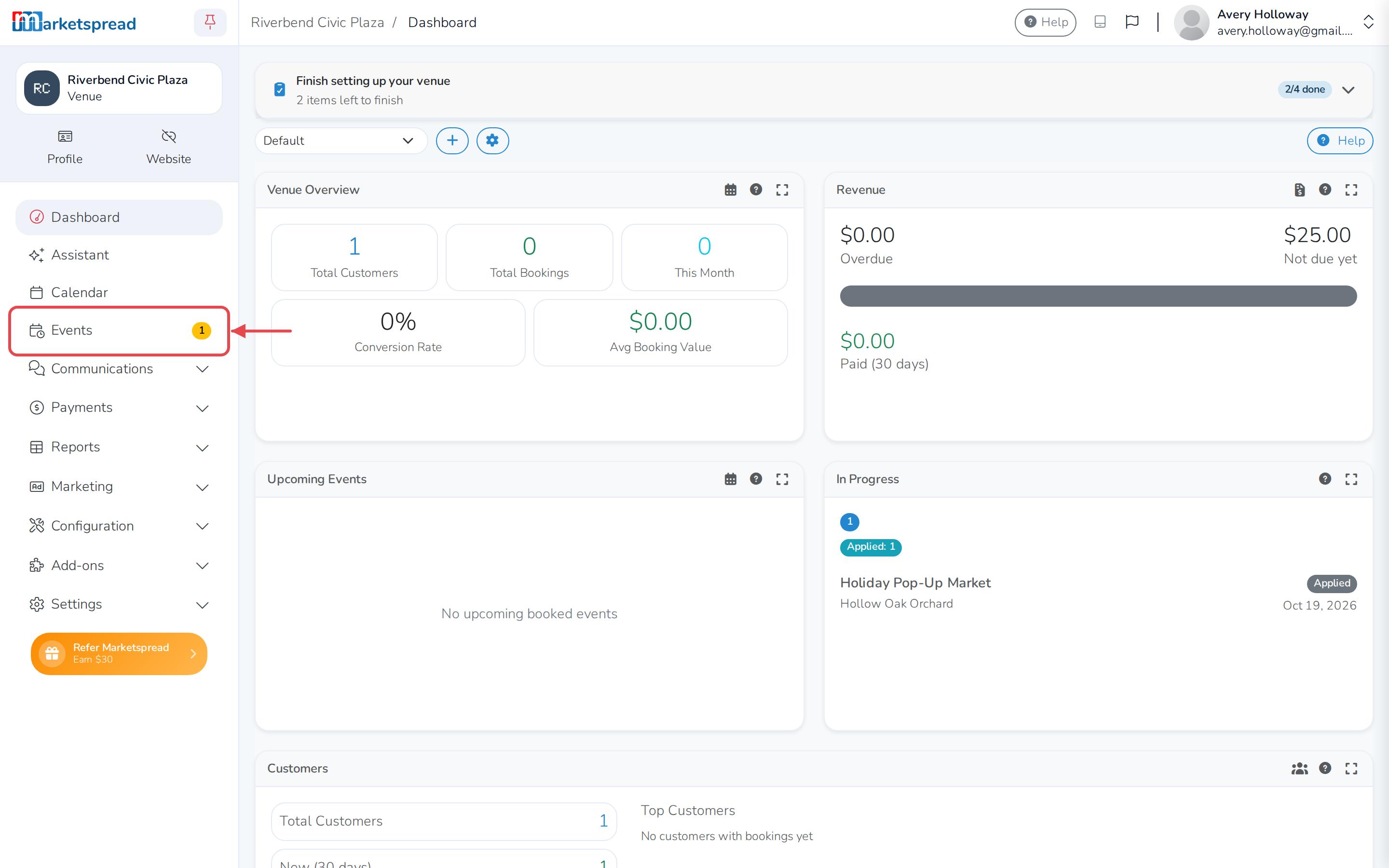
Click Events in the left-hand menu.
-
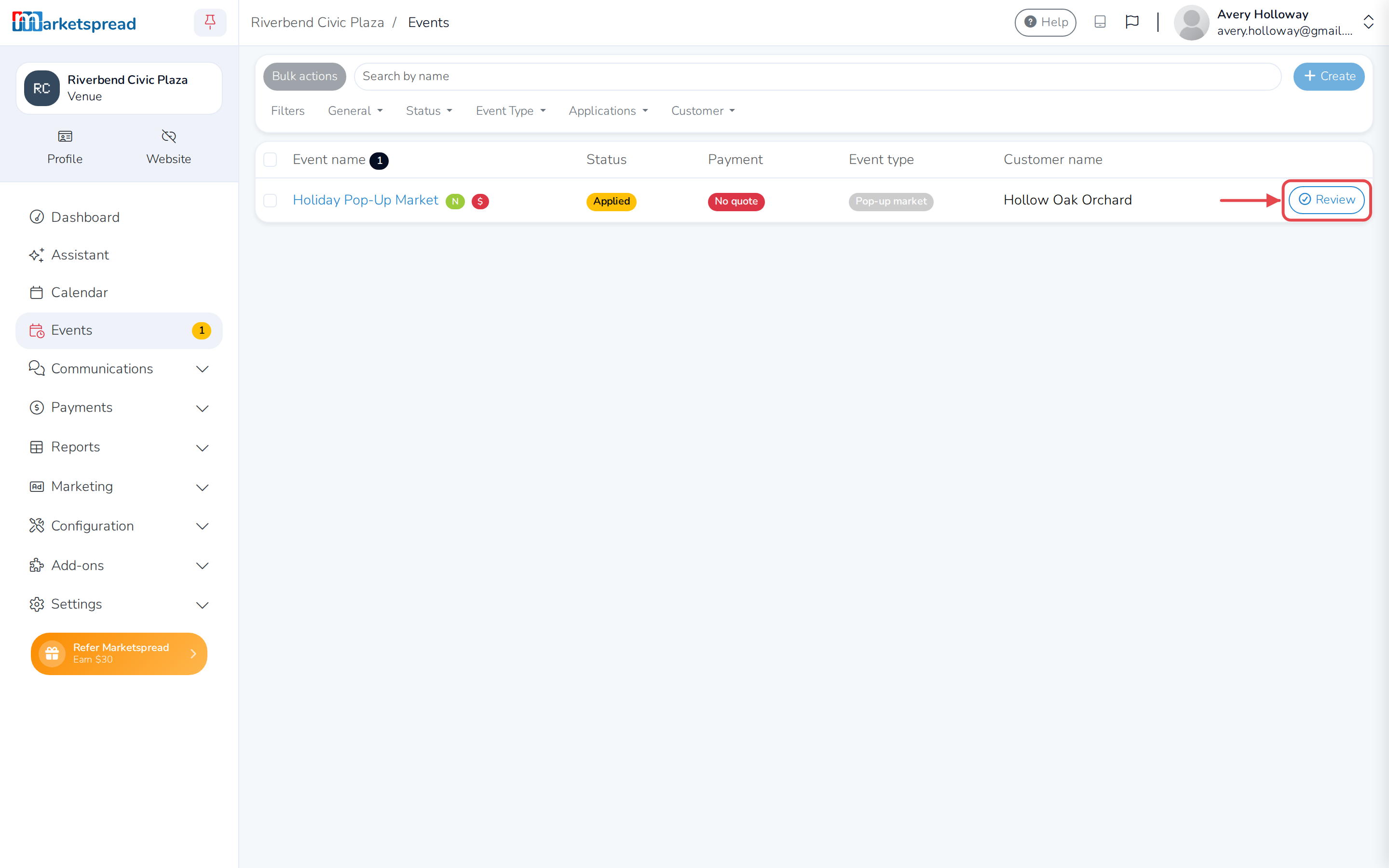
Click Review, or the event's name, on the booking request.
-
Click the Application tab.
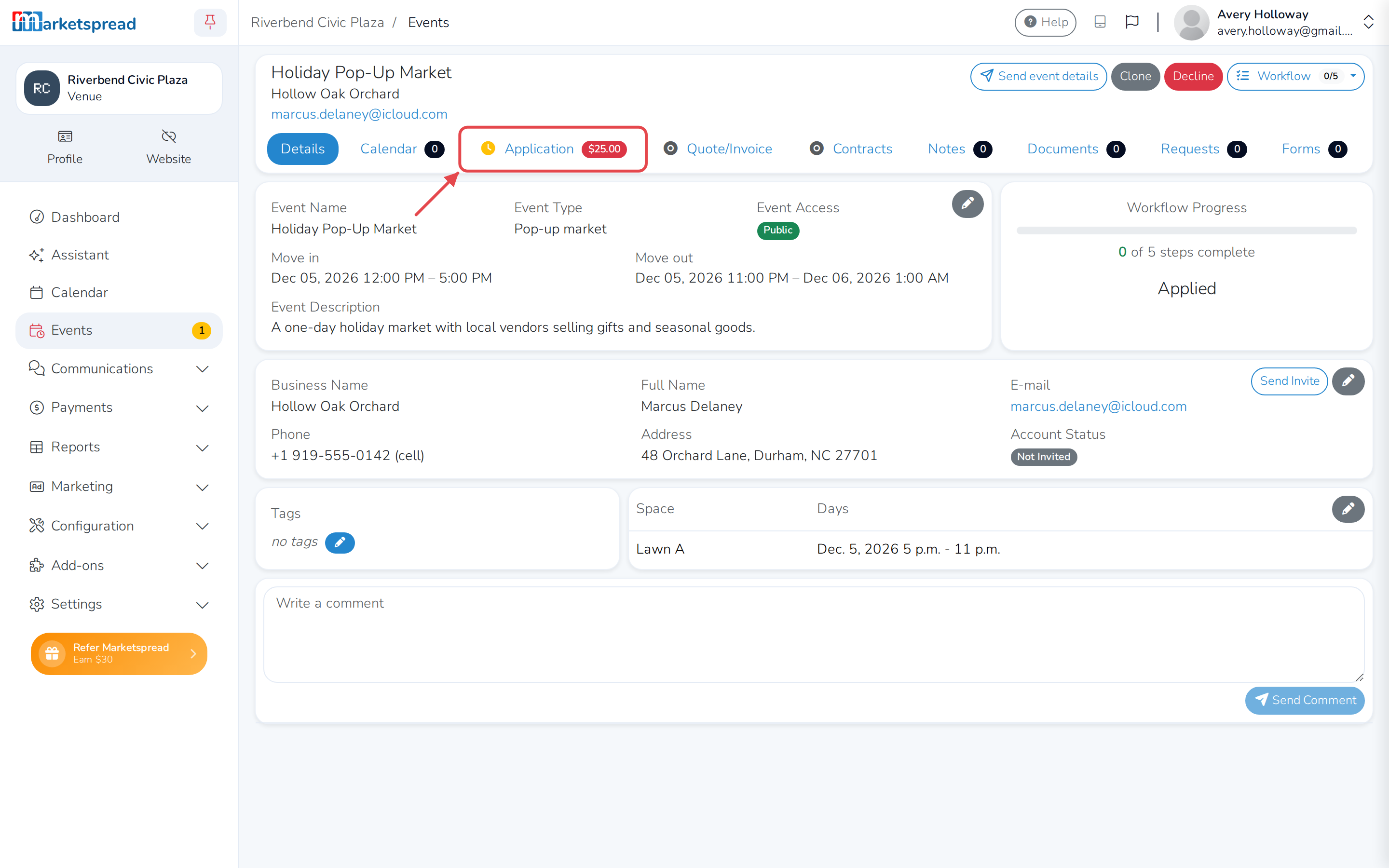
At the top, Application Name shows which of your application forms they used.

Read the answers
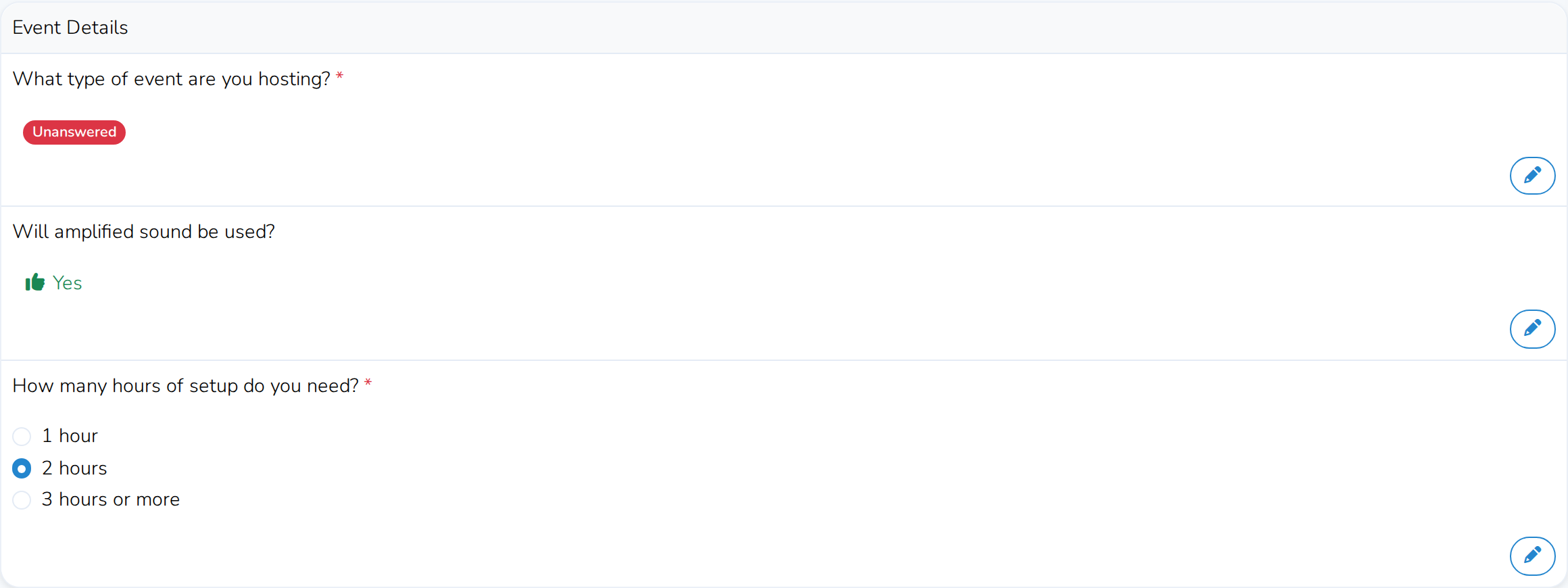
Each question you asked appears with the customer's answer underneath it. A required question has a red * next to it.
Depending on the question, an answer appears as text, a Yes/No, or the choice or choices they picked. If they left a text or choice question blank, it shows a red Unanswered badge instead of an answer. A question you set up as a header shows as a plain label with no answer — it's just there to group the questions under it.
Change an answer
If a customer's answer needs correcting, you can update it yourself.
-
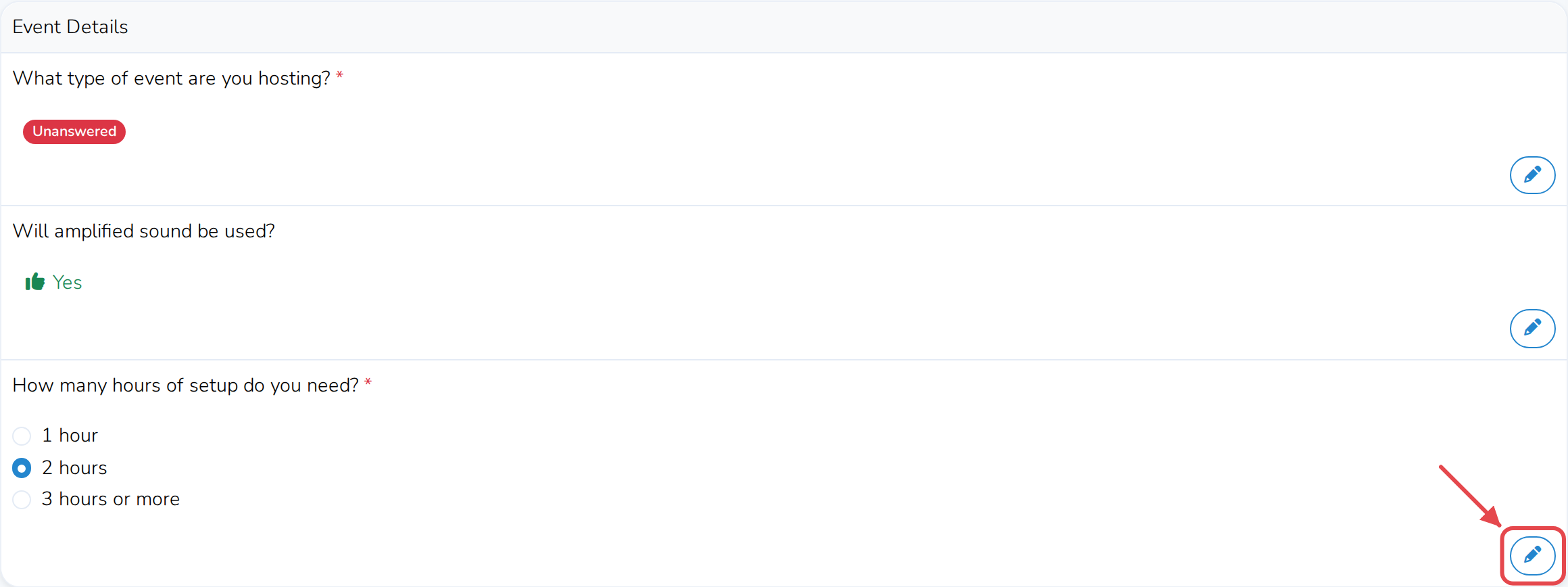
Click the pencil icon next to the answer.
-
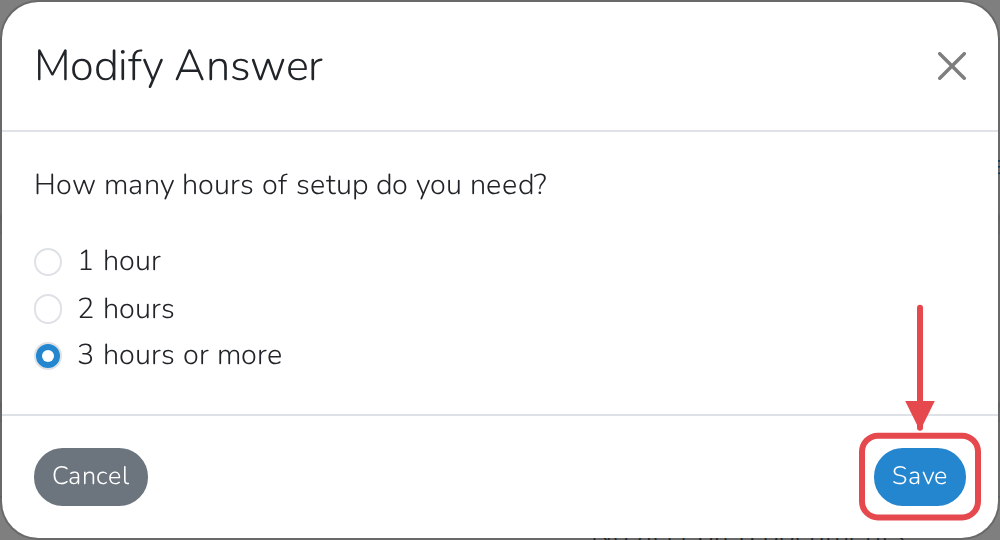
Update the answer.
-
Click Save.
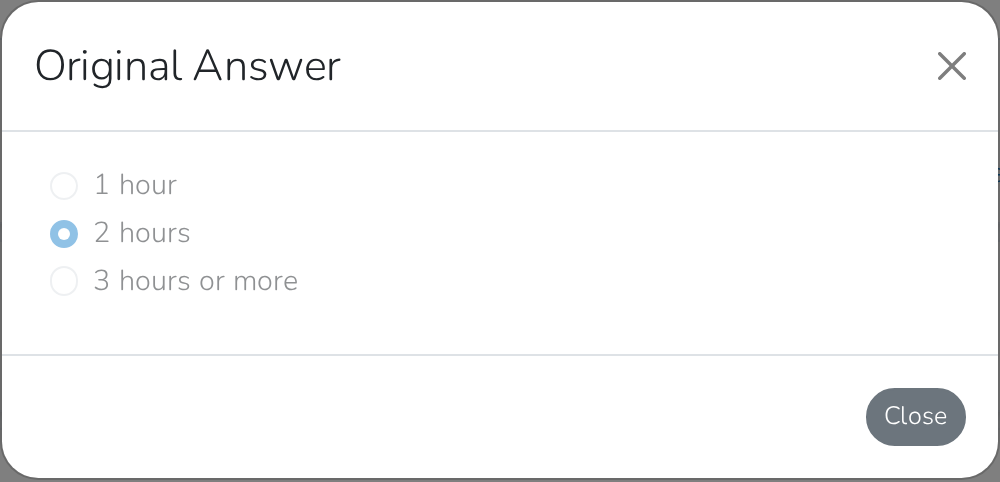
The answer is marked venue modified. Click view previous next to it to see what the customer originally submitted.