


Every customer who applies to book your venue is added to Messenger automatically — you never have to add one yourself. From your Events page you can email or text the customers behind one or more events without leaving your dashboard, or open Messenger directly to reach anyone.
Message customers from your Events list
- Click Events in the left-hand menu.
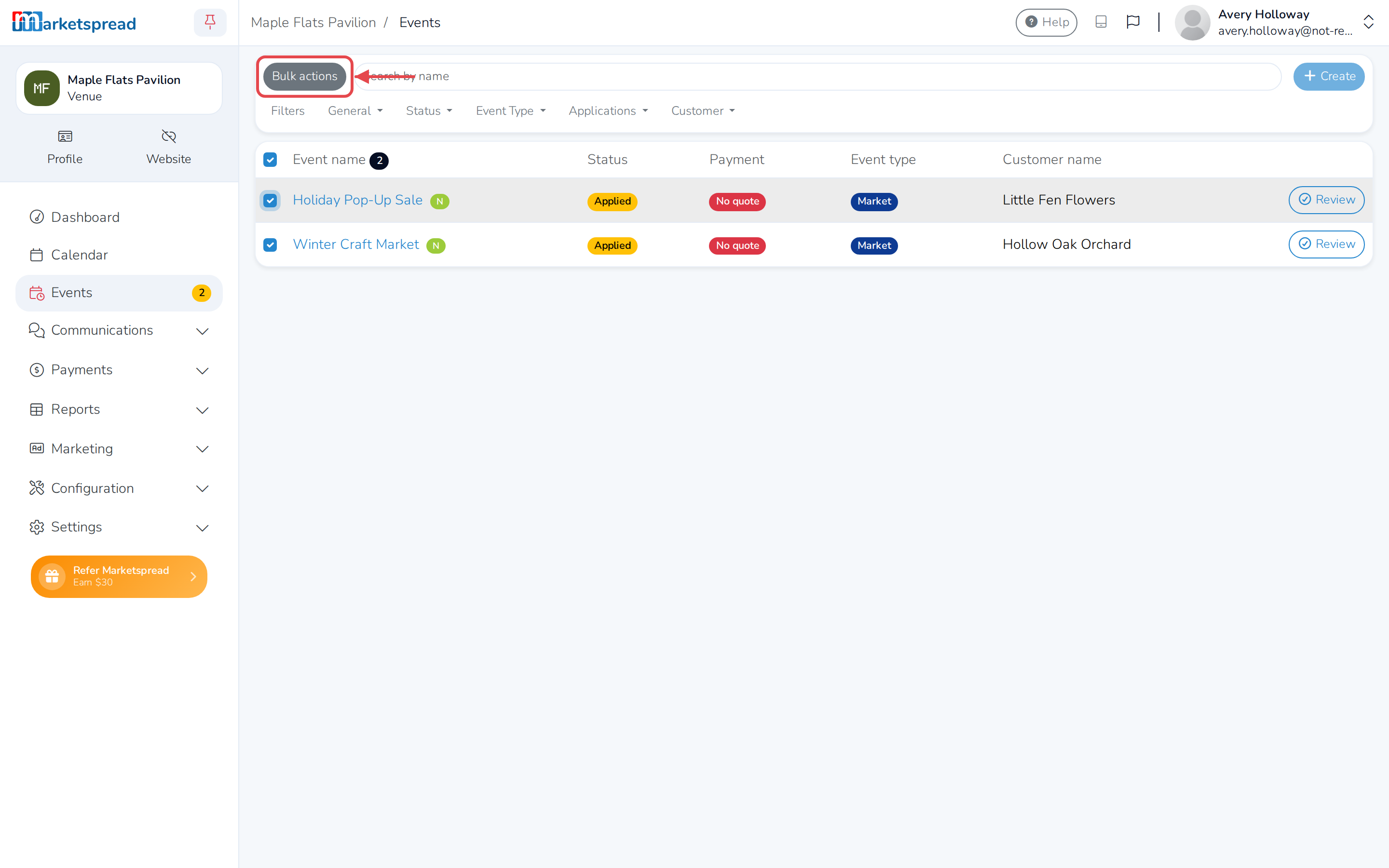
- Check the box next to each event whose customer you want to message. Check the box at the top of the list to select every event shown.
- Click Bulk actions.
- Click Email customers to send an email, or Text customers to send a text.
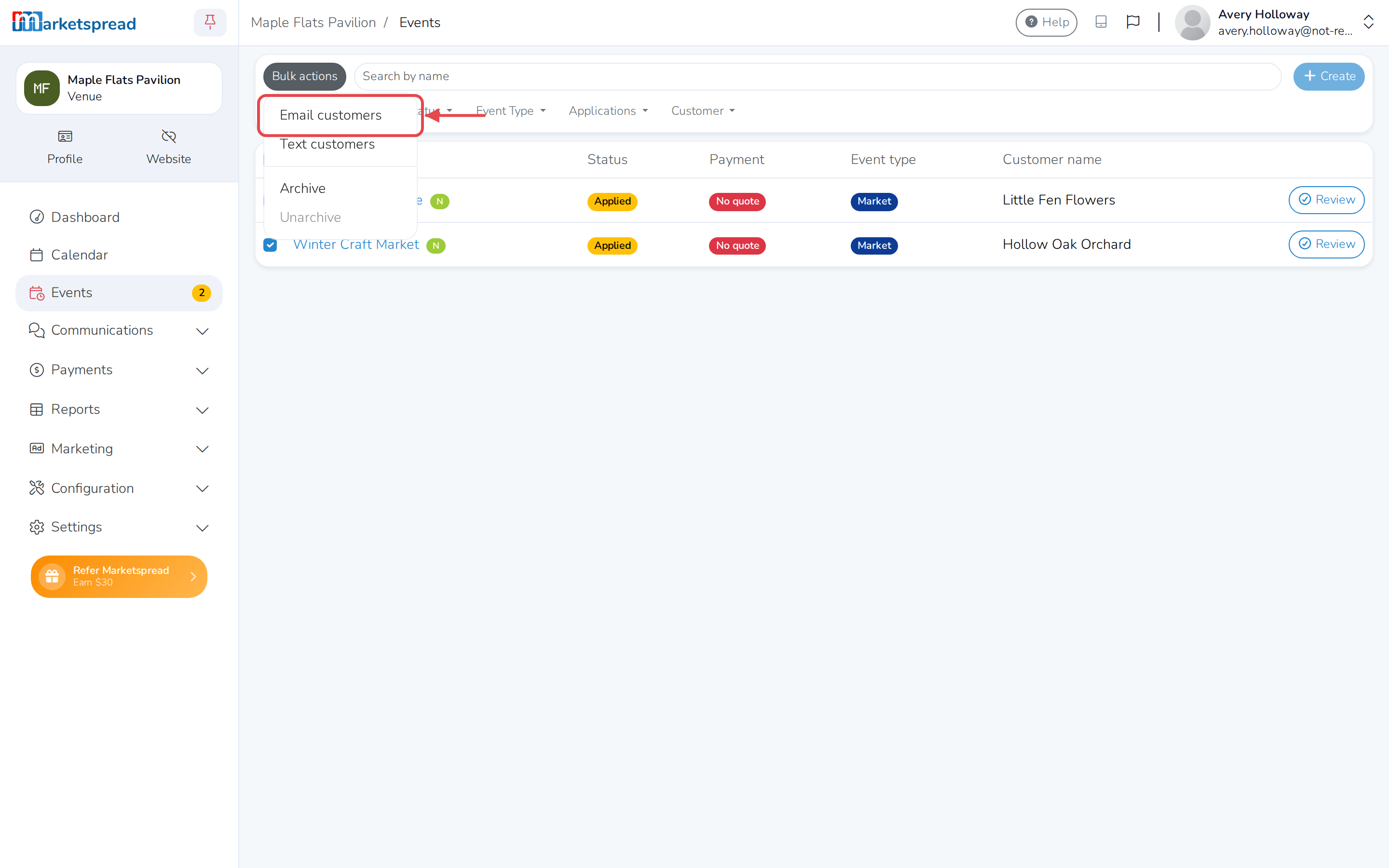
Messenger opens in a new tab with those customers already added to your message.
Email customers only works if every customer you checked has an email address on file. Text customers only works if every customer you checked has a cell phone number on file.
Open Messenger to message anyone
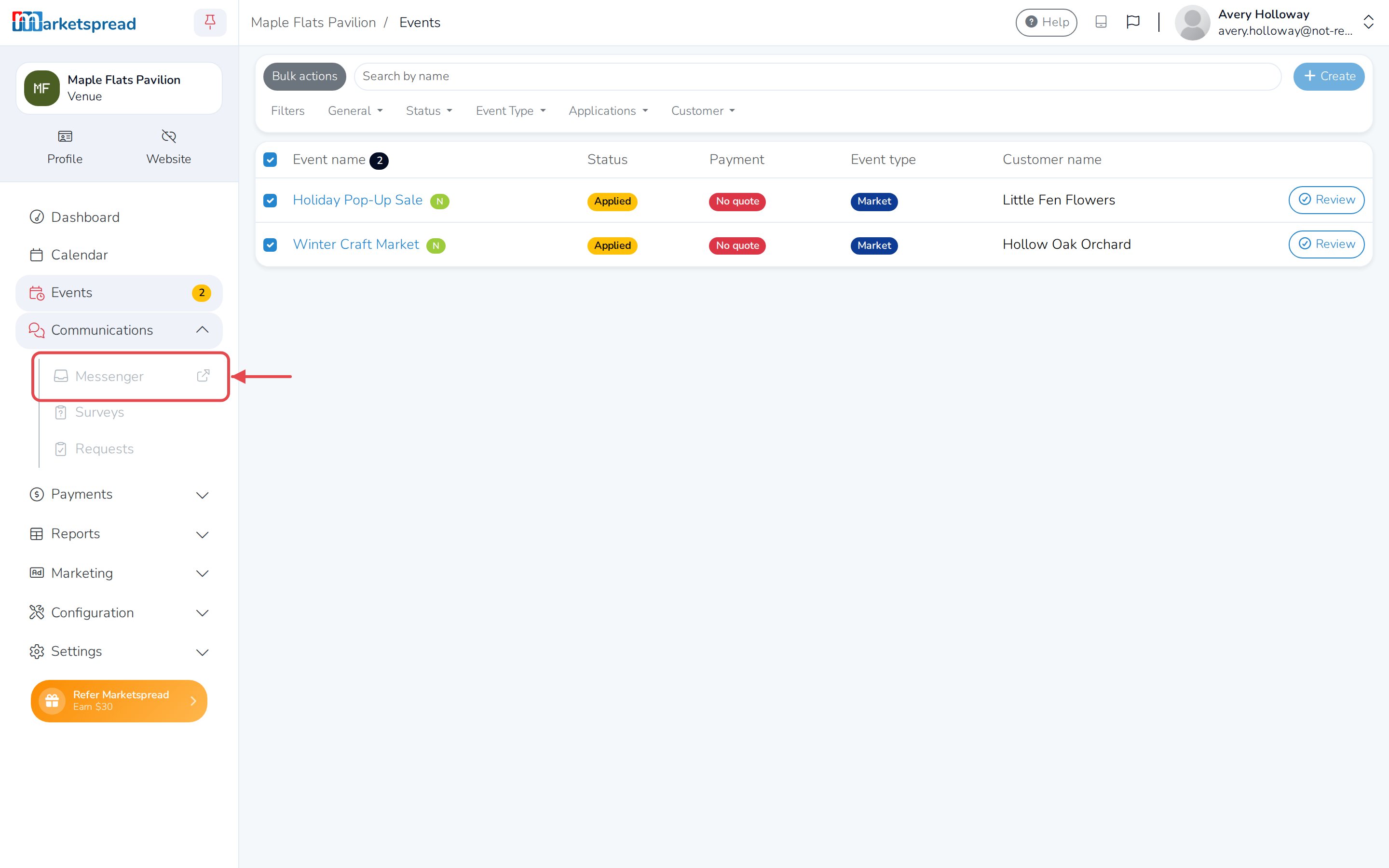
- Click Communications in the left-hand menu to expand it.
- Click Messenger. Messenger opens in a new tab.
Every customer who applies to book your venue is already there as a contact, tagged with your venue's name, so you can find and message them without adding anyone by hand.