


Ask the people who've booked your venue to fill something out — feedback, extra event details, anything you need from them. Build a form once, then send it to a single booking or every customer at once, and read what comes back without leaving Marketspread.
Create a form to send
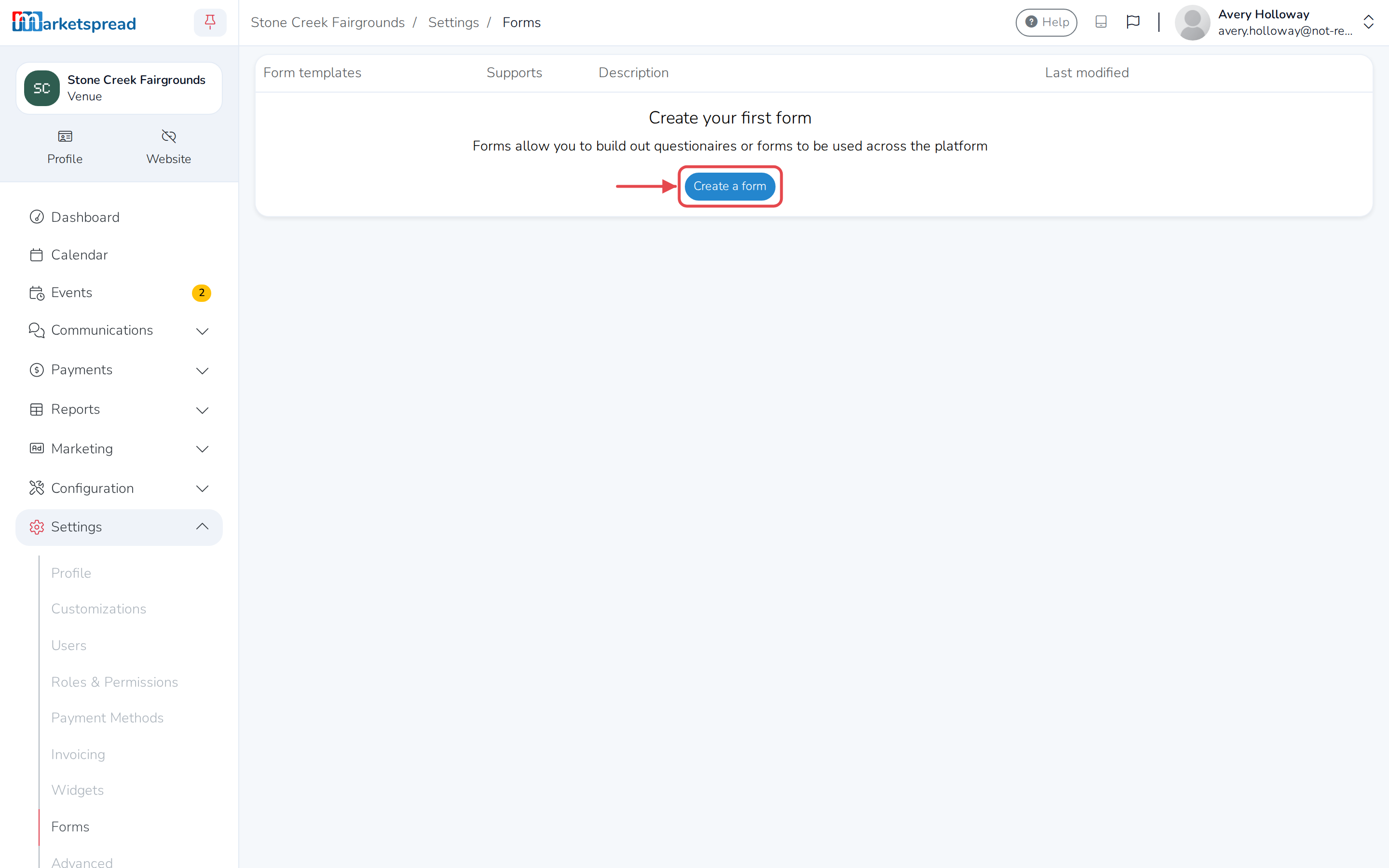
- Click Settings in the left-hand menu.
- Click Forms.
- Click Create a form.
- Add your questions in the form builder.
- Click the Form settings icon.
- Under Form is usable in these areas of the platform, open the dropdown and add Request.
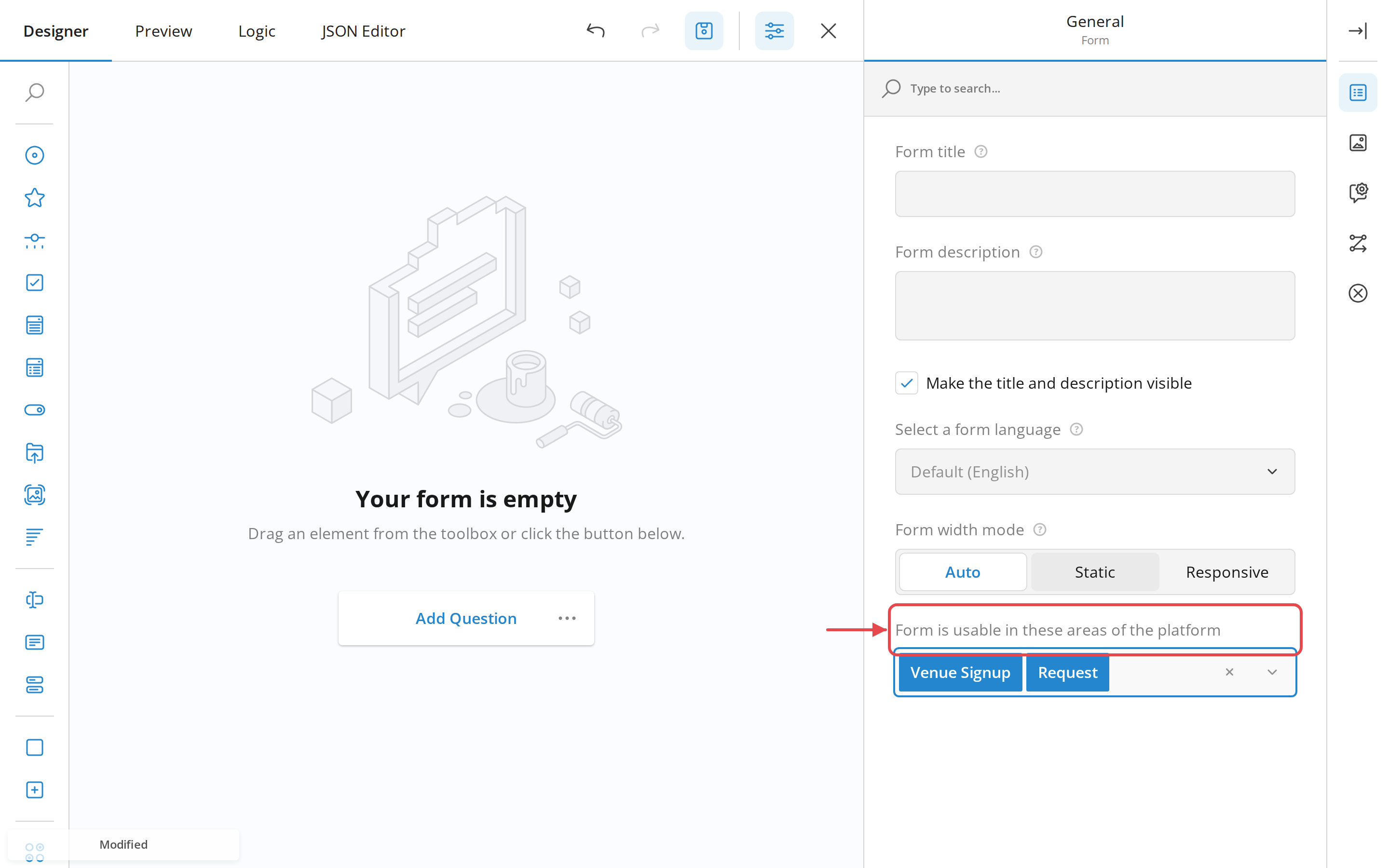
- Click Save Form.
- Click the Exit icon to leave the editor.
Publish the form
A form has to be published before you can send it.
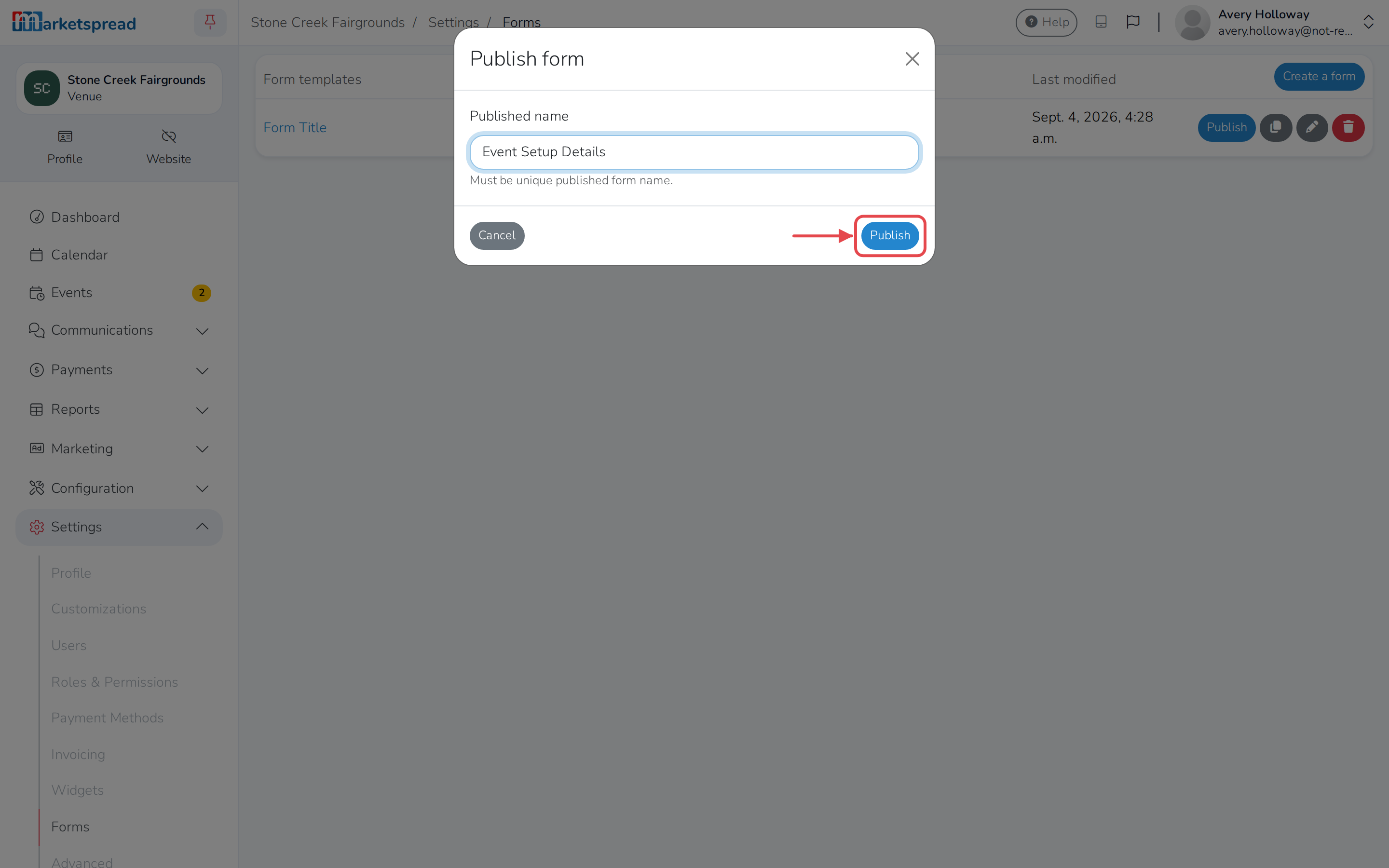
- On the Forms page, find it under Form templates.
- Click Publish.
- Fill in a Published name.
- Click Publish.
Send a request to your customers
- Click Communications in the left-hand menu.
- Click Requests.
- Click Send Request.
- Choose the form to send.
- Click Next.
- Turn on Select all to send it to every booking, or check the ones you want.
- Click Next.
- Add a Due date if you want one.
- Click Send to [number] Bookings.
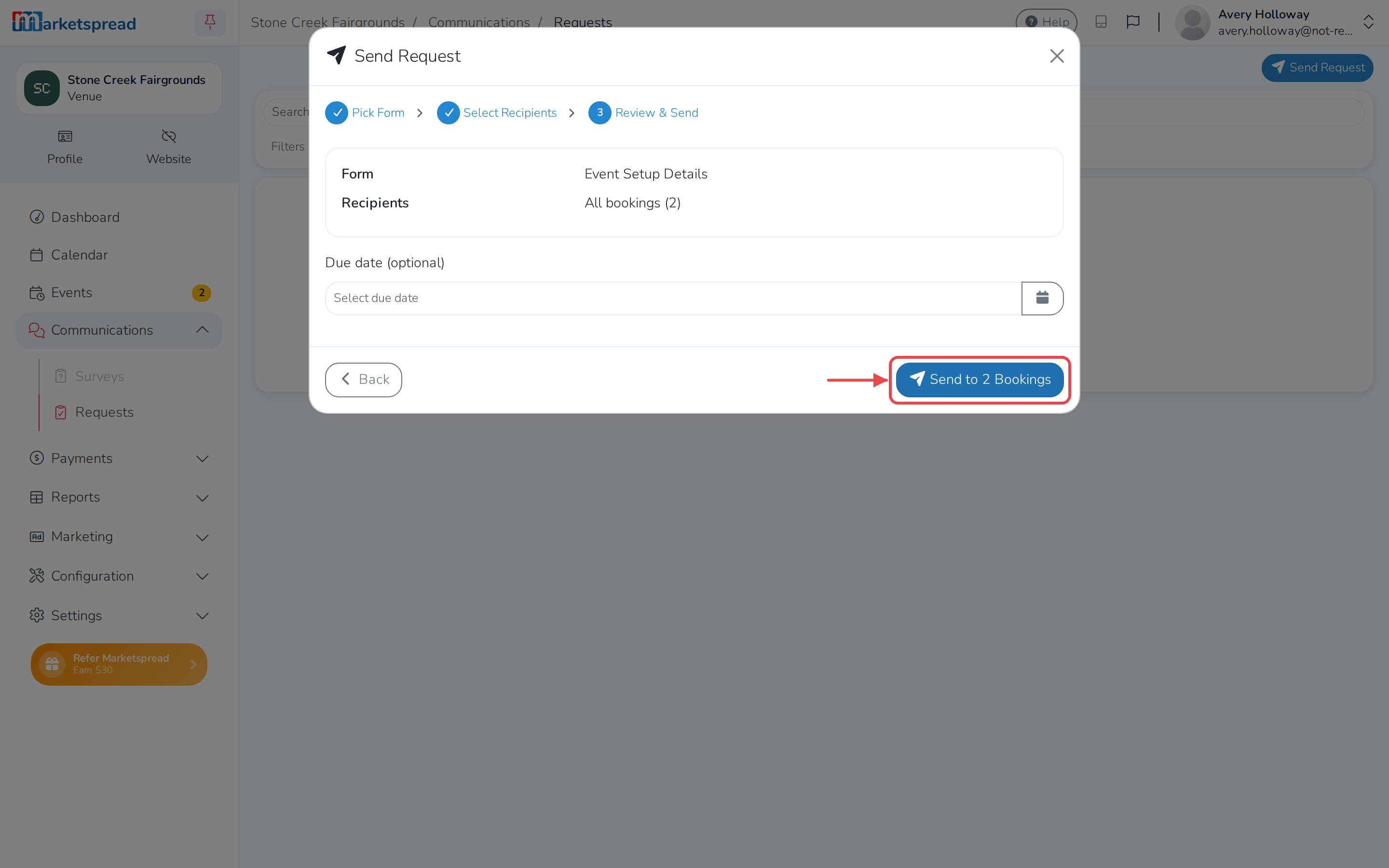
Marketspread emails everyone it was sent to, with a link to fill it in — even someone without a Marketspread account.
Read the answers
- Click Communications in the left-hand menu.
- Click Requests.
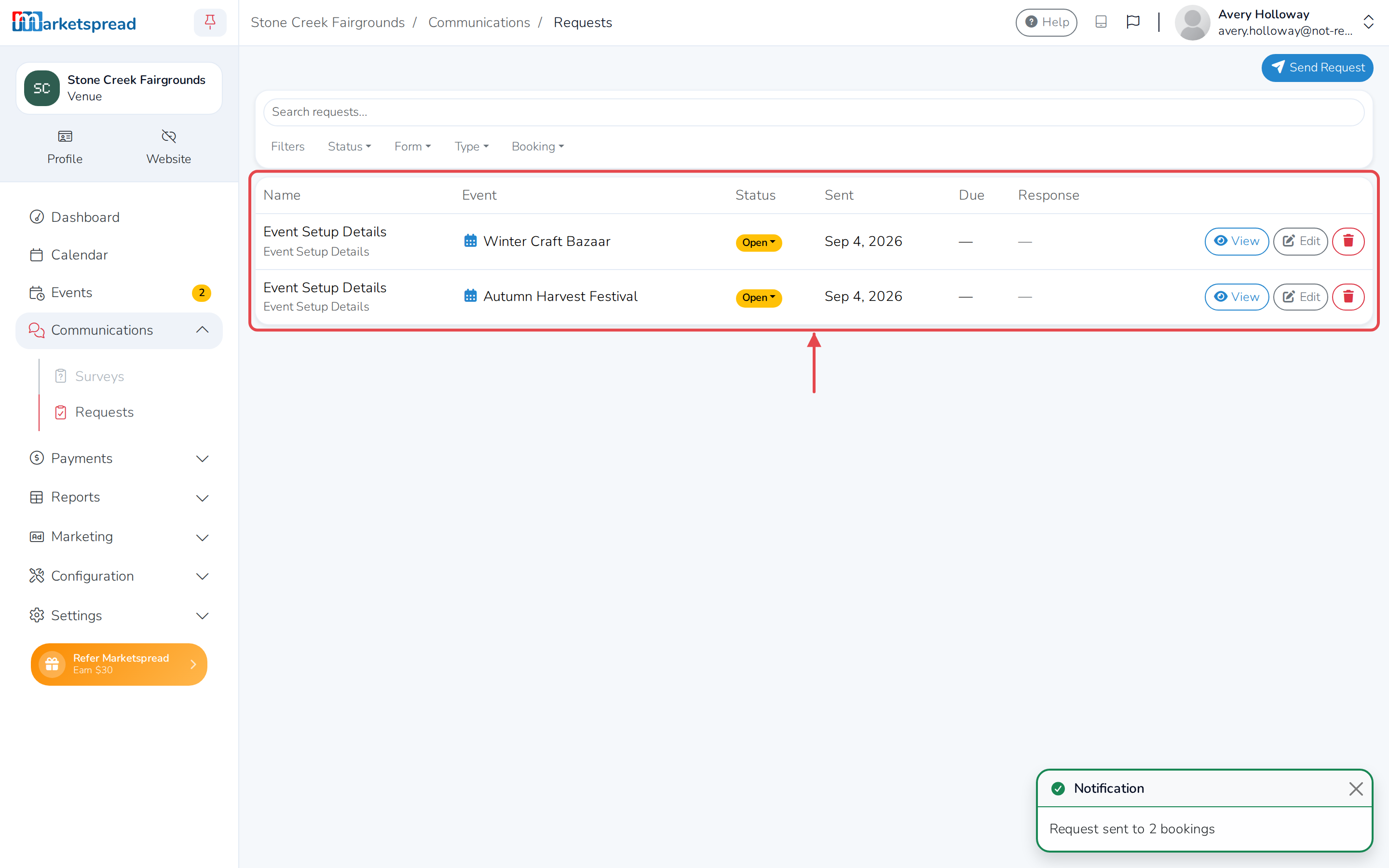
- Find the booking's request and click View.
Sending to several bookings at once creates one request per booking, all under
the same form name — use the Event column to find the one you want. Each
shows as Open, In Progress, Completed or Closed, along with
its Due date if it has one.
Good to know
You can fill in a response yourself, on a customer's behalf, by clicking Edit instead of View. Deleting a request removes it, and its answers, from every booking it went to — this can't be undone.