


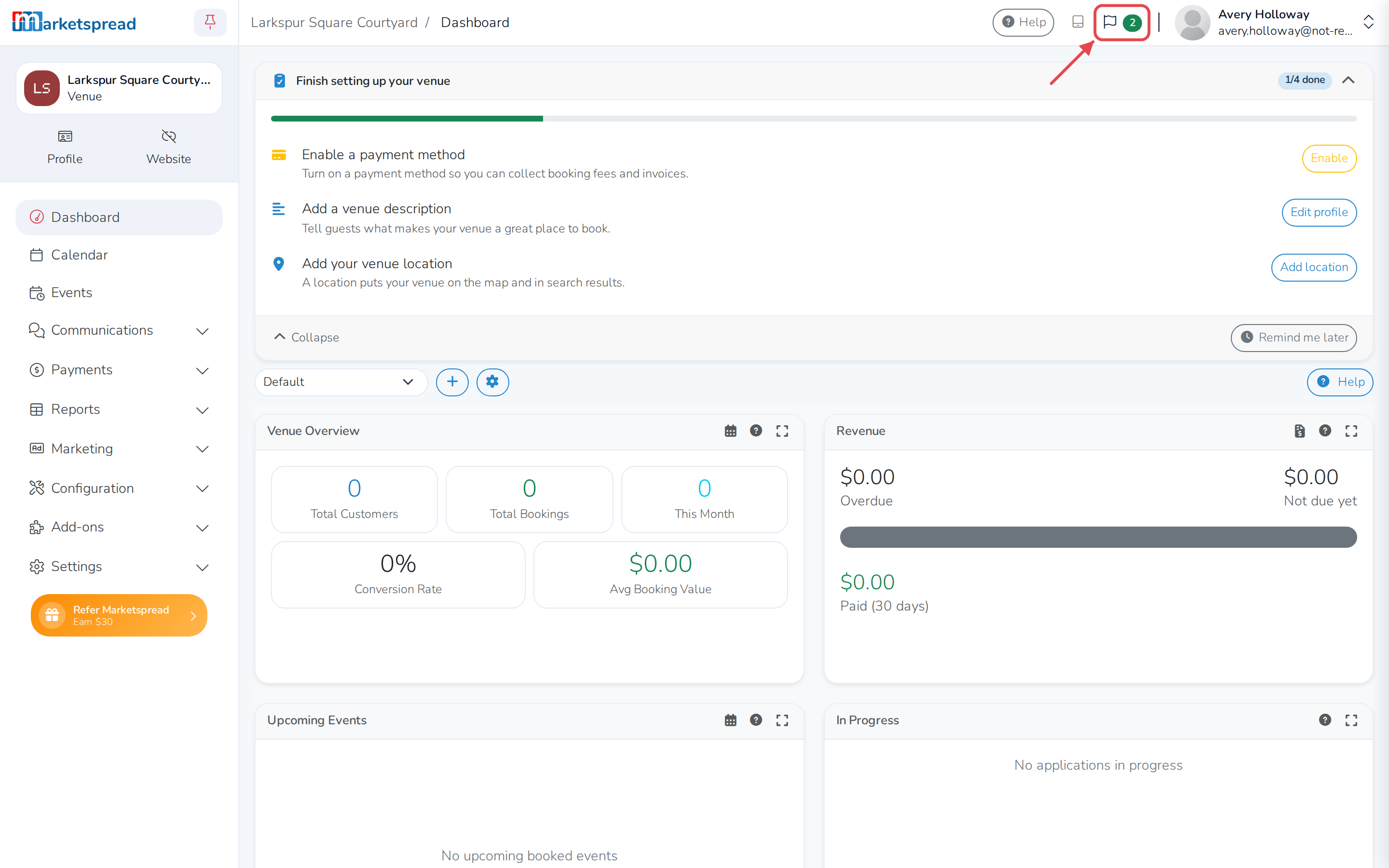
Marketspread tells you about activity on your bookings — a new request, a customer's comment, an accepted quote — in a notifications panel. Open it from the flag icon at the top of your dashboard, next to your account menu. From there you can jump straight to the booking a notification is about, mark it read or unread, and narrow the list down.
Open your notifications
-
Click the flag icon at the top of the page. A green badge on it shows how many notifications are unread.
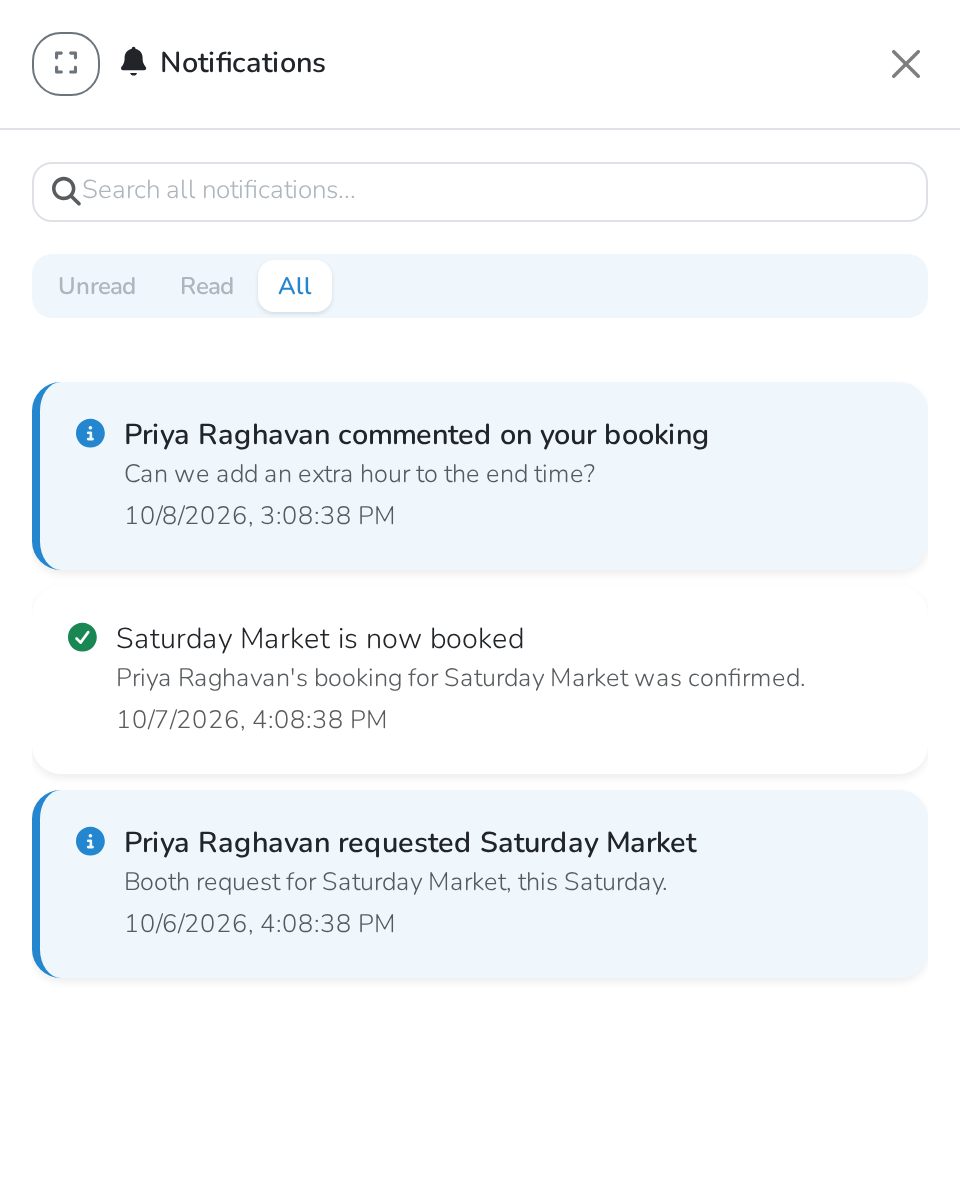
The panel opens with your notifications. Unread ones appear in bold.
Read a notification
- Click the arrow button next to a notification — for example Review booking or Click to reply — to open what it's about.
Mark a notification read or unread
- Find the notification.
- Click the checkmark icon to mark it read, or the undo icon to mark it unread.
Narrow the list
- Click Unread, Read or All to choose which notifications to show.
- Or type in the search box above it to find one by its title.
Good to know
This panel only shows what's happened — it doesn't control whether you get an email about it. To turn a venue's notification emails on or off, use the switch in your profile instead.