


If you manage more than one venue, you can copy an application you've already built for one of them into another, instead of building it again. Its fees, documents and questions come with it, ready to review before you turn it on.
Import an application
-
Open your venue dashboard.
-
Click Configuration, then click Applications.
-
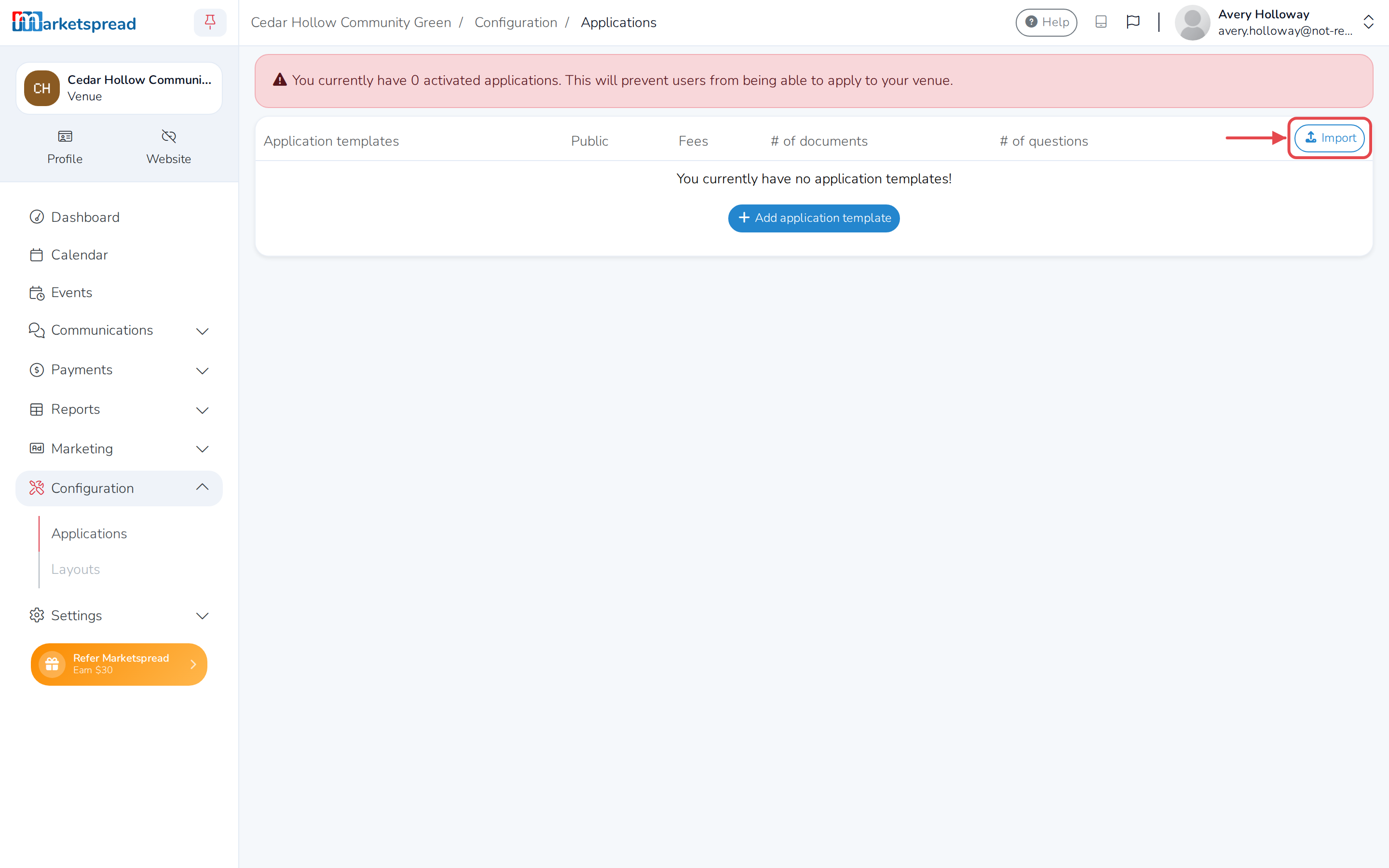
Click Import, above the Application templates list.
-
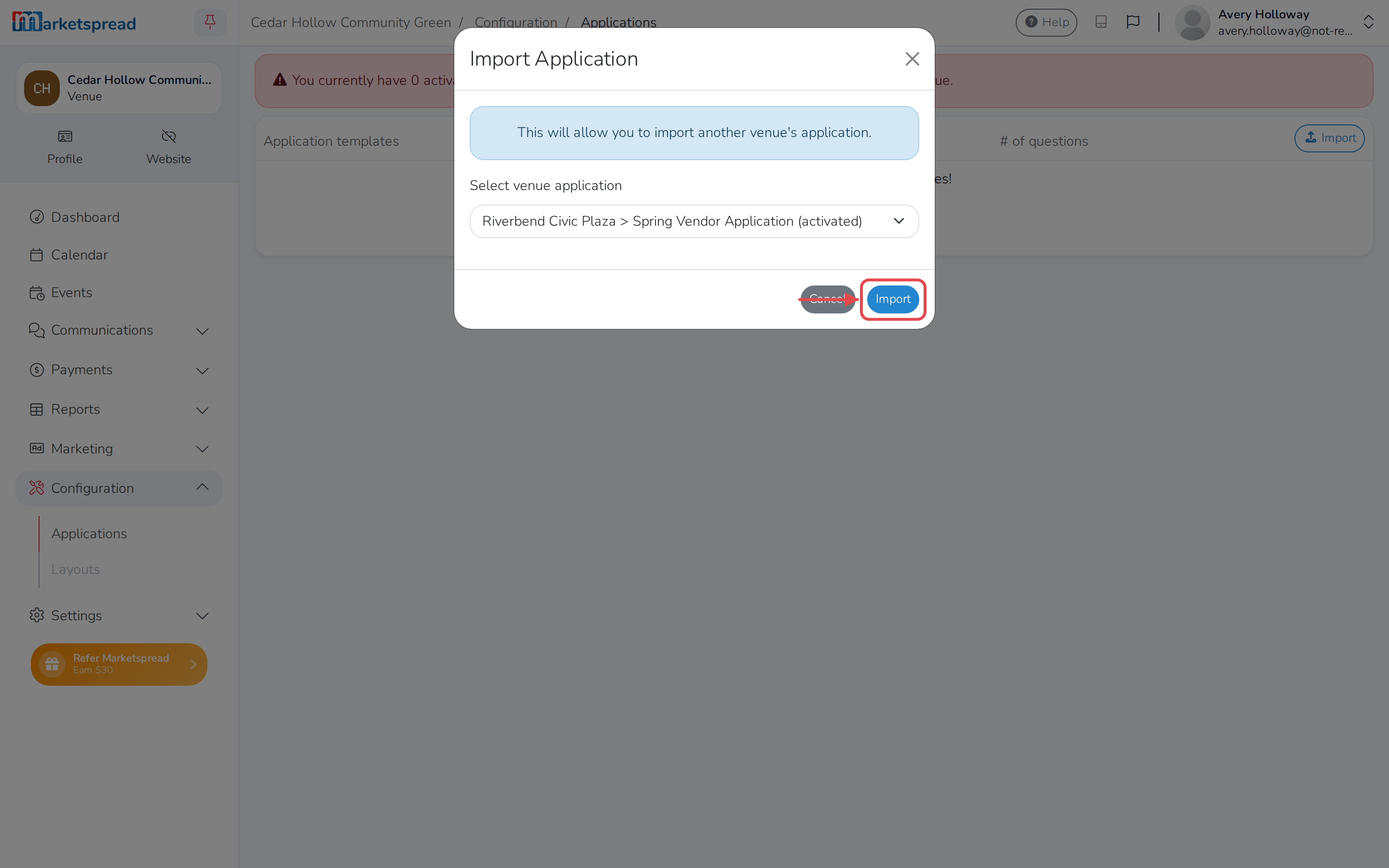
Under Select venue application, choose the one to import. Each is listed as its venue's name, then the application's name.
-
Click Import.
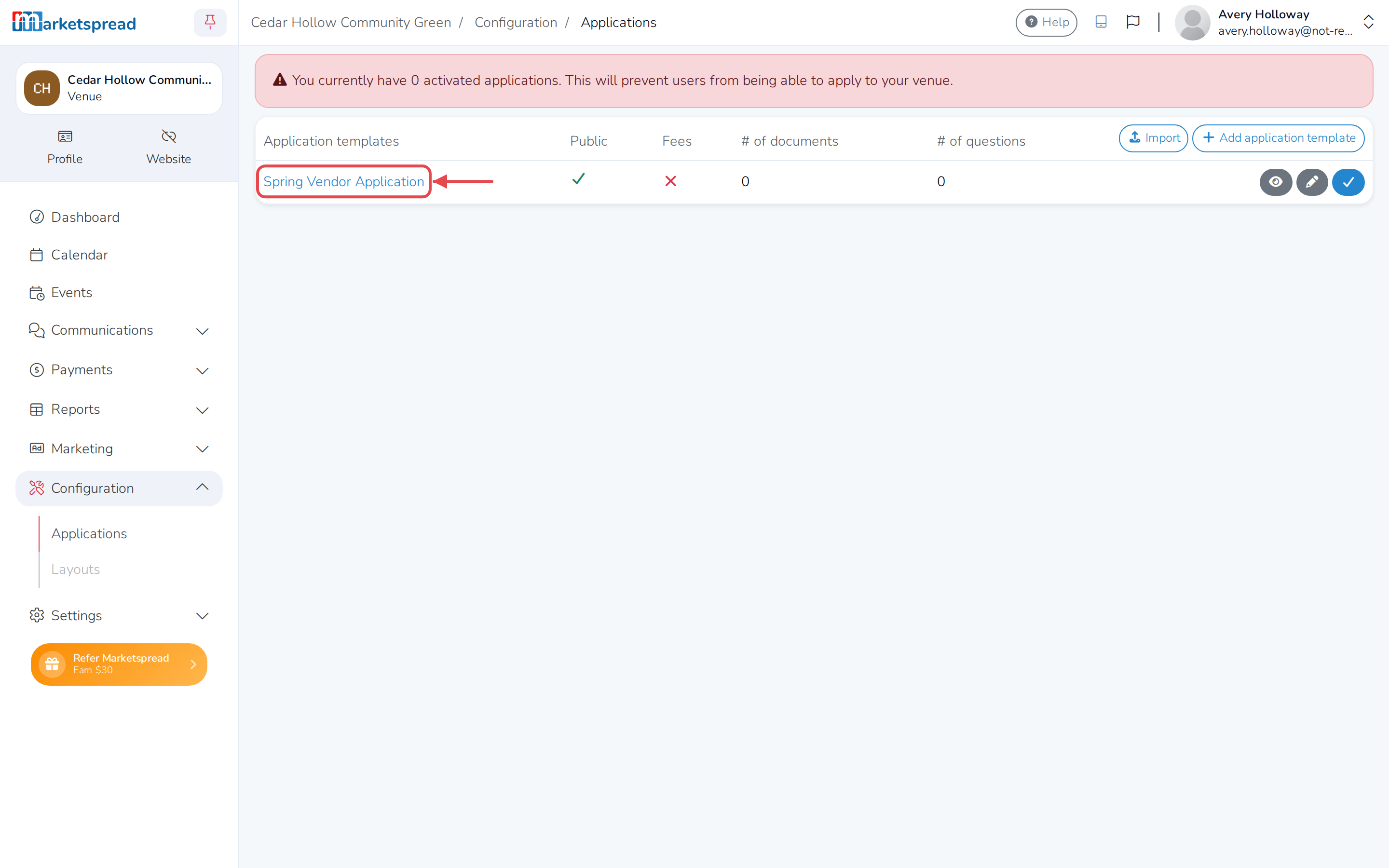
The application appears in your Application templates list, ready to edit — importing it doesn't turn it on.
Note
If you already have an application with that name at this venue, the imported one gets " (import)" added to its name so you can tell them apart.
Good to know
Import only appears when your account also manages another venue with at least one application on it. If you don't see it, you're not managing another venue with an application to bring over.
An application listed as "(activated)" is currently live at its own venue — importing it copies its setup, but the copy still needs to be activated on its own. See Activate, edit or retire a booking application.