


A quote tells a customer what their event will cost before you send a contract or ask for payment. Add one from the Quote/Invoice tab on their booking request, on your venue's Events page.
Add items to a quote
-
Open the booking request and click the Quote/Invoice tab.
-
If there's no quote yet, click Create Quote. If there's already one, click the pencil icon next to it.
-
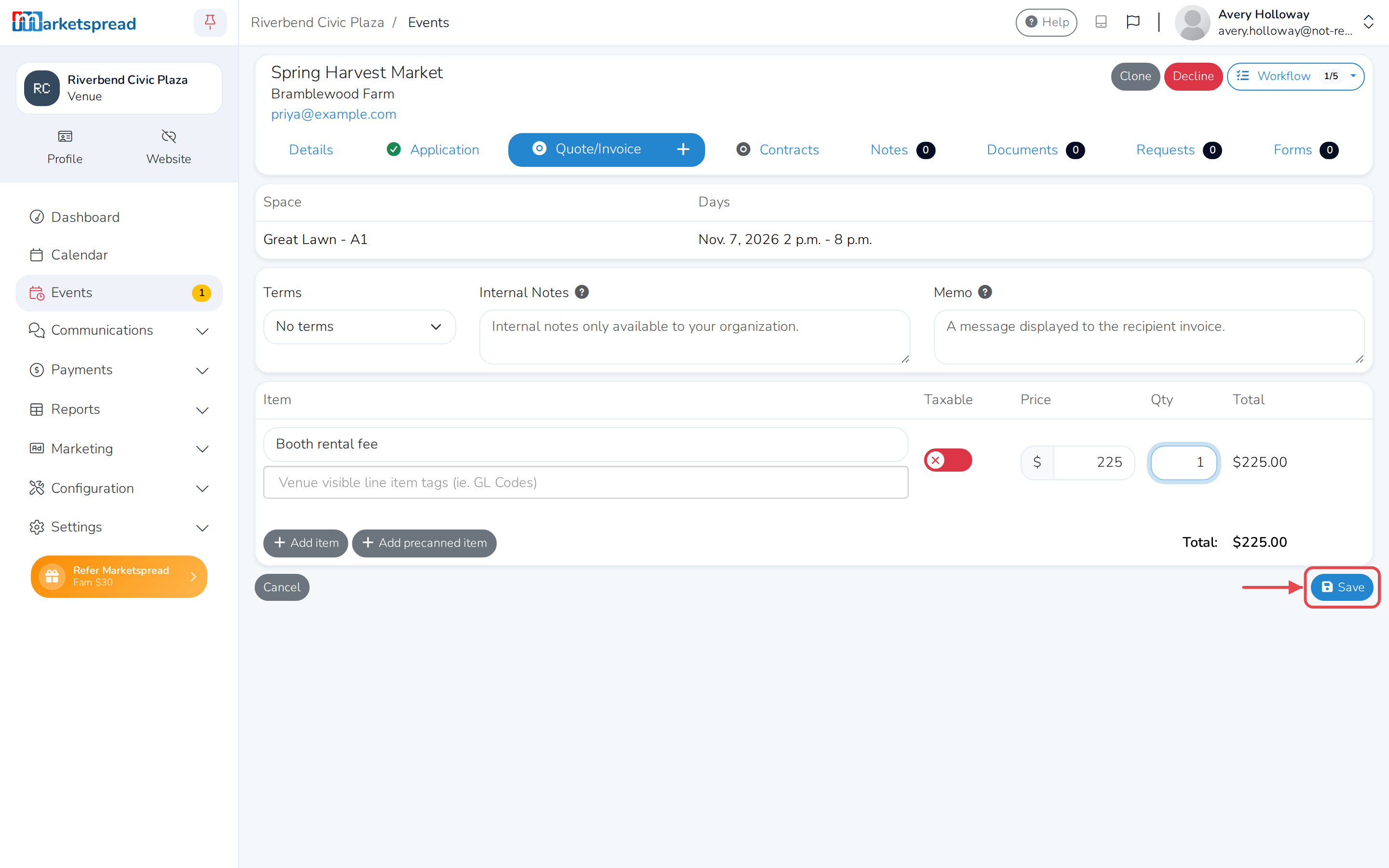
Click Add item for each thing you're charging for.
-
Fill in the item's Item name, Price and Qty.
-
Turn on Taxable if the item should include your organization's tax rate.
-
Click Save.
Send the quote
-
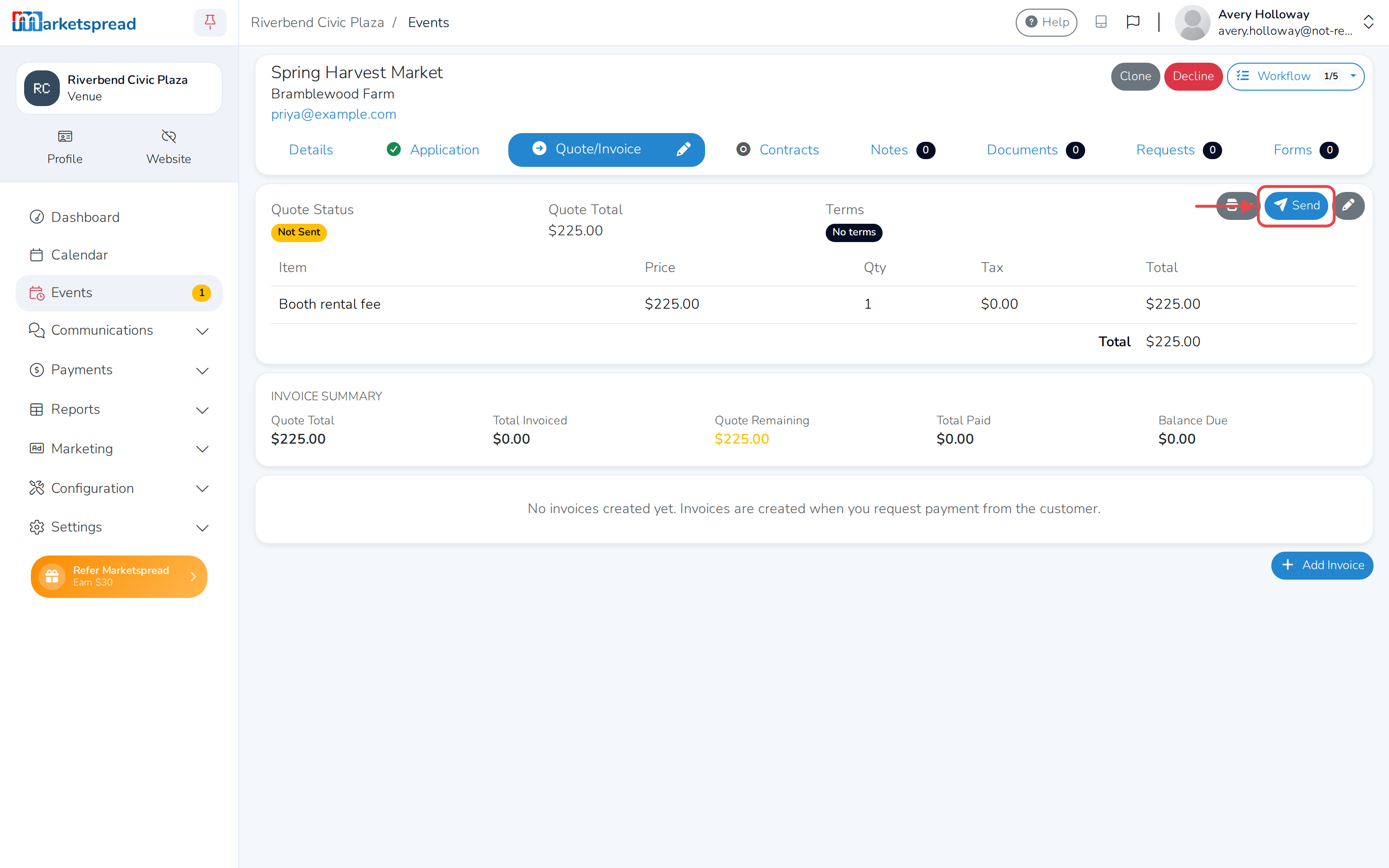
On the Quote/Invoice tab, click Send.
-
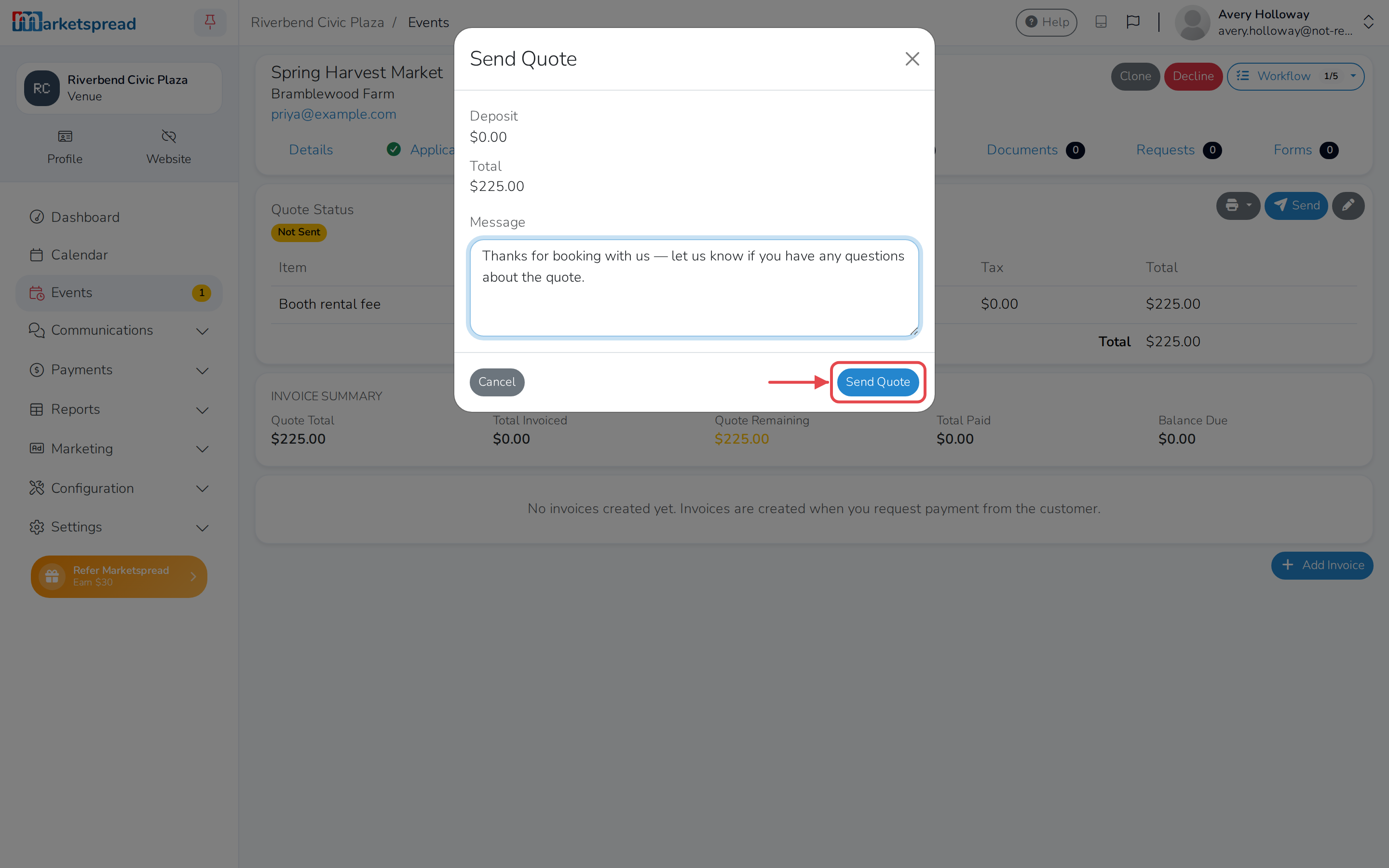
Add a message for the customer (optional).
-
Click Send Quote.
The customer gets an email telling them you sent a quote, with a link back to their booking. They see the same items and the Total you set, and can accept it from there.
Revise a quote
- On the Quote/Invoice tab, click the pencil icon next to the quote.
- Change the items, then click Save.
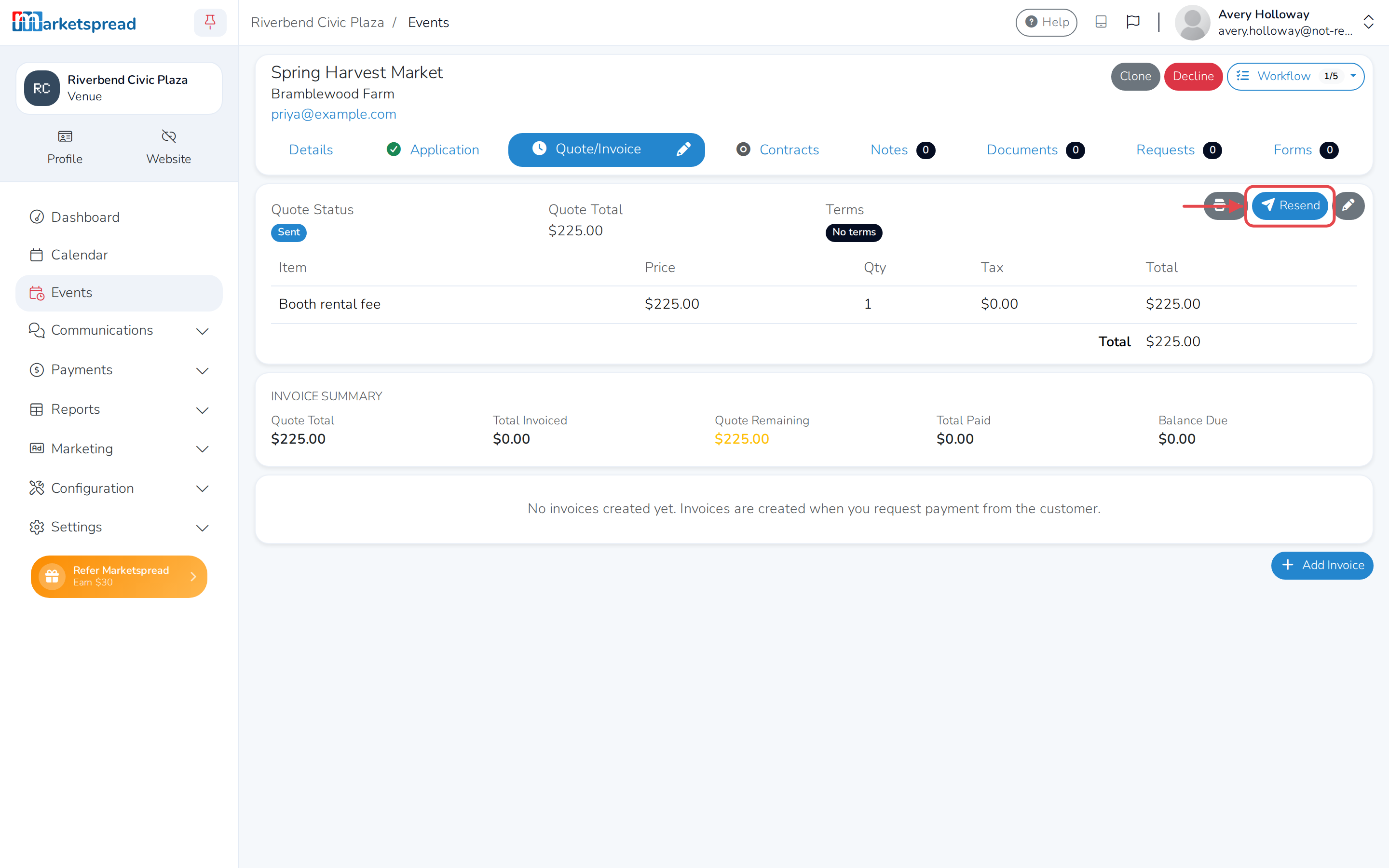
If you already sent the quote, saving a change lets the customer know right away. To send a fresh message with it, click Resend, then click Send Quote.
Good to know
A quote's Total is the full cost of the booking — there's no separate deposit at this stage. If you want to collect a deposit, you'll set that when you invoice the customer, after they accept the quote.