


When someone applies to hold an event at your venue, their request waits on your Events page until you act on it. From there you can read what they're asking for, send them a quote, or decline the request.
Find a booking request
-
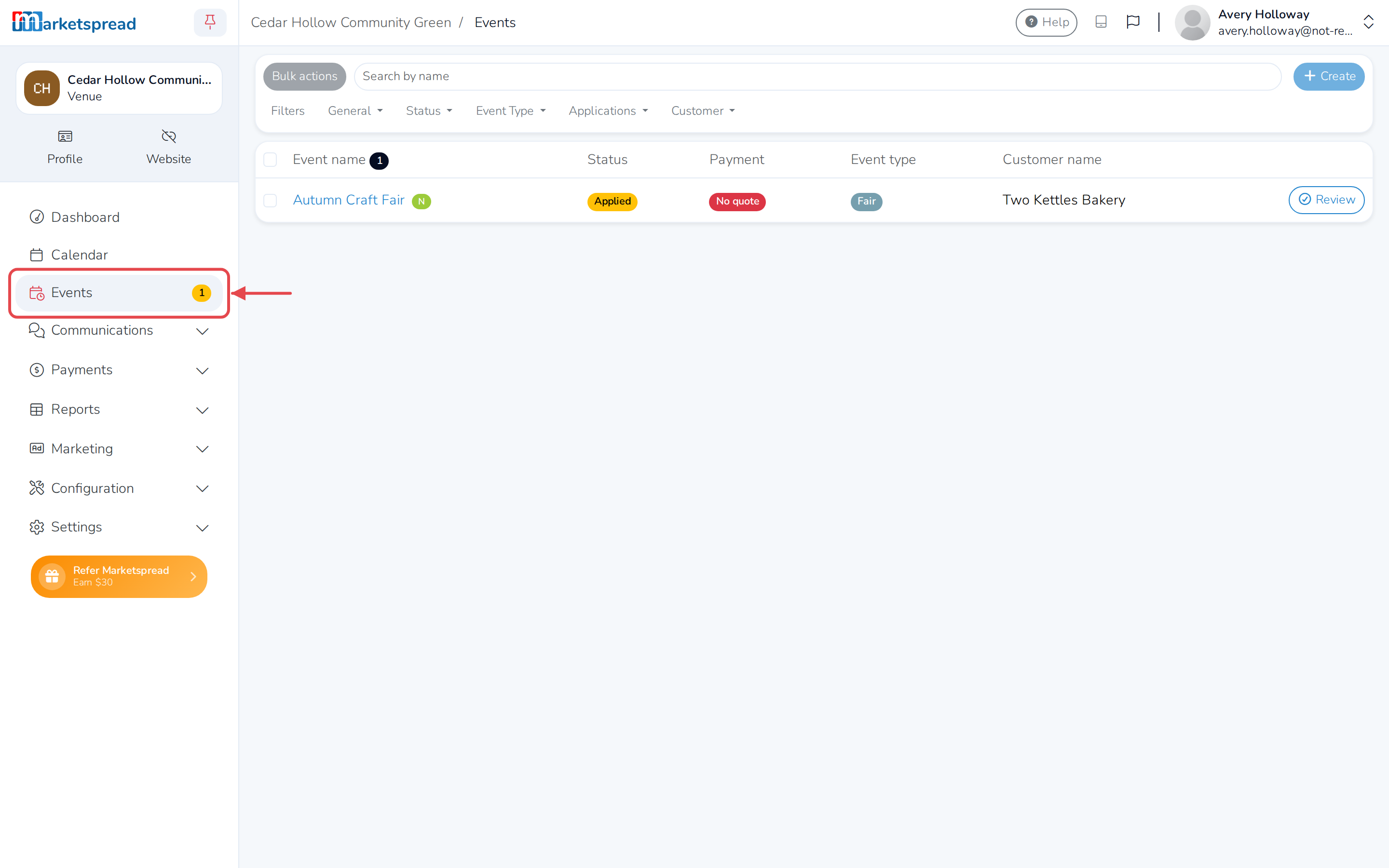
Click Events in the left-hand menu. A number next to it shows how many are waiting on you.
-
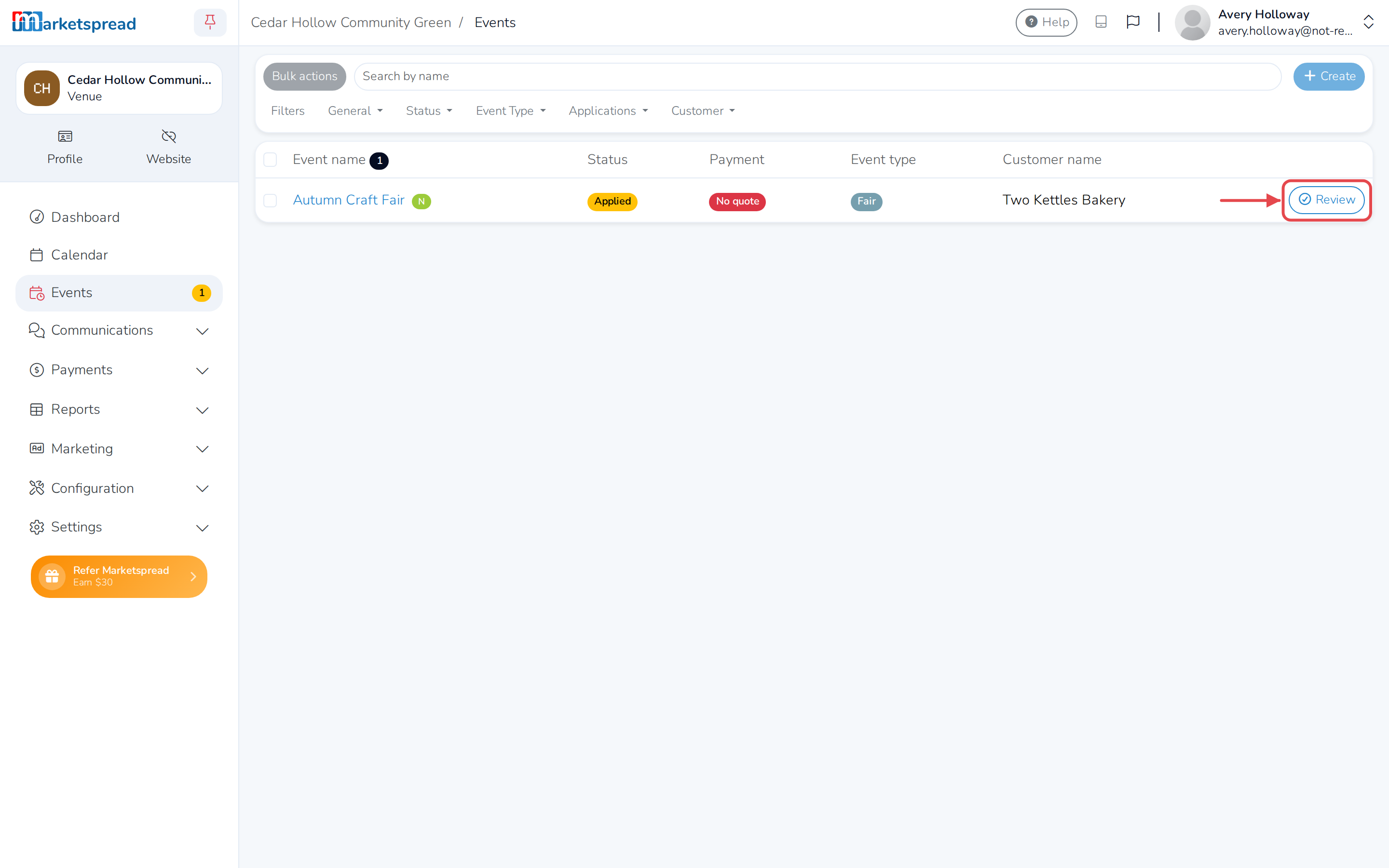
Requests that need your attention show a Review button.
-
Click Review, or click the event's name, to open it.
Read what was requested
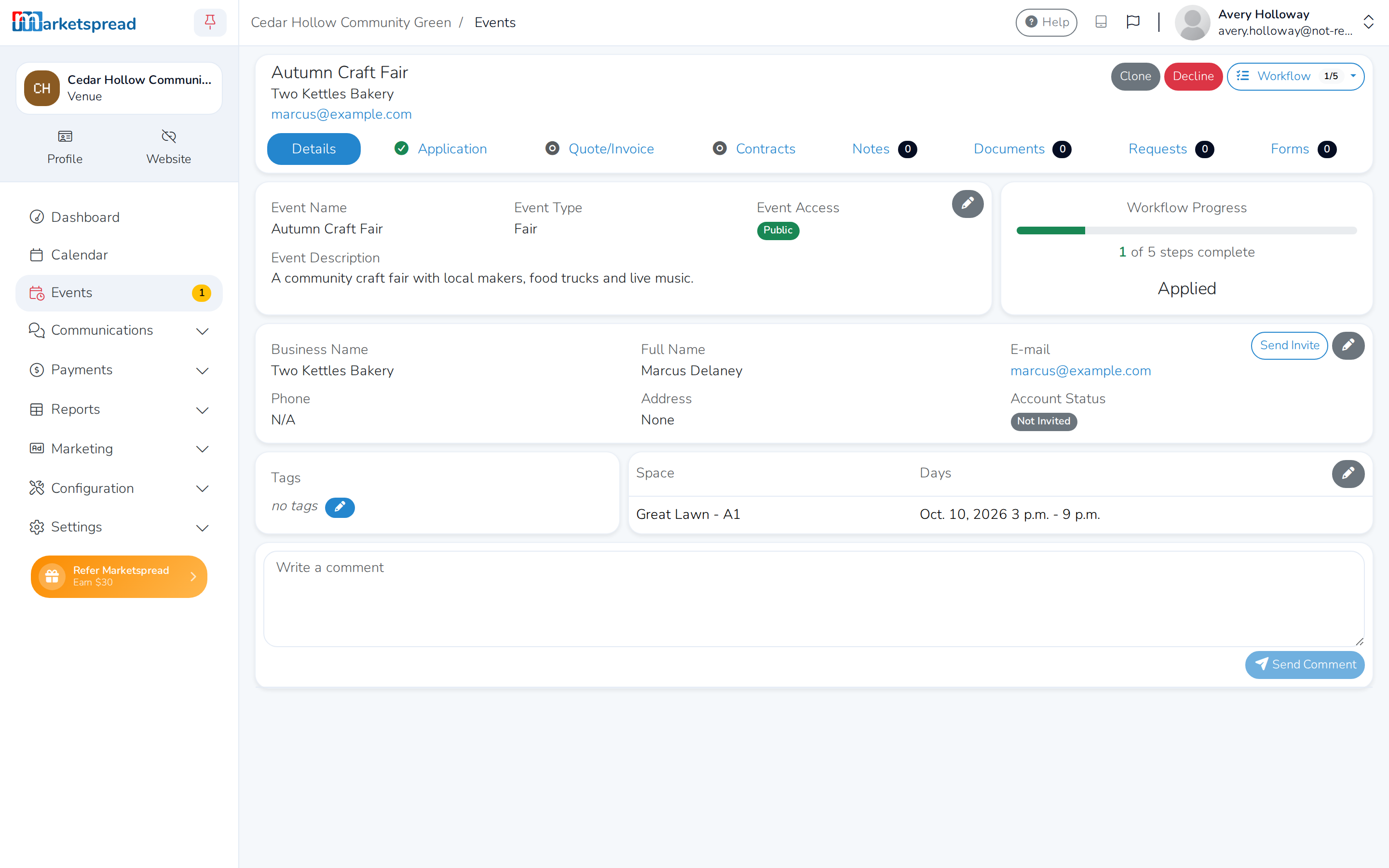
The Details tab shows:
- Event Name, Event Type, Event Access (public or private) and the Event Description
- The customer's name, business, email, phone and address
- A table of the Space and Days they've asked for, with the date and time of each
Send a quote to move it forward
Sending a quote tells the customer what the event will cost.
-
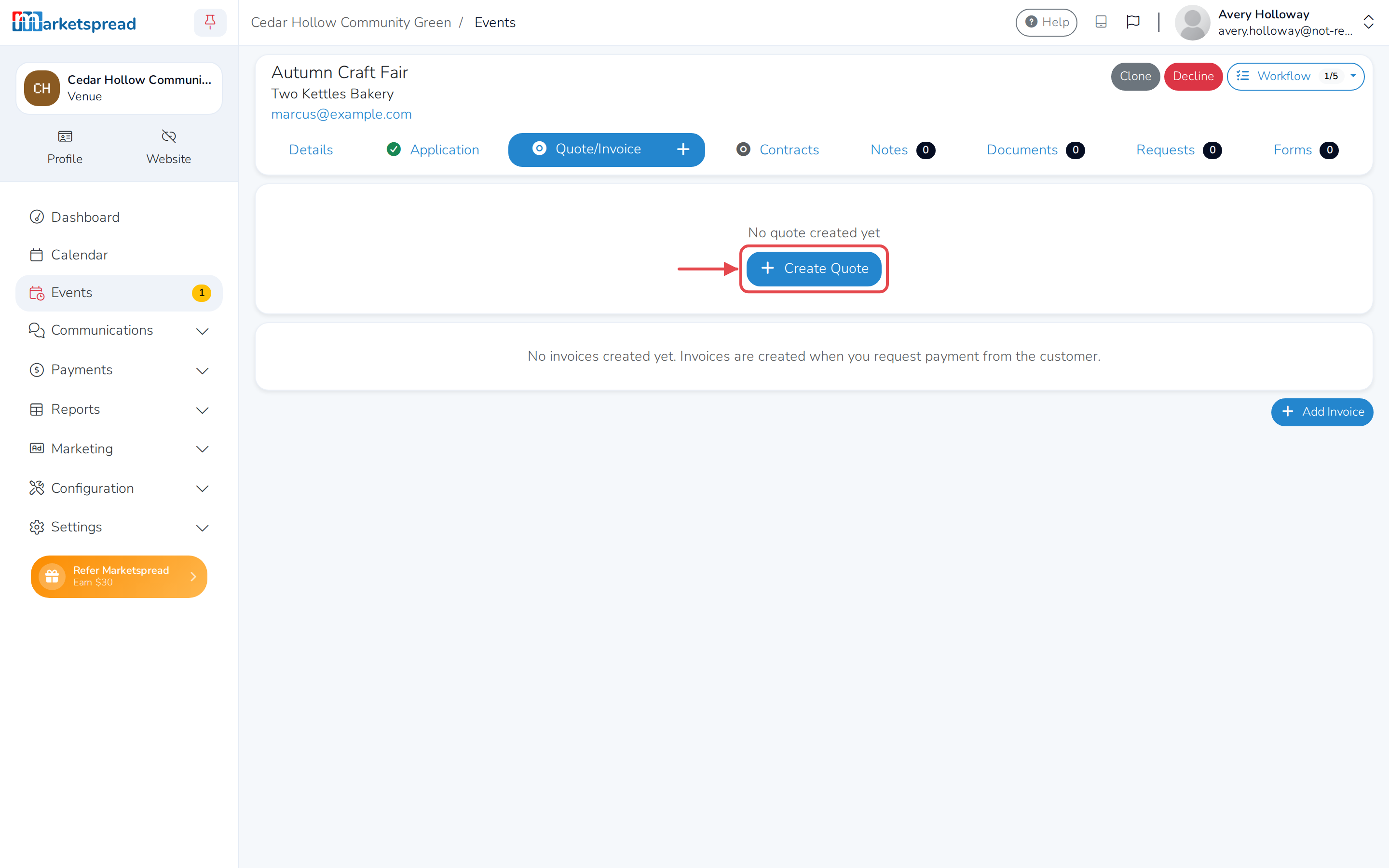
Click the Quote/Invoice tab.
-
If there's no quote yet, click Create Quote.
-
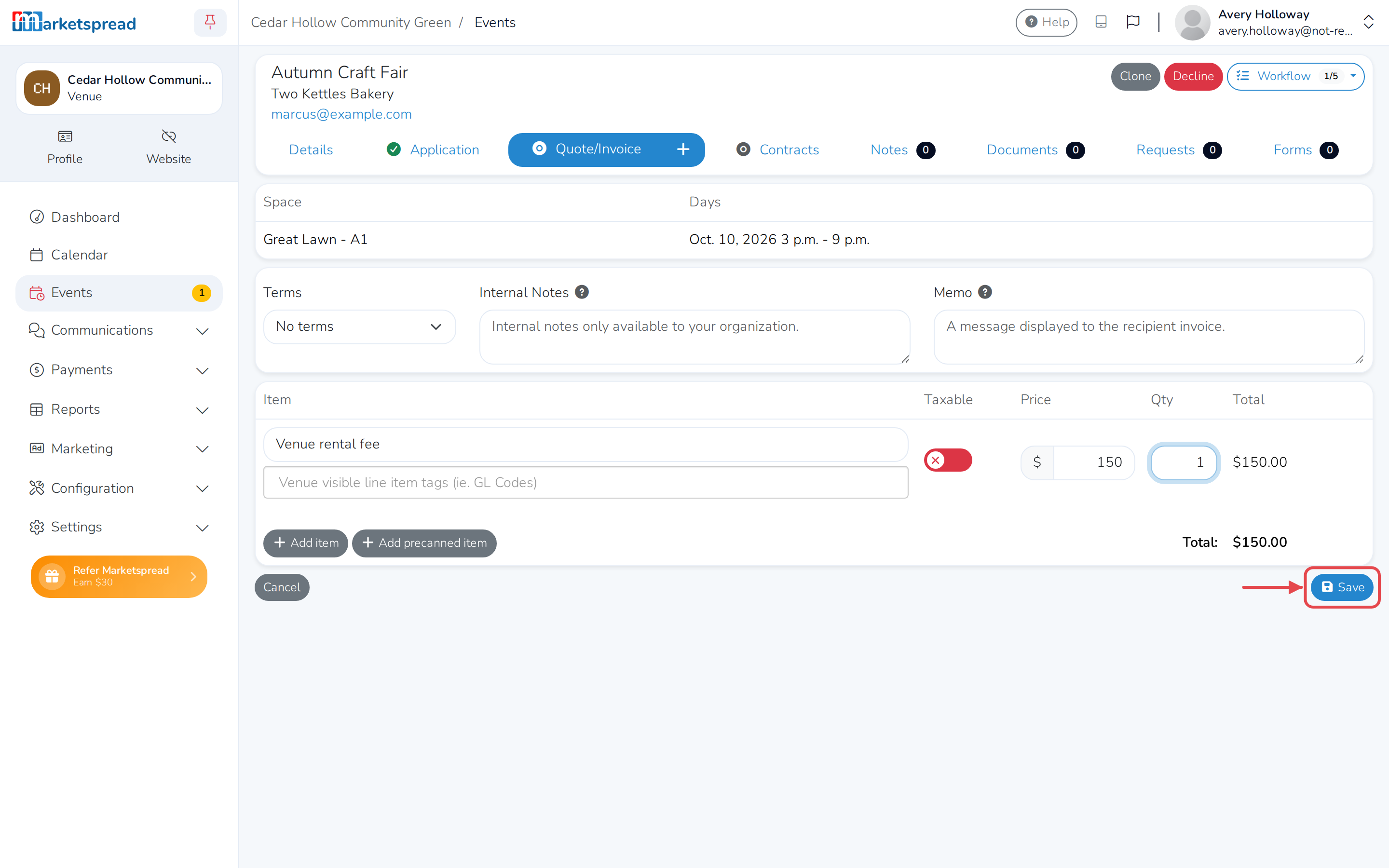
Click Add item for each thing you're charging for.
-
Fill in the item's Item name, Price and Qty.
-
Click Save.
-
Click Send.
-
Add an optional message.
-
Click Send Quote.
Decline a booking request
Declining lets the customer know you can't host their event. It can't be undone.
- Click Decline.
- Fill in Reason for declining.
- Click Decline.