


If a customer needs some or all of their money back, refund it from their invoice. You can send the money back, or add it to their account as credit instead.
Refund a payment
-
Click Payments in the left-hand menu, then click Invoices.
-
Click the invoice you want to refund.
-
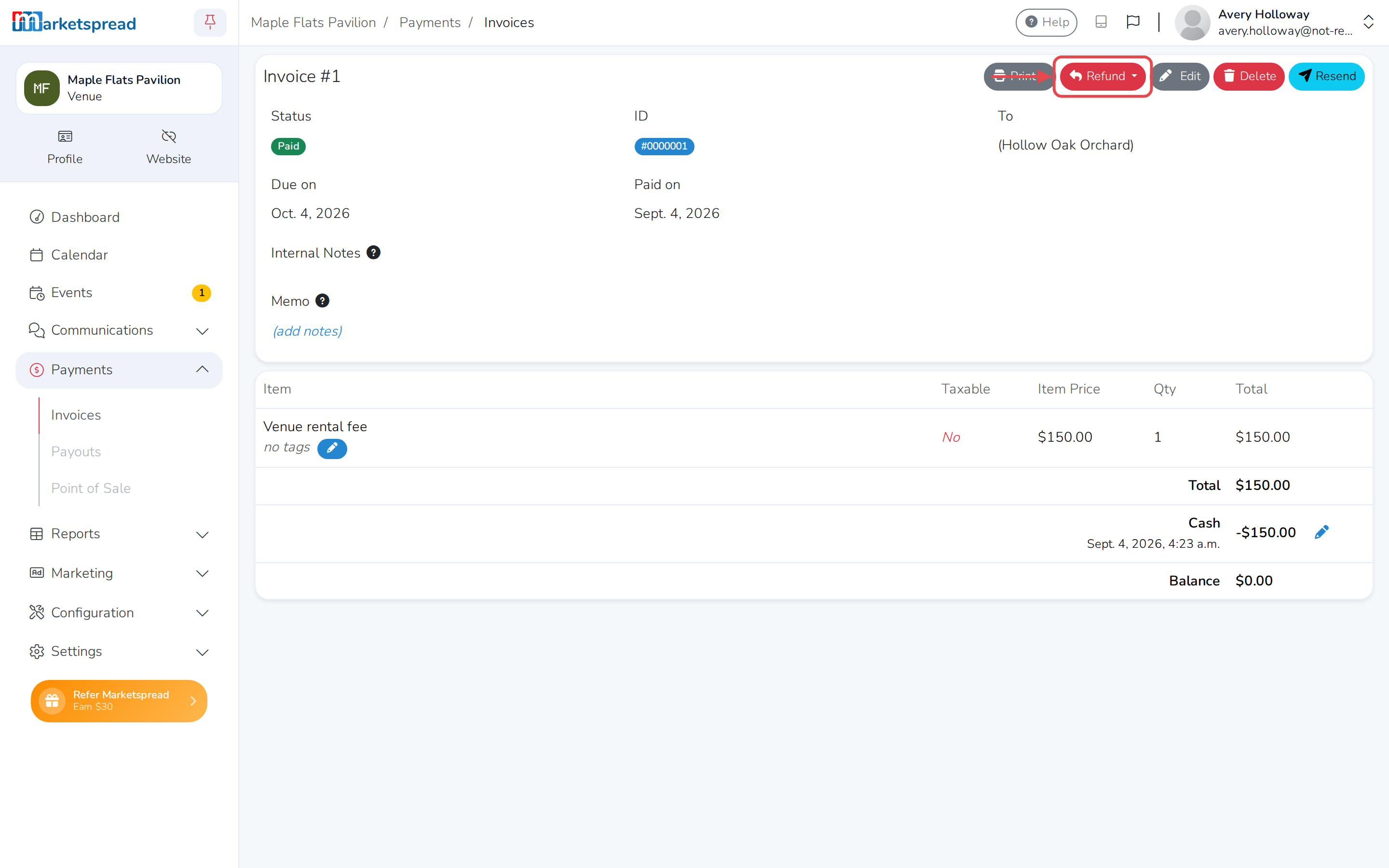
Click Refund.
-
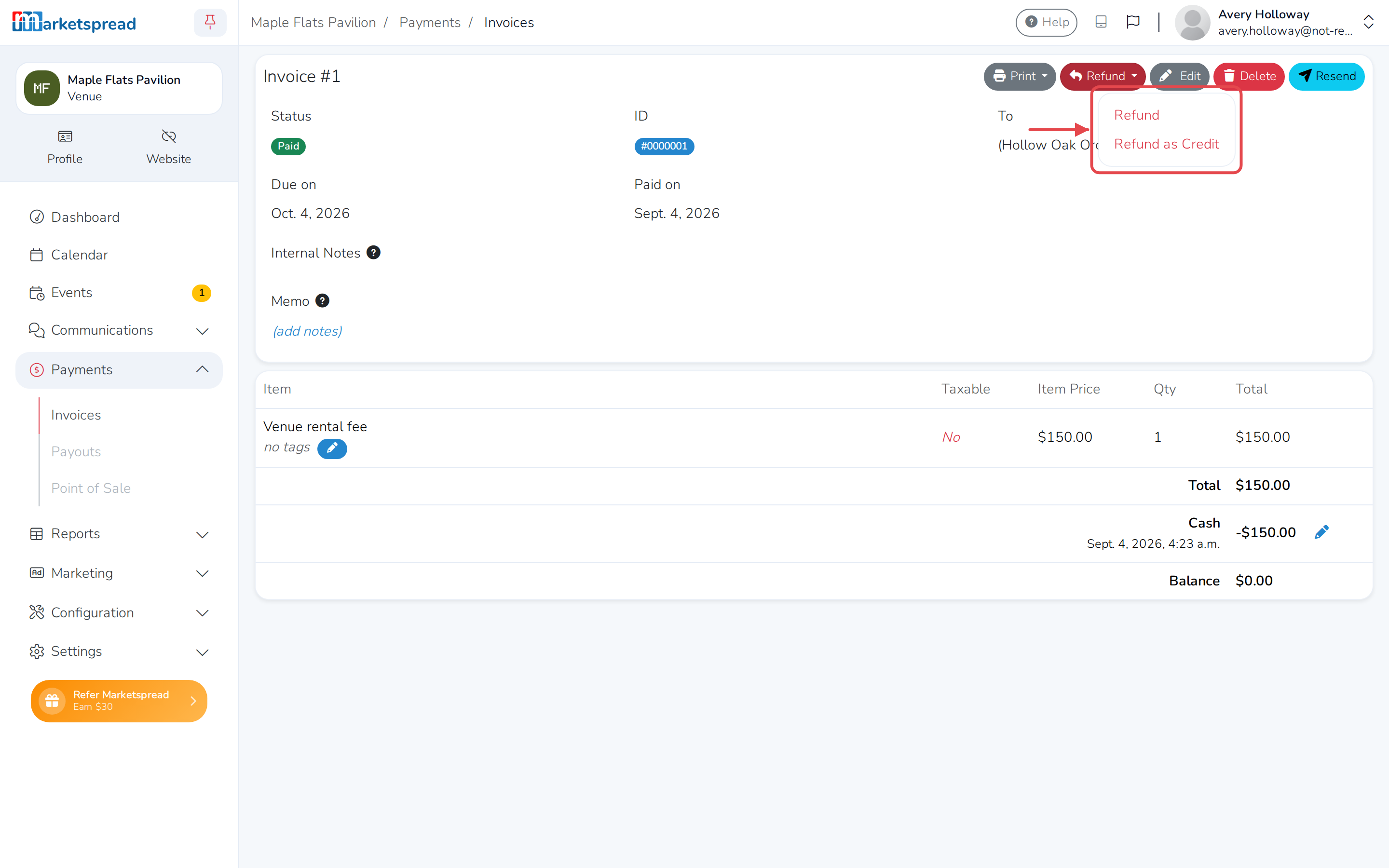
In the menu, click Refund to send the money back the way it was paid. Or click Refund as Credit to add it to the customer's account instead.
-
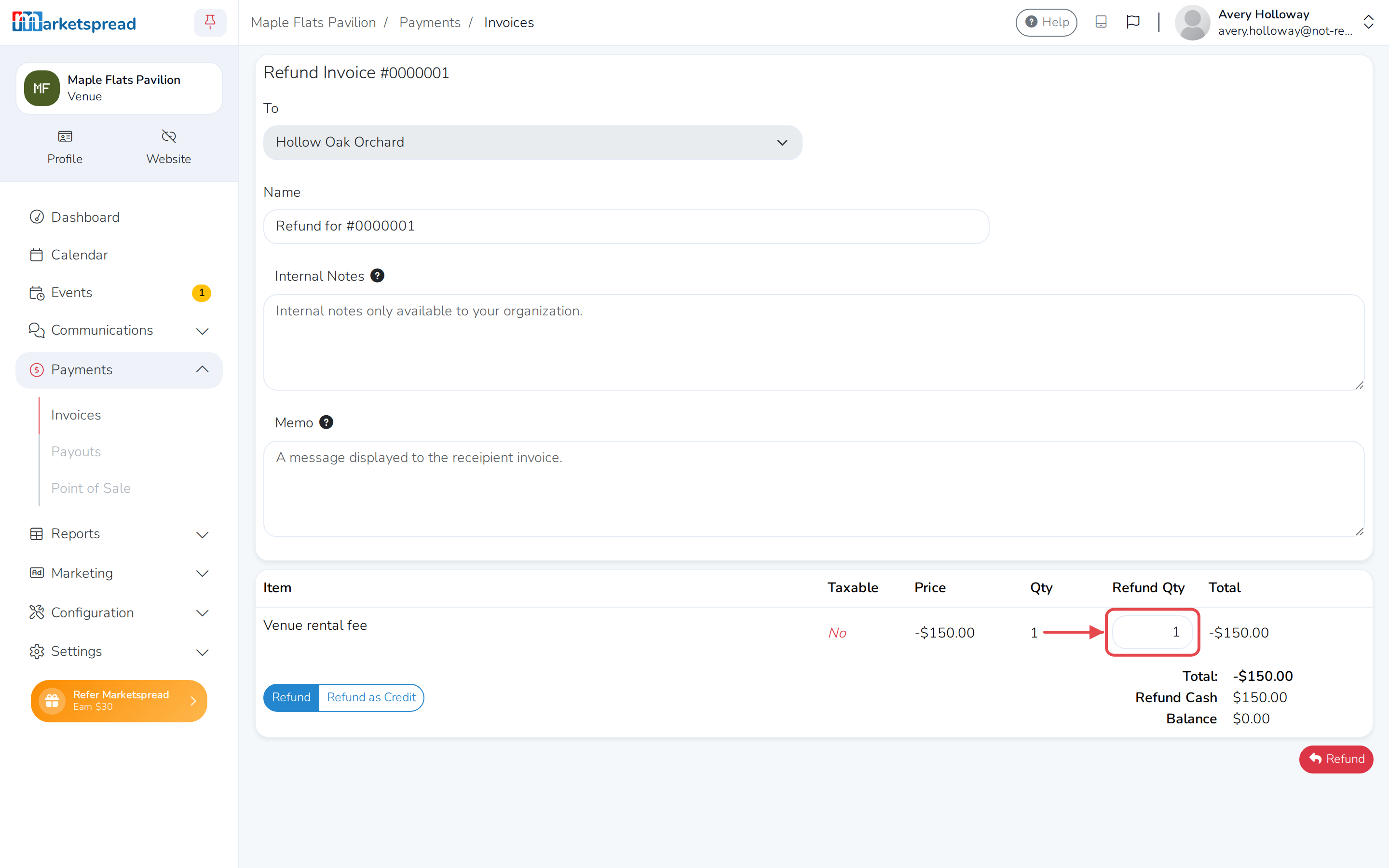
Under Refund Qty, change how many of each item to refund. It starts filled in with the full amount — lower it, or set it to 0, to leave an item out.
-
Click Refund.
Good to know
- You can only refund an invoice that's been paid in full.
- Refund as Credit doesn't return the money — it adds it to the customer's account balance, which they can put toward what they owe you next time.
- Once the refund goes through, the customer gets an email showing what was refunded.