


The Documents tab on a booking is where you ask a customer for paperwork — proof of insurance, a license, anything you need before they can hold their event. It's also where you see what they've uploaded. Open it from the booking's page, on your venue's Events list. From there you can request a document, review what's come in, set when a document expires, or remove one you don't need.
Find a booking's Documents tab
- Click Events in the left-hand menu.
- Click Review, or the booking's name, to open it.
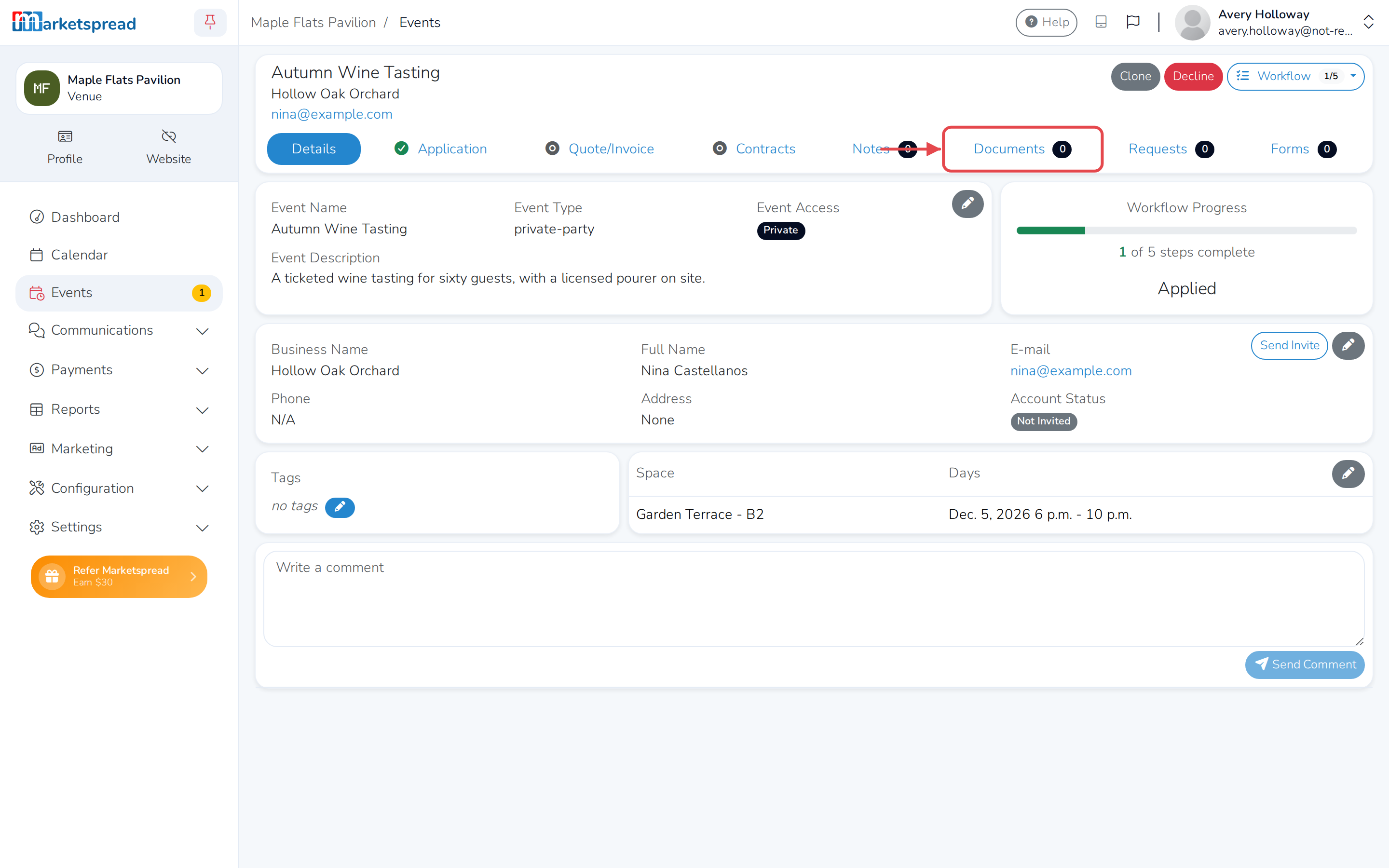
- Click the Documents tab.
Ask a customer for a document
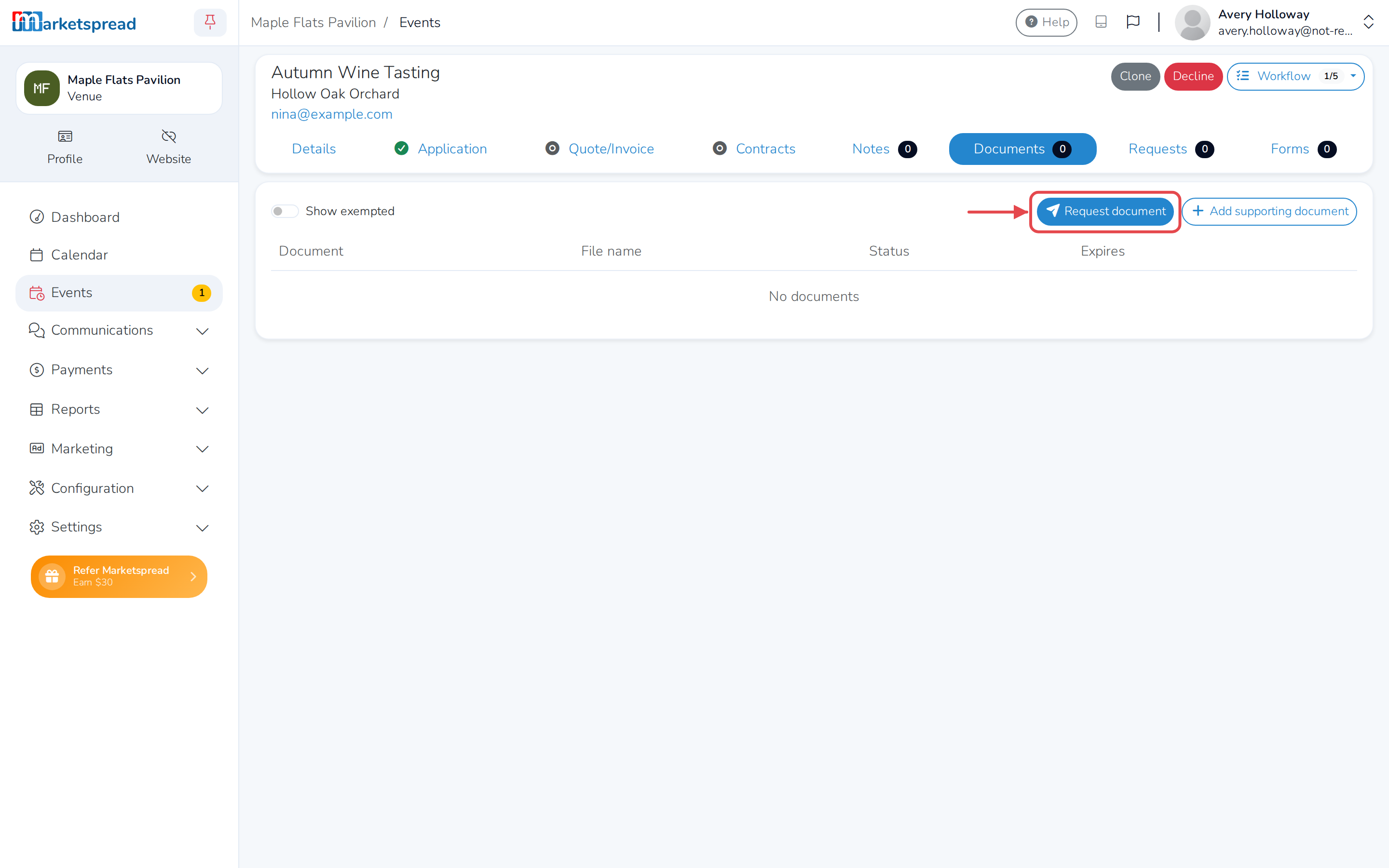
- Click Request document.
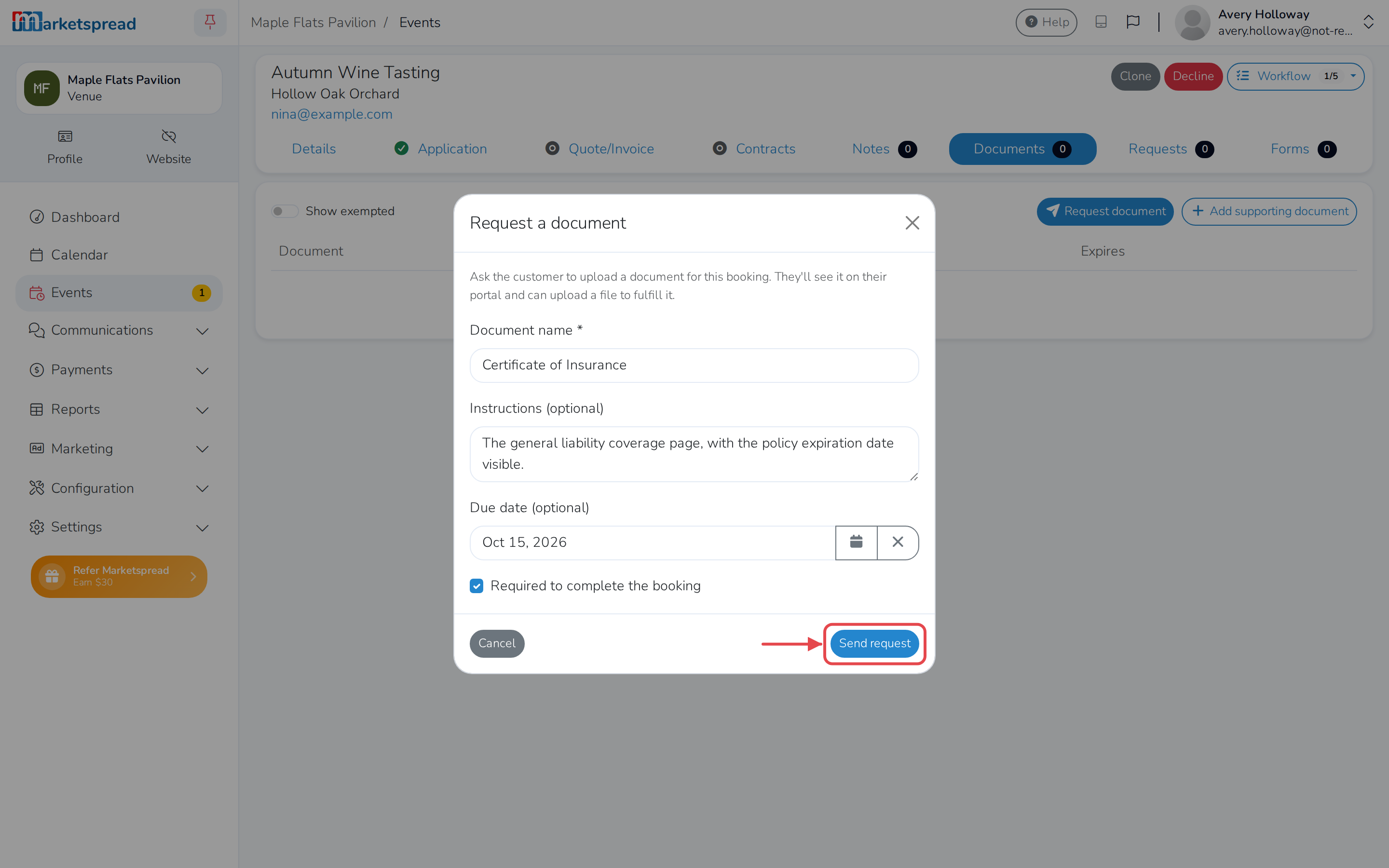
- Fill in Document name — for example, "Certificate of Insurance".
- Add Instructions for what they should provide (optional).
- Set a Due date (optional).
- Check Required to complete the booking if they must provide it before you can move the booking forward.
- Click Send request.
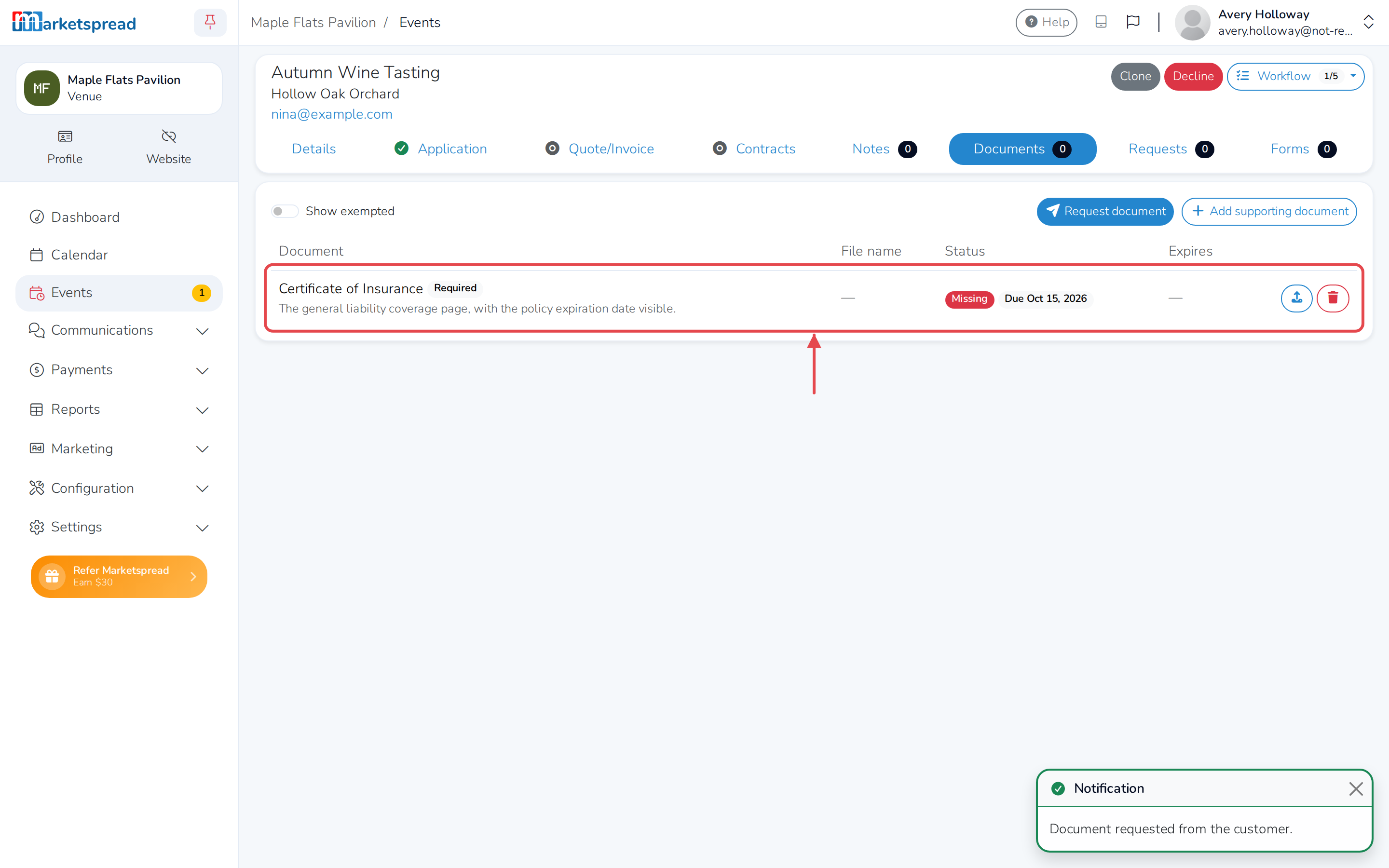
The customer sees the request on their portal and can upload a file to fulfill it.
Review what a customer has submitted
Each row on the Documents tab is something you've asked for, or something that's been added.
- Click a file's name to open what was uploaded.
- The Status column shows where it stands:
- Missing — nothing's been uploaded yet.
- Submitted — it has.
- Expired — the date you set has passed.
- Exempted — you've excused the customer from it.
- A due date badge shows Overdue, or Due with the date, if one is coming up.
Set when a document expires
- In the Expires column, click Set expiration — or click the date, if one's already there, to change it.
- Choose a date.
- Click Save.
Both of you get an alert as the date gets closer. To remove a date you've set, click it, then click Clear.
Upload a document for the customer
- To add something new, click Add supporting document.
- Choose a File.
- Give it a Document name (optional — otherwise the file's own name is used).
- Click Add document.
To upload or replace one you've already requested, click Upload (or Replace, once there's a document) next to it in the row.
Exempt a customer from a document
Exempting a customer clears a requirement, without deleting anything they've uploaded. It only appears on documents your Application required before the customer could book — not ones you've asked for on this tab, or added yourself.
- Click Exempt customer next to the document.
- Click Exempt to confirm.
Delete a document
Deleting a document removes it completely. This can't be undone.
- Click Delete next to the document.
- Click Delete to confirm.