


Your venue's invoicing settings are under Settings, then Invoicing. From there you can set your sales tax rate, and save line items and terms you use often. Pull them into any invoice you create by hand, instead of typing them out each time.
Set your sales tax rate
- Click Settings in the left-hand menu, then click Invoicing.
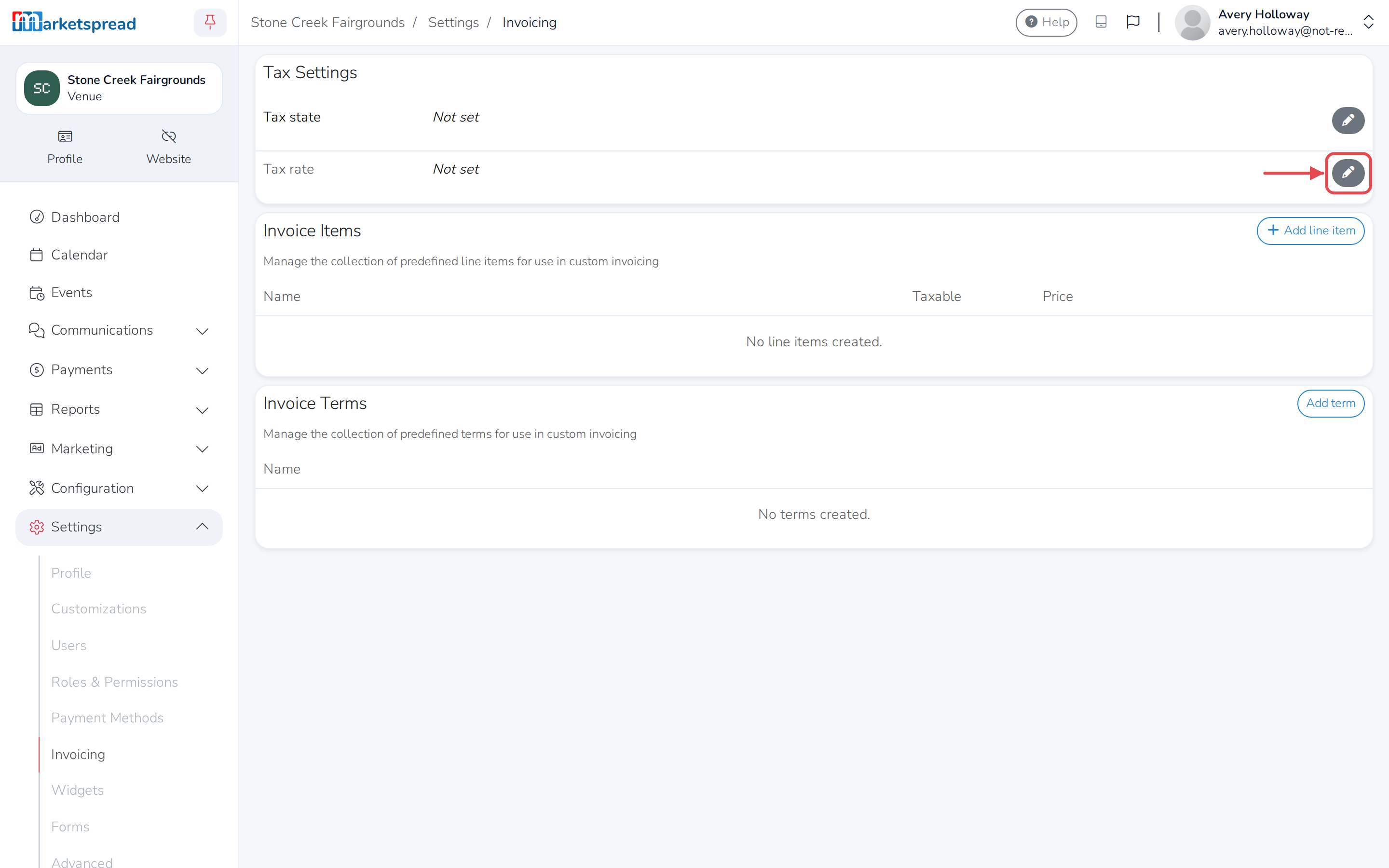
- Under Tax Settings, click the pencil icon next to Tax rate.
- Enter your rate.
- Click Save.
If your venue is in the US, you can also set Tax state the same way.
Save a reusable line item
- Under Invoice Items, click Add line item.
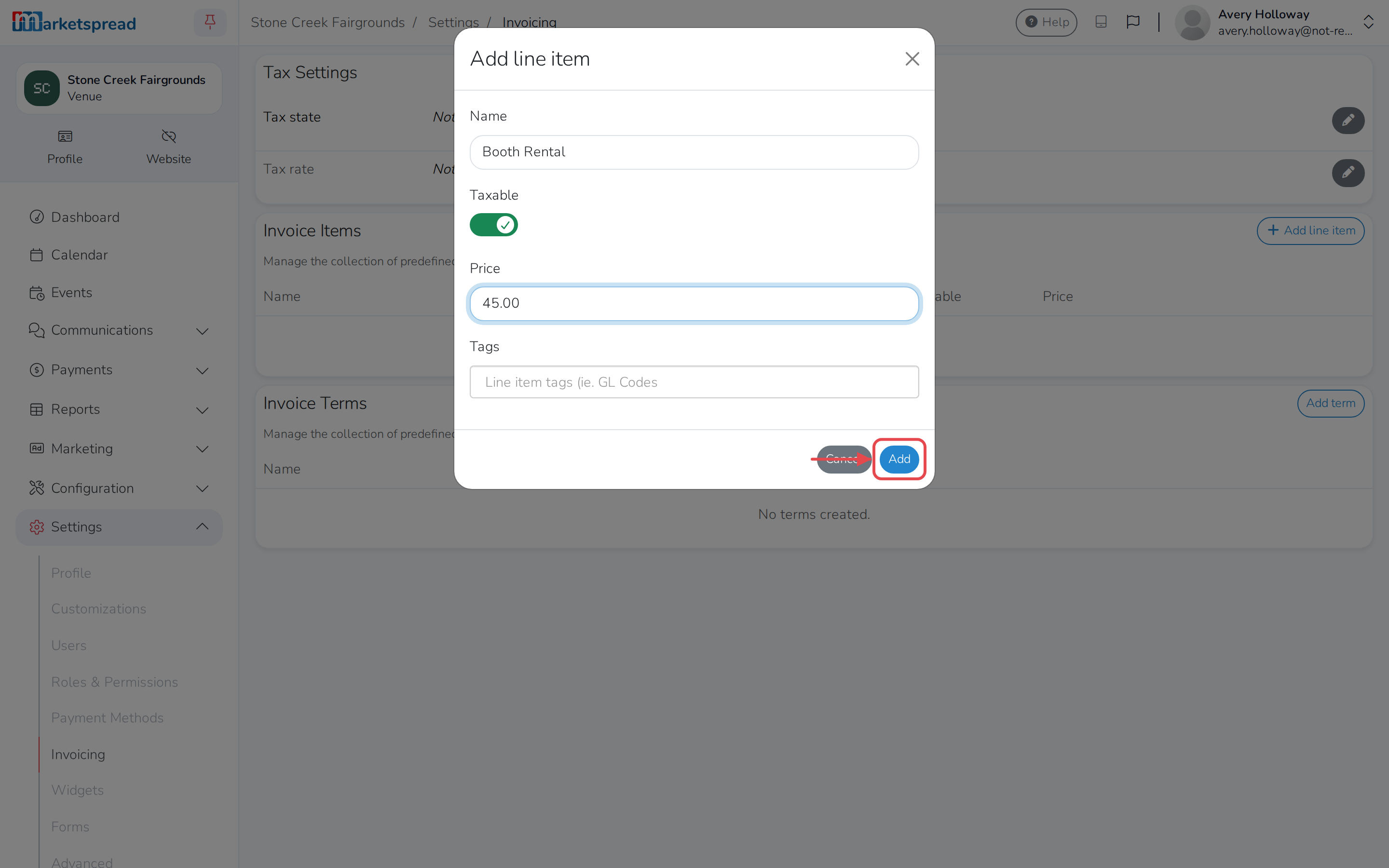
- Fill in Name.
- Turn on Taxable if the item should include your tax rate.
- Fill in Price.
- Add any Tags, for example a GL code (optional).
- Click Add.
Edit or delete a line item
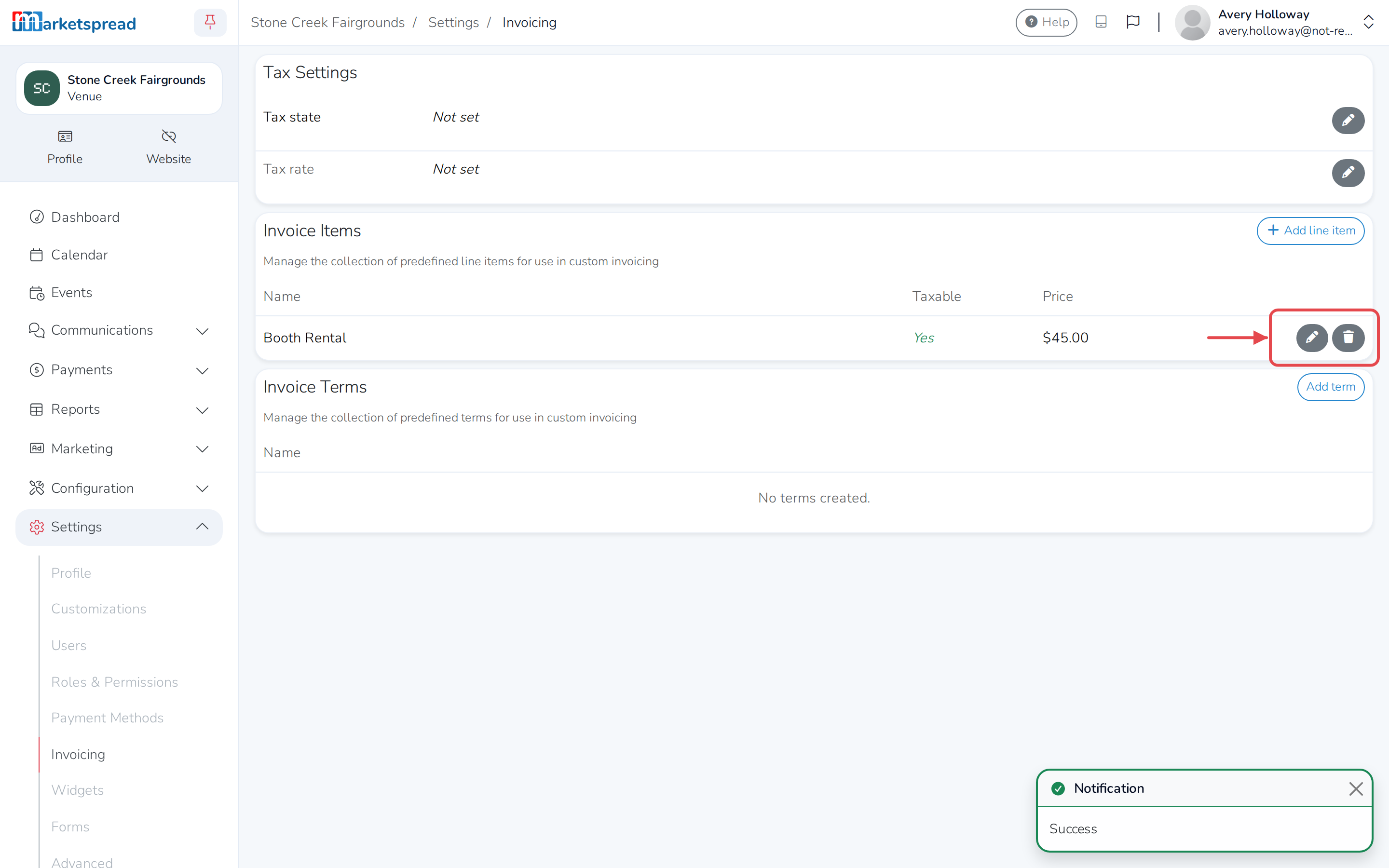
- Under Invoice Items, click the pencil icon next to the item.
- Make your changes, then click Update.
- To remove an item instead, click the trash icon next to it.
- Click Delete to confirm.
Save a reusable invoice term
- Under Invoice Terms, click Add term.
- Fill in Name.
- Fill in Term with the wording you want to appear on the invoice.
- Click Add.
Edit or delete an invoice term
- Under Invoice Terms, click the pencil icon next to the term.
- Make your changes, then click Update.
- To remove a term instead, click the trash icon next to it.
- Click Delete to confirm.
Good to know
Only venue administrators can change these settings.