


A booking application is the form a customer fills out to request space at your venue. Build one from your venue dashboard, then turn it on so people can start applying.
From this form you can also charge a fee to apply, and show or request documents. You can ask custom questions, or limit who can apply by event type.
Start an application
-
Open your venue dashboard.
-
Click Configuration, then click Applications.
-
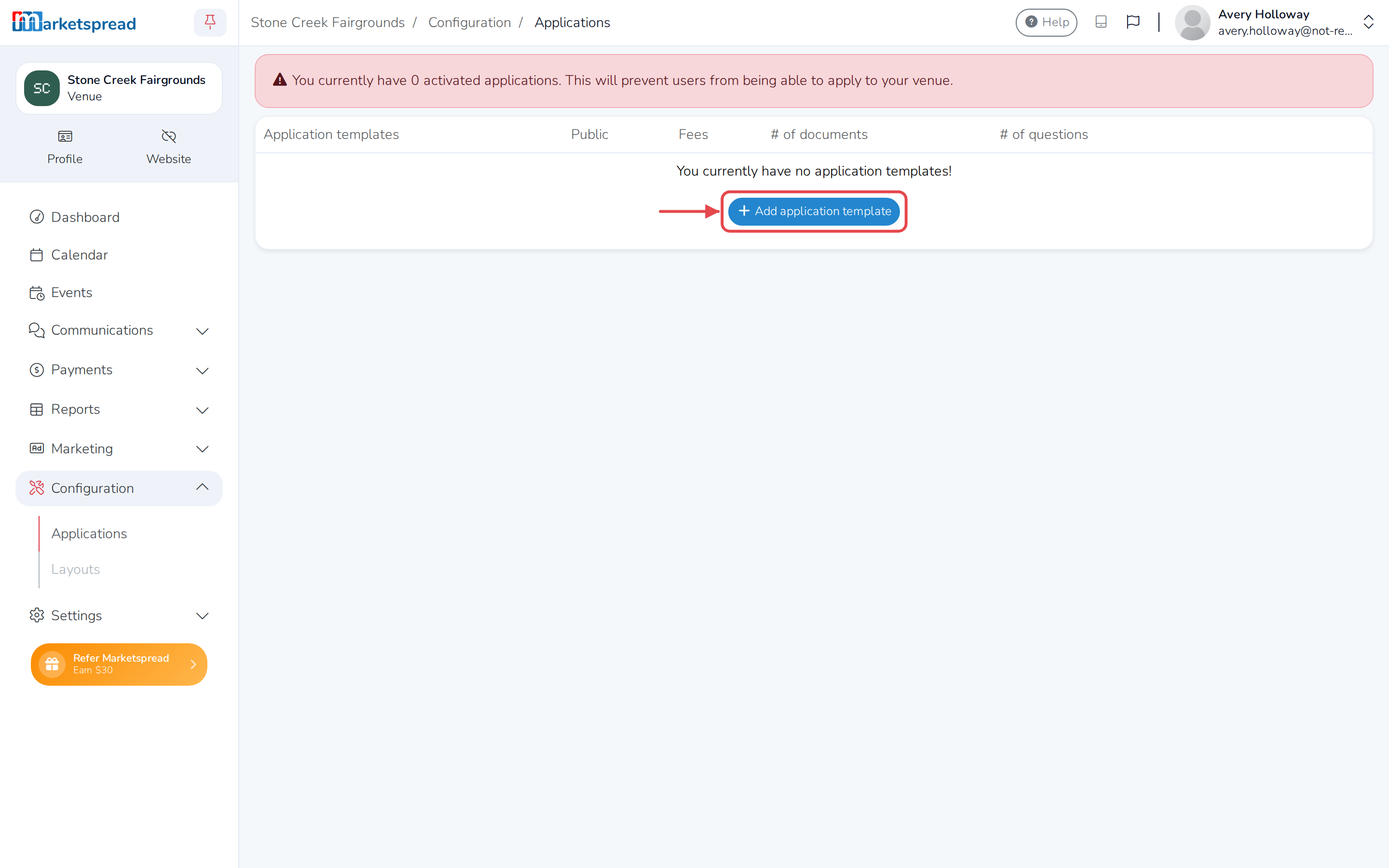
Click Add application template.
-
Under Name of the application, type a name for it.
-
Leave Public or private application on to list it on your venue's page. Turn it off to keep it private — it still works if you share its direct link.
-
Under Application Help, choose who should get questions about the application.
-
Add an application message and a spaces message (both optional). Customers only see these while they're filling out the application.
-
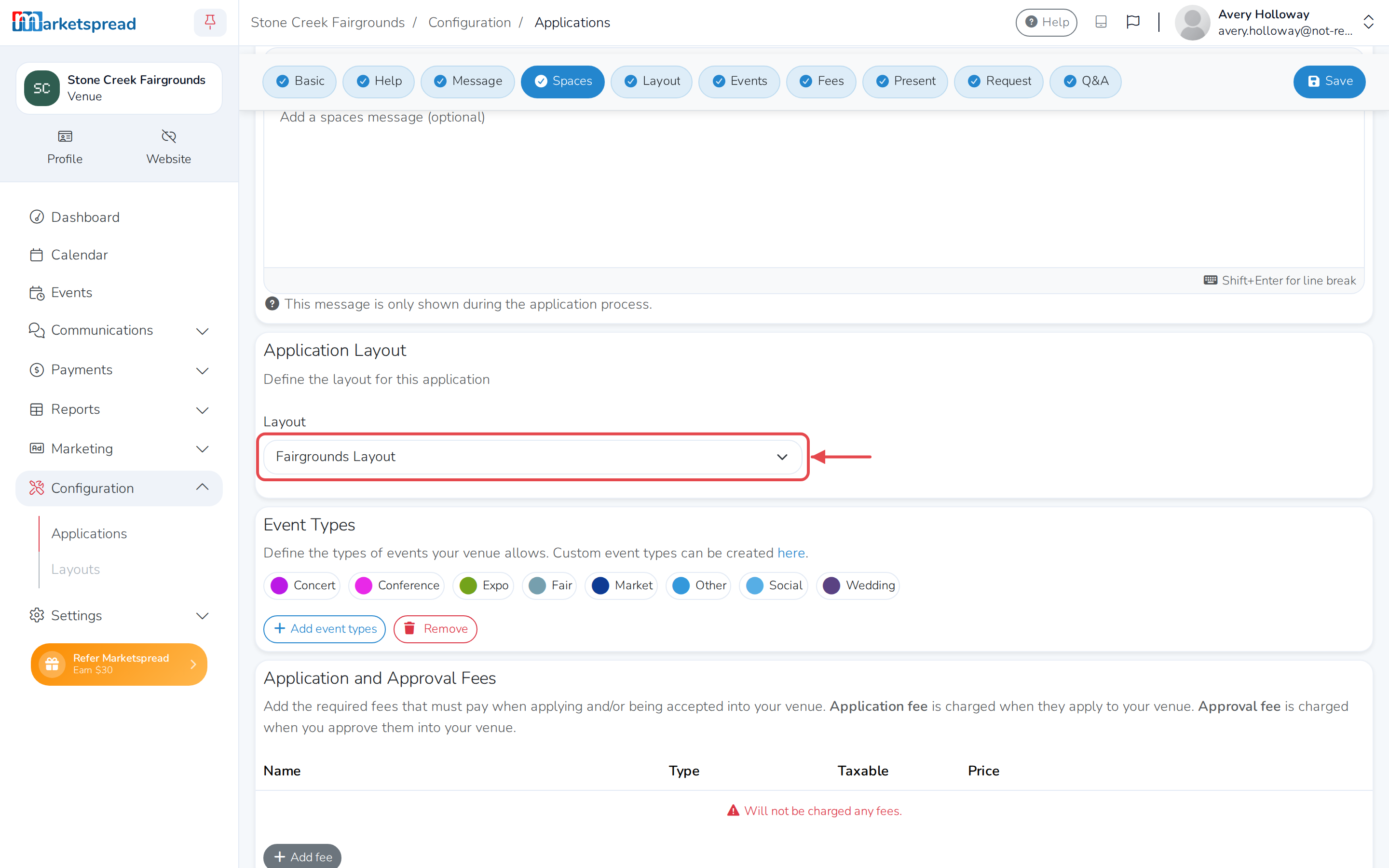
Under Layout, choose one. If none are listed, set one up first under Layouts in your venue dashboard.
-
If your venue has event types, click Add event types under Event Types.
-
Click each event type that can use this application, then click Add.
-
Click Save application.
Charge a fee to apply
You can charge when someone applies, when you approve them, or both. Add fees under Application and Approval Fees on the same form.
See Charge a fee to apply to your venue for setting the type and price, and for removing a fee later.
Show a document to applicants
Present a document — your rules, or a sample contract — for an applicant to read before they apply.
- Under Presented Documents, click Add document.
- Fill in the document's Name.
- Click Select document and choose or upload the file.
- Set Requires agreement? to Yes if they must open and accept it before they can submit.
- Click Save application.
Ask applicants for a document
Request something you'll review before accepting them — a certificate, a photo of their setup. Add these under Requested Documents.
See Require documents from customers for the full steps, and for changing or removing a request.
Add questions to the application
Add your own questions under Questions, and Add section header to break a long list into groups.
See Ask your own questions on a booking application for every question type and how the answers reach you.
Activate the application so people can apply
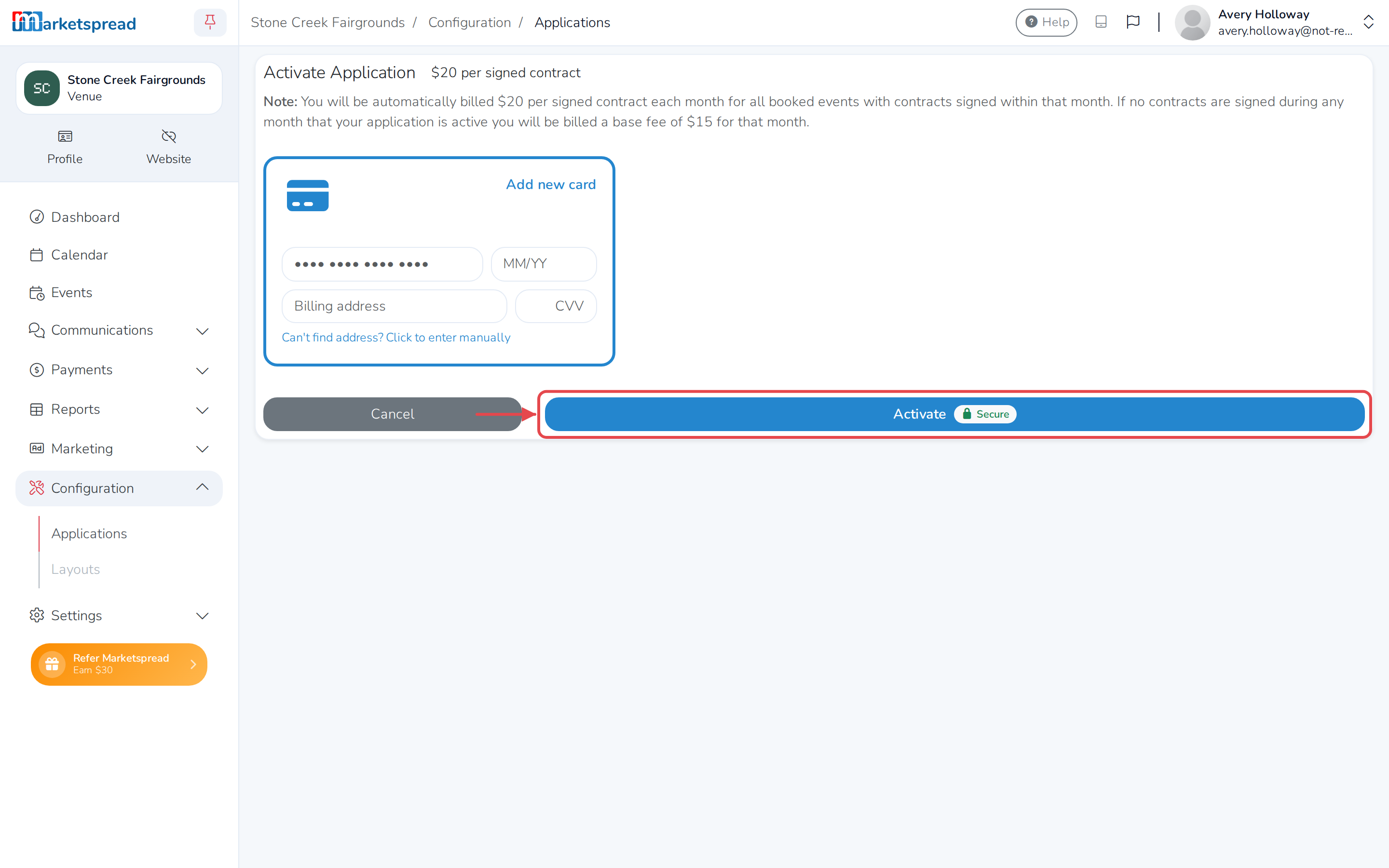
An application can't be applied to until it's active, and activating asks for a card.
Important
You're billed $20 for every signed contract each month. In a month with no signed contracts, you're billed a $15 base fee instead.
See Activate, edit or retire a booking application for activating, deactivating and deleting one.
Good to know
Click Preview on a saved application to see what applicants will see, or Clone to reuse its setup for another application. You can only delete an application before it's activated.
Once activated, copy its Apply Link to share it directly — this works even if the application isn't public.