


Reports pull together what's happening at your venue: who's booked, what's been paid, and what you're still owed. Open Reports from the left-hand menu to see them. They come in two kinds — Data reports you explore right on the screen, and HTML reports built to print or save as a PDF.
From here you can:
- Run a data report, then sort, filter or group it on screen
- Run an HTML report to print or save as a PDF
- Save your own version of a data report, so it's ready to run again
Open a report
-
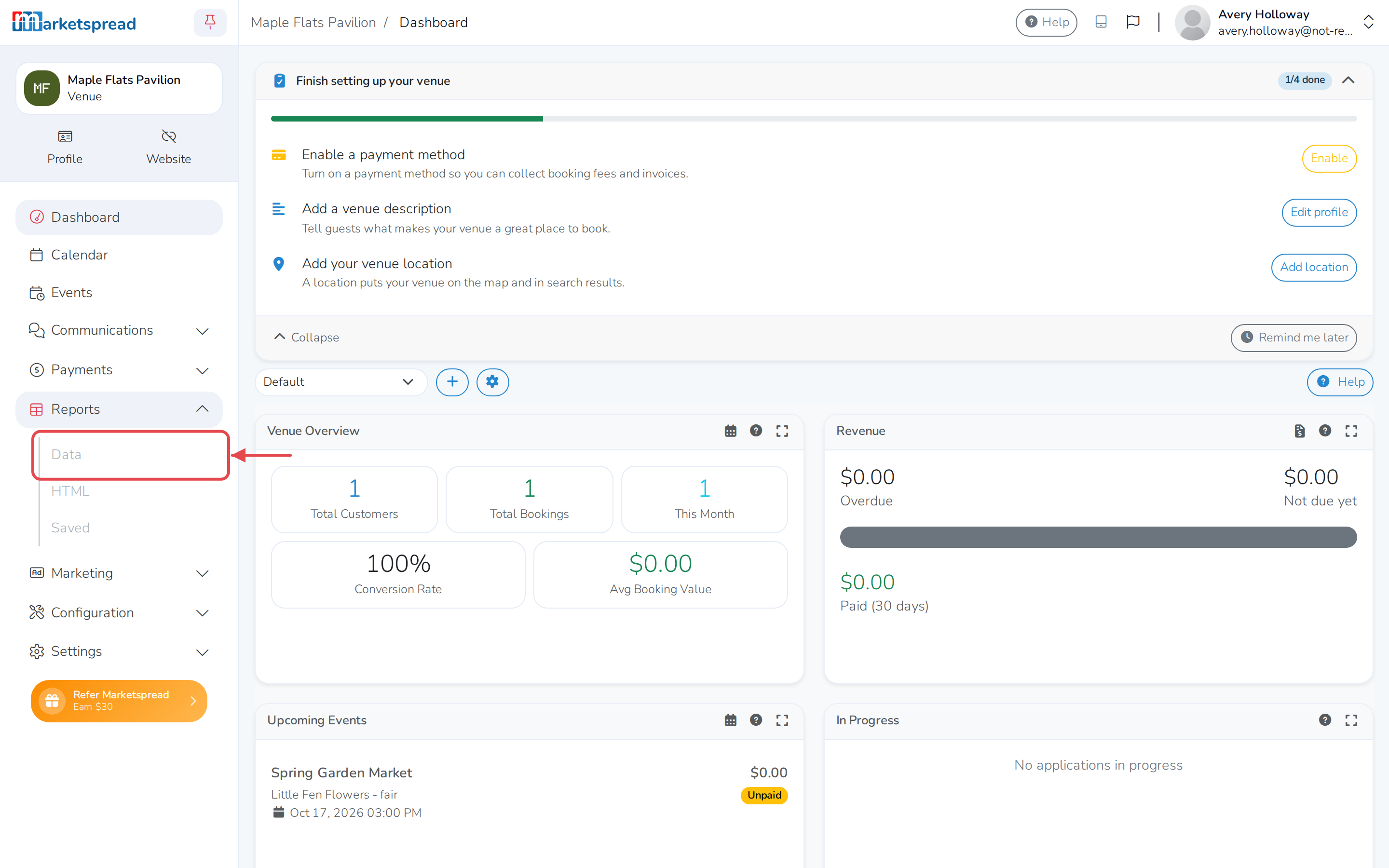
Click Reports in the left-hand menu to expand it.
-
Click Data for a report you'll explore on screen, or HTML for one you'll print or save as a PDF.
-
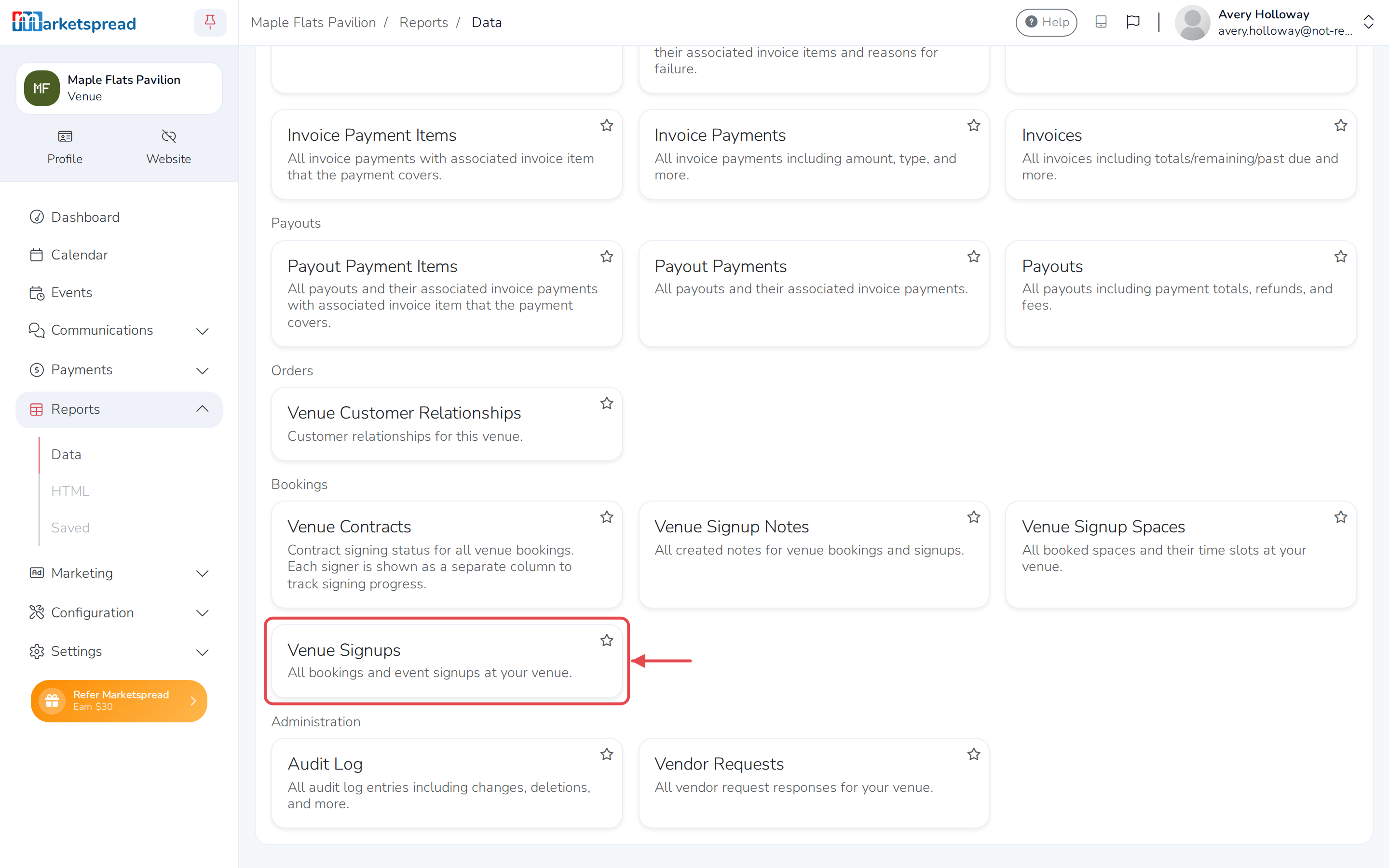
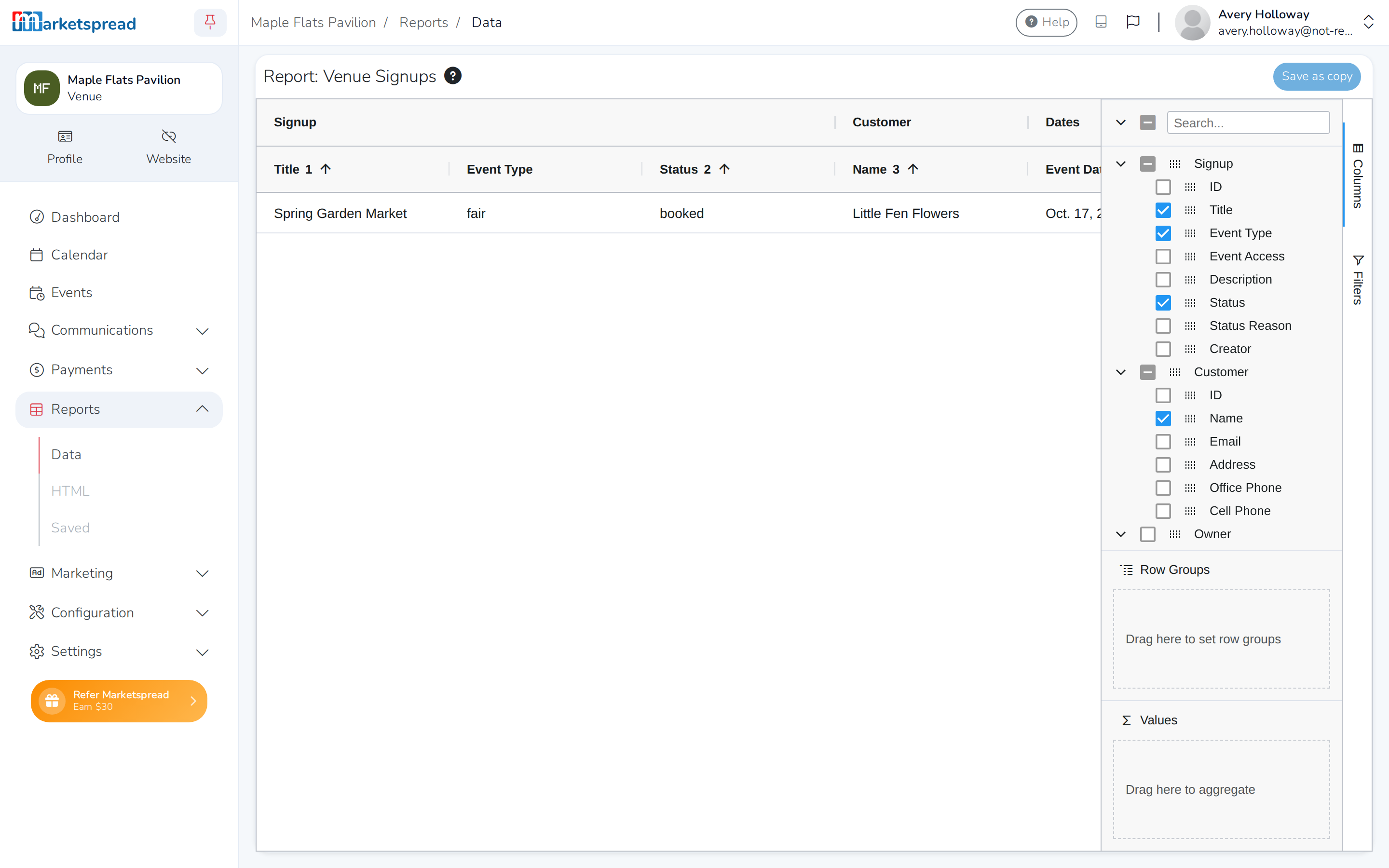
Click the report you want.
See what's booked
Data reports
- Venue Signups — every booking and event signup at your venue.
- Venue Contracts — whether each booking's contract has been signed, with a column for each signer.
- Venue Signup Spaces — every space that's been booked, with its time slot.
- Venue Signup Notes — notes left on your bookings and signups.
HTML reports
- Venue Bookings Summary — bookings totalled by status, event type and date range.
- Space Utilization Report — how much use each of your spaces is getting over time.
See your invoices and payments
Data reports
- Invoices — every invoice, its total, what's left to pay, and what's overdue.
- Draft Invoices — invoices you haven't sent yet.
- Invoice Items — every line item you've billed, with its price, quantity and tags.
- Invoice Payments — every payment received, with its amount and type.
- Invoice Payment Items — which invoice item each payment covers.
- Failed Credit Card Payments — card payments that didn't go through, and why.
HTML reports
- Invoice Payments — a printable version of the payments you've received.
- Failed Credit Card Payments Report — failed card payments, ready to print.
- Tax Report — tax you've collected over a date range.
- Refunds Report — every refund you've issued.
- Outstanding Balances Report — every balance still owed to you.
- Outstanding Balances w/ Aging Report — outstanding balances, grouped by how overdue they are.
- Monthly Payment Allocation Report — payments received compared with payments allocated to that month.
- Invoice Quickbooks Export — your invoices, formatted to import into QuickBooks.
- Invoice Financial Edge Export — your invoices, formatted to import into Financial Edge.
See what's been paid out to you
- Payouts — what's been paid out to you, including refunds and fees.
- Payout Payments — the invoice payments included in each payout.
- Payout Payment Items — the invoice items covered by each payout payment.
Other reports
- Vendor Requests — responses to requests you've sent to vendors booked at your venue.
- Venue Customer Relationships — everyone who's booked with you, and how they're connected to your venue.
- Audit Log — a record of changes made in your venue account.
Save your own version of a report
Filter, sort or rearrange a data report's columns, and you can save it to run again later.
-
Open a data report.
-
Filter, sort, group or rearrange its columns.
-
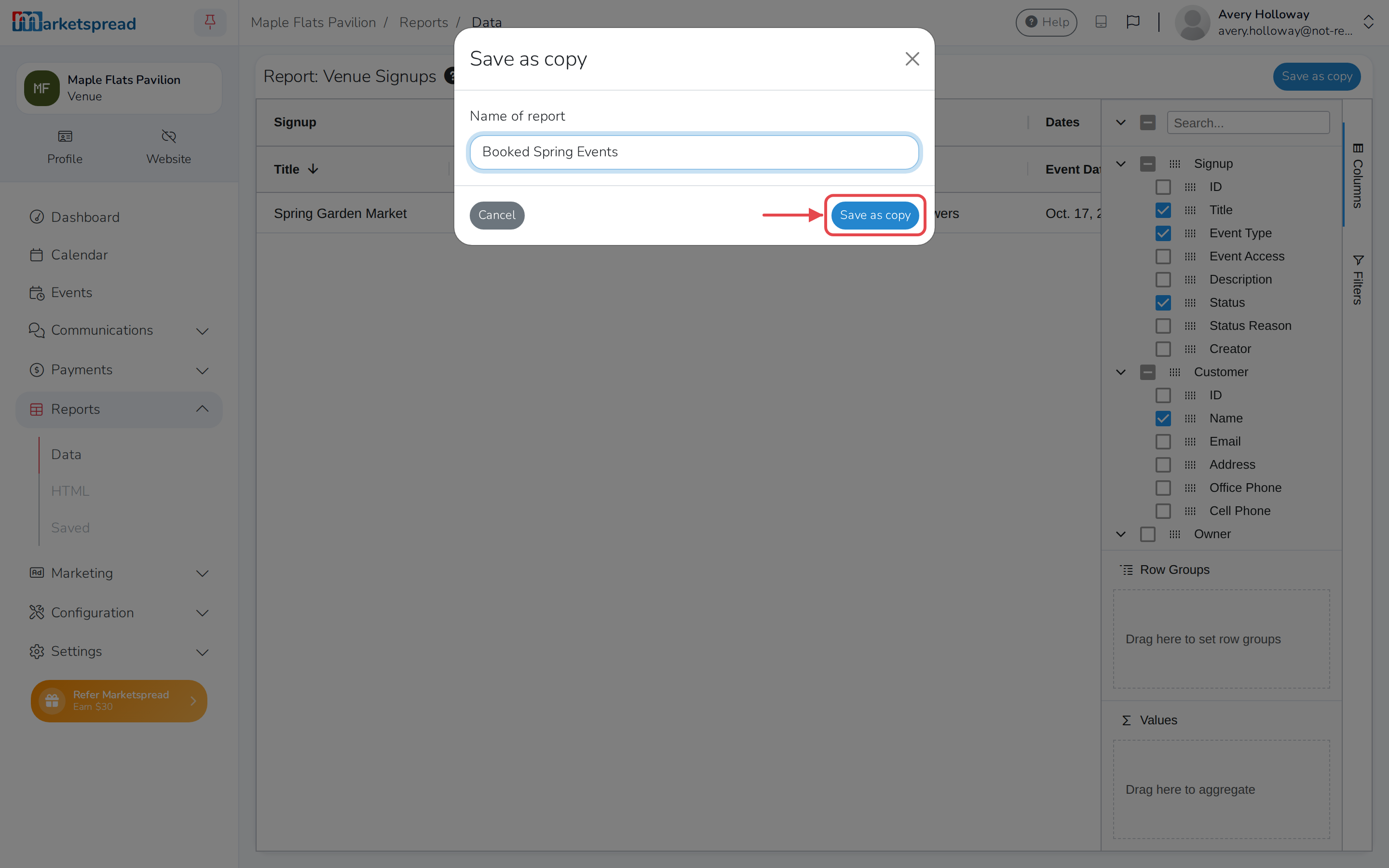
Click Save as copy.
-
Fill in Name of report.
-
Click Save as copy.
Print or save an HTML report as a PDF
- Open an HTML report.
- Fill in any options it asks for, like a date range.
- Click Print.
- Choose Save as PDF in the print dialog if you don't want to print it.
Good to know
Right-click anywhere in a data report's table to export it as a CSV or Excel file.