


A customer can ask to change something about a booking after they've applied — the date, the space, or a detail about the event. They do this as a comment on their booking, which shows up as a notification and at the bottom of the booking's Details tab. From there you can read what they're asking for, reply, and update the booking to match.
Find a change request
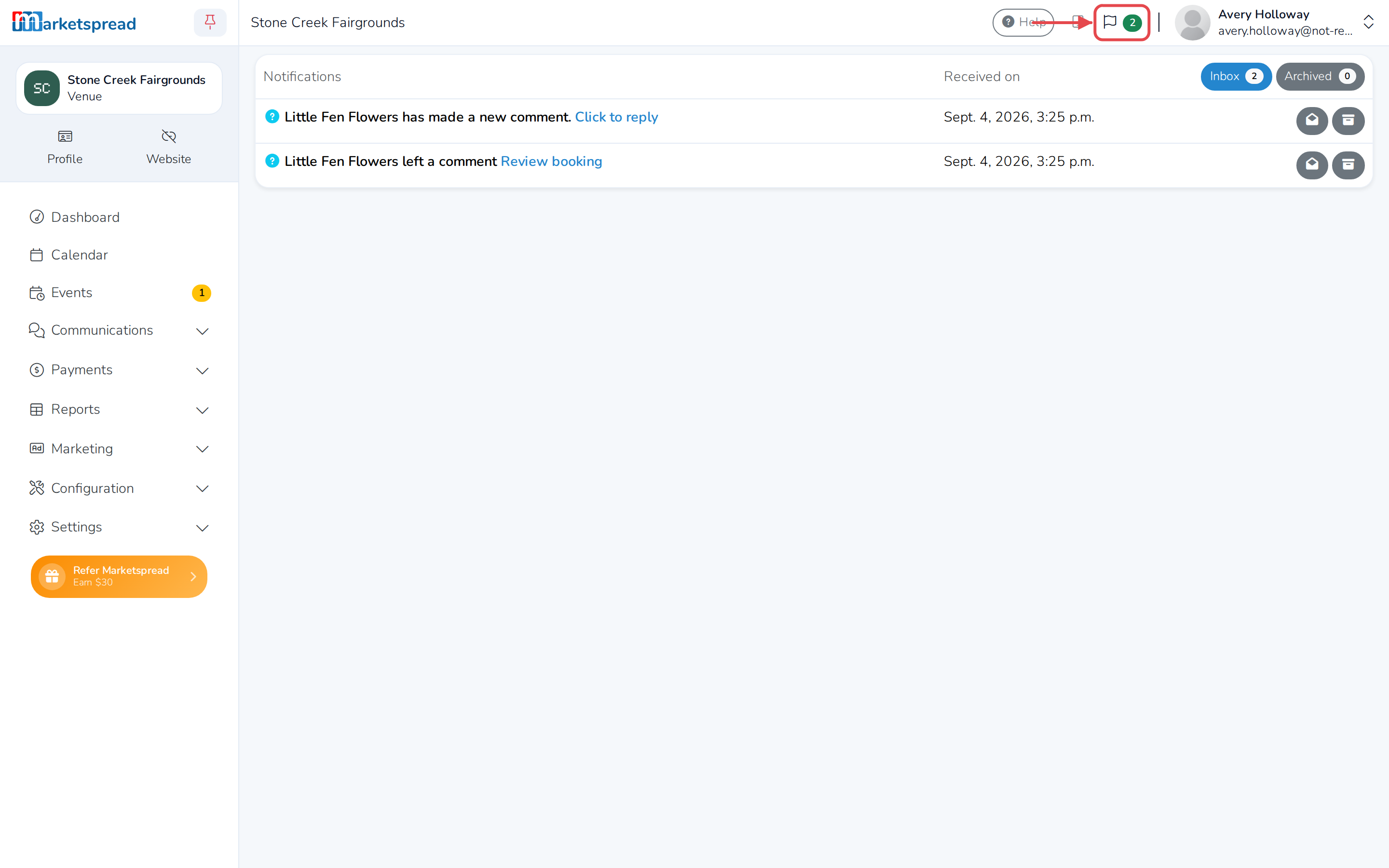
- Click the flag icon at the top of the page. Your notifications open in a panel on the right.
- Find the one titled [customer's name] has made a new comment.
- Point to it, and click the arrow button that appears, labelled Click to reply.
Read what they're asking for
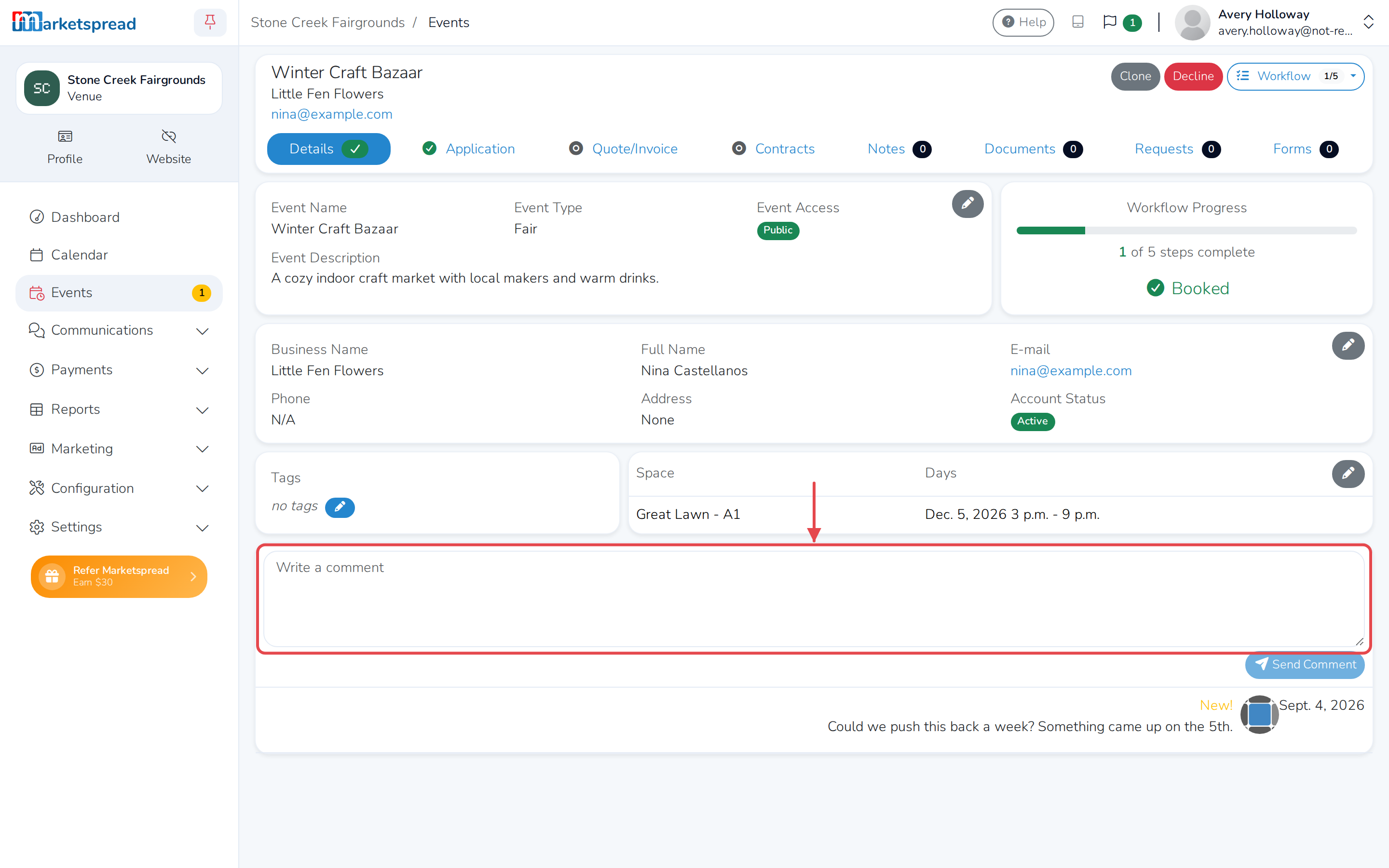
- On the booking's Details tab, scroll to the bottom of the page.
- Read their comment there, along with the rest of the conversation about this booking.
Reply to the customer
- In the comment box at the bottom of the Details tab, write your reply.
- Click Send Comment.
Change the event details
Use this if they're asking to change the event's name, type, access or description, or when they move in and out.
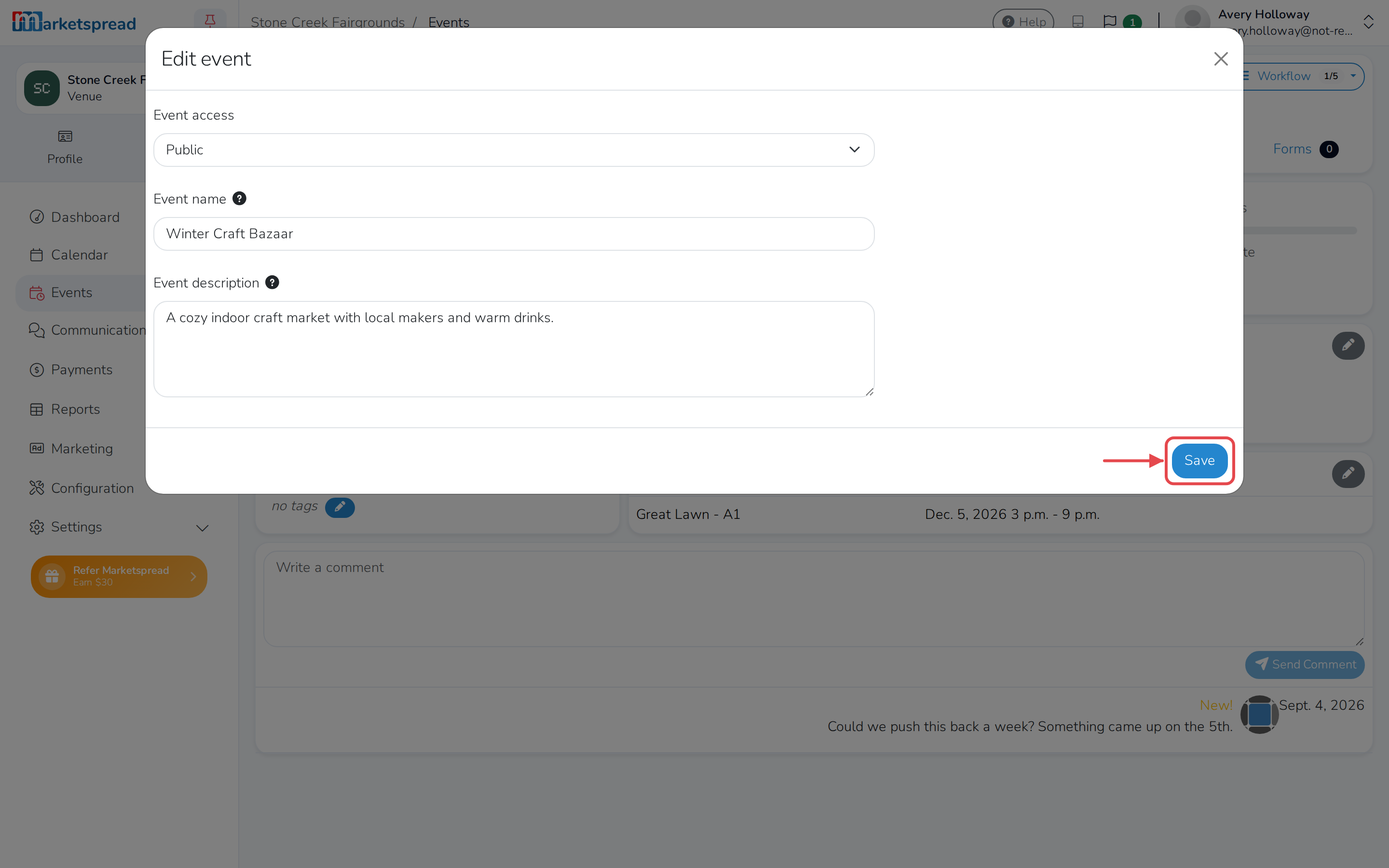
- Click the pencil icon on the event card, at the top of the Details tab.
- Update Event access, Event name or Event description. If your venue uses event types, you can change Event type here too.
- To change when they move in or out, pick a day and time under Move in or Move out. Both are optional.
- Click Save.
They get a message telling them the event changed.
Change the date or space
Use this if they're asking to move the event, add a day, or book a different space.
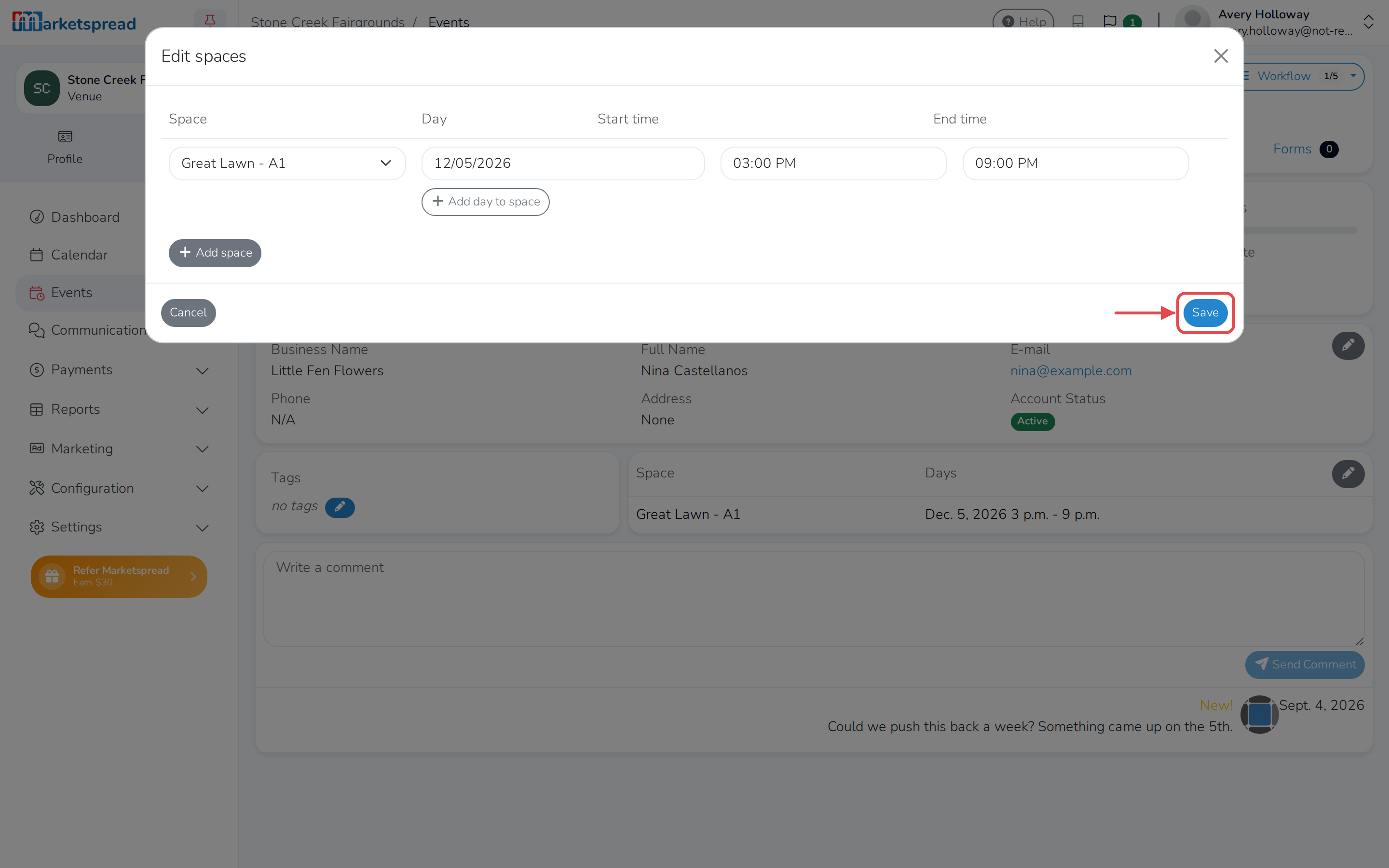
- Click the pencil icon on the Space and Days table, on the Details tab.
- Update the Day, Start time or End time for the row that's changing.
- Click Add day to space or Add space to add another one.
- If there's more than one row, click the trash icon next to one to remove it.
- Click Save.
They get a message telling them the date or space changed.