


When a customer pays what's due on their invoice — the whole thing, or just a deposit — nothing about the booking changes on its own. The invoice's numbers update, but the booking's Status, the Events list and the Workflow menu all look exactly the same as before. To book it, click Mark as Booked yourself.
See what a payment changes
-
Open the booking and click the Quote/Invoice tab.
-
Find the invoice. Its Paid and Remaining amounts update to reflect the payment.
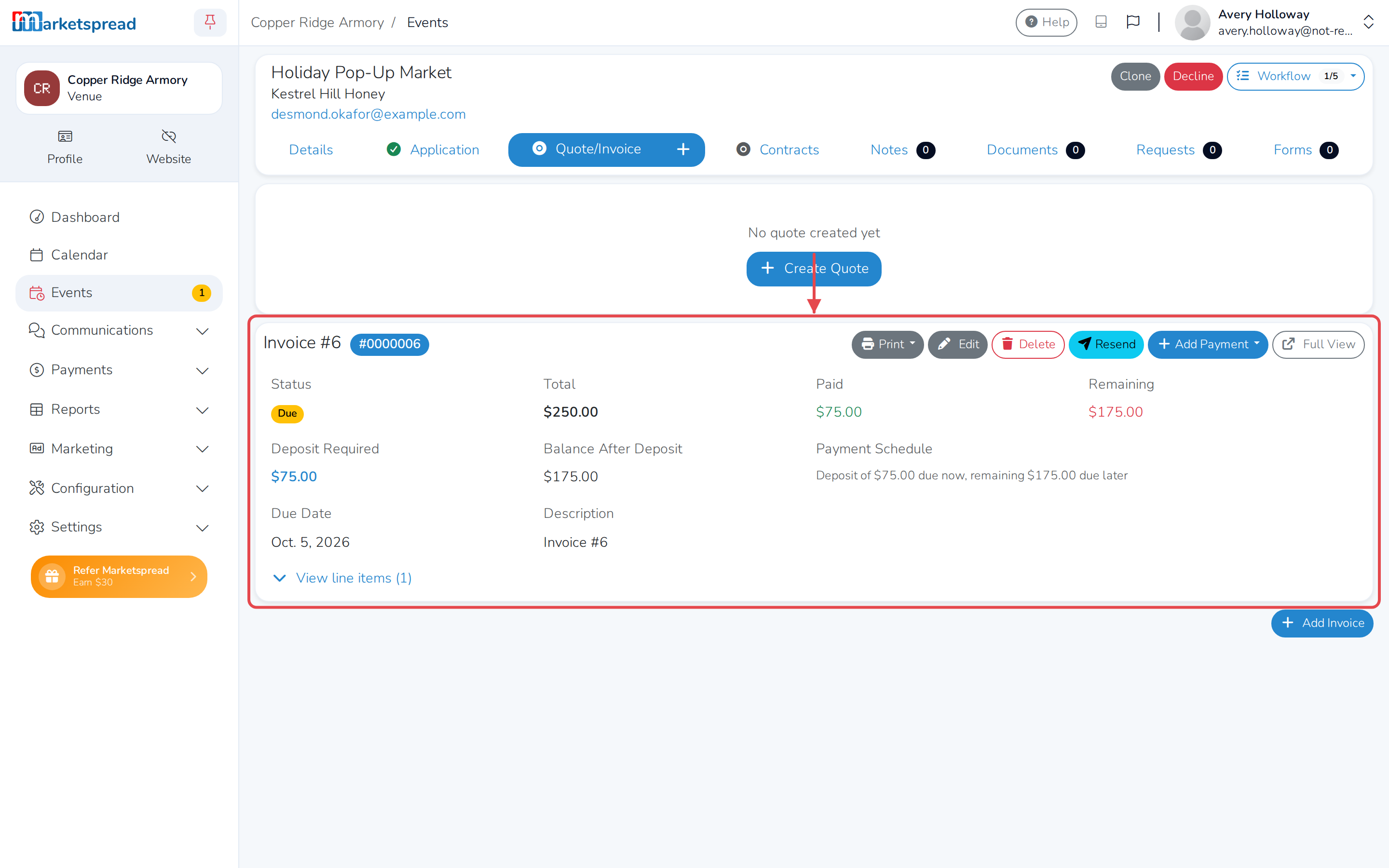
That's the only place it shows. The booking's Status, on the Events list, stays whatever it already was.
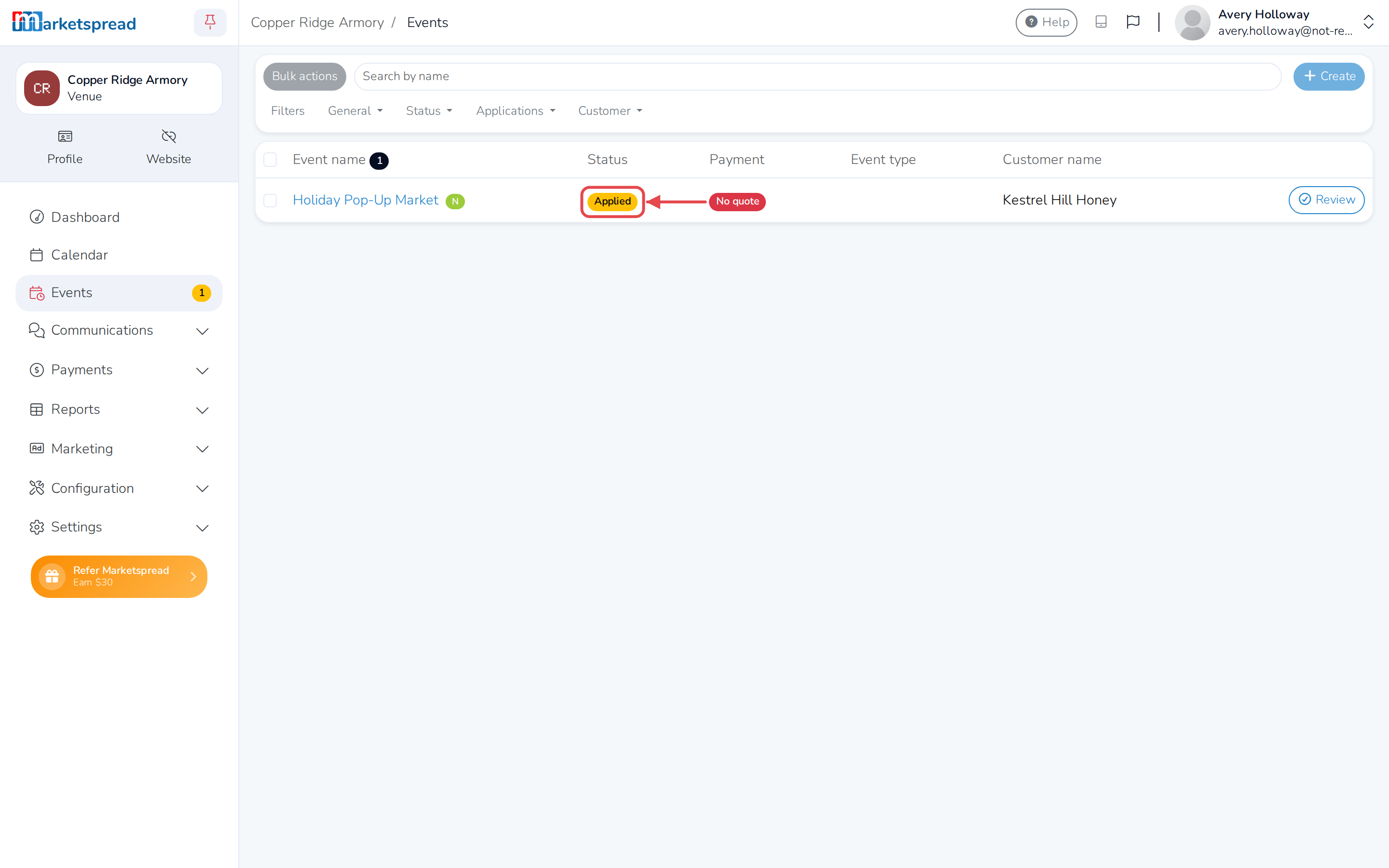
Note
Paying the deposit doesn't mark the invoice Paid either — it stays Due until the whole balance comes in.
Book it
-
Click Events in the left-hand menu.
-
Click the booking's name to open it.
-
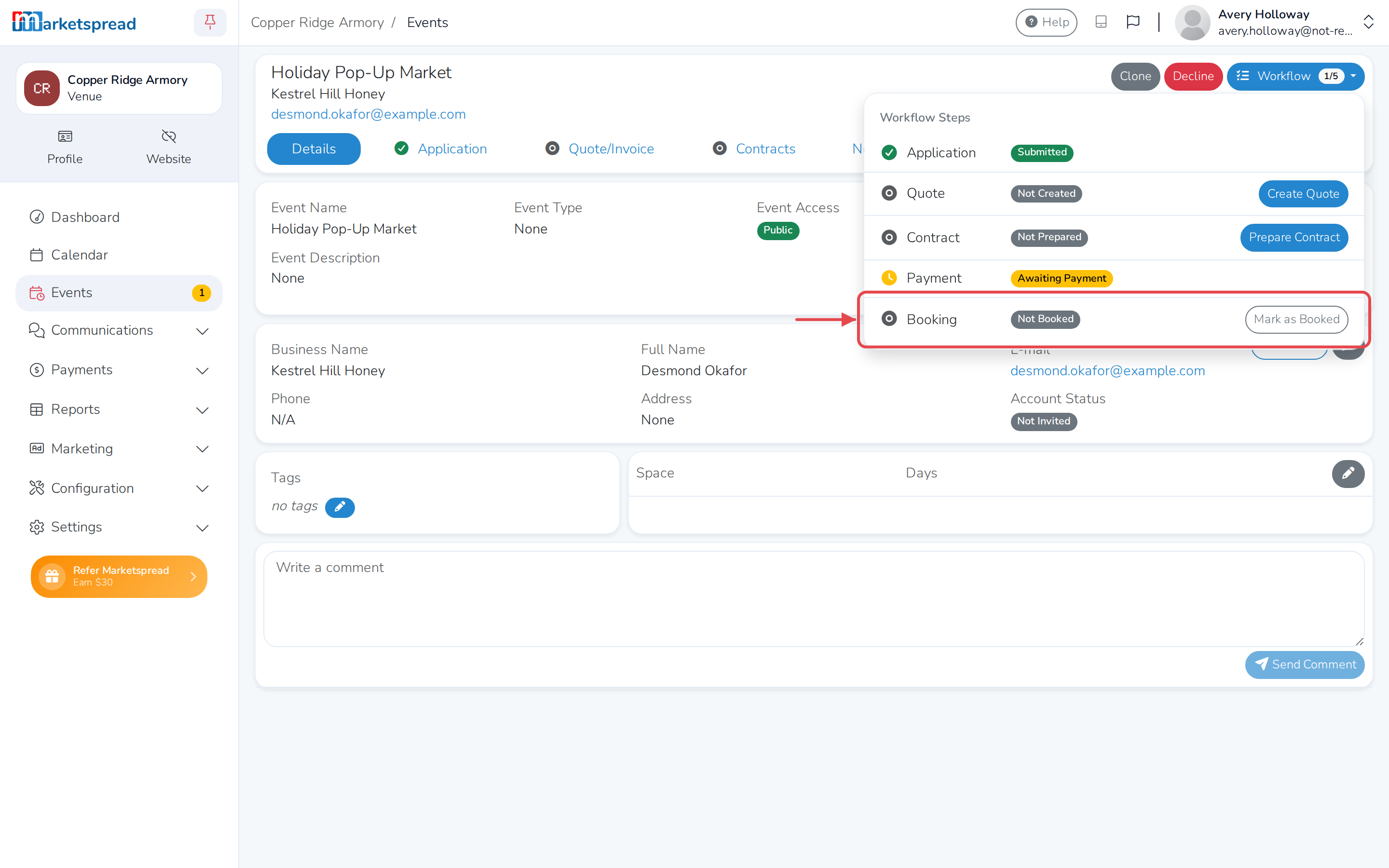
Click Workflow, near the top of the page. Next to Booking, it still reads Not Booked.
-
Click Mark as Booked.
See Mark a booking as booked for the rest of the form.