


The Payment Methods page controls how customers can pay you: cash, check, credit and debit cards, or a method you set up yourself. Open it from Settings in the left-hand menu, then click Payment Methods.
From here you can:
- Turn on cash, check or credit and debit card payments
- Add your own custom payment method
- Change or turn off a method you've already set up
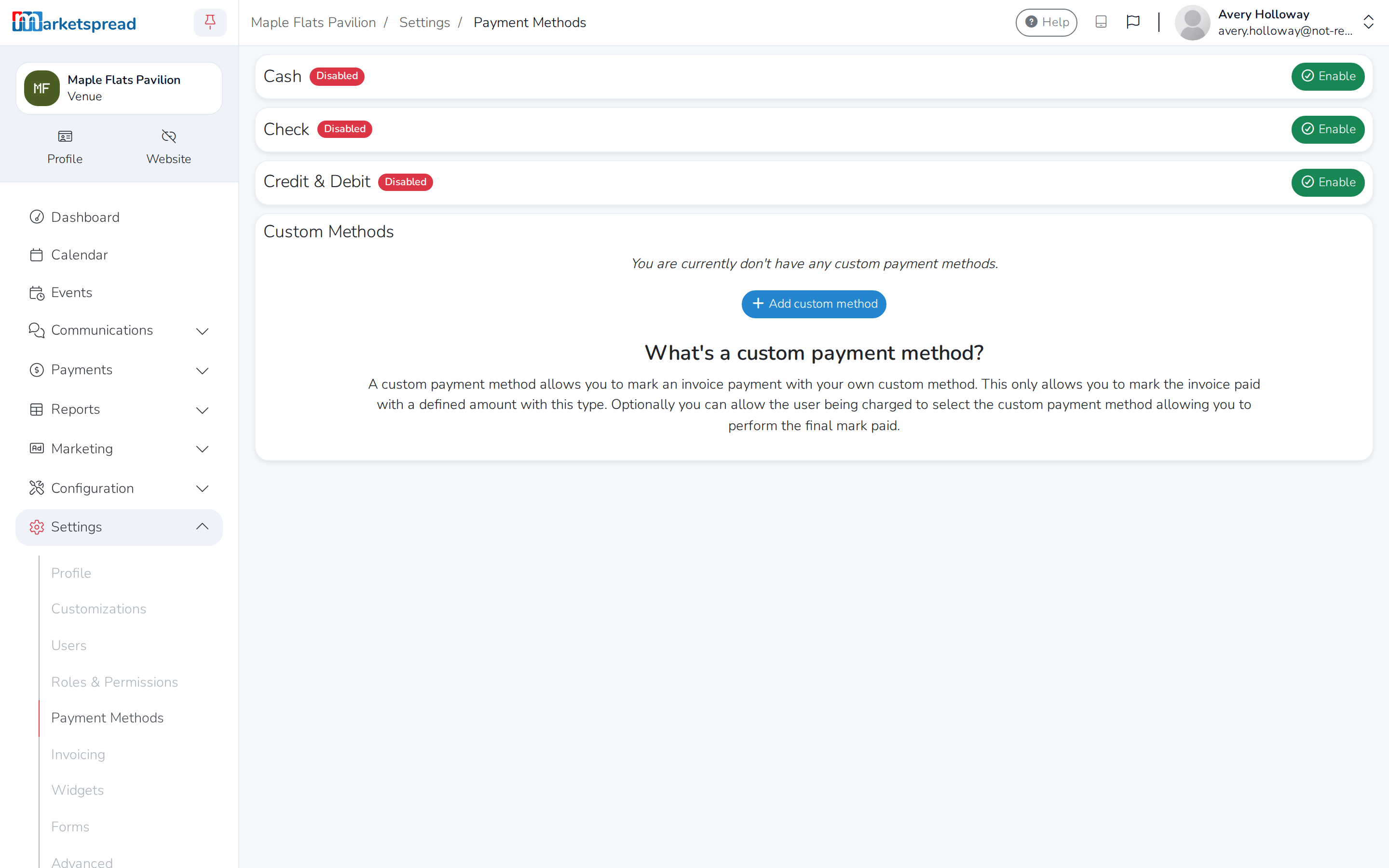
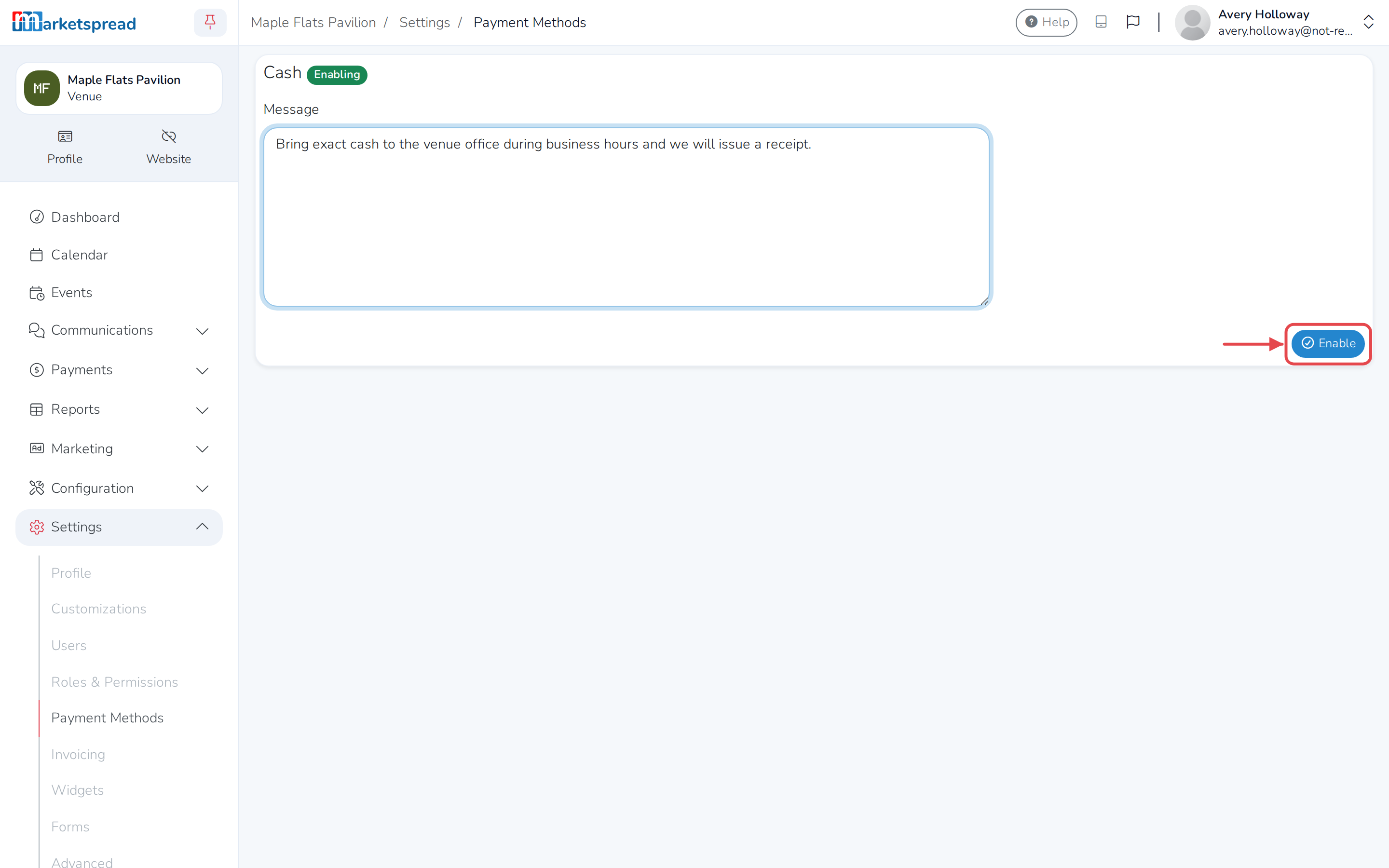
Accept cash payments
- On the Payment Methods page, under Cash, click Enable.
- Fill in Message with how customers should get the cash to you.
- Click Enable.
Accept checks
- On the Payment Methods page, under Check, click Enable.
- Fill in Payable to with who the check should be made out to.
- Fill in Check mailing address.
- Add a Message if you want to — instructions for filling out or delivering the check.
- Click Enable.
Accept credit and debit cards
Setting this up needs some details about your business, its bank account, and you as the person responsible for it. If your venue is outside the US, clicking Enable below takes you straight to Stripe's own sign-up instead of this form.
- On the Payment Methods page, under Credit & Debit, click Enable.
- Fill in your Business type, Legal name (unless you're a sole proprietor), tax ID, Business address and Business established.
- Fill in the business representative's legal name and date of birth, plus their address (unless you're a sole proprietor).
- Fill in your bank's Routing number and Account number, then fill in Confirm account number.
- Agree to Payrix's Terms of Service.
- Click Enable.
Add a custom payment method
Use this for a way of paying Marketspread doesn't handle directly, like a wire transfer or an account credit.
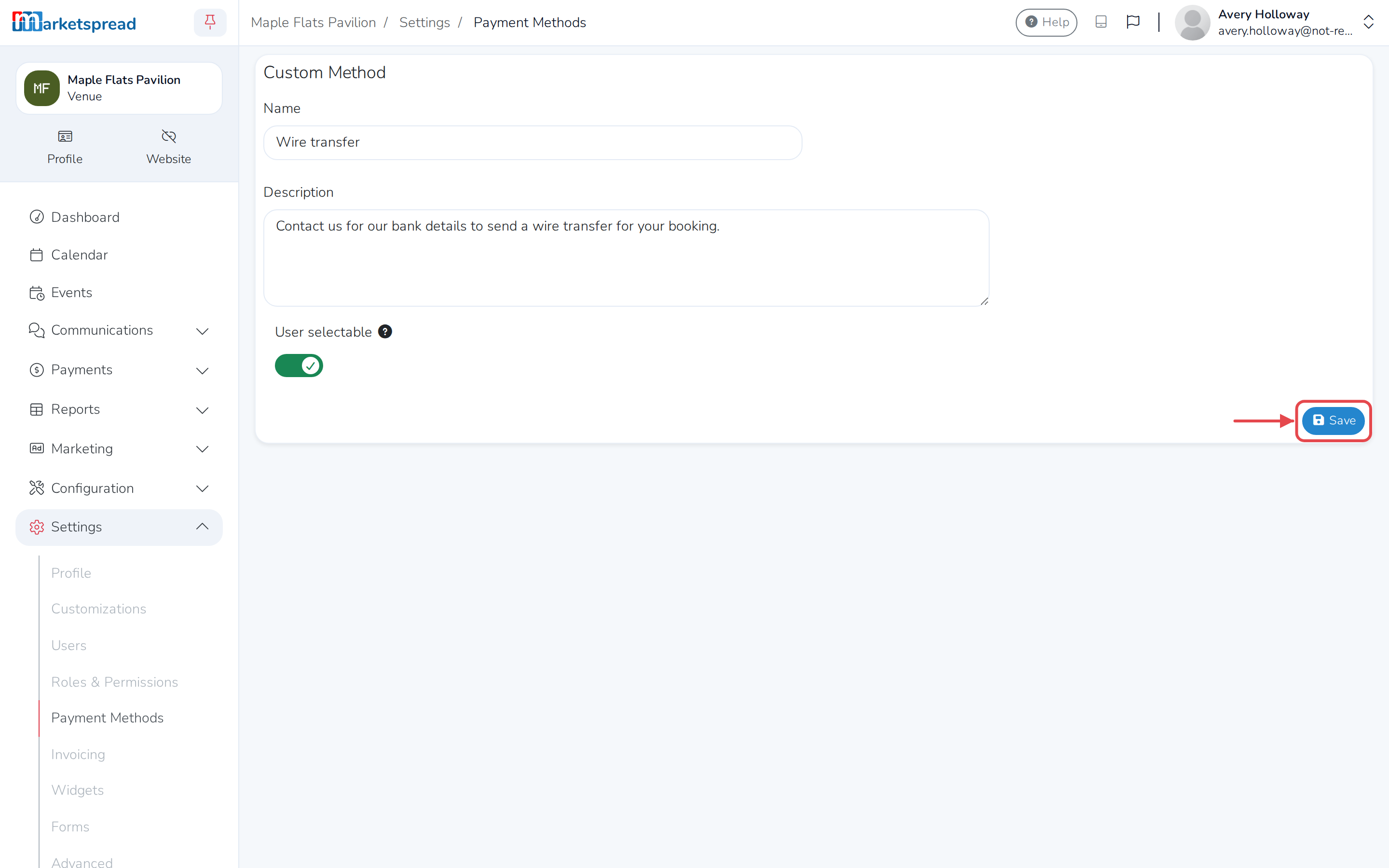
- On the Payment Methods page, under Custom Methods, click Add custom method.
- Fill in Name and Description.
- Turn on User selectable if you want customers to be able to choose this method themselves when paying.
- Click Save.
Change a payment method's details
- On the Payment Methods page, next to the method, click the pencil icon.
- Make your changes.
- Click Save.
Turn off a payment method
This applies to cash, check, and credit and debit cards.
- On the Payment Methods page, next to the method, click Disable.
- Click Disable again to confirm.
You need at least one payment method turned on, so Disable isn't there if it's your only one.
Delete a custom payment method
- On the Payment Methods page, under Custom Methods, click the trash icon next to the method.
- Click Delete to confirm.
You can't delete a custom method that's already been used.