


Open a booking request and click Workflow to see what it still needs — quote, contract, payment. Mark as Booked skips past all of that. It marks the event as booked right away, whatever stage the request is at. Use it when you've already booked the event some other way and want your records here to match.
Mark a booking as booked
-
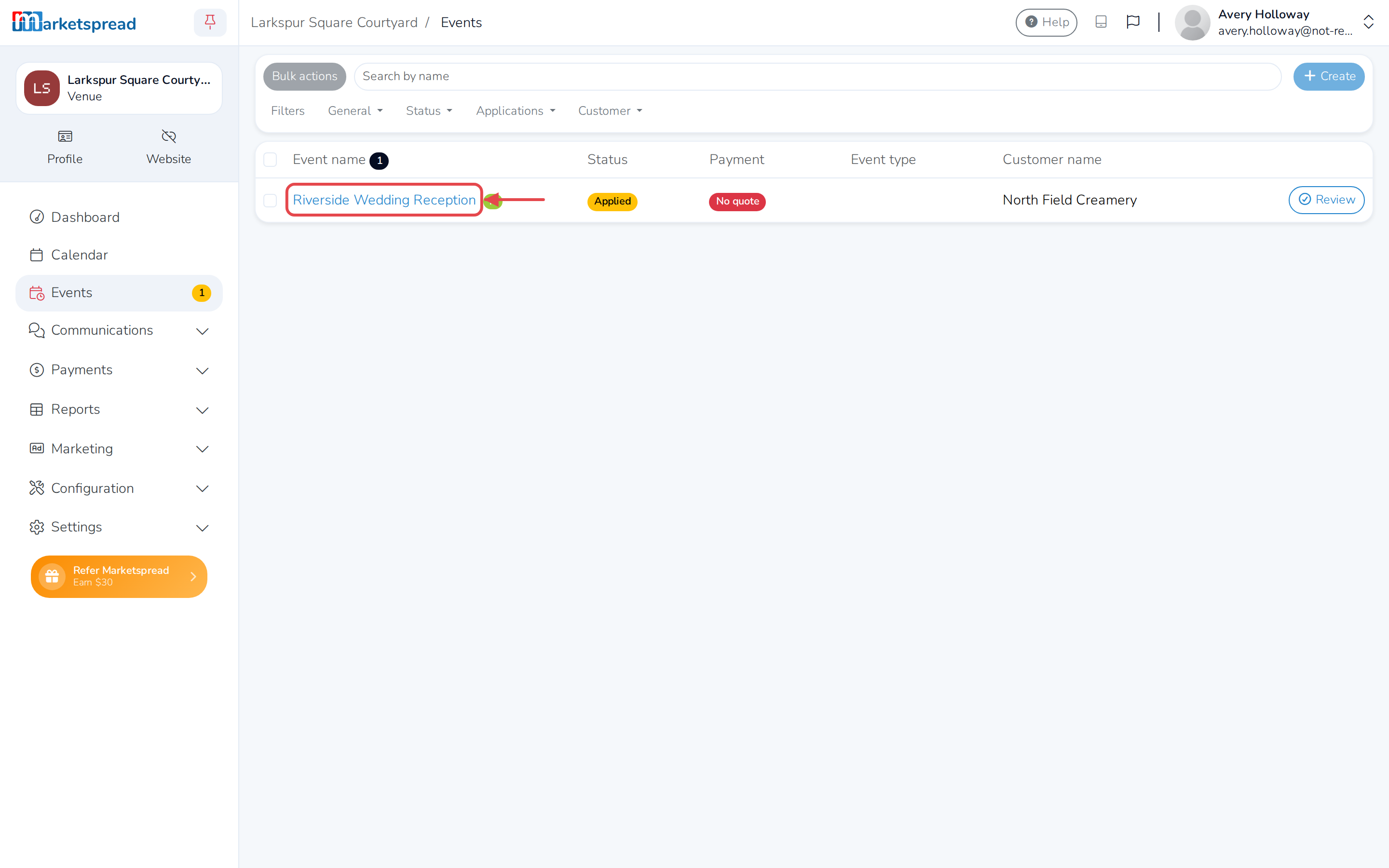
Open the booking request from your Events page.
-
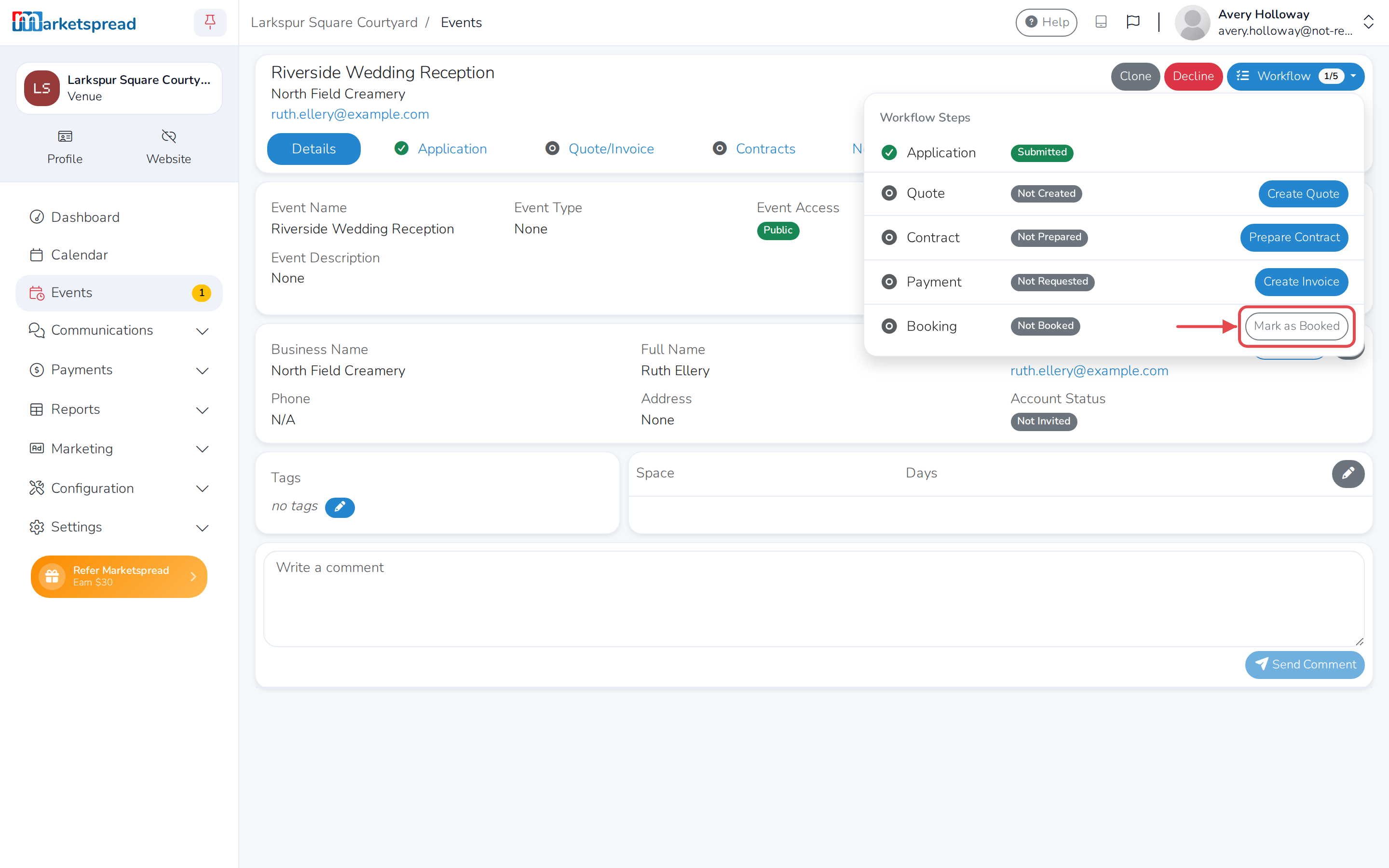
Click Workflow.
-
Next to Booking, click Mark as Booked.
-
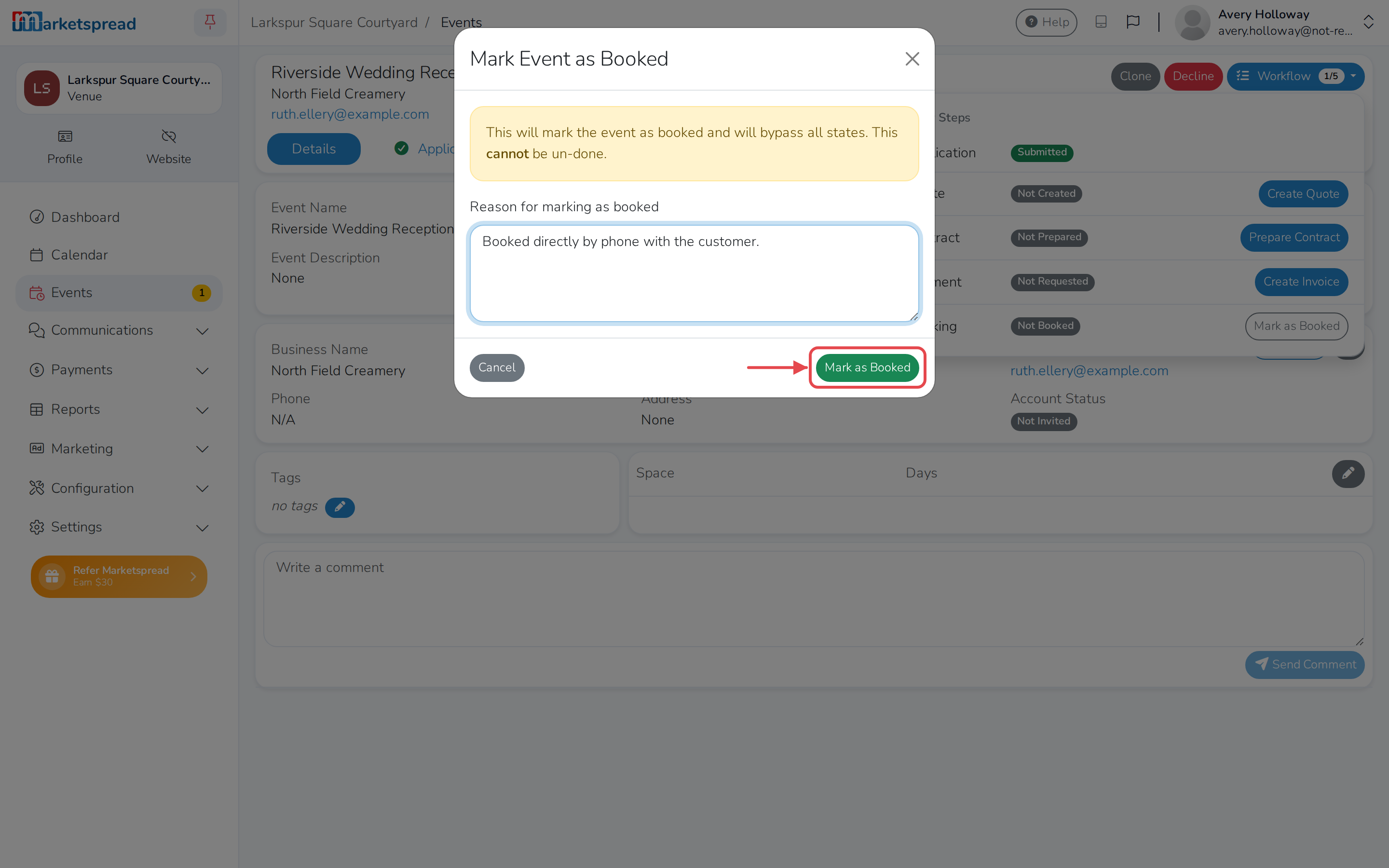
Fill in Reason for marking as booked.
-
Click Mark as Booked.
Good to know
- This skips every other step in the workflow, no matter what state it's in. It can't be undone.
- The customer gets a notification that their event is now booked. It also shows a Booked badge on their own bookings list.