


Your venue dashboard shows your bookings, income, and customer numbers at a glance. It opens with five cards — Venue Overview, Revenue, Upcoming Events, In Progress, and Customers. You can move and resize those cards, view one full-screen, or swap in different ones from a gallery of widgets.
Rearrange your cards
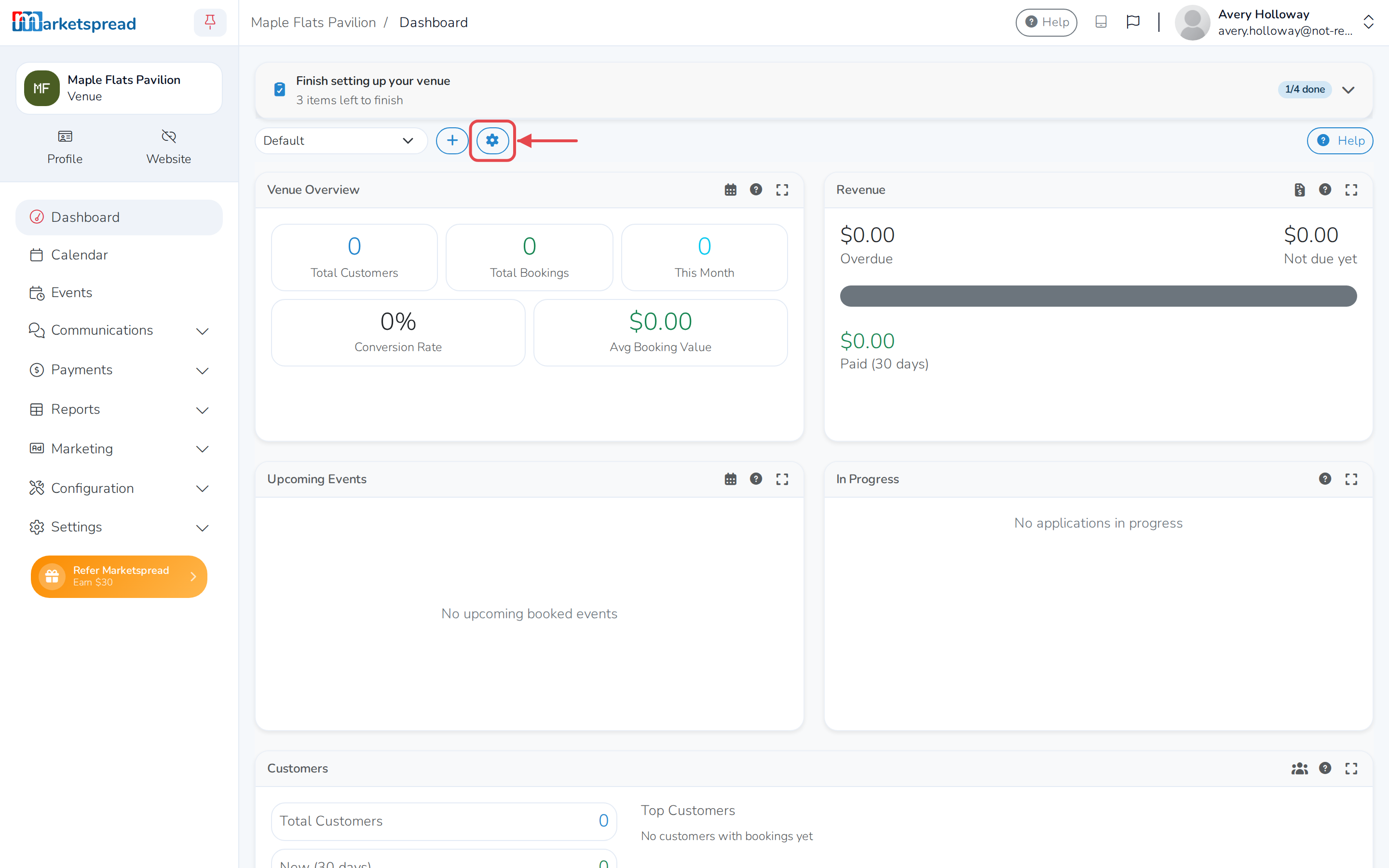
- Click the gear icon at the top of your dashboard.
- Drag a card anywhere on it to move it to a new spot. The other cards move aside as you go.
- Drag the bottom-right corner of a card to resize it.
- Click Save.
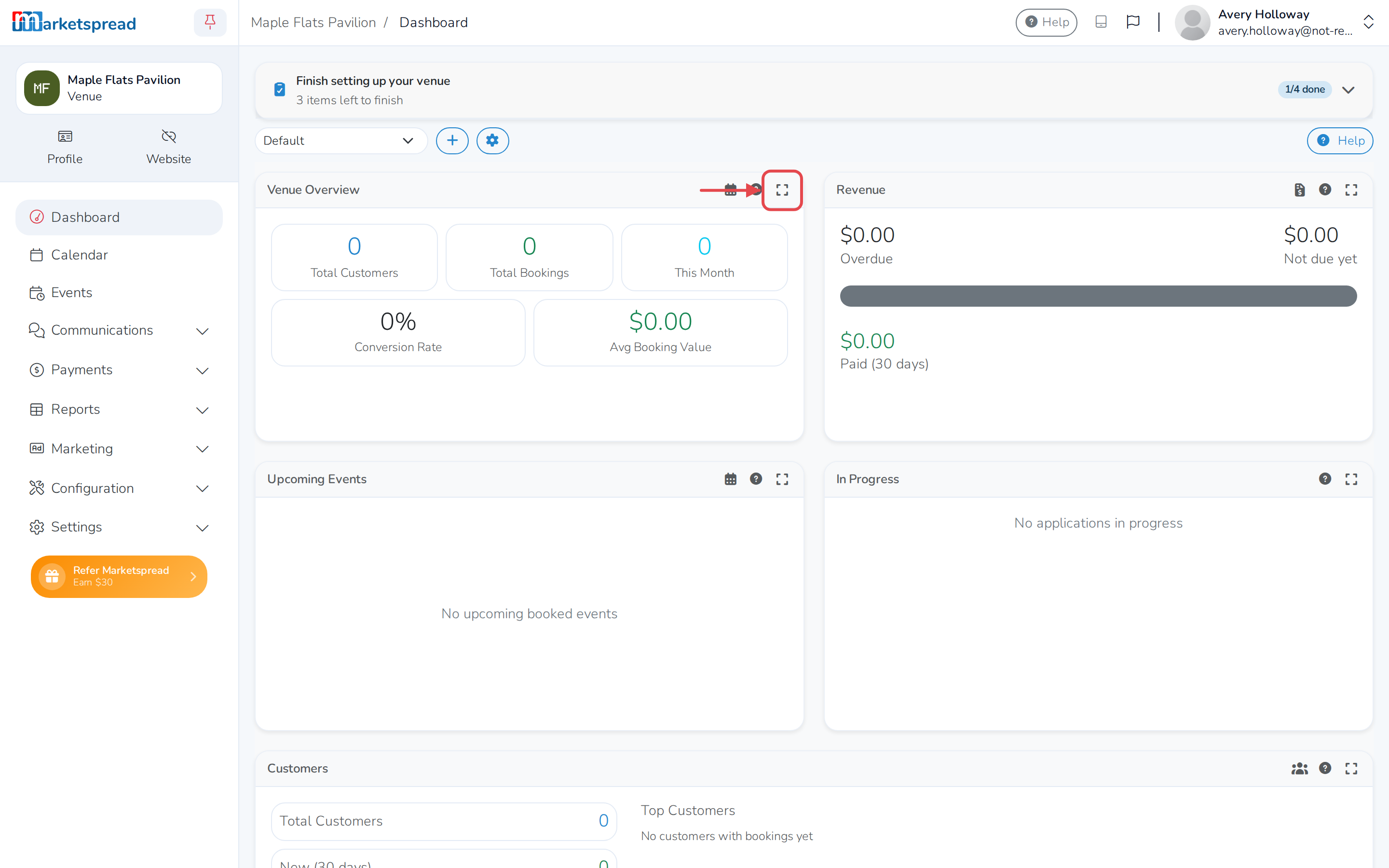
Get a closer look at a card
Click the expand icon in a card's header bar to fill the screen with it. Click the compress icon, or press Esc, to go back. This only changes the view — it doesn't change your layout.
Add widgets to your dashboard
- Click the gear icon to start customizing.
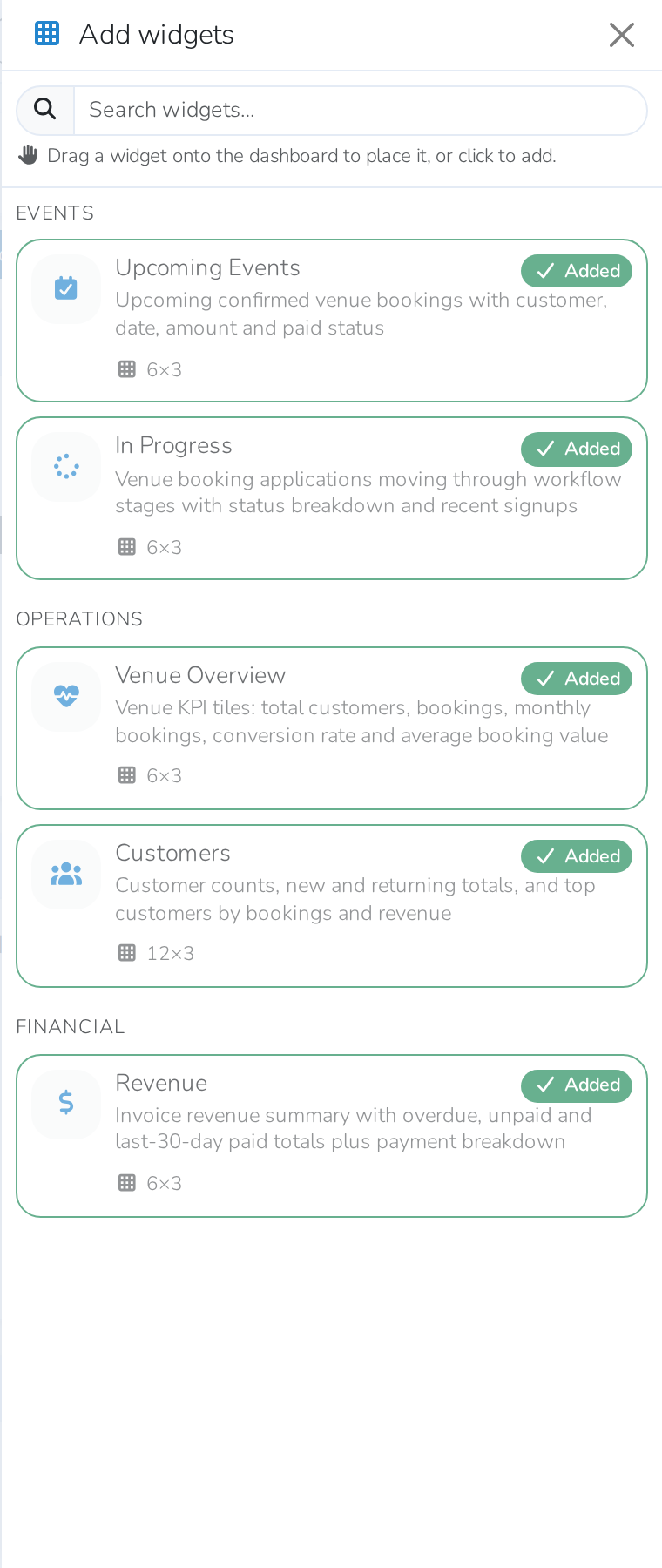
- Click Add widgets. A panel slides in from the right.
- Widgets are grouped by category — Events, Operations, and Financial. Scroll through them, or type in the search box to find one by name.
- Click a widget to add it, or drag it onto the dashboard where you want it to land.
- Click Save.
Remove a widget
- Click the gear icon to start customizing.
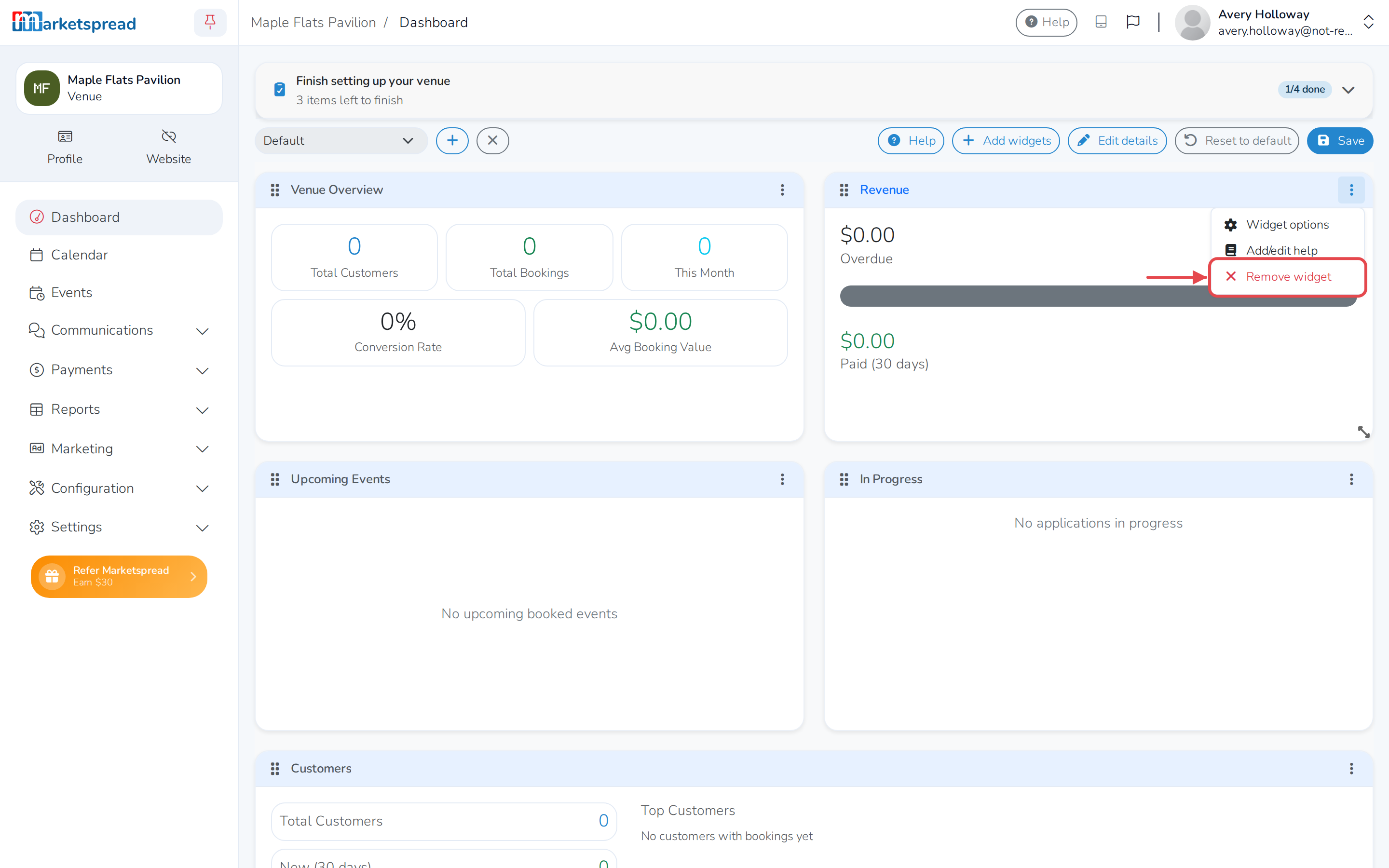
- Click the three-dot menu in the card's header bar.
- Click Remove widget.
- Click Save.
Good to know
Made a mess of your layout? Click Reset to default in the toolbar while customizing, then confirm by clicking Reset to Default. This puts the dashboard back the way it started and can't be undone.
If your venue's account isn't fully set up, a Finish setting up your venue checklist appears at the top of the dashboard with what's left to do.