


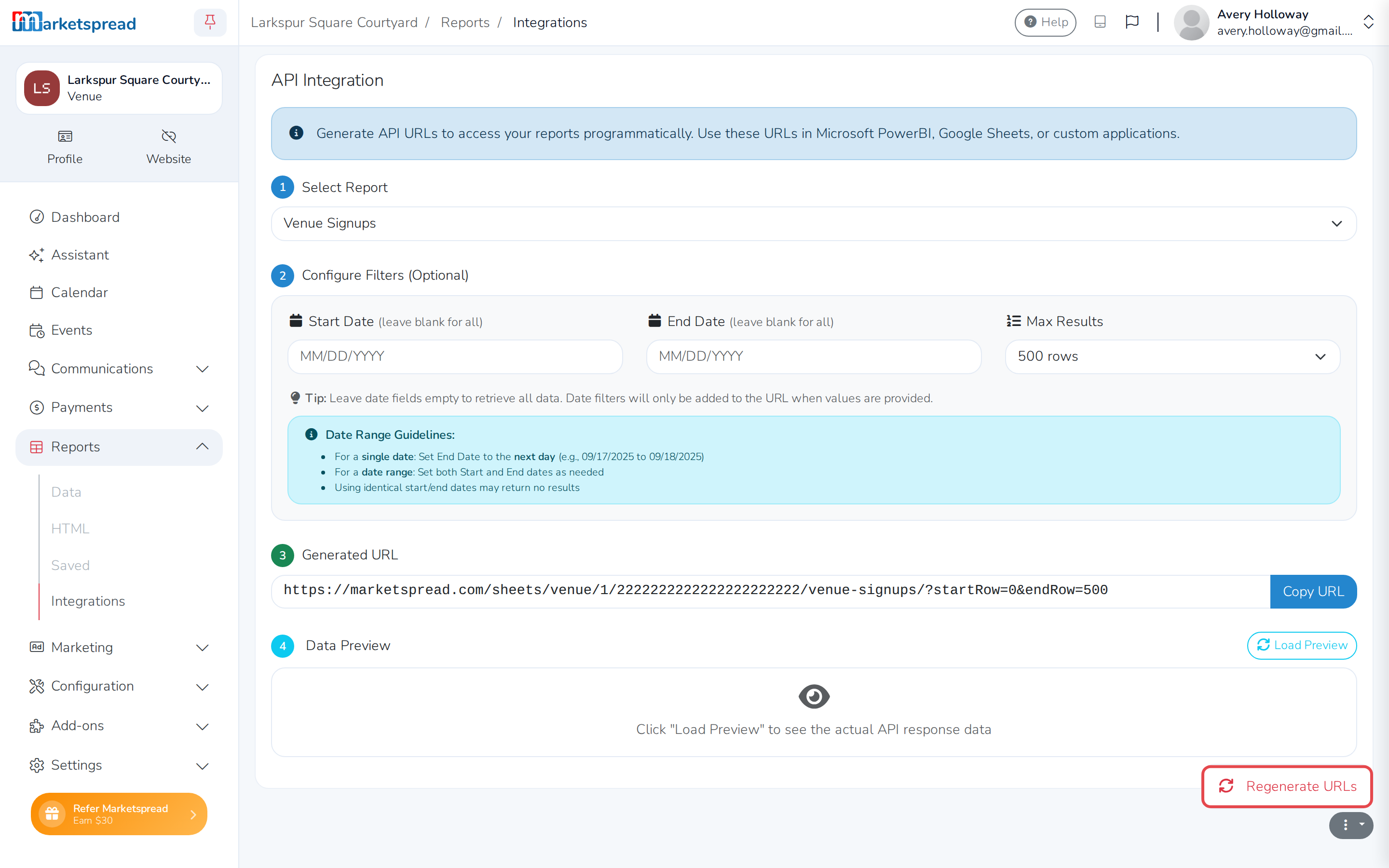
Integrations, under Reports in the left-hand menu, turns one of your venue's reports into a link. Paste that link into Google Sheets, Microsoft Power BI, or another program that can pull in data from a link. You skip exporting a file and uploading it yourself. It's only available on premium plans.
From here you can:
- Get a link for a report
- Limit a link to a date range or a number of rows
- Preview what a link returns
- Regenerate every link your venue has generated
Get a link for a report
- Click Reports in the left-hand menu to expand it.
- Click Integrations.
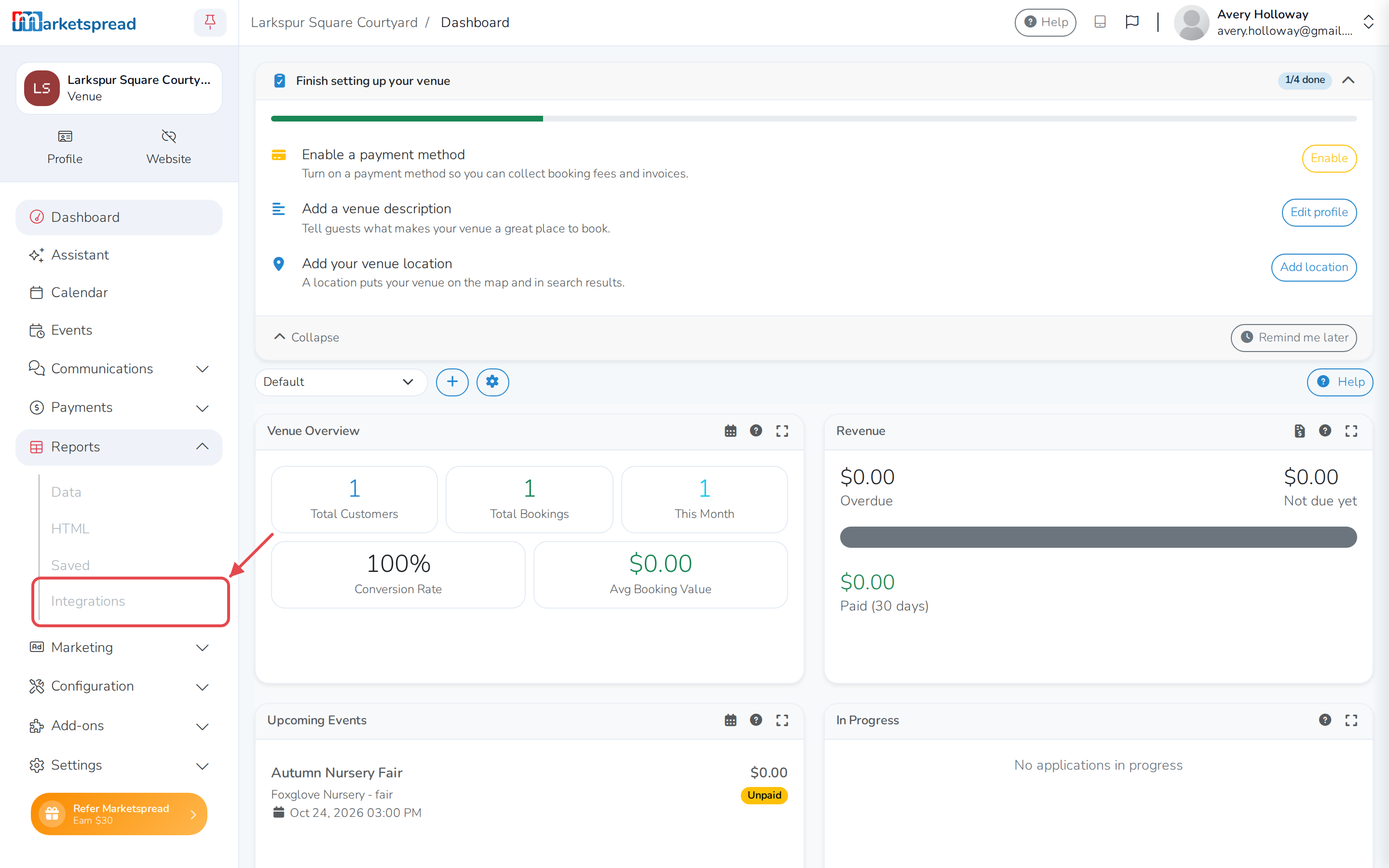
- Under Select Report, choose the report you want.
- Click Copy URL.
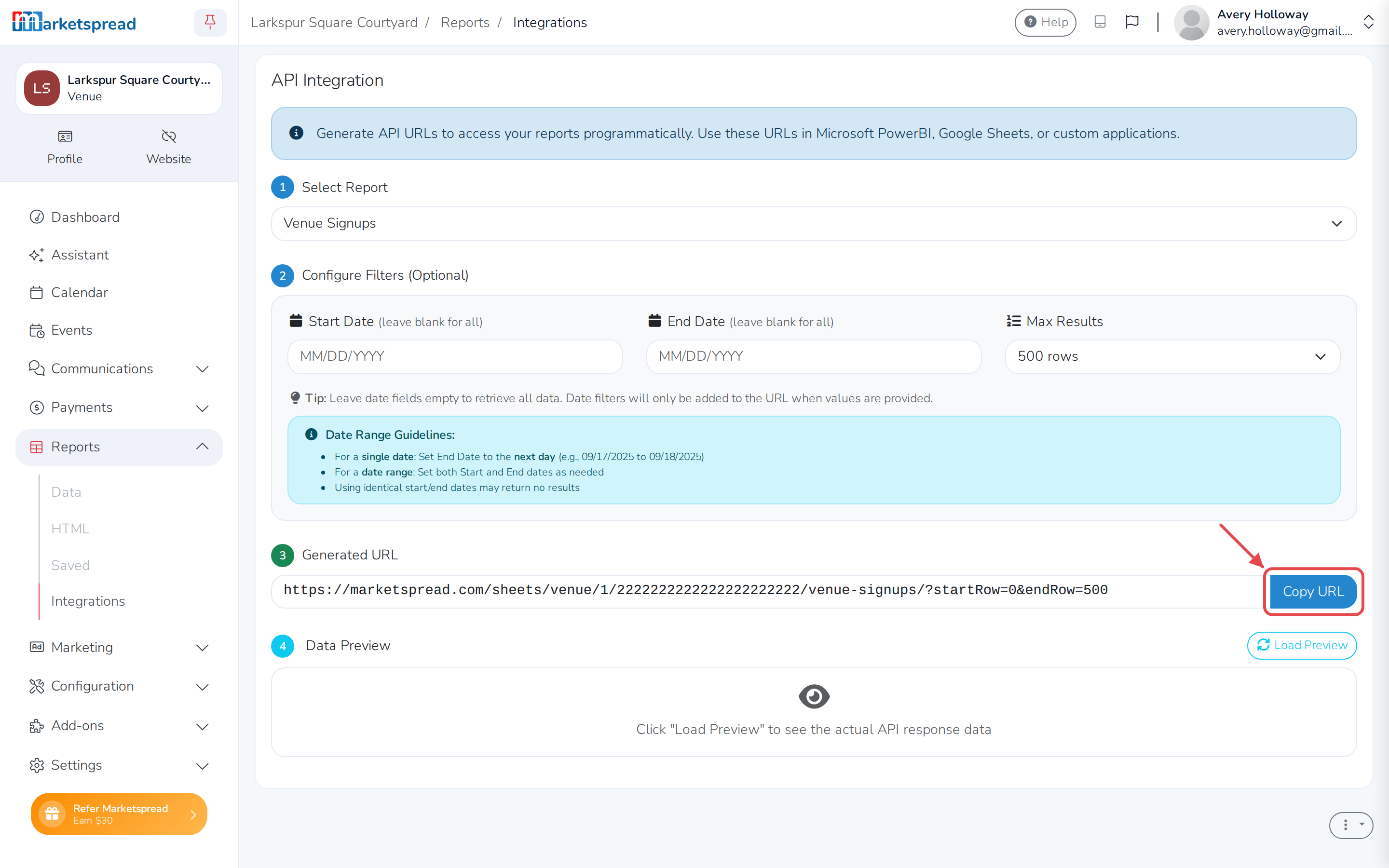
Important
Anyone with this link can see the report's data, without signing in. Only share it with tools and people you trust.
Limit a link to a date range or number of rows
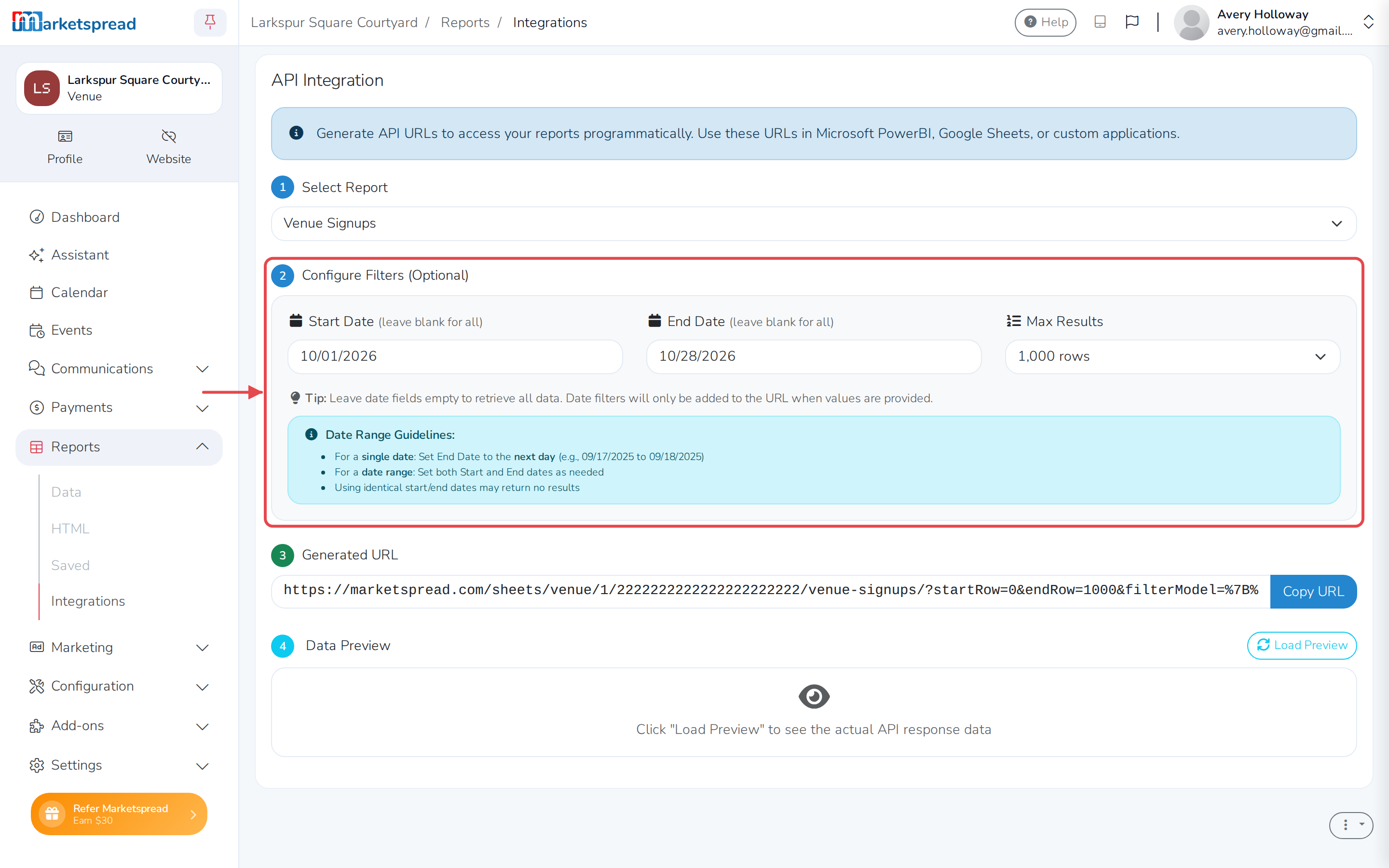
- With a report selected, fill in Start Date and End Date.
- Choose how many rows to include under Max Results.
- Click Copy URL to copy the updated link.
Note
Leave the date fields blank to include everything. For a single day, set End Date to the day after it — using the same date for both can return nothing.
Preview what a link returns
- With a report selected, click Load Preview.
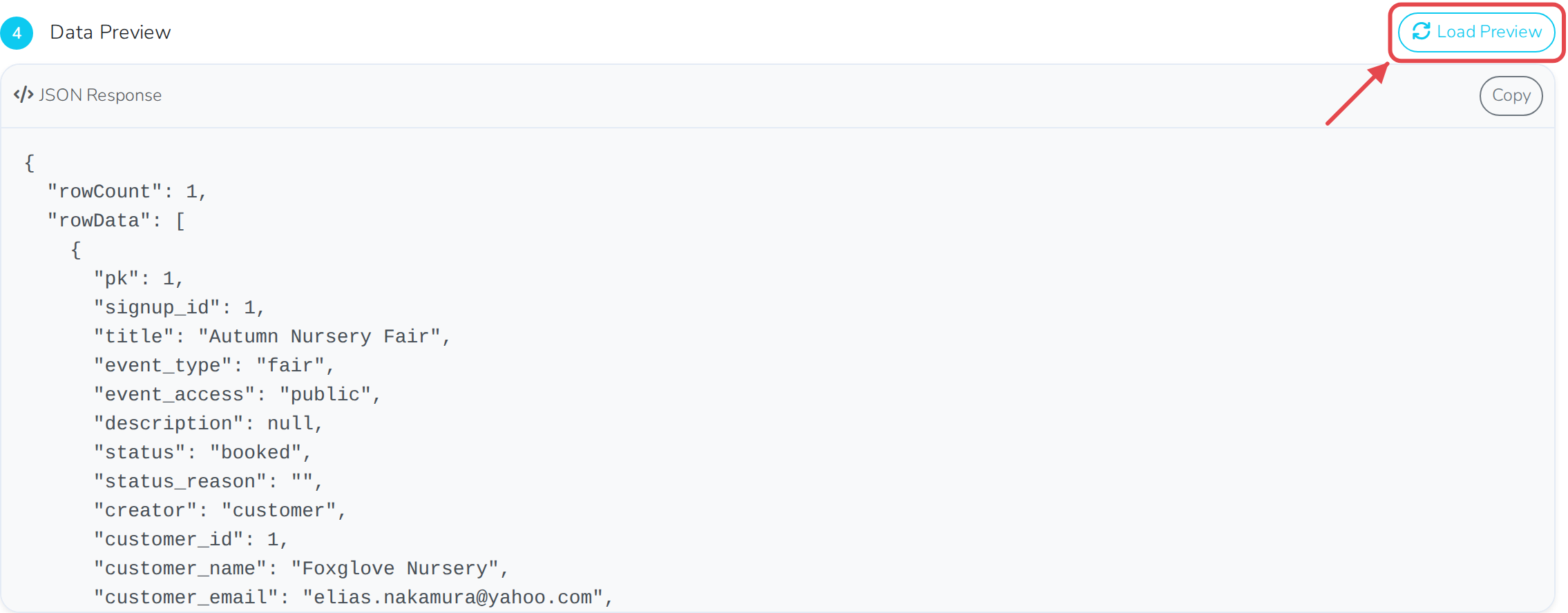
The report's data appears on screen, so you can check it before you use the link anywhere.
Regenerate every link
Only Administrators and Managers can do this. It replaces every link your venue has generated — not just the one you're looking at.
- Click the three-dot menu below the report tool.
- Click Regenerate URLs.
- Click Re-generate to confirm.
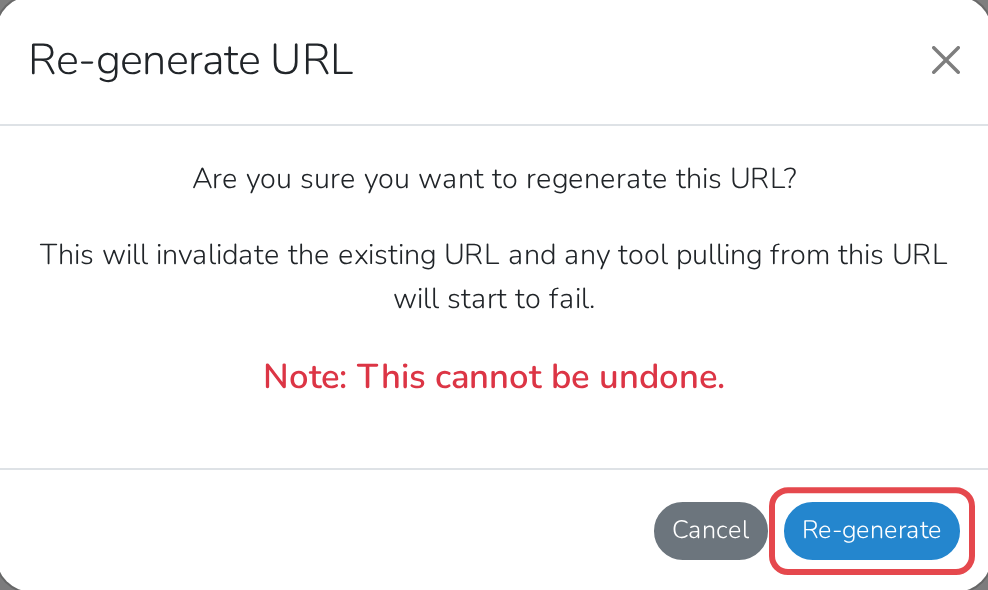
Caution
This can't be undone. Every link you've already shared stops working. Anything already using one — a spreadsheet, a dashboard — stops pulling in data until you paste in the new link.