


Your Products page lists everything you sell. It's where you add a new
one, and where you come back to change or remove one you already have.
Create a product
-
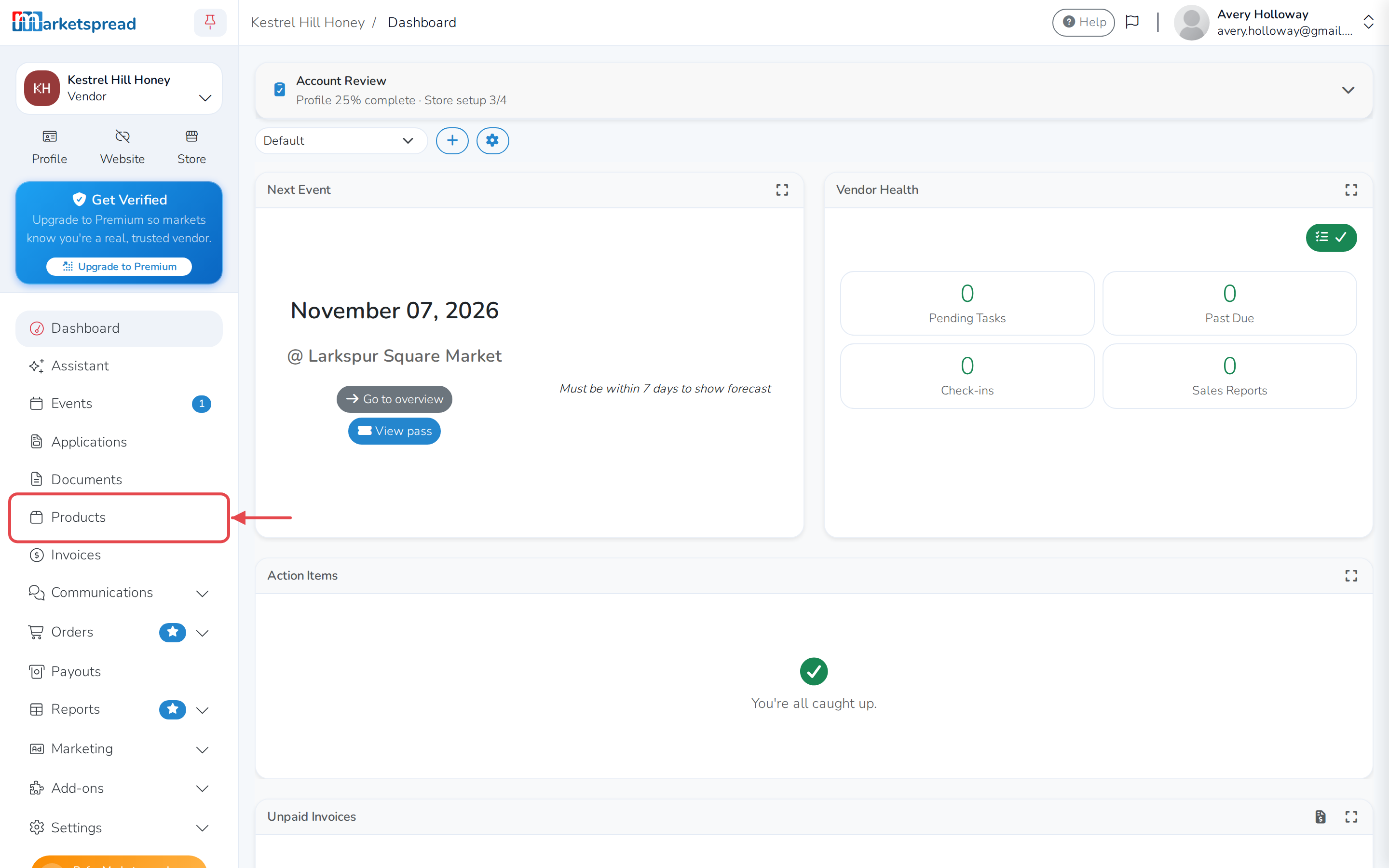
Open Products in the left-hand menu.
-
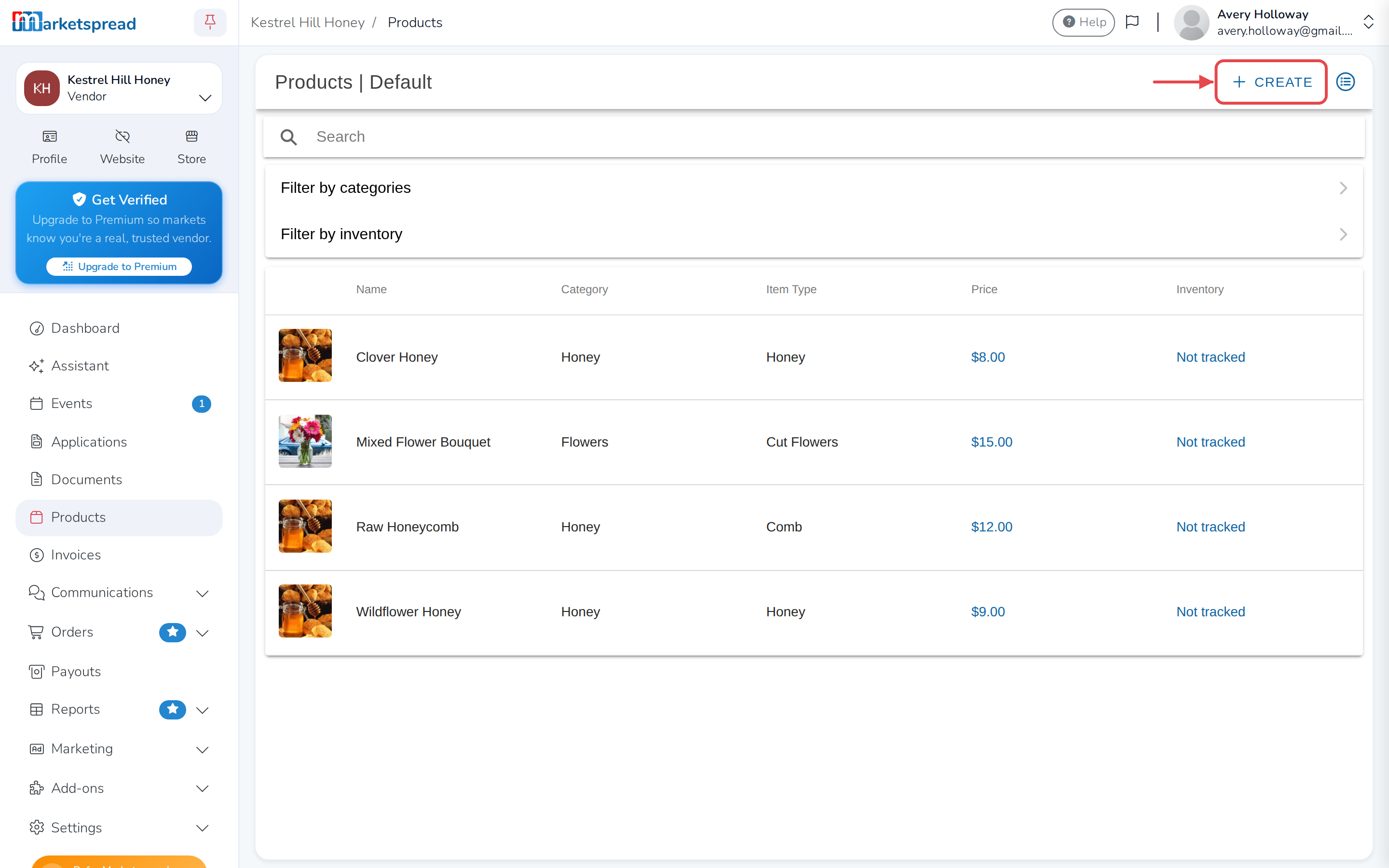
Click Create in the top-right corner.
-
Fill in the Name, Category and Item Type, and a Description.
If you only sell it part of the year, set a Starting availability and
Ending availability — otherwise it stays Always available. Add a
word in Keywords and press Enter for each one you want customers to
find it by.Below that are three switches: Are you reselling it? — on if you
bought it in to resell, rather than made or grew it yourself; Viewable
on your online vendor profile?; and Charge tax when sold?, which uses
your tax rate from Settings unless you turn on Charge a custom tax
rate when sold? and set one just for this product.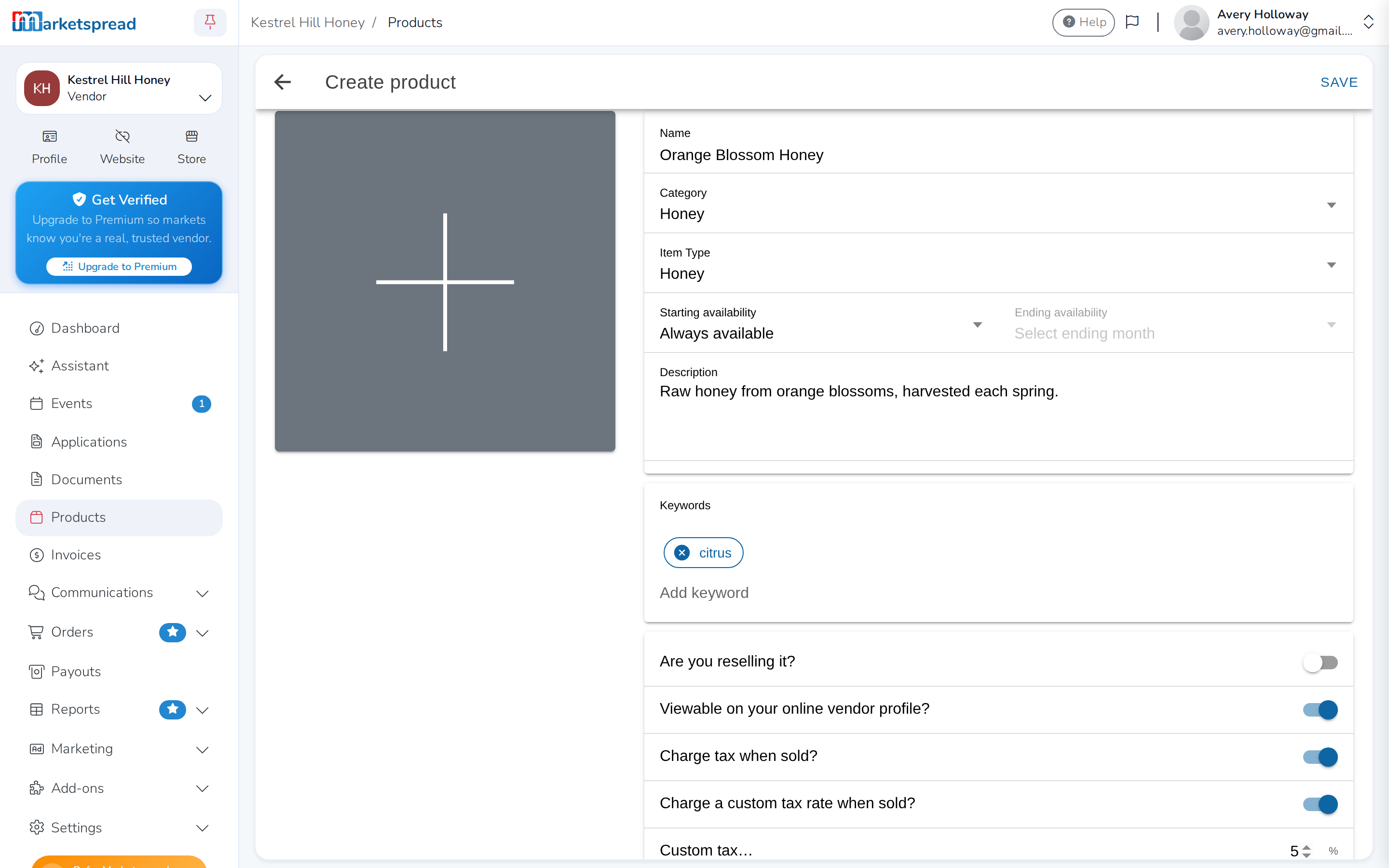
-
Click the gray square to the left of the name to add a photo. Choose a
picture, crop it, then click Save.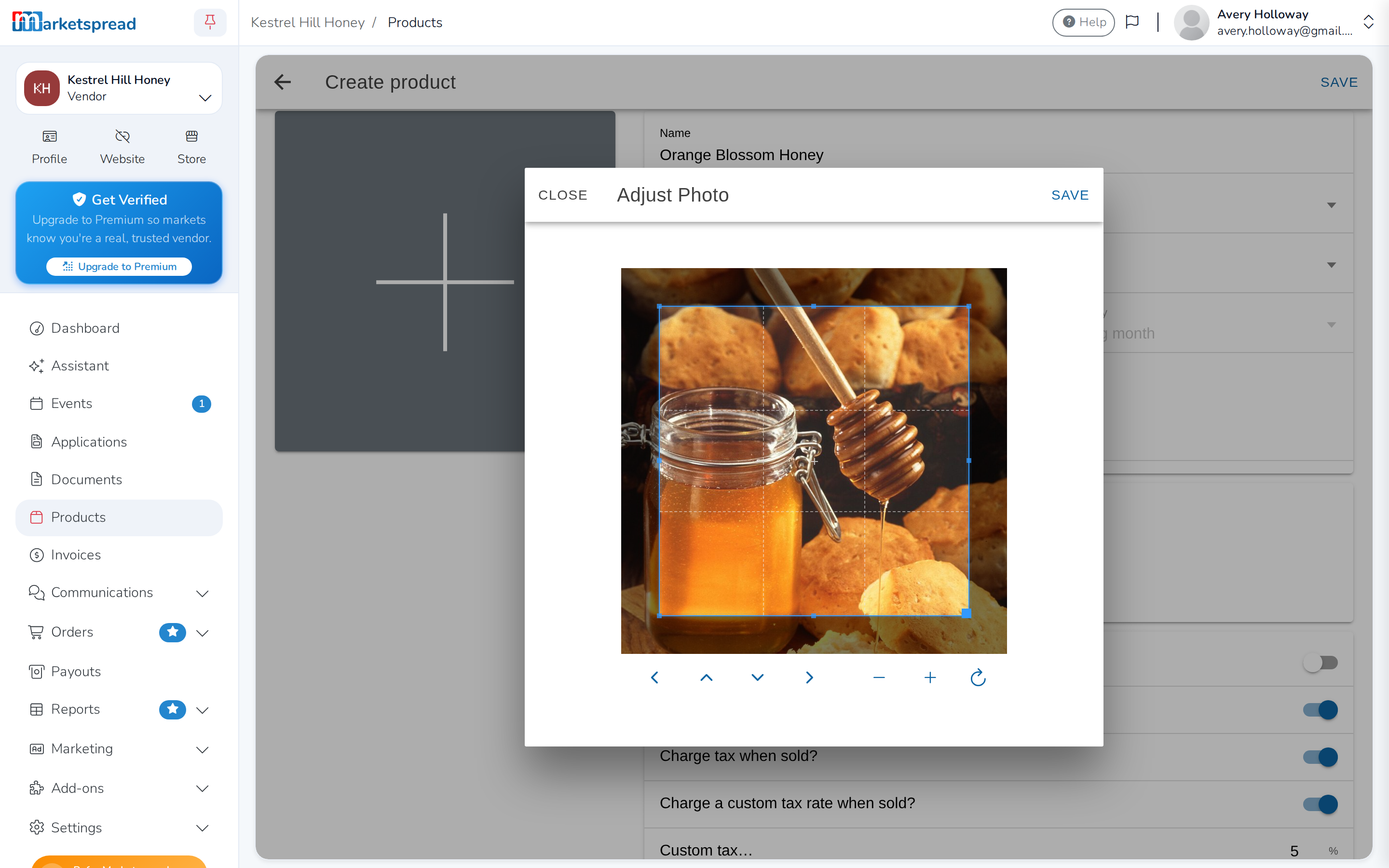
Click it again to add more. Click an extra photo to Set as featured or
Delete it.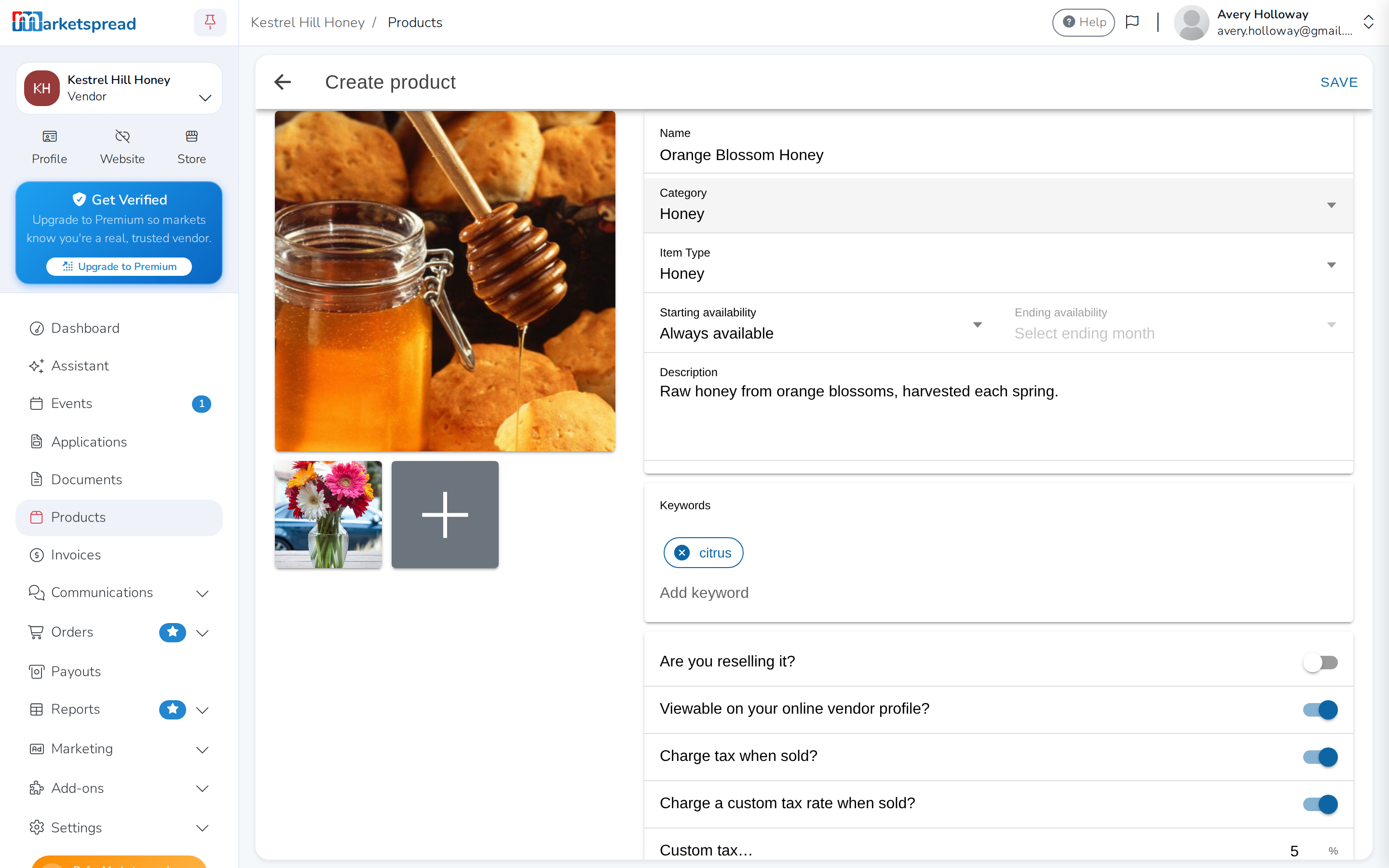
-
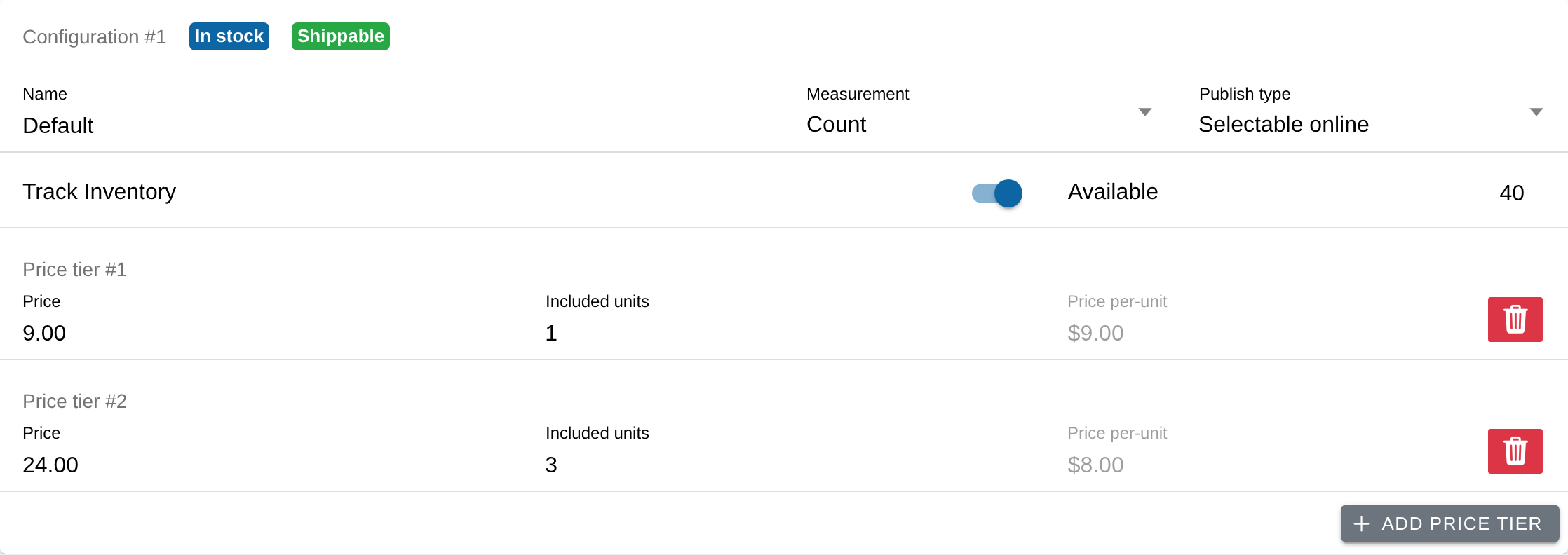
Fill in a configuration — every product needs at least one.
"Default" is fine if you only want one. Choose a Measurement — Count,
Weight or Volume — and a Publish type: Selectable online is also
sold in person through Point of Sale, while In-person only keeps it off
your public profile and online store. Turn on Track Inventory to enter
how many you have Available, then fill in the Price.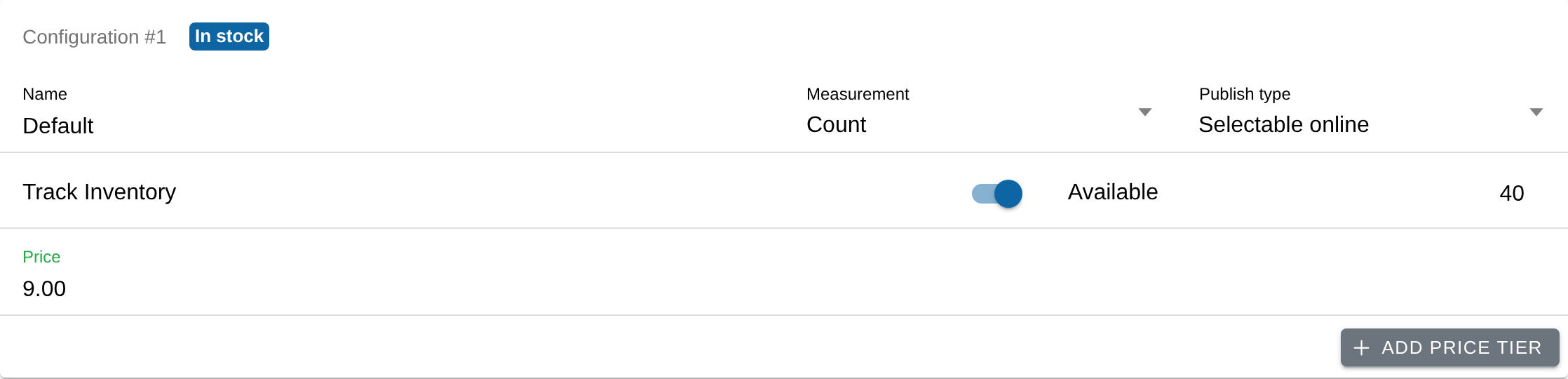
Click Add configuration if you need another, for a different size or
option. -
To offer a discount on larger orders, click Add price tier and enter a
price and quantity for the next tier up — the price per unit is worked out
for you.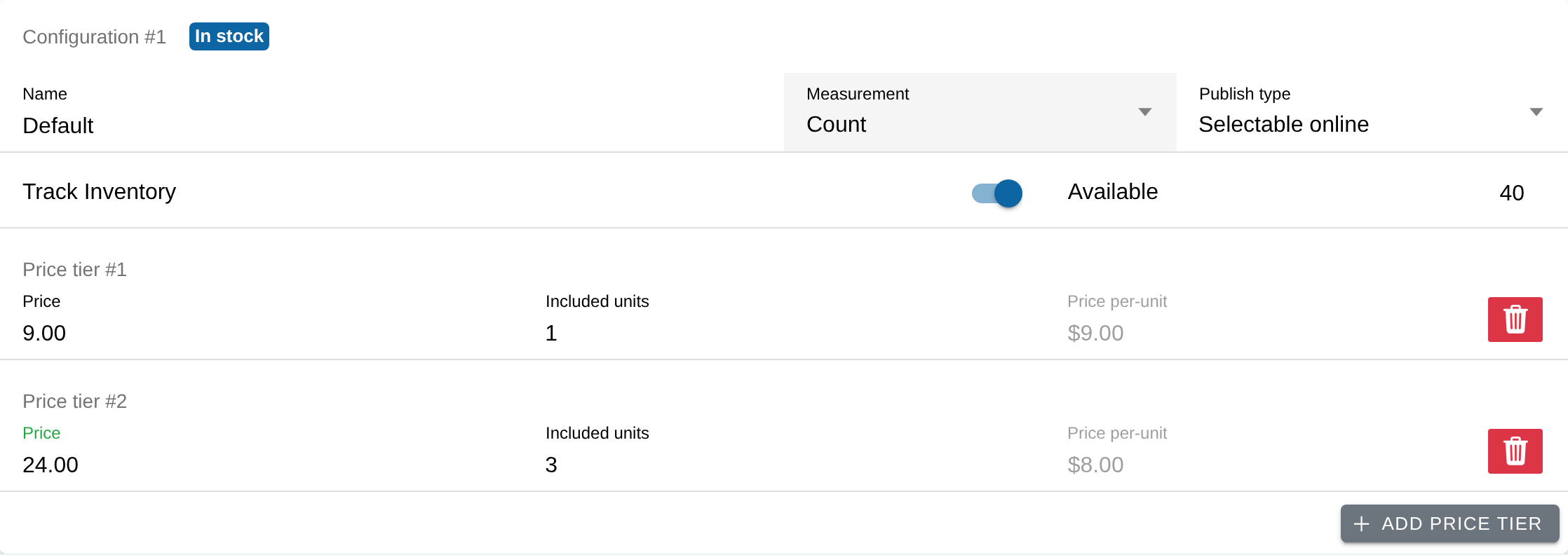
-
If you ship this product, open the Shipping tab next to Inventory &
Price and turn on Shippable, so customers can choose shipping at
checkout in your online store.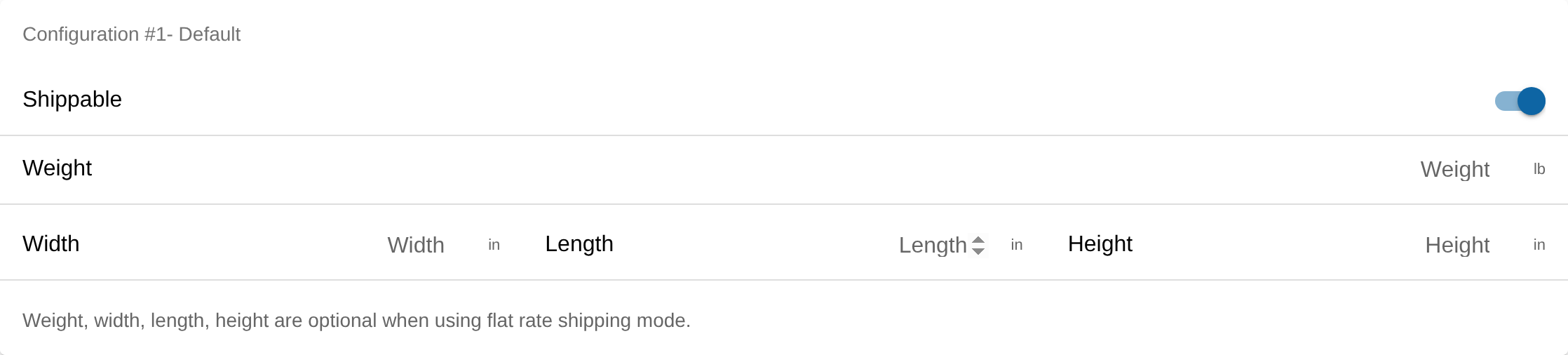
Back on Inventory & Price, the configuration is marked Shippable.
-
Click Save. Nothing is kept until you do, so leaving the page first
loses your changes. You land back on Products, with your new product
in the list.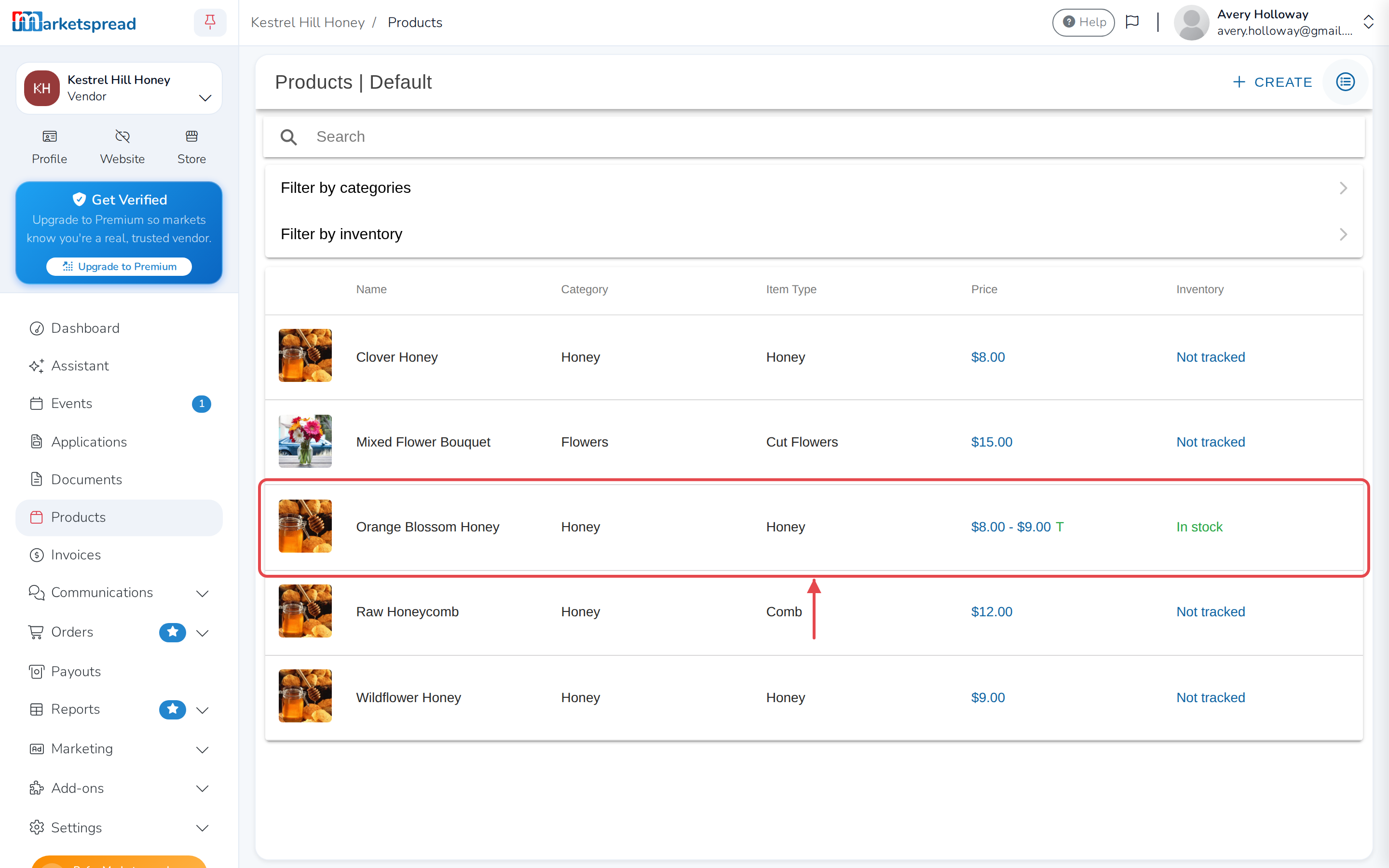
Update a product
-
Open Products in the left-hand menu.
-
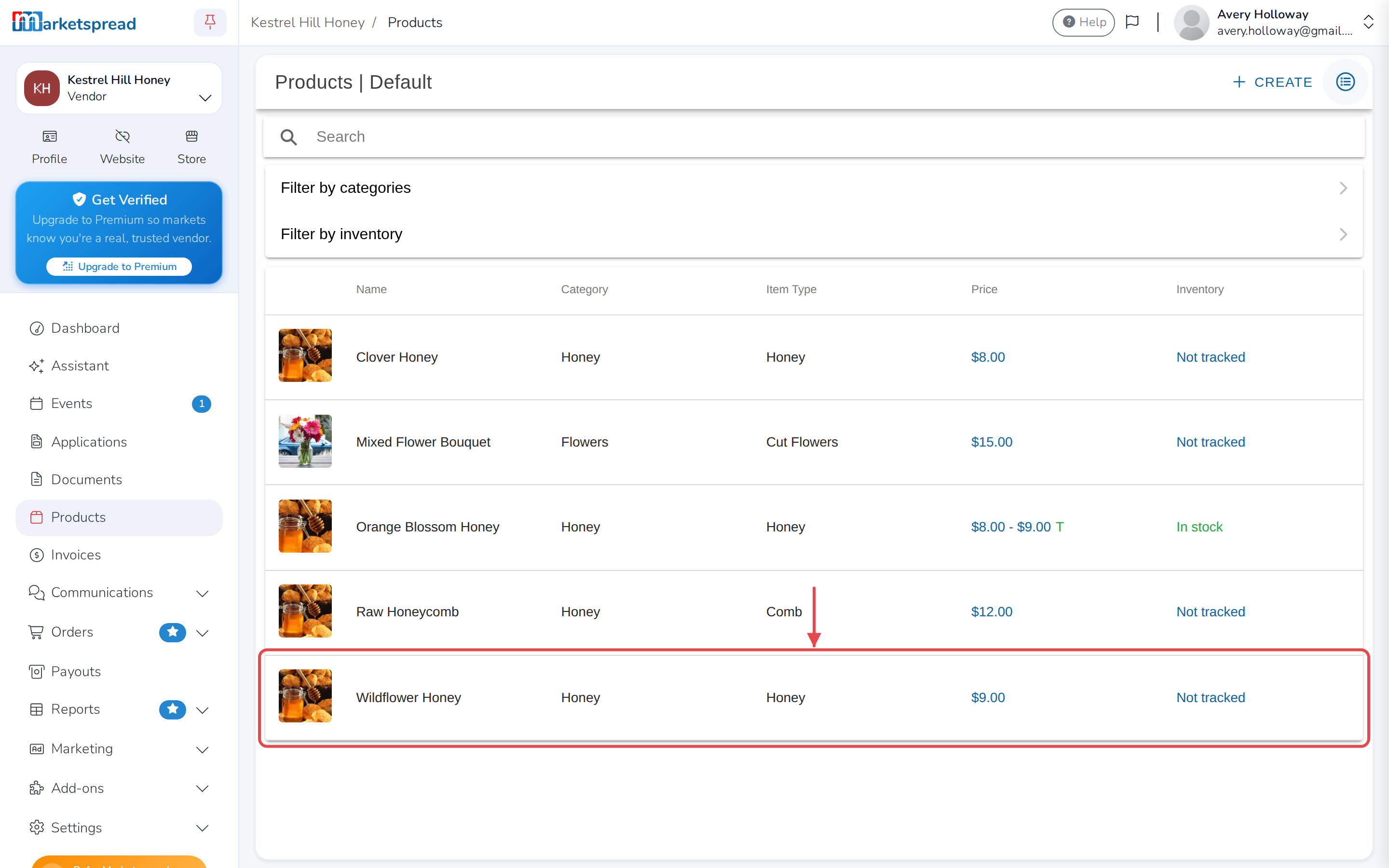
Click the product you want to change.
-
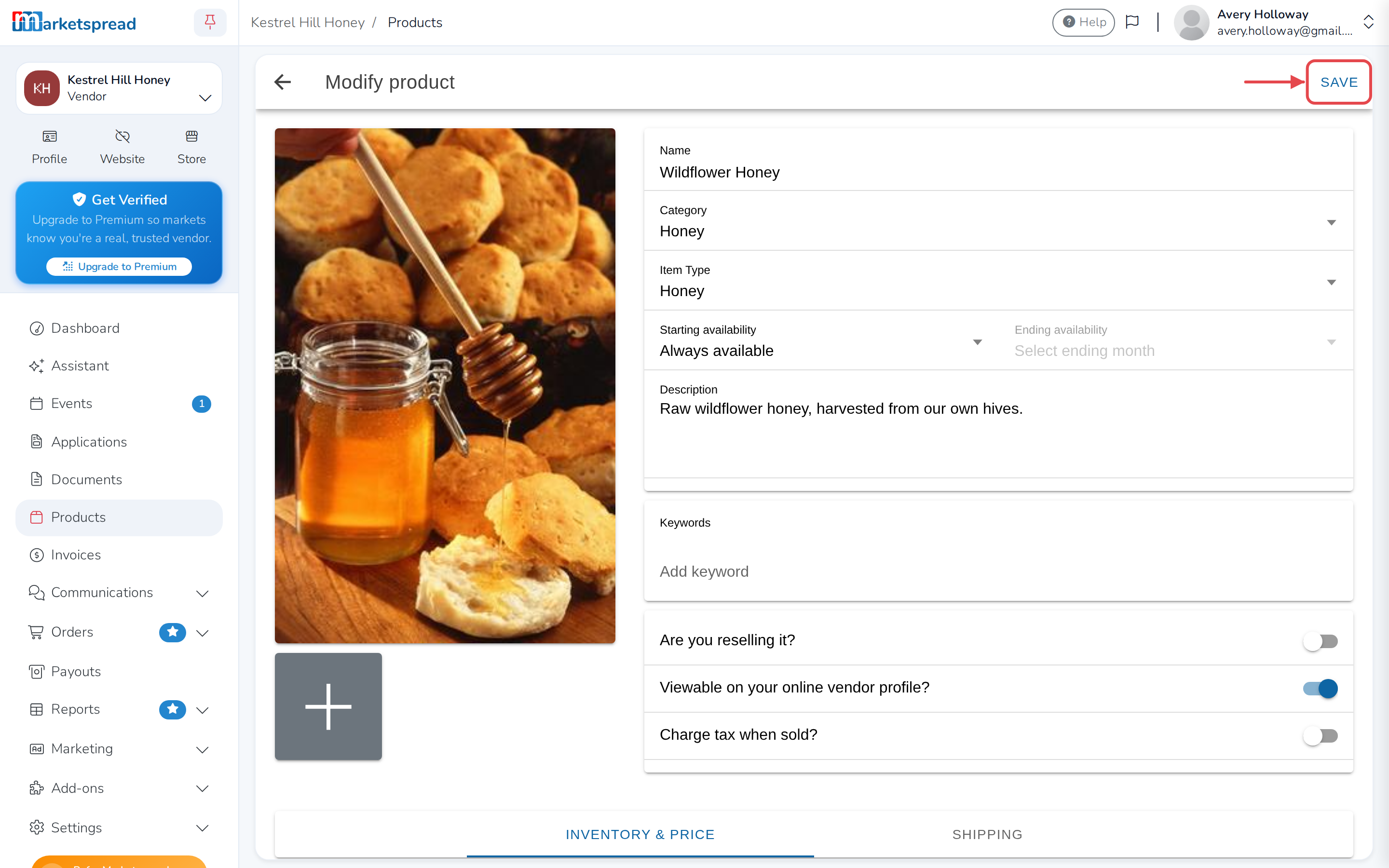
Make your changes.
-
Click Save.
See how a product looks to customers
A product set to show on your profile appears there — the page customers
and market managers see.
-
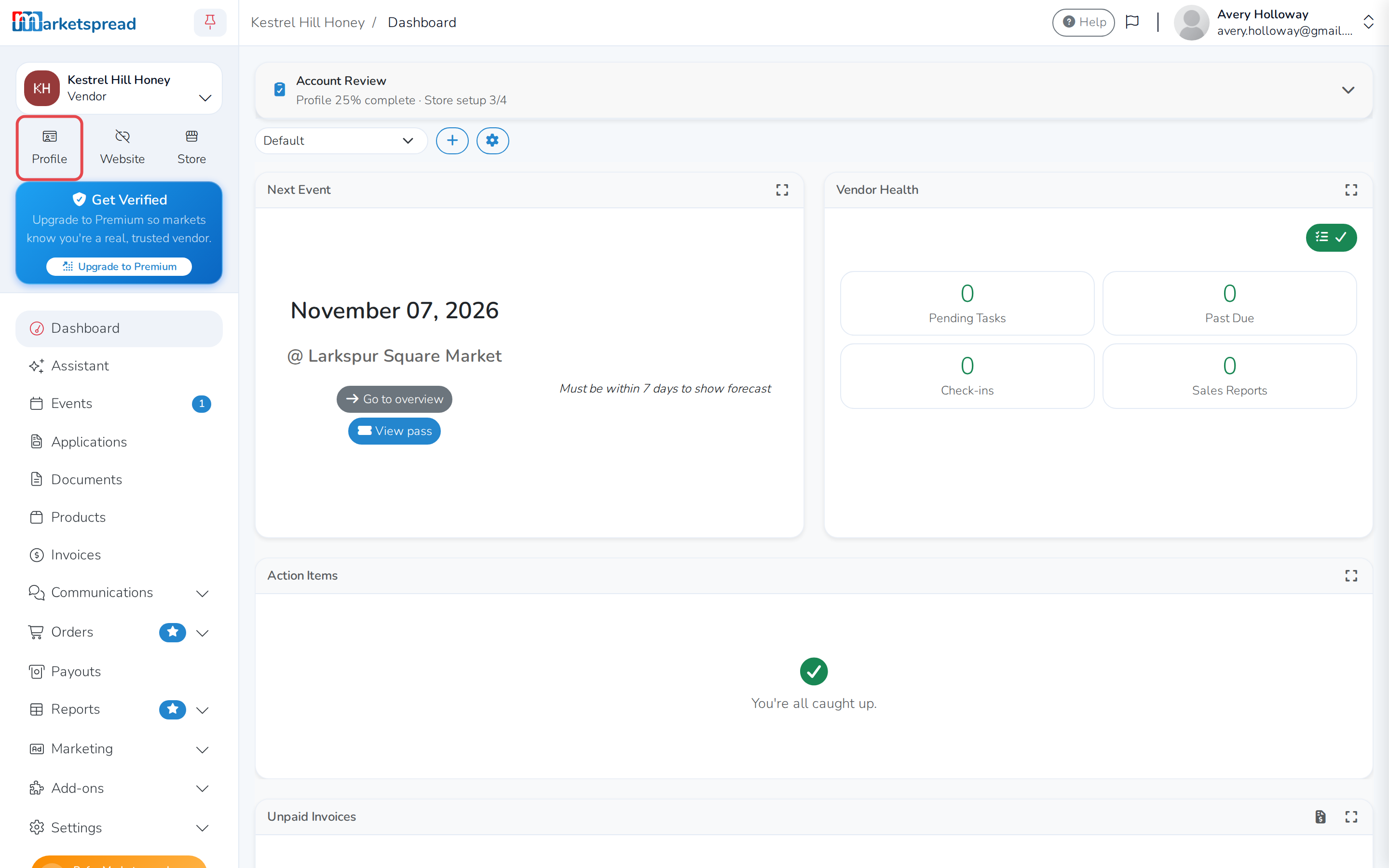
In the dashboard, click Profile below your vendor name.
-
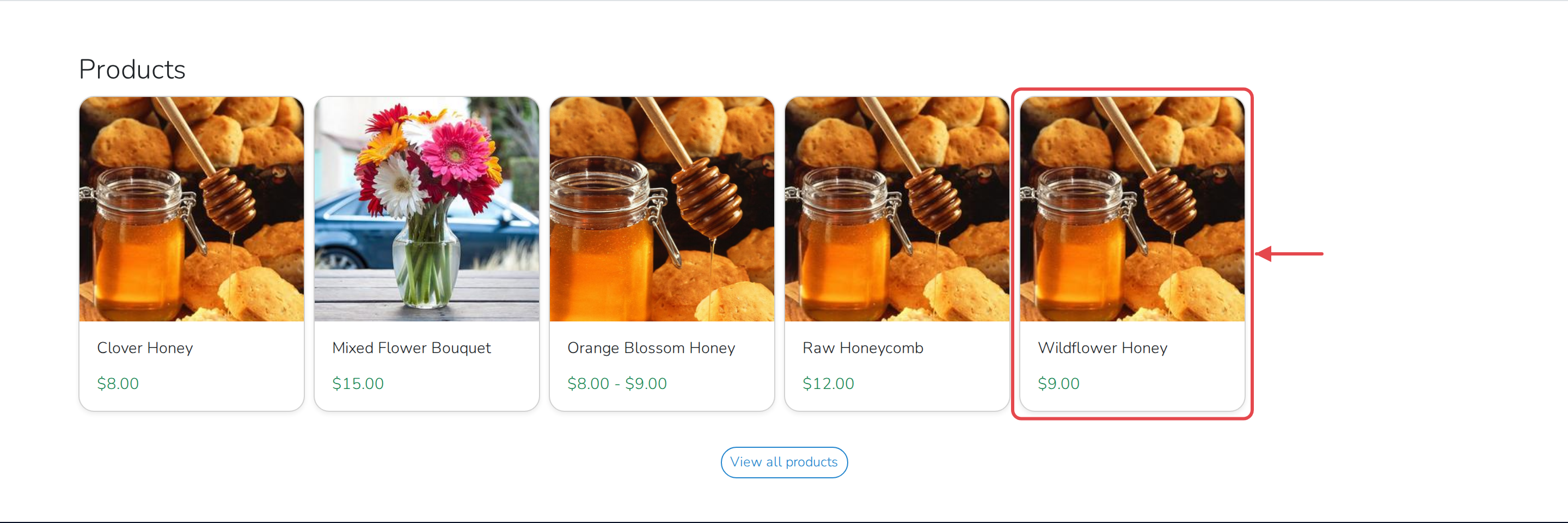
Scroll to Products.
-
Click a product to see its details, or click View all products to see
your full list.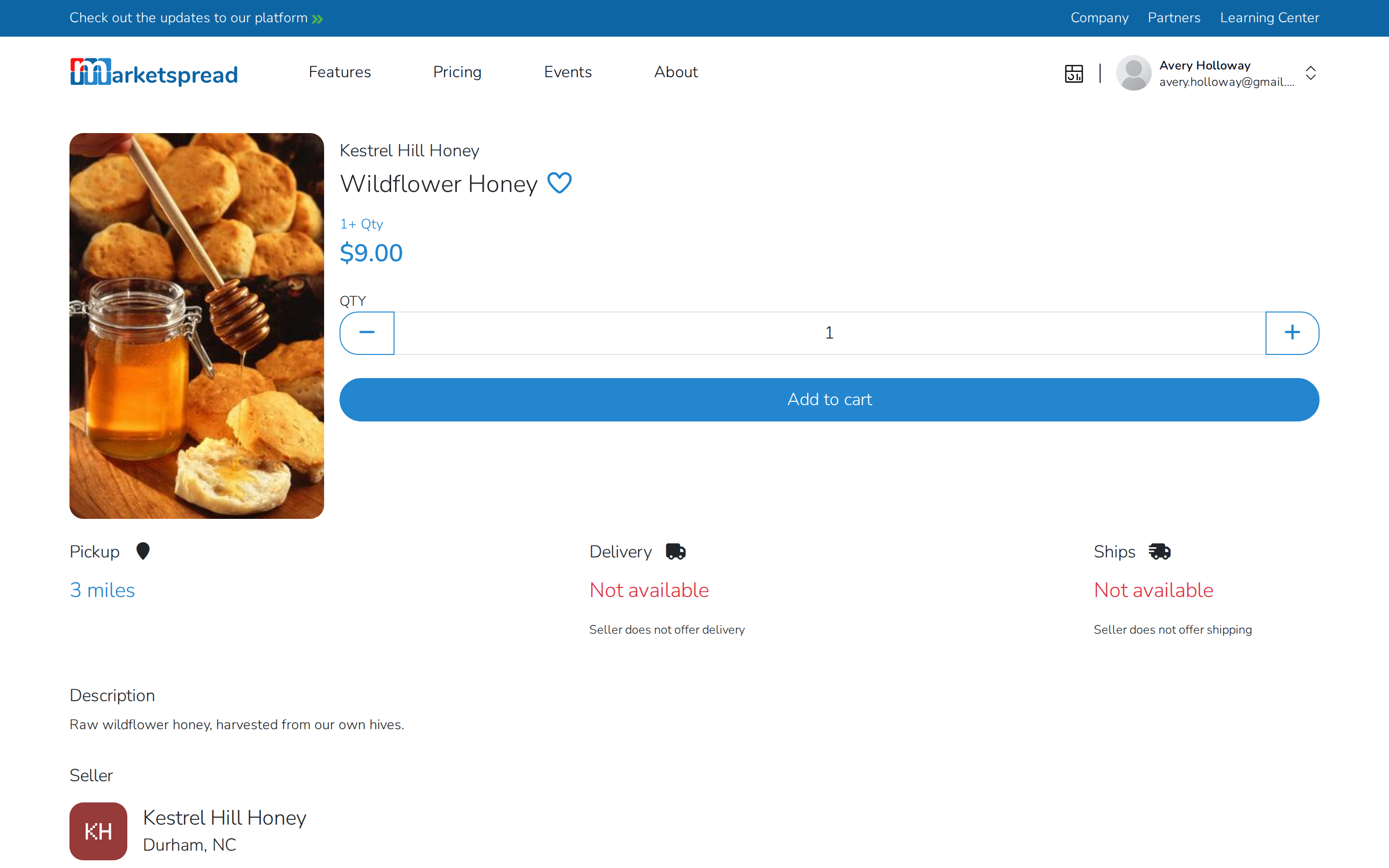
Delete a product
-
Open Products in the left-hand menu.
-
Click the product you want to remove.
-
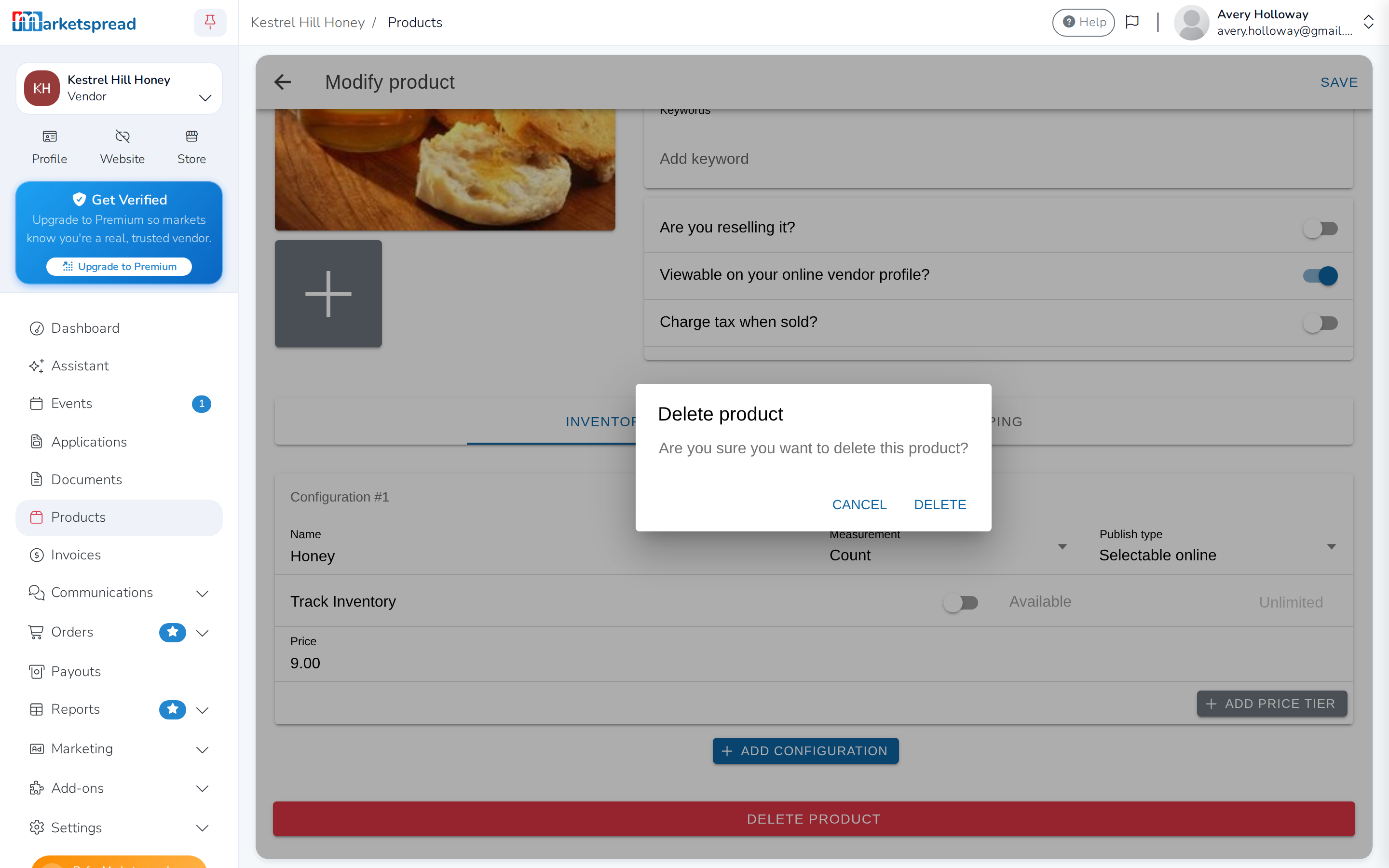
Scroll to the bottom of the product's edit screen and click Delete
product.
-
A window asks you to confirm. Click Delete to remove it for good.
Caution
Deleting a product can't be undone — it removes the product completely,
everywhere it was sold. If you just want to stop selling something for
now, turn off Viewable on your online vendor profile? instead and
leave the product in place.