Every product needs a price before it can be bought online or rung up at
Point of Sale. Set one price for everything you sell, or add a cheaper price
for people who buy more — Point of Sale switches to it on its own once
someone buys enough. Configurations, price tiers and inventory tracking all
come at no extra cost.
Works the same on the website
Click Products in the dashboard menu to do this from a browser
instead.
From here you can:
- Set a price
- Give a discount for buying more
- Charge the discounted price in Point of Sale
Set a price
-
Open Products, then tap the product you want to price — or
create one. -
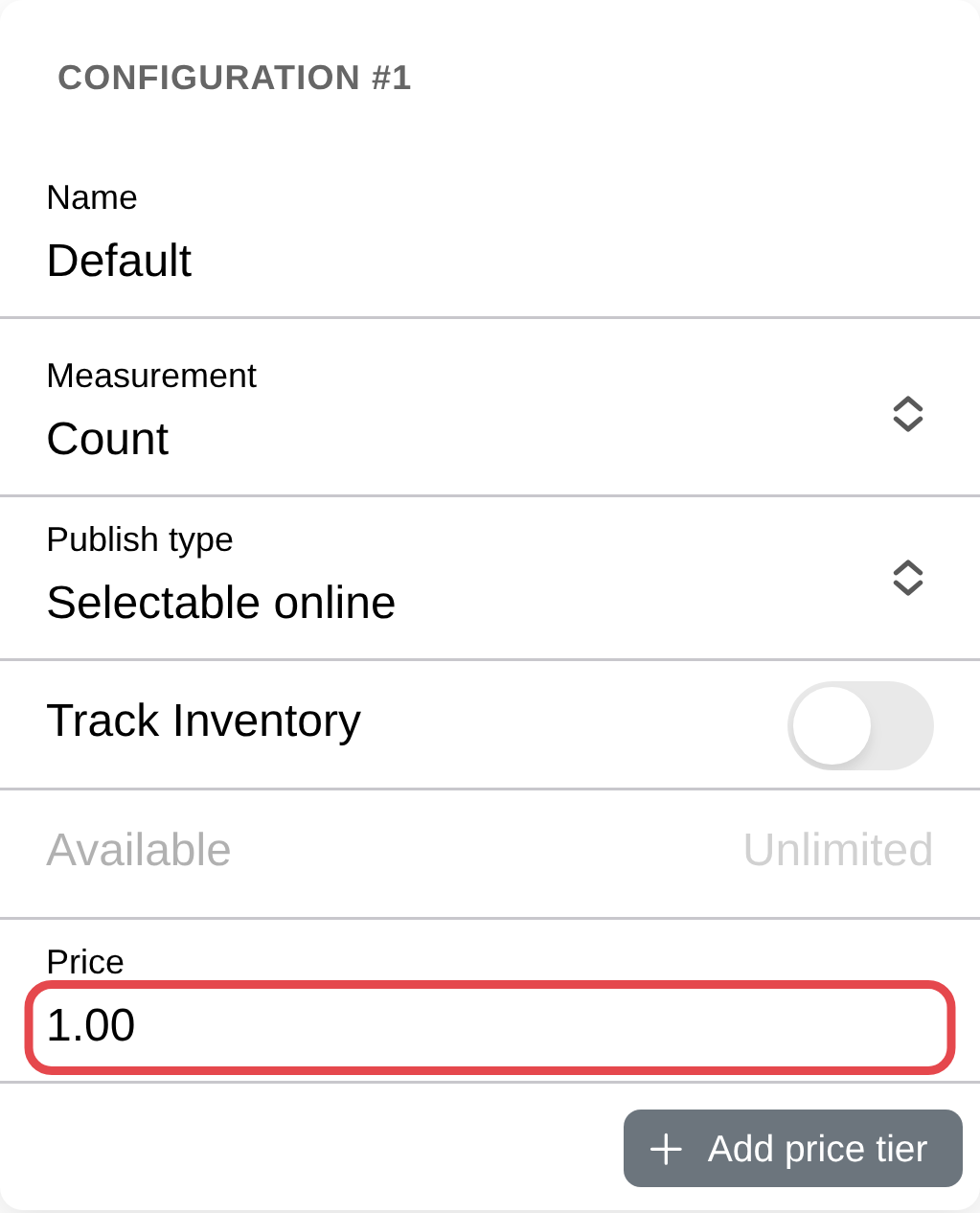
On the Inventory & Price tab, fill in Price.
-
Tap Save.
Give a discount for buying more
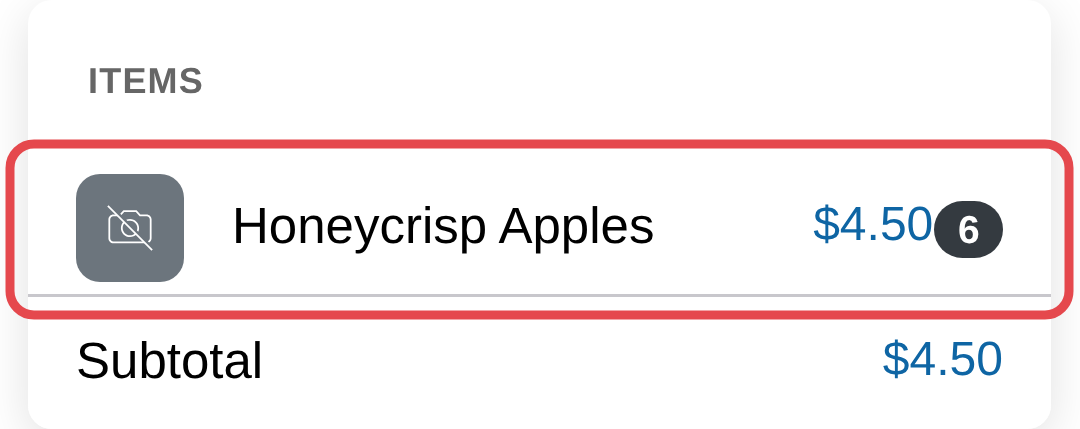
Sell the same product cheaper when someone buys a bigger amount — six apples
for $4.50 instead of $1.00 each.
-
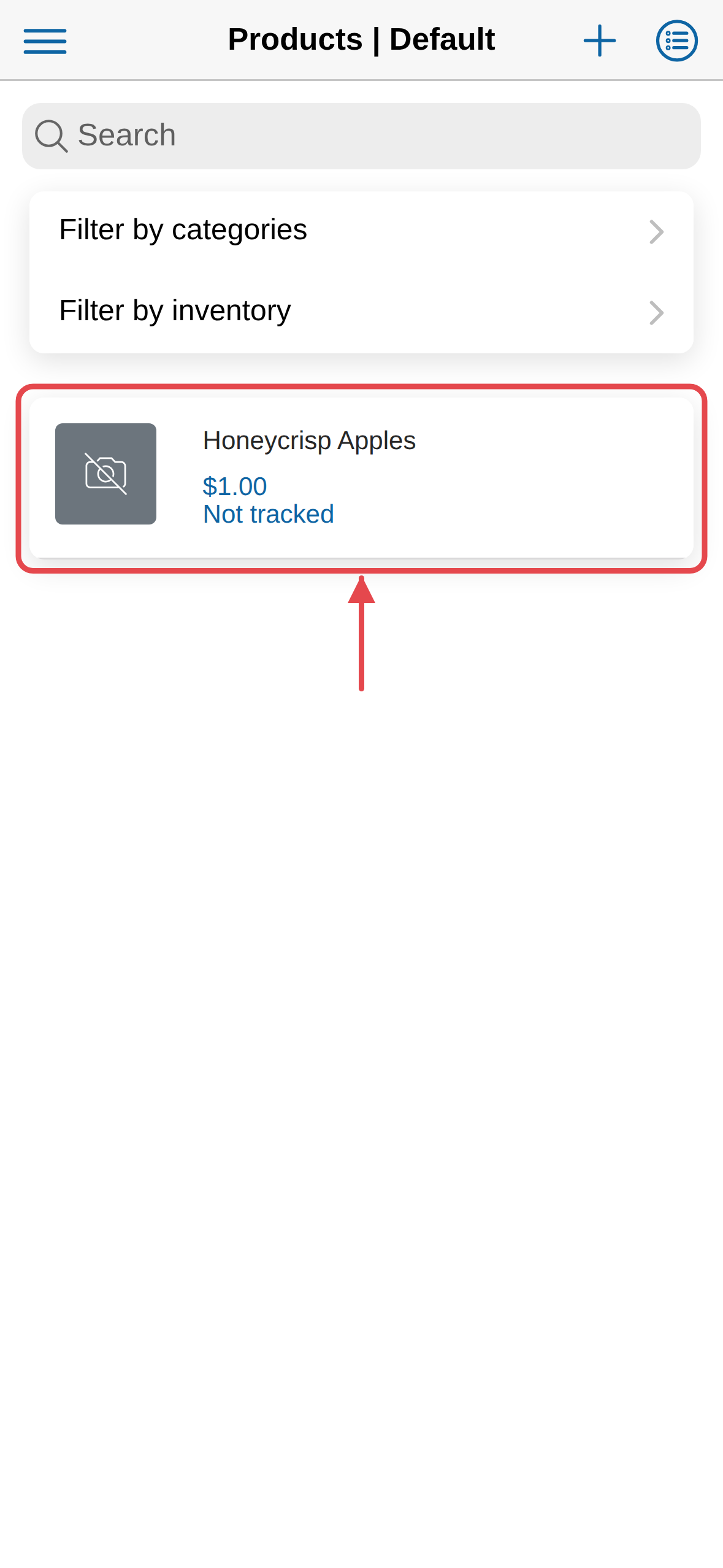
Open Products, then tap the product again.
-
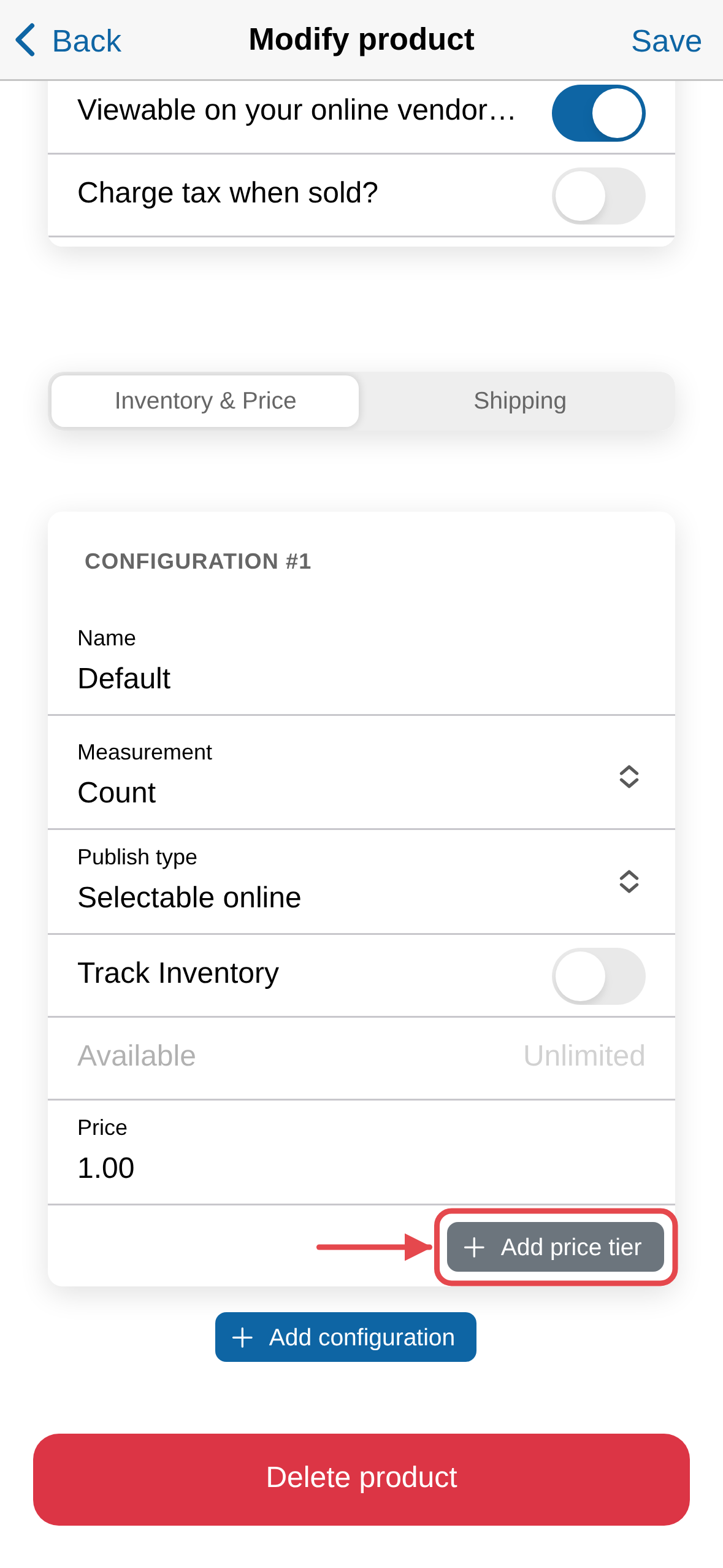
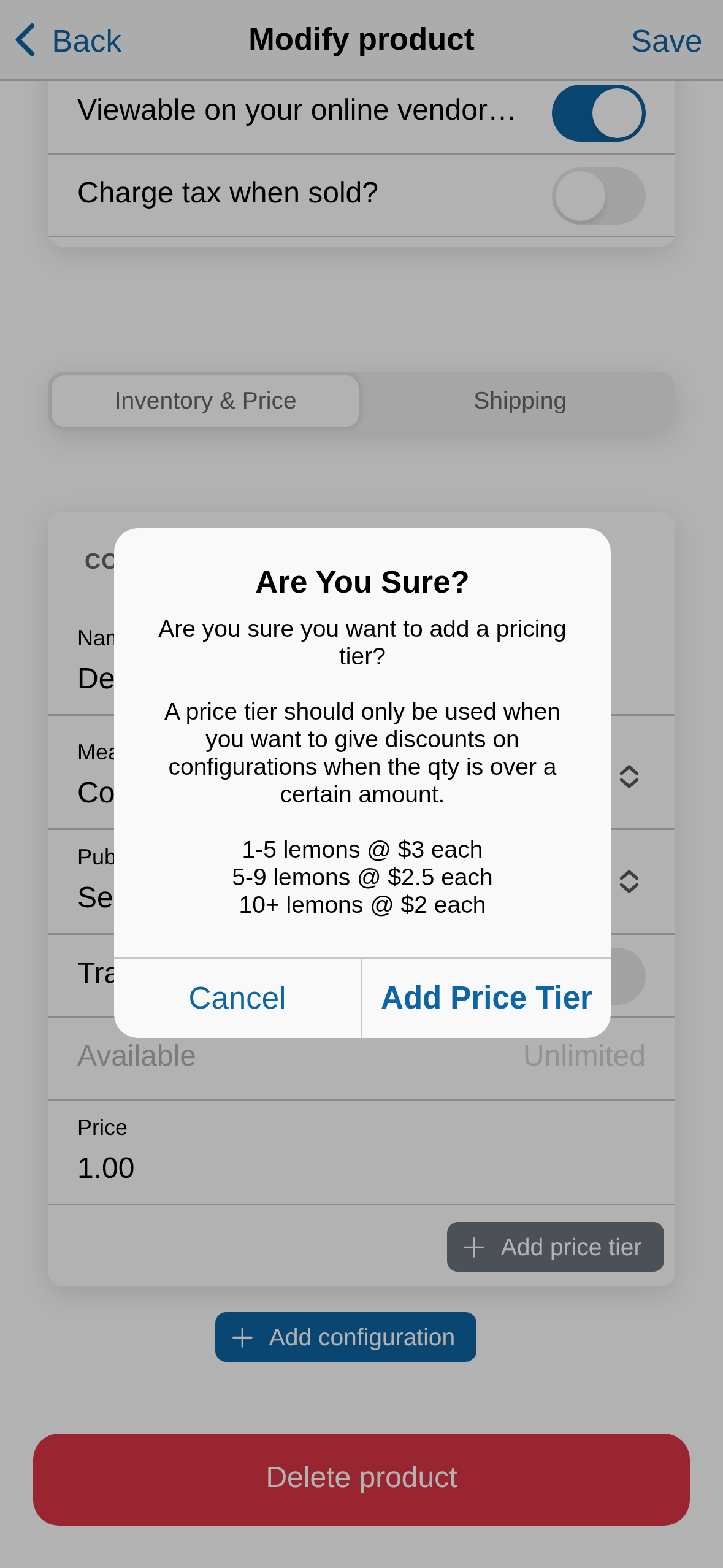
Tap Add price tier.
-
The first time, a confirmation appears. Tap Add Price Tier.
-
Fill in the new tier's Price and Included units — how many have to
be bought to get that price.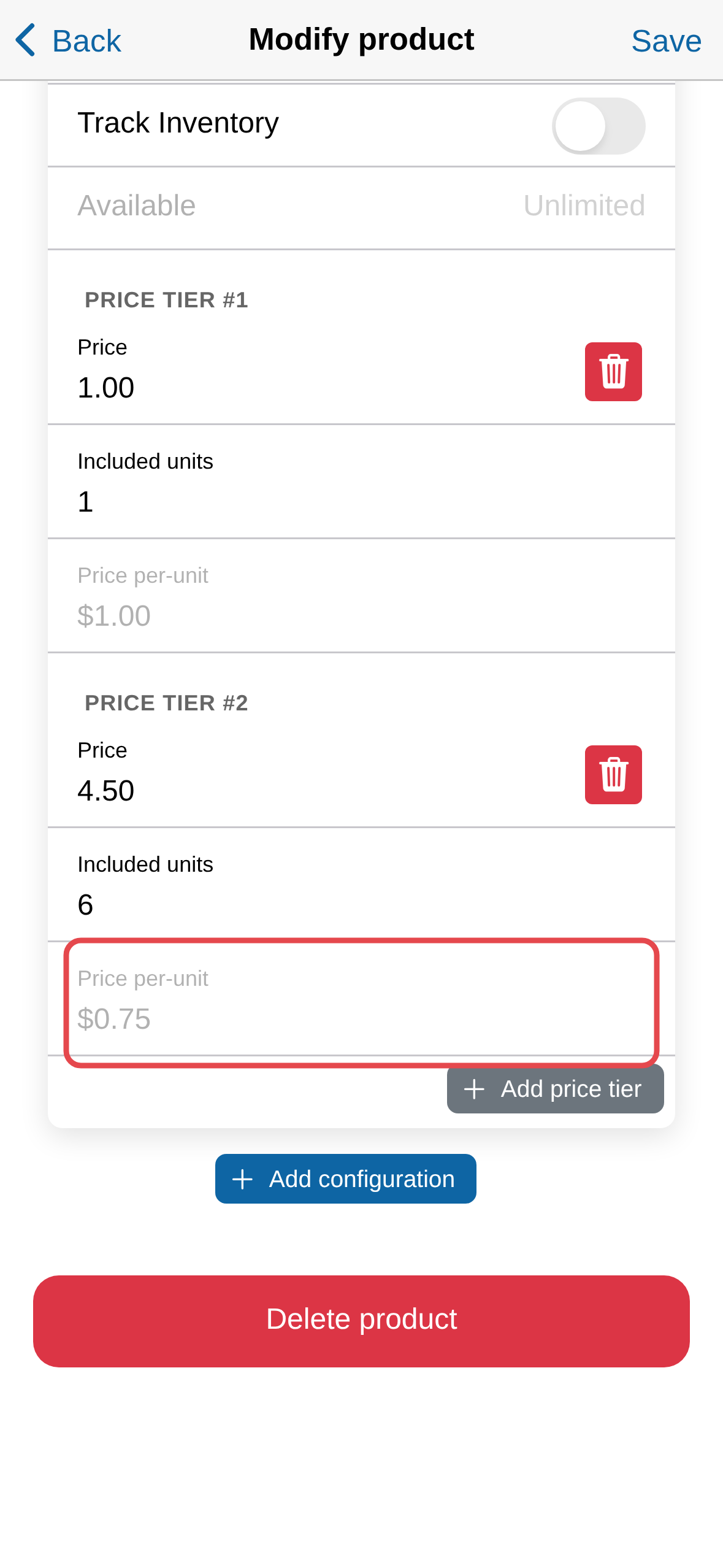
-
Tap Save.
Each tier has to be cheaper than the last
A bigger tier has to cost less per unit than a smaller one — check
Price per-unit on each tier to compare them. Marketspread checks this
when you save, and blocks it until it's fixed.
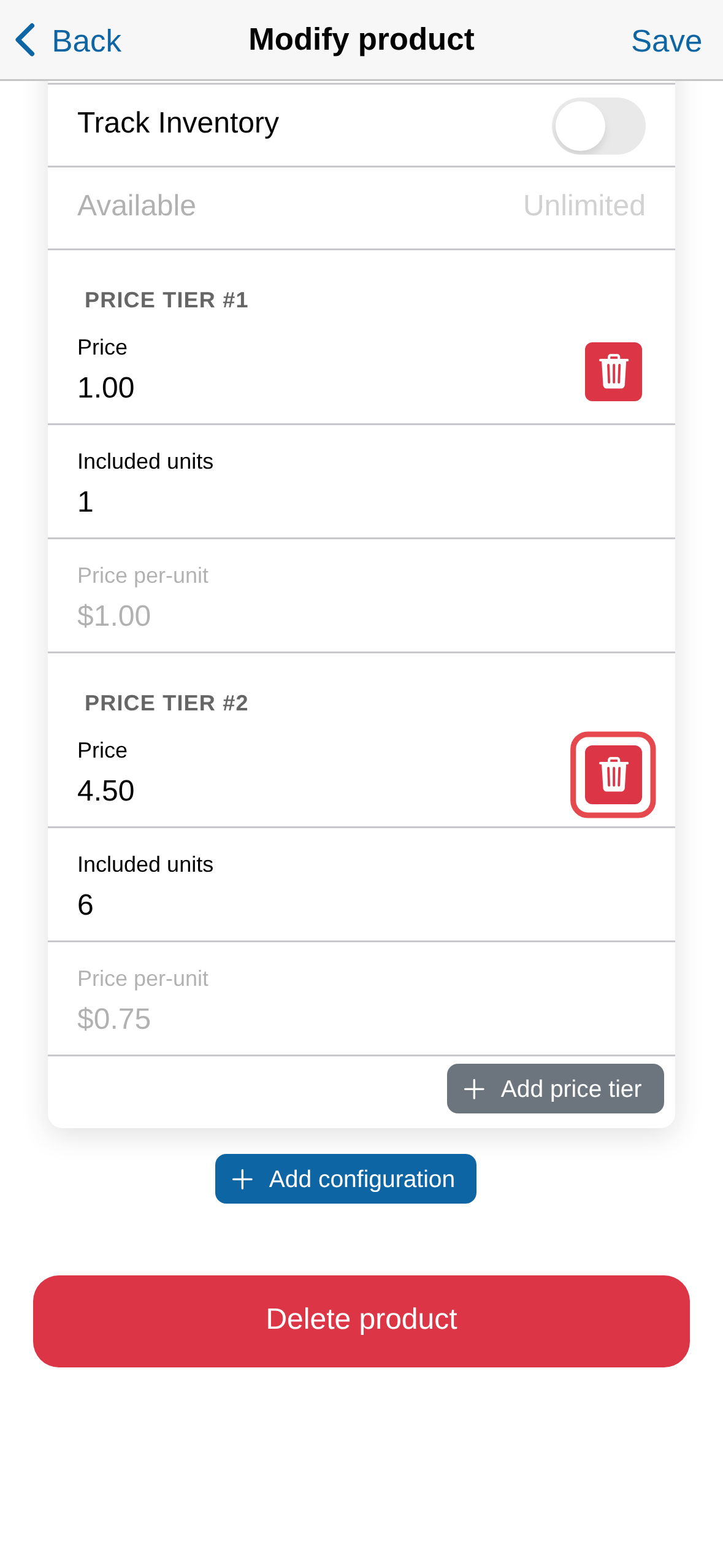
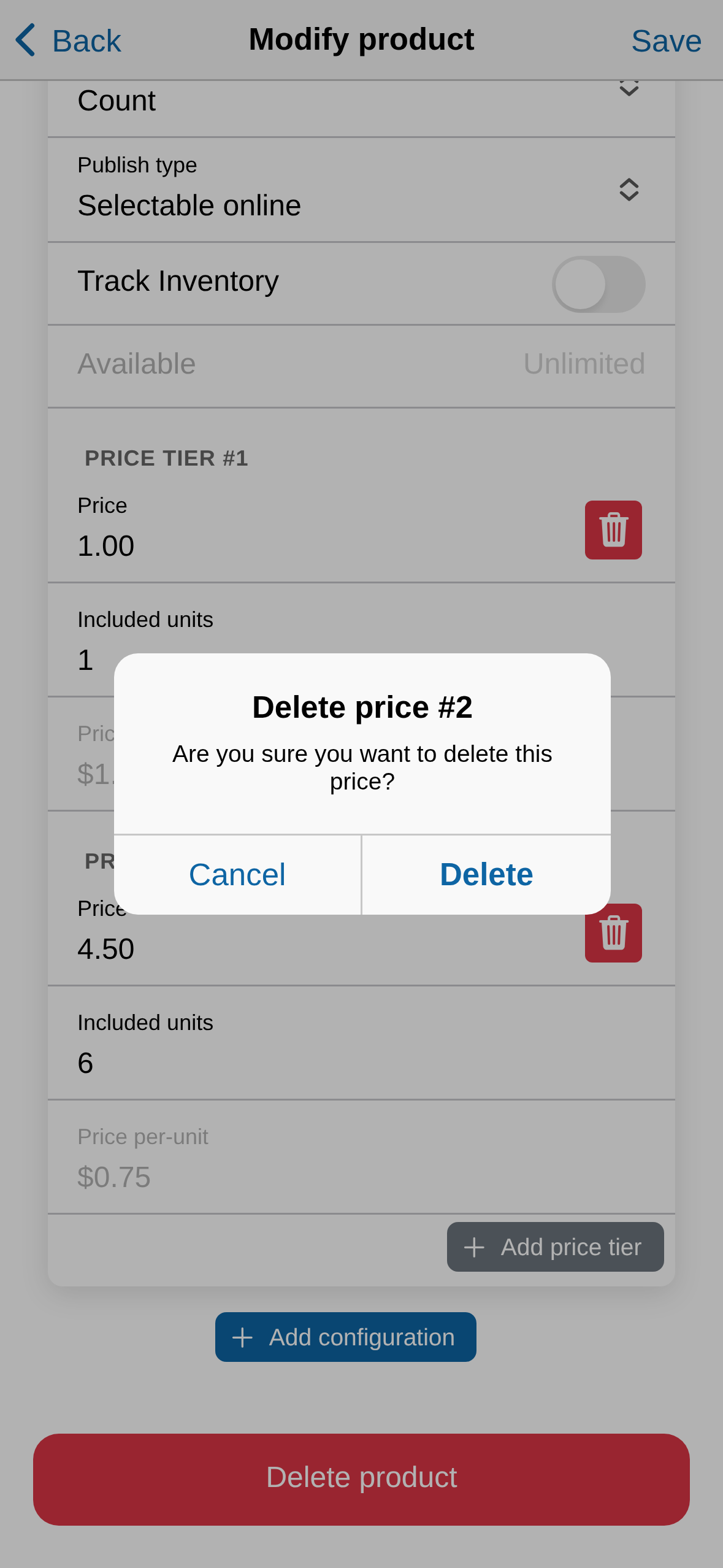
To remove a price tier, tap the trash can next to it, then confirm by
tapping Delete.
Charge the discounted price in Point of Sale
Adding a product to the cart always starts it at its regular price — the one
charged for a single unit. To charge a cheaper price instead, change the
quantity once it's in the cart.
-
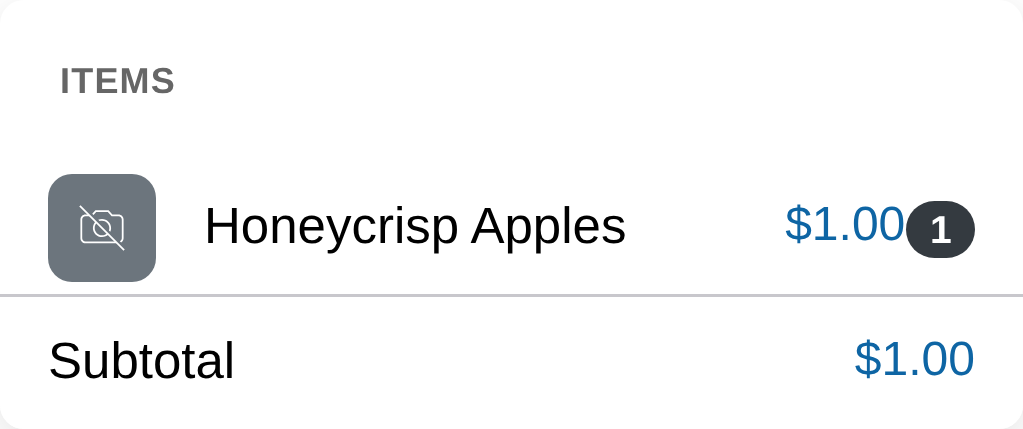
Tap Add product, then tap the product. It's added to your cart at its
regular price.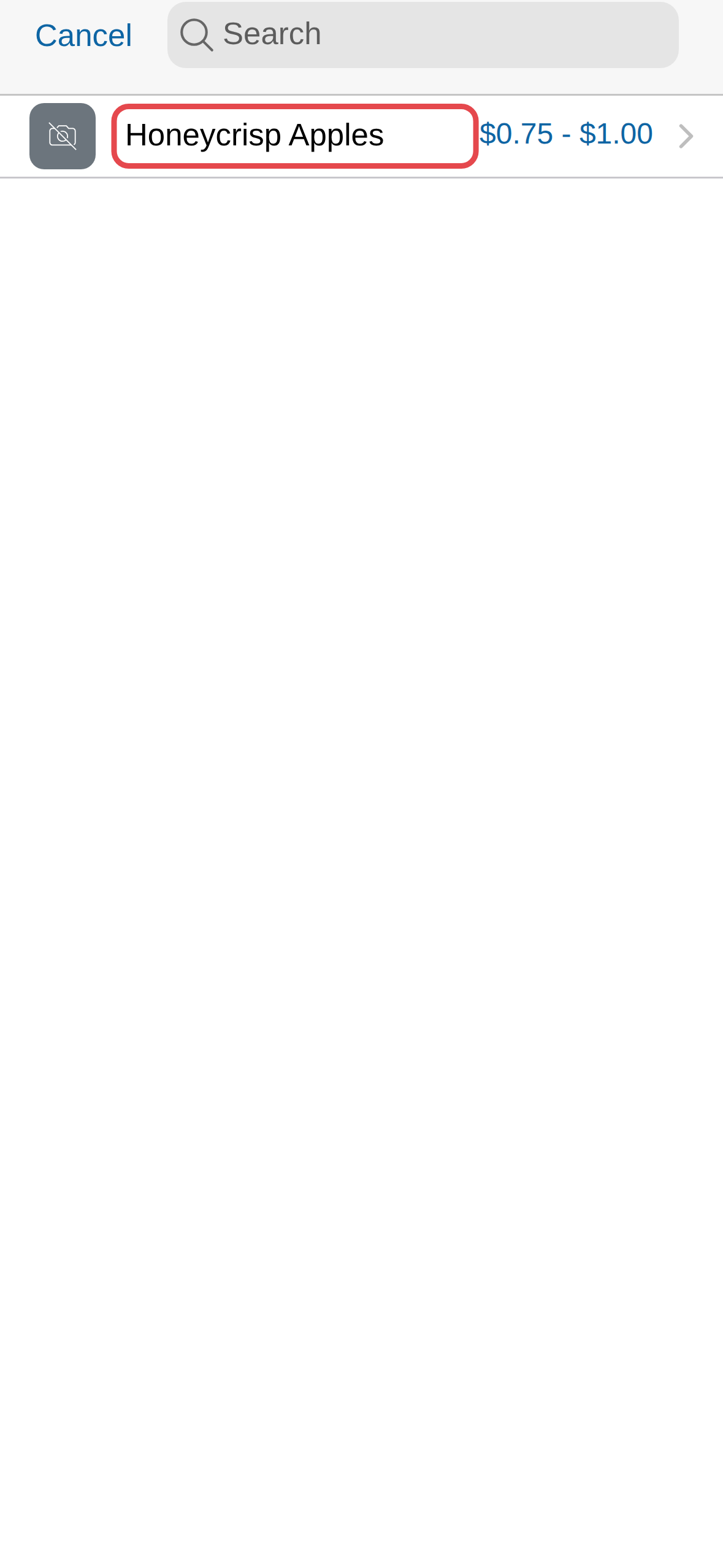
-
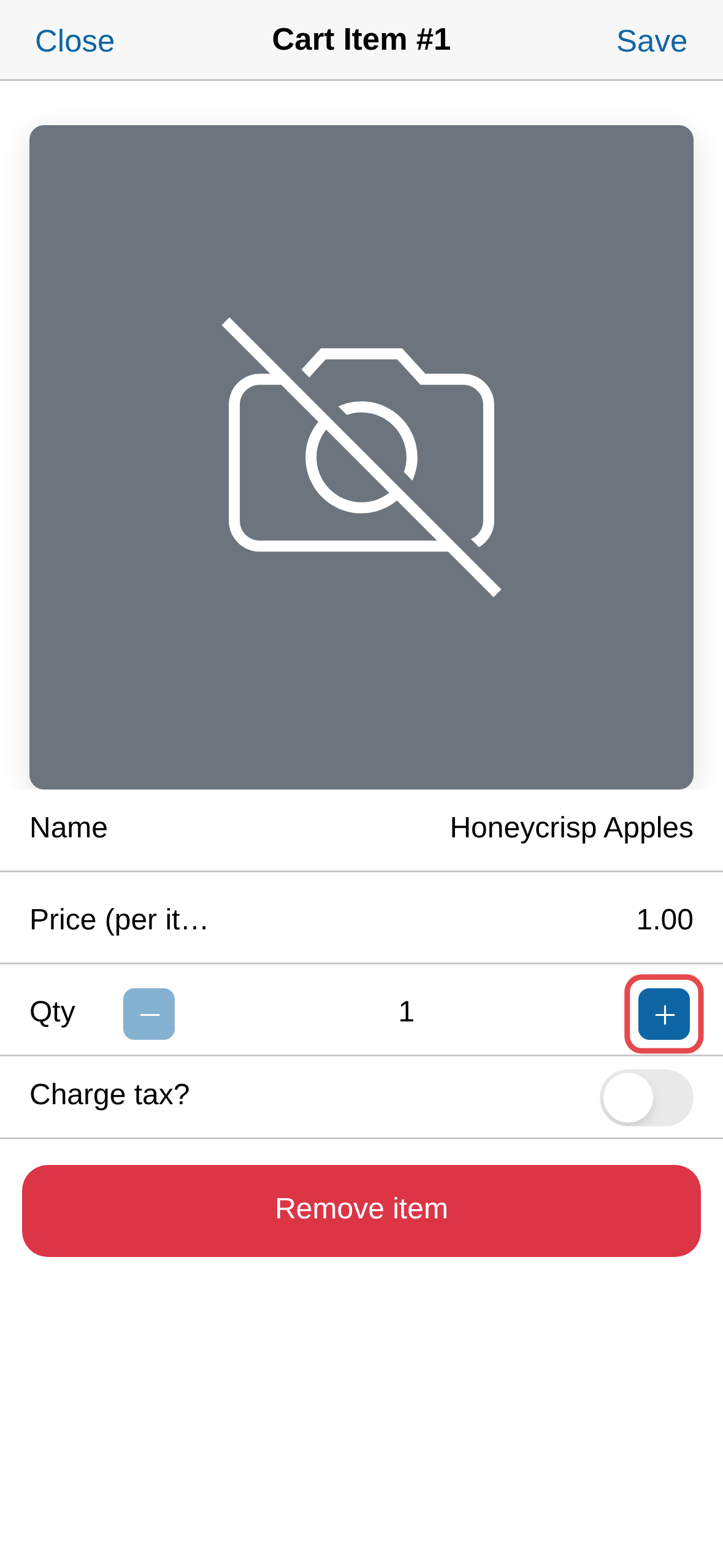
Tap the item in the cart.
-
Next to Qty, tap + until the quantity reaches what the cheaper
price needs. Price (per item) updates to match.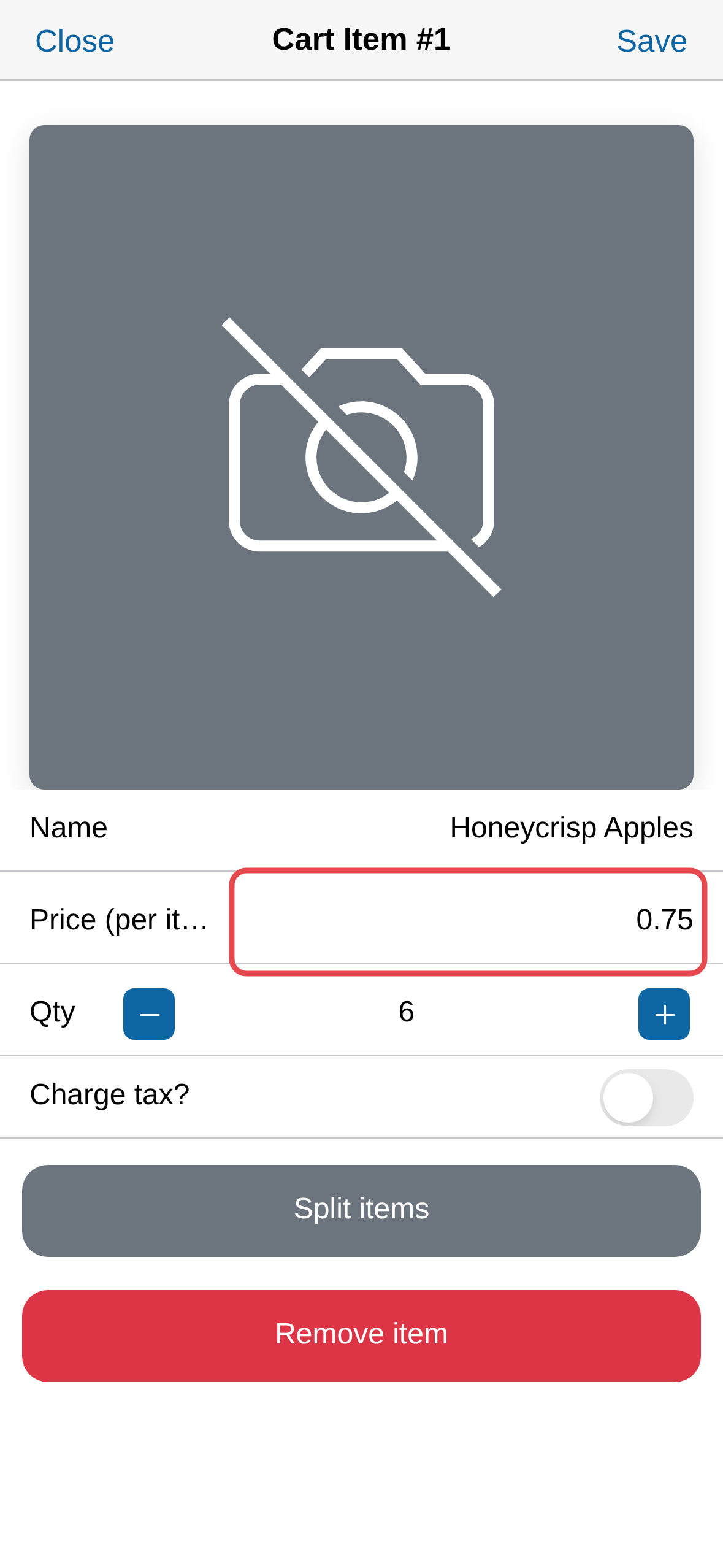
-
Tap Save.