


Some markets ask you to submit products for review as part of your application. You can keep adding products and choosing which ones to sell, even after you've already applied. Check their approval status here too.
Note
You'll only see a Products tab on your application if the market you applied to uses product review. If you don't see one, the market doesn't ask for it.
Add a product for review
-
Open Applications from the menu.
-
Click the market or event you applied to. If you've applied to more than one, you'll see them all listed.
-
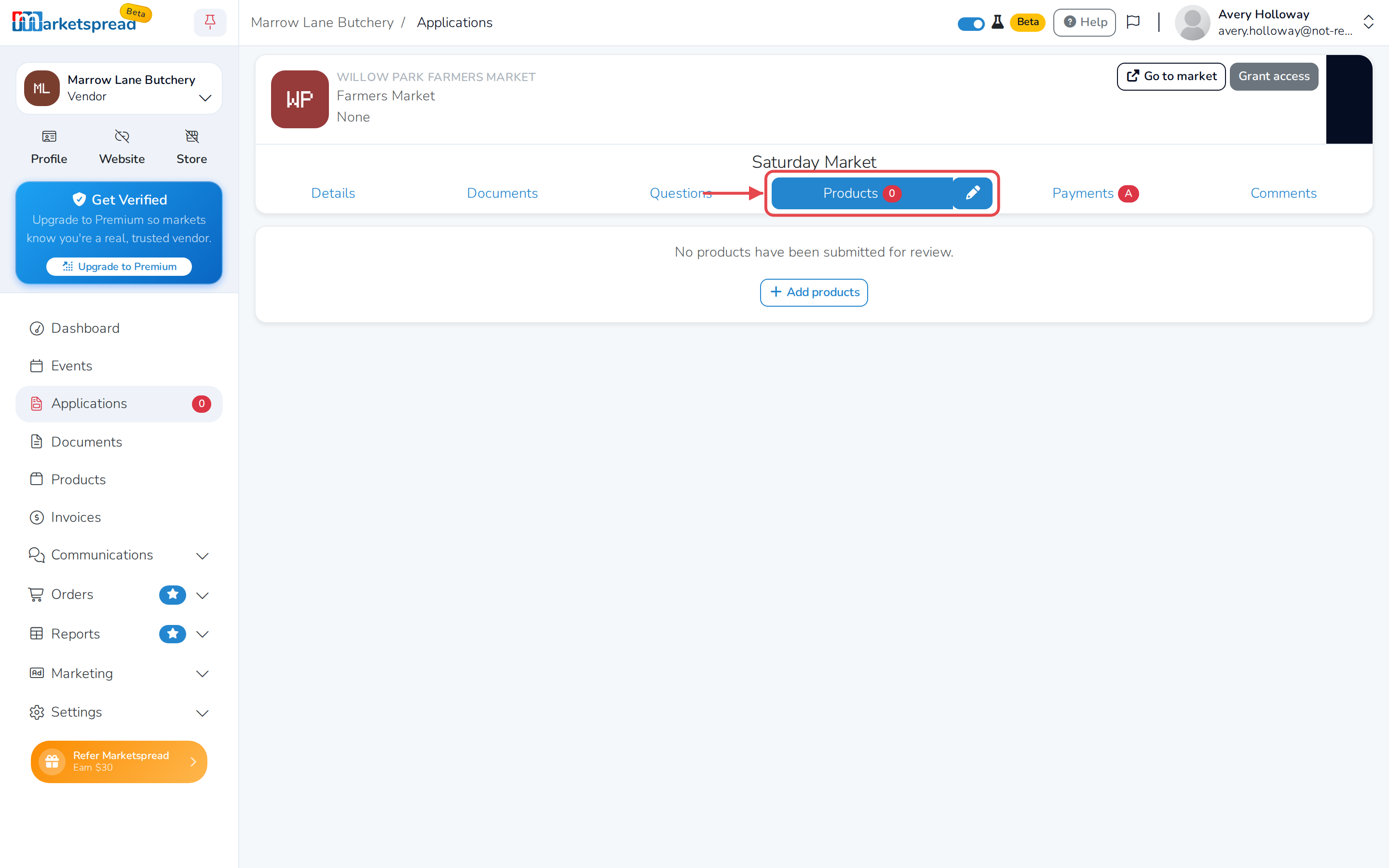
Click the Products tab.
-
Click the pencil icon next to Products.
-
Click Add Product.
-
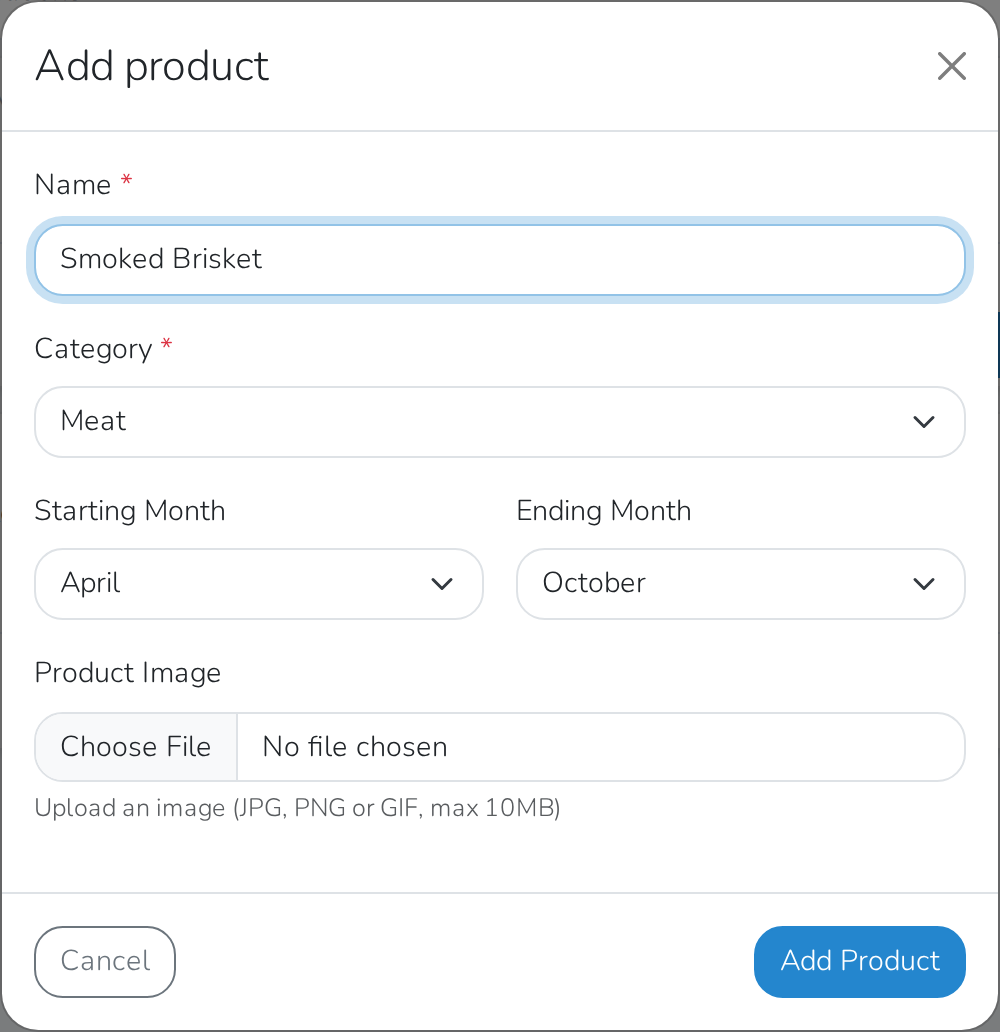
In the Add product window, fill in Name.
-
Choose a Category.
-
Optionally, choose a Starting Month and Ending Month for a seasonal product.
-
Optionally, upload a Product Image.
-
Click Add Product.
Choose which products to sell
-
Open Applications from the menu and click the market or event.
-
Click the Products tab, then click the pencil icon next to it.
-
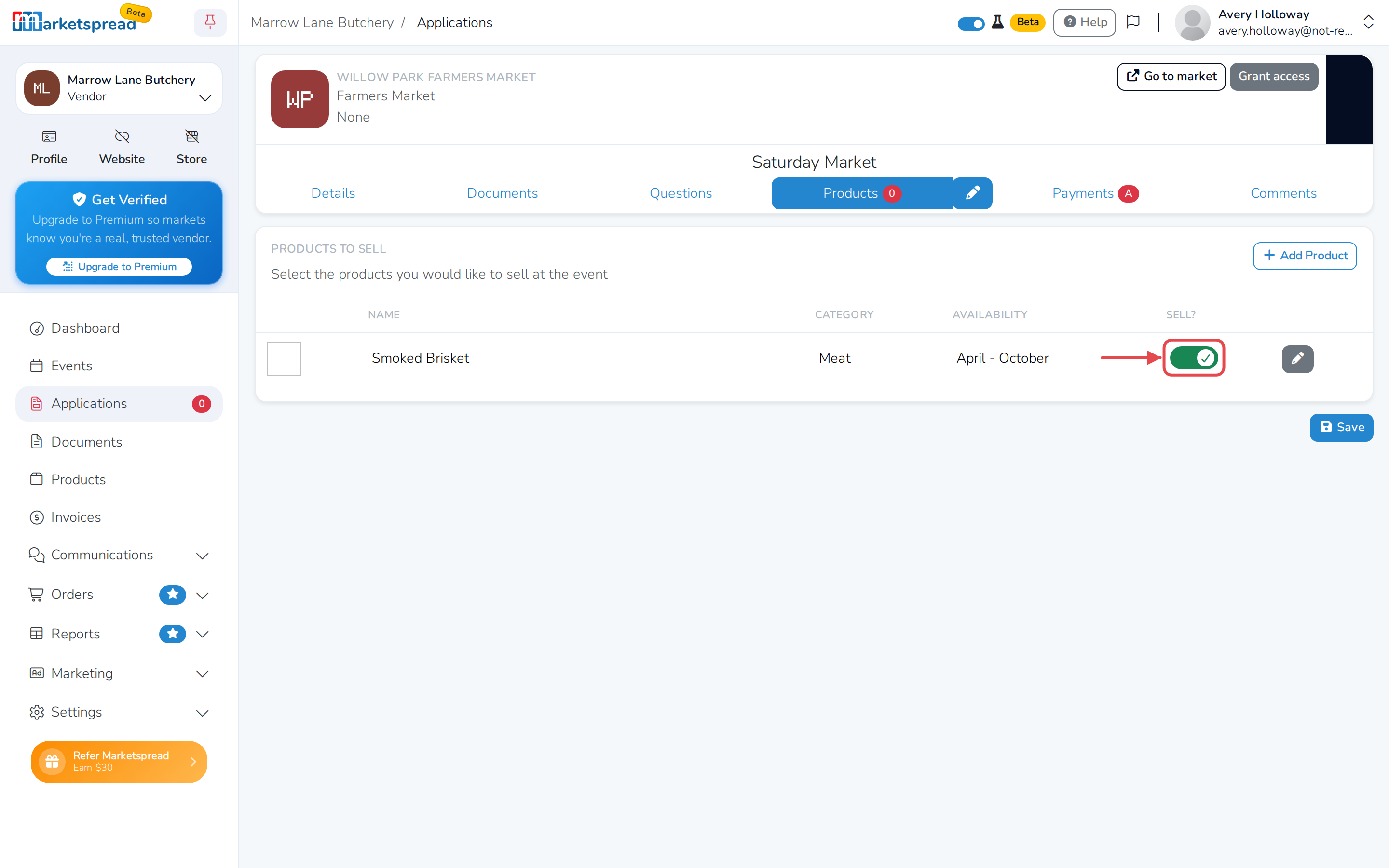
Use the Sell? switch next to each product — green to sell it there, red to leave it off.
-
Click Save.
Edit a product you've submitted
- Open Applications from the menu and click the market or event.
- Click the Products tab, then click the pencil icon next to it.
- Click the pencil button next to the product.
- Update the product in the Edit product window.
- Click Update Product.
Check whether the market approved a product
-
Open Applications from the menu.
-
Click the market or event.
-
Click the Products tab.
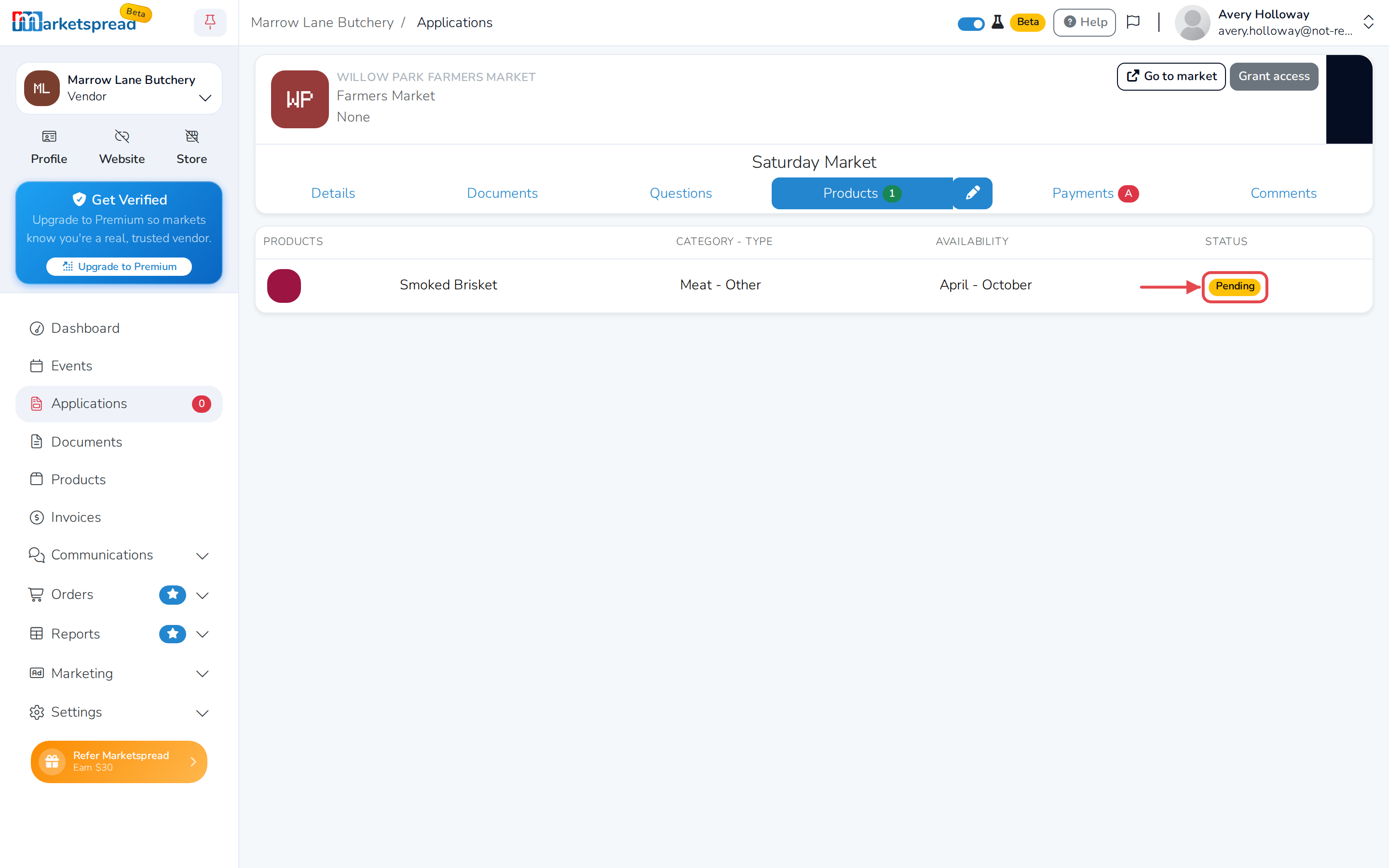
Each product shows Pending, Accepted or Declined.