


Your vendor dashboard's Next Event card links to your pass and to that event's overview page — both list which booth you're assigned to. You can also look yourself up on a published event map.
- Check your pass for a quick look at your booth.
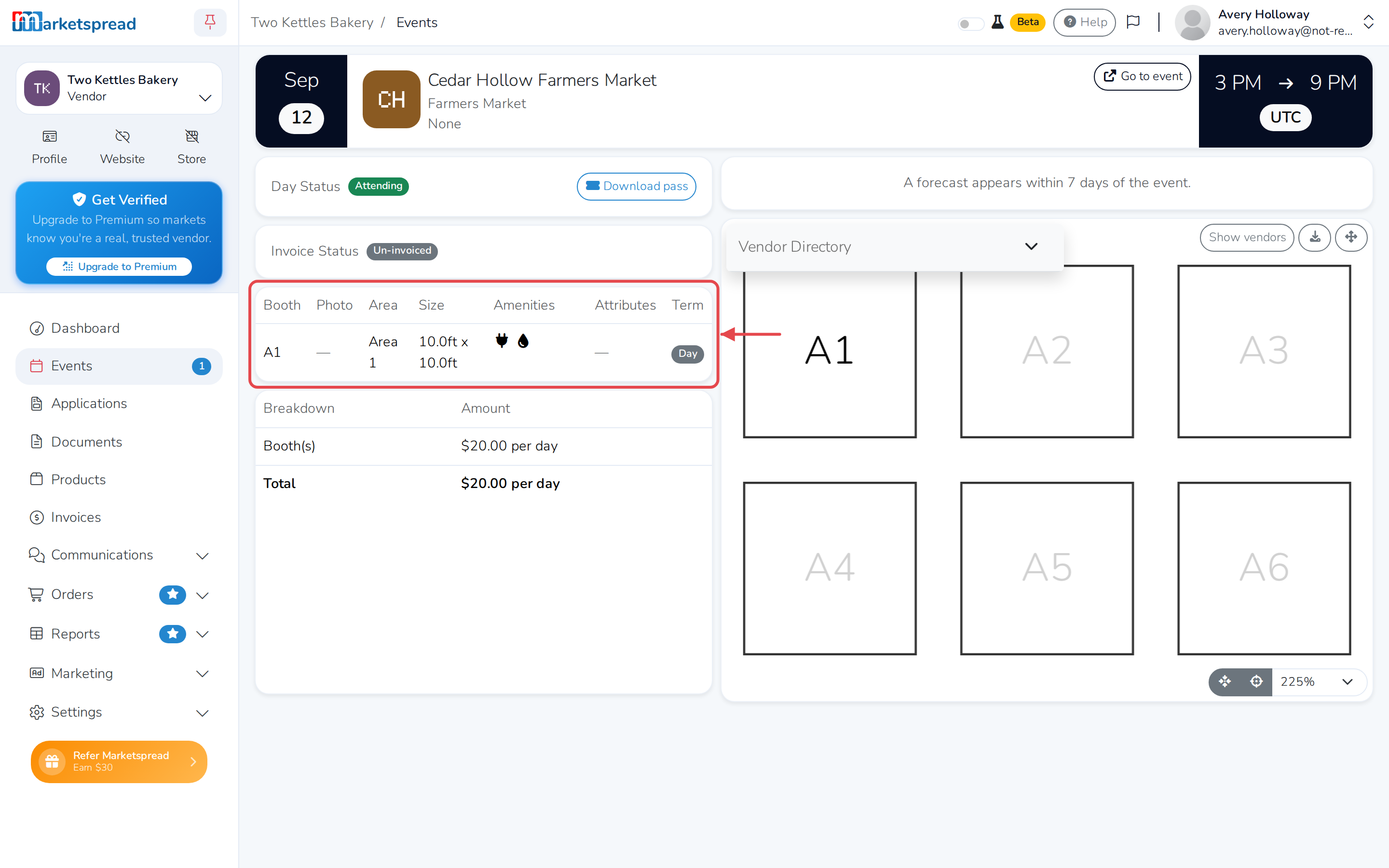
- See its size, amenities and other details on the event's overview page.
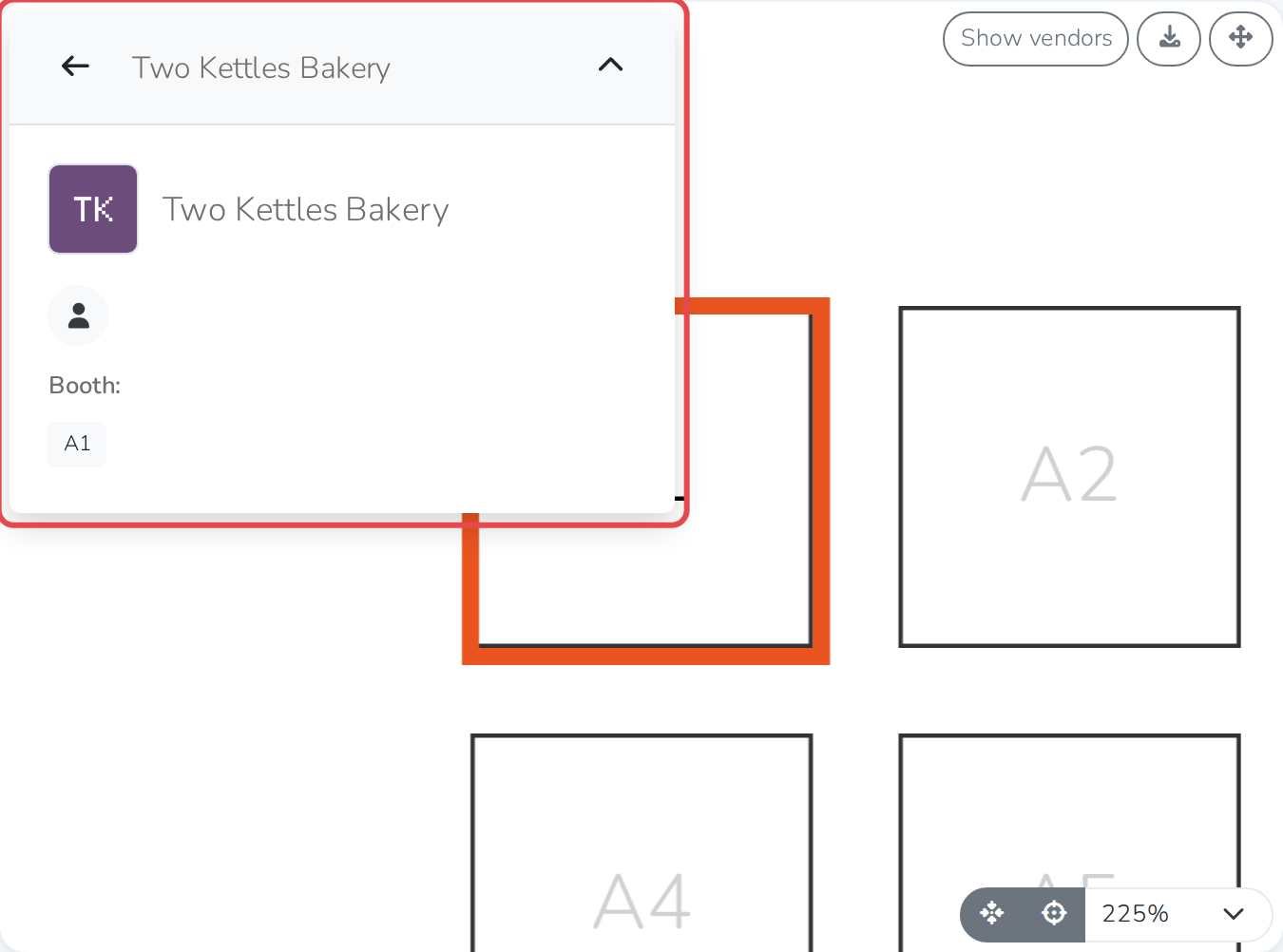
- Find it on the map, even without your pass handy.
Check your pass
- Click the dashboard icon in the top right of any page.
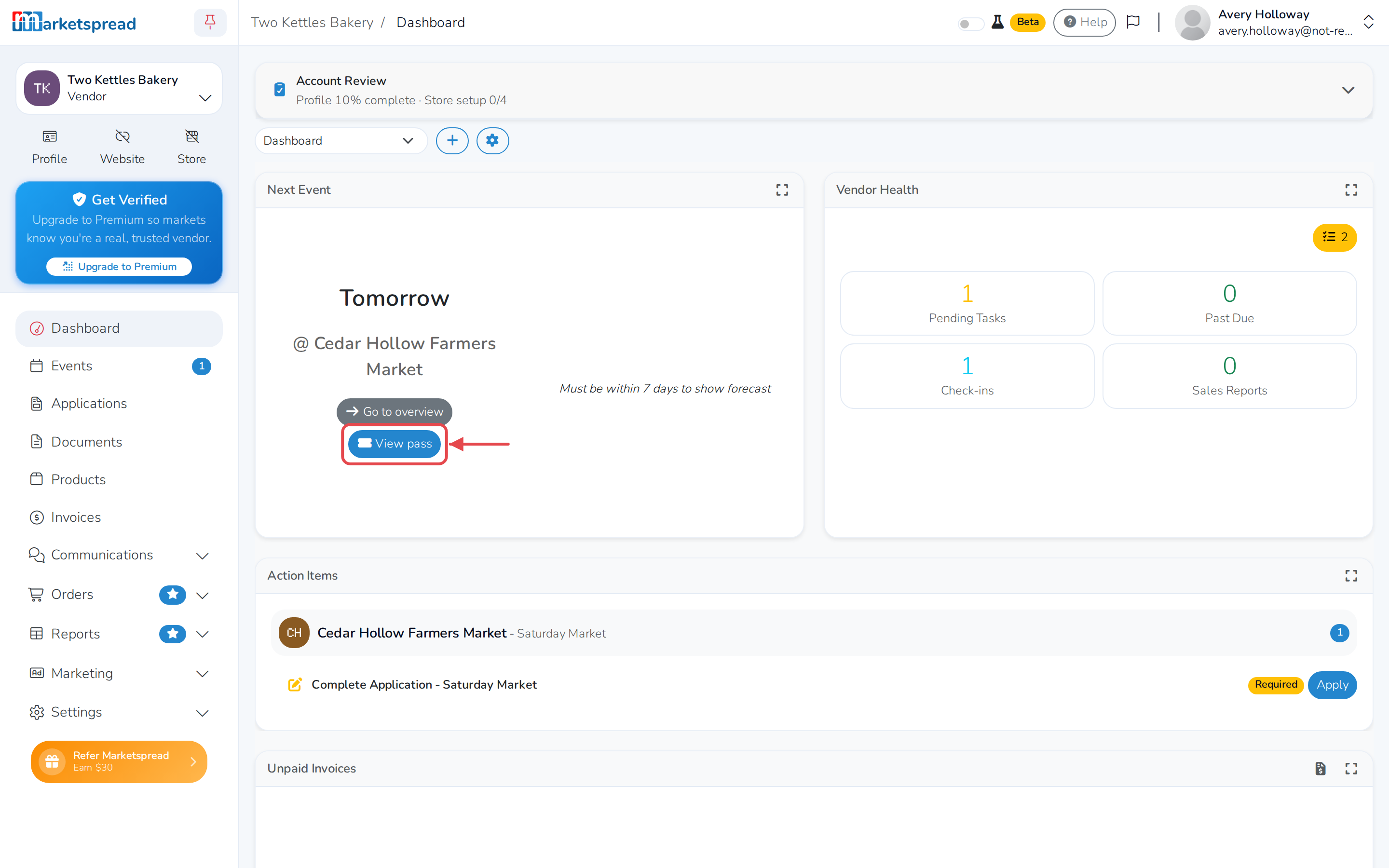
- On the Next Event card, click View pass.
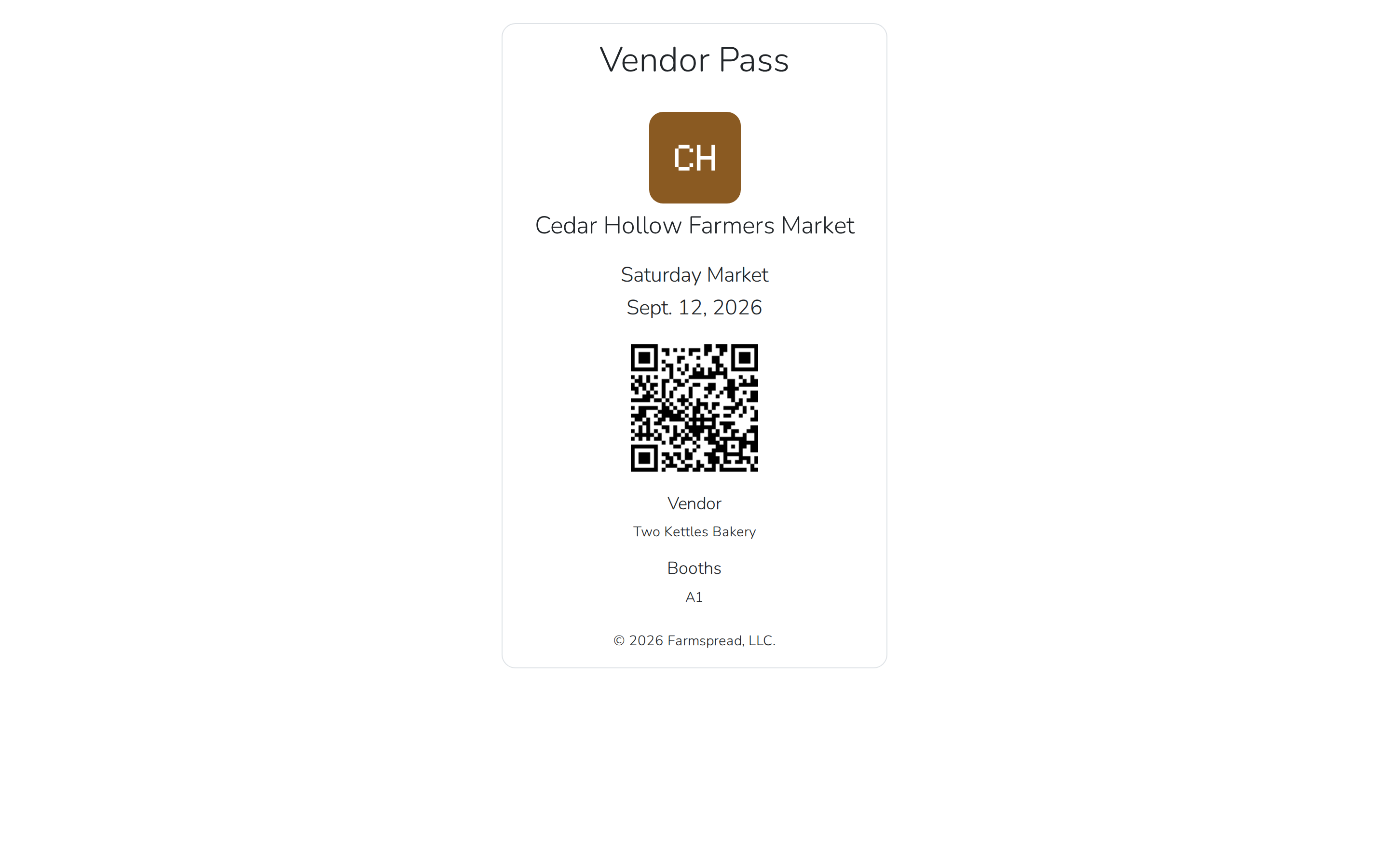
- Your assigned booth is listed under Booths.
Note
If the market hasn't published booth assignments yet, this shows TBD.
See your booth's details
- On your dashboard's Next Event card, click Go to overview.
- Scroll down to the table listing your booth, with its size and amenities.
Note
This table only appears once the market has published booth assignments for the event.
Find your booth on the map
- On the event's overview page, click Vendors, in the top-left of the map. The Vendors today panel opens.
- Type your name into Search vendors or products.
- Click your name. Your booth is listed next to Booth.
Note
The map only shows once the market has published booth assignments for the event.