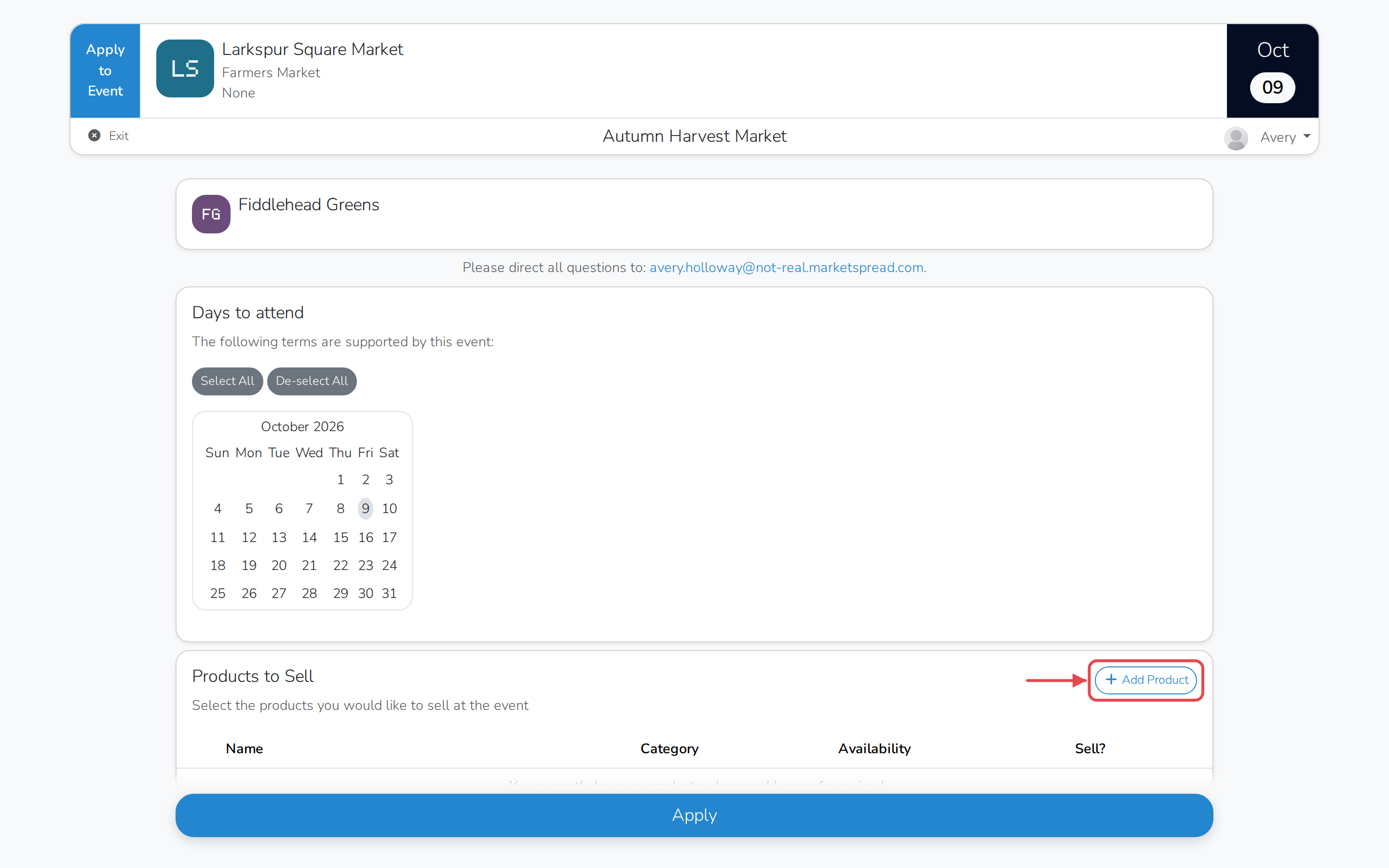
Some markets review the products you plan to sell before they approve your application. When a market does this, your application includes a Products to Sell section, after the days you're applying to attend.
From here you can:
- Choose which of your products to sell at the event
- Add a product without leaving your application
- Check whether your products were accepted
Choose which products to sell
- Open the event you want to apply to. If the market has more than one event open for applications, click Apply on the one you want.
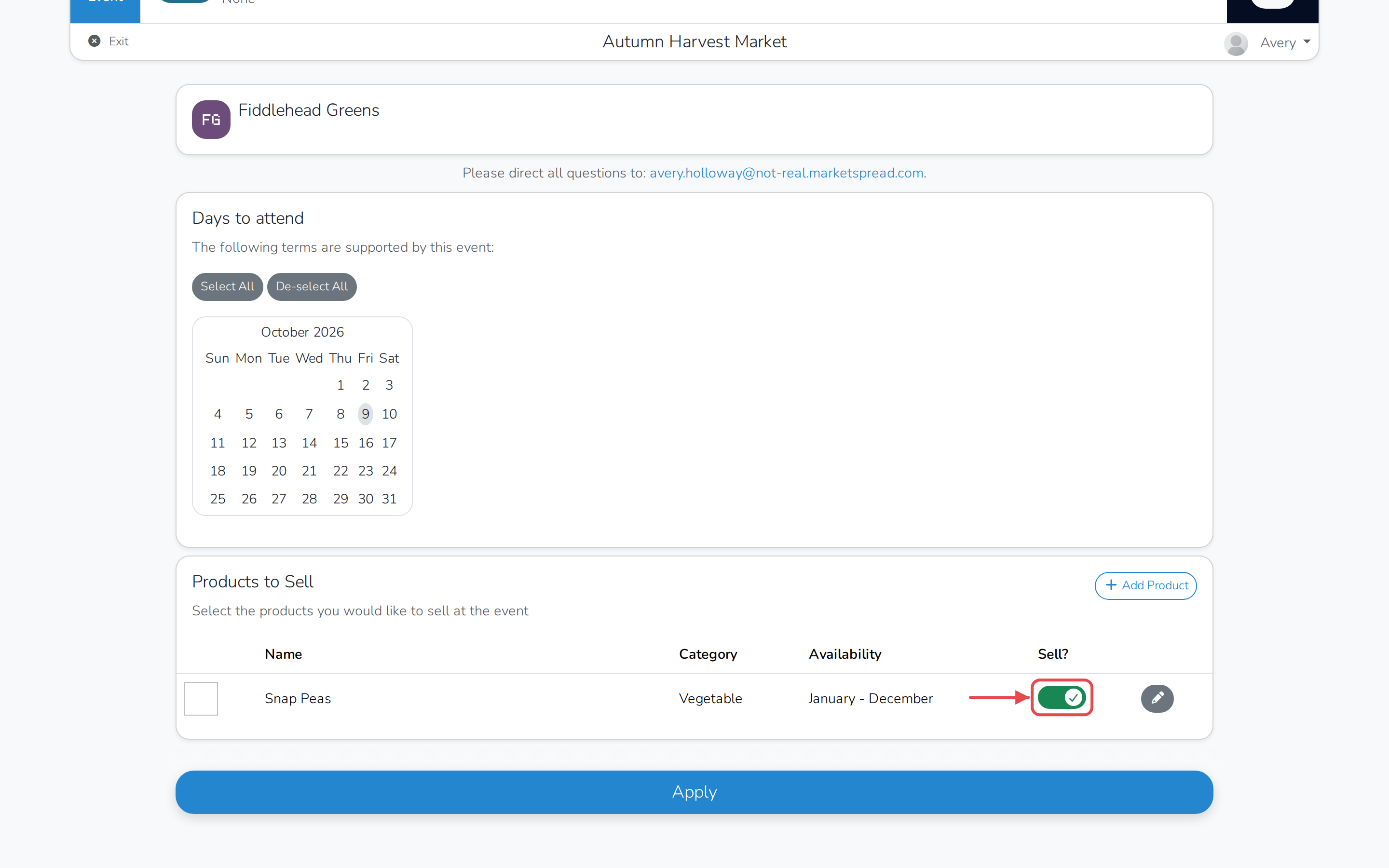
- Scroll to Products to Sell. Every product already in your vendor profile is listed here.
- Turn the Sell? switch on for each product you want to bring, and off for any you don't.
Note
Products come from your vendor profile. If the list is empty, add one without leaving your application — see below.
Add a product without leaving your application
- Click + Add Product.
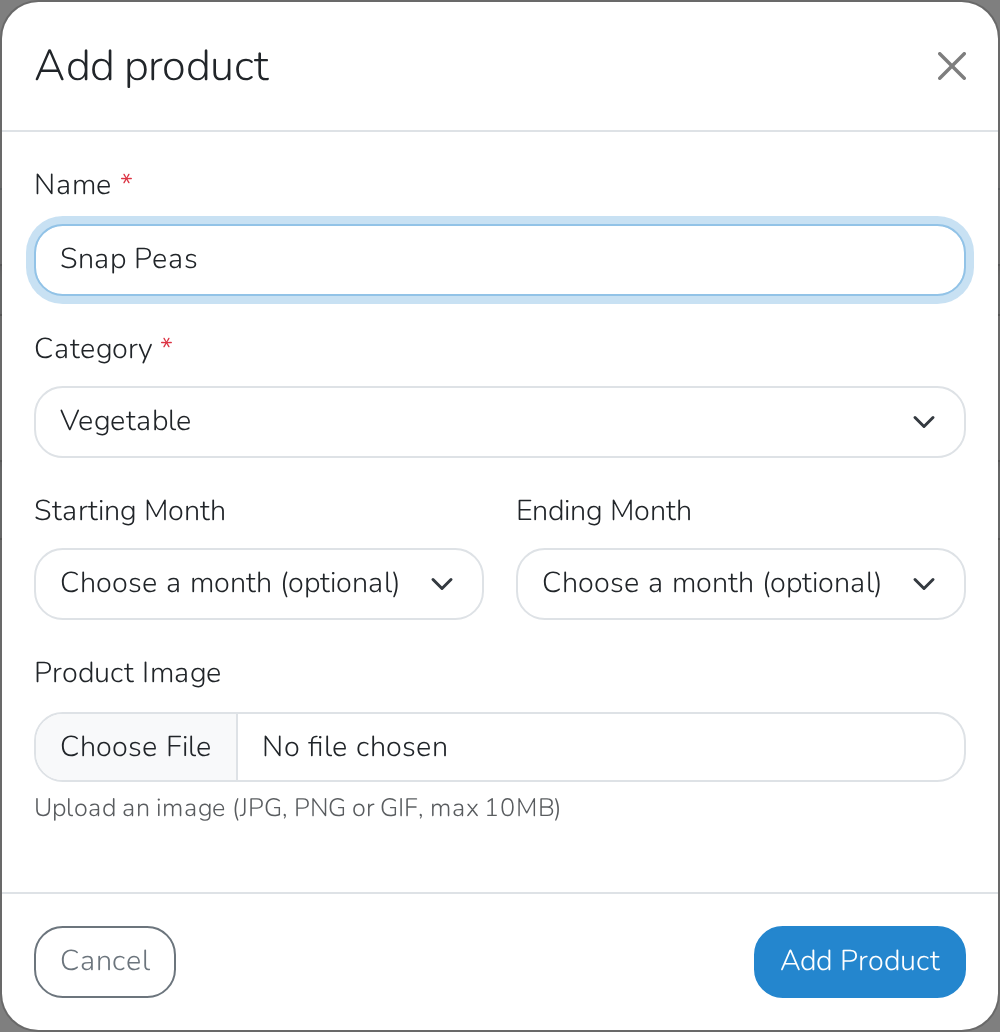
- Fill in Name and Category.
- Add a Starting Month and Ending Month if it isn't available all year (optional).
- Add a Product Image (optional).
- Click Add Product.
Note
Any product you add this way is saved to your vendor profile too, so it's already there the next time you apply somewhere else.
Check whether your products were accepted
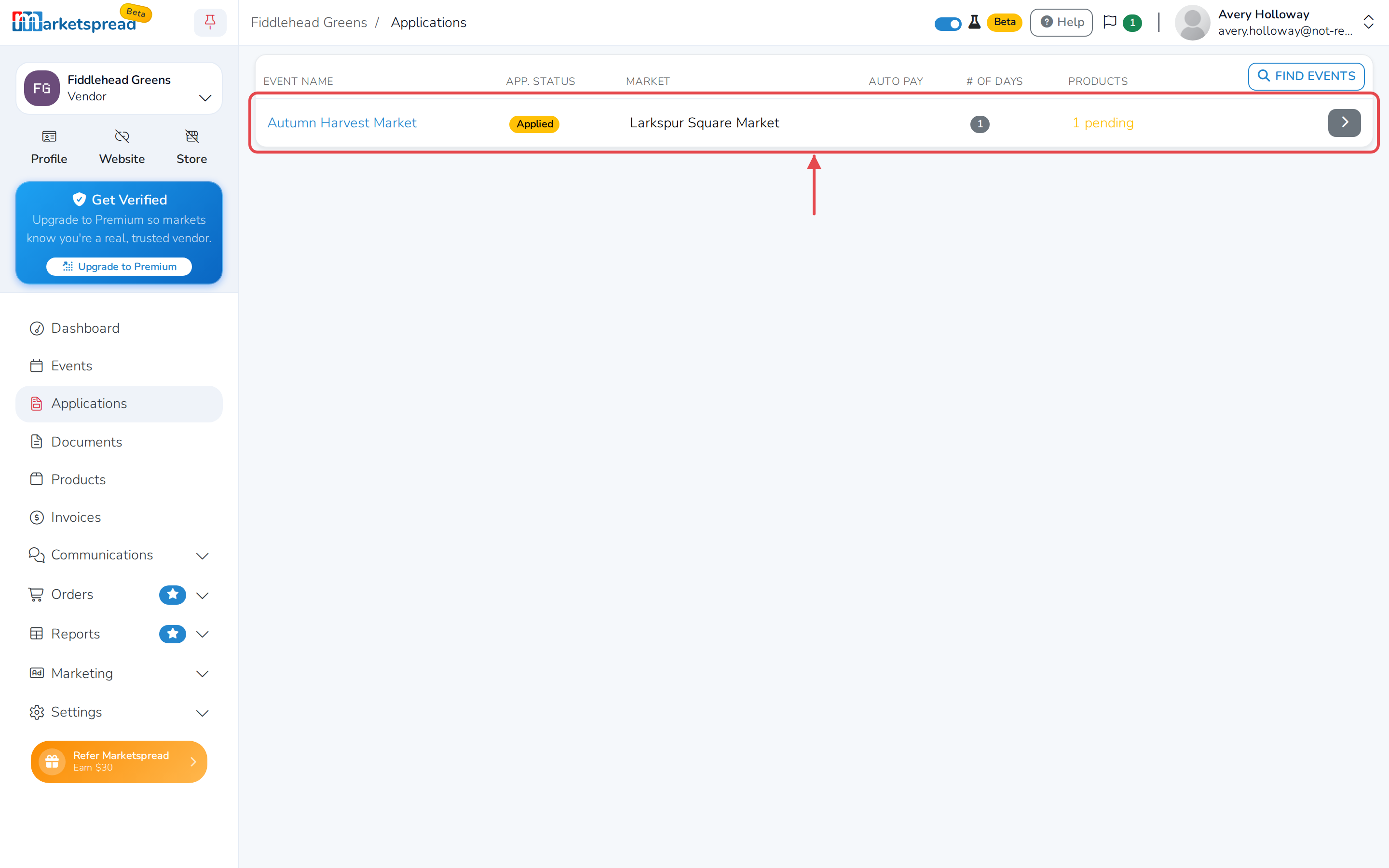
- In your vendor dashboard, click Applications in the left-hand panel.
- Find the event in the list. The Products column shows how many are still pending review. Once the market has reviewed them all, it shows how many were accepted.