


A configuration is one version of a product — a size, a color, or any other
option you sell it in separately. Every product starts with one, called
Configuration #1. If you only sell it one way, leave its name as
"Default" — that's enough. Add more to offer different options, give a
discount for buying in bulk, and track how much of each one you have.
See Create a product for the rest of a product's
details — this article covers the configurations underneath it.
From here, you can:
- Add a configuration for each size, color or option
- Give a discount for buying more at once
- Price a configuration by weight or volume instead of a count
- Track inventory separately for each configuration
- Choose the right one while ringing up a sale in Point of Sale
- Remove a configuration you no longer need
Add a configuration for each option
A cheese sold whole, by the half and by the quarter is three configurations.
-
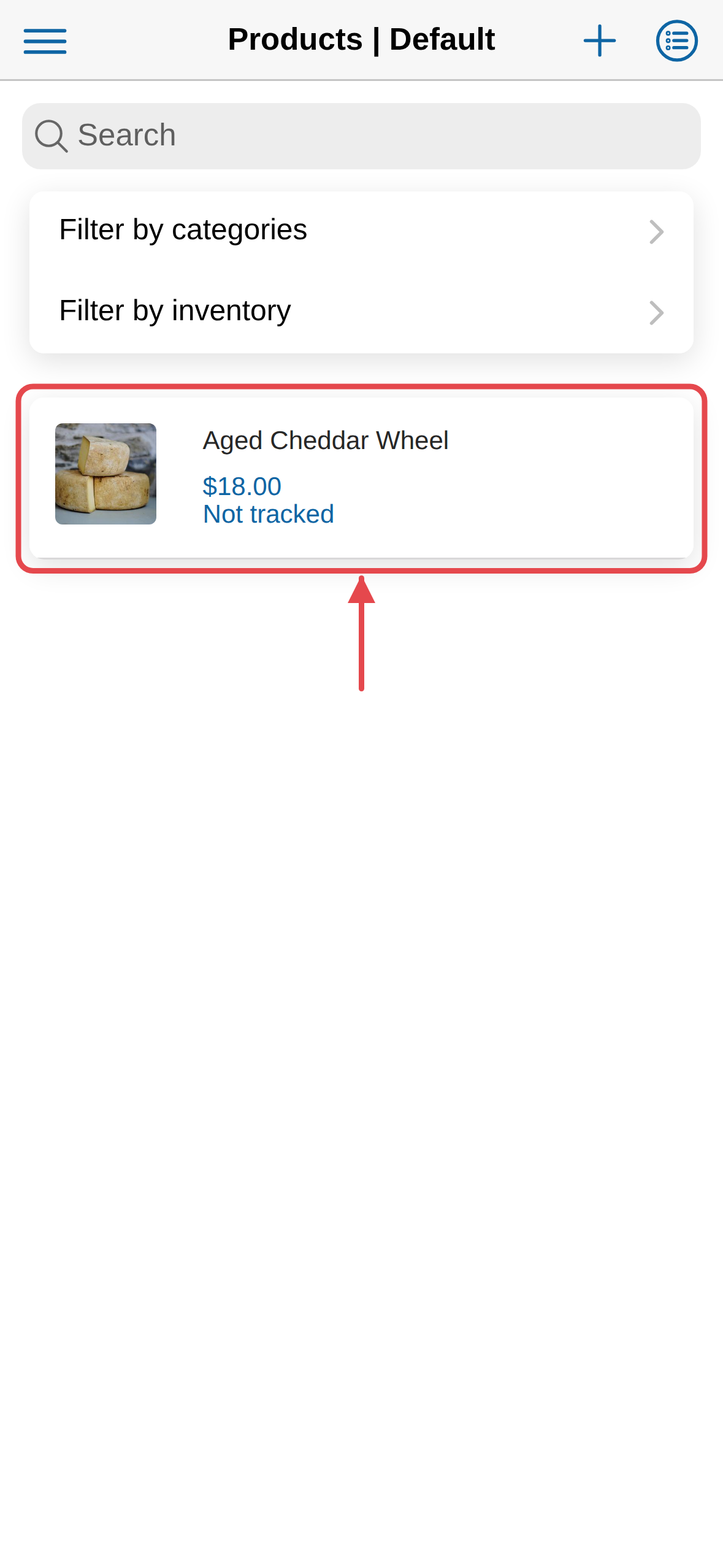
Open the product.
-
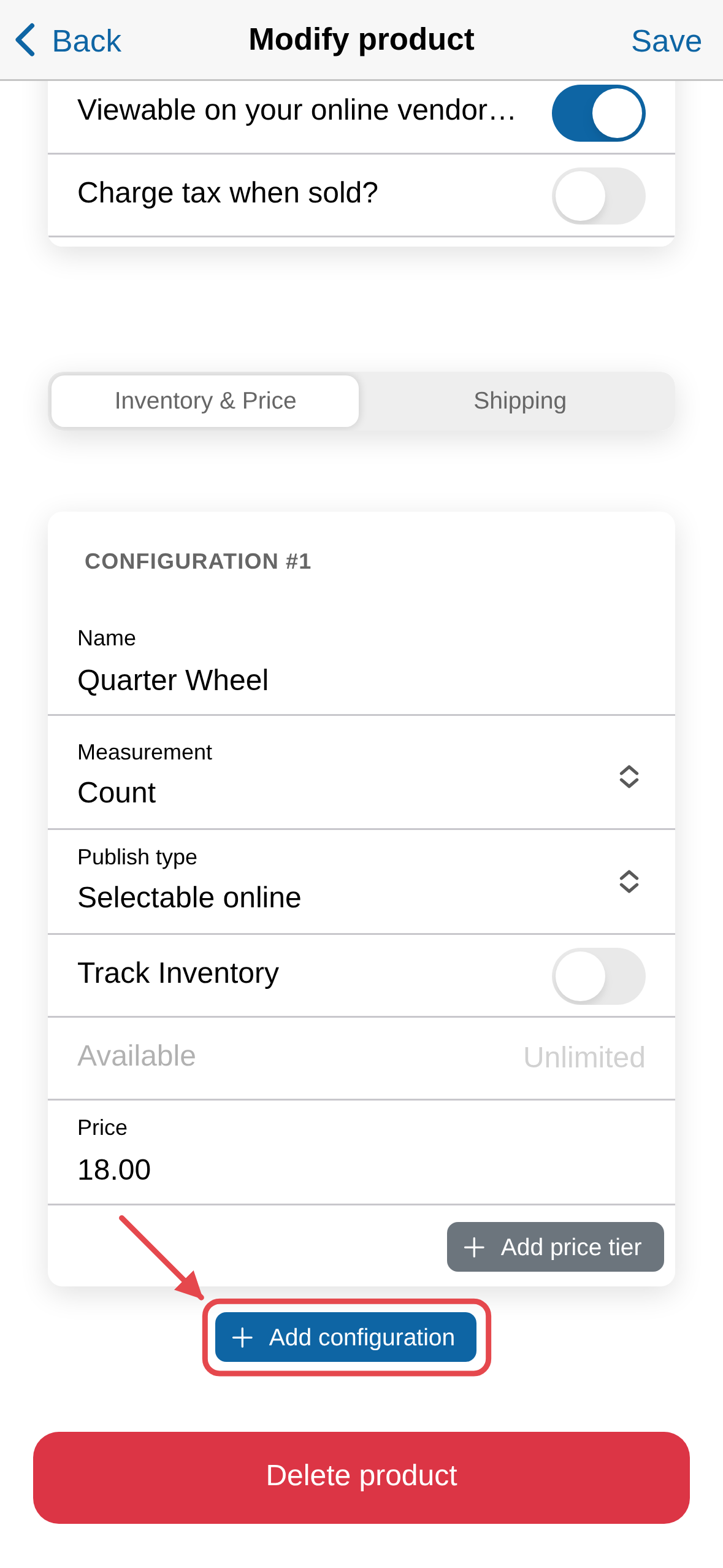
Click Add configuration, below the last one.
-
The first time, a window asks if you're sure. Click Add Configuration
to confirm.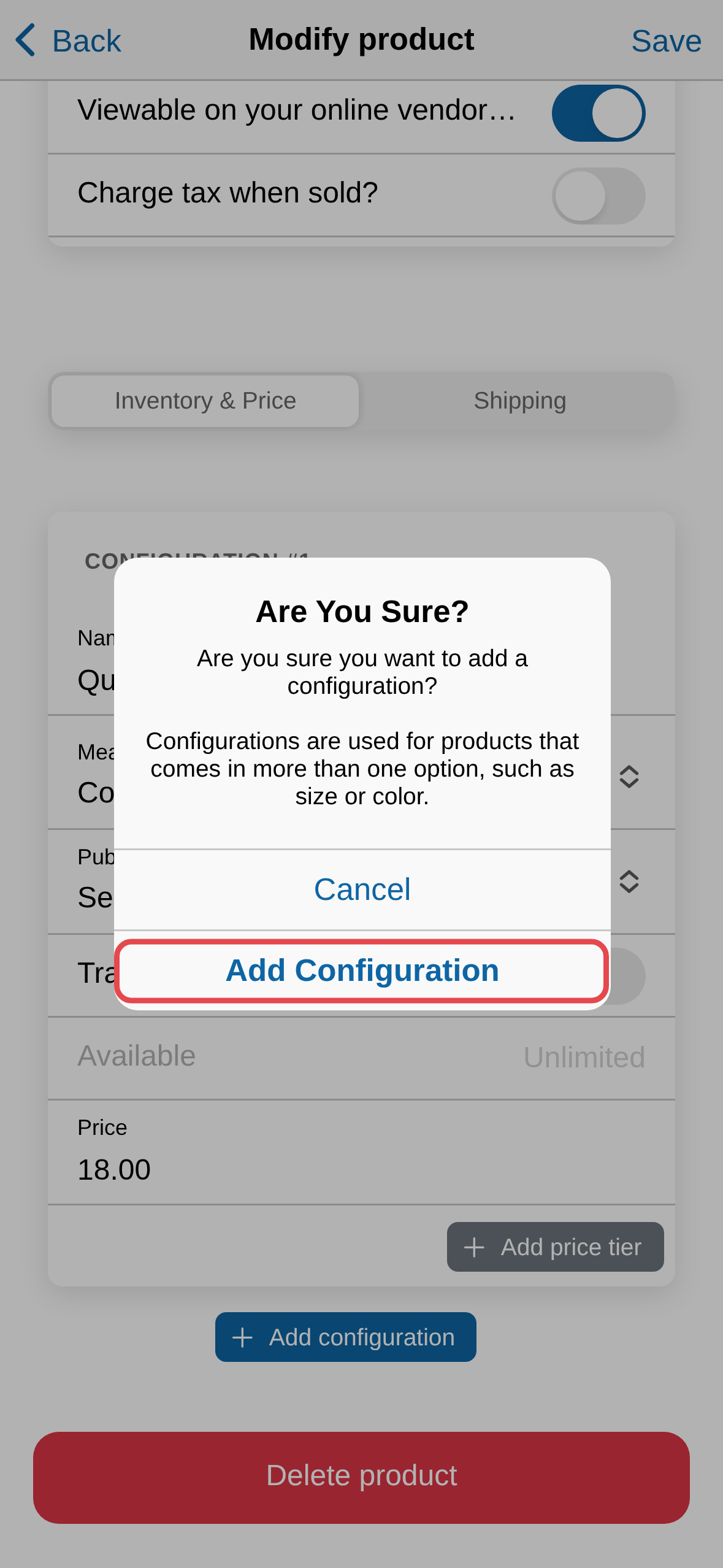
-
Fill in a Name for it, like "Half Wheel". Customers see this name, so
use one they would recognize. -
Fill in its Price, and anything else that's different from the
others.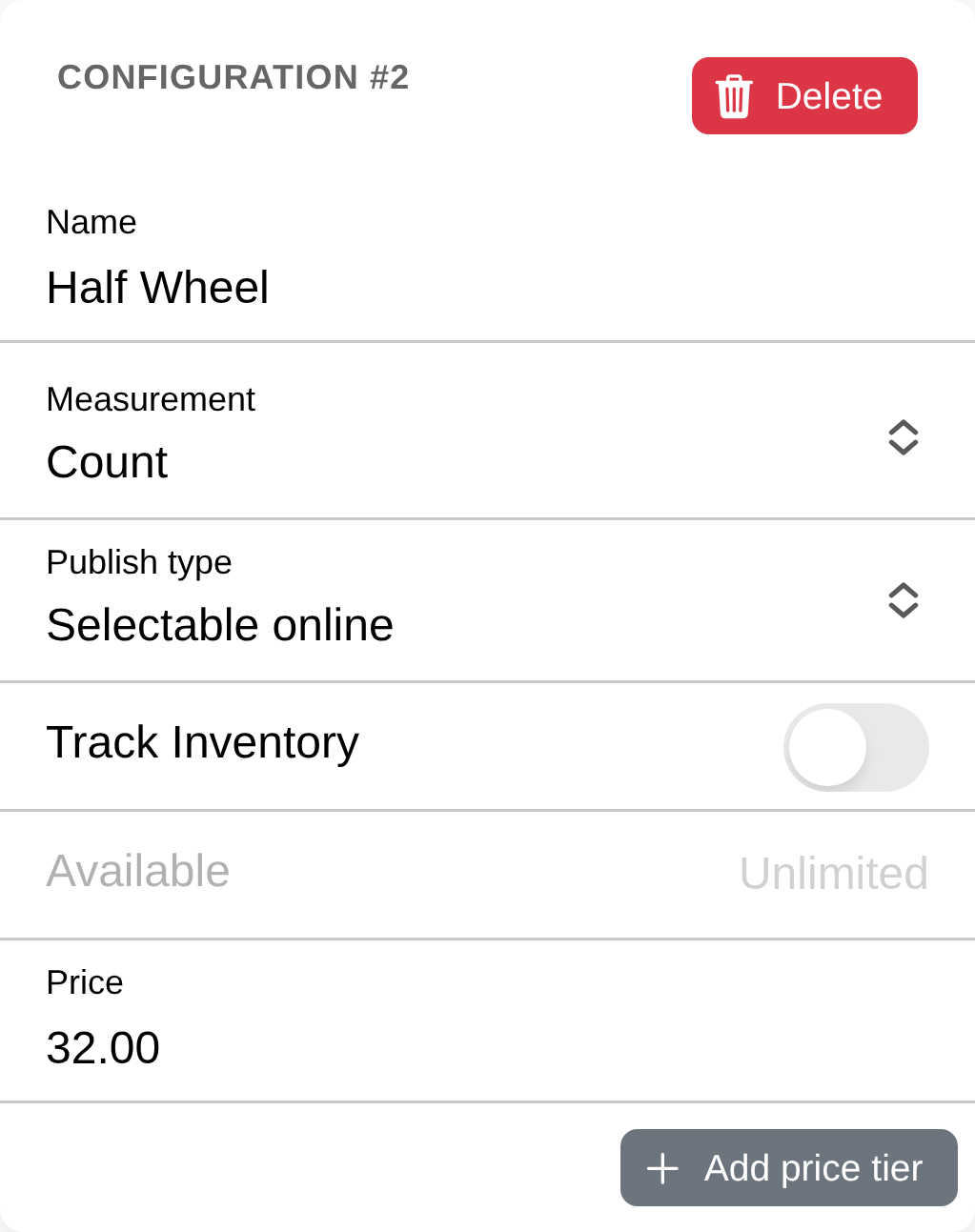
-
Click Save.
Click Add configuration again for each extra option.
Give a bulk discount
Give one configuration a cheaper price for buying more of it, the same way
Set prices for a product explains — just on
a single configuration instead of the whole product.
-
Open the product and click Add price tier, below the configuration's
price.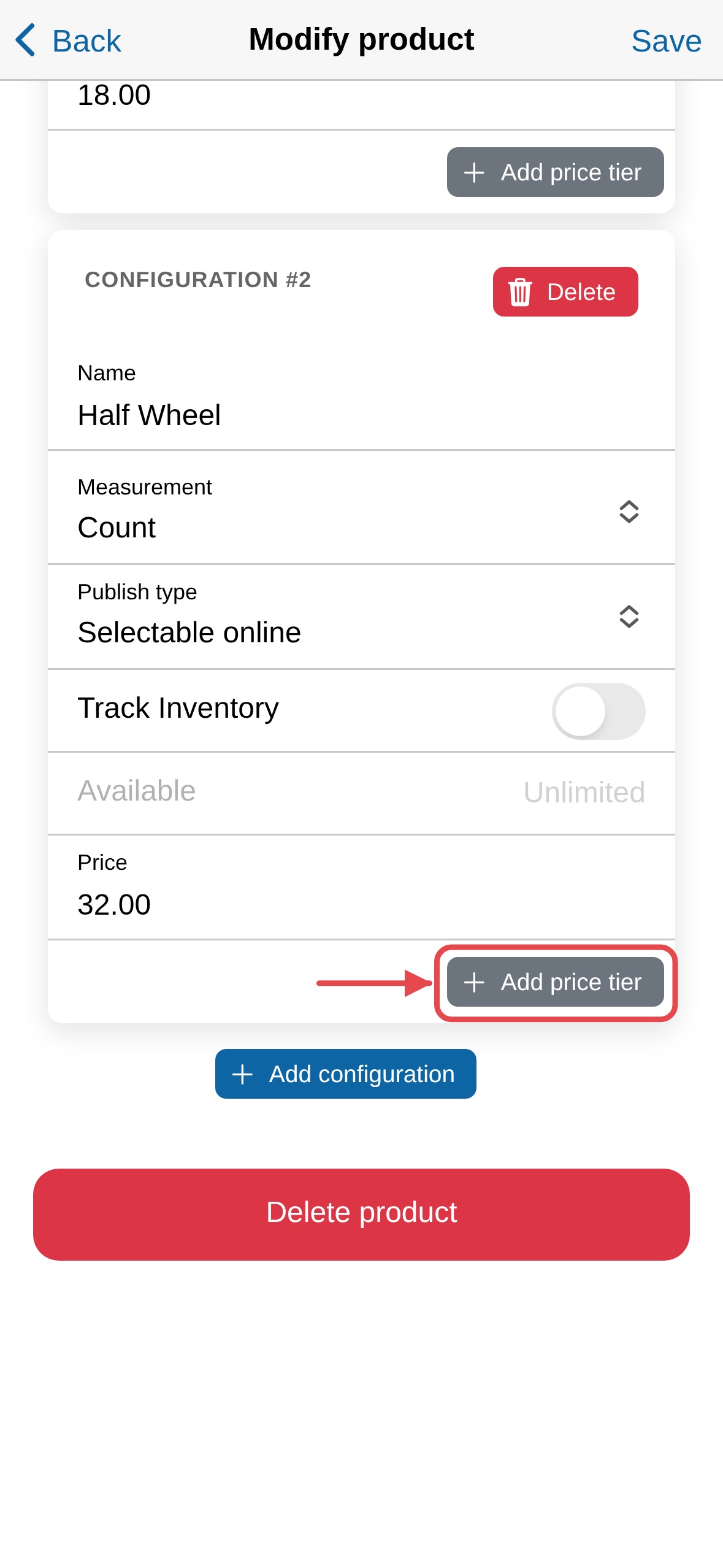
-
If it's the configuration's first price tier, a window explains how a
price tier works, with an example. Click Add Price Tier to confirm.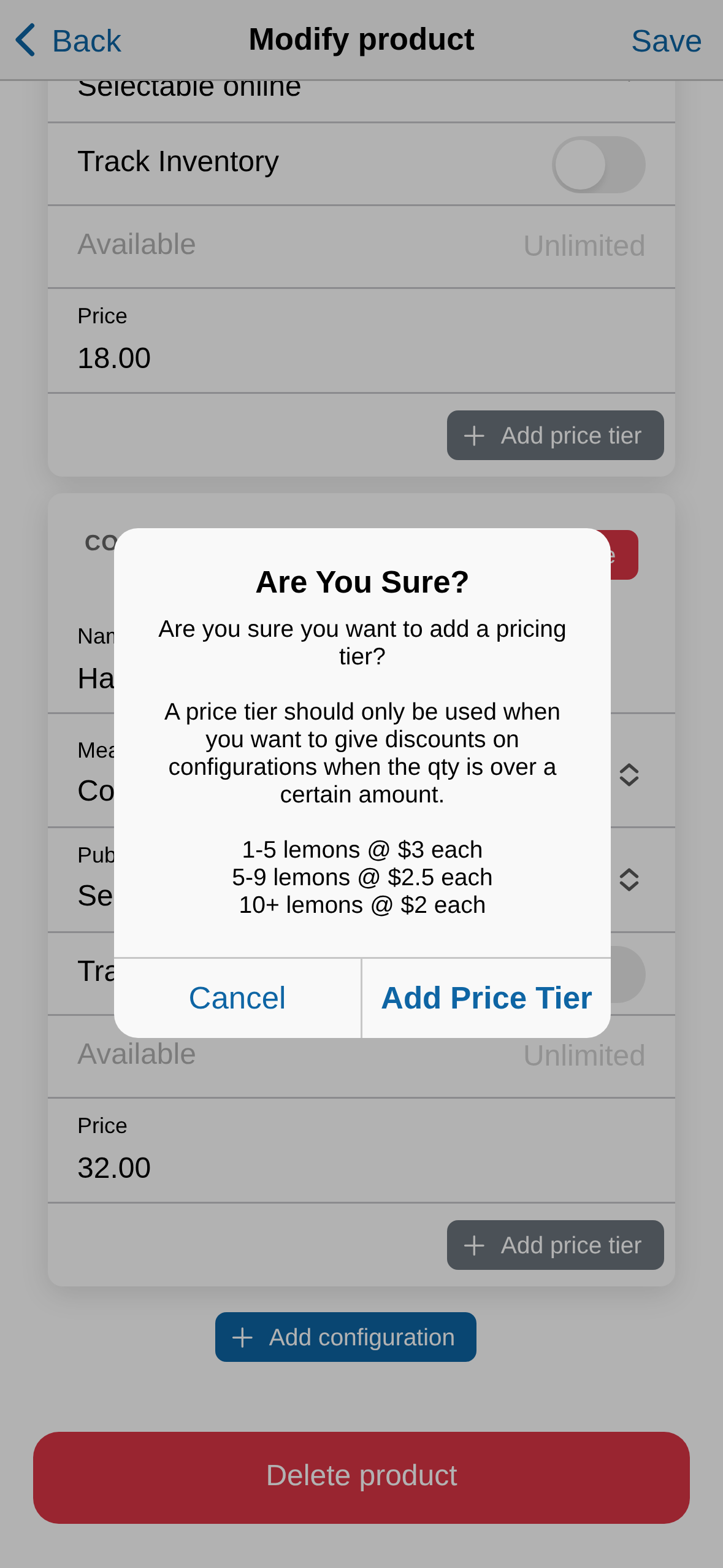
-
Fill in the new tier's Price and Included units — how many have
to be bought to get that price. Price per-unit works itself out, so
you can check it against the tier below.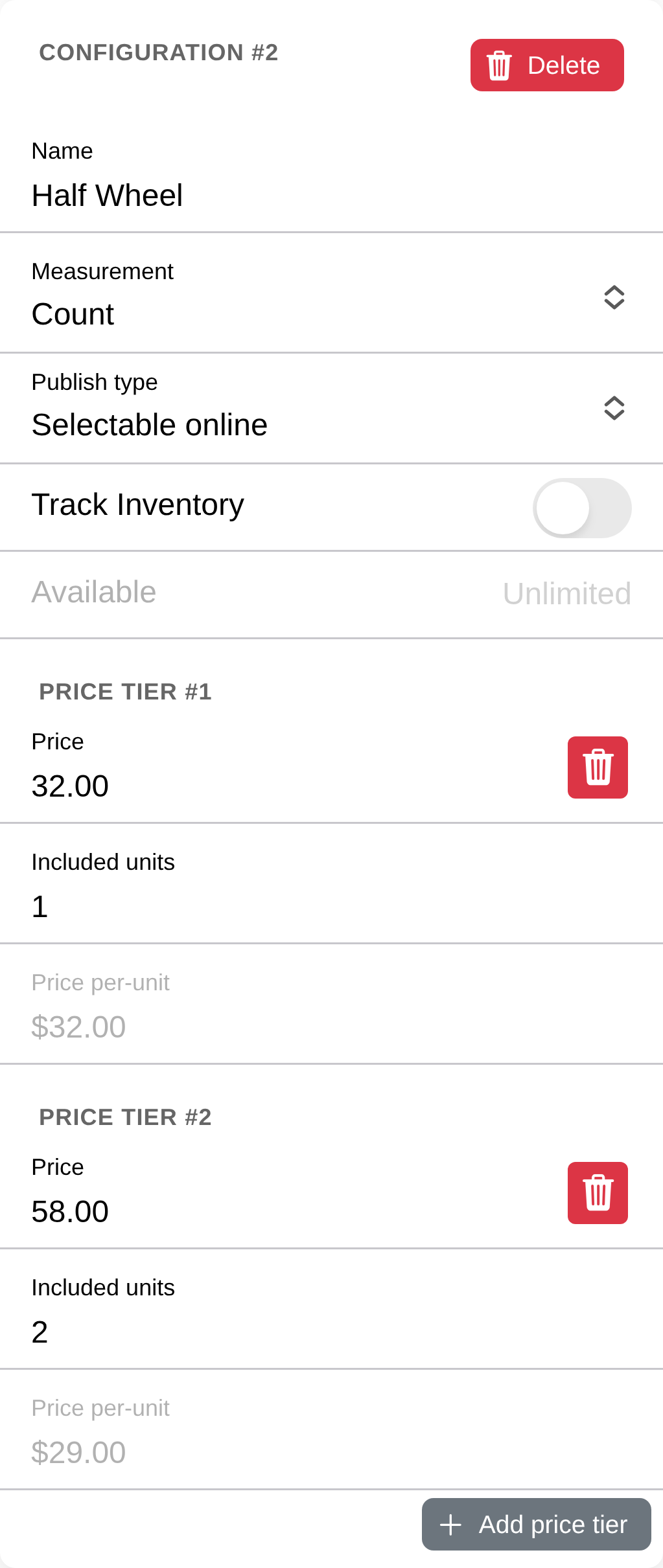
Each tier has to be cheaper than the last
A bigger tier has to cost less per unit than a smaller one — compare
Price per-unit on each. Marketspread checks this when you save, and
blocks it until it's fixed.
Price a configuration by weight or volume
A configuration priced by weight or volume — like cheese sold By the
Pound — charges for however much a customer takes, instead of a fixed
count.
-
Open the product.
-
On the configuration, set Measurement to Weight or Volume.
-
A window warns that this is for a variable amount, like meat, produce or
a large liquid. Click Change to weight (or Change to volume) to
confirm. -
Fill in Price, choose a Units like Pound, and fill in Size —
how much one unit covers.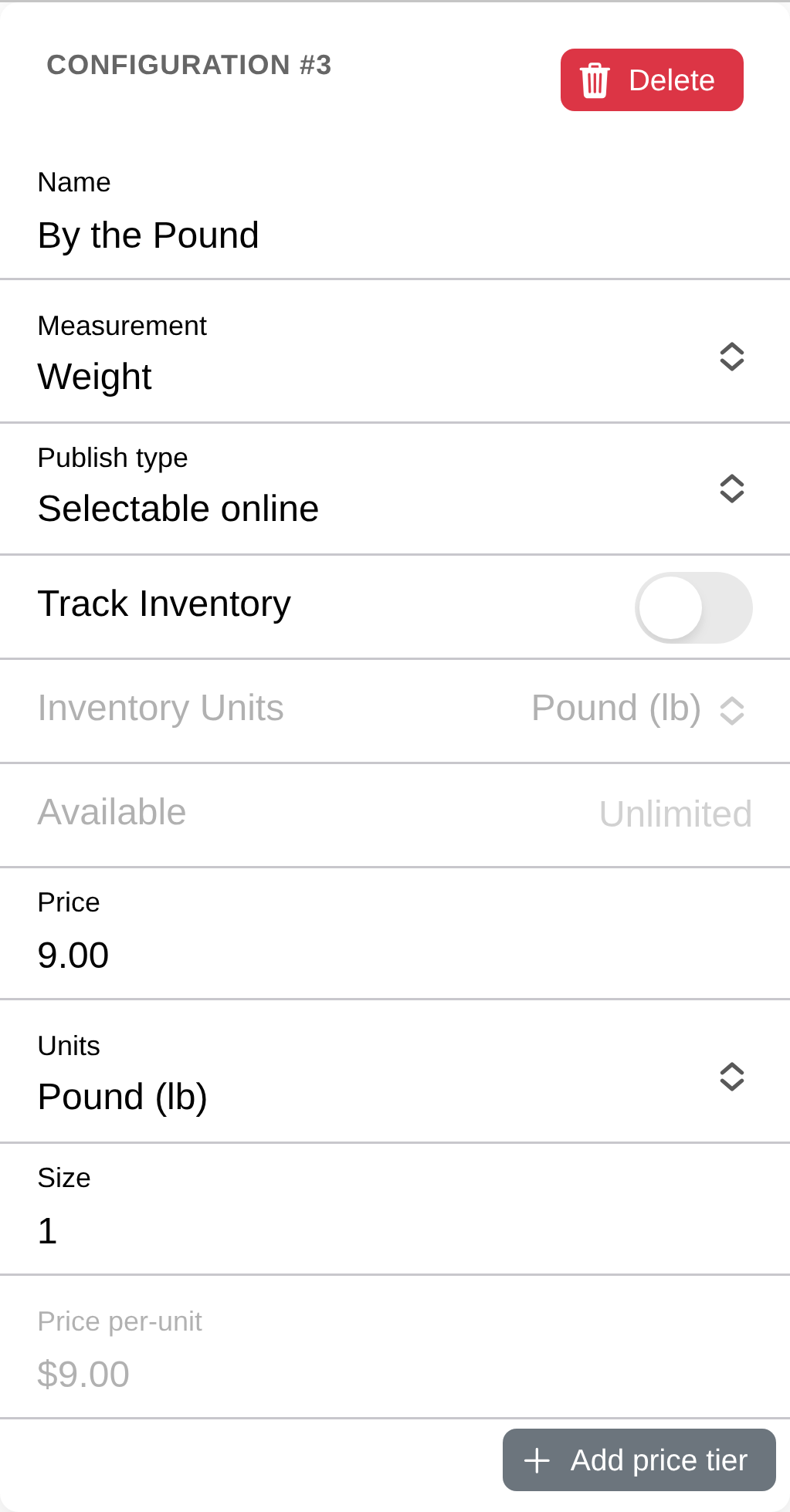
Note
Point of Sale asks the customer's amount at the register instead of a
plain quantity — see "Choose a configuration in Point of Sale" below.
Track inventory for a configuration
Each configuration tracks its own stock, so if one sells out, the others
can still be sold.
-
Open the product.
-
On the configuration, turn on Track Inventory.
-
Fill in Available with how many you have. It starts at zero until you
do.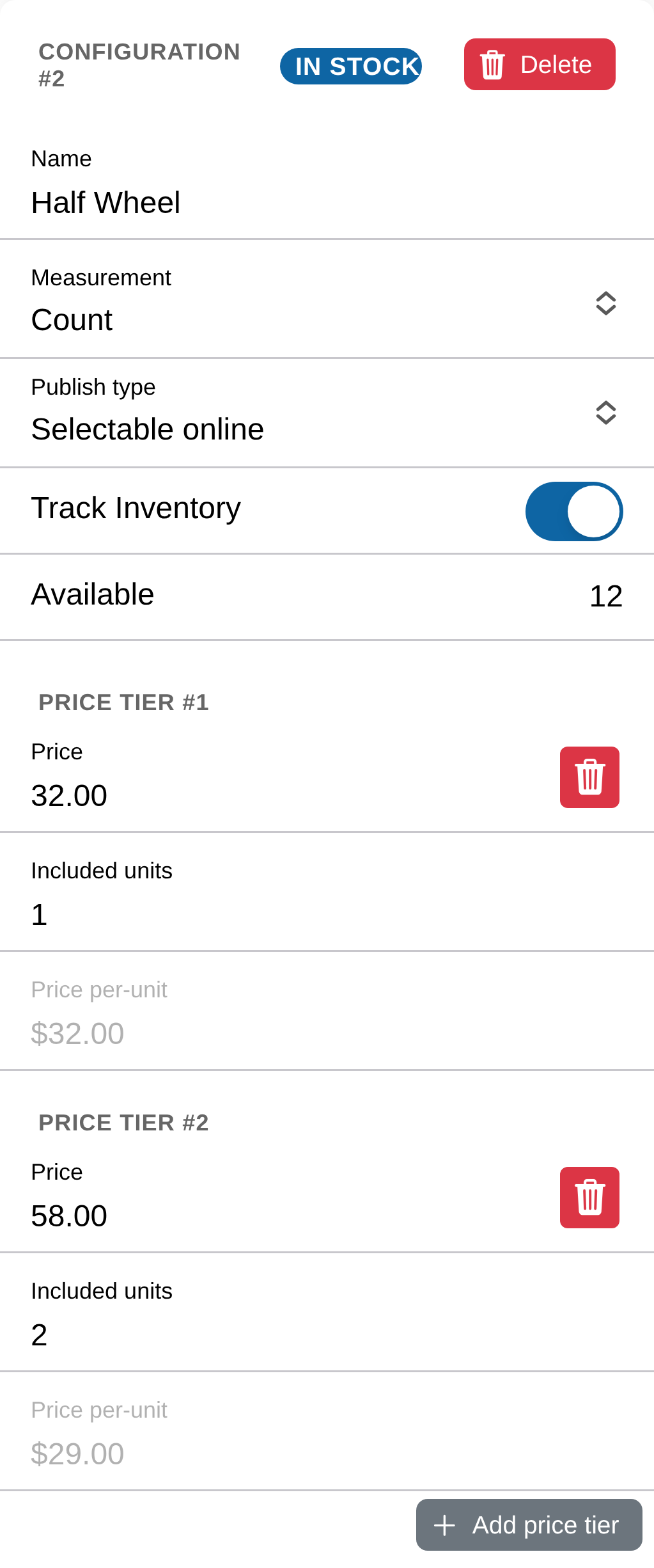
-
Click Save.
Note
Measurement — Count, Weight or Volume — decides how inventory is
tracked: by number of units, or by total weight or volume.
Note
Once tracking is on, the configuration shows In stock, Low
stock or Out of stock, so you can check it at a glance. Selling a
price tier takes off as many units as it includes — a tier that
includes 2 units takes 2 off your stock, not 1.
Choose a configuration in Point of Sale
On your phone or tablet, Point of Sale asks which configuration you mean
before it goes in the cart.
-
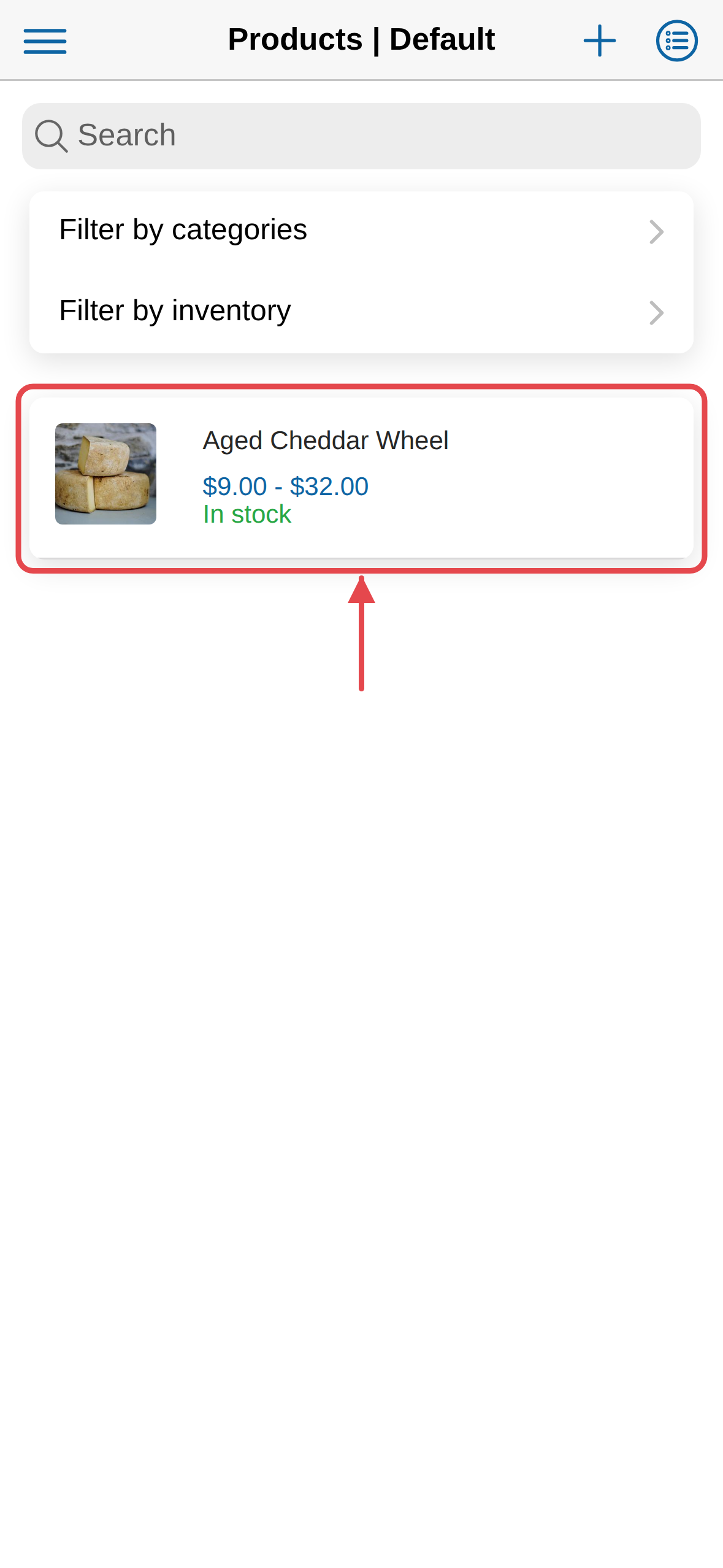
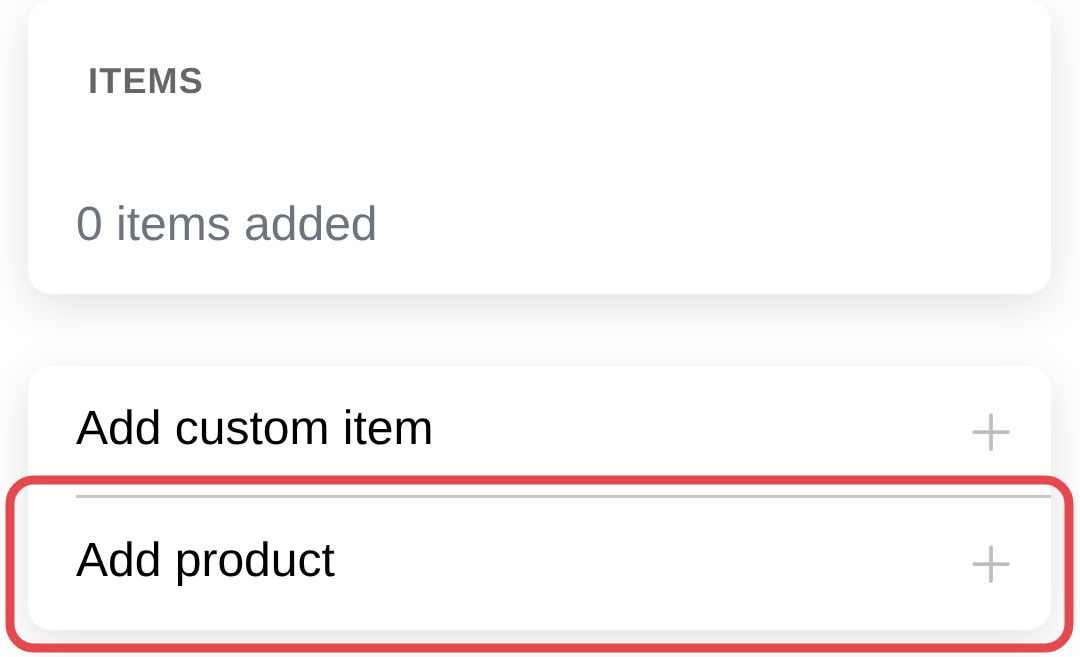
In your cart, tap Add product.
-
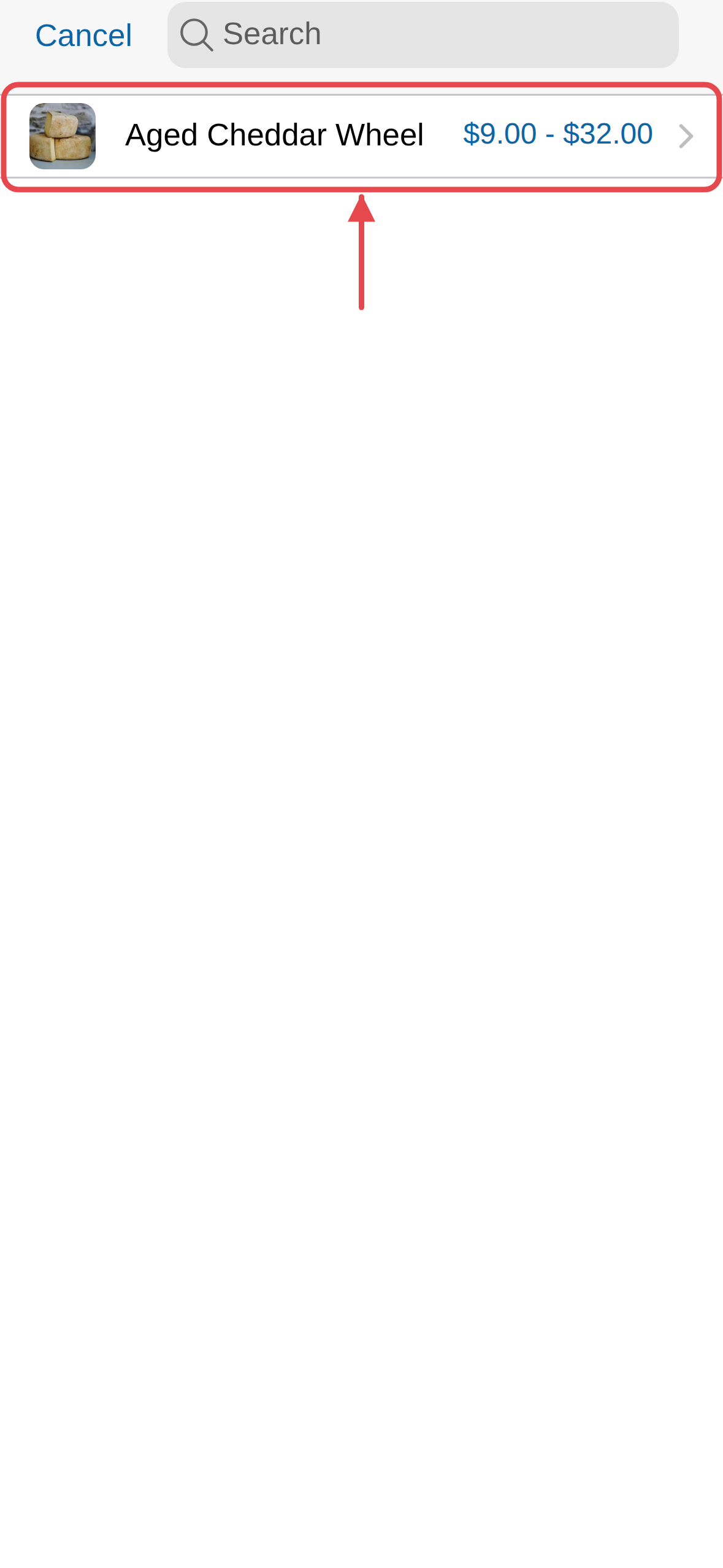
Tap the product you want to sell.
-
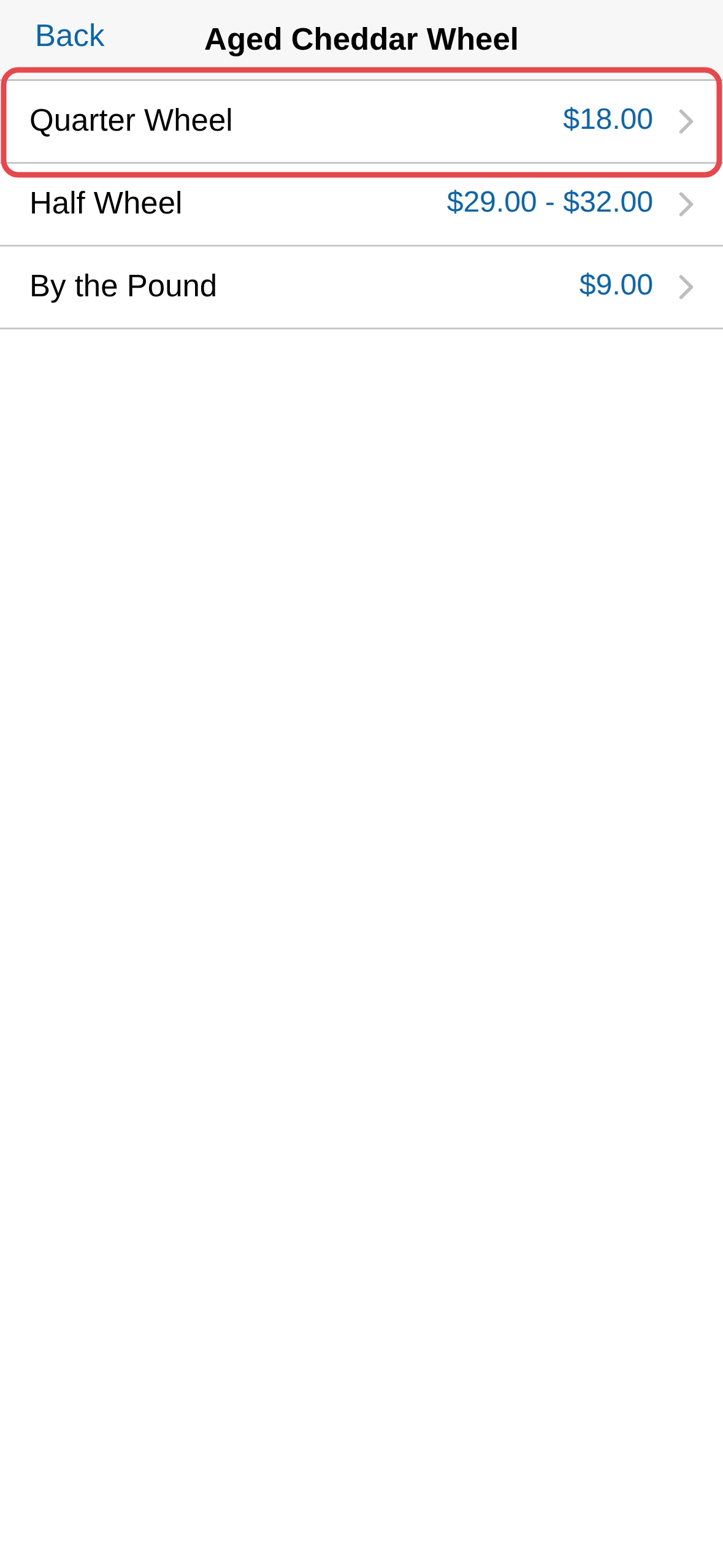
Tap the configuration you want — for example, the size.
-
A plain count, like Quarter Wheel, is added straight away at its regular
price.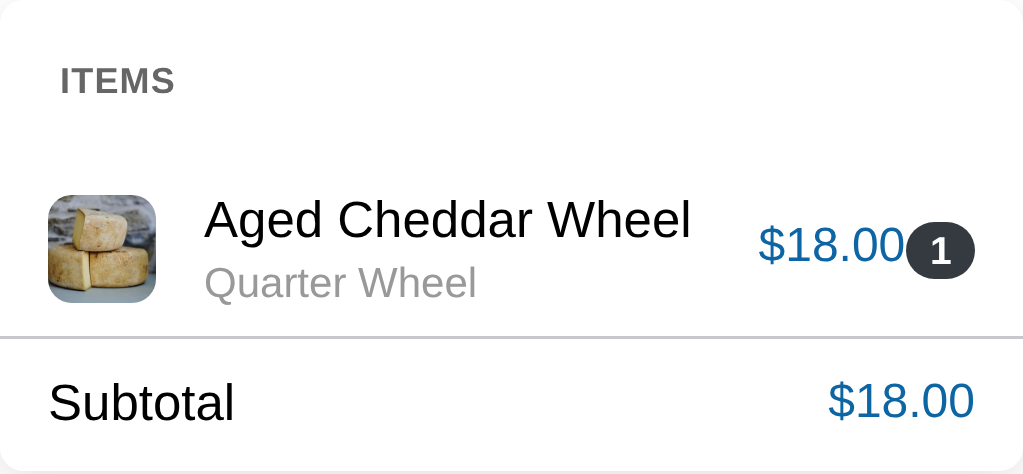
-
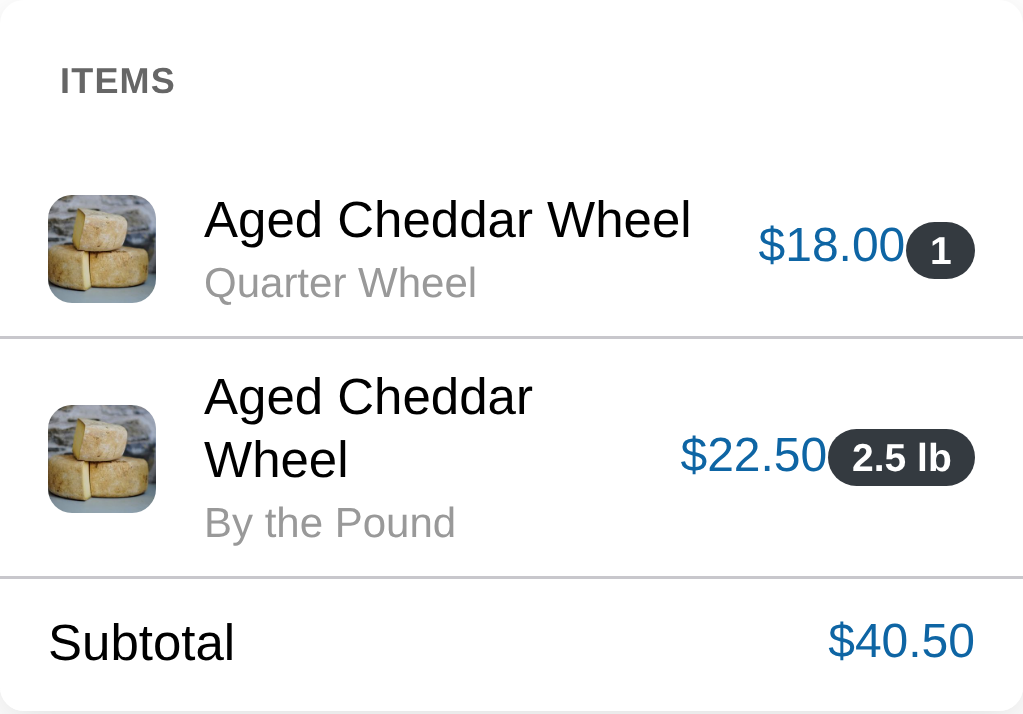
One priced by weight or volume, like By the Pound, asks for the
Amount first. Fill it in and tap Add.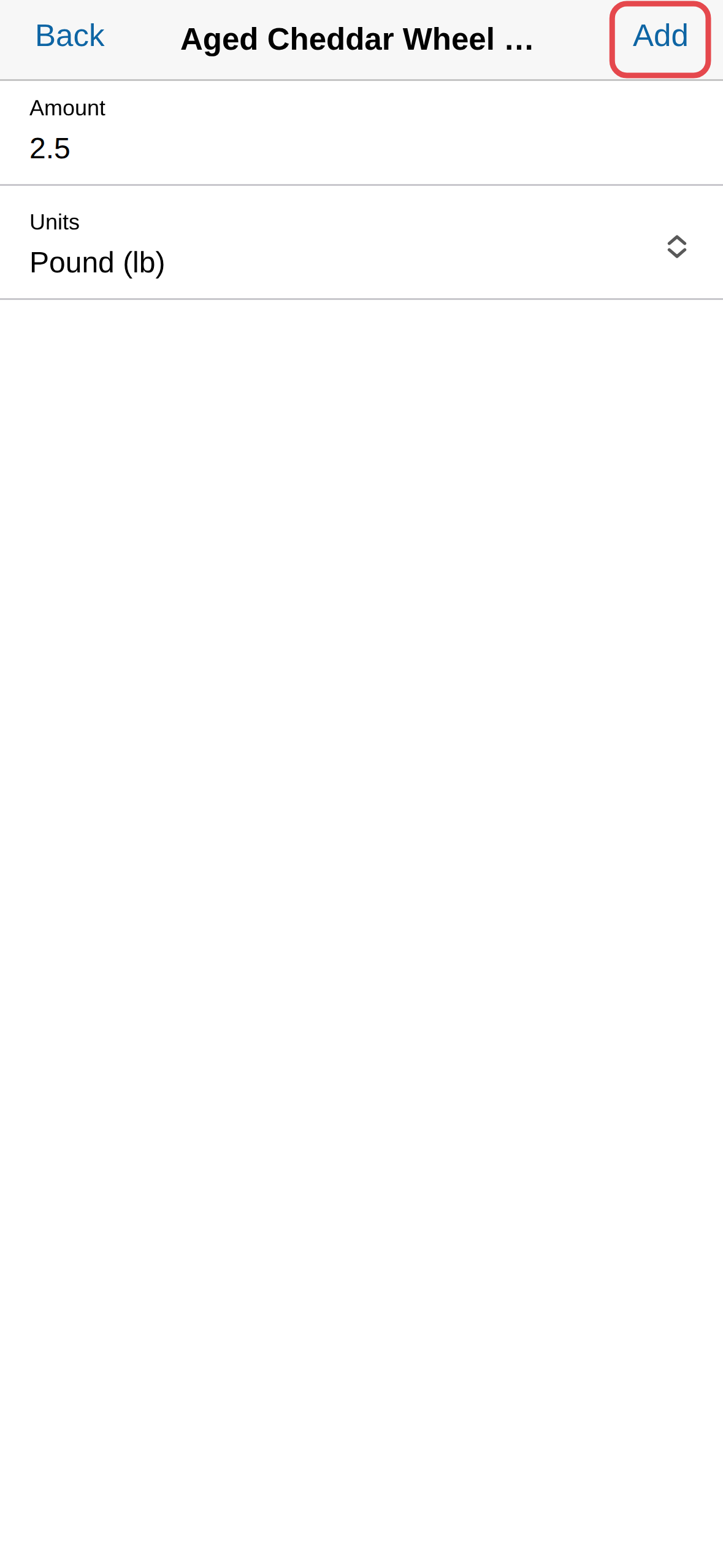
Note
If a configuration has more than one price tier, tap it in your cart and
change the quantity — see
Set prices for a product for which price
Point of Sale charges.
Note
A configuration with no stock left is marked Insufficient stock, but
you can still tap it and add it to the cart.
Remove a configuration
-
Open the product.
-
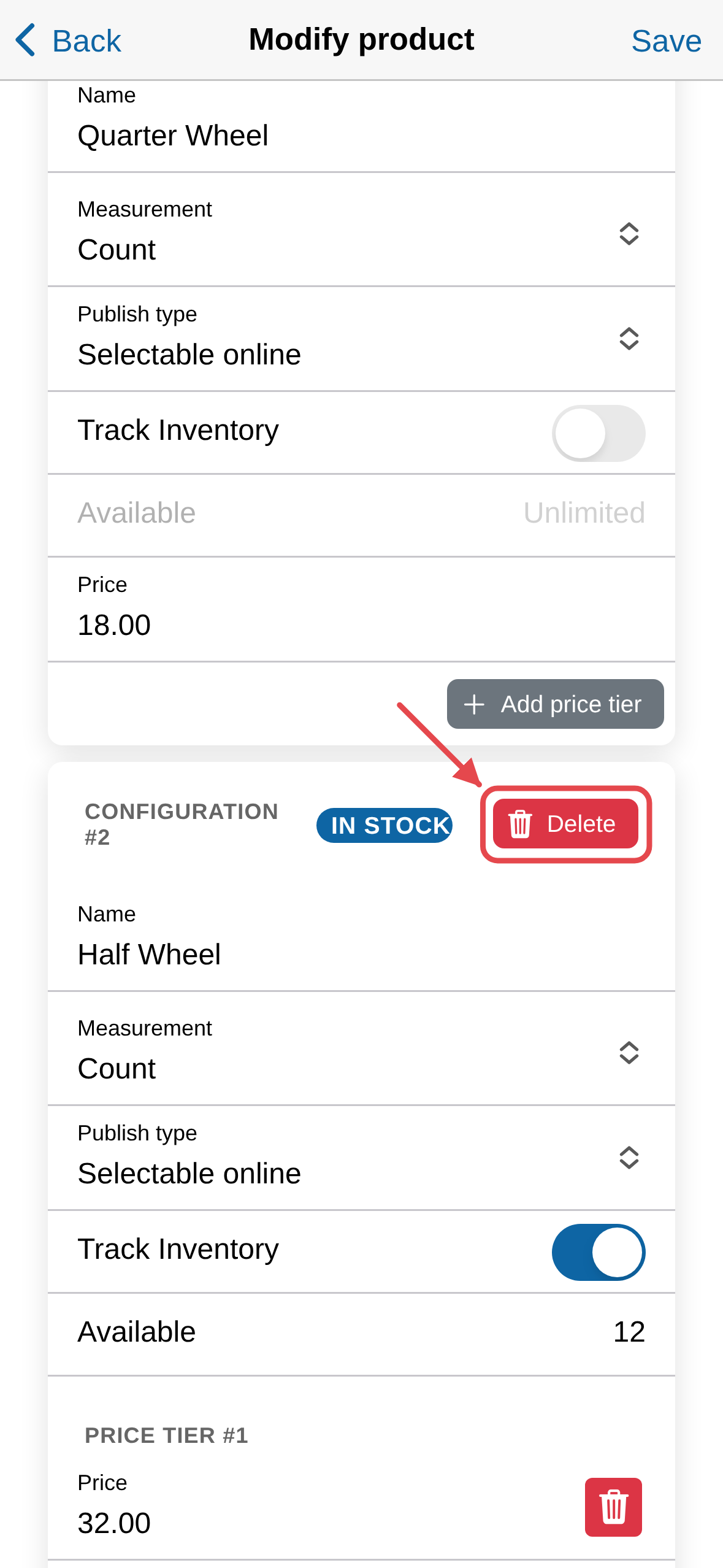
Click Delete on the configuration.
-
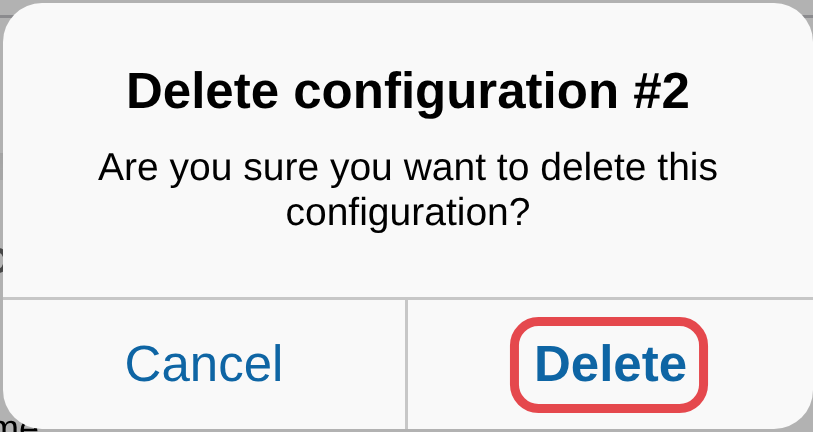
A window asks you to confirm. Click Delete.
Caution
This can't be undone — it removes that option, its price and its
inventory count for good.
A product needs at least one configuration, so Delete doesn't appear on
its last one.