


Your vendor profile is the foundation of everything you do on Marketspread. It holds your business information, tracks your market applications, stores your invoices, and connects you to every market you sell at.
Why you only need one vendor profile
A single vendor profile works across every market on Marketspread. There is no need to create a new profile each time you apply to a different market or event.
When you use one profile, you get:
- One place for your business info -- your name, logo, bio, and contact details are shared everywhere
- Centralized invoices and payments -- all charges from every market appear under one account
- A single document library -- upload certifications and documents once, and they are available for any market that requests them
- Complete application history -- see every market you have applied to, been approved for, or are currently selling at
One profile, many markets
Think of your vendor profile like a business card. You hand the same card to every market manager. You do not print a new card for each market.
How a single profile works across markets
Here is how your profile stays organized when you sell at multiple markets:
- You create one vendor profile under your organization account.
- You apply to any market directly from that profile.
- Each market tracks your relationship separately. Your event series dates, booth assignments, and application status are managed per market -- but they all link back to your single profile.
- Your shared info stays in sync. When you update your bio, logo, or contact info, the changes show up everywhere.
| What is shared | What is per-market |
|---|---|
| Business name and logo | Application status |
| Bio and contact info | Booth assignments |
| Social media links | Event series signups |
| Certifications (USDA, AGA, CNG) | Invoices from that market |
| Products and product lists | Documents requested by that market |
| Manager name and photo | Event attendance records |
When you do need multiple profiles
Most vendors need only one profile. But there are legitimate reasons to have more than one:
- You operate separate business entities. For example, "Hollow Oak Orchard" (your fruit operation under one LLC) and "Two Kettles Bakery" (your baked goods business under a different LLC with a separate tax ID).
- You need independent invoicing. Each business needs its own payment history, invoices, and financial records.
- You have different market relationships. One business sells at farmers markets while the other does wholesale through a different set of venues.
Not sure if you need a second profile?
If your products are all sold under the same business name and tax ID, you almost certainly need just one profile. Add your full product range to that profile instead.
Keeping your profile healthy
A complete, up-to-date profile makes a great impression on market managers and keeps your account running smoothly.
Complete your profile
Make sure you have filled in:
- Business name and logo -- market managers see this when reviewing applications
- Bio -- describe your farm or business in a few sentences
- Contact information -- phone number, website, and social media links
- Mailing address -- used for correspondence and invoicing
- Manager name and photo -- adds a personal touch and helps market staff recognize you
- Certifications -- mark any applicable certifications (USDA Organic, AGA, Certified Naturally Grown)
Keep your information current
- Update your mailing address if you move
- Refresh your bio when your product offerings change
- Add new certifications as you earn them
Use the Account Review card
When there is something to check on your profile -- a detail you have not filled in, or another profile that looks like it might be the same business -- your vendor dashboard shows an Account Review card above your other widgets. Click it to expand it, and work through what it lists. If everything is in order, the card does not appear at all.
How to request a merge if you have duplicates
If you accidentally created two vendor profiles -- or ended up with duplicates for any reason -- you can request that they be merged into one. Start from the dashboard of the profile you want to keep: that is the one the merge keeps.
Step-by-step
-
Go to the vendor dashboard of the profile you want to keep.
-
Open the Account Review card. Click it to expand it, if it is not already open.
-
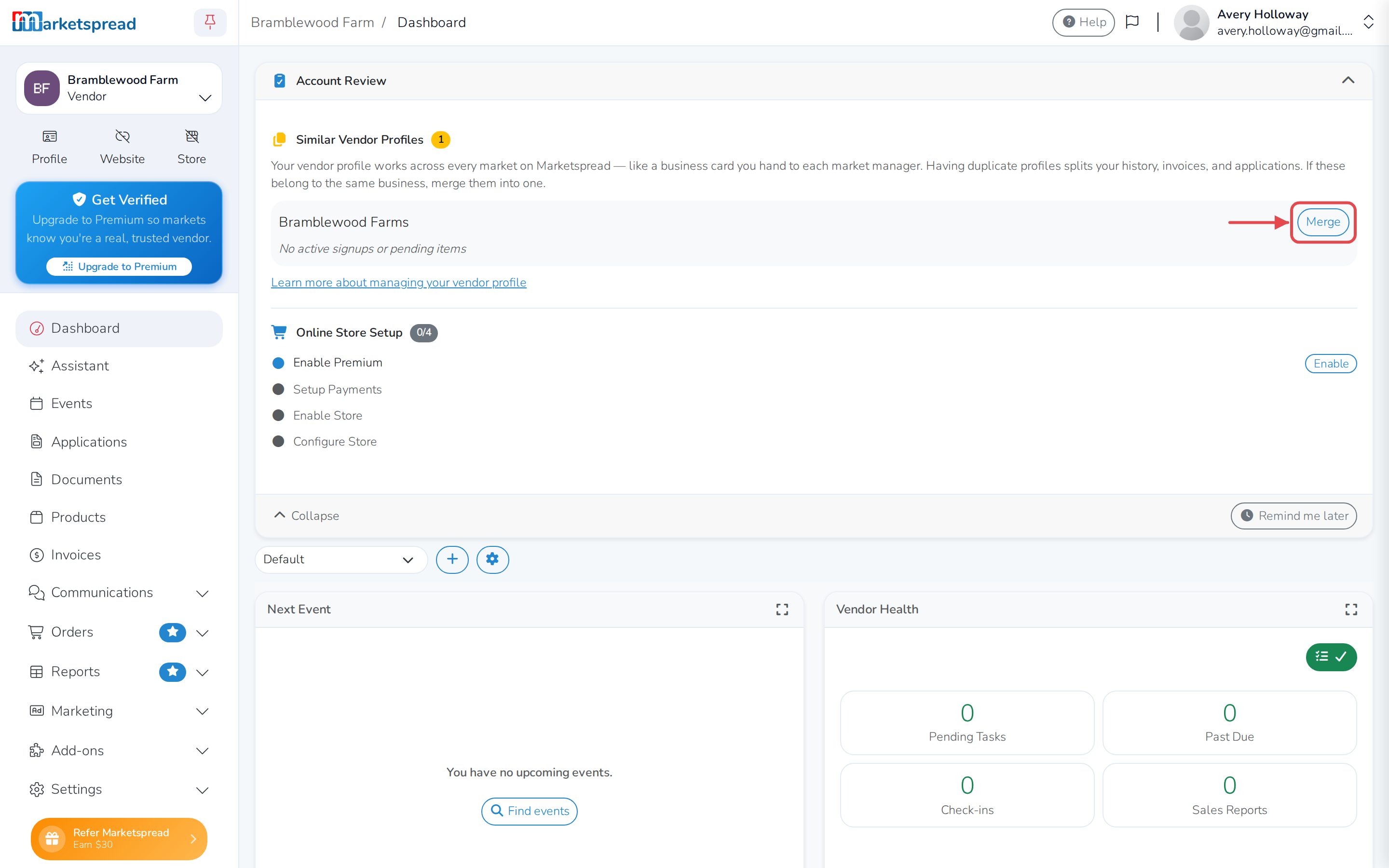
Find the profile to merge away. If another profile looks like it might be the same business, it is listed under Similar Vendor Profiles. Click Merge next to it.
-
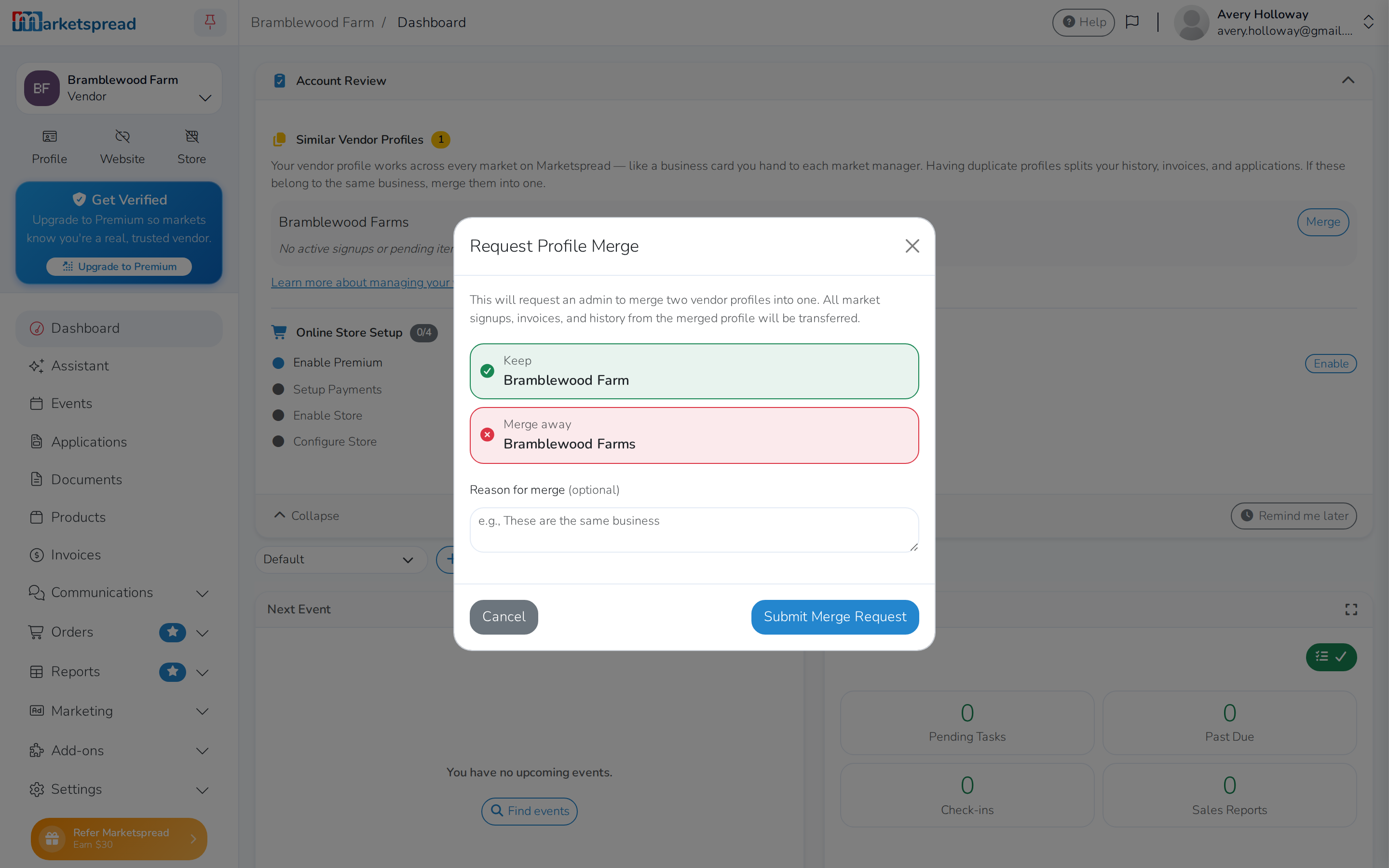
Check the names in the window that opens. Keep (in green) is the profile you are on now; Merge away (in red) is the one you clicked.
-
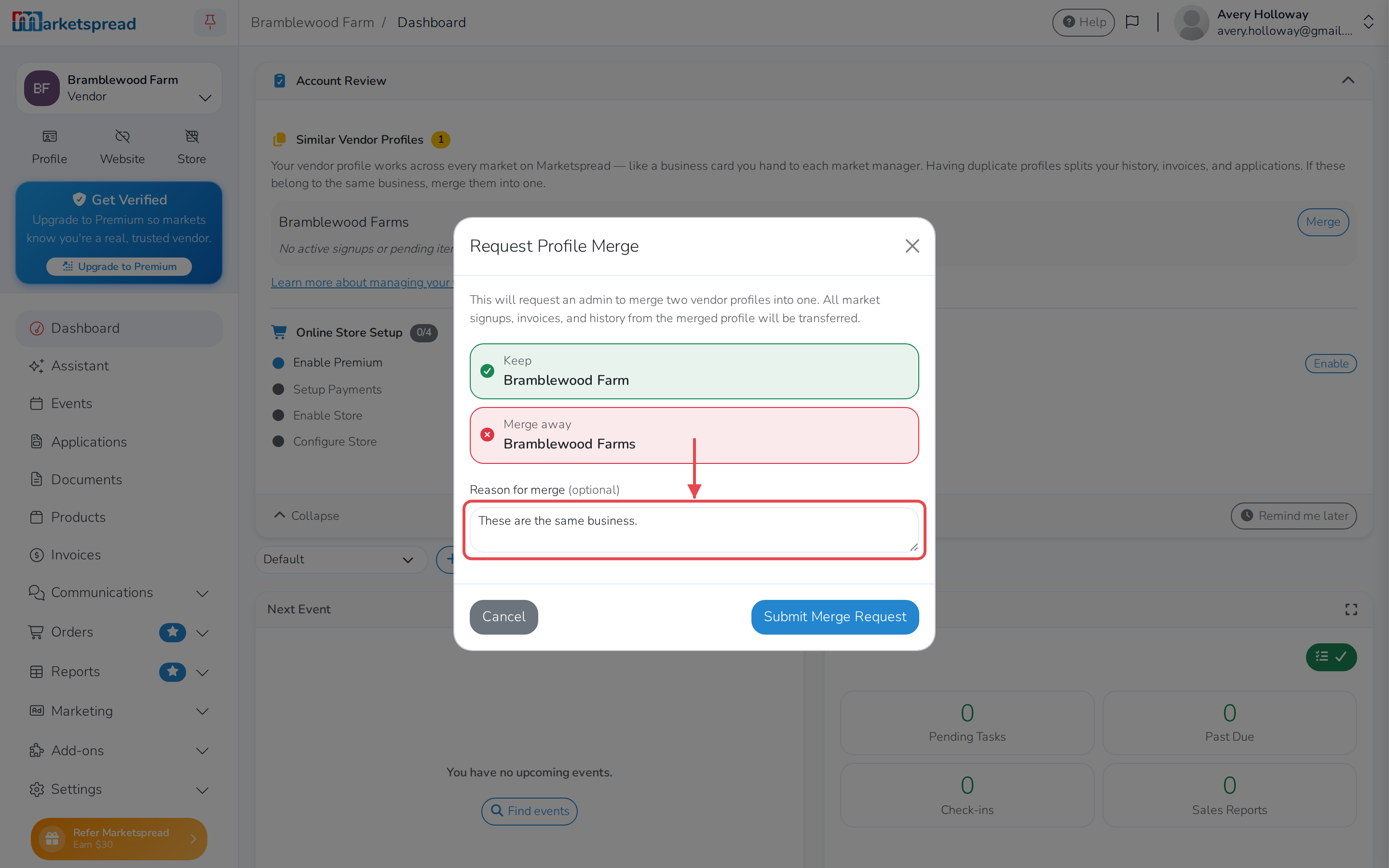
Add a note (optional). Type a short reason under Reason for merge -- for example, "These are the same business."
-
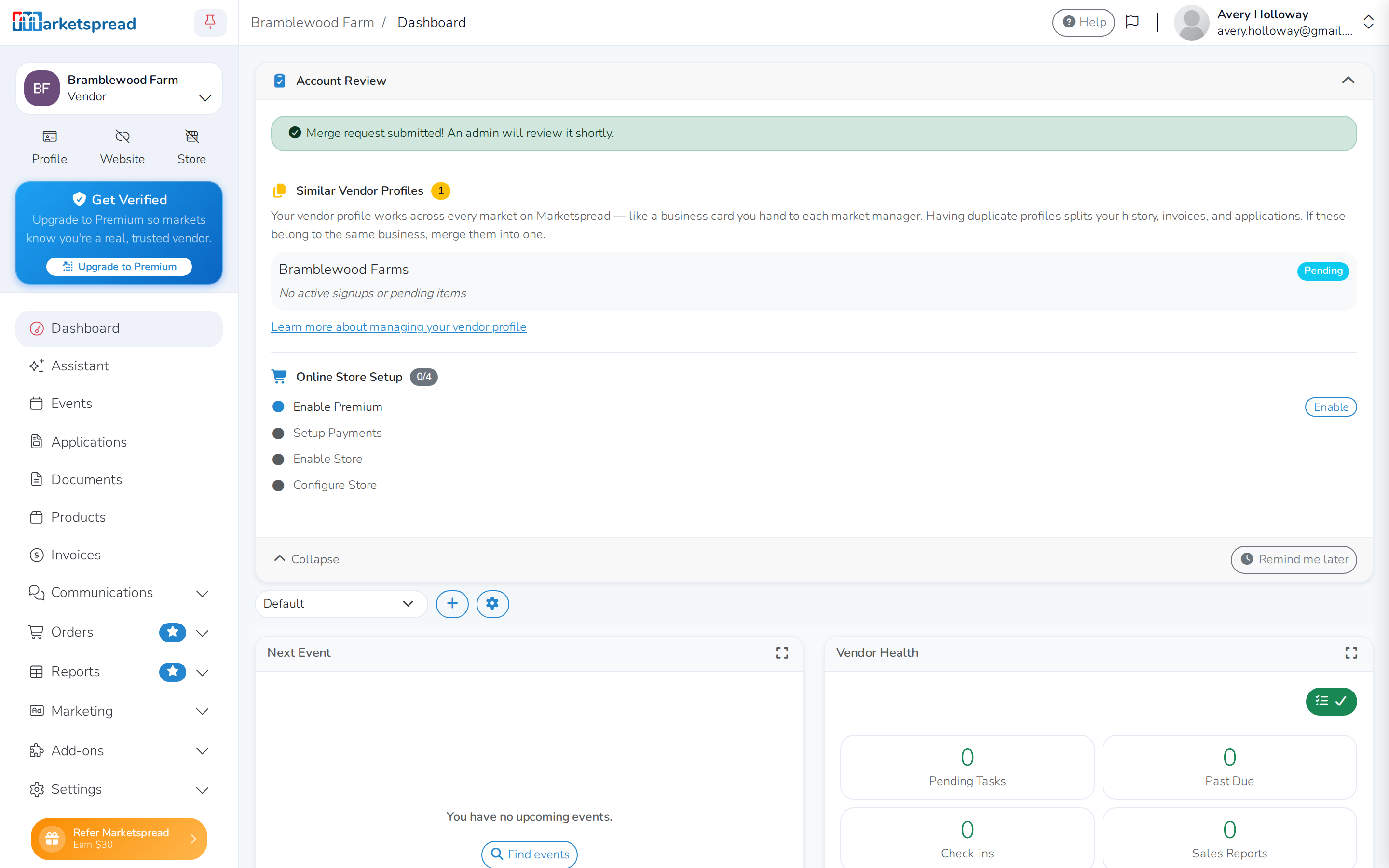
Click Submit Merge Request.
Choose carefully
Make sure you click Merge next to the right profile. The kept profile retains its name and settings, and the other profile's data is moved into it. You cannot undo a merge once it is completed. To keep the other profile, start the request from its dashboard instead.
What happens during a merge
When an administrator approves your merge request, everything transfers automatically from the other profile into the kept profile:
- Market signups -- all of your market relationships are moved over
- Applications -- pending, approved, and historical applications are transferred
- Event series signups and booth assignments -- your booking history is preserved
- Invoices and payment history -- every invoice is reassigned to the kept profile
- Documents -- uploaded certifications and files are consolidated
- Products and product lists -- your product catalog is combined
- Store and order history -- online store data is transferred
- Association memberships -- any association connections are moved
- Vendor Premium -- if either profile has an active subscription, it carries over to the kept profile
- Profile data -- if the kept profile is missing information (like a bio or logo) but the merged profile has it, that data fills in the gaps
After the merge completes:
- The merged profile is removed -- it no longer appears in search or in any list
- You receive an email confirming the merge is complete
- All your data is accessible from your kept profile
Frequently asked questions
Can I undo a merge?
No. Merges are permanent. All data is transferred and the other profile is removed. Double-check which profile you clicked Merge on before submitting a request.
Will I lose any data?
No. Everything from the merged profile -- market signups, invoices, documents, products, applications -- moves to the kept profile before the other profile is removed.
How long does it take?
An administrator reviews merge requests manually. You can expect a response within a few business days. You will receive an email when the merge is completed or if the request is denied.
I accidentally created two profiles. What should I do?
Open the dashboard of the profile you want to keep, expand its Account Review card, and submit a merge request for the duplicate.
What if my merge request is denied?
You will receive an email explaining why. Common reasons include the profiles belonging to genuinely different businesses. If you think the denial was a mistake, contact support with additional details.
Can I merge profiles that belong to different organizations?
Yes, as long as you manage both of them. The Account Review card on either profile lists the other one if their names look alike.