


Report how much you sold after a market day. You can report it from your vendor dashboard, or straight from the reminder email you get before the day ends.
Report sales from your dashboard
-
From your vendor dashboard, click Events in the left-hand menu.
-
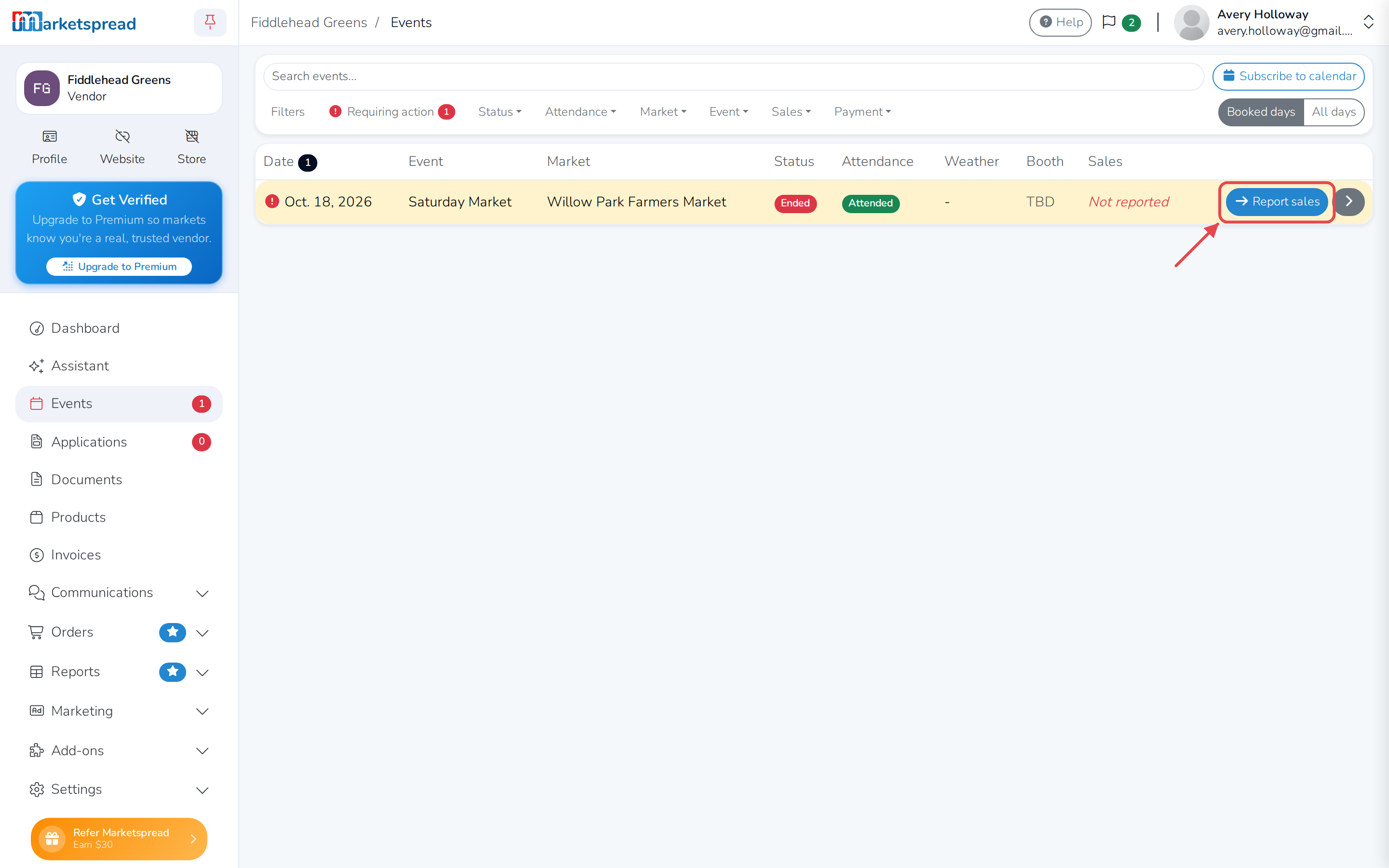
Find the event day that needs a report — it's marked, and has a Report sales button.
-
Click Report sales.
-
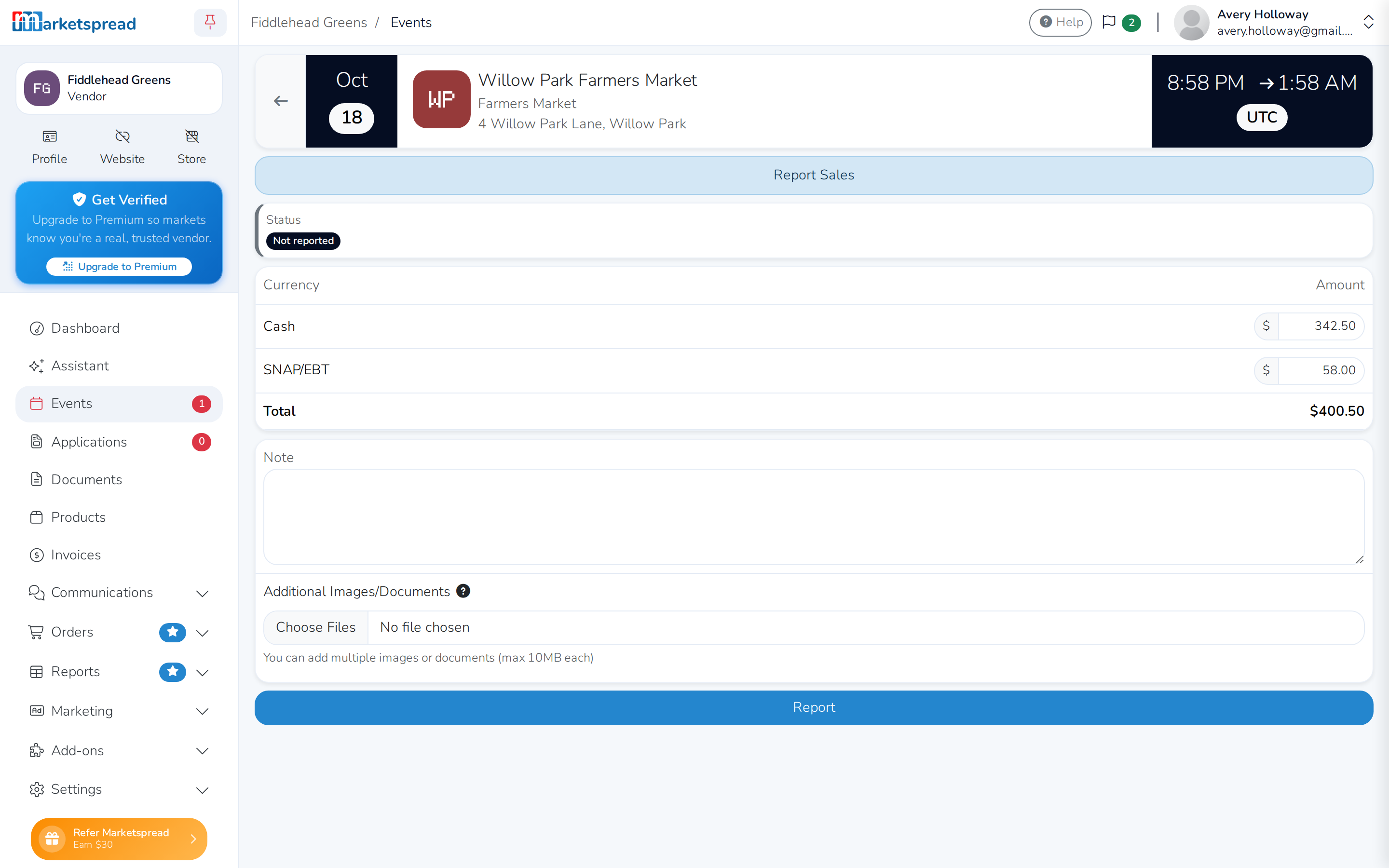
Enter your sales amount next to each payment type your market tracks, such as Cash. Some markets track more than one, like Cash and SNAP/EBT — enter an amount for each one.
-
Click Report.
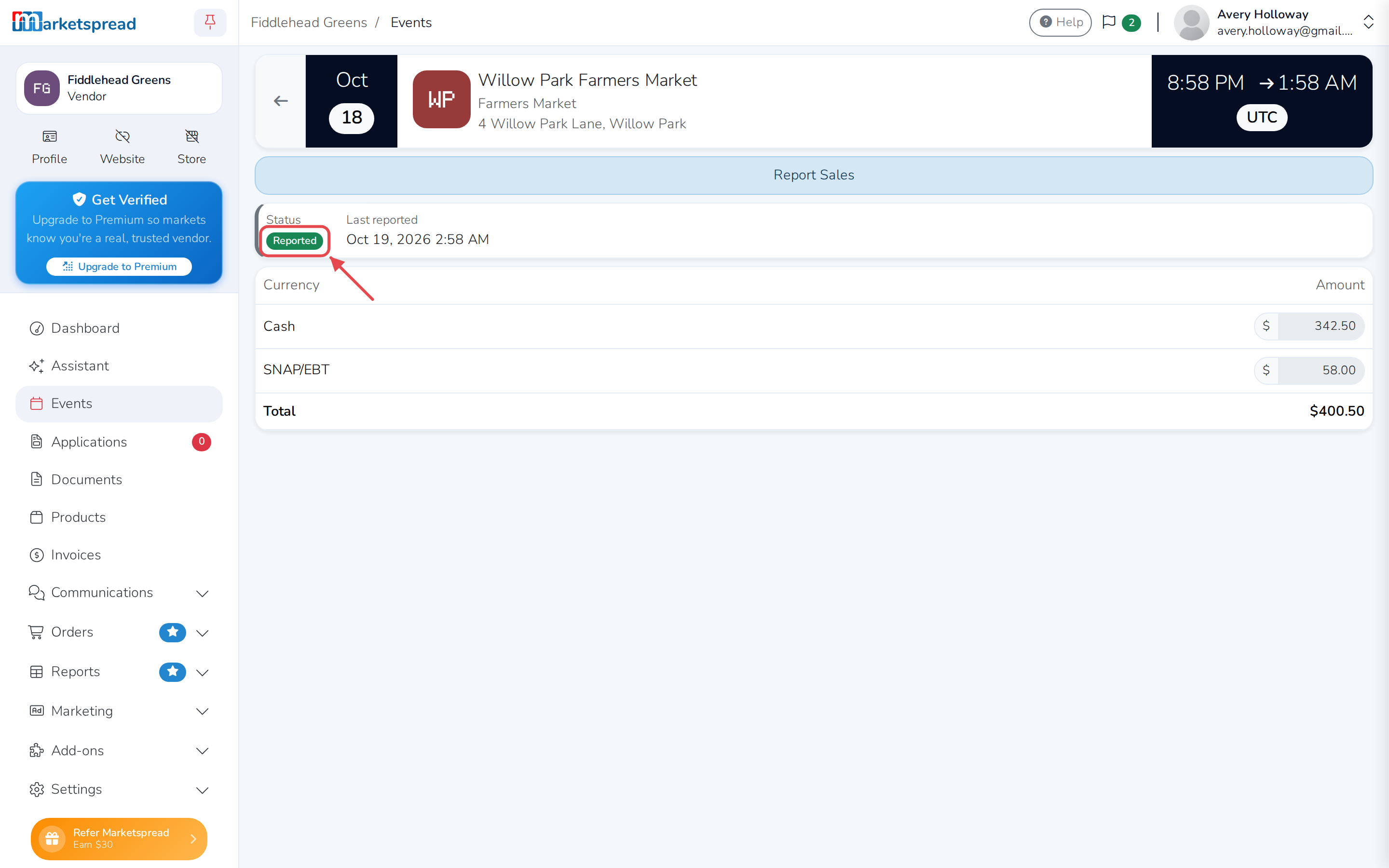
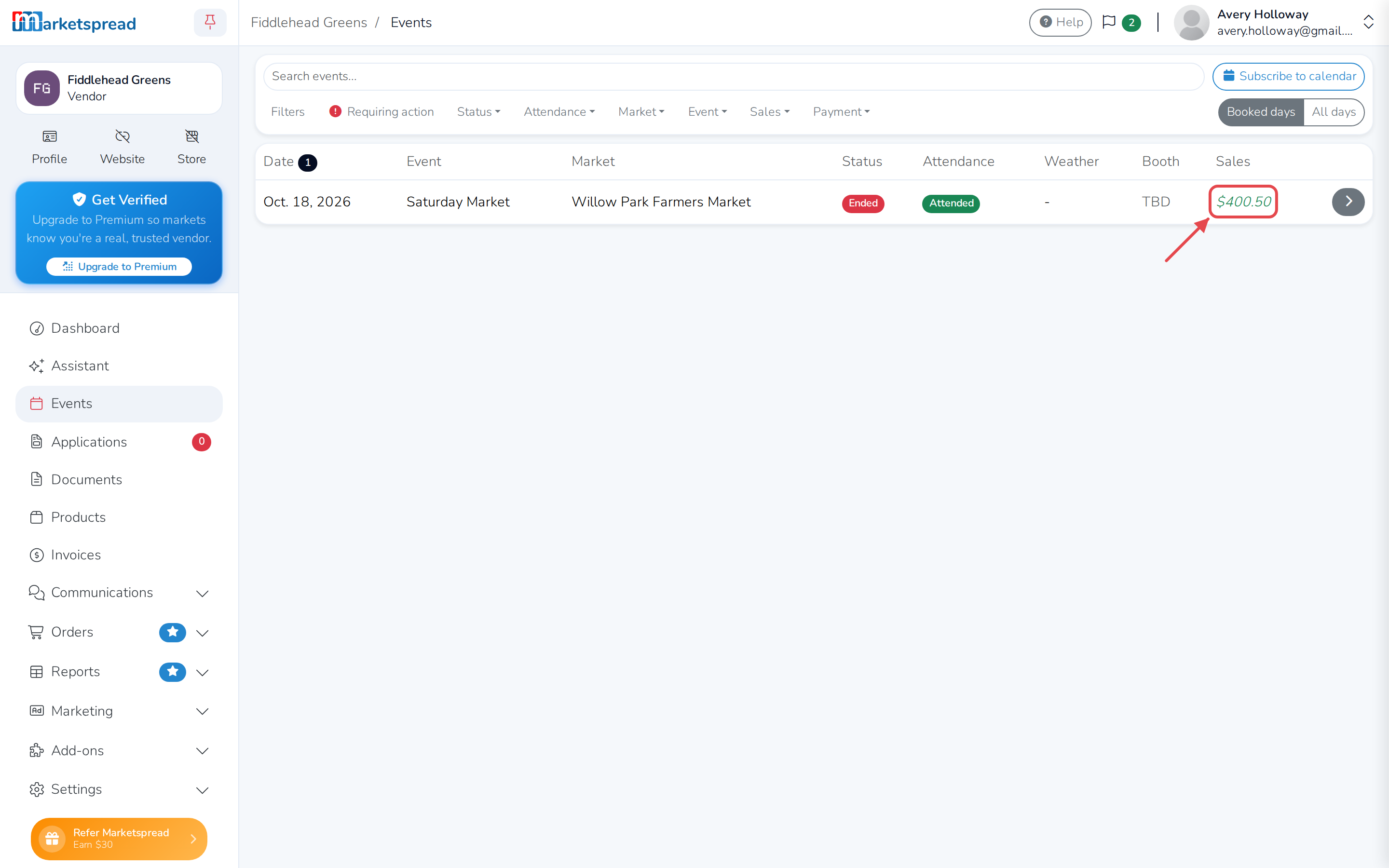
Back on the Events list, that day now shows its reported total instead of the Report sales button.
Important
You can't change a sales report once you submit it, so check your numbers before you click Report.
Report sales from an email reminder
You'll get an email up to 45 minutes before a market day ends, asking you to report your sales for that day.
- Open the email and click the blue View notification button.
- Follow the steps above to enter and report your sales.