


Marketspread saves the cards you pay your invoices with, so you don't have to enter them every time. You can remove a saved card from your profile at any time, and add a new one whenever you pay an invoice.
Add a new card
You can only add a card while paying an invoice — there's no separate "add card" button.
- Open Invoices in the left-hand menu of your vendor dashboard.
- Click Pay next to the invoice you want to pay.
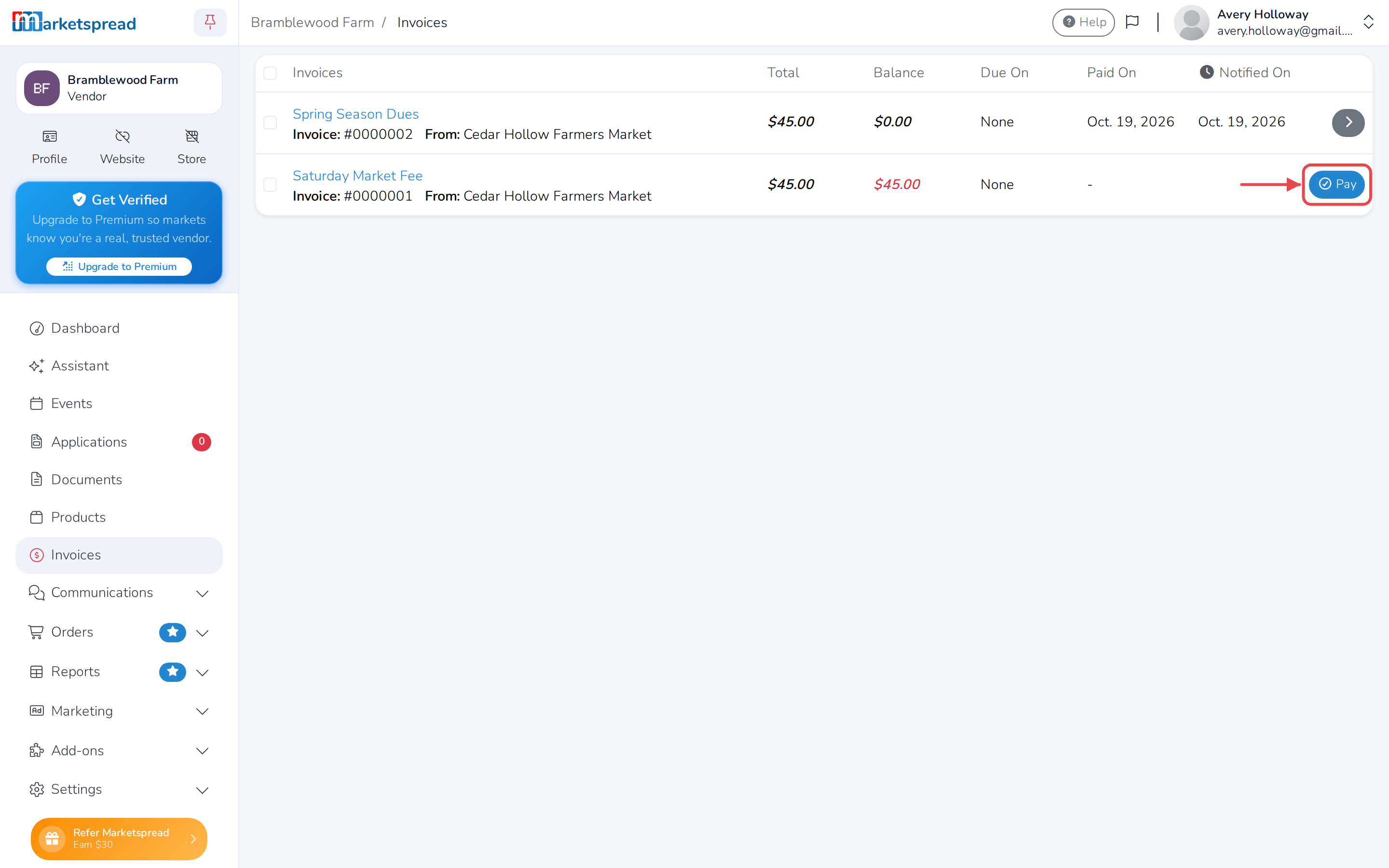
- Under Payment, click the Add new card tile.
- Fill in the card number and its expiry date.
- Fill in the billing address, or click Can't find address? Click to enter manually.
- Fill in the card's CVV.
- If you want this market to charge the card automatically next time, tick Enable auto-pay.
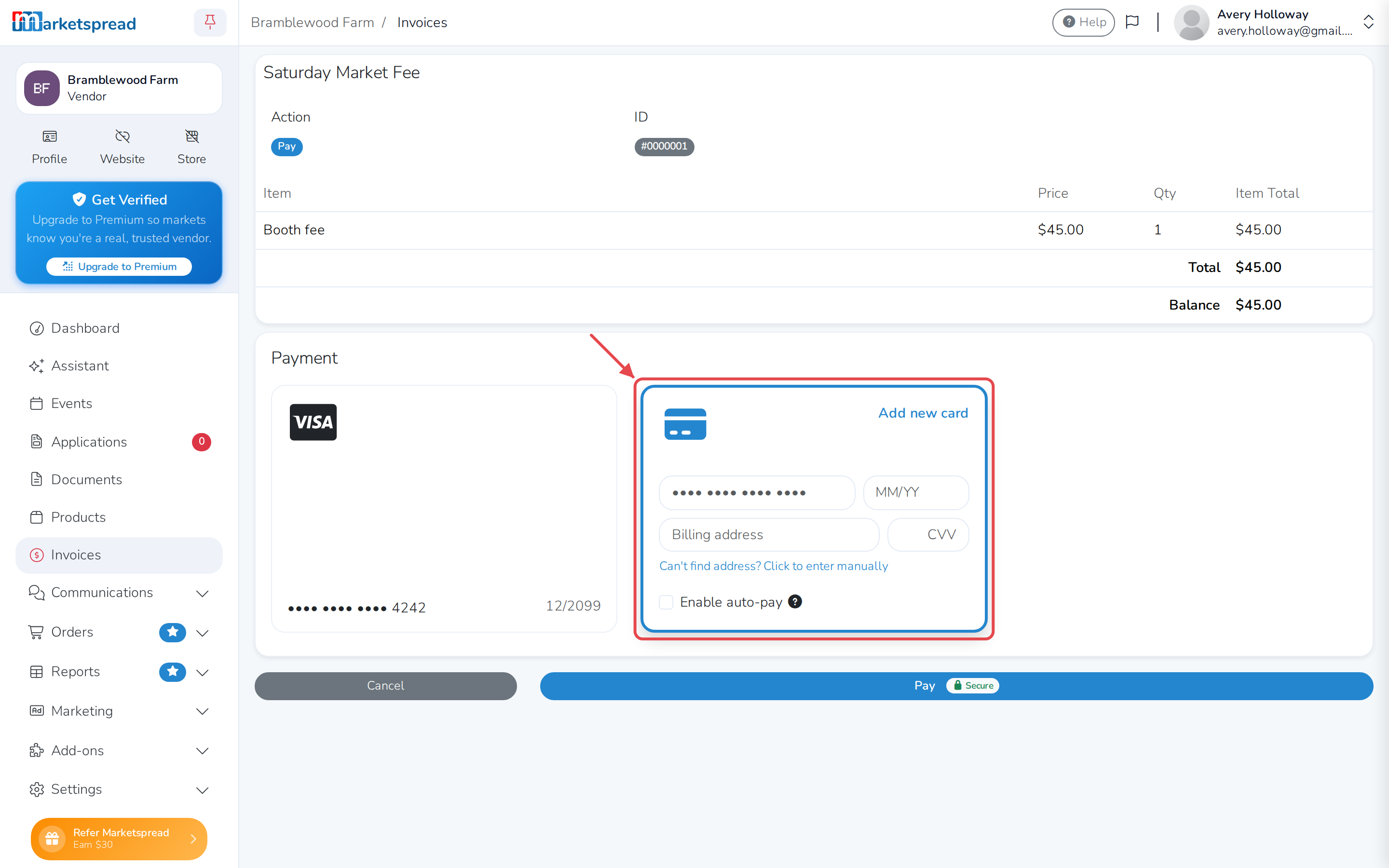
- Click Pay.
Note
The card is saved to your profile once the payment goes through, so you can use it — or delete it — the next time you pay.
Delete a saved card
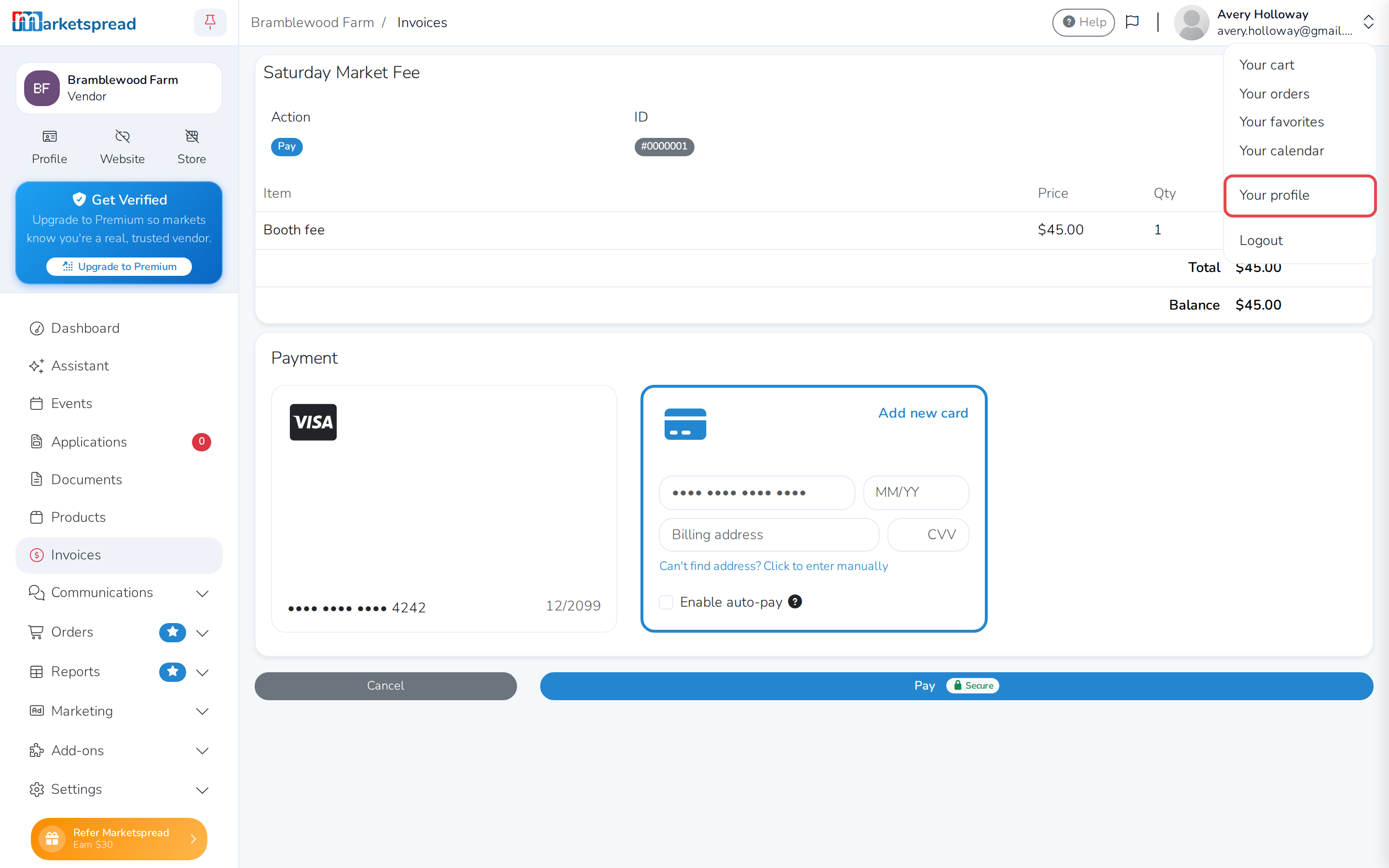
- Click your profile photo in the top right of the screen.
- Click Your profile.
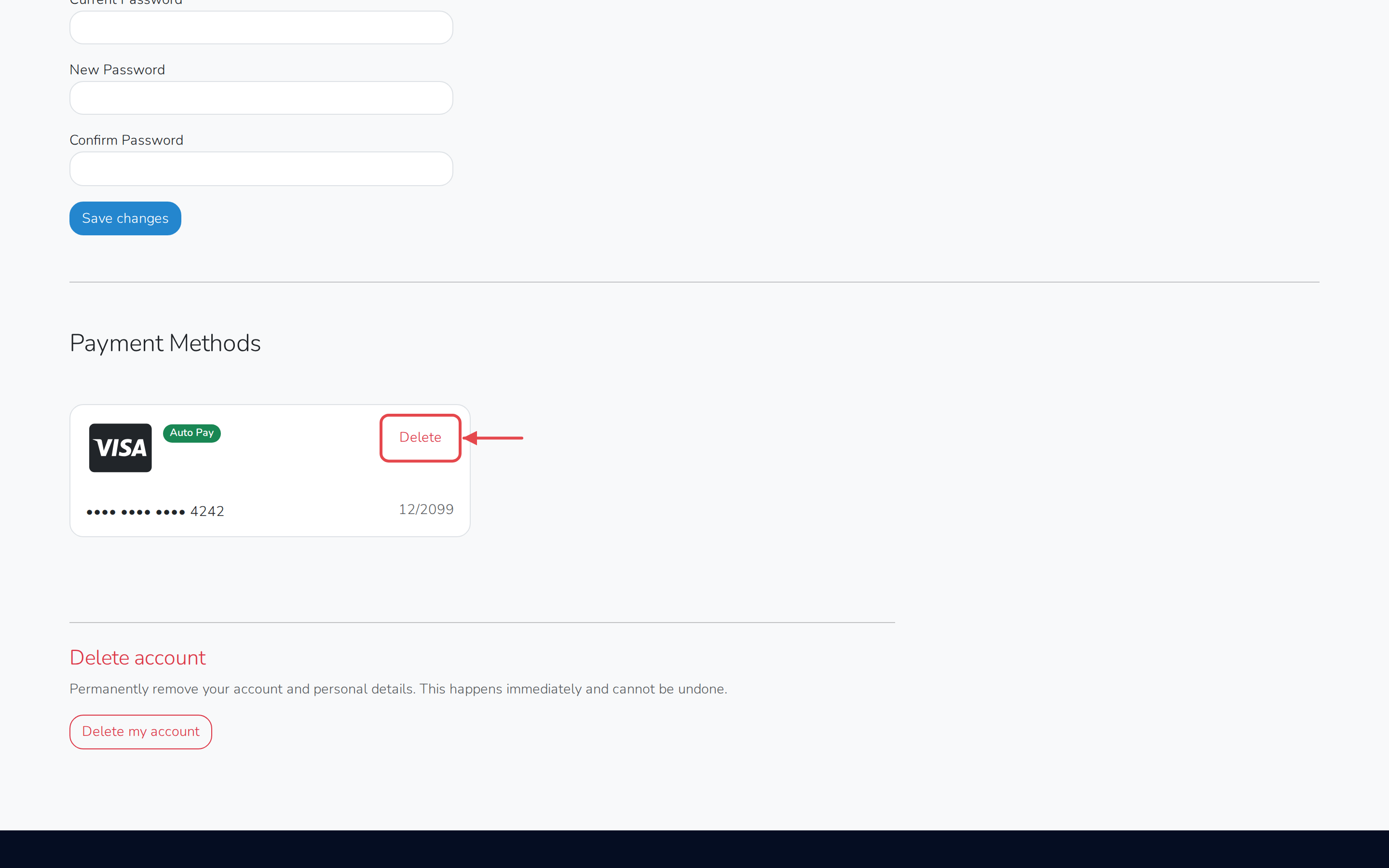
- Scroll down to Payment Methods. A card already set to pay a market automatically shows an Auto Pay badge.
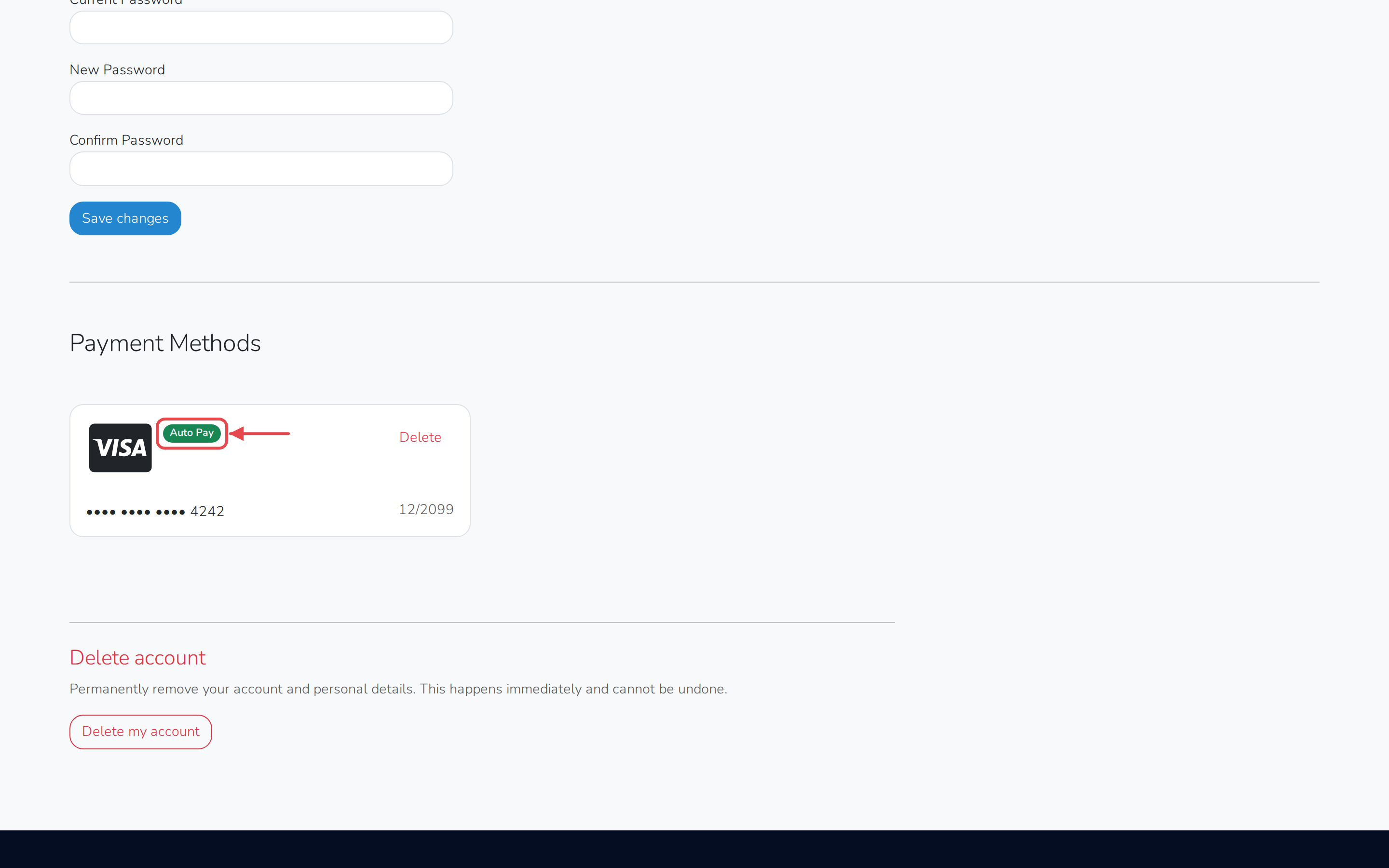
- Click Delete on the card you want to remove.
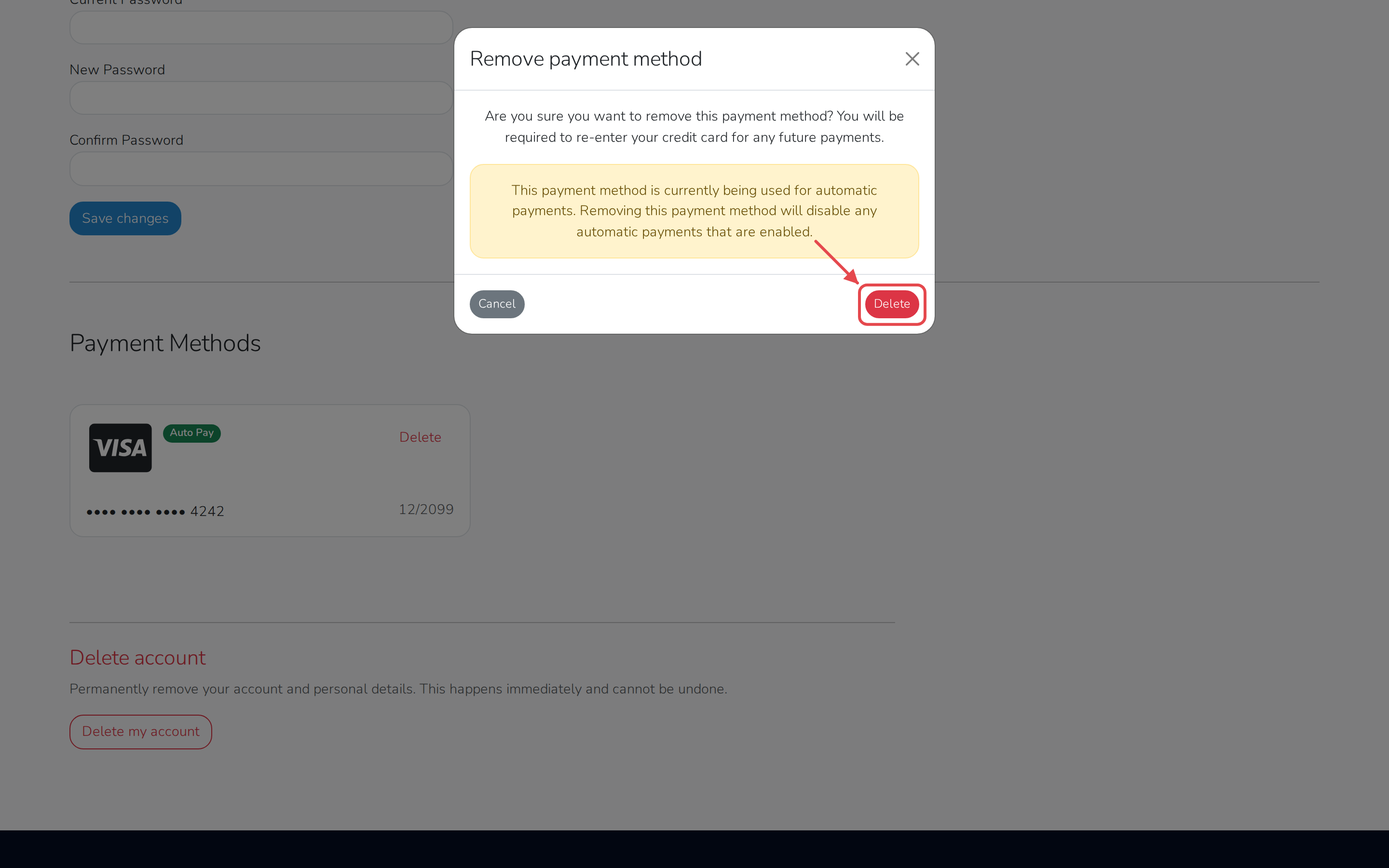
- Click Delete to confirm.
Important
If that card is marked Auto Pay, deleting it turns off Auto Pay for any market using it.
You'll need to enter your card details again the next time you pay.