Your products are the things you sell. Once a product is on your profile, you
can sell it in a market's online store, ring it up on Point of Sale, and let
customers find it when they browse.
You add and change products from Products in your dashboard.
Add a product
-
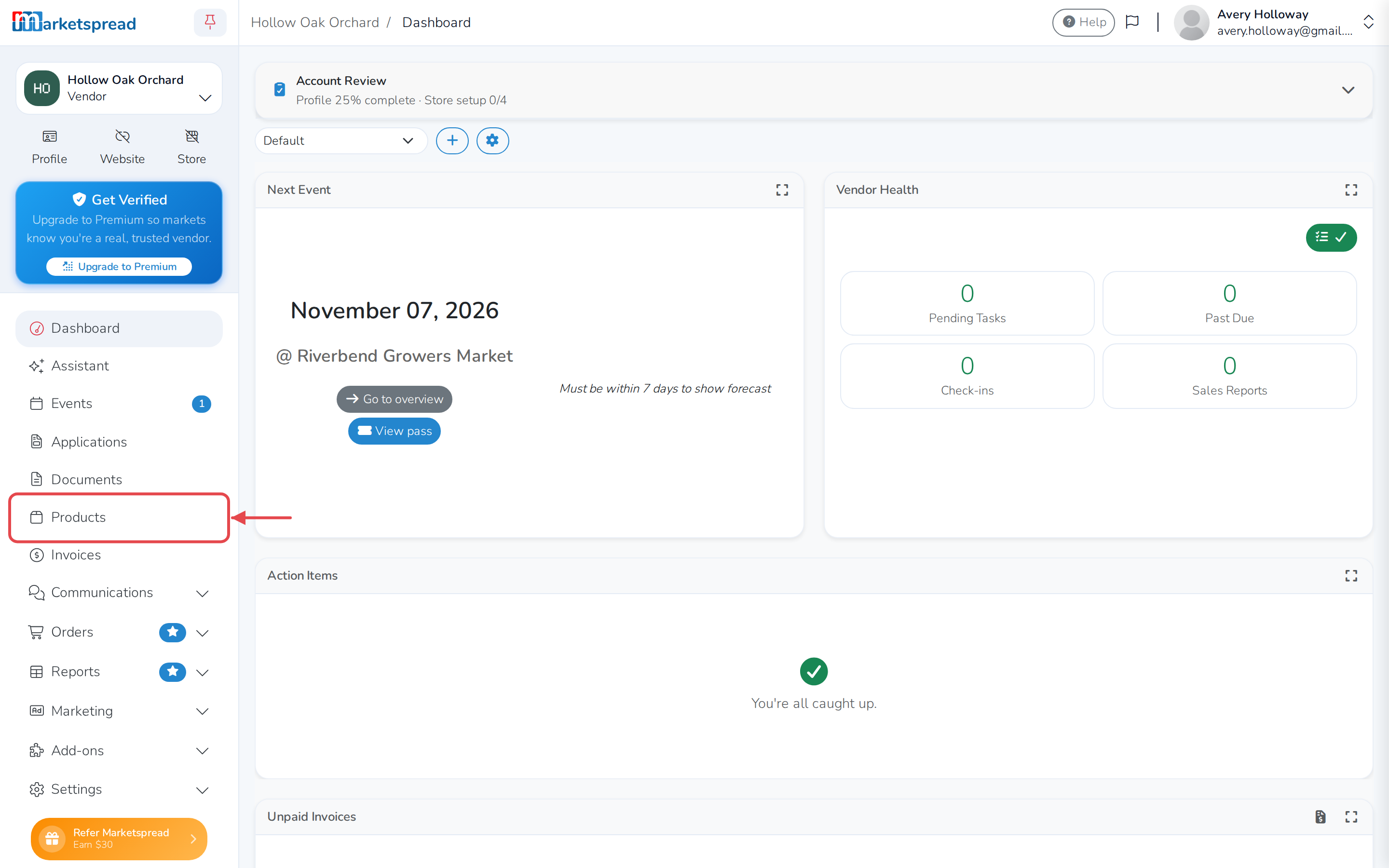
Open Products in the left-hand menu.
-
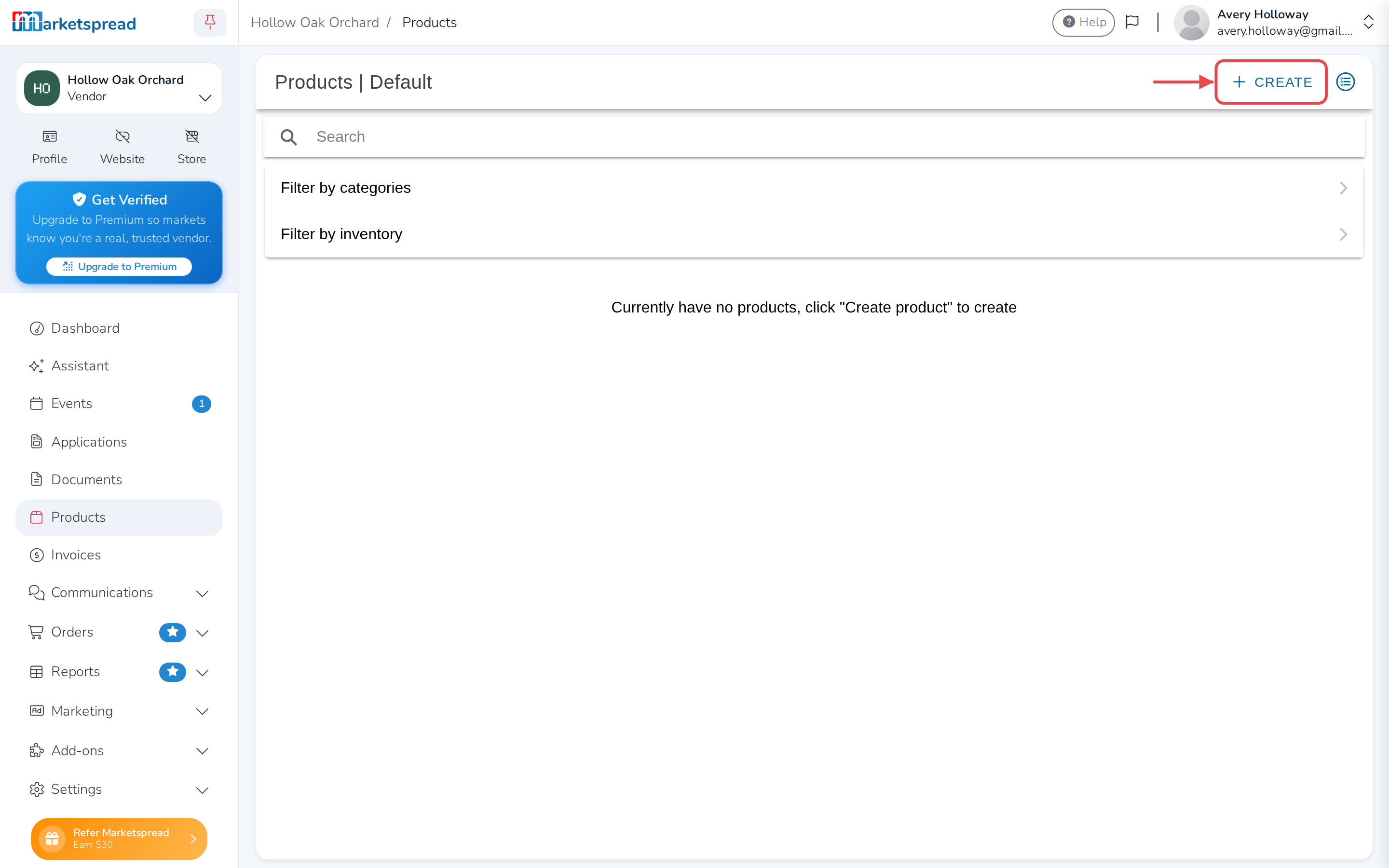
Click Create in the top right.
-
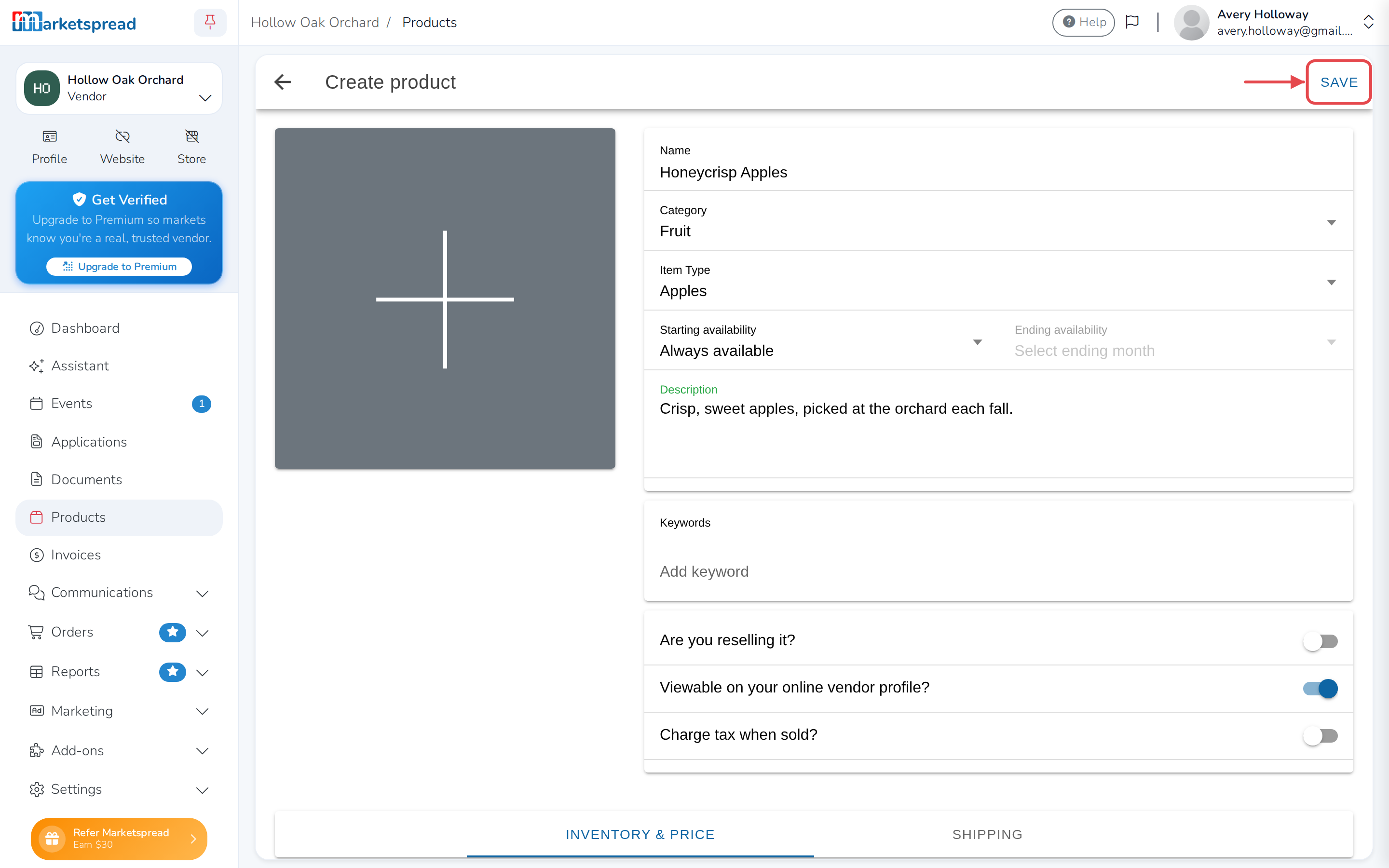
Fill in the Name — what a customer would call it, like "red bell peppers".
-
Choose a Category, then click OK.
-
Choose an Item Type, then click OK.
-
Write a Description.
-
Click Save in the top right.
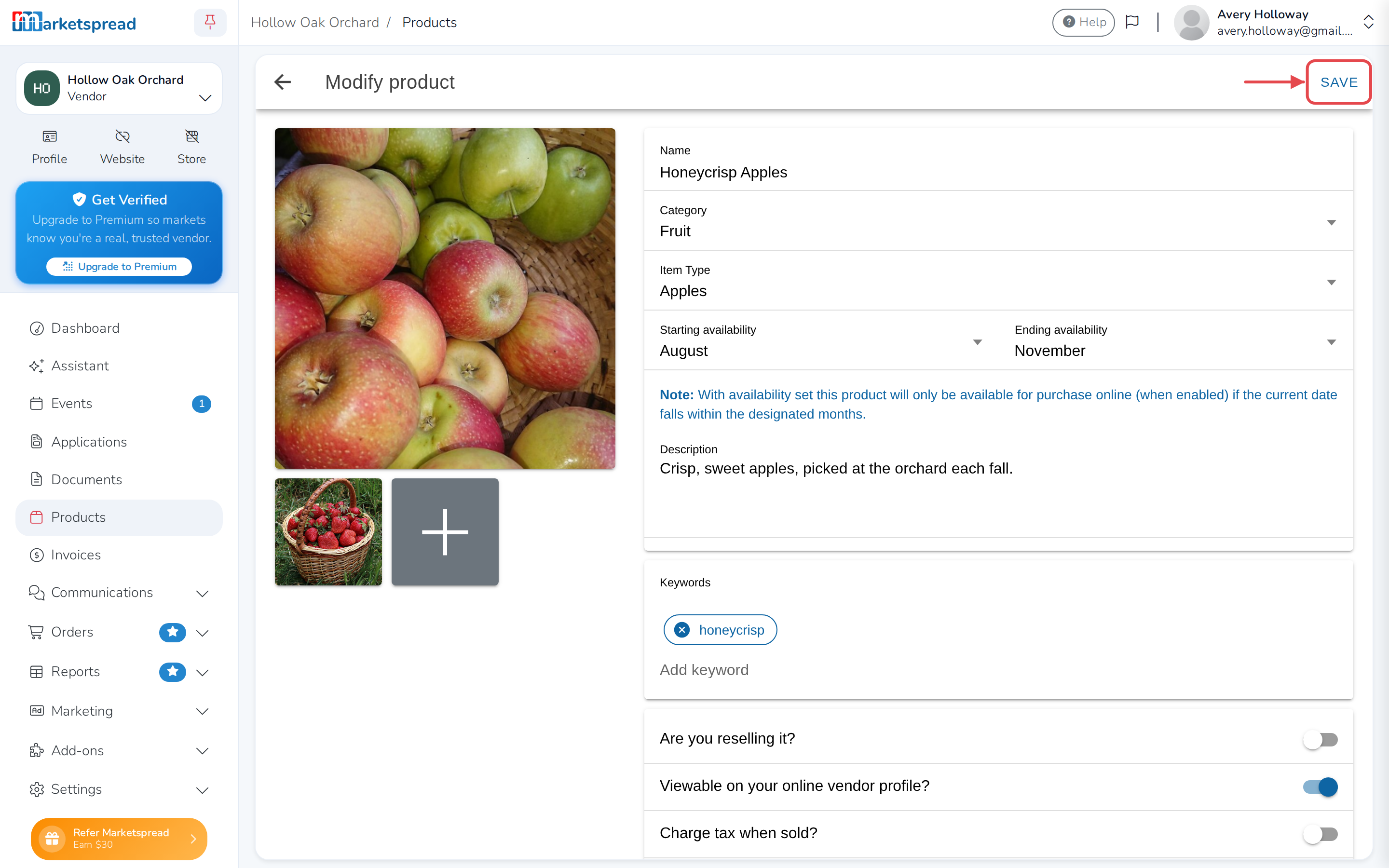
Set the months you sell it
New products are Always available. If you only sell something in season,
set Starting availability and Ending availability to the first and
last month.

Availability decides when it can be bought online
With a month range set, customers can only buy the product online during
those months. Outside them it stays on your profile but cannot be ordered.
Add photos
-
Click the large + to the left of the form.
-
Choose your picture.
-
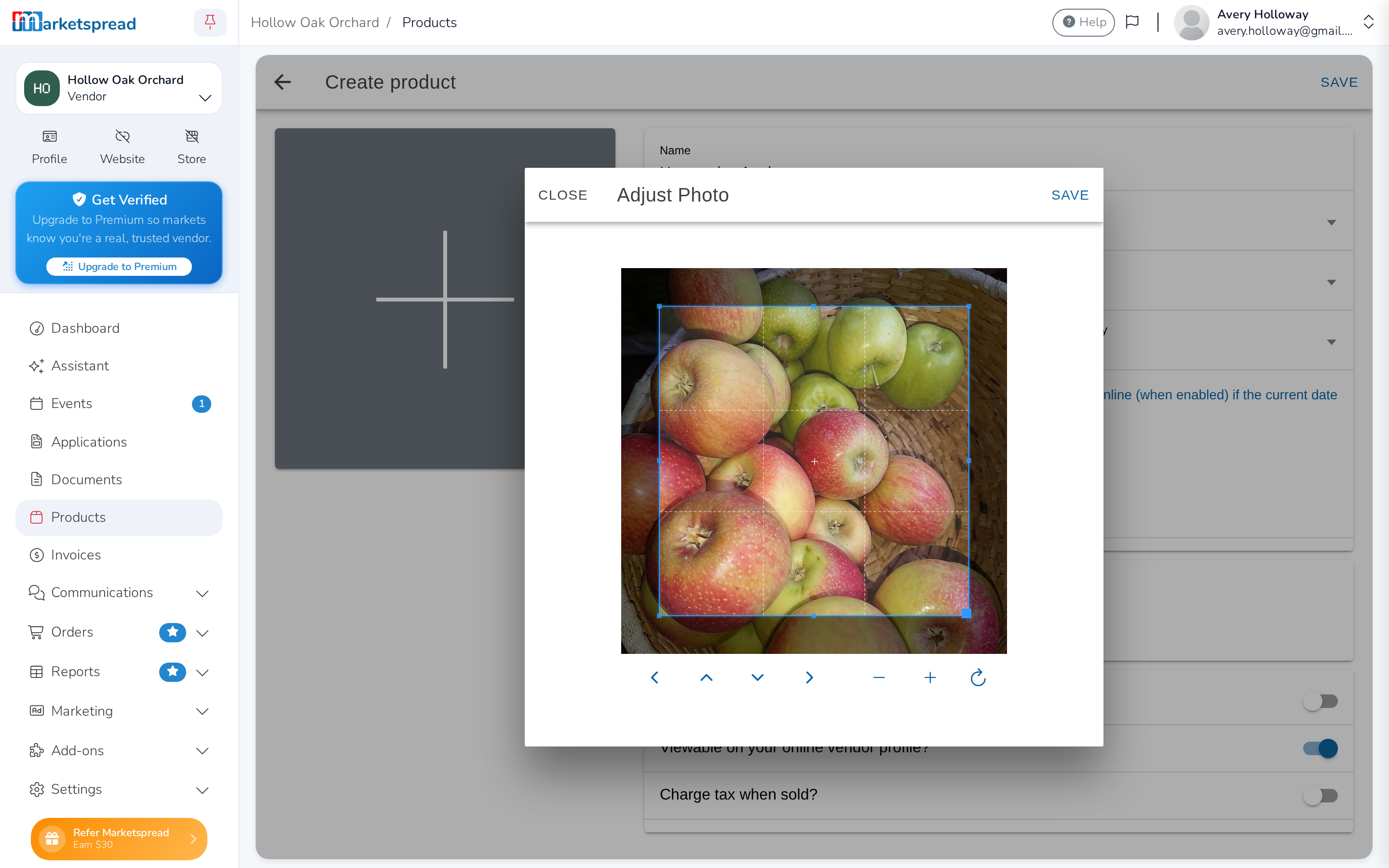
Drag the picture to frame it. The buttons underneath zoom in and out, pan
up, down, left and right, and turn it. -
Click Save.
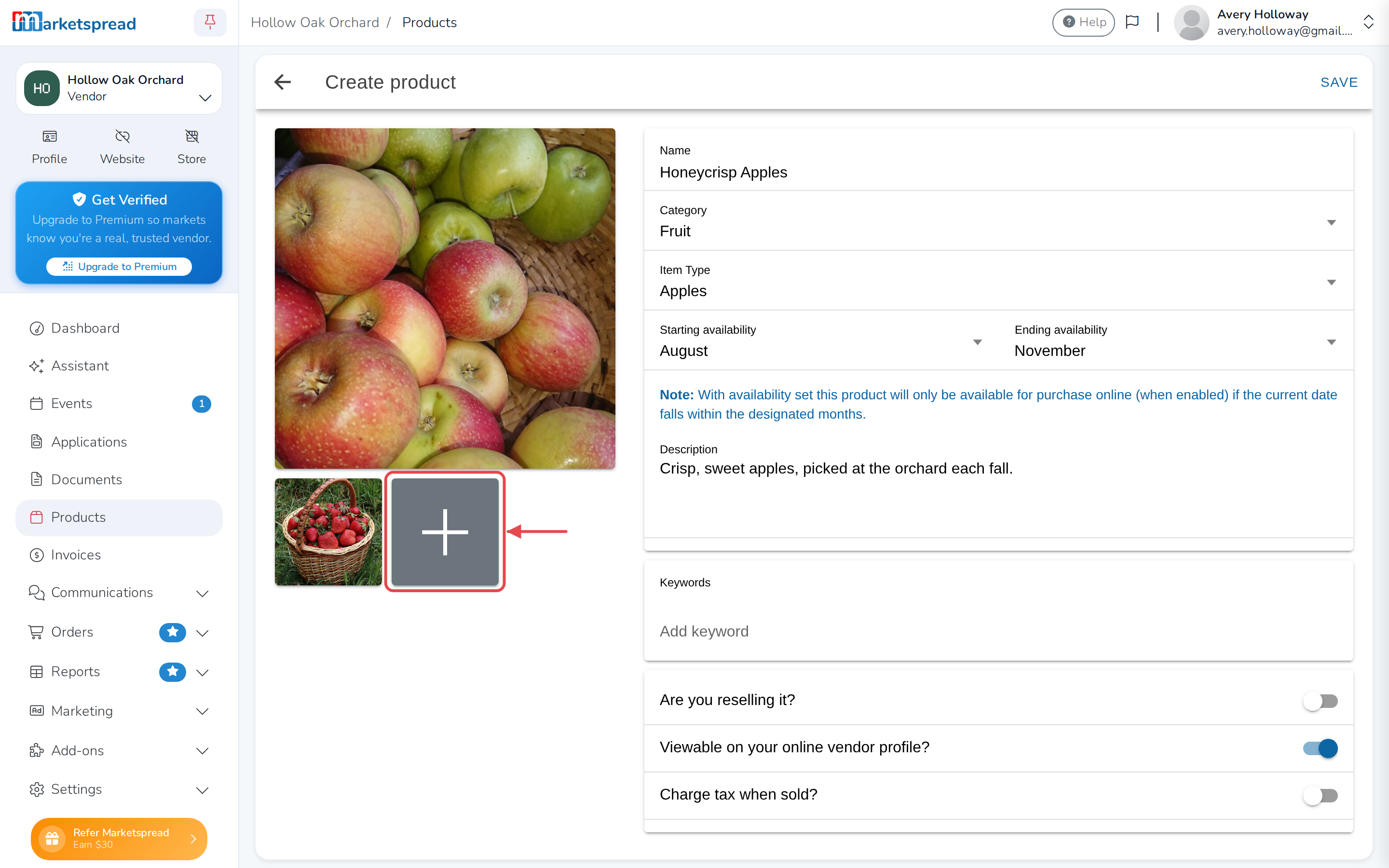
Click + again to add more pictures.
Add keywords
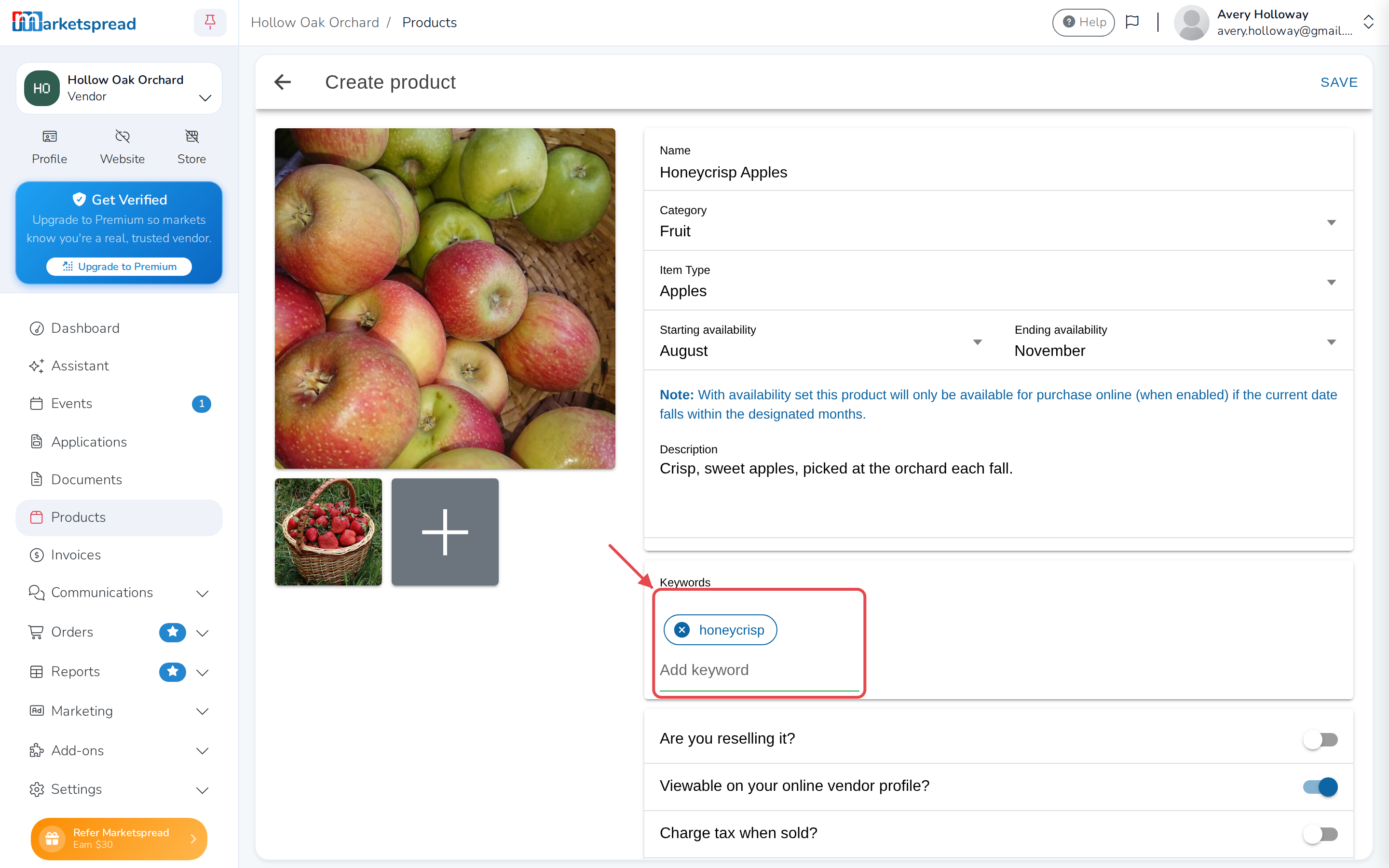
Type a word in Keywords and press Enter. Keywords are how customers find
the product when they search, so add the words they would use rather than the
ones you would.
Choose how it is listed and taxed
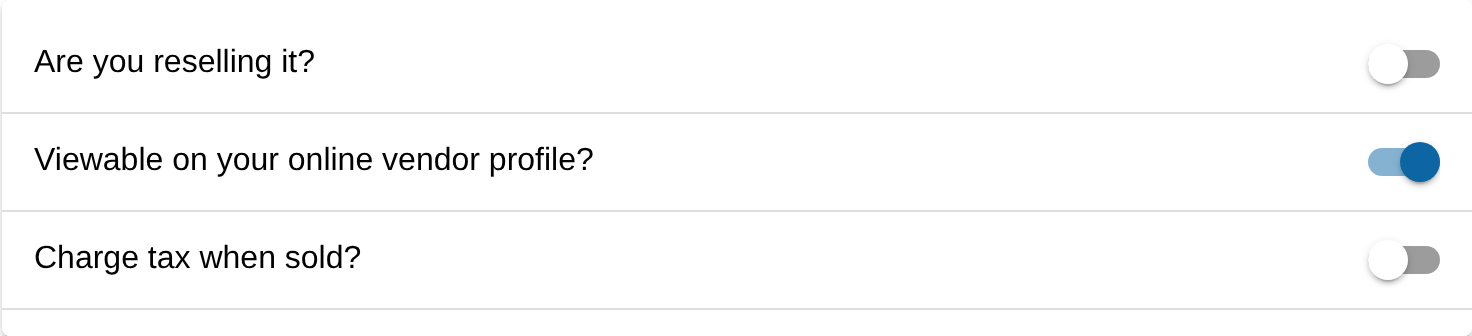
Three switches sit under the description:
- Are you reselling it? — turn on if you buy the product in to resell it
rather than making or growing it yourself. Off unless you turn it on. - Viewable on your online vendor profile? — on to begin with. Turn it off
to keep a product out of your public profile. - Charge tax when sold? — turn on if you have to charge sales tax on it.
Point of Sale then uses your usual rate. If this one product is taxed
differently, you can set a rate just for it.
Add a price
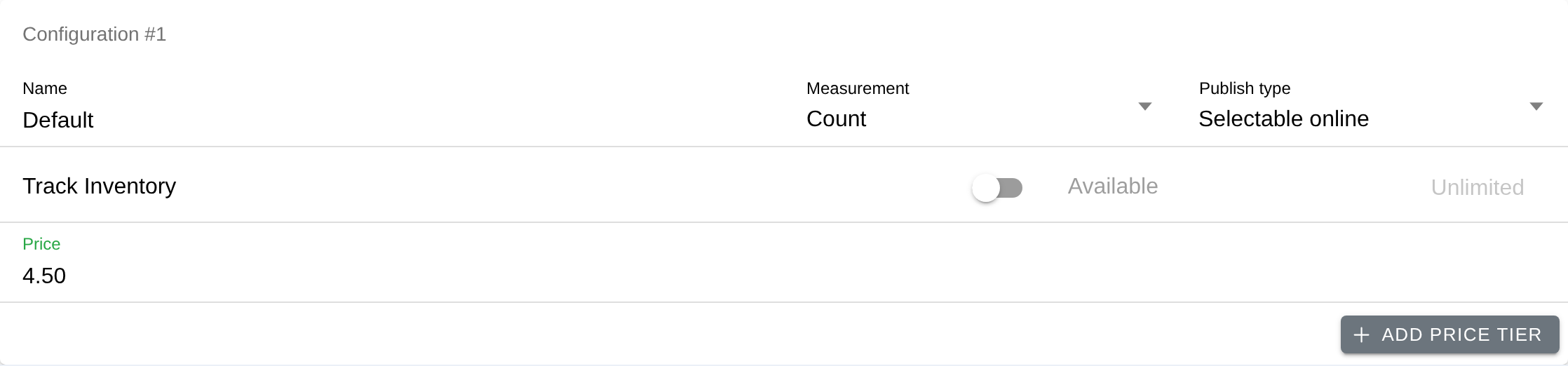
Every product starts with one configuration, named Default, measured by
Count. Fill in Price to sell it for a flat amount, or use
Add price tier and Add configuration to sell it by weight, in
bundles, or at more than one size. See
Adding prices to products to set prices up
properly.
A product with no price cannot be sold
You can save a product without a price, and you will be asked to confirm.
Until it has one, customers cannot buy it online or through Point of Sale,
and nobody browsing your profile can see what it costs.
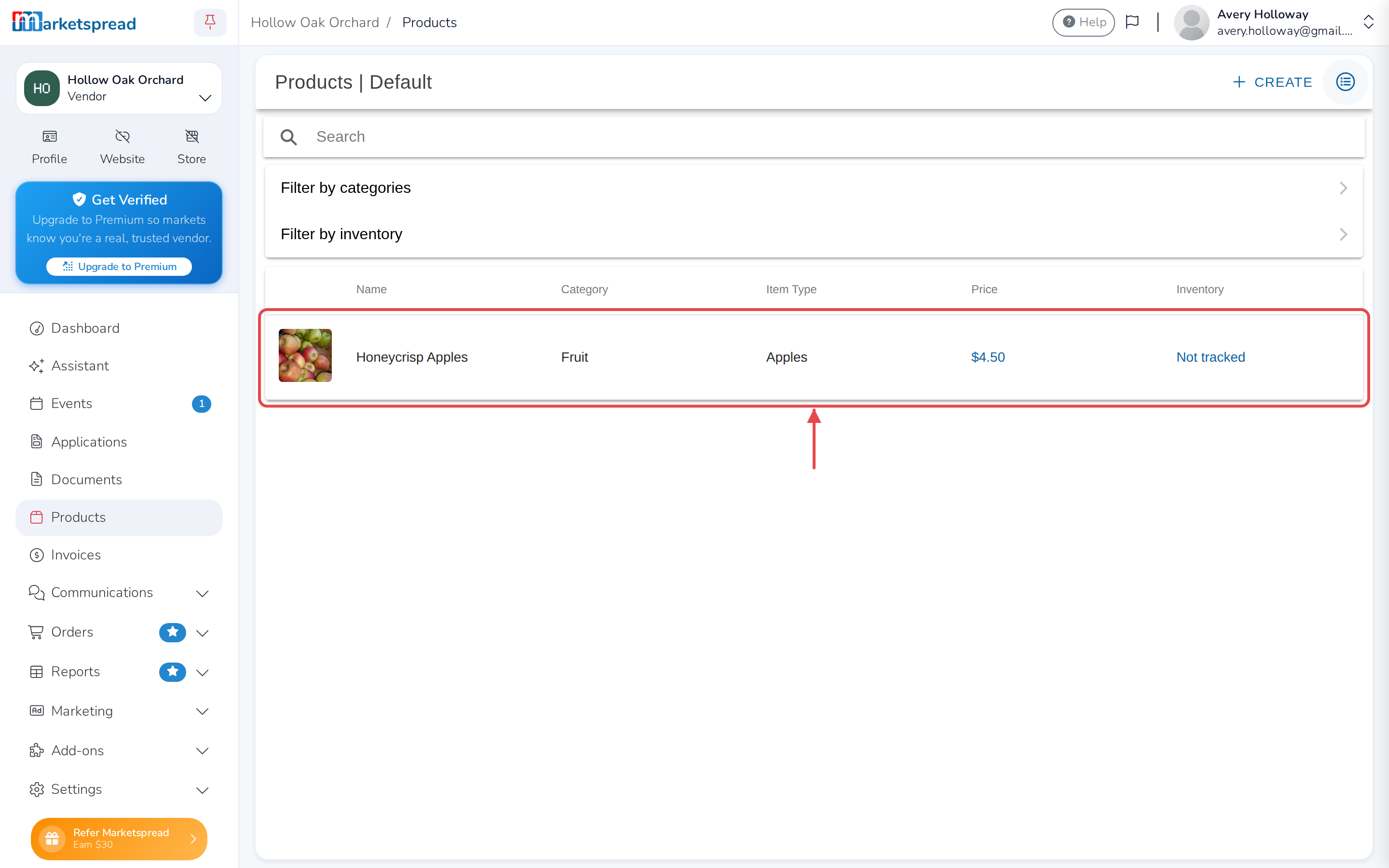
After you save, the product appears in your Products list.
Change a product later
Open Products, click the product, edit it, then click Save.