As a vendor, you can check your status for every market day you've applied to attend — whether you're checked in, not attending, or still need to check in. Sign in to your vendor account and open your Dashboard.
From here you can see your next event at a glance, look up the status of every day you're booked onto, or open a single day for more detail.
Check your next event
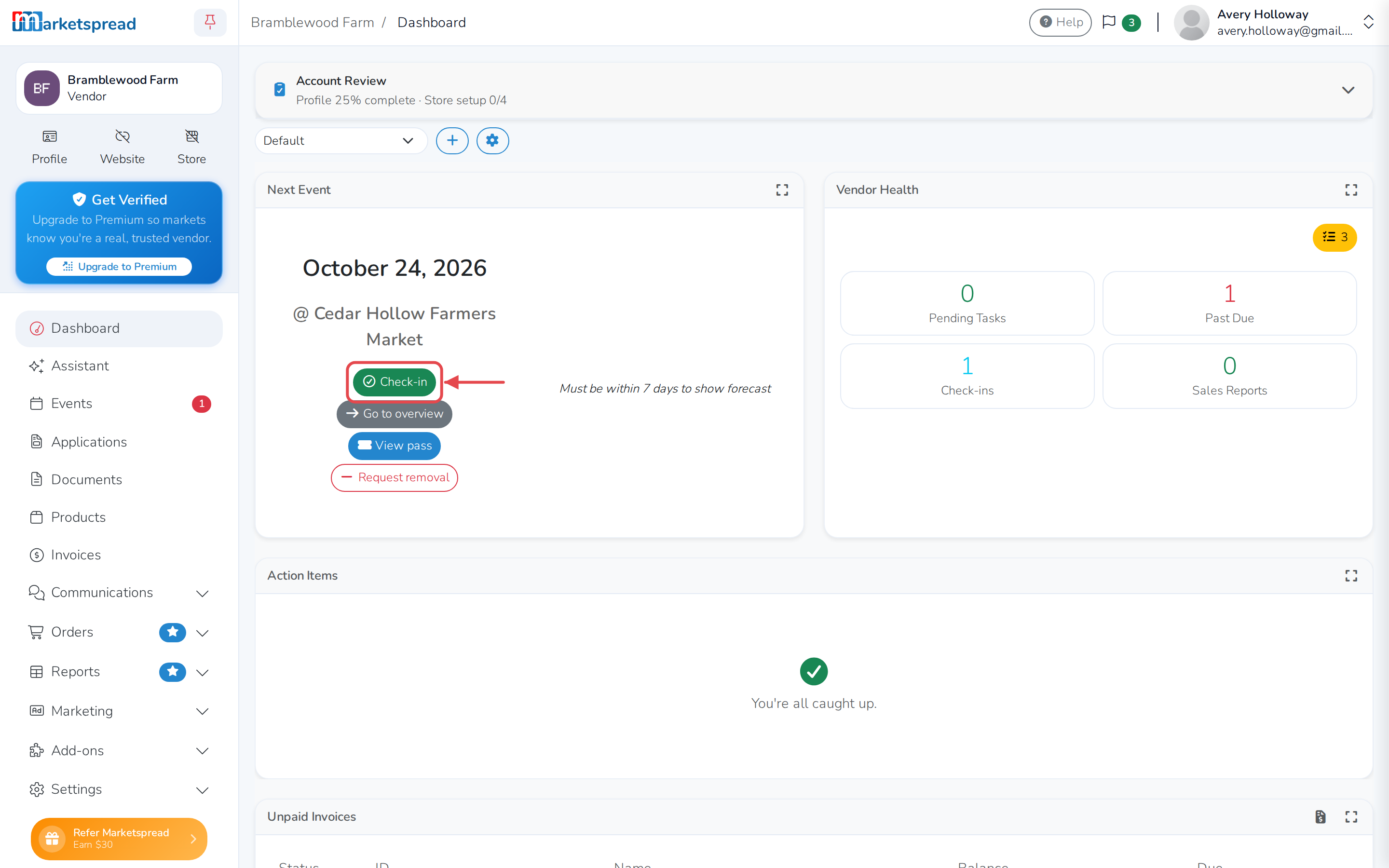
Your Dashboard shows a Next Event card for the soonest day you're booked to attend. It shows the date, the market, and the weather forecast once you're within a week of it.
- Open your Dashboard.
- Find the Next Event card near the top of the screen.
- Click Go to overview to see the day's details, or View pass to see your event pass.
Note
If your market has turned on check-in for that day and you haven't answered yet, a Check-in button also appears on the card.
See the status of every day you're booked onto
- Click Events in the left-hand menu.
- Look at the Status and Attendance badges on each day.
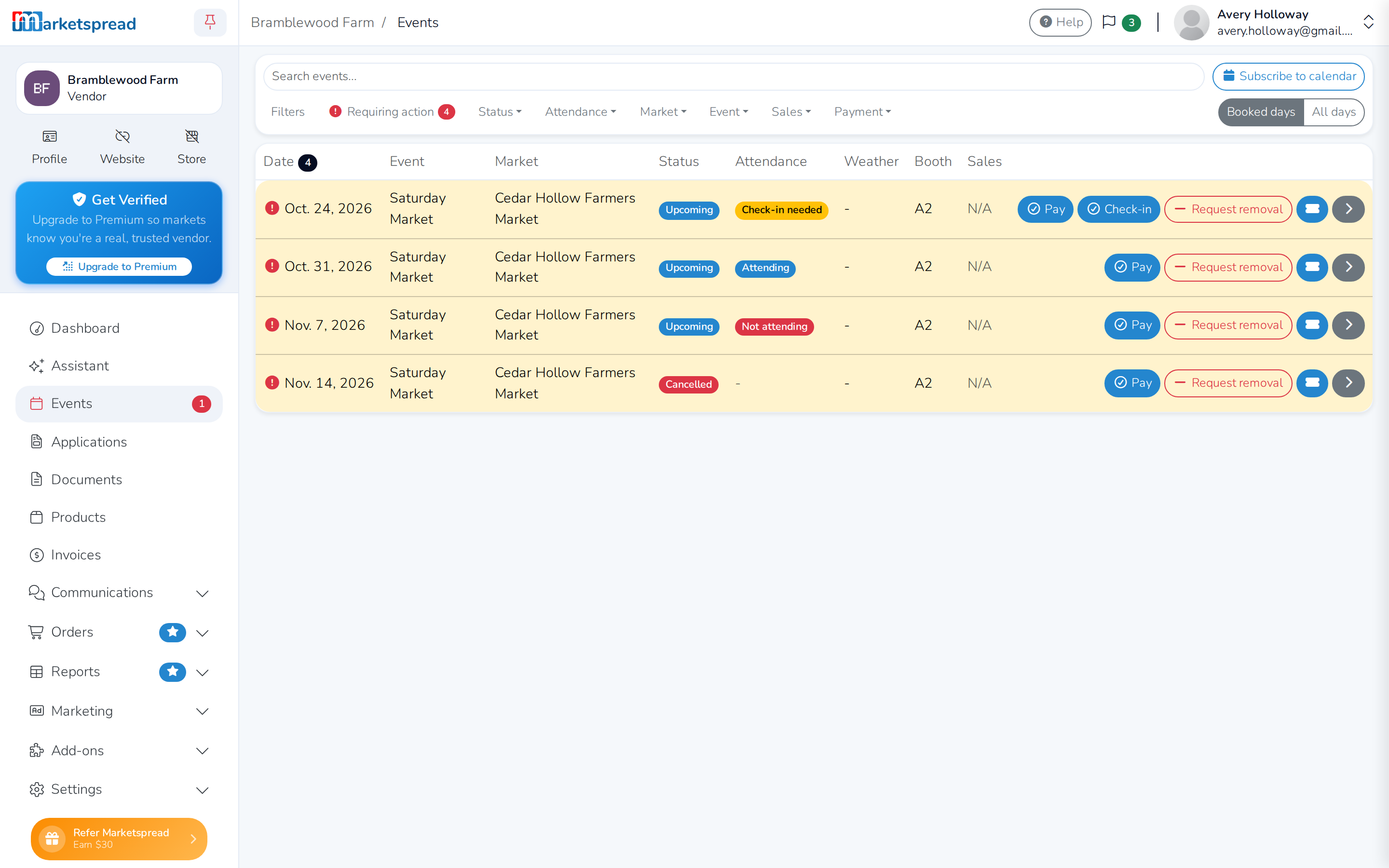
Status is about the day itself:
- Upcoming, Ongoing or Ended — where the day is in time.
- Cancelled — the market cancelled that day.
Attendance is about where you stand for it:
- Check-in needed — check-in is open and you haven't answered yet.
- Attending — you checked in and said you'll be there.
- Not attending — you said you won't be there.
- Attended — the day has passed and you were there.
Note
This list only shows days you're booked onto. Click All days above it to also see days in your events that you could ask to join.
View a single day's details
- From the Events list, click the arrow button on the day you want to check.
- The day's status is shown at the top, with your booth assignment and what you owe below it.
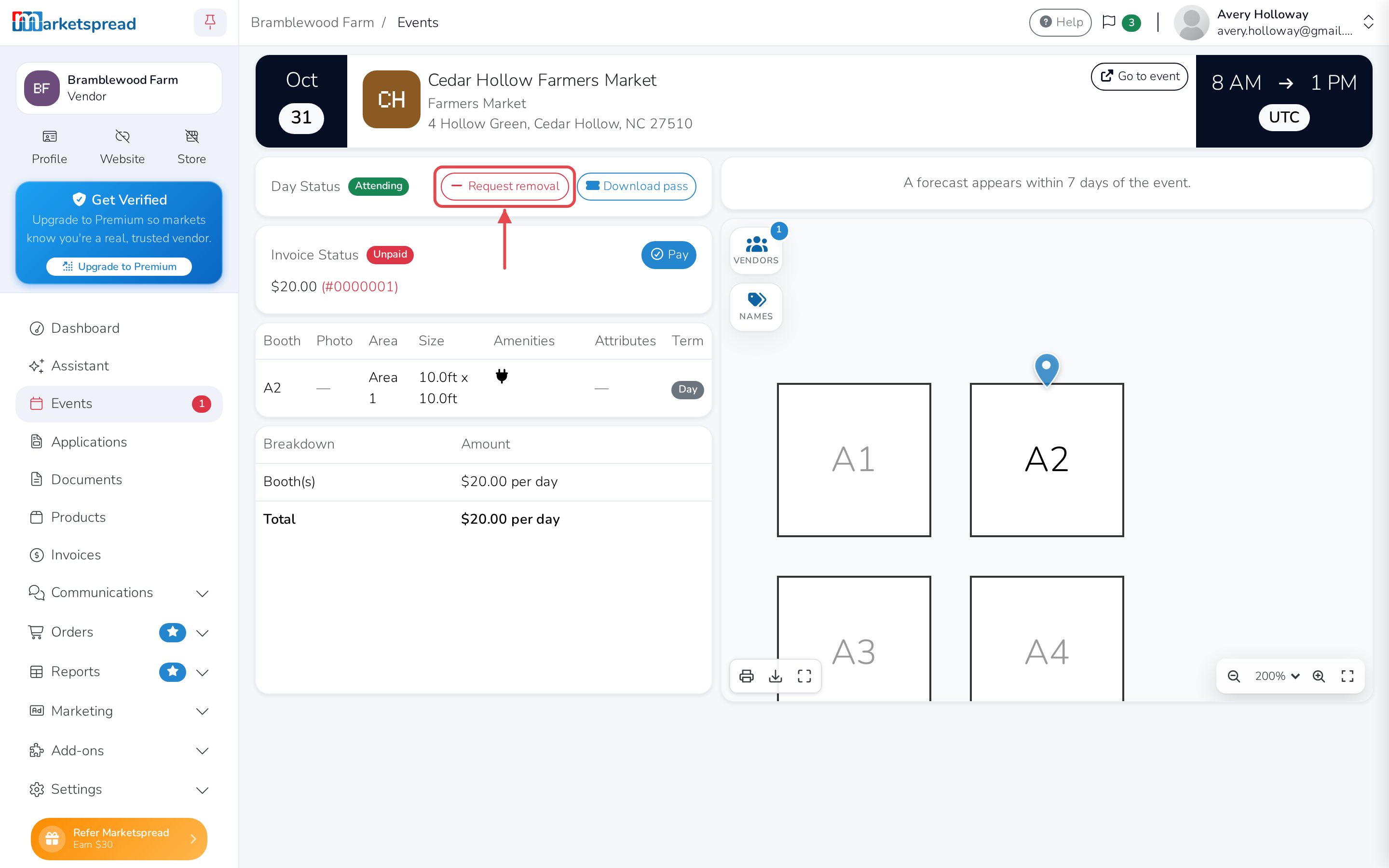
If your market allows you to change which days you're attending, a button to request it also appears here.
See a market's calendar of days
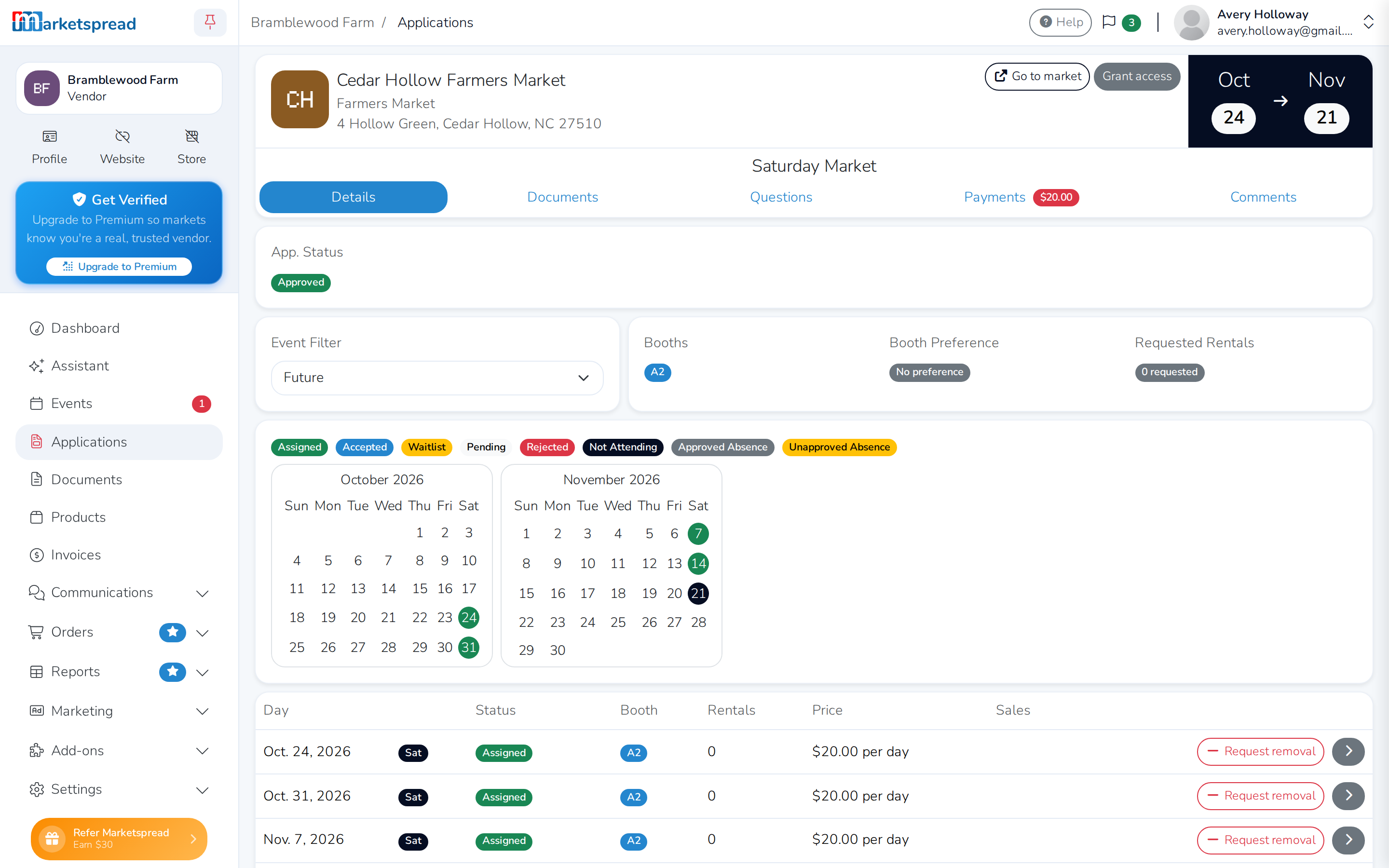
Each market you've applied to has its own calendar of every day in its event, colored by where you stand — including days you haven't booked.
- Click Applications in the left-hand menu.
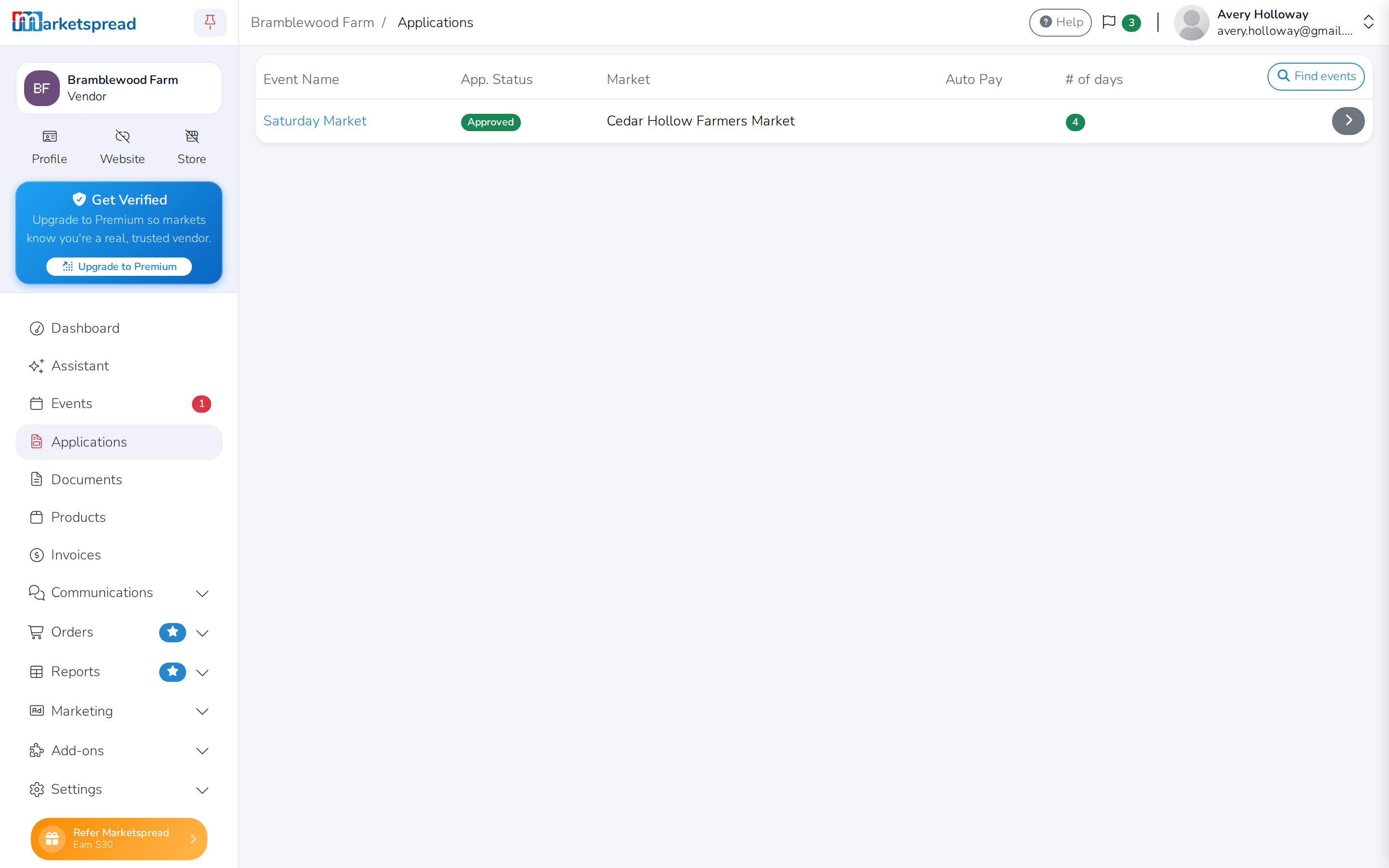
- Click the name of the event you want to check.
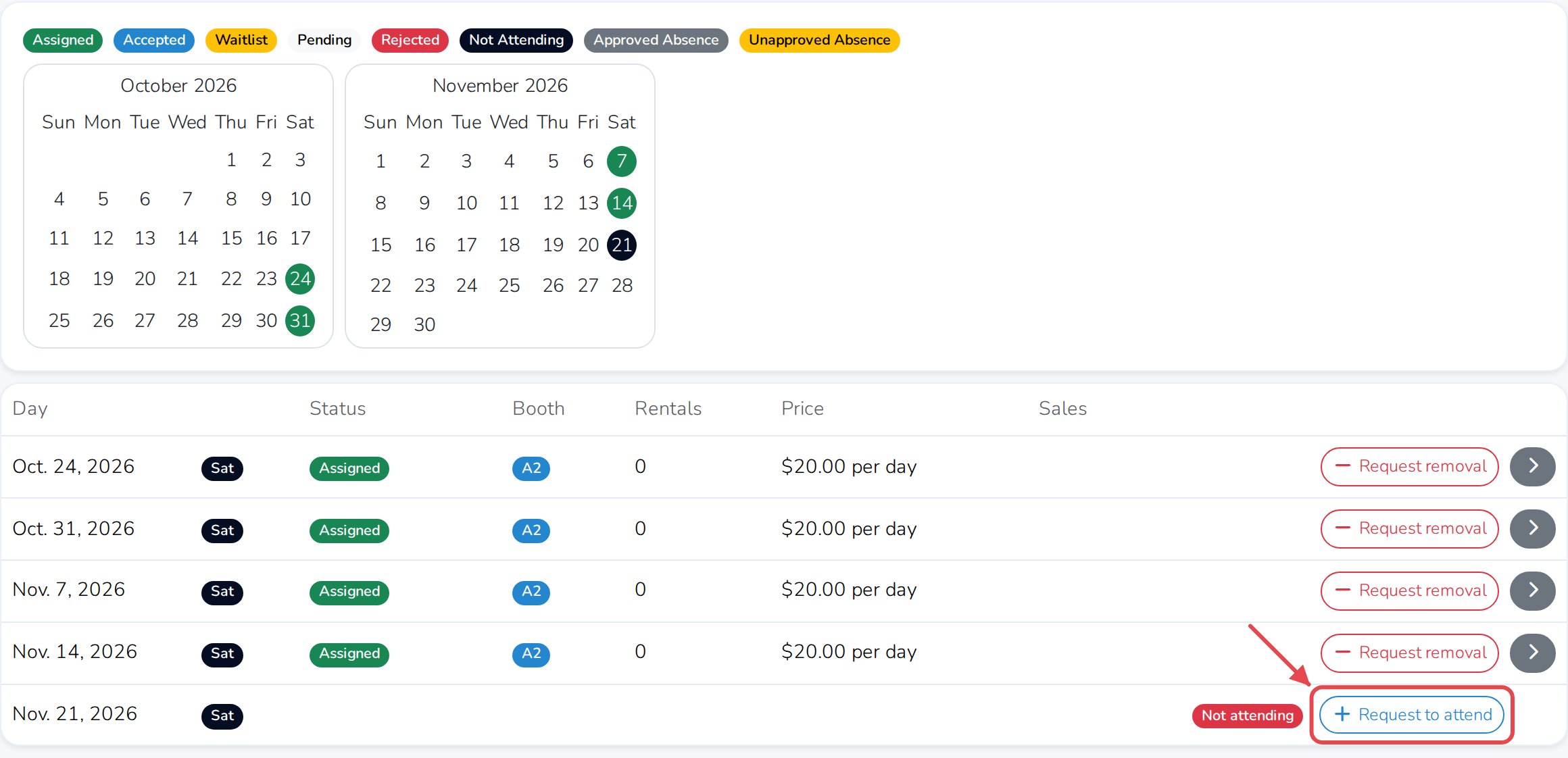
The top of the page shows your application status and your booth assignment for the market. Below that, a calendar shows every day colored by status — whether your spot for that day is confirmed, not whether you plan to attend. A day can still read Assigned even if you marked it not attending on the Events list, or the market cancelled it.
Note
If your market lets you change which days you're attending, each day has a Request to attend or Request removal button.