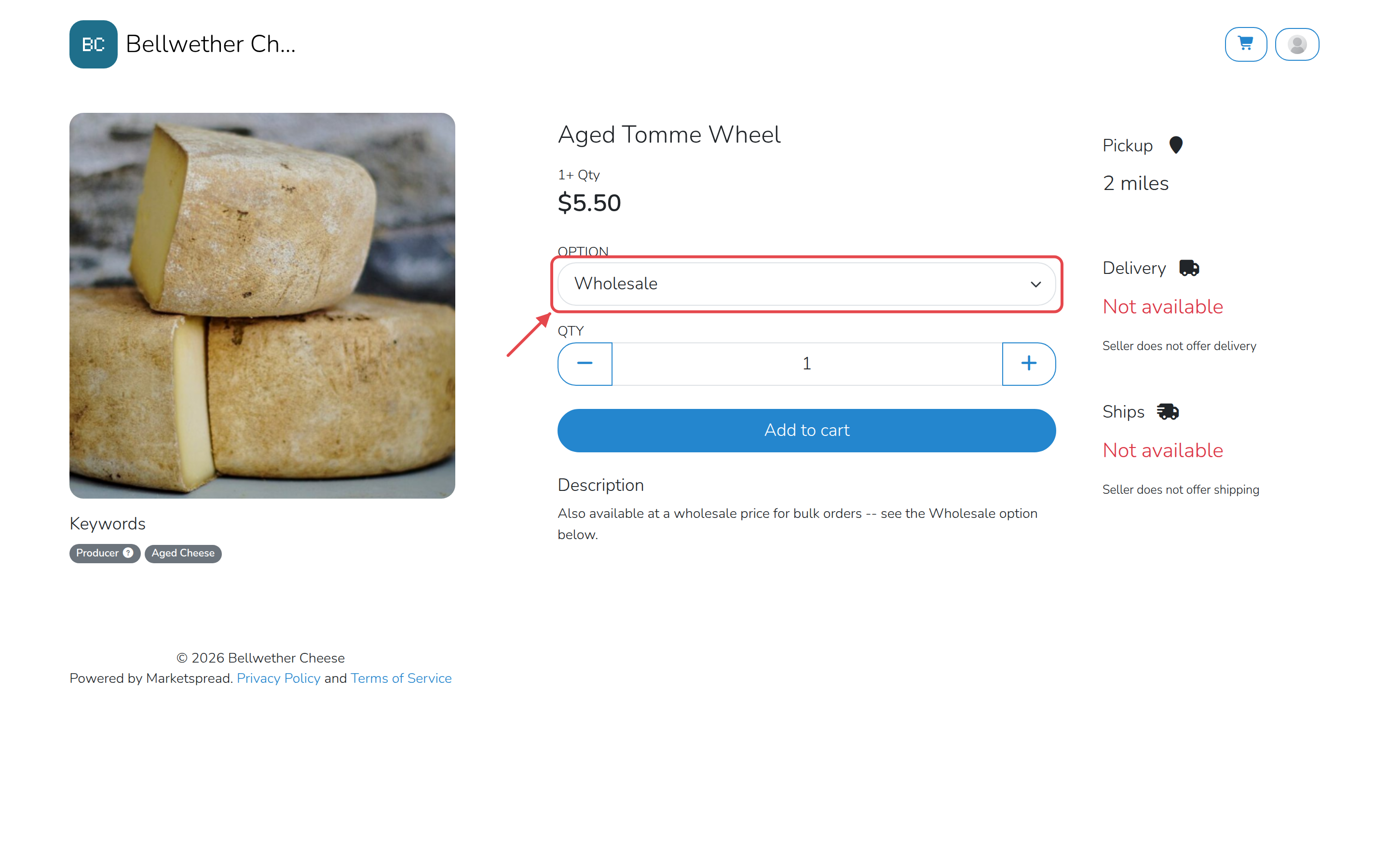
A product list is a set of products and prices that only the customers you
choose can see. Create one for your wholesale buyers, price your products for
them, and give access to the customers you want — everyone else keeps seeing
your regular products at your regular prices.
Create a wholesale product list
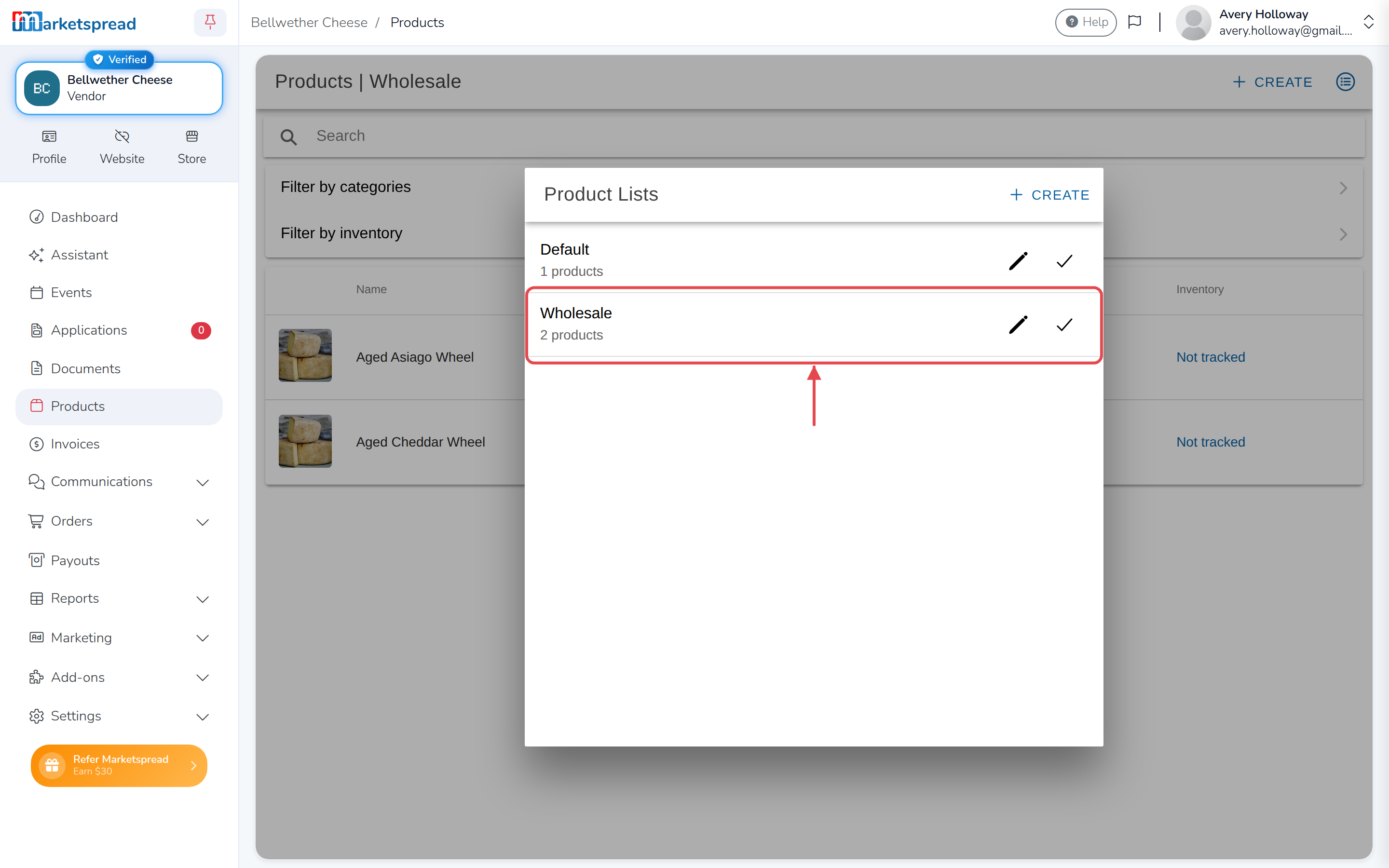
- Open Products.
- Click the product list icon in the top right.
- Click Create.
- Type a name, like Wholesale, in Name.
- Click Save.
- Next to your new list, click the checkmark to switch to it.
Add products to it
With your wholesale list selected, add products to it the same way you add
any other product.
- Click Create.
- Fill in the product, with your wholesale pricing.
- Click Save.
Repeat for each product you want to sell at wholesale.
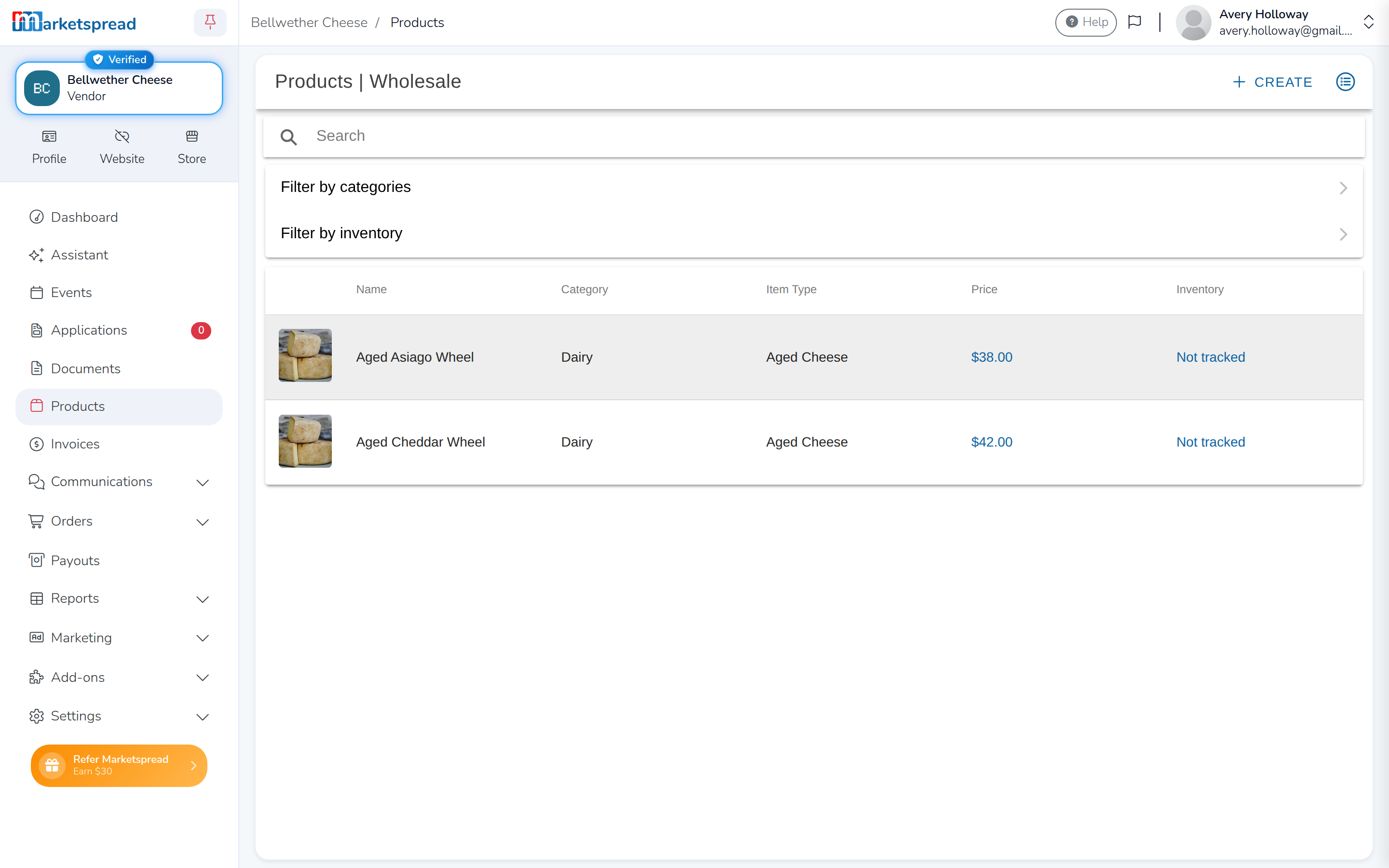
Products only shows one list at a time
Click the product list icon and select a list to see and edit what's in
it, or to switch back to your regular products.
Give a customer access to it
- In the left-hand menu, click Communications, then Customers.
- Click Store customers, then click the customer.
- Next to Product List, click Change.
- Select Wholesale, then confirm the change.
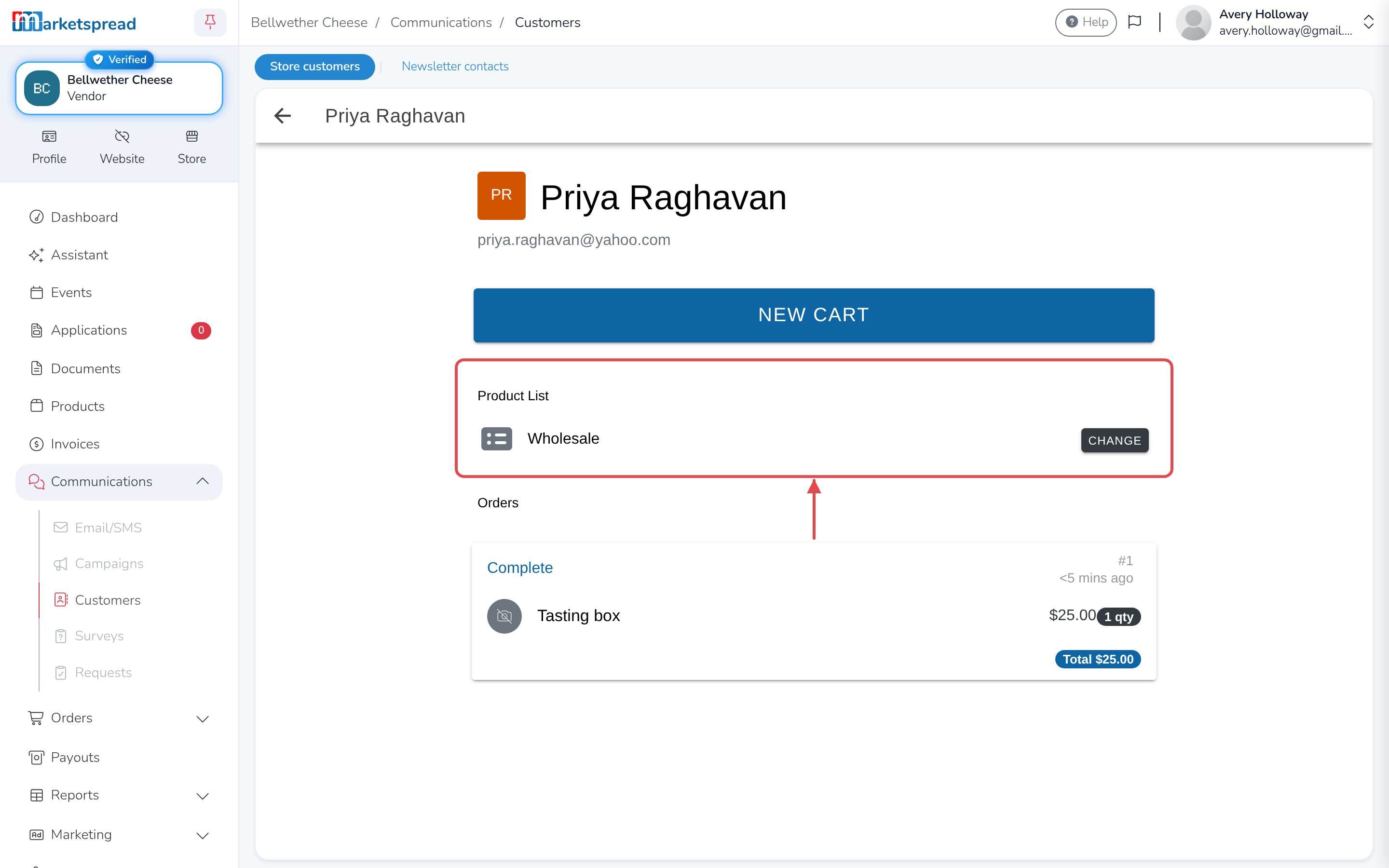
That customer now sees your wholesale products and prices instead of your
regular ones.
Only customers with an account can be switched
A customer who checked out as a guest, without signing in, always sees
your regular products. To give them wholesale pricing, they need an
account with you first.
Sell at a wholesale price to everyone
A product list only shows your wholesale prices to the customers you choose.
If you'd rather let anyone buy at a wholesale price, with no account needed,
skip the product list and use one of these instead.
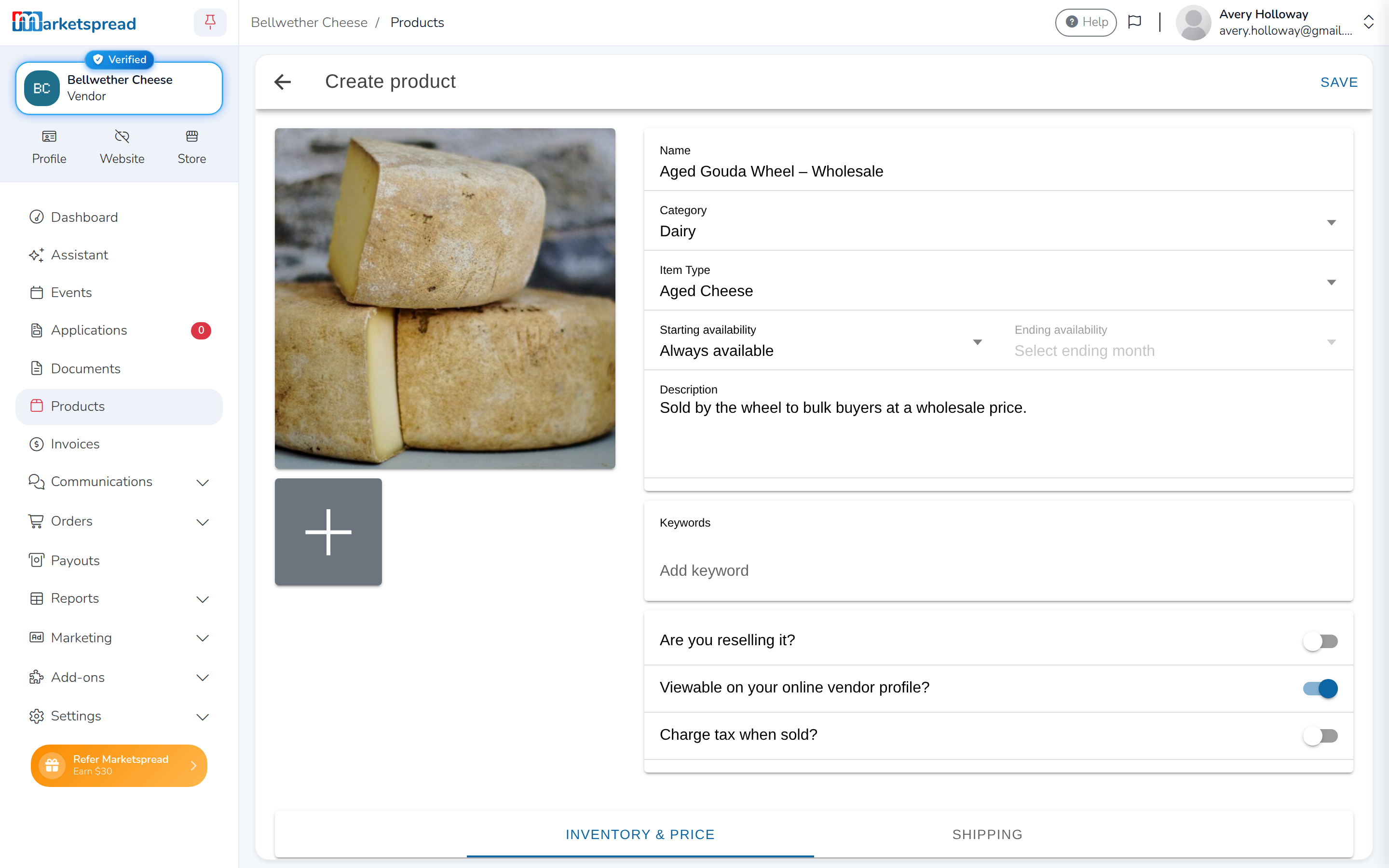
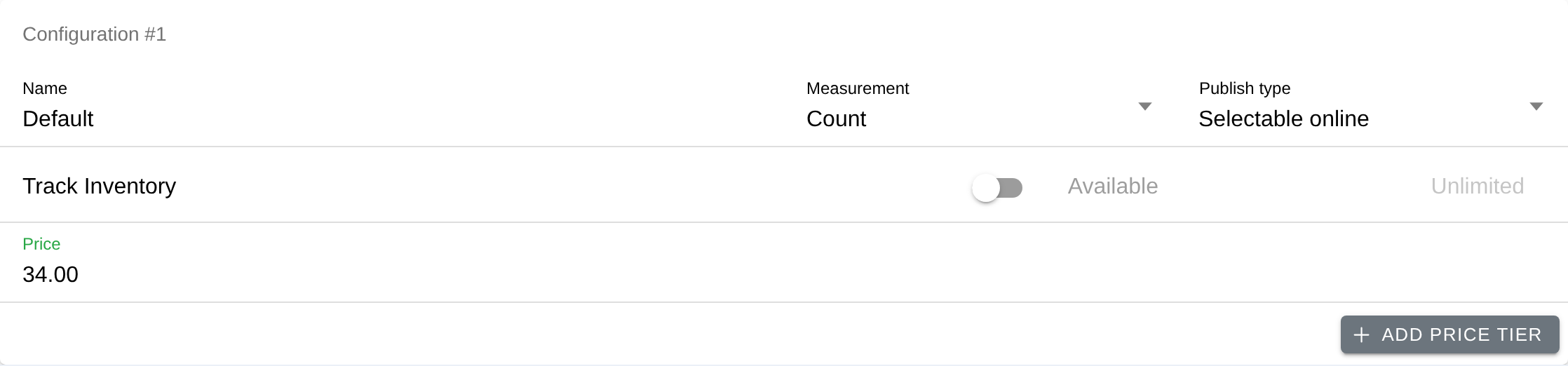
A separate listing for wholesale
- Create a separate product listing for wholesale orders, the same way you
create any other product. - Put Wholesale in the name, so buyers know it's for bulk orders at
wholesale prices. One configuration is usually enough.
Managing stock across two listings
With separate retail and wholesale listings, you manage stock across both
yourself, unless you give each one a fixed stock amount.
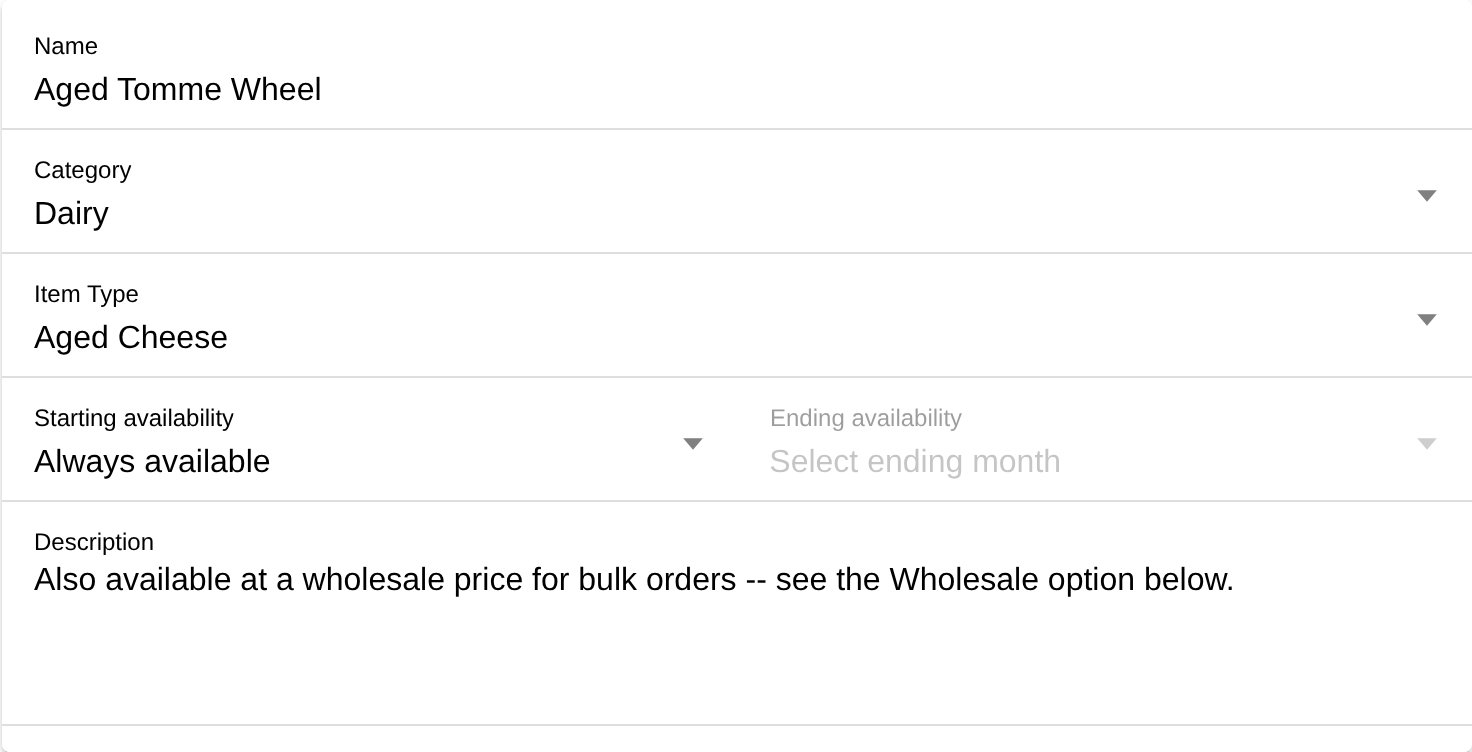
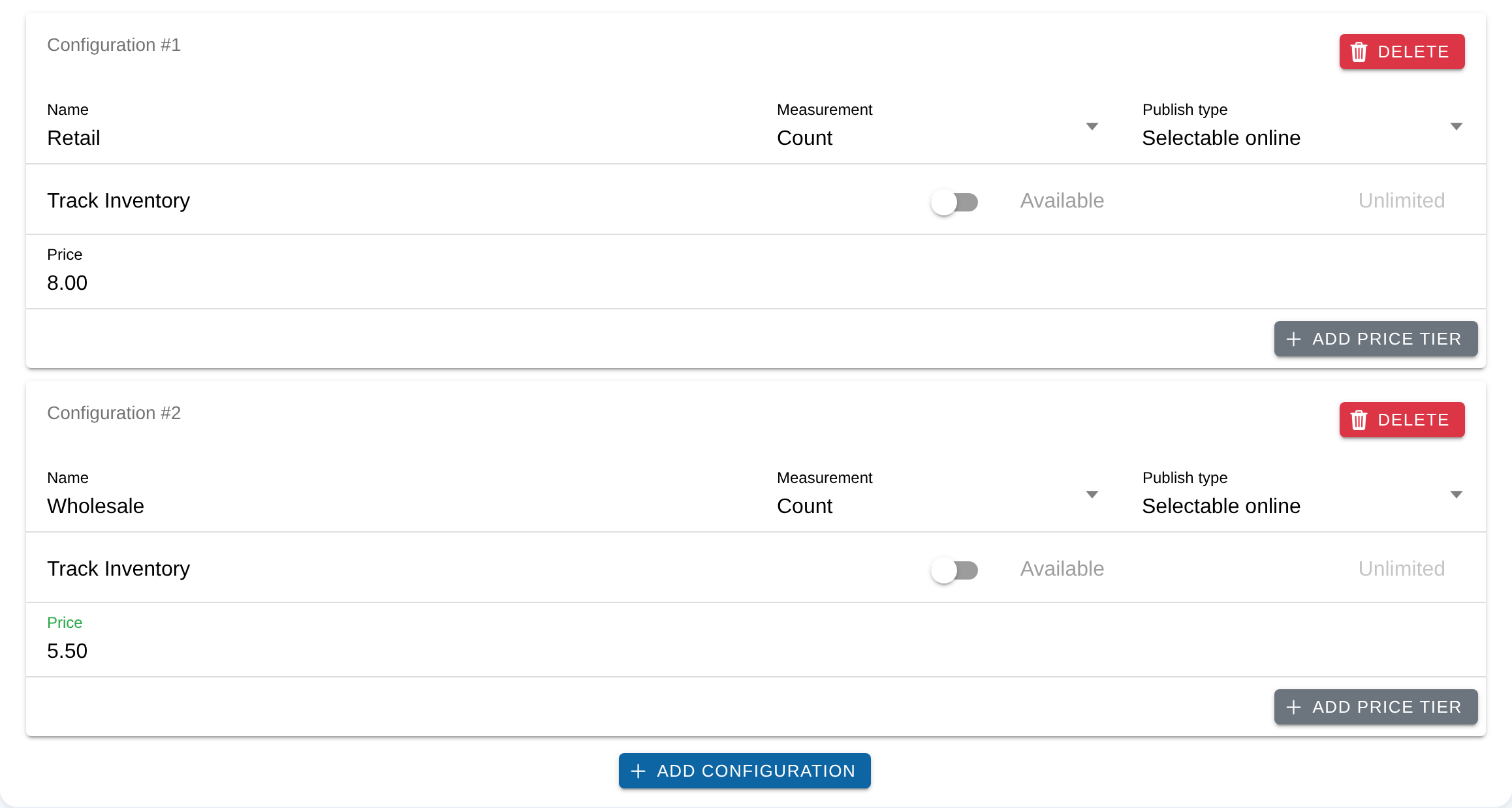
One listing with retail and wholesale configurations
- Create your product, and note in the description that wholesale pricing
is available.
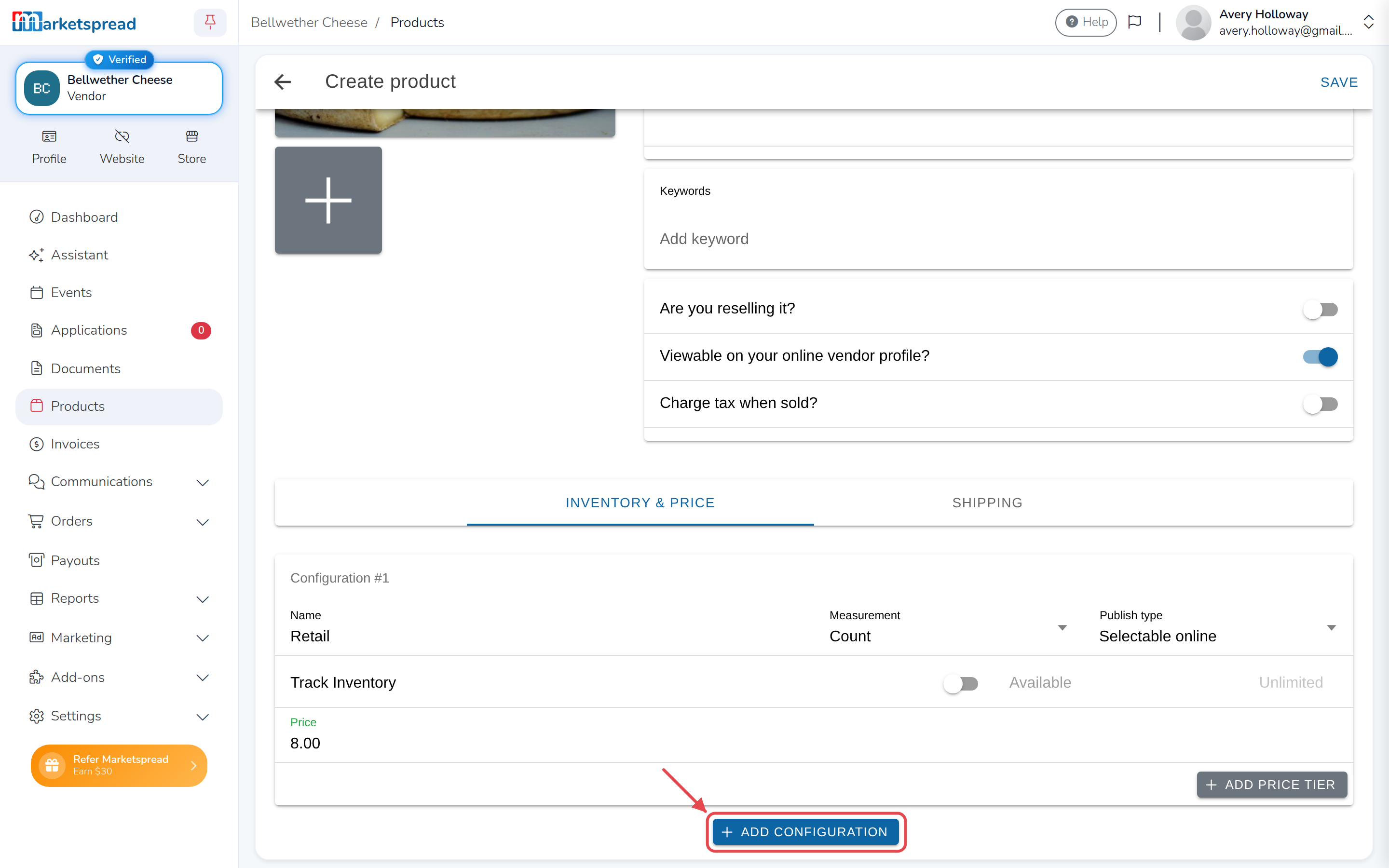
- Set up your retail configuration first, then click Add configuration
at the bottom of the product.
- Set up the wholesale configuration, then click Save at the top.
Configuration names are public
Give each configuration its own fixed stock amount — you're tracking two
counts instead of one. Customers see configuration names in your online
store, so name them with that in mind.