


Applying the first time takes longer than every time after it, because you set
up your vendor details as you go. Those details are reused for every future
application.
One account covers every market and event you ever apply to. You never need a
second one.
Find the application
There are three ways in:
-
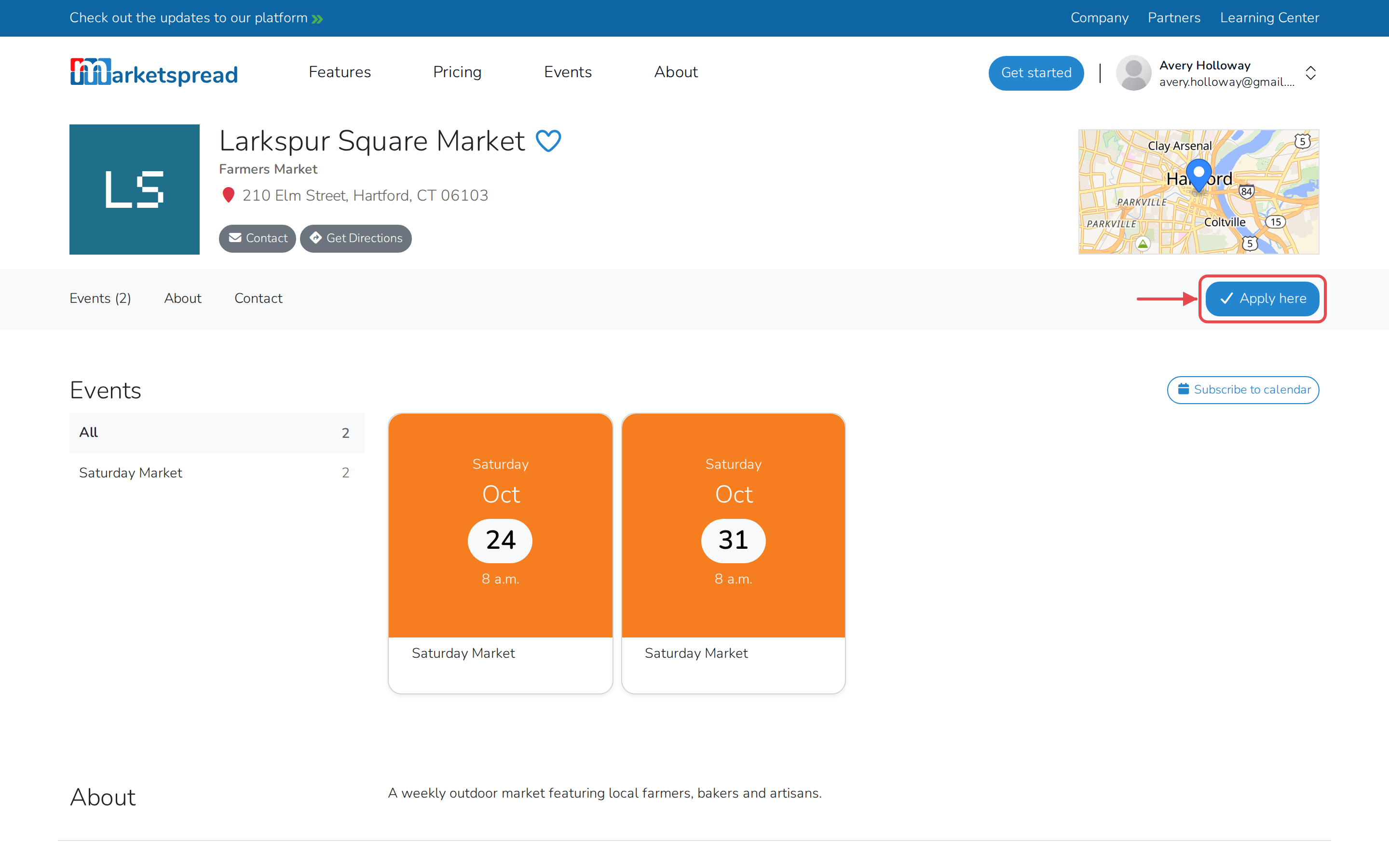
The Apply here button on the market's profile.
-
An application built into the market's own website.
-
A private email invitation, for an application not open to everyone.
You have to be signed in to apply. If you are not, you will be asked to sign in
or create an account first.
Set up your vendor details
The first time only, you are asked who you are:
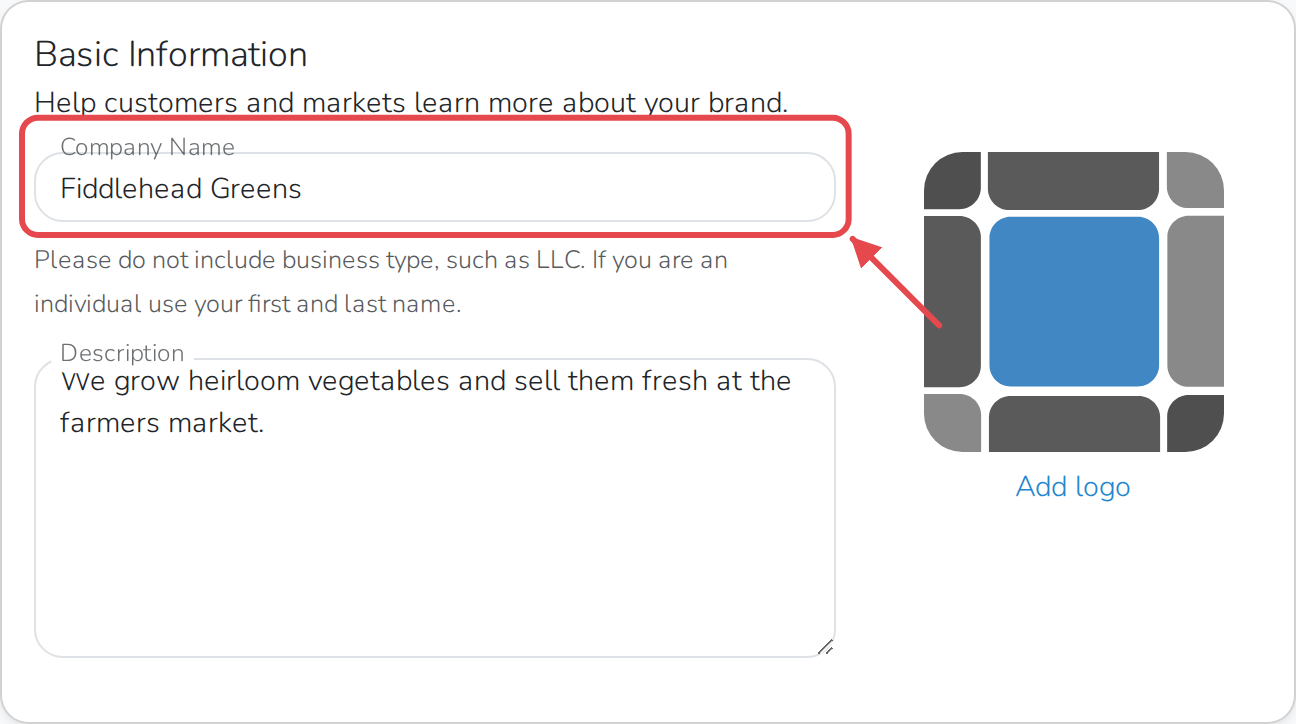
- Your vendor name
- A logo, if you have one
- A short description of your business
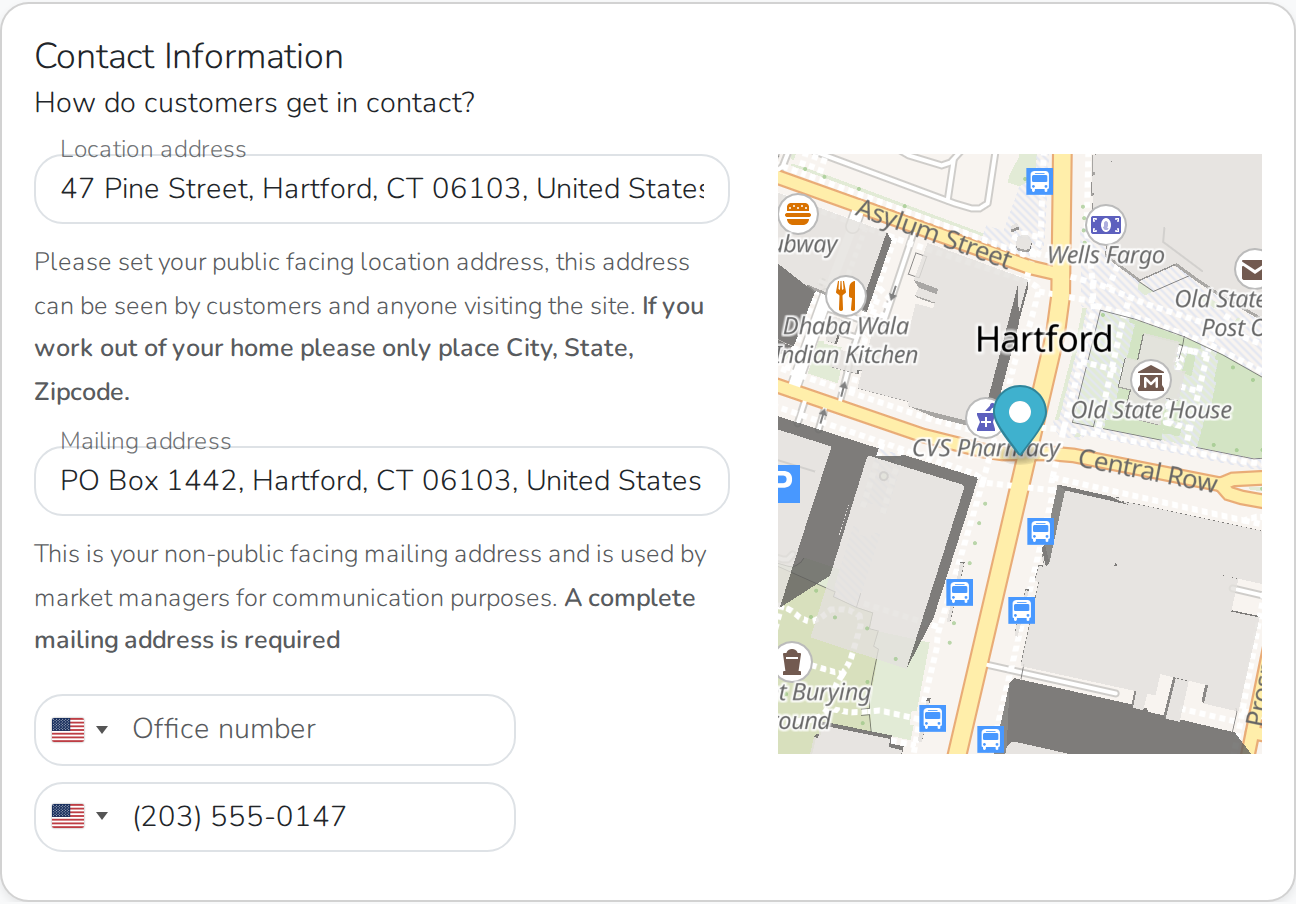
- Your location address
- A mailing address — this is how the market reaches you, and it is not
shown to customers - Phone numbers, if you want to give them
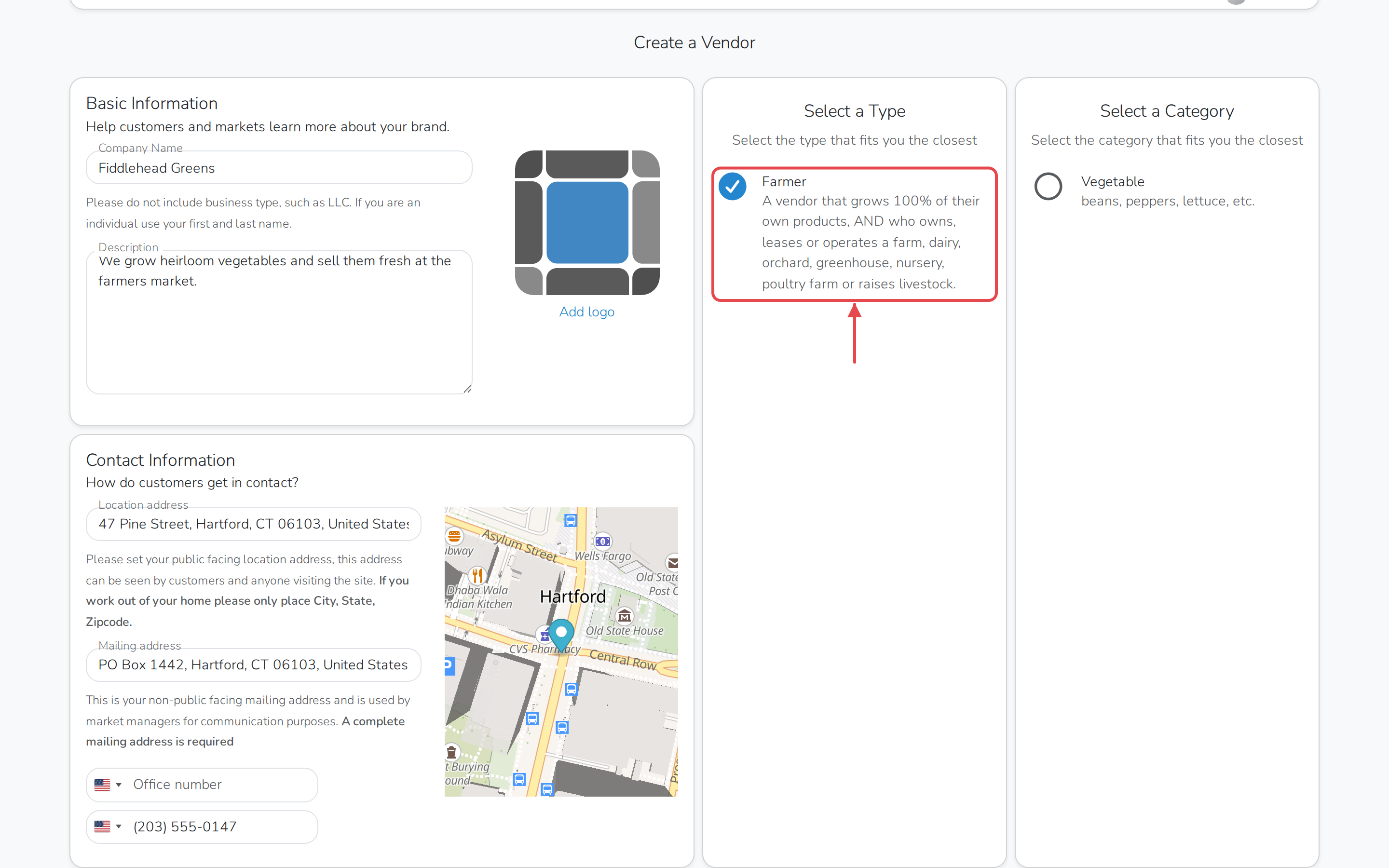
Some markets also ask for a vendor type and a main product category. If a
market does not use those, you will not be asked.
That is the one-off part. Sign in with the same account next time and you go
straight to the application.
Fill in the application
Every market asks for something different, but most of it comes from this list:
-
A message at the top. Read it. It is where the market sets out its rules
and what it expects. -
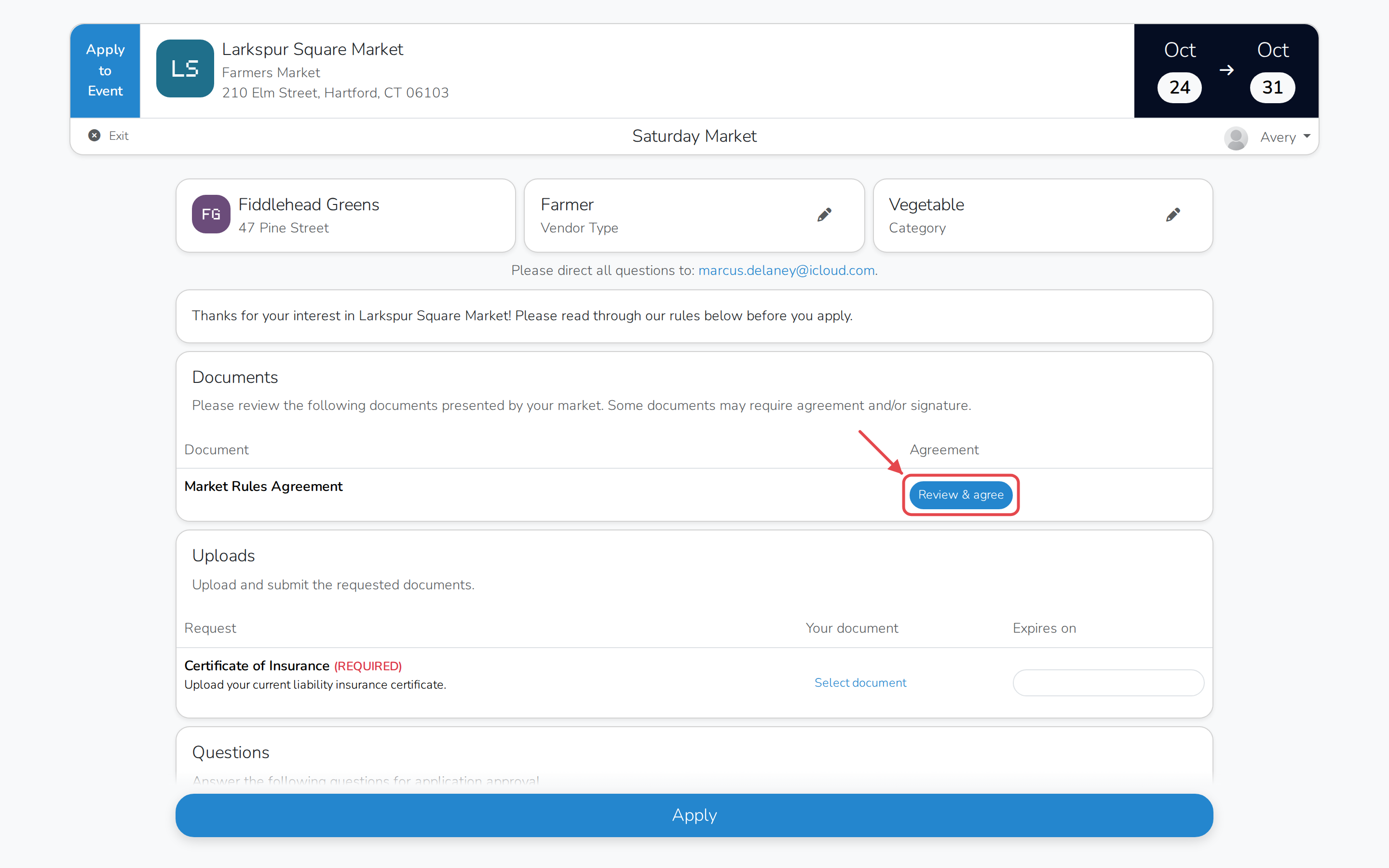
Documents to read. Some you tick to agree to; some you sign.
-
Documents to provide. Insurance, certificates. You upload these, and can
set an expiry date where it matters.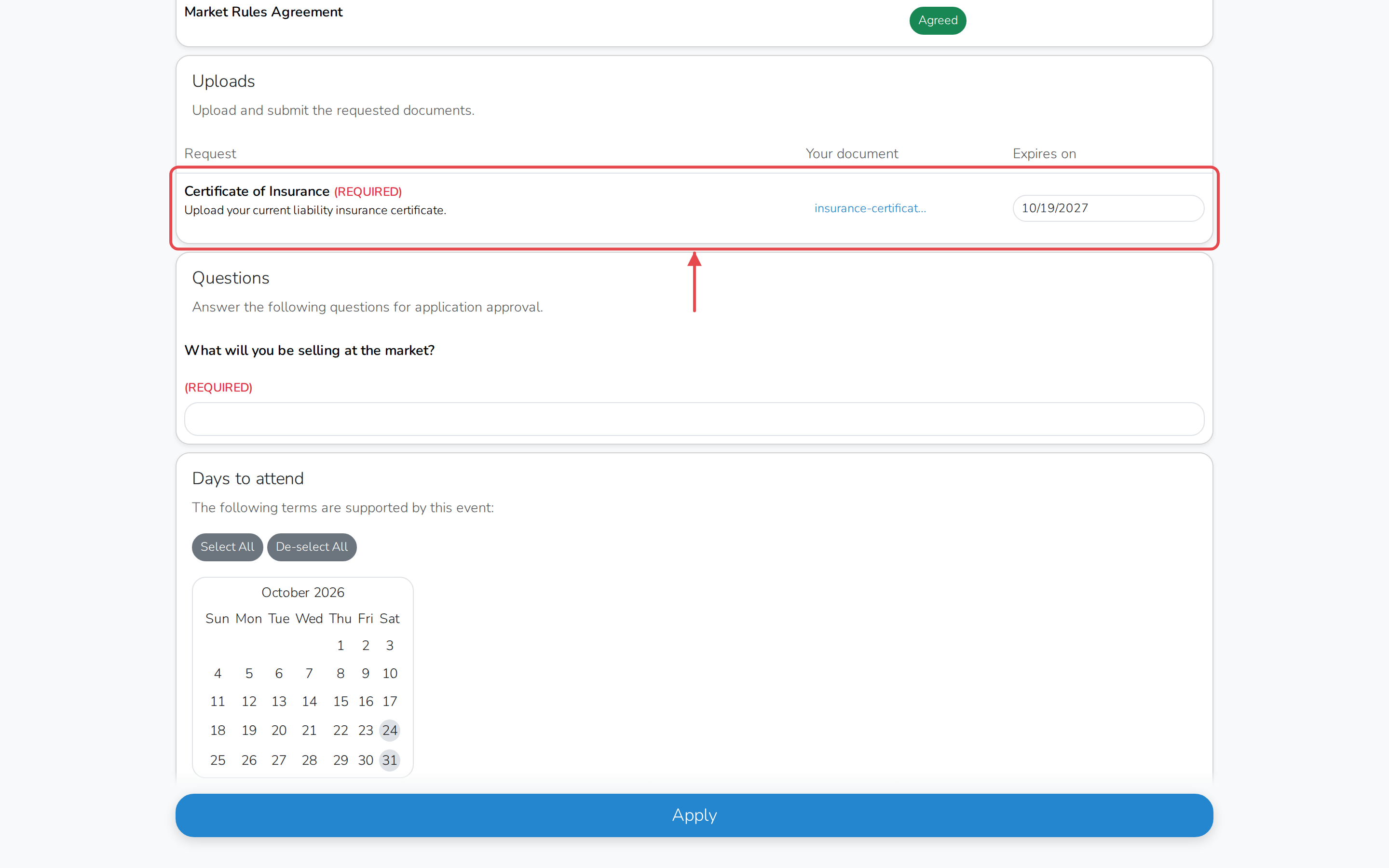
-
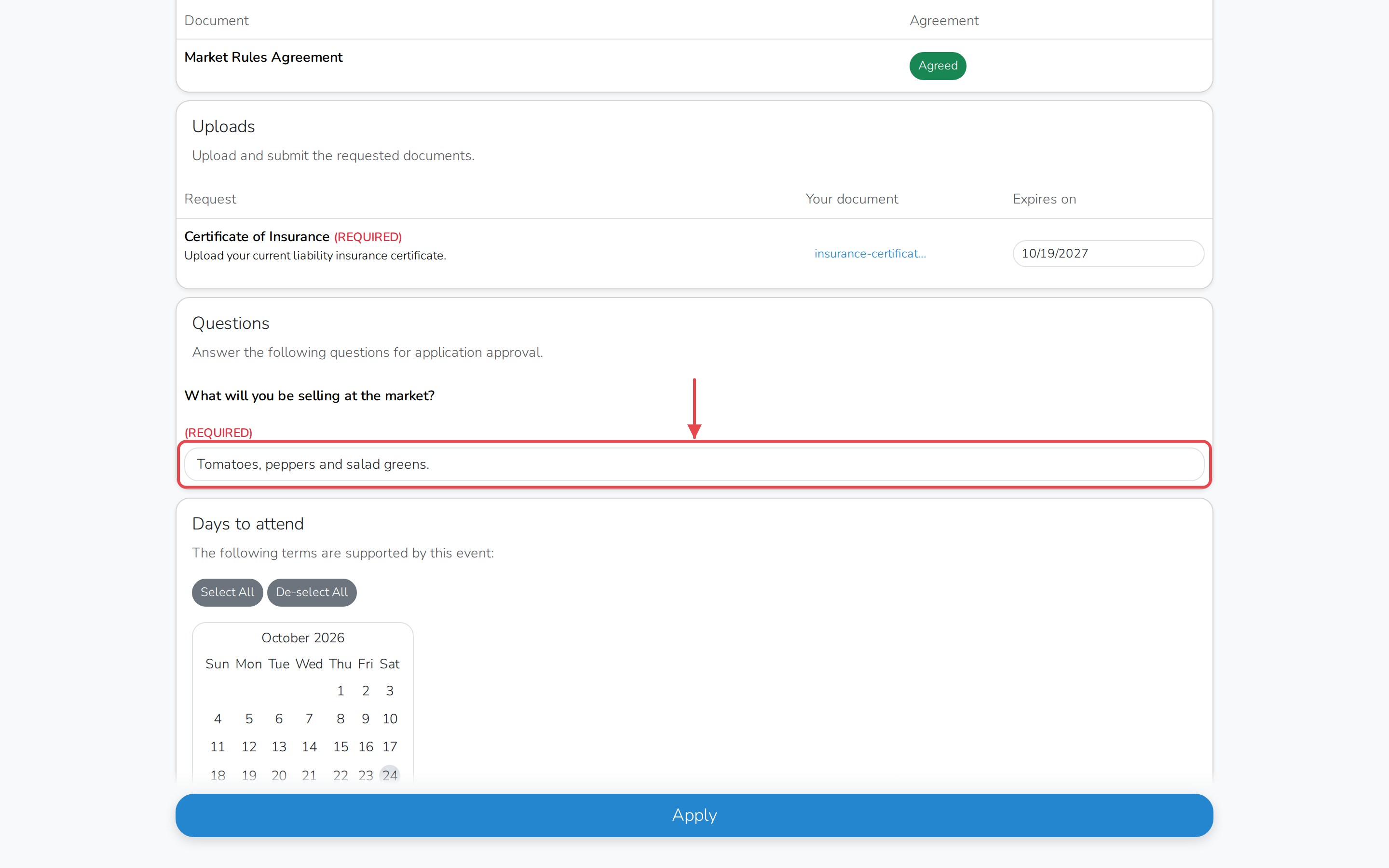
Questions, which vary a lot between markets.
-
Days to attend, if the market runs more than one and lets you choose.
Some are all or nothing.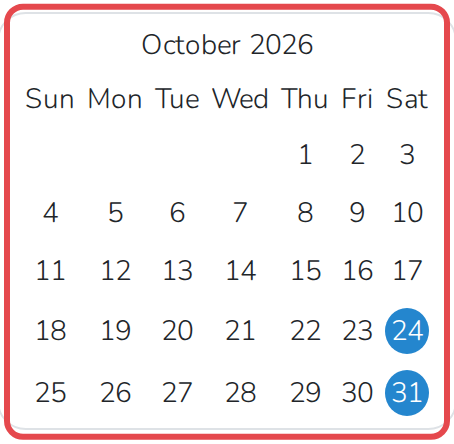
-
Rentals, such as a table or a tent, if the market offers them.
-
Products, if the market checks what you sell before accepting you. Add as
many as you like and say which you would sell there. -
Fees, if the market charges to apply or on approval.
-
A message box, for anything the questions did not cover.
Submit it
If there is an application fee, fill in your card under Payment first.
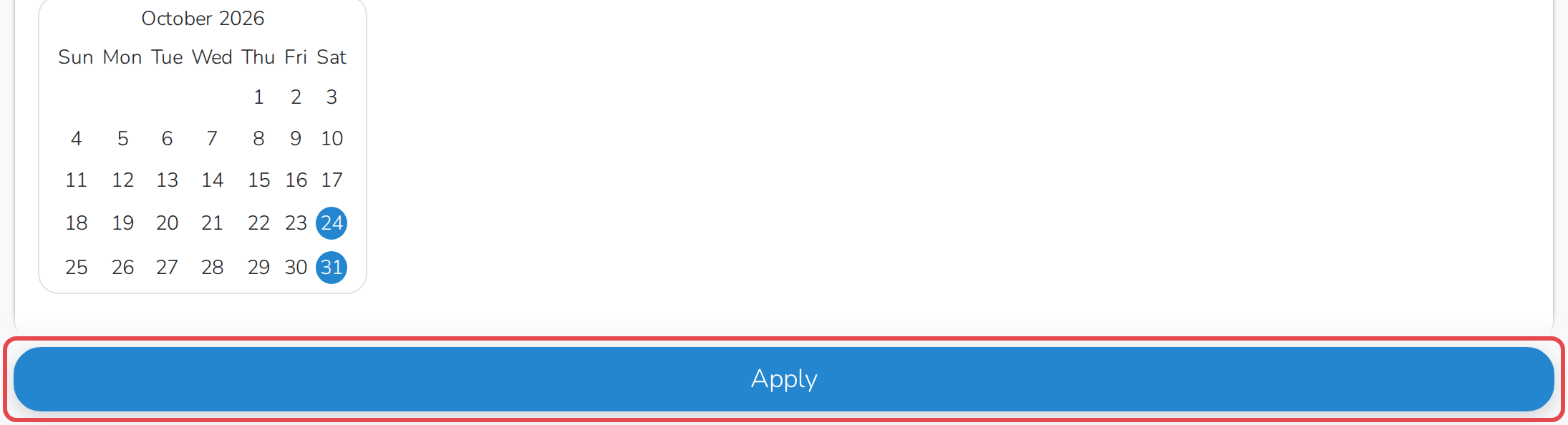
Then click the button at the bottom. It reads Apply, or Pay
application fees and apply when there is a fee to pay now.
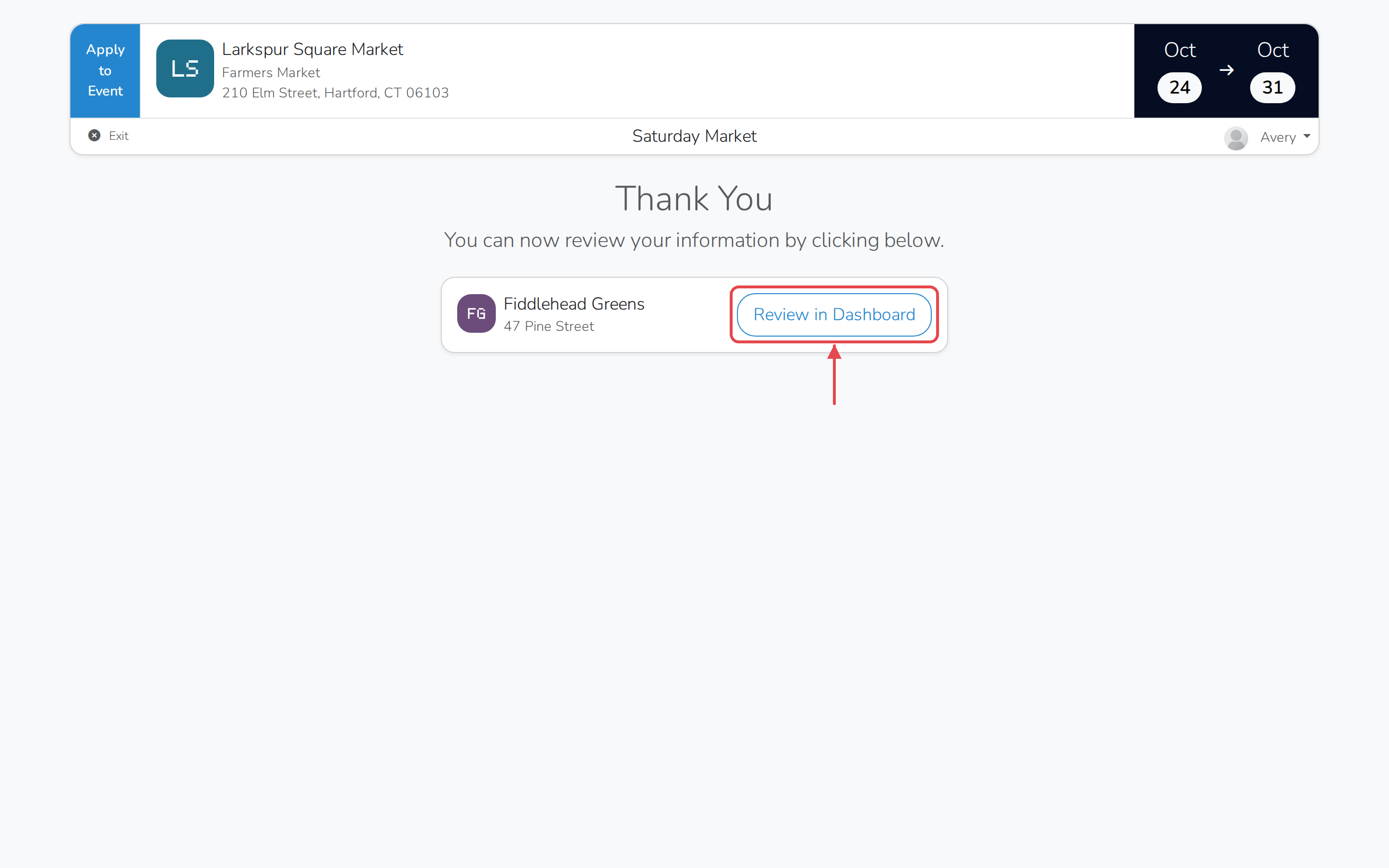
You land on a thank-you page, with a Review in Dashboard link back to your
vendor dashboard.
Your products stay with you
Anything you added in the products section is saved to your account. Find
it later under Products in your dashboard, and reuse it.