


With Auto Pay on, a market charges the card you chose whenever a fee falls
due, so you do not have to remember to pay each invoice.
Auto Pay is shared across every market run by the same company. Turn it on
once and it covers all of them — a market run by someone else needs its own.
Turn on Auto Pay for a market's organization
-
Open Applications in the left-hand menu.
-
Find the market you want, and click the arrow at the end of its row
(Overview).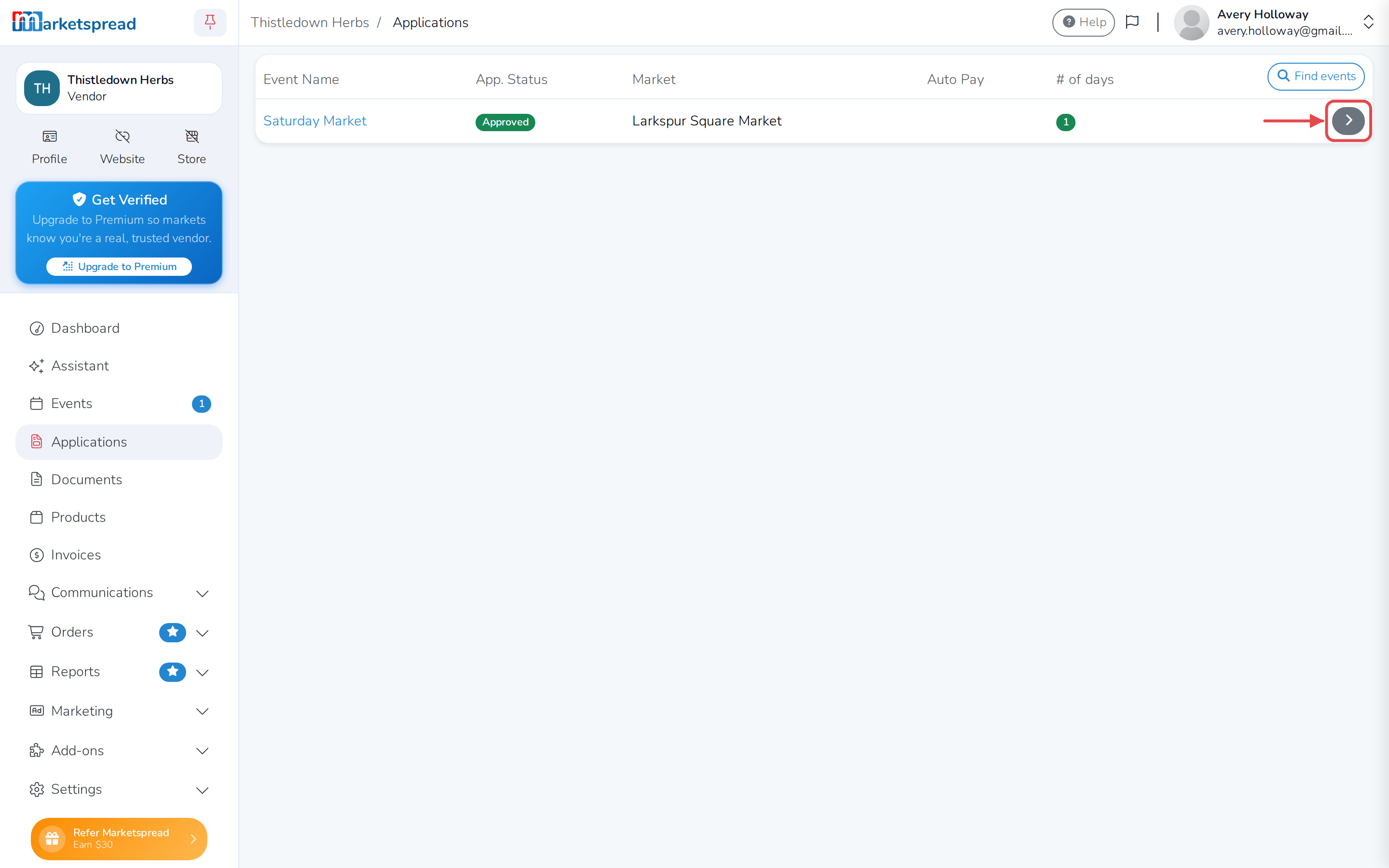
-
Click Payments.
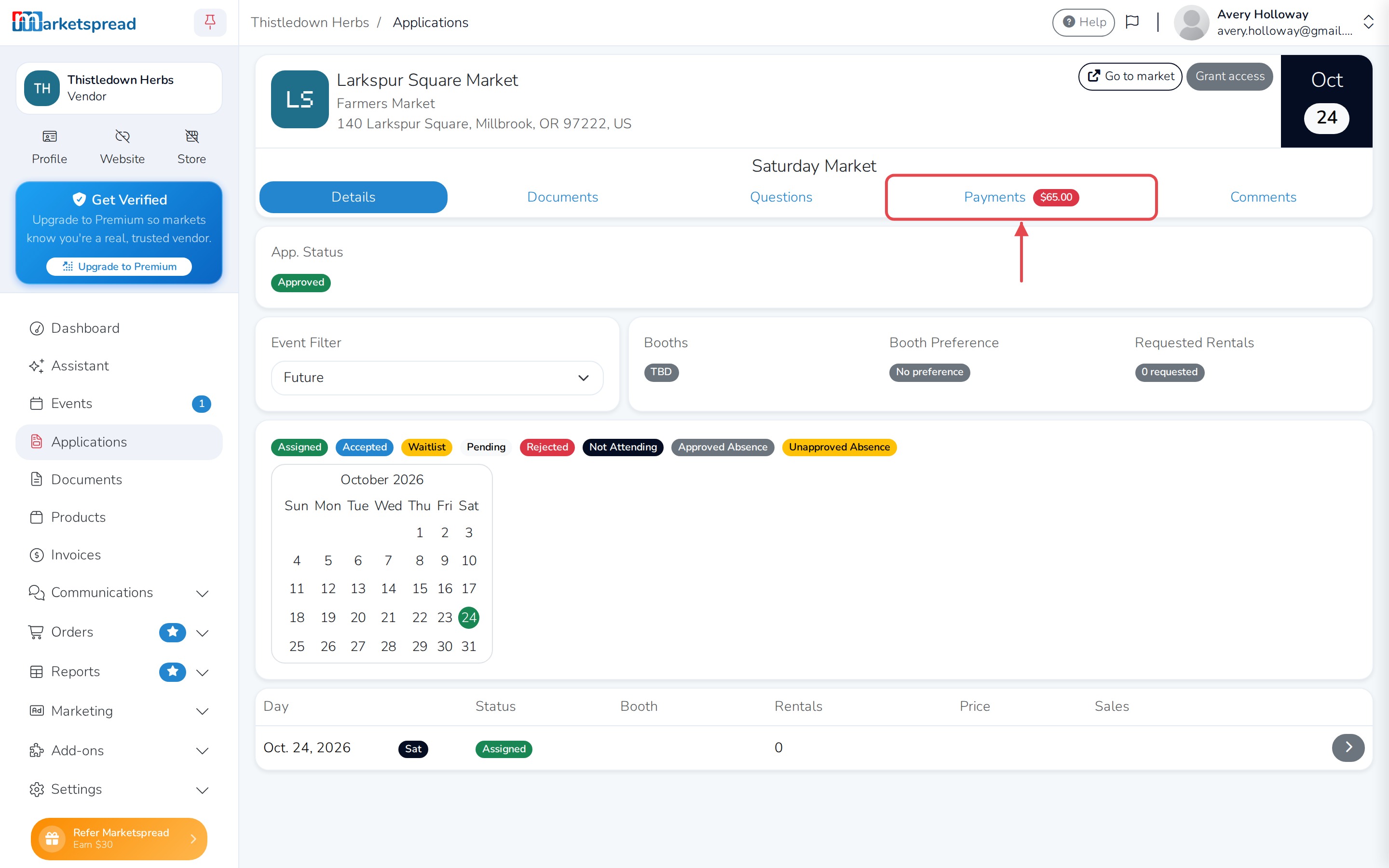
-
Find the Auto Pay section and click Enable.
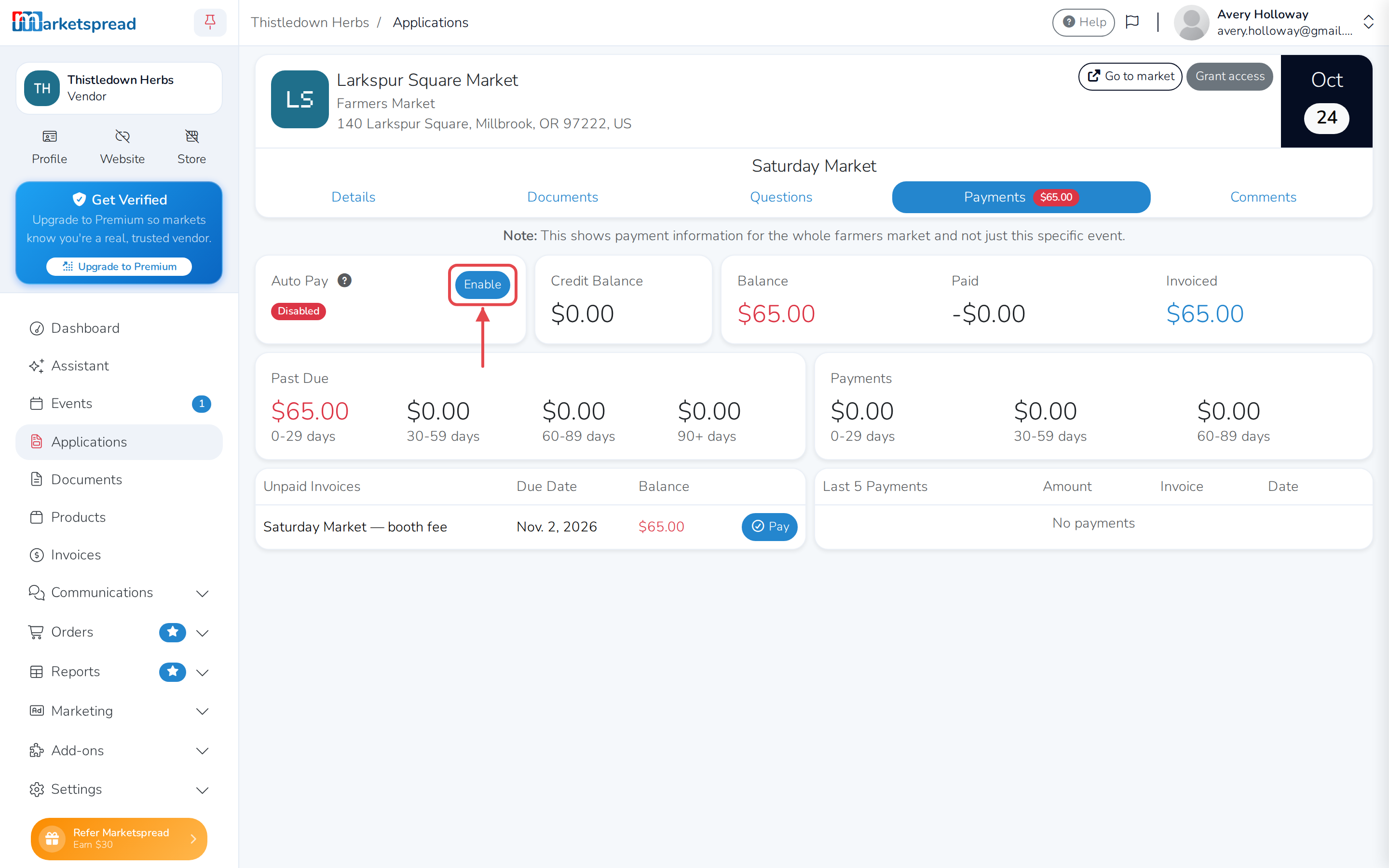
-
Click a card you've already saved, or click Add new card and enter the
card number, expiration date, CVV and Billing address. -
If you picked a saved card, enter its CVV — the three or four digits on
the card.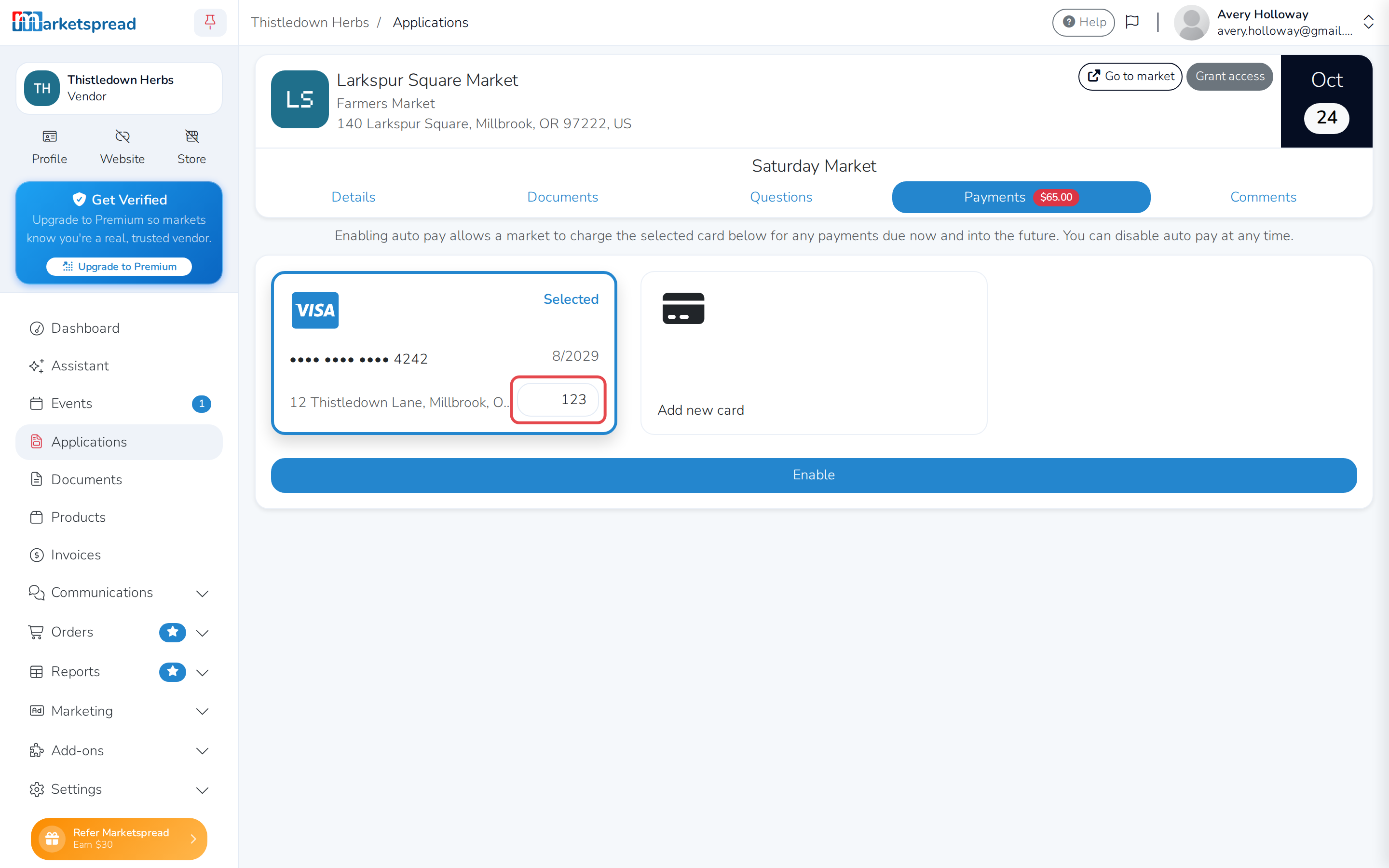
-
Click Enable.
The Auto Pay section now shows the card you picked, ending in its last
four digits.
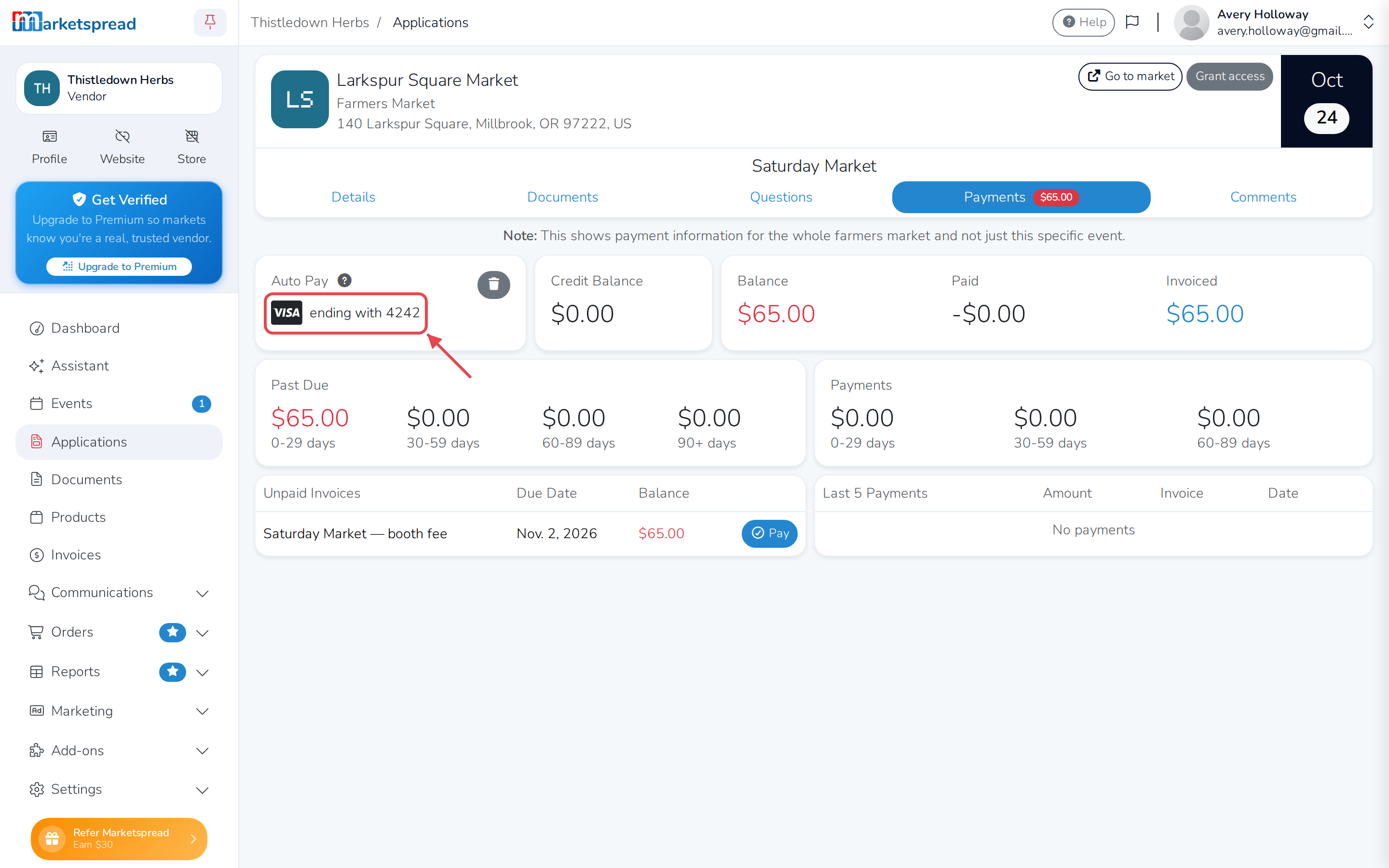
The market can charge that card without asking again
Auto Pay covers what you owe now and anything that falls due later. Only
turn it on if you are happy to be charged automatically by every market
that company runs.
Change the card
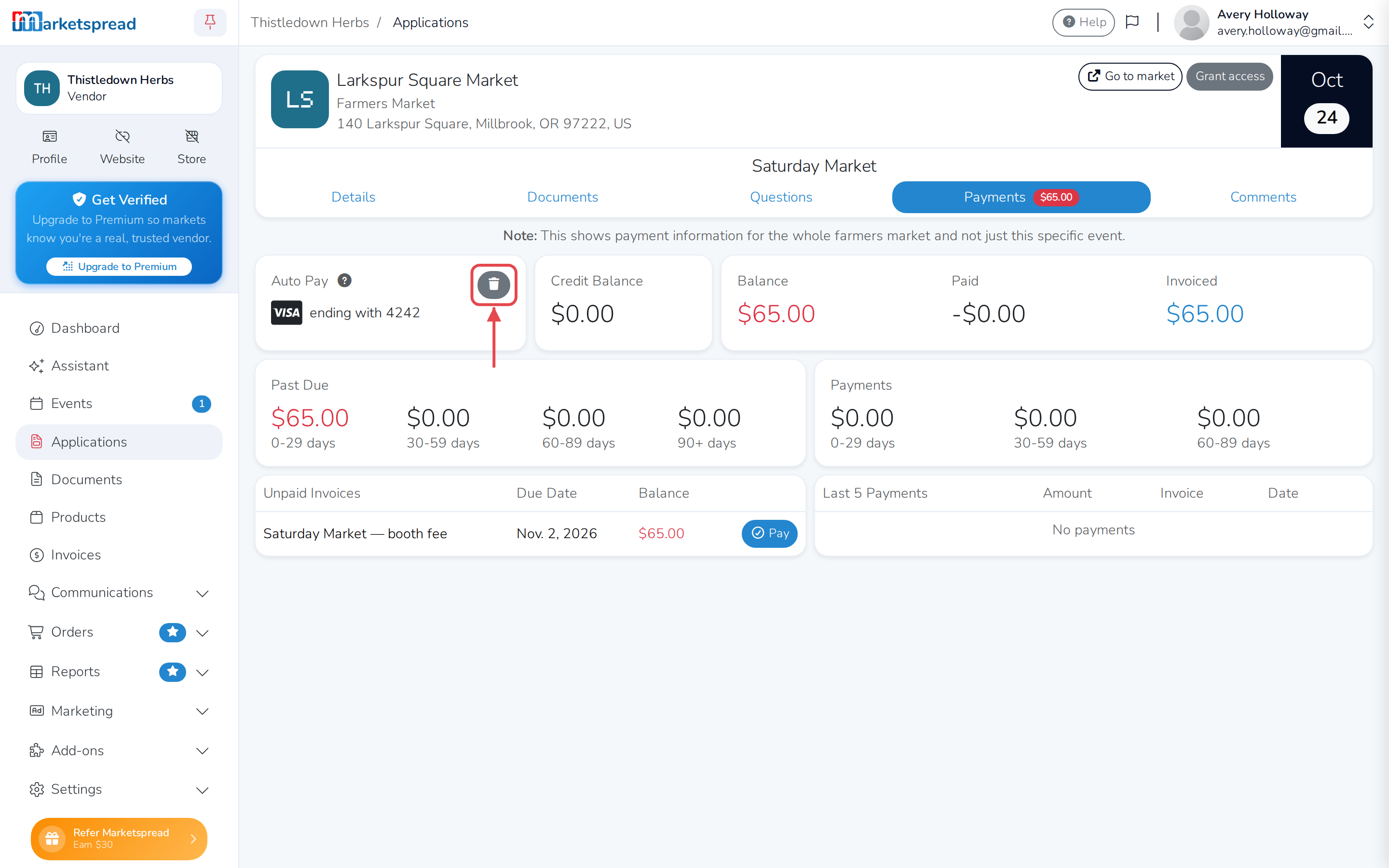
- Click the bin icon (Disable) in the Auto Pay section.
- Click Disable to confirm.
- Turn Auto Pay back on, and choose a different card.
Turn Auto Pay off
-
Click the bin icon (Disable) in the Auto Pay section.
-
Click Disable to confirm.
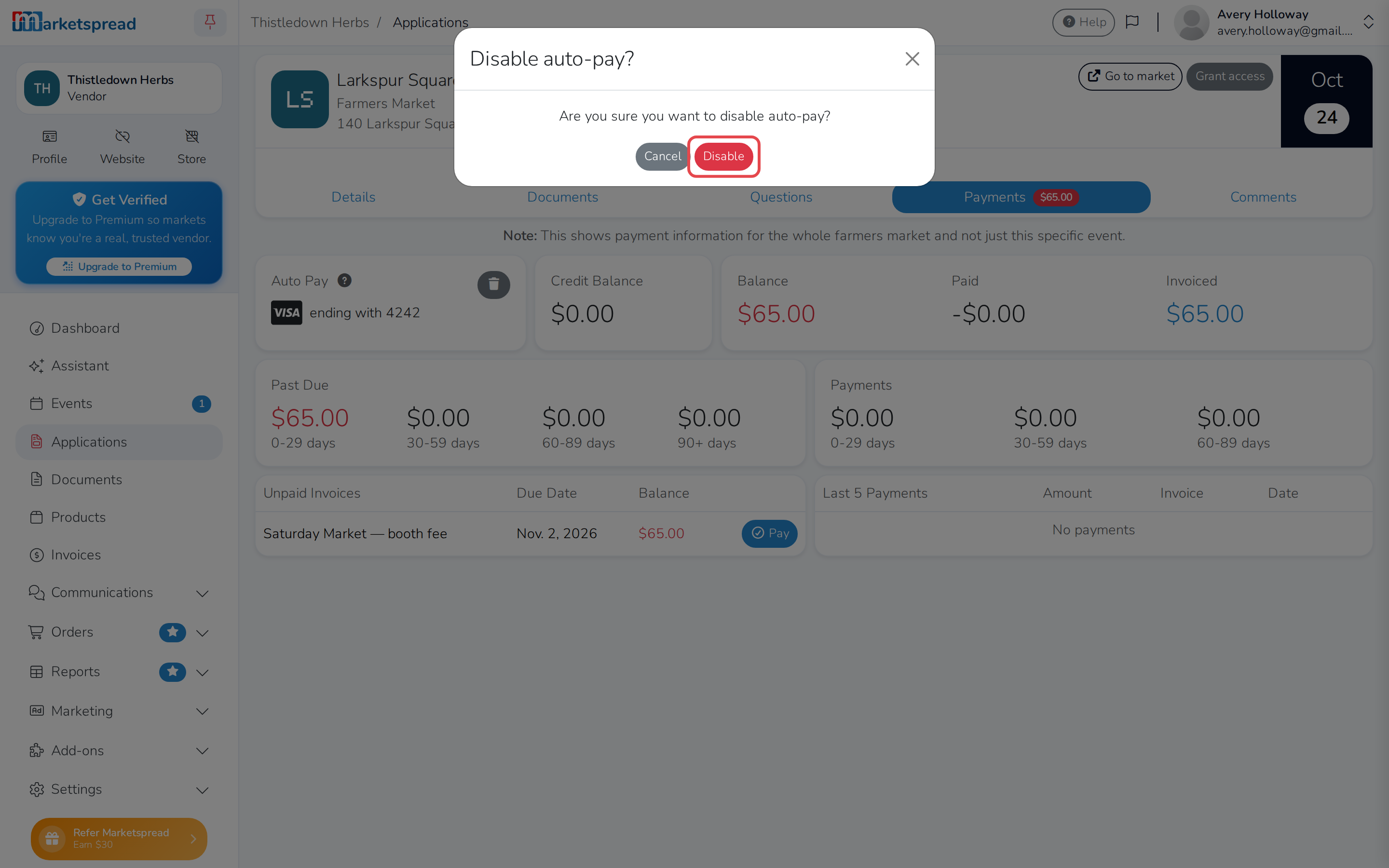
You can do this at any time. You go back to paying each invoice yourself.
If there's no Enable button
Auto Pay only works where the market takes card payments. If a market
doesn't, you'll still see the Auto Pay section on the Payments
tab, but there's no Enable button to turn it on.