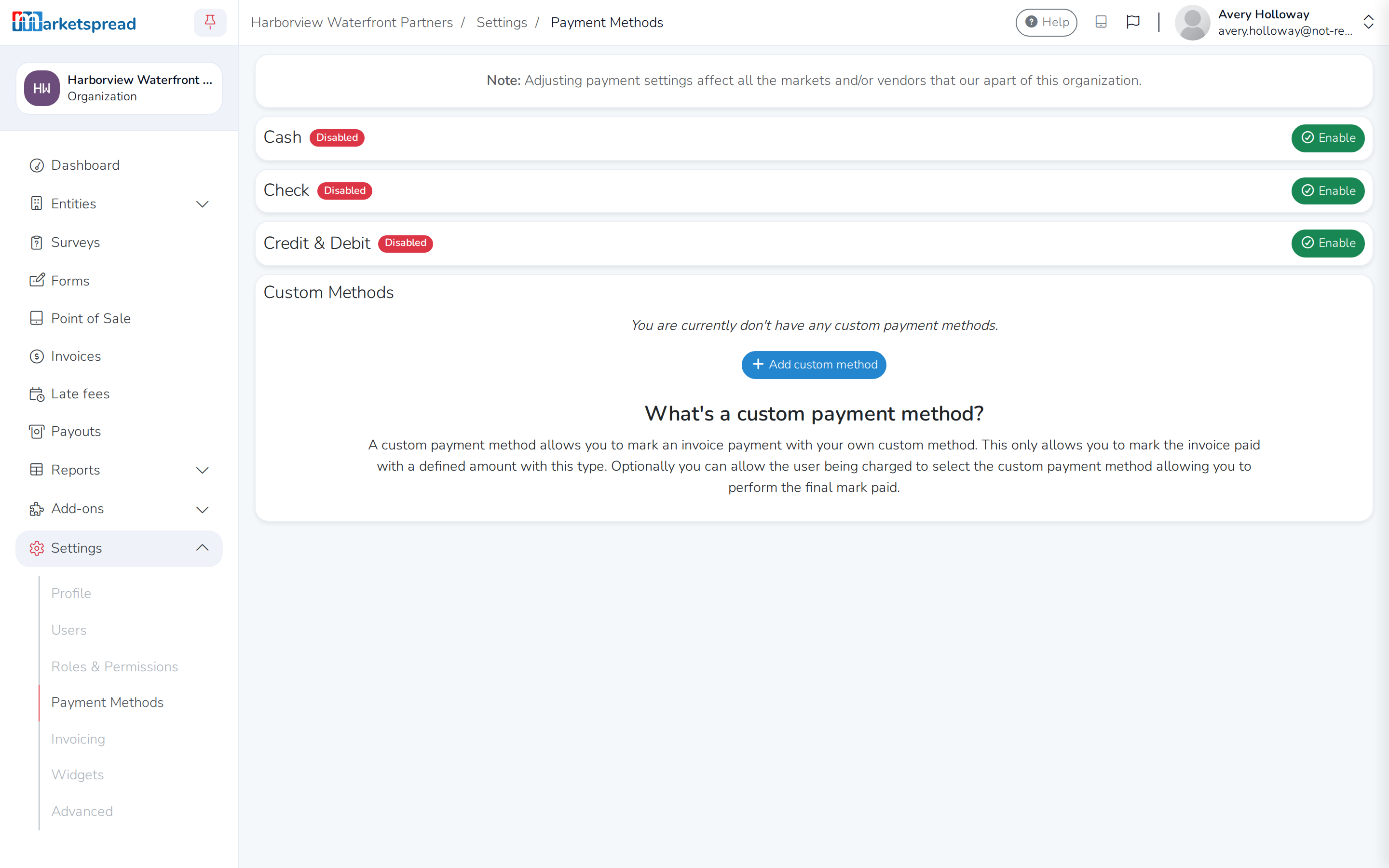
Marketspread handles credit and debit cards for you, and lets you mark an
invoice paid by cash or check. A custom payment method is for anything
else you take — a trade credit, a gift certificate, a bank transfer. Add
one and you can mark an invoice paid with it too. It's set up once for
your organization, on the same Payment Methods page as your other
payment methods.
From there you can add a custom method, let the person paying choose it
themselves, edit one, or remove one you no longer use.
Only an organization admin can add, edit or remove a custom payment method.
Add a custom payment method
-
From your organization's dashboard, open Settings, then click
Payment Methods.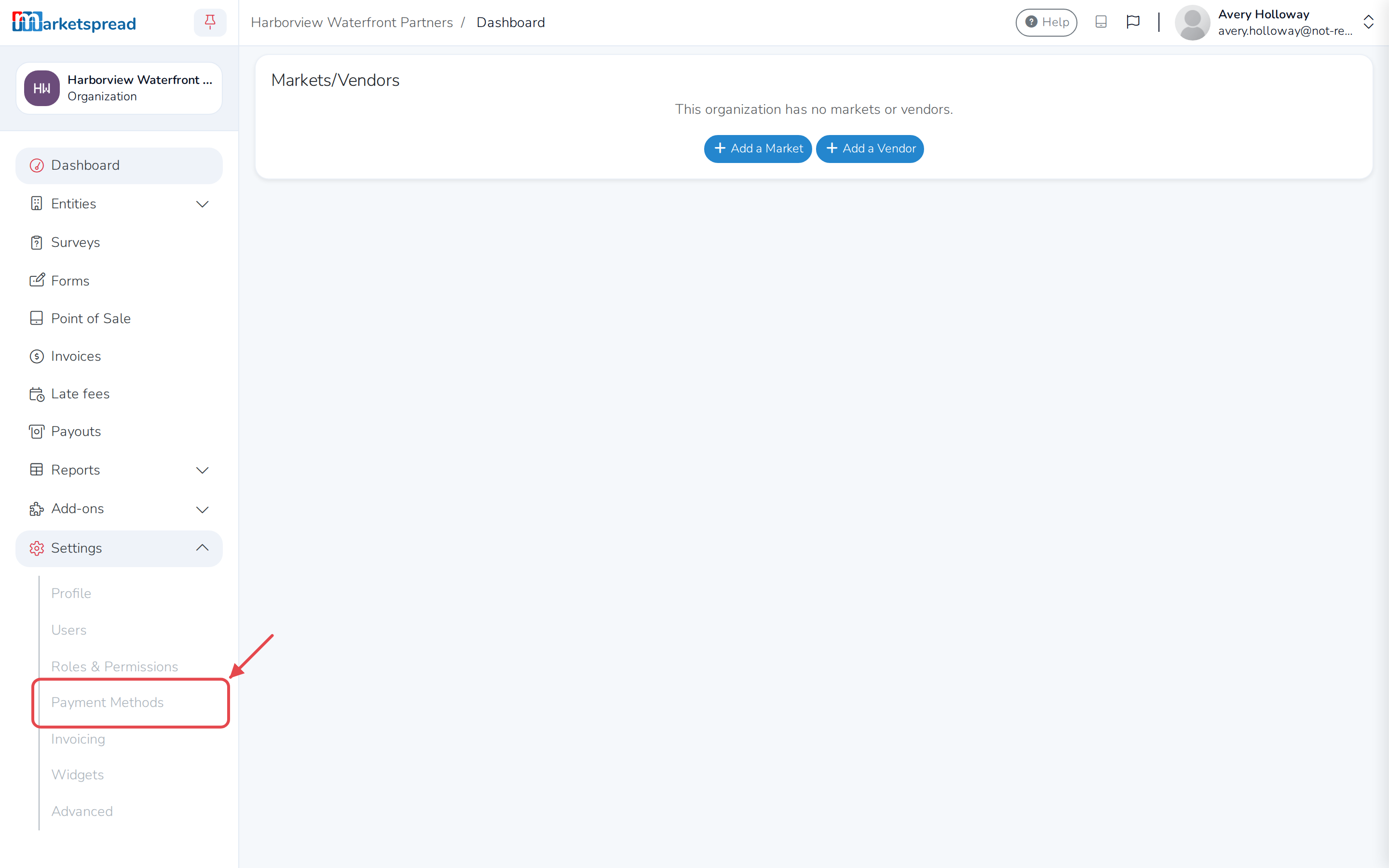
-
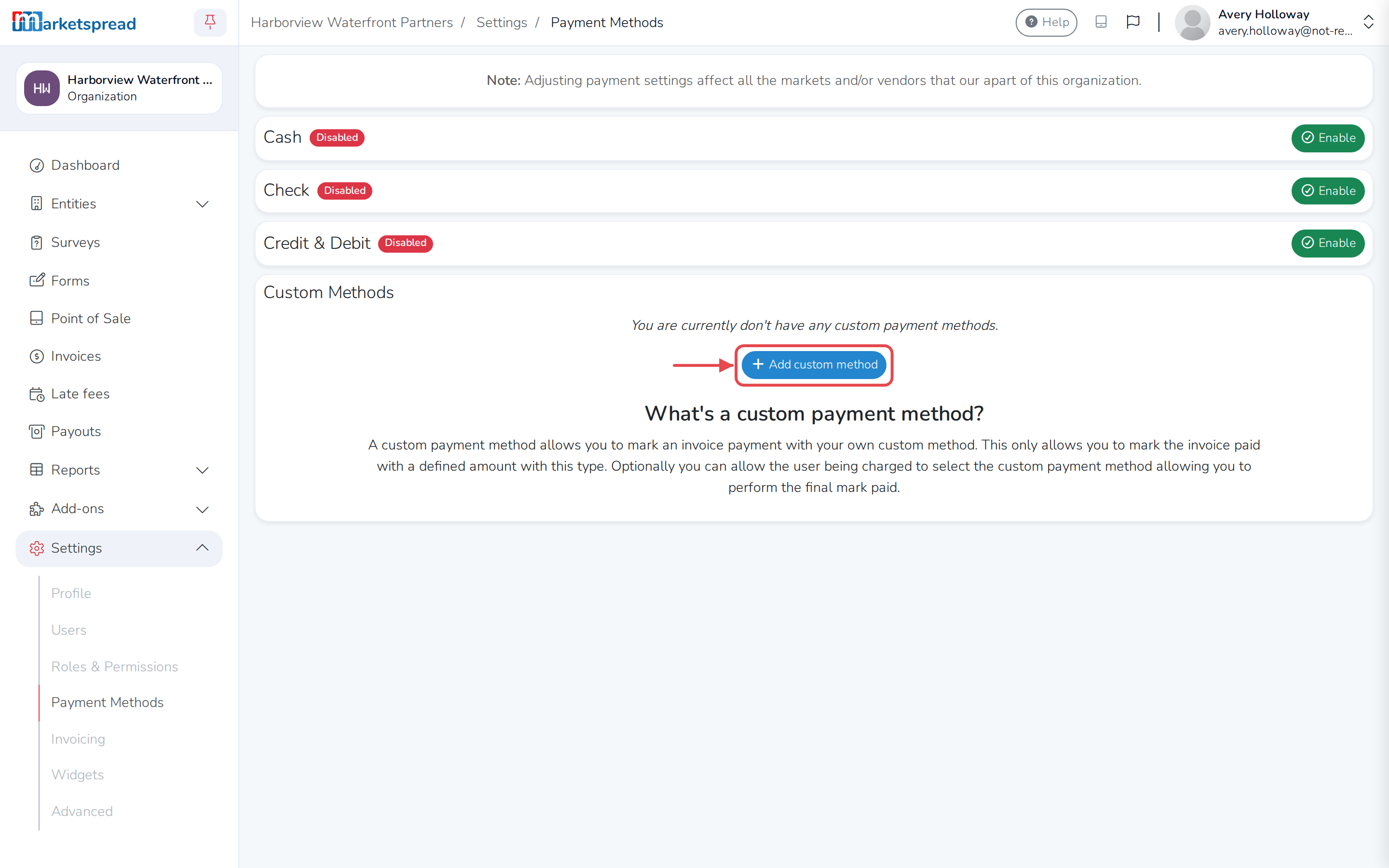
Under Custom Methods, click Add custom method.
-
Fill in Name — this is what shows up when you mark an invoice paid
with it. -
Fill in Description.
-
If you want the person paying to be able to choose it, turn on User
selectable.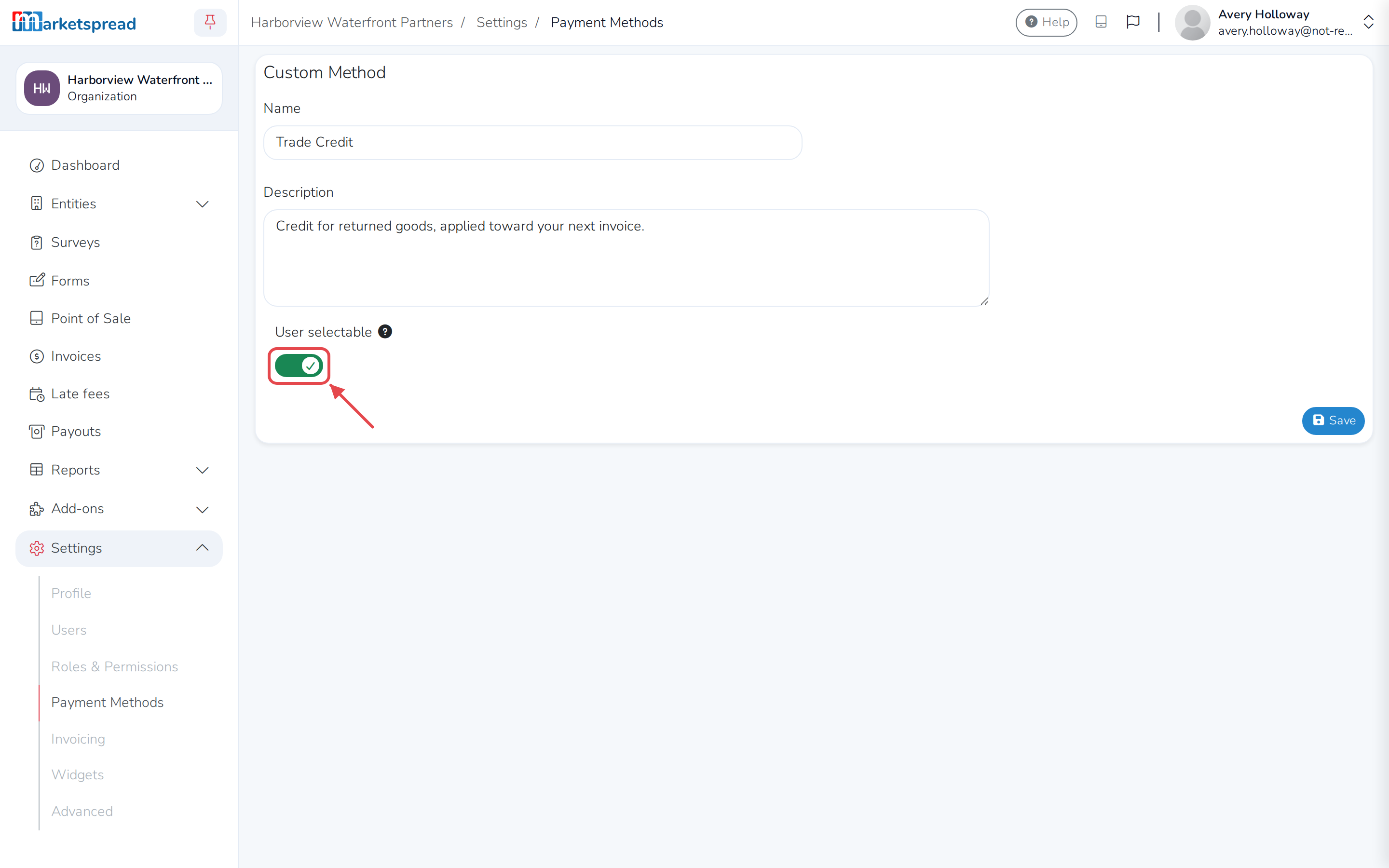
-
Click Save.
Note
They see your Description when they choose this method, so write
it for them, not for yourself.
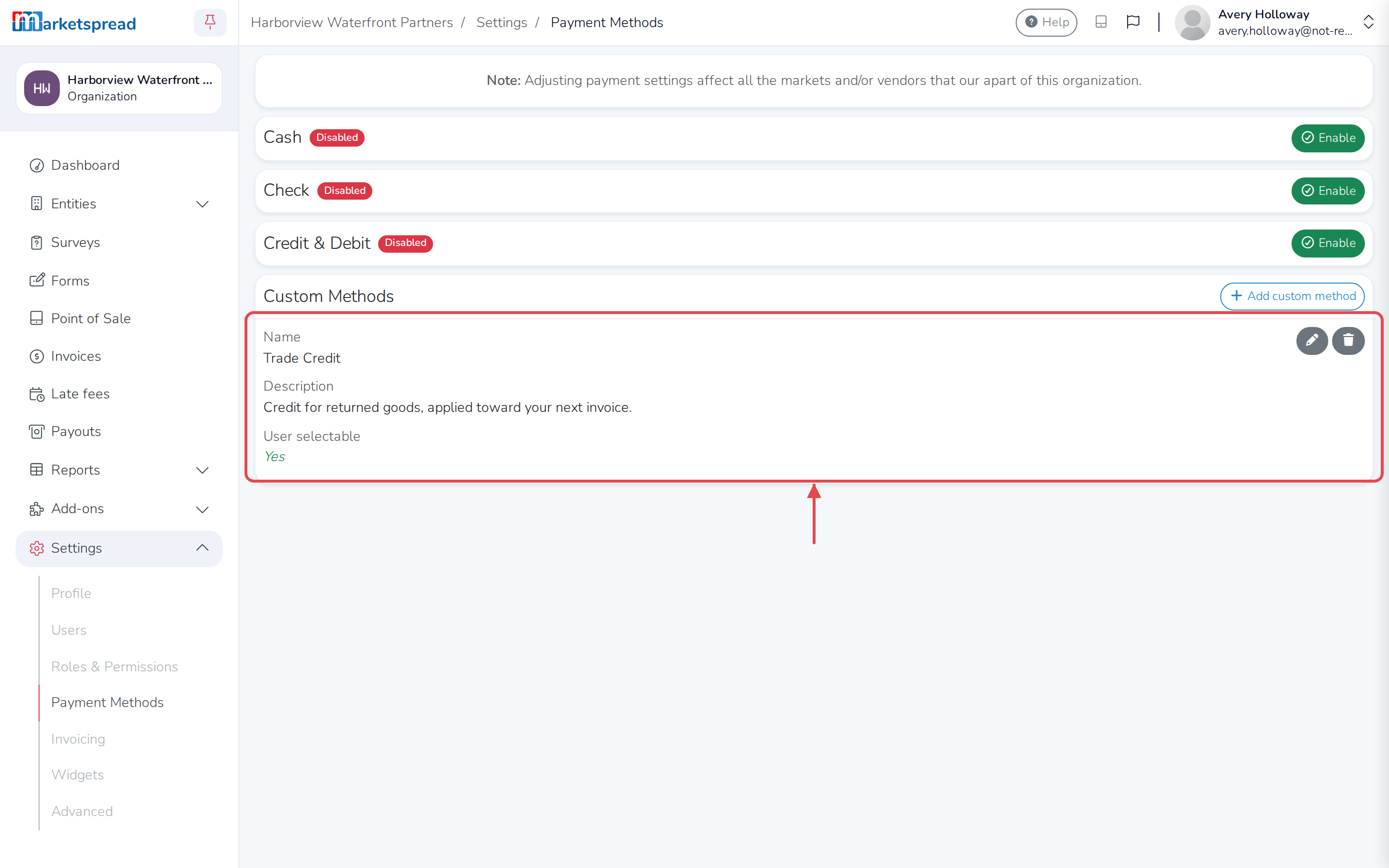
Edit a custom payment method
-
On the Payment Methods page, under Custom Methods, click the
pencil icon next to the method.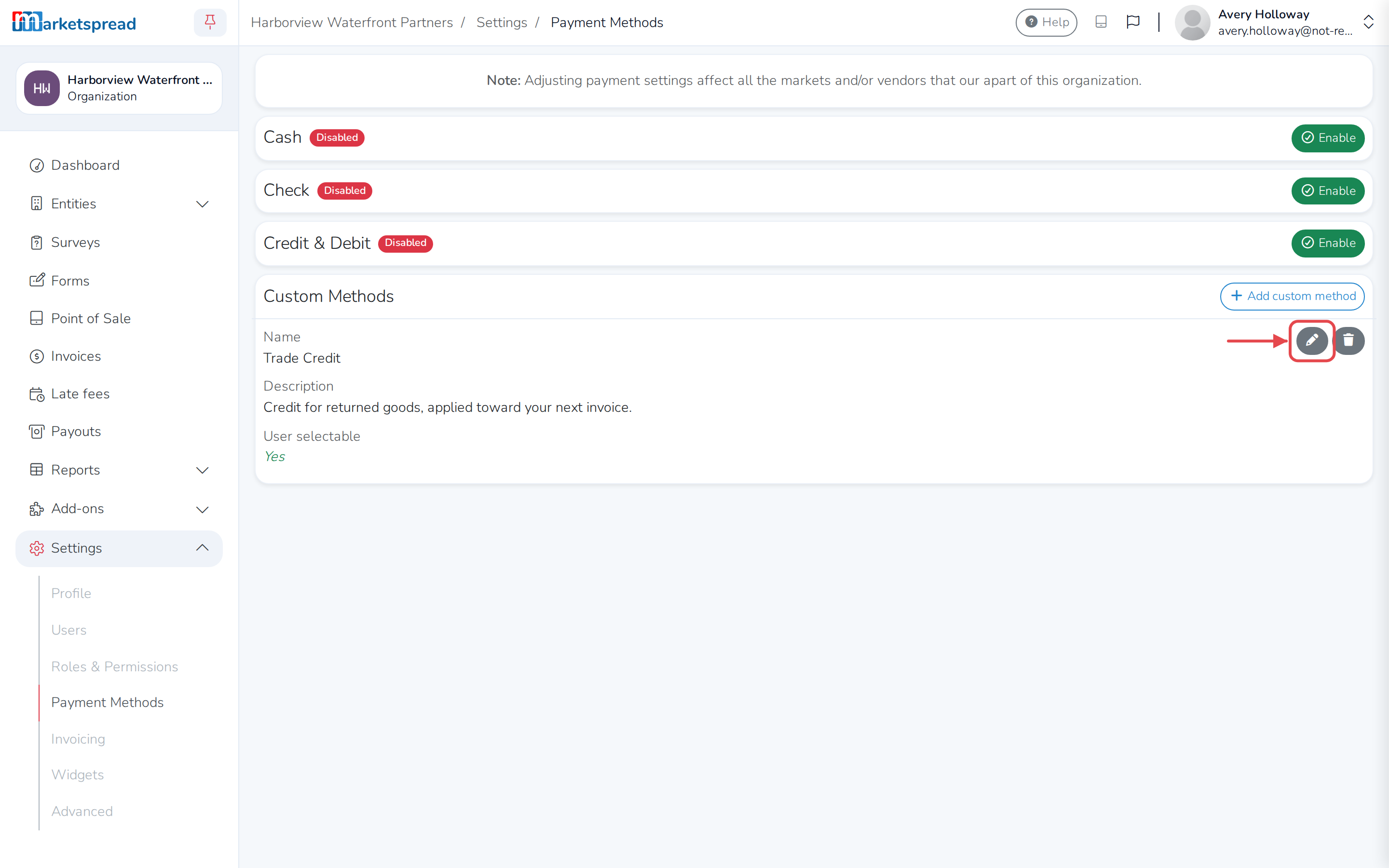
-
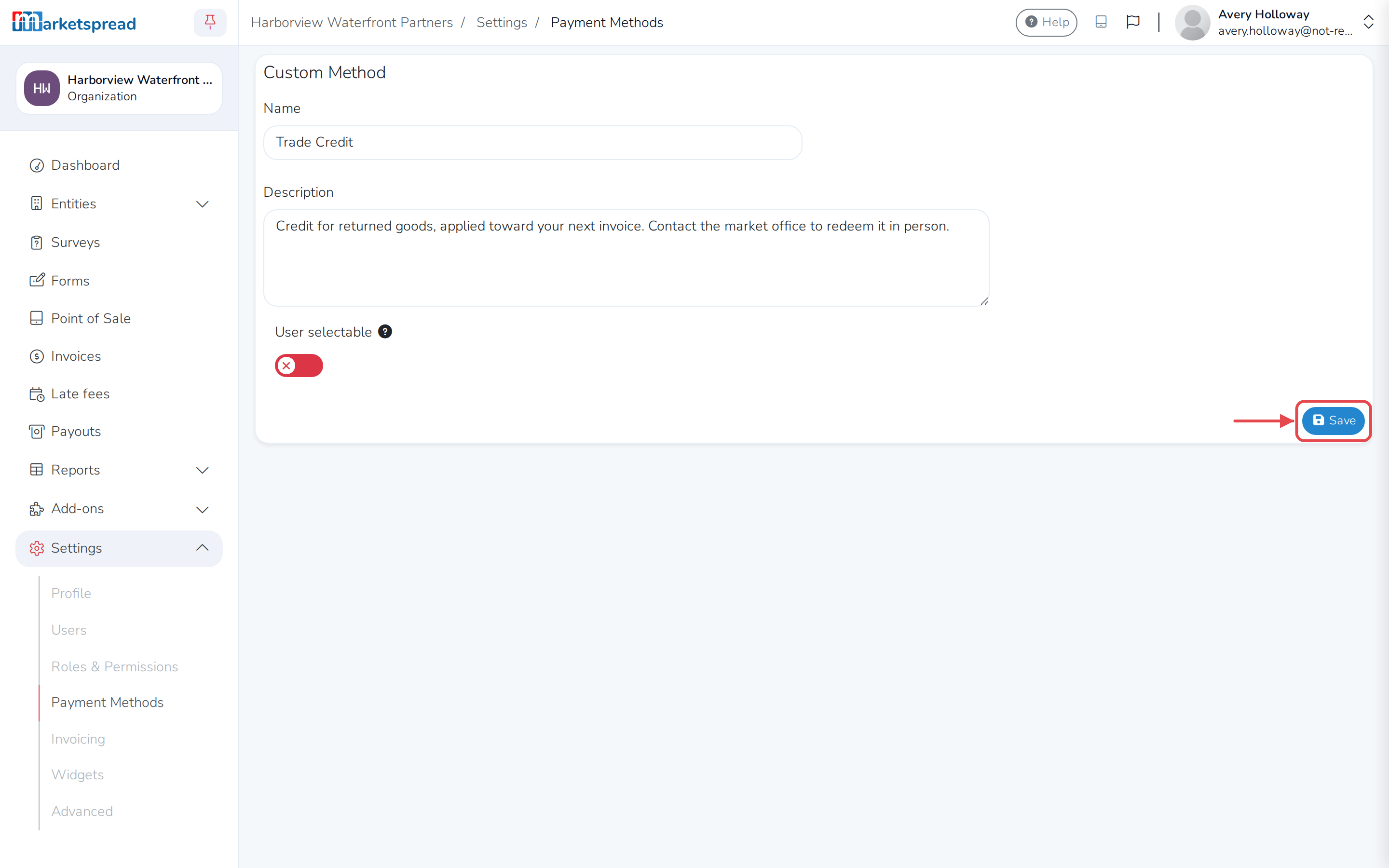
Change its Name, Description, or User selectable.
-
Click Save.
Remove a custom payment method
-
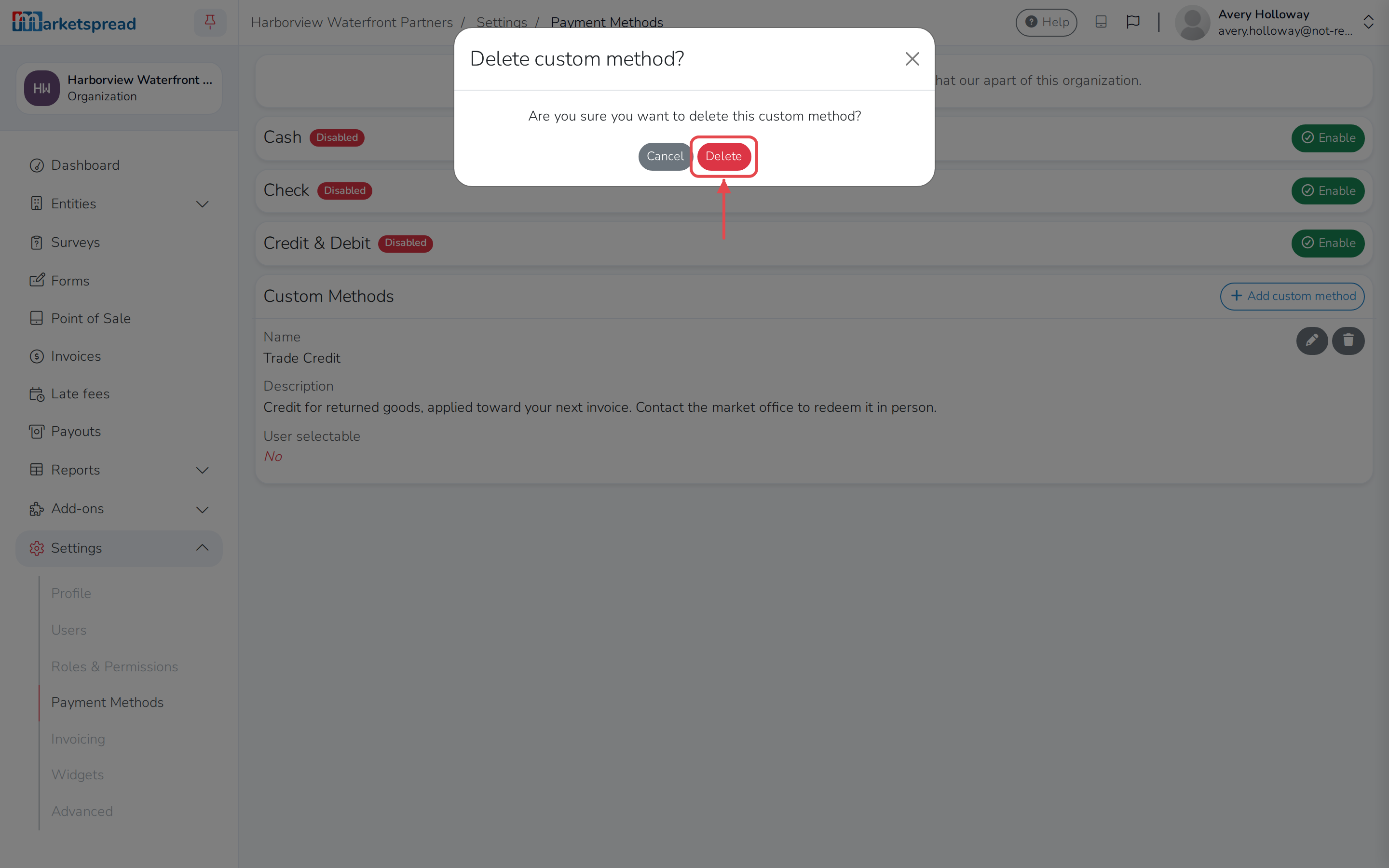
On the Payment Methods page, under Custom Methods, click the
trash icon next to the method. -
Click Delete to confirm.
Note
You can't remove a custom method that's already been used for a
payment. Its trash icon is grayed out instead.