


An organization links several markets, vendors or venues so they share one payout account and one set of reports. You reach it from your account menu. From there you can create the organization, add its logo, and bring your markets, vendors and venues into it.
Create an organization
- Click your account menu in the top-right corner.
- Click Your profile.
- Click the Organizations tab.
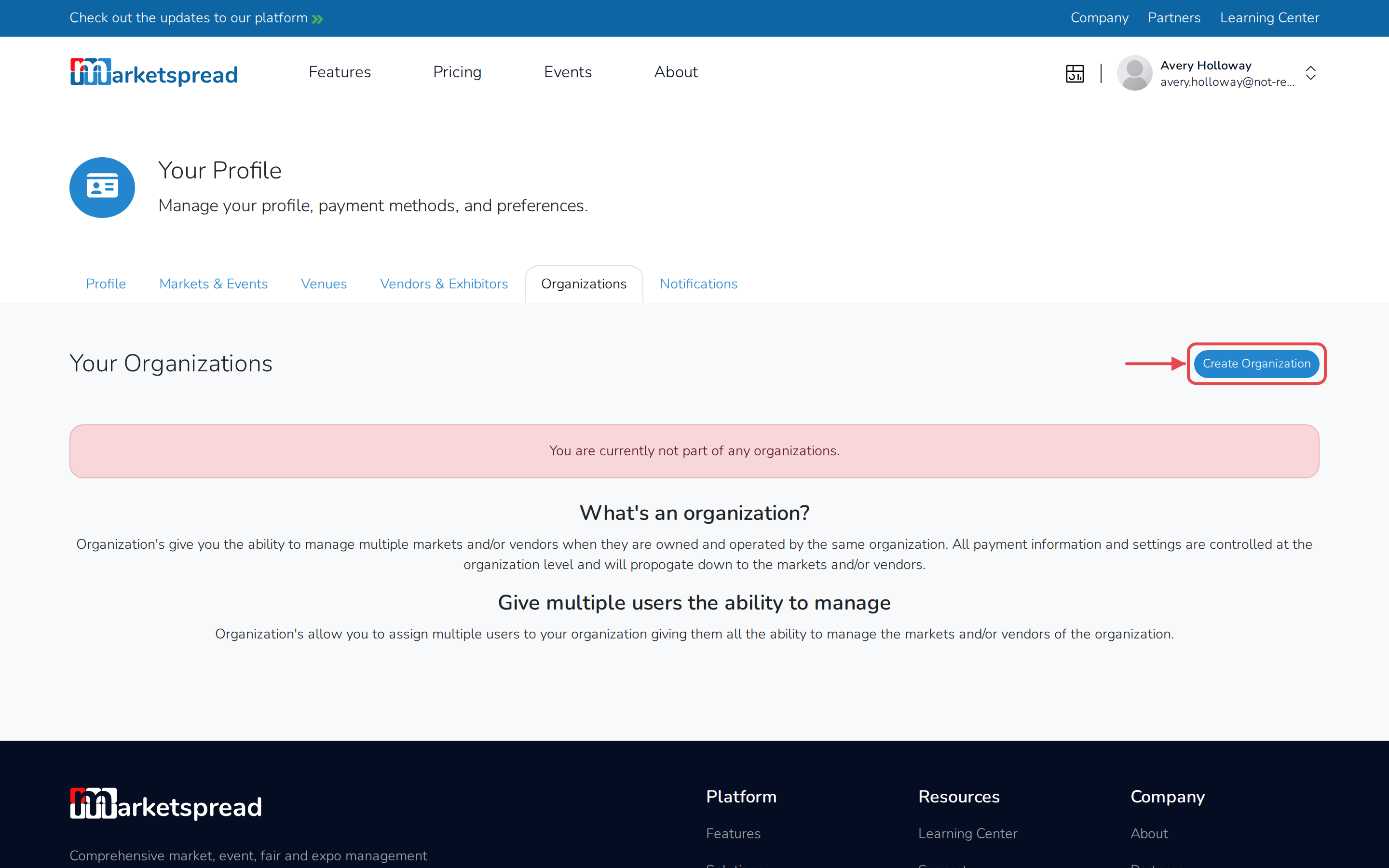
- Click Create Organization.
- Fill in Organization name.
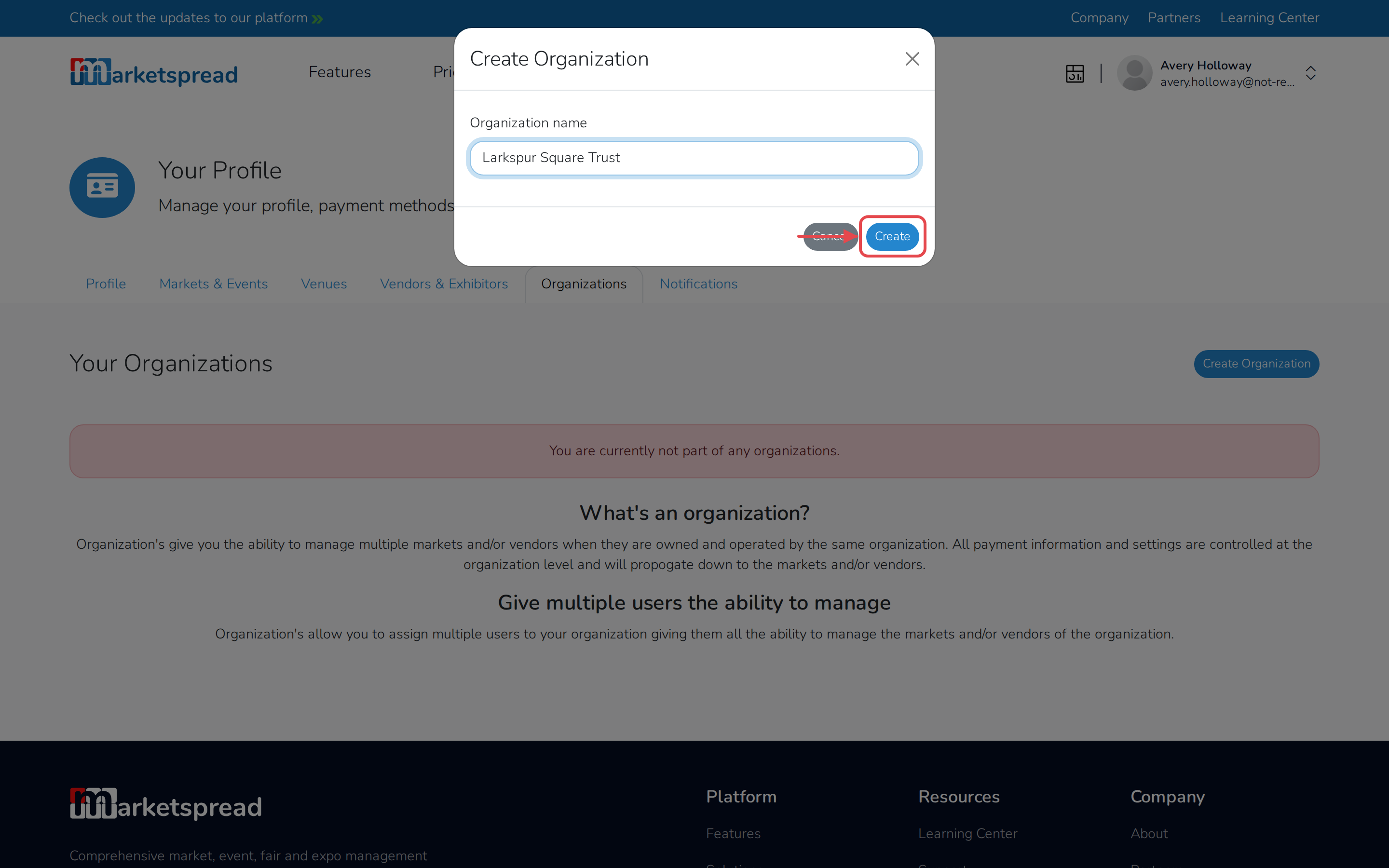
- Click Create.
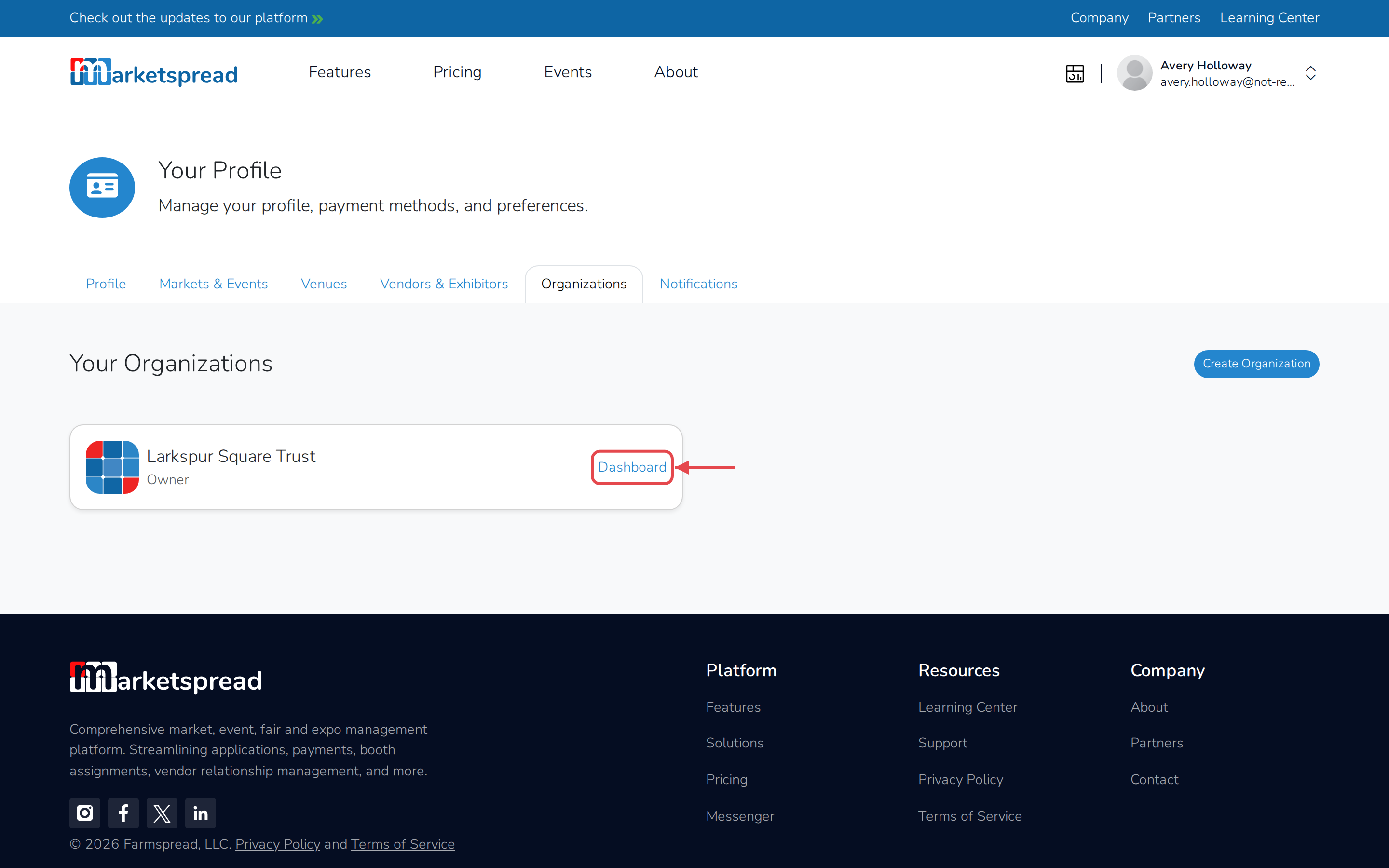
Your new organization appears in the list on the Organizations tab.
Note
You only see the Organizations tab if you already manage a market, vendor, venue or association.
Add your logo
- On the Organizations tab, click Dashboard for the organization.
- Open Settings, then click Profile.
- Next to Logo, click Edit.
- Choose an image and upload it.
Add a market, vendor or venue
- Open Entities in the left-hand menu.
- Click Markets & Events, Vendors or Venues.
- Click Add Market or Event, Add Vendor or Add Venue.
- If you already manage one, keep Add Existing selected, choose it, then click Add to Organization.
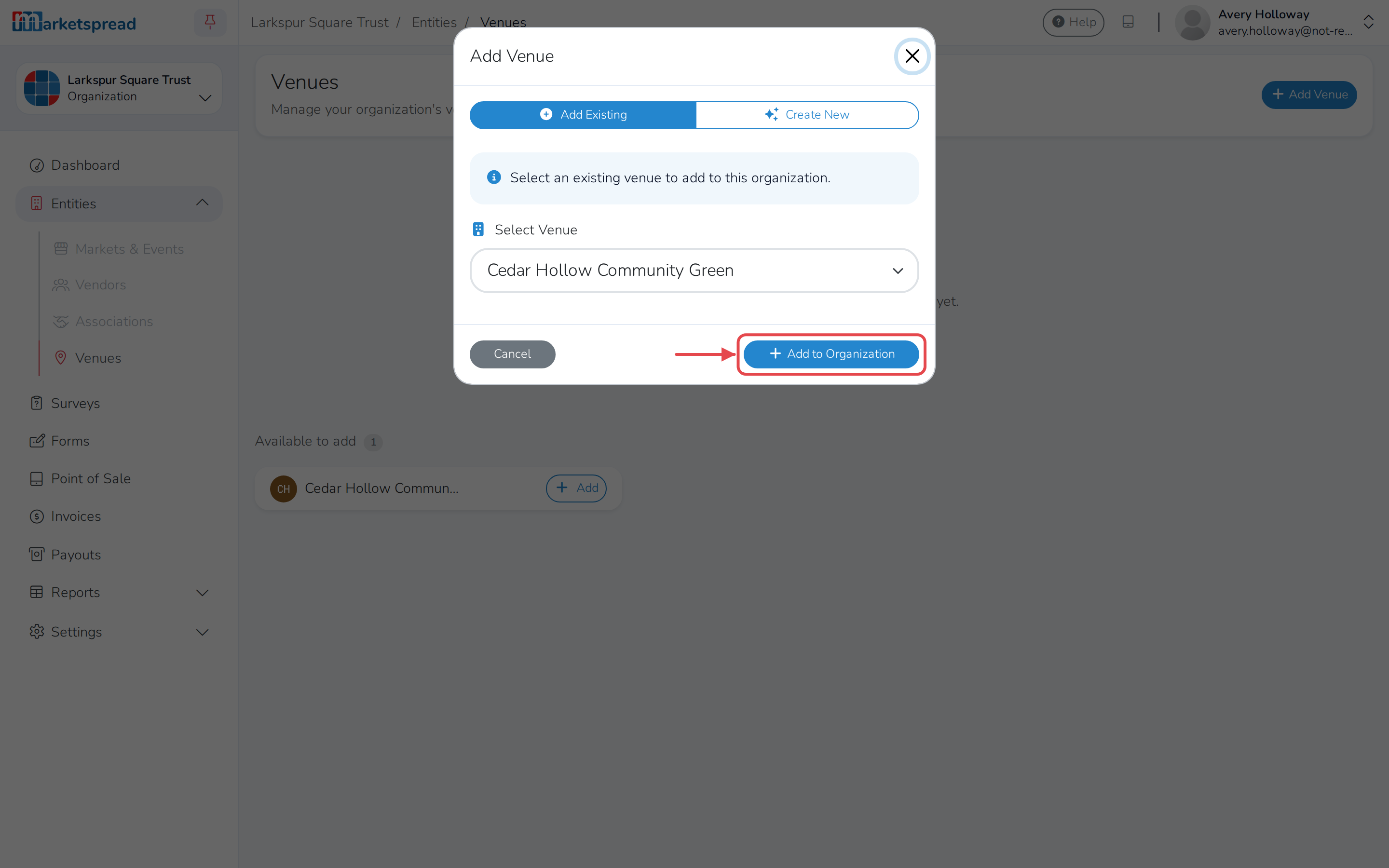
- To create a new one instead, click Create New and follow the steps to set it up.