


Your association's dashboard is where you build and manage its directory of member markets and vendors, and the map that goes with it. Get to it from your account page: click Associations, then click Dashboard on the association you want to manage. This opens on the Members page.
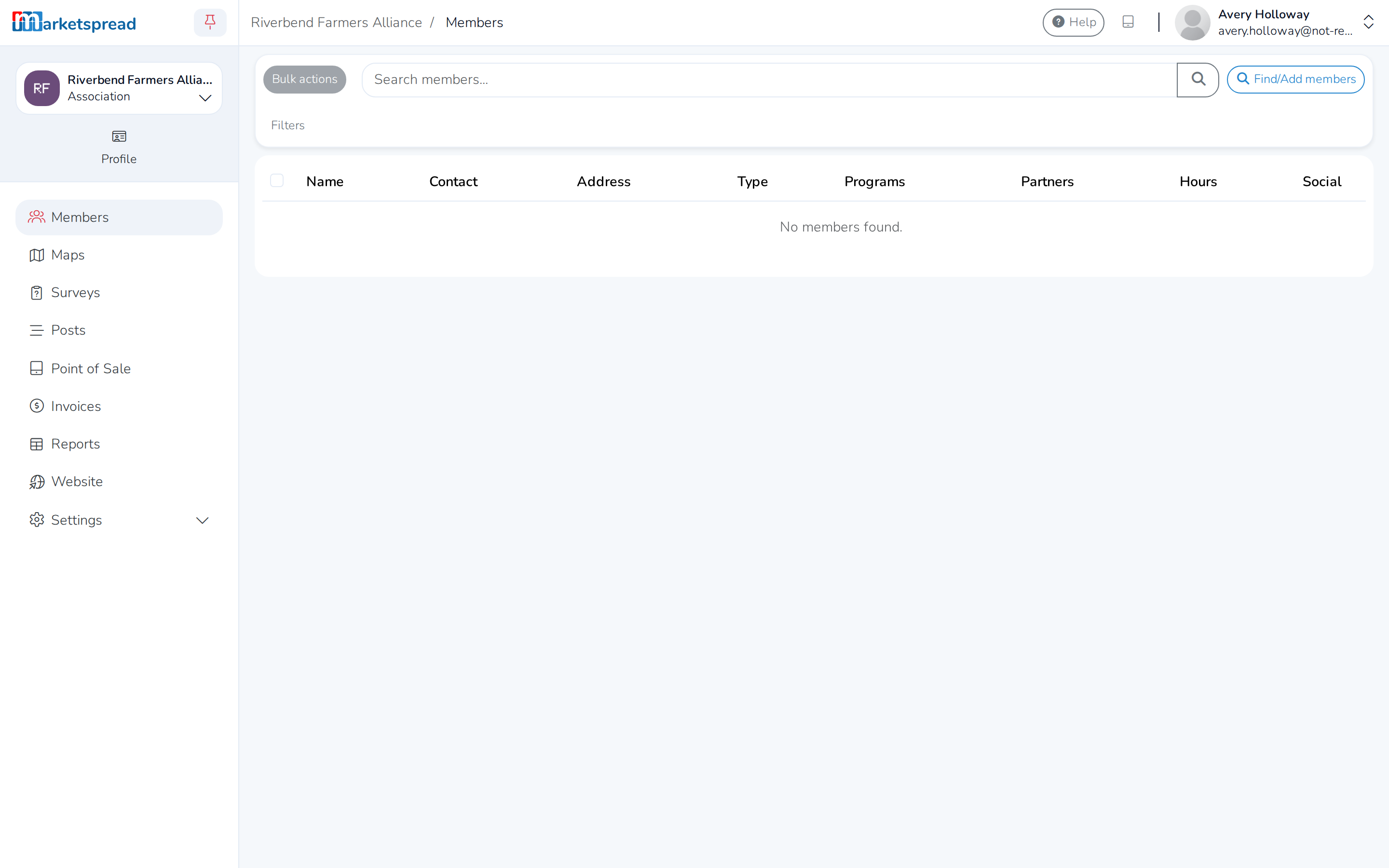
From here you can:
- Find and add markets or vendors already on Marketspread
- Create a market or vendor that isn't on Marketspread yet
- Import a list of members from a spreadsheet
- Update a member's profile — including one that hasn't claimed its own account yet
- Tag members or message them in bulk
- Build a map of your directory and embed it on your own website
Find and add a member
- Click Find/Add members.
- Marketspread lists markets and vendors near your association. To find a specific one, type its name in the search box and click the magnifying glass.
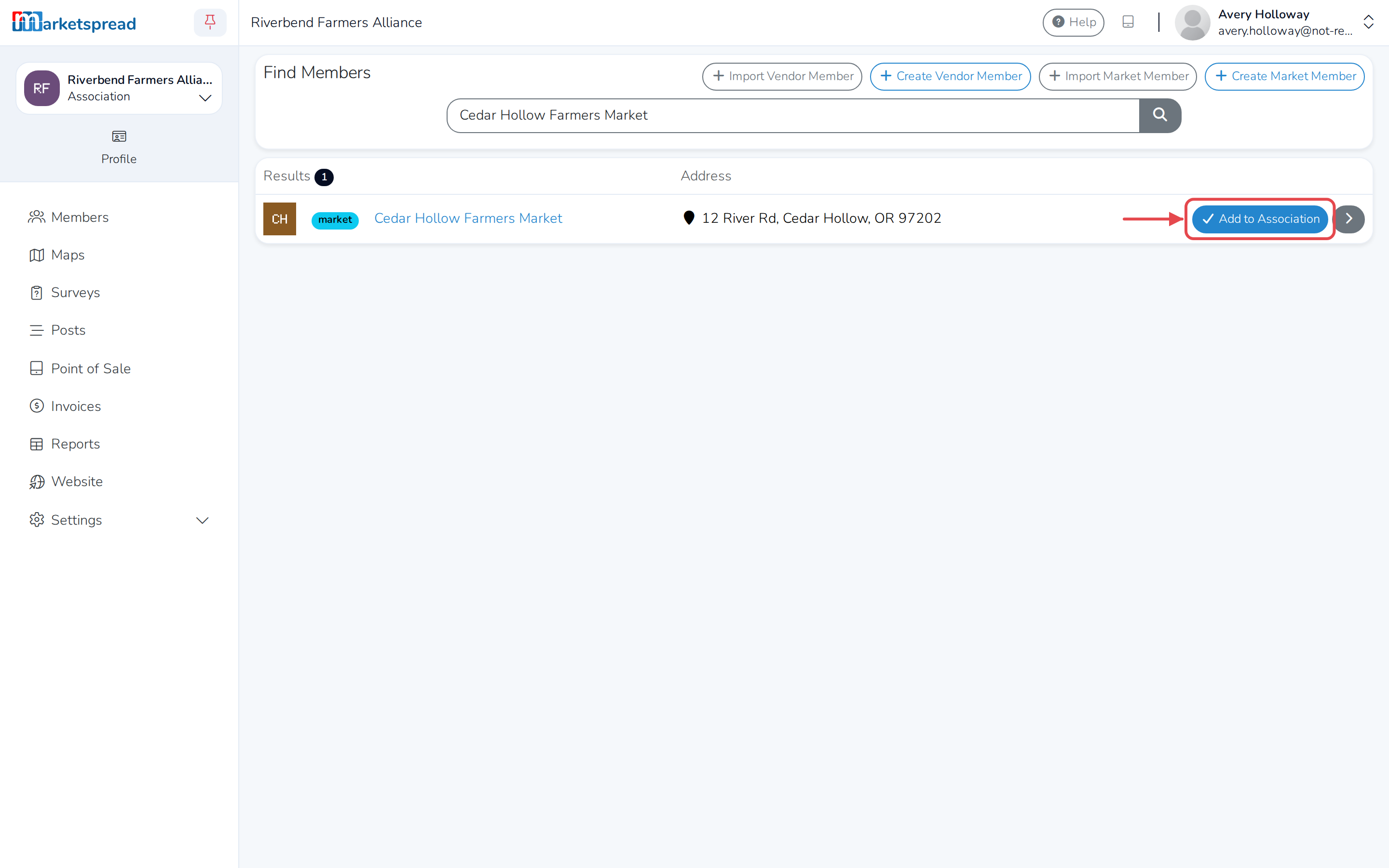
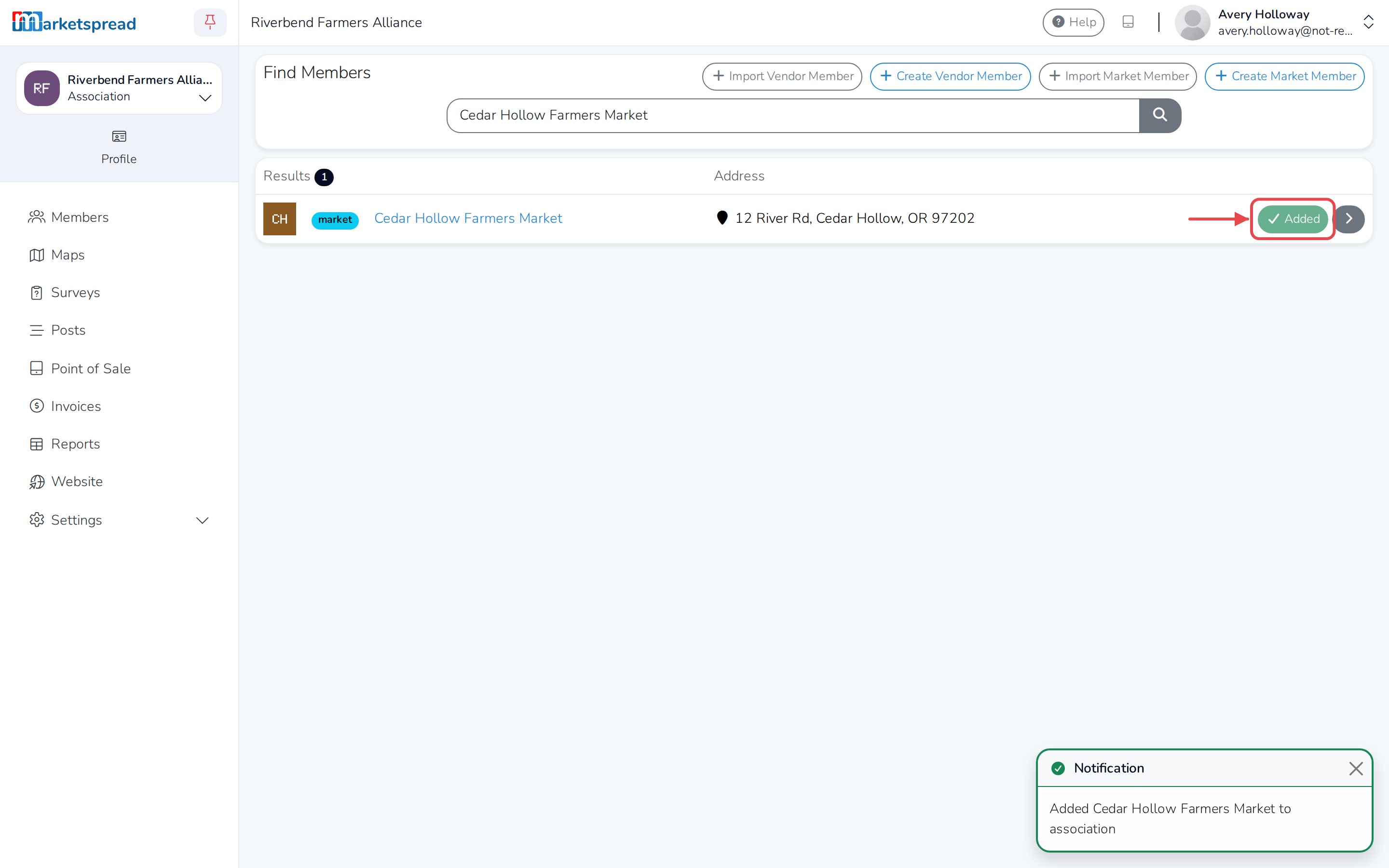
- Next to the one you want, click Add to Association.
The button changes to a disabled Added to confirm it worked.
Add a vendor that isn't on Marketspread yet
- On the Find Members page (click Find/Add members to get there), click Create Vendor Member.
- Enter the vendor's email address and click Next.
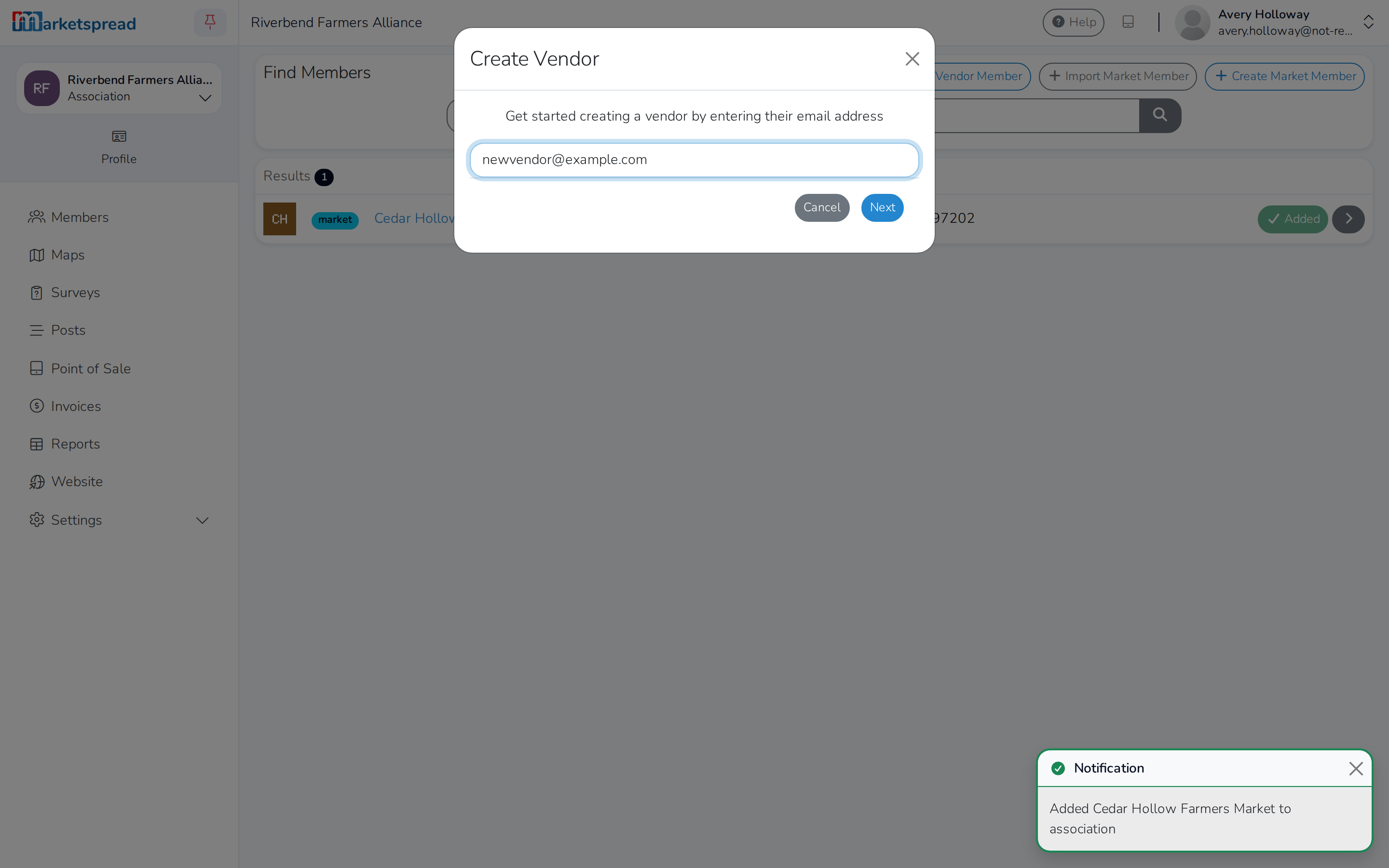
- If Marketspread finds a matching vendor, click Action next to it, then click the option to add it to your association.
- If no match is found, fill in Company Name, First Name, Last Name, Email, Mailing Address and Cell number.
- Click Save & Import to Association.
Create a market that isn't on Marketspread yet
- On the Find Members page, click Create Market Member.
- Choose a System Member Type, such as Farmers Market.
- Under Your Member Type, check any of your association's own member types that apply.
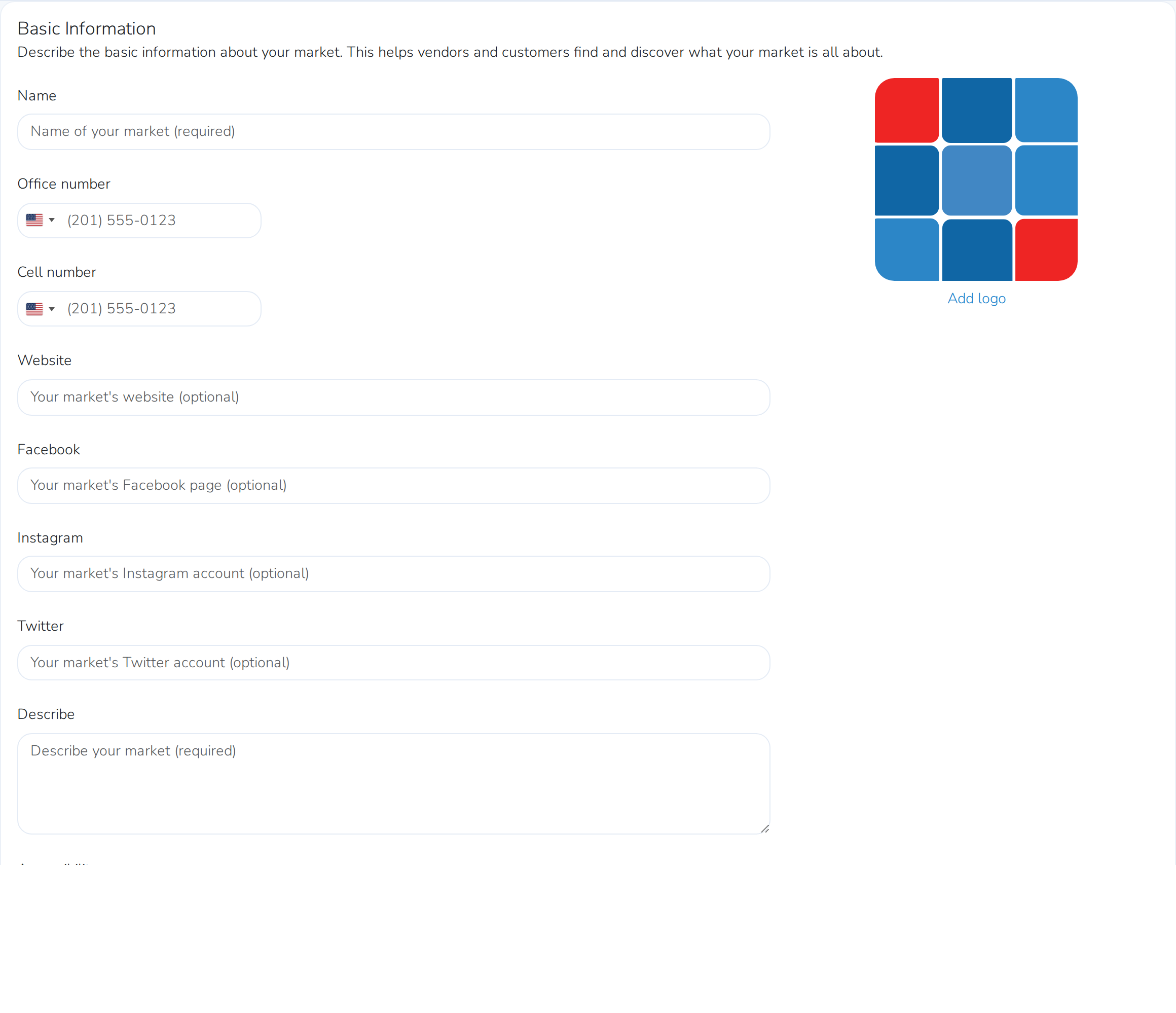
- Under Basic Information, fill in the market's Name, contact details and a description. Check any that apply under Accessibility: Wheelchair accessible, Pets allowed, Public Restrooms.
- Under Location Information, enter the market's Address and, optionally, a description of where it is.
- Click Save & Create.
Note
Marketspread adds the market to your directory as unclaimed. You can keep filling in and updating its profile until its own manager claims it.
Import members from a spreadsheet
- Click Find/Add members, then Import Market Member or Import Vendor Member.
- Click Download template and fill it in, keeping the columns as they are.
- Under Upload Members CSV, click Select import file and choose your filled-in file.
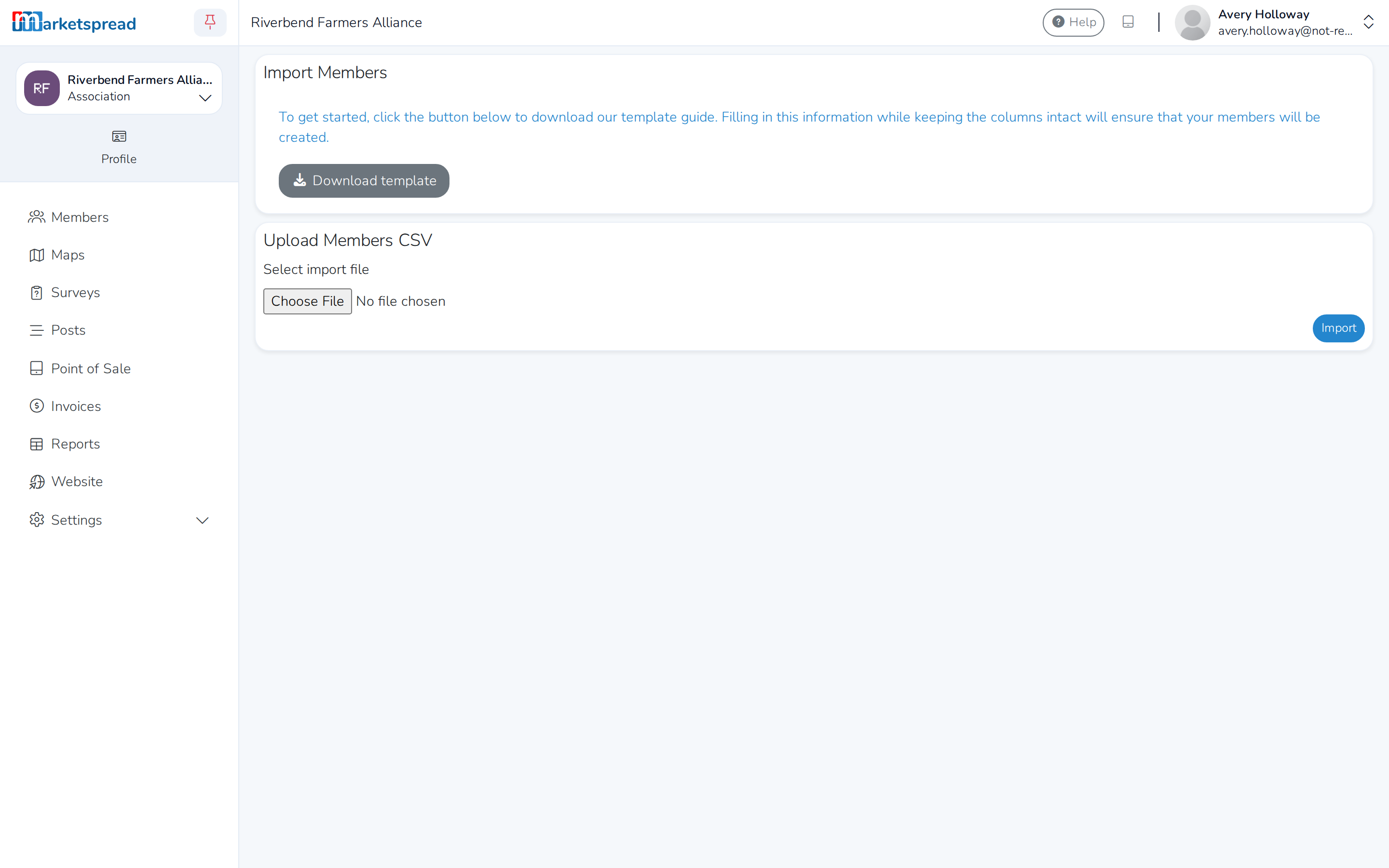
- Click Import.
Update a member's profile
- On the Members page, click a member's name.
- On the Overview tab, update its Name, Bio/Description, Location Description and Accessibility options, then click Save Profile.
- Click Contact & Location to manage its contacts and address. For a market, this also lists its Market Managers.
- Click Branding to add a logo or its website and social links.
- Click Classifications to set its member types, programs and partners.
- Click Forms to see or add forms for the member. Needs a premium subscription.
- Click Surveys to send the member a survey. Needs a premium subscription.
- Click Hours to set its operating hours.
Note
This works the same way for a member that hasn't claimed its own Marketspread account yet — you're filling in the profile on its behalf.
Tag or message members in bulk
- On the Members page, check the box next to each member you want.
- Click Bulk actions.
- Choose Tag Member or Set Member Type to update them, or Email Vendors or SMS Vendors to message them through Marketspread Messenger.
Build a map for your website
Your association's own public page already shows your directory and a map. To put that same map on your own website, build one to embed.
- Click Maps in the left-hand menu.
- Click Create New Map, or click the gear icon on an existing one to change it.
- Give it a Map Name.
- Under Display Options, choose what shows on each card — member cards, city, county, postal code, programs, partners, weekday and accessibility, among others.
- Under Member Types, choose which of your member types appear on the map.
- Under Tag Filters, add tags to Include Members Tagged or Exclude Members Tagged with.
- Click Save & Preview.
- Click the code icon. Copy the code from the box, or click the copy button next to it.
Paste that code into your website to show the map there.
Remove a member
- On the Members page, check the box next to each member you want to remove.
- Click Bulk actions, then Remove Member.
Caution
This removes the member from your association's directory. It does not delete the market or vendor's own Marketspread account.