


Turn on credit and debit card payments so vendors can pay their invoices with a card, instead of only by cash or check. It's set up once for your organization, and every market under it shares the same payout account. Setting it up needs some details about your business, its bank account, and the person responsible for it.
Turn on credit and debit card payments
- From your organization's dashboard, open Settings, then click Payment Methods.
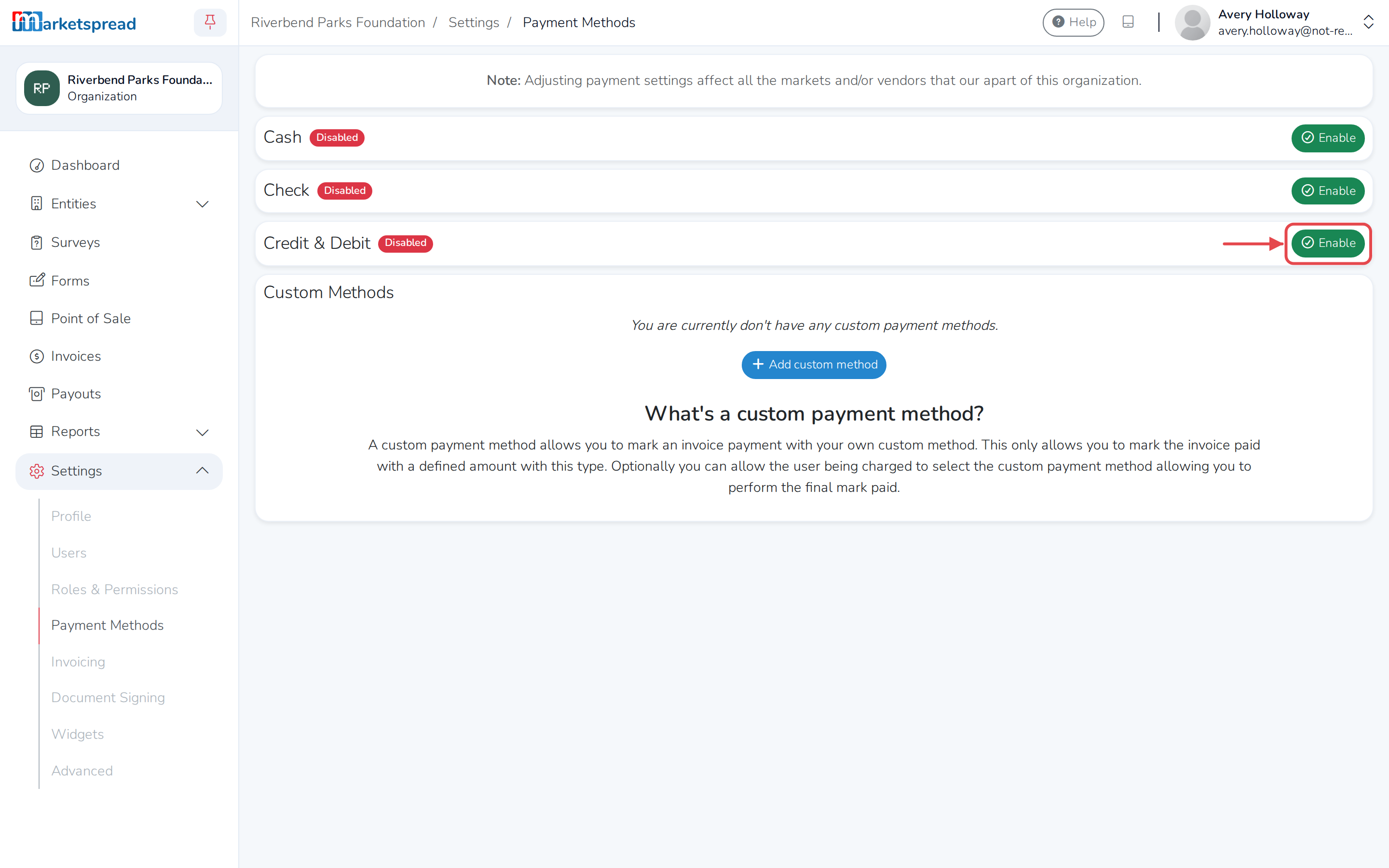
- Next to Credit & Debit, click Enable.
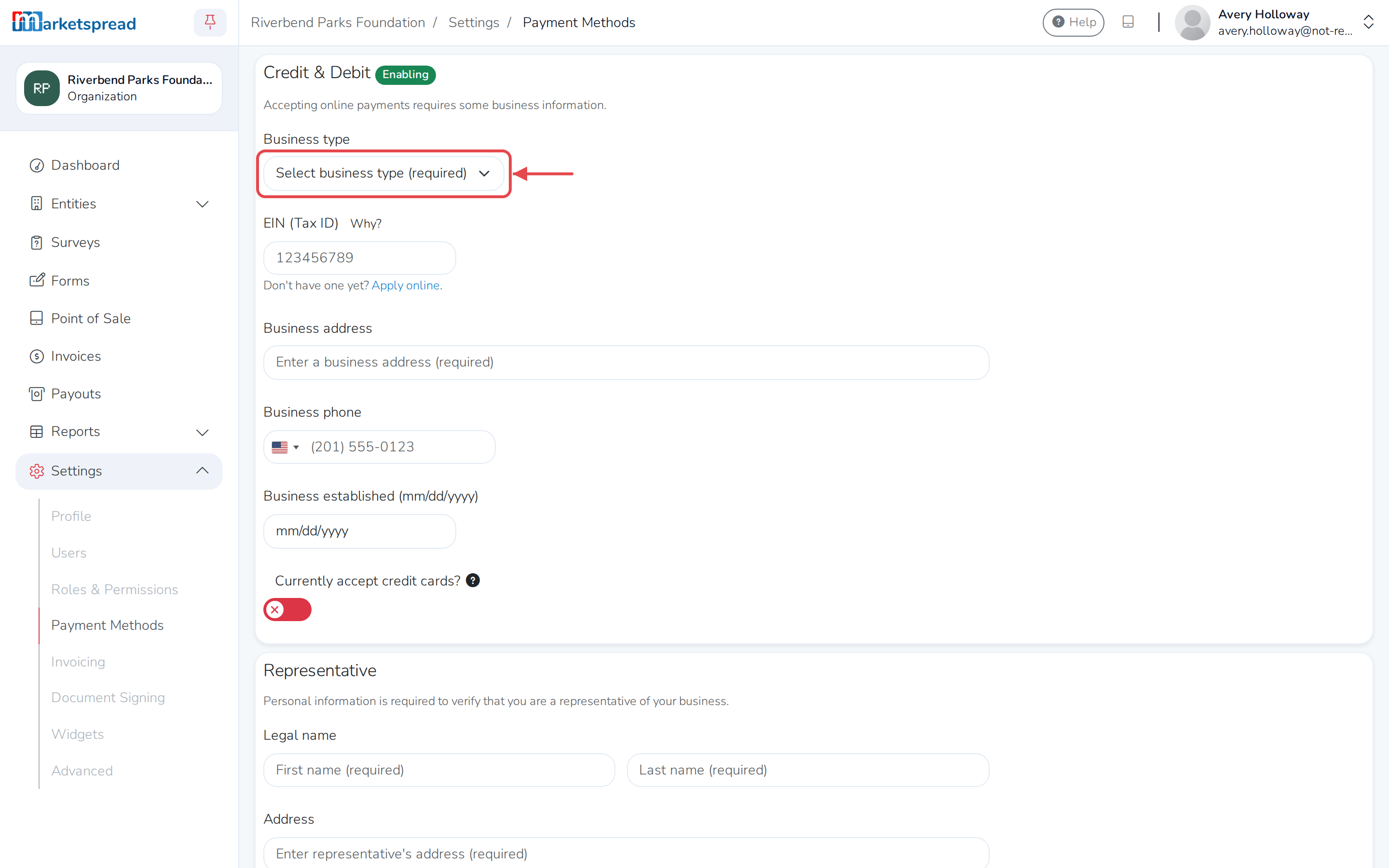
- Fill in your Business type, Legal name (unless you're a sole proprietor), Tax ID, Business address and Business established.
- Fill in the business representative's legal name and date of birth, plus their Social Security number and address (unless you're a sole proprietor).
- Fill in your bank's Routing number, Account number and Confirm account number. It must be a checking account.
- Agree to Payrix's Terms of Service.
- Click Enable.
Note
If your account is outside the United States, clicking Enable takes you straight to Stripe's own sign-up instead of this form.
Note
Once you submit, you can't come back and change these details from this form. Contact Marketspread support if you need to update them afterward.
On the Payment Methods page, Credit & Debit shows Verifying while your application is reviewed, then changes to Enabled once it's approved, or Declined if it isn't.
Turn off credit and debit card payments
- On the Payment Methods page, next to Credit & Debit, click Disable.
- Click Disable again to confirm.
You need at least one payment method turned on, so Disable isn't there if this is your only one.