


Your organization's Users page lists everyone who can sign in and work on it, and what they can access. Open Settings, then Users. Only the organization's owner, or someone with an Administrator or Manager role, can get here.
From here you can:
- Add someone
- Update a user's role or details
- Remove someone
- Transfer ownership of the organization
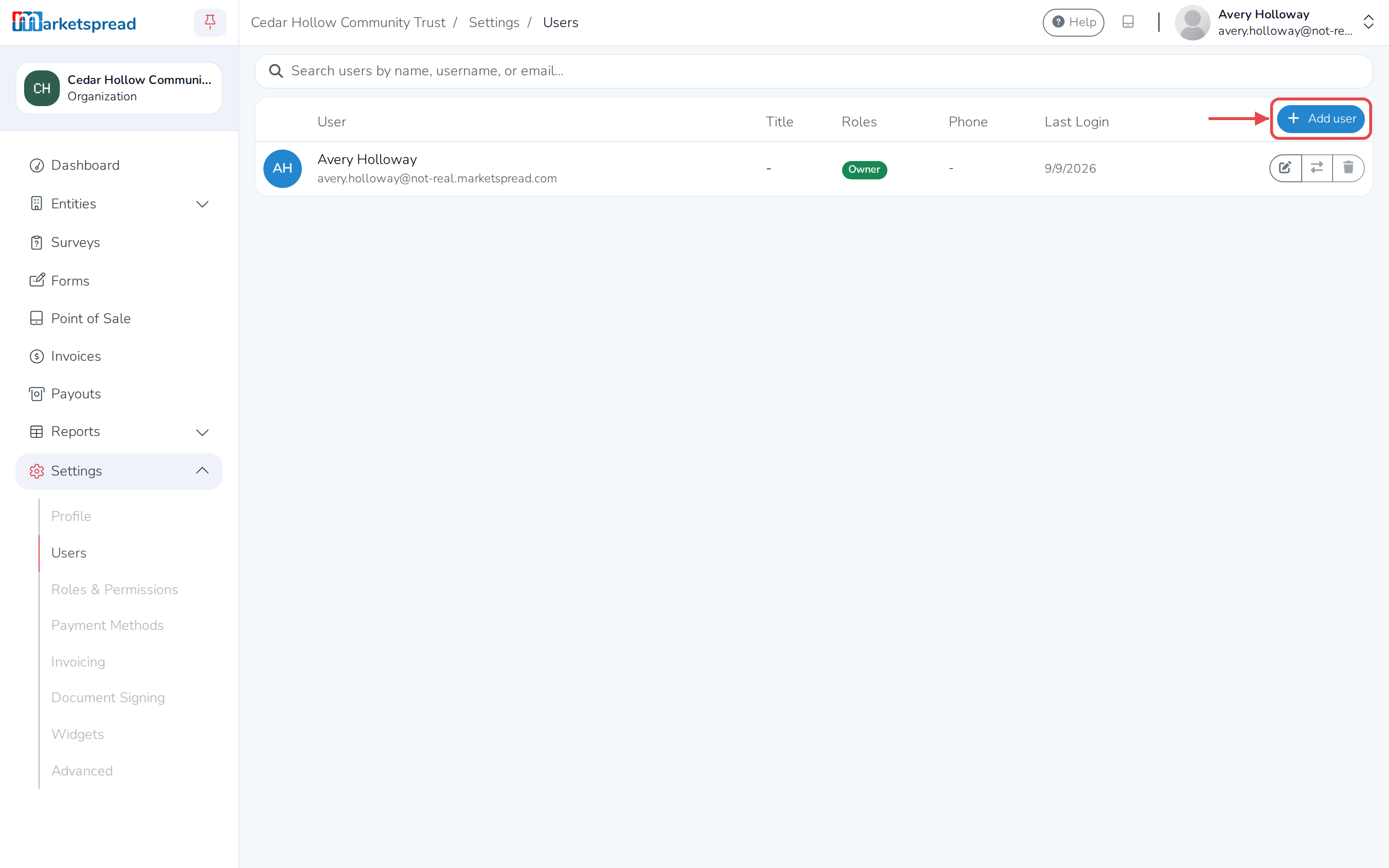
Add a user
- Click Add user.
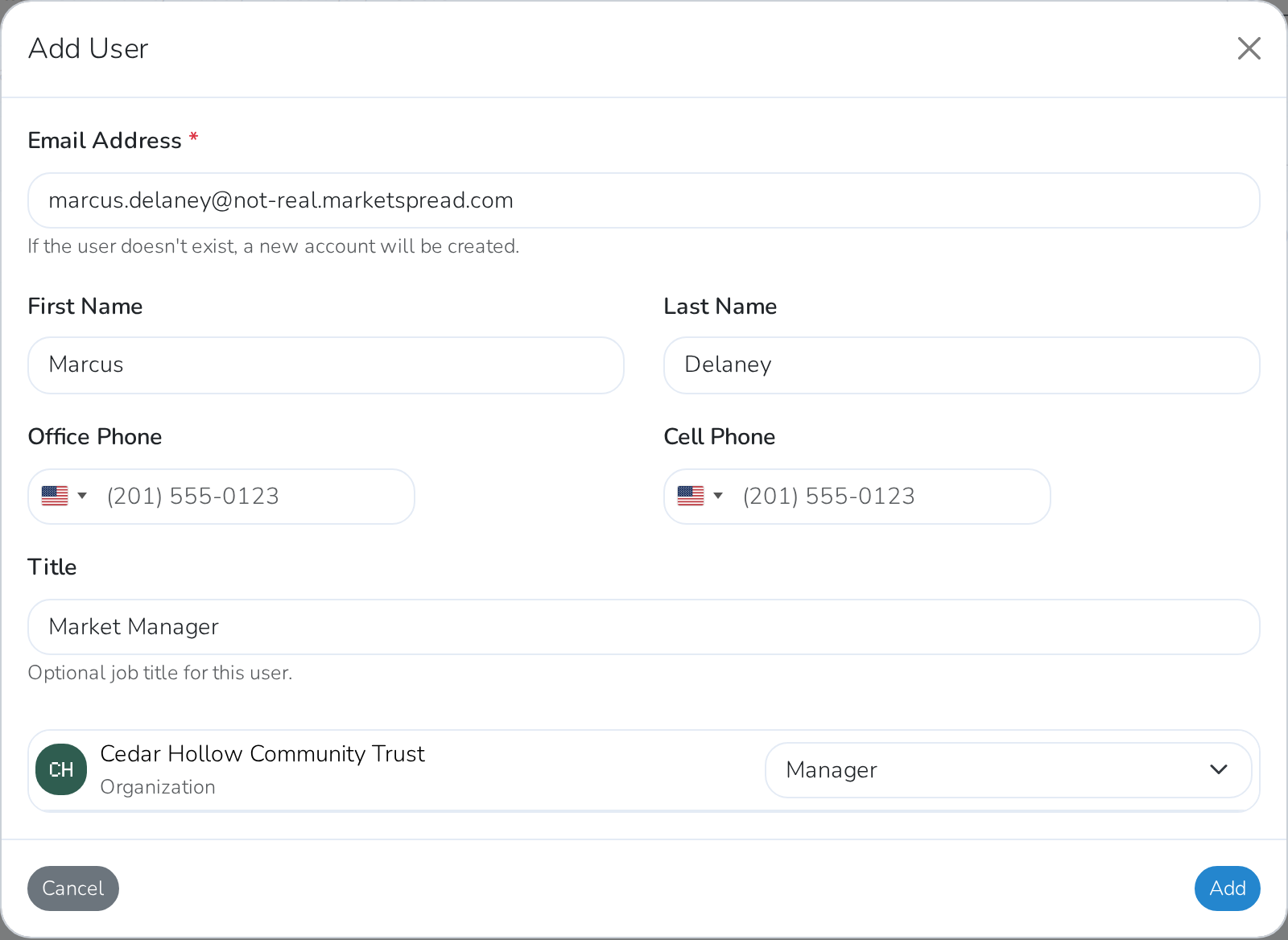
- Fill in their Email Address. If they don't already have a Marketspread account, one is created for them.
- Fill in their First Name and Last Name.
- Add their Office Phone or Cell Phone (optional).
- Add a Title, like "Market Manager" (optional).
- Choose a role for each part of your organization they need access to. Leave a row as No role assigned to leave it out.
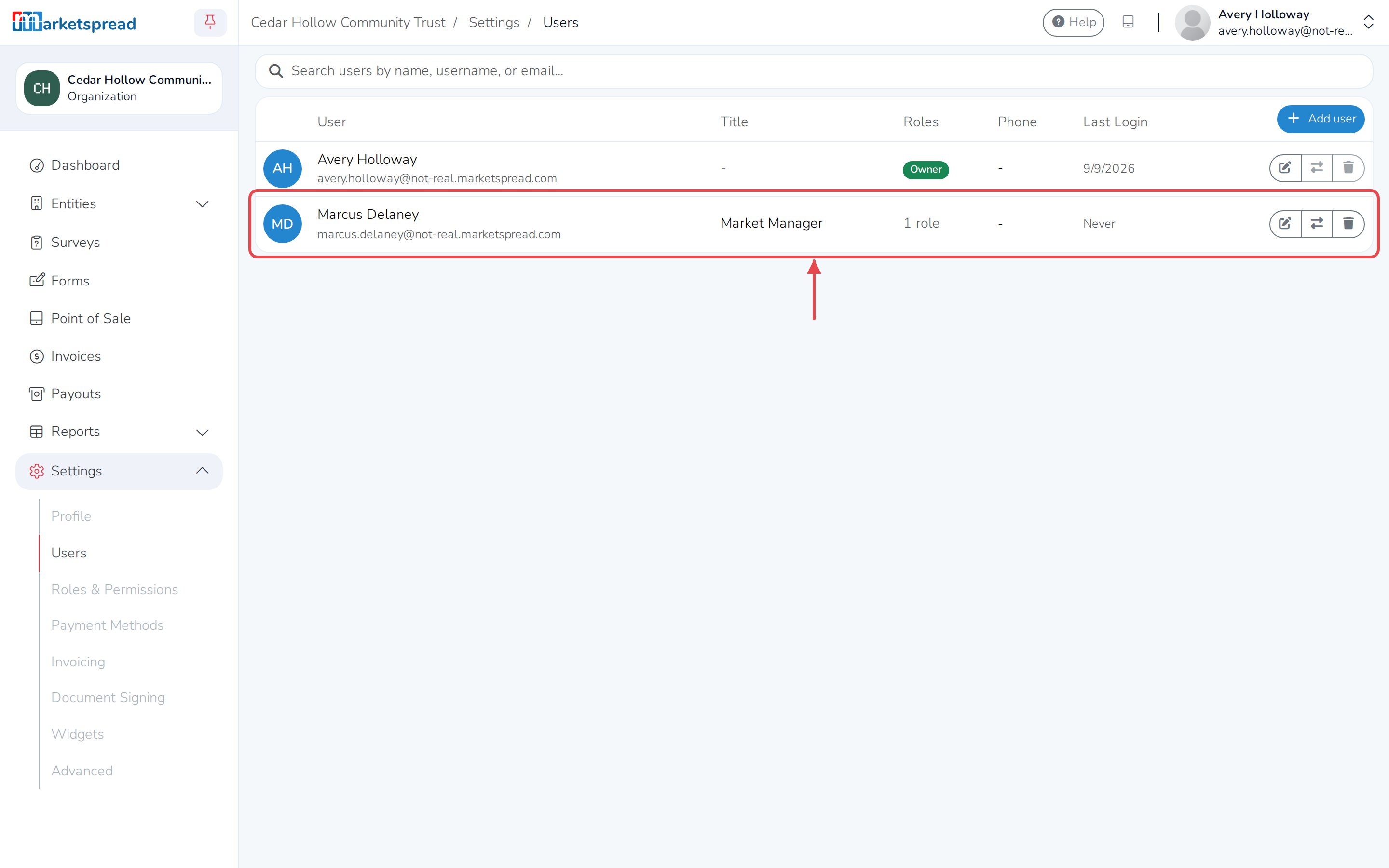
- Click Add.
Update a user's role or details
- Click the pencil icon next to their name.
- To change what they can access, choose a different role from the dropdown.
- To update their contact details, change their Office Phone, Cell Phone or Title.
- Click Save.
Note
You can't change someone's email. Once they've signed in for the first time, you can't change their name or phone number either.
Remove a user
- Click the trash icon next to their name.
- Click Delete to confirm.
This removes all of that person's role assignments and can't be undone. You can't remove the organization's owner.
Transfer ownership of the organization
Transferring ownership hands full control of the organization to someone else — you won't be the owner anymore. Only the current owner can do this, and only for someone who has already signed in at least once.
- Click the exchange icon next to their name.
- Type TRANSFER to confirm.
- Click Transfer.