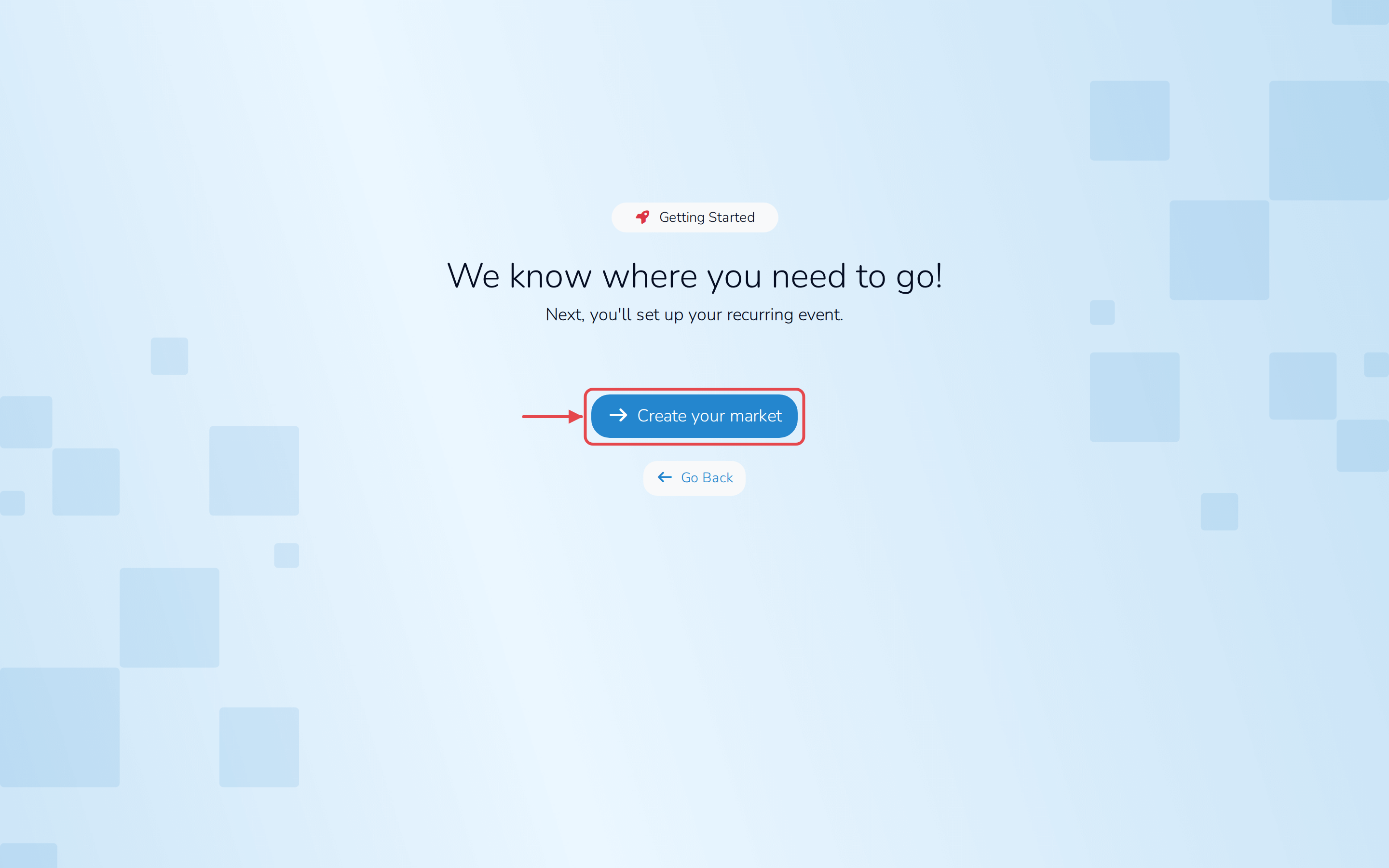
Every Marketspread feature starts with one personal account. You sign up with your name, email and a password, then tell us what you'll use Marketspread for so we can take you to the right place next.
Sign up for an account
-
Go to marketspread.com and click Sign Up, in the top right.

-
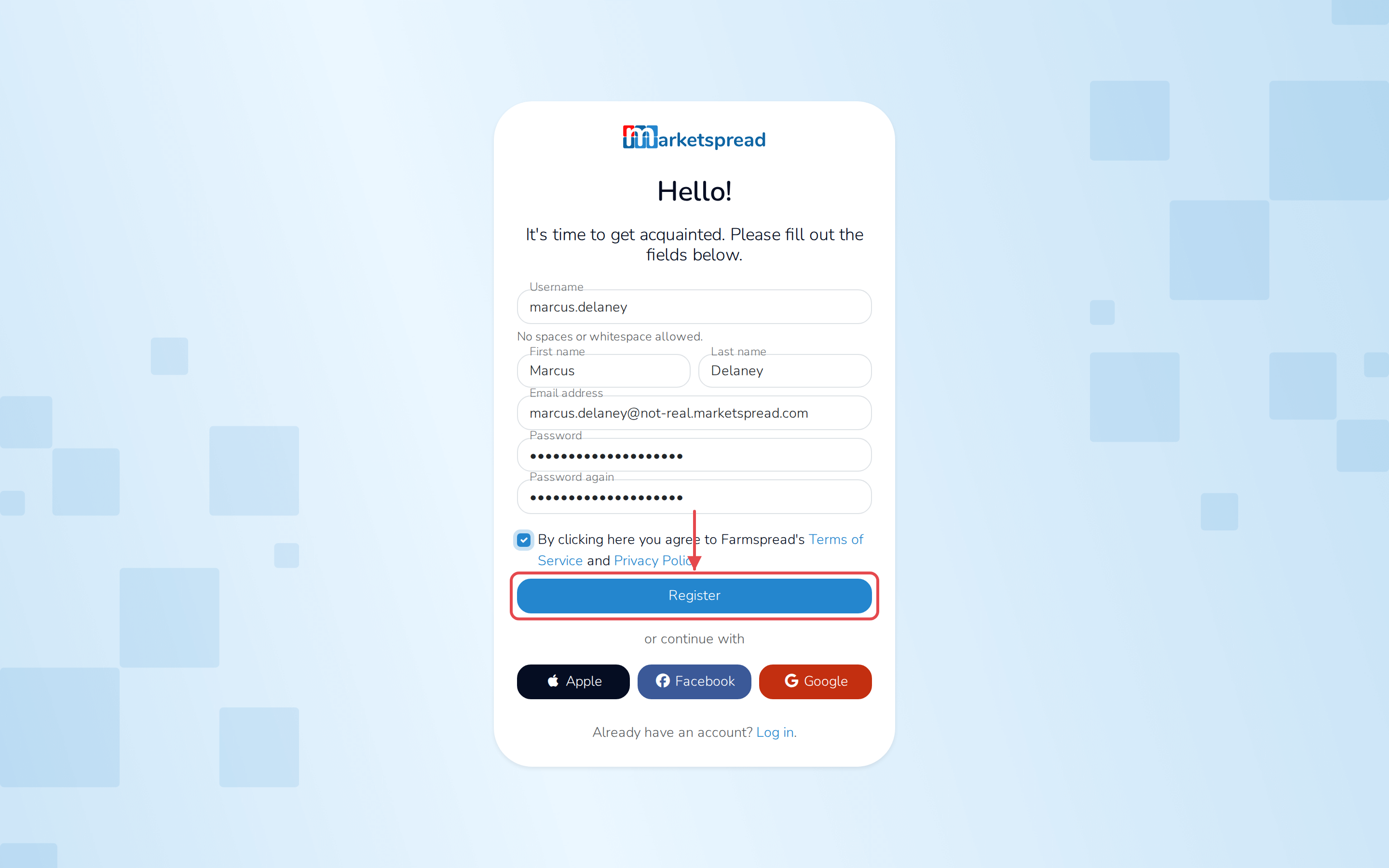
Fill in Username, First name, Last name, Email address, Password and Password again.
-
Check the box to agree to the terms of service and privacy policy.
-
Click Register.
Note
You only need one account. Once you're signed in you can add more than one market, vendor or venue to it.
Choose what you'll use Marketspread for
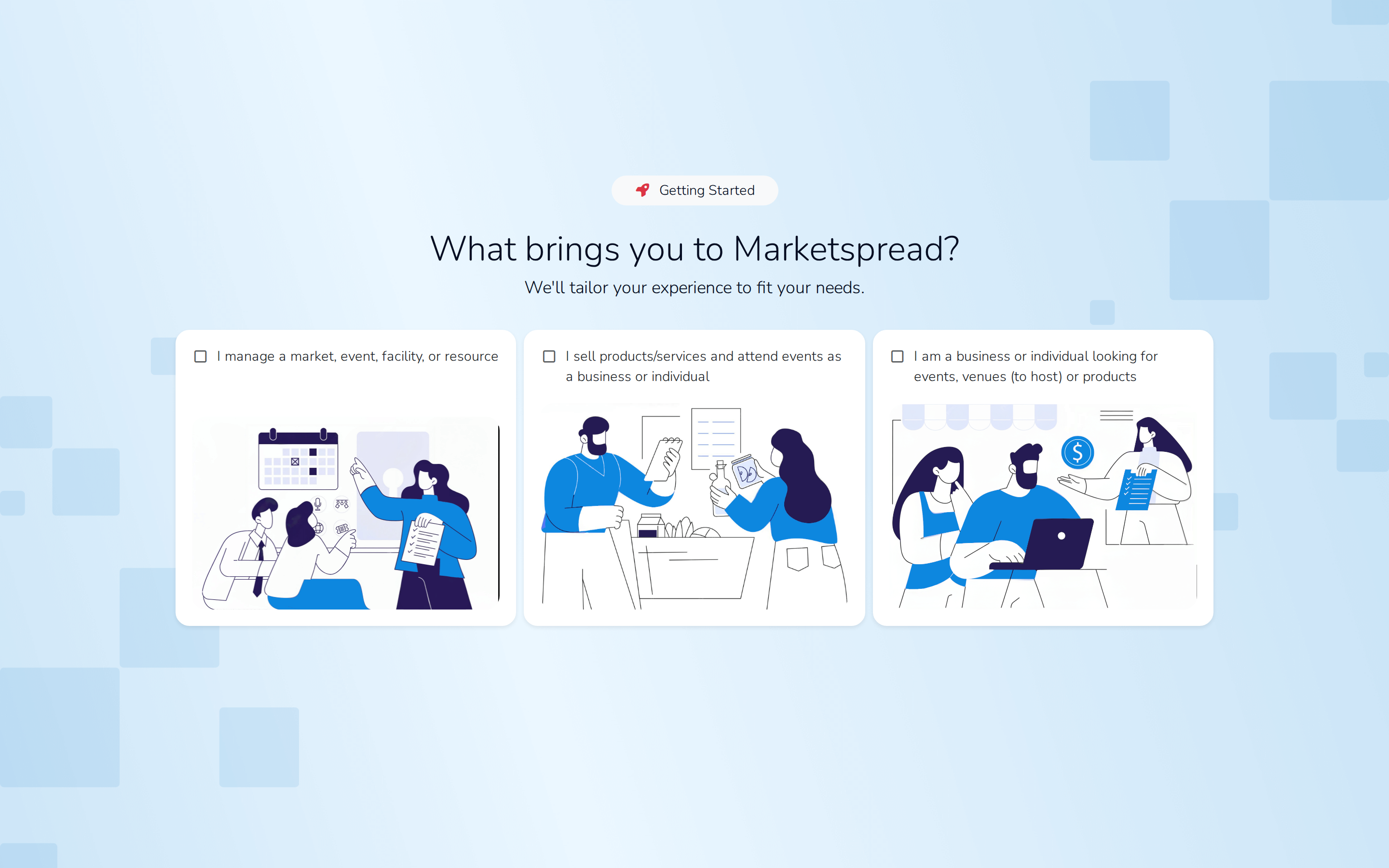
After you register, you land on the Get started page.
-
Choose the option that matches you:
- I manage a market, event, facility, or resource
- I sell products/services and attend events as a business or individual
- I am a business or individual looking for events, venues (to host) or products
-
Click Next.
-
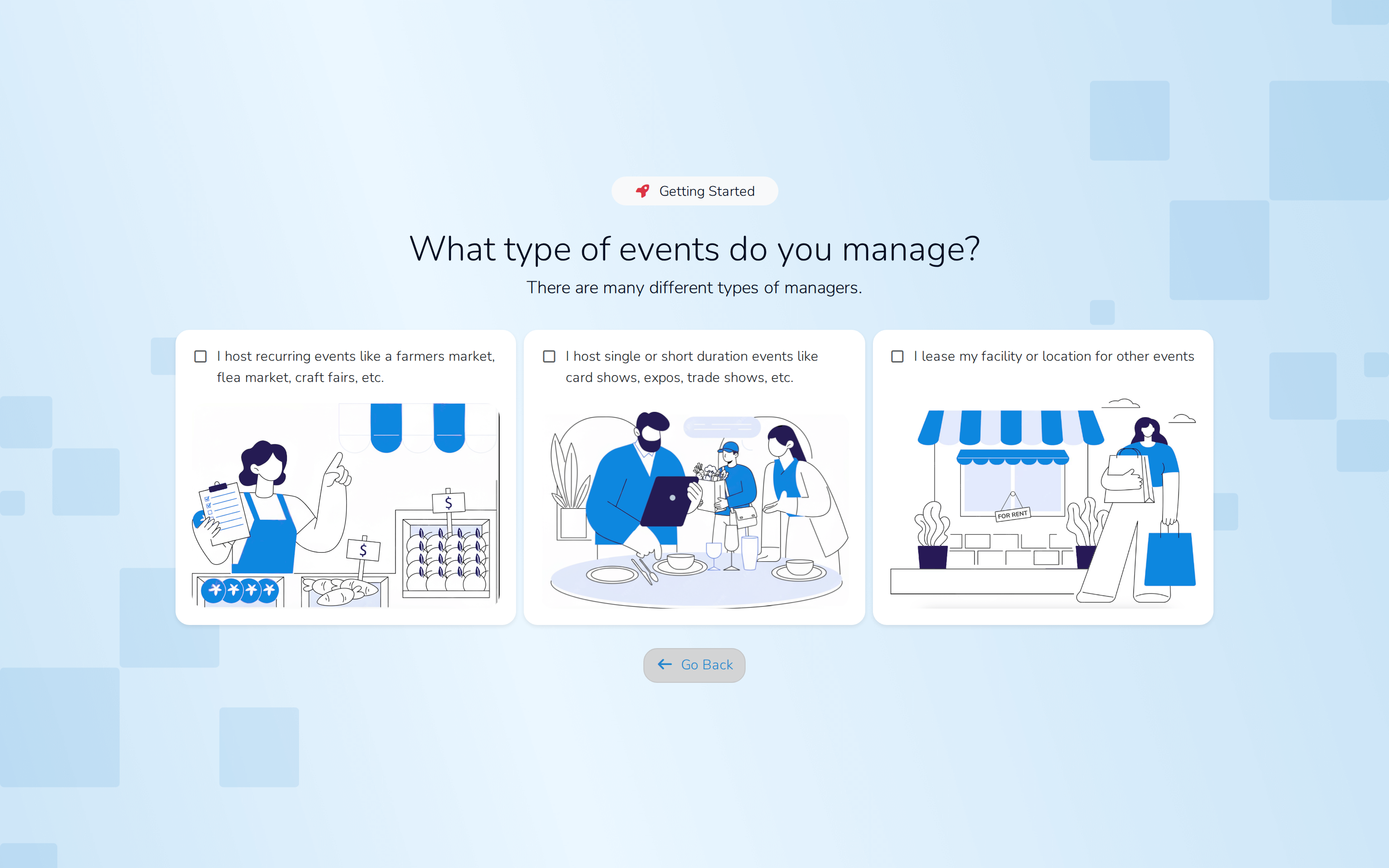
If Marketspread asks a follow-up question, choose the option that matches you, then click Next again.
- If you're managing something: I host recurring events like a farmers market, flea market, craft fairs, etc., I host single or short duration events like card shows, expos, trade shows, etc., or I lease my facility or location for other events.
- If you're selling: I am a business/vendor or I am an individual.
-
Click the button Marketspread gives you next — it matches what you picked, like Create your market, Build your profile or Start browsing events — to set up your profile.