


Marketspread emails you when something happens at a market or vendor you manage — a new order, an application, an unpaid invoice. You choose which of your markets and vendors those emails come from, in your profile.
Turn notifications for a market or vendor on or off
-
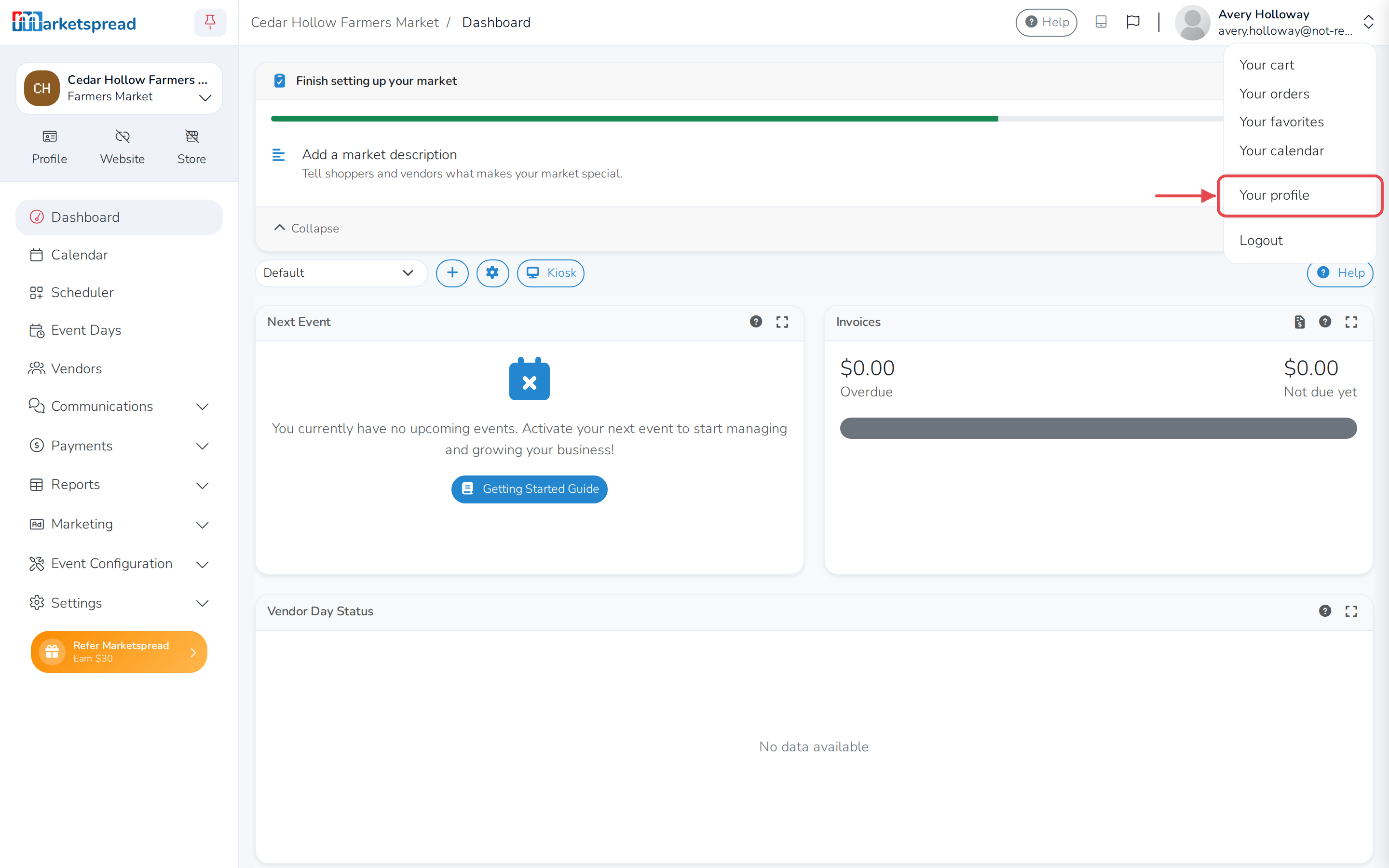
Click your profile photo in the top right corner, then click Your profile.
-
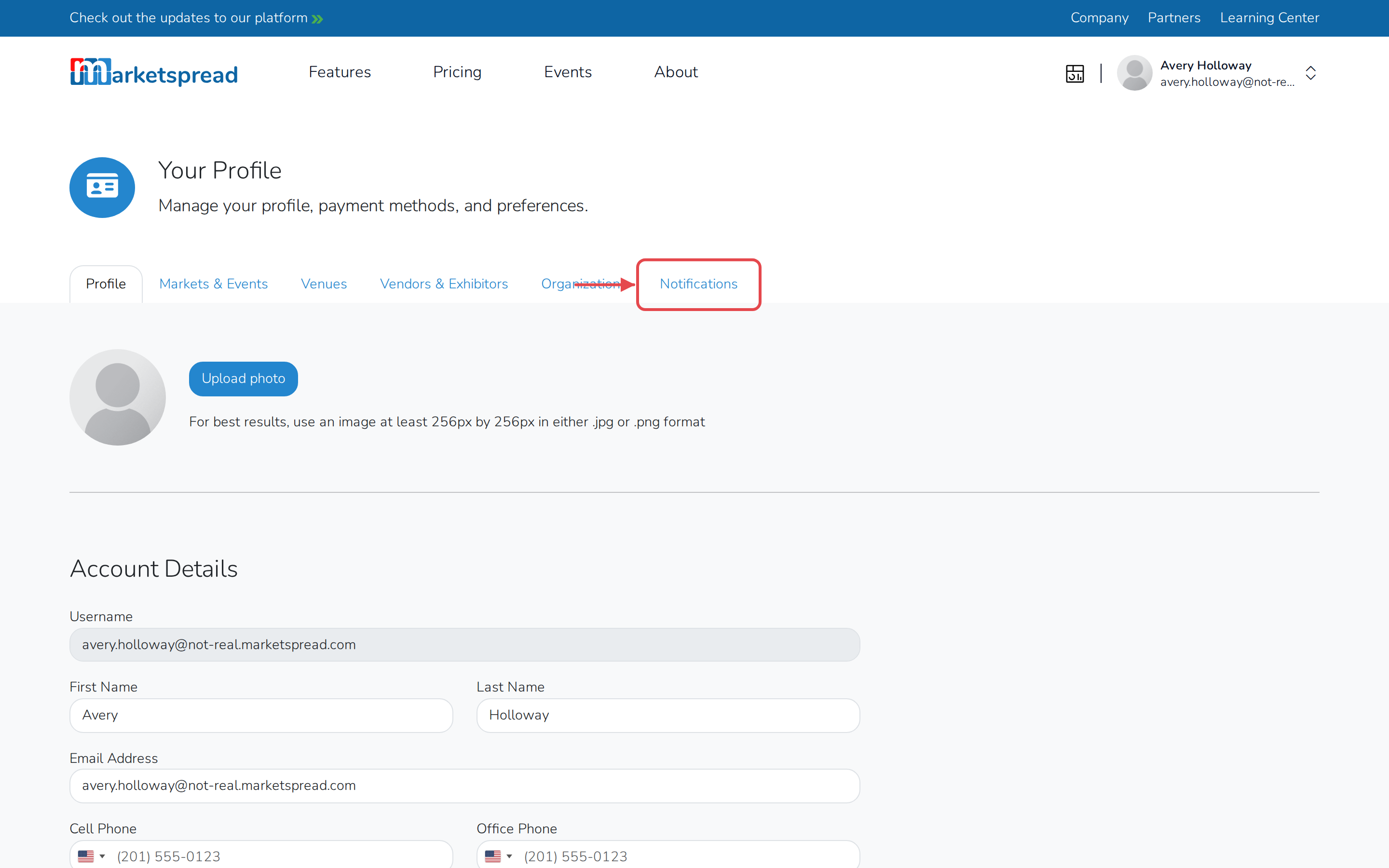
Click the Notifications tab.
-
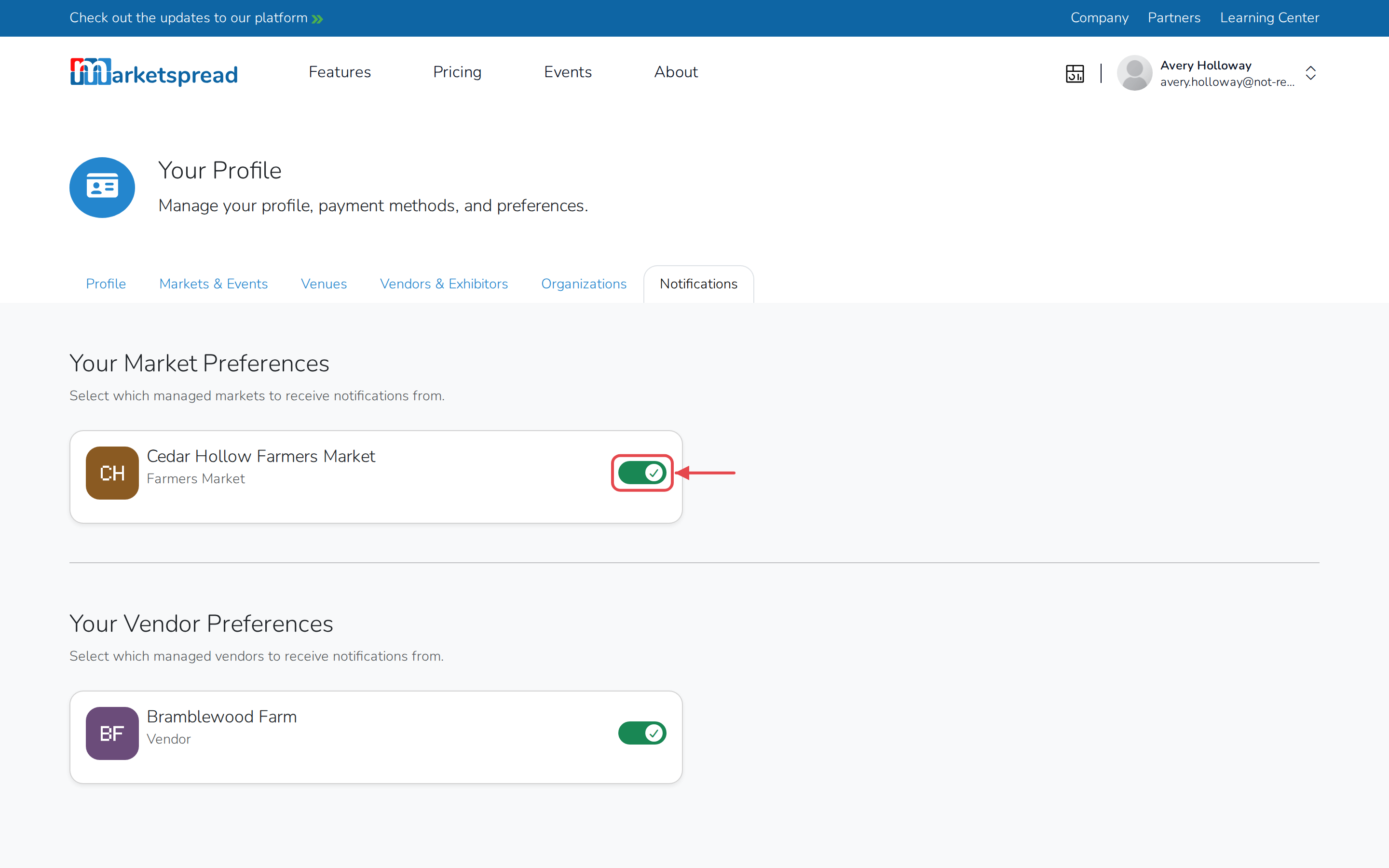
Find the market or vendor under Your Market Preferences or Your Vendor Preferences.
-
Use the switch to turn its notifications on or off.
Good to know
Turning a market or vendor's notifications off only stops the email. The notification still shows up under Notifications in that market or vendor's dashboard, so anyone else managing it can see it there.
If more than one person manages a market or vendor, this only changes what you receive. Everyone else keeps their own setting.
Your role on a market or vendor can also stop you from getting these emails. If your role doesn't include email notifications, turning this switch on won't change that — ask an admin on your team to check your role.
You can only manage notifications for your own account. If someone else on your team needs different settings, they change them from their own profile.