


Credit card (manual entry) charges a card by typing in its number,
instead of tapping, dipping or swiping it. Use it when you don't have a card
reader with you, or a customer's card won't read any other way. You'll need
card payments turned on for your account first — see
Get started with Point of Sale as a vendor.
Charge a card manually
-
With everything added to the cart, tap Checkout.
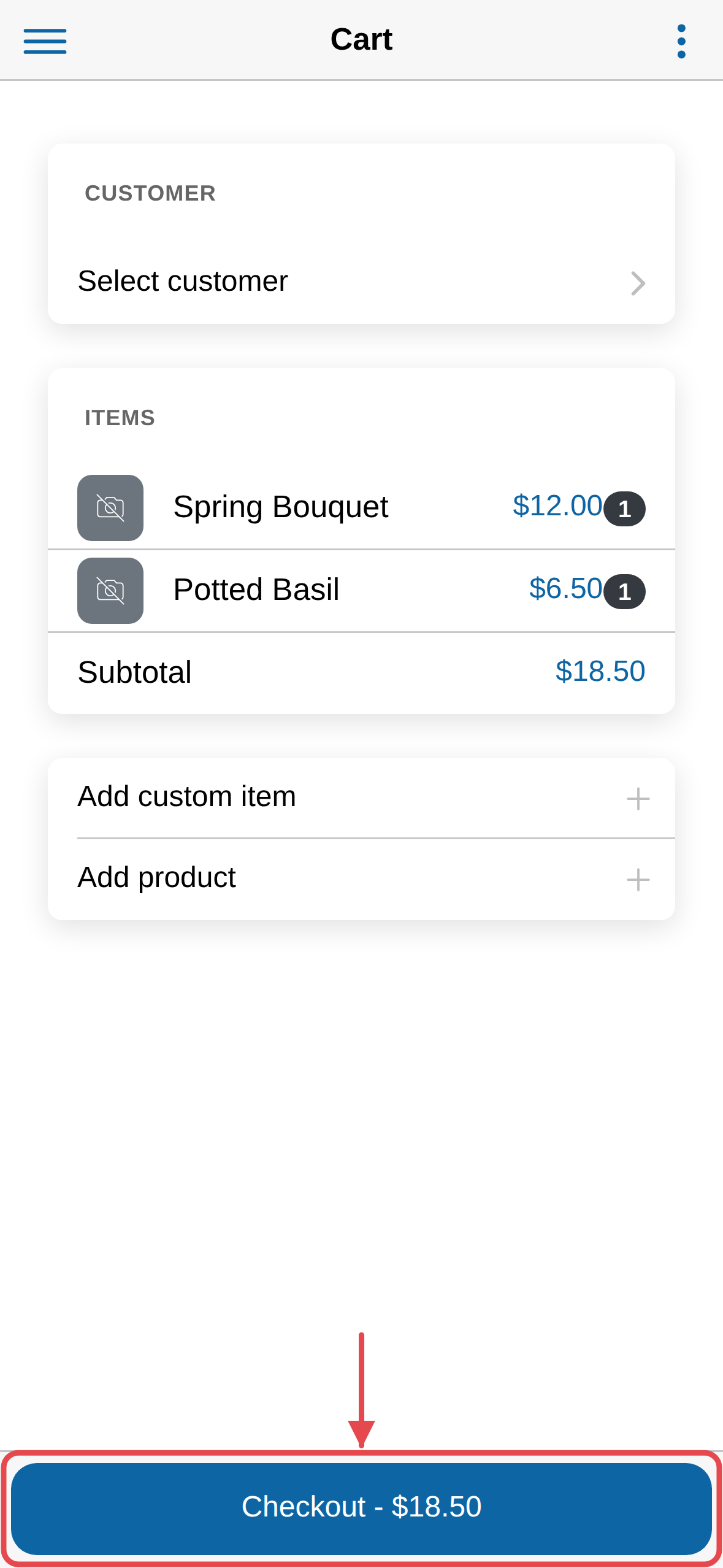
On a market's POS, pick a customer first
Checkout won't tap through until you choose one with Select
customer, above the cart. On a vendor's POS, picking a customer is
optional. -
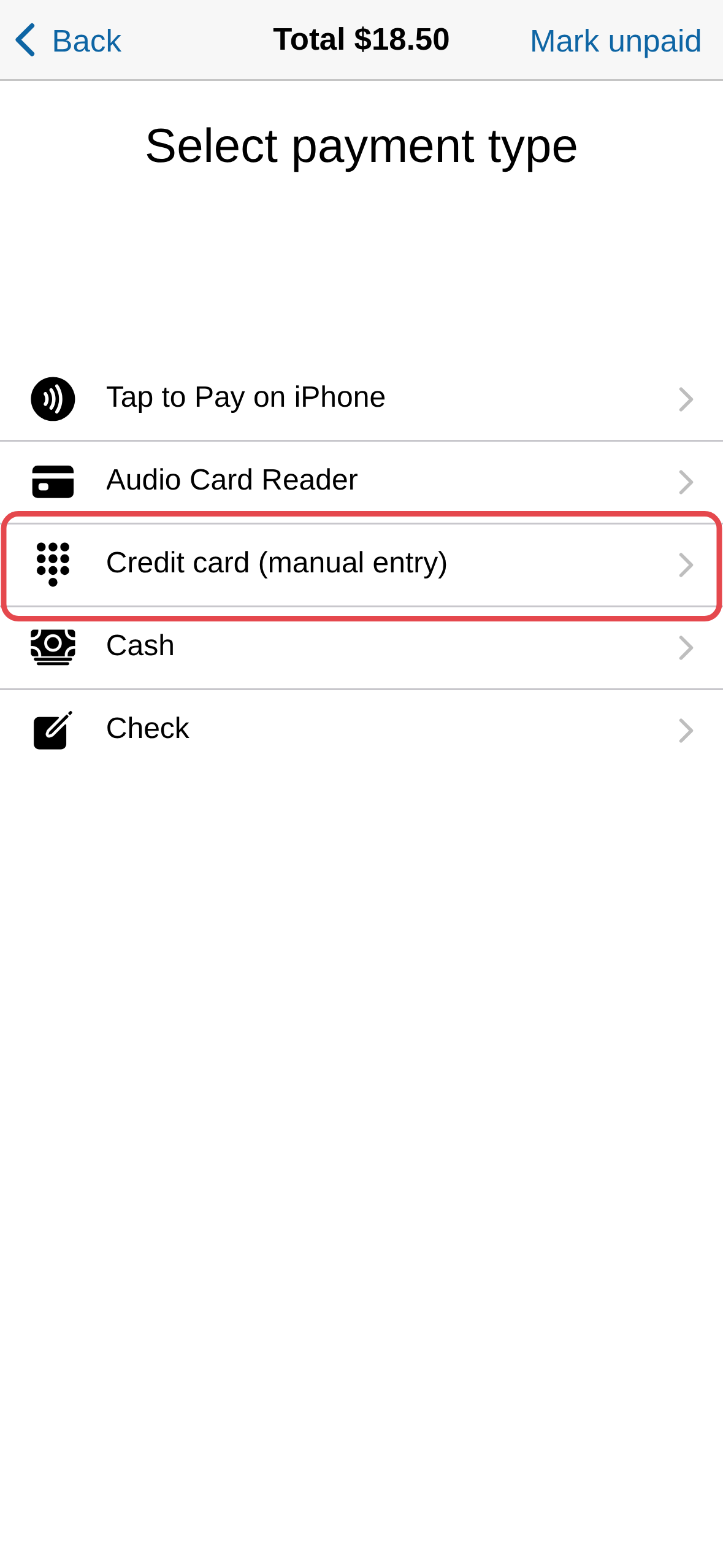
On Select payment type, tap Credit card (manual entry).
-
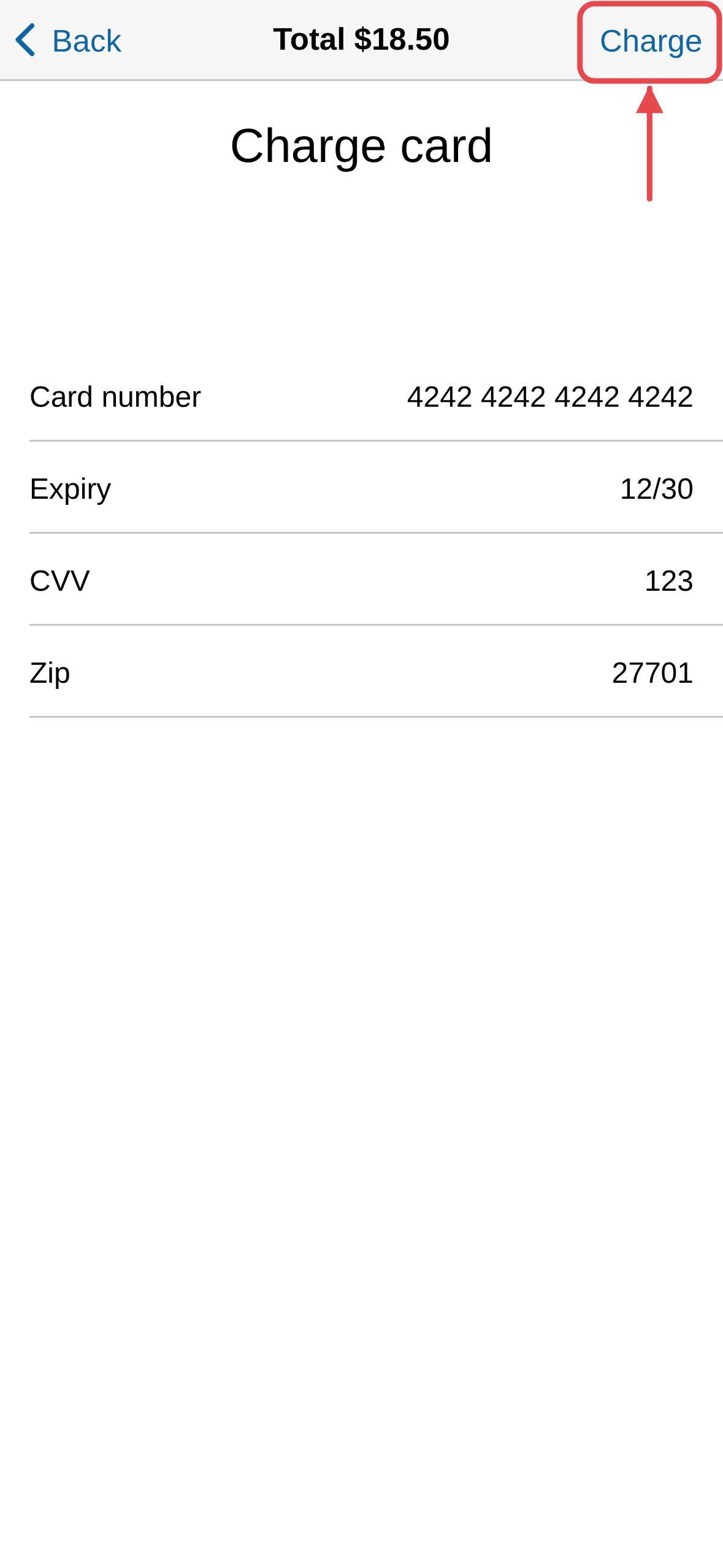
On Charge card, fill in Card number, Expiry, CVV and
Zip. -
Tap Charge, top right.
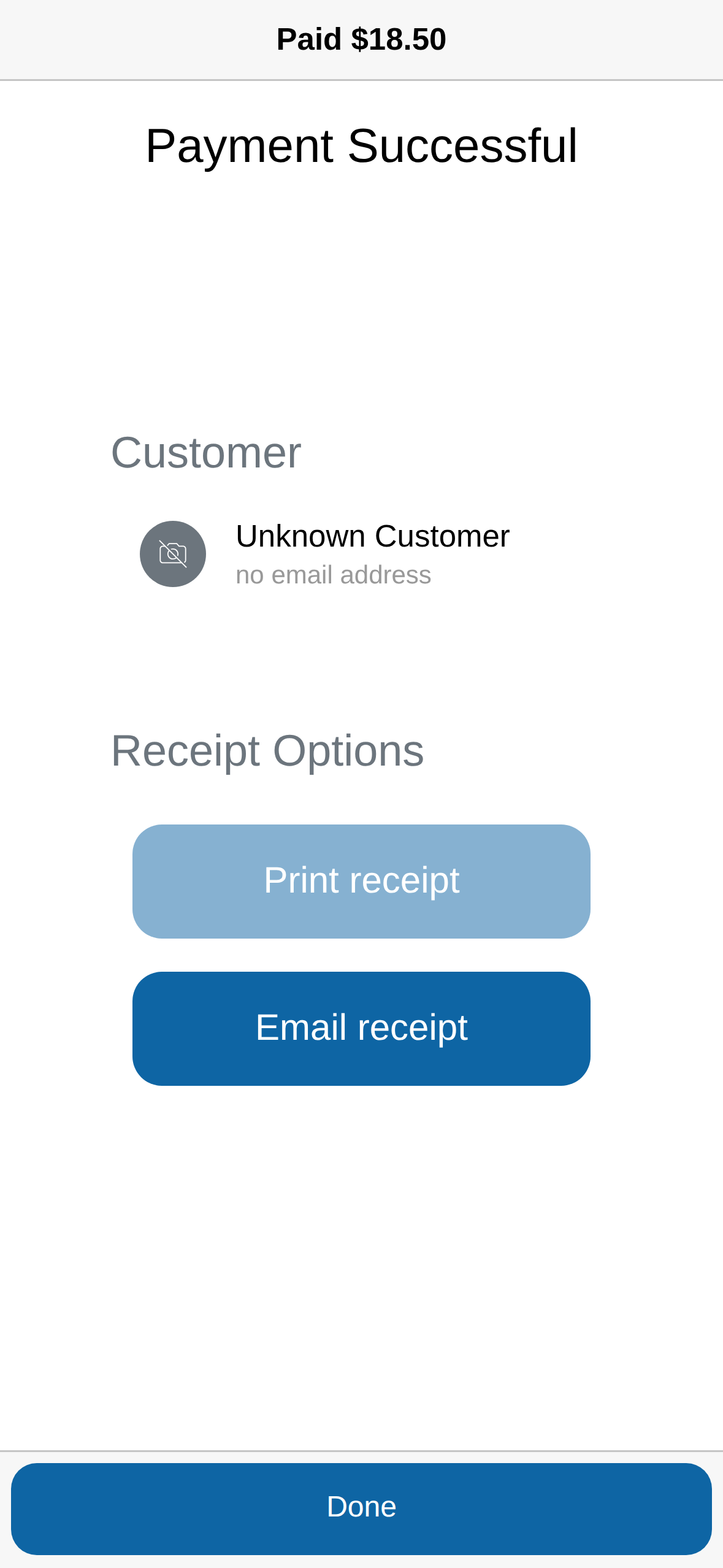
The screen shows Payment Successful once the card is charged, with
Print receipt and Email receipt to send the customer a copy.
Good to know
- If your account adds a surcharge for manually entered cards, it's added
to the total and shown on the Charge card screen before you charge it.
It isn't refunded if you refund the sale. - If the card is declined, you'll see a "Transaction Failed" message. Check
what you typed and try again.