


Extended Vendor Details allows you to create your own custom database of data you would like to track against your vendors and exhibitors. The details are stored in key / value pairs where you pre-define the data keys that can be used to track data against every one of your vendors and exhibitors.
Creating Vendor Detail Keys
To get started lets create your first vendor detail key.
Vendor Details are created under Settings->Customizations.
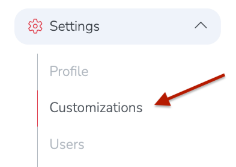
Extended Vendor Details can be found at the bottom of the Customizations page. By default there are no vendor detail keys.
To create a key simple click the blue "+ Add Your First Detail" button.

Then, add the name of the detail key you want to create. In the example below we are creating a detail key called "Emergency Contact Name". When done click the blue "Add detail" button to save it.
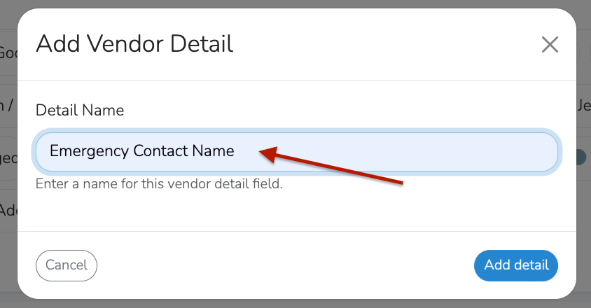
The newly saved key will appear in the main Extended Vendor Details list.

Note
You can add as many Extended Vendor Detail keys as you would like under Settings -> Customizations. Every key you add will be available for all vendors in their vendor record.
Accessing Extended Vendor Details
Once a key is created it will appear in the Details page of each of your vendor records. Below you can see our Emergency Contact Name key for Sunny Valley Farm.
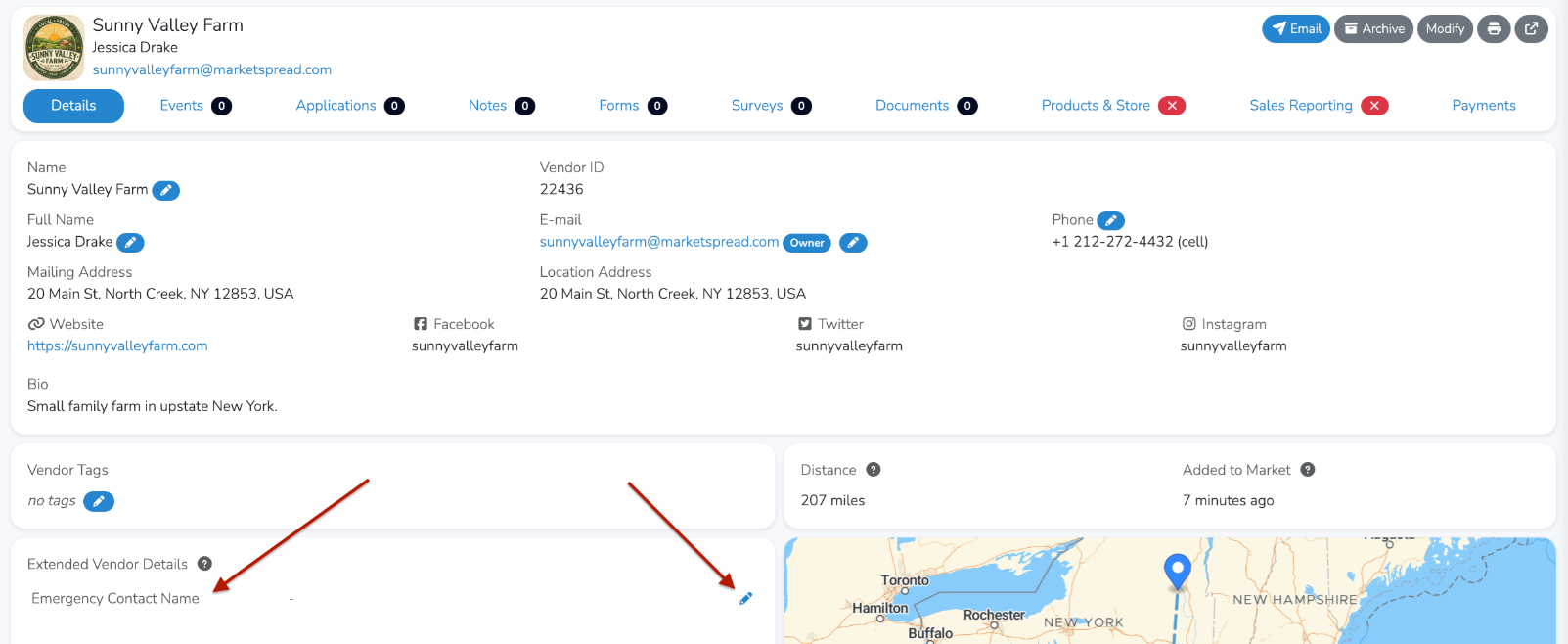
To edit the key click on the blue pencil icon to the right of it then enter the value you would like to track and click the blue "Save" button.
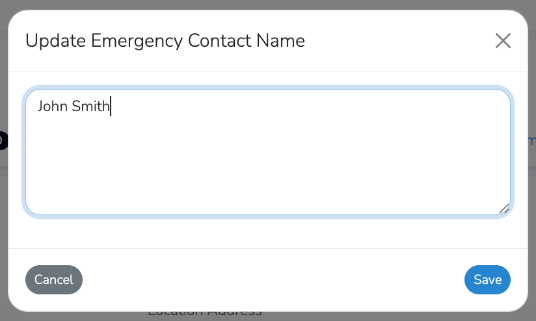
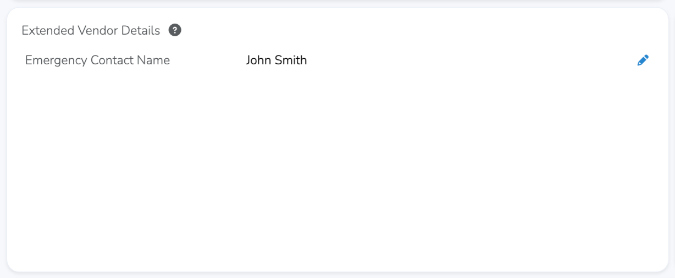
The key's value will now show as follows.
Note
Extended Vendor Data is 100% private to your and your team. Vendors and/or the public will not see them.