


When to Use This Feature
Use Sync to Latest when you have:
- Added new questions to your survey form after it was already sent
- Removed or edited questions and want those changes reflected for recipients who haven't responded yet
- Published a new revision of your form and need outstanding surveys to match
Step-by-Step Guide
1. Open the Survey
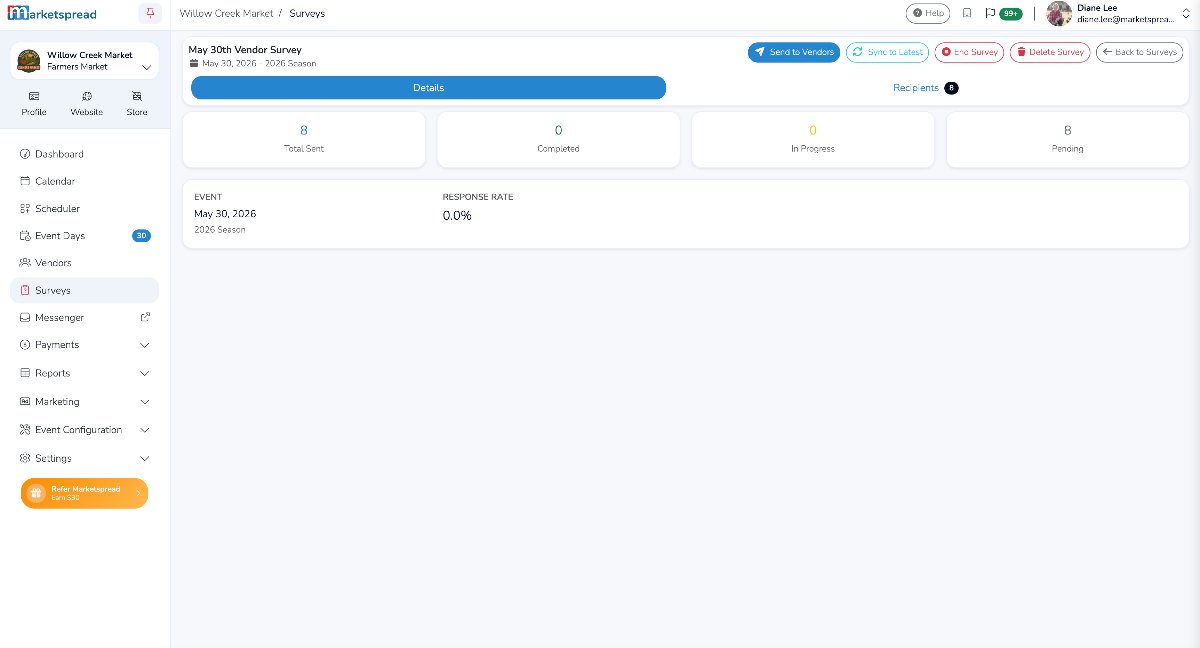
Navigate to Surveys in the left sidebar and select the survey you want to update. You'll see the survey detail page with response statistics including Total Sent, Completed, In Progress, and Pending counts.
2. Click "Sync to Latest"
In the top-right action bar, click the Sync to Latest button. This opens the sync dialog.
Note
This button only appears when a newer revision of the form exists than what the survey is currently using.
3. Review Field Changes
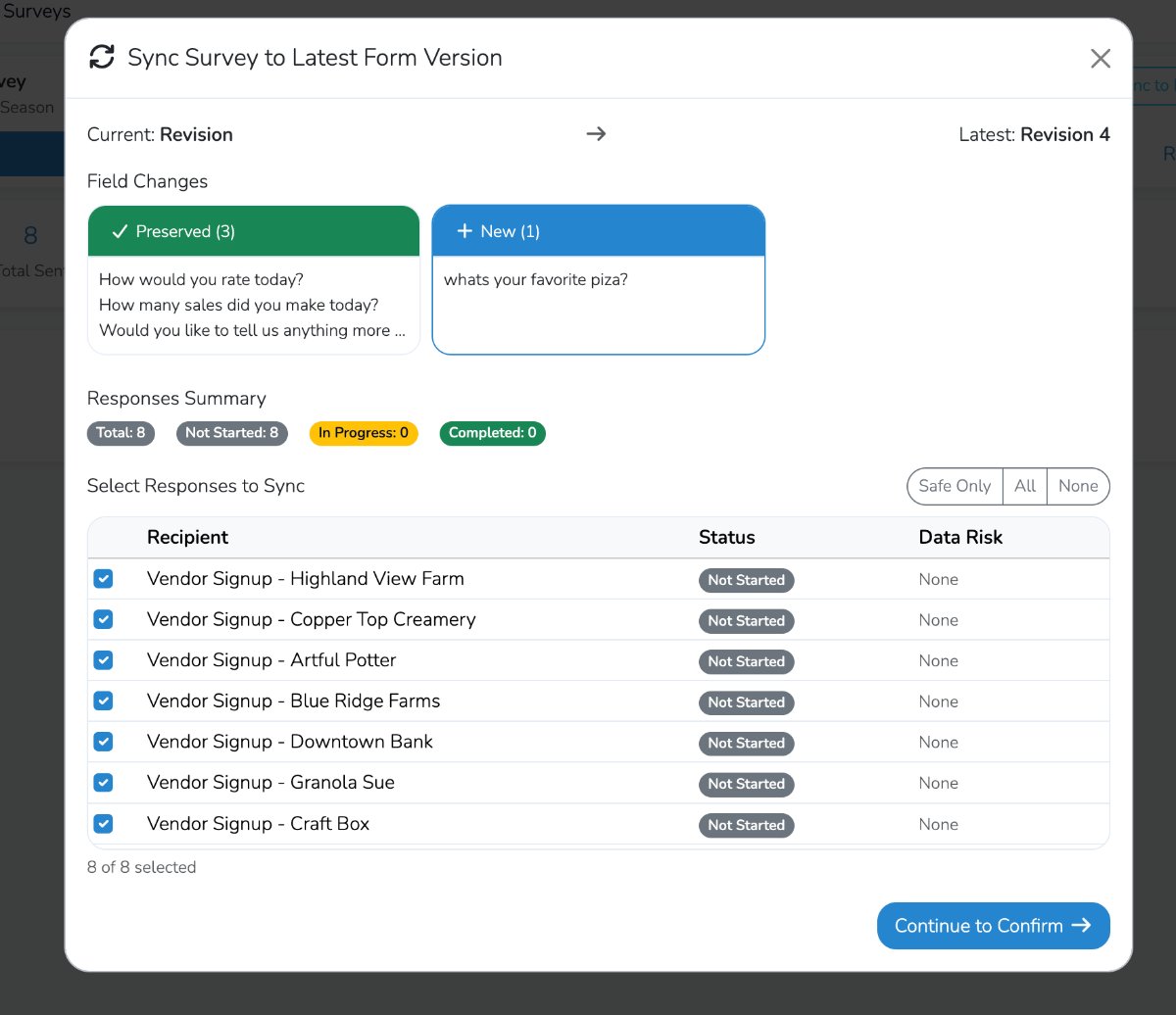
The sync dialog shows you exactly what will change:
- Preserved -- Fields that exist in both the old and new versions. These remain unchanged, and any responses already collected for them are kept.
- New -- Fields that have been added in the latest revision. These will appear as new questions for recipients.
Review these changes to make sure the update looks correct.
4. Select Responses to Sync
Below the field changes, you'll see a table listing every survey recipient along with their current Status and Data Risk level.
Use the filter buttons to quickly select which responses to include:
- Safe Only -- Selects only responses where syncing carries no risk of data loss (Data Risk = None)
- All -- Selects every response
- None -- Deselects all responses
You can also check or uncheck individual recipients manually.
Once you've made your selection, click Continue to Confirm.
5. Confirm and Sync
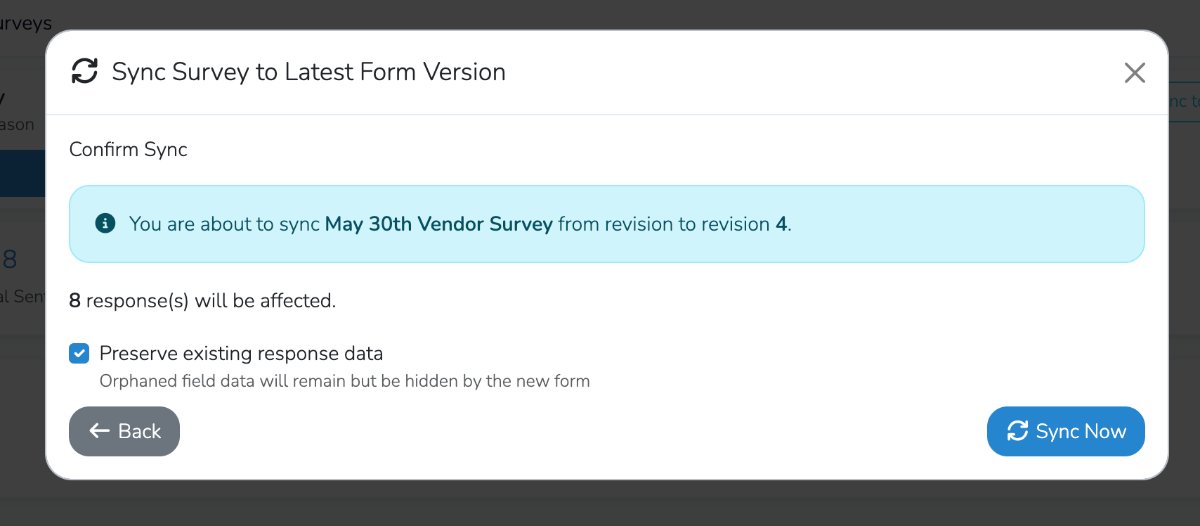
On the confirmation screen, you'll see:
- The survey name and which revision it will be updated to
- How many responses will be affected
- A Preserve existing response data checkbox (enabled by default)
Important
When "Preserve existing response data" is checked, any data from fields that no longer exist in the new form version will be kept in the background but hidden from view. This means no response data is lost. If you uncheck this option, orphaned field data will be removed.
When ready, click Sync Now to apply the update.
6. Reload the Page
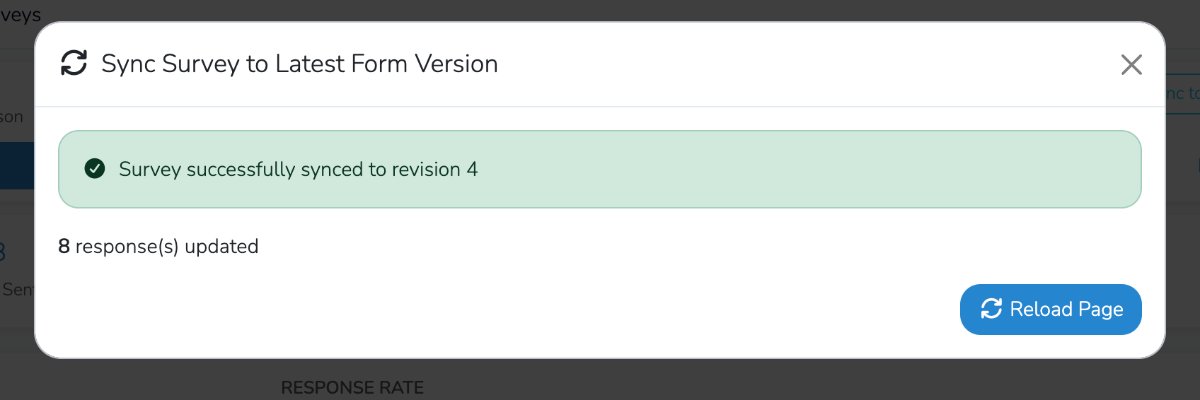
After the sync completes, you'll see a confirmation message showing how many responses were updated. Click Reload Page to refresh the survey detail view with the updated information.
Key Terms
| Term | Definition |
|---|---|
| Revision | A version of your survey form. Each time you publish changes to the form, a new revision is created. |
| Preserved fields | Questions that exist in both the current and latest revision. |
| New fields | Questions added in the latest revision that recipients haven't seen yet. |
| Data Risk | Indicates whether syncing a particular response could affect existing answer data. "None" means no risk. |
| Orphaned field data | Answers to questions that no longer exist in the updated form. When preserved, this data is kept but hidden. |
Frequently Asked Questions
Will syncing affect responses that vendors have already completed?
Yes, completed responses will also be updated to the new form revision if selected. However, with "Preserve existing response data" enabled, their existing answers are retained.
Can I undo a sync?
No. Syncing cannot be reversed. Review the field changes and selected responses carefully before confirming.
What happens if I don't sync?
Recipients will continue to see and fill out the older version of the form. New questions or changes won't appear for them until you sync.