


A survey is simply a form that is configured to be sent to external people. The audience for surveys includes:
- Vendors
- Customers
- The general public
Surveys vs. Forms
Forms and surveys are built using the same drag-and-drop form builder, but they serve different audiences and purposes. Understanding the distinction is key to using them effectively.
Forms are for your team
Forms are designed for internal use. They are filled out by market managers, staff, or volunteers as part of day-to-day operations. Examples include:
- Event day check-in forms completed by staff on-site
- Vendor attendance tracking filled out by a market manager
- Internal reporting forms used by your team during or after events
- Booth inspection checklists for staff walkthroughs
Forms appear in your event day records and can be filled out directly from the dashboard by anyone on your team with the appropriate permissions. They are never sent to anyone outside your organization.
Surveys are for vendors, customers, and the public
Surveys are designed for external recipients. When you send a survey, it goes out to people outside your management team and they complete it on their own time. Examples include:
- Post-event vendor feedback surveys
- Customer satisfaction surveys
- Public interest or demographic surveys
- Seasonal vendor intake questionnaires
Side-by-side comparison
| Forms | Surveys | |
|---|---|---|
| Audience | Your internal team (managers, staff, volunteers) | External recipients (vendors, customers, the public) |
| Who fills it out | A team member from the dashboard | The recipient, via a link sent to them |
| Distribution | Available directly in event day records & dashboards | Sent to recipients via the survey sending workflow |
| Tracking | Completed by staff as part of operations | Tracks sent / pending / in-progress / completed per recipient |
| Label in form builder | No "Survey" label needed | Must have the "Survey" label enabled |
Tip
You can reuse the same form template across multiple surveys. For example, you might send the same feedback form after every event day throughout an entire season.
Common use cases
Surveys are most commonly used for straightforward feedback collection:
- Vendor feedback surveys
- Customer satisfaction surveys
- Public opinion surveys
But they can also support more advanced workflows:
- Managing vendor attendance change requests
- Managing vendor booth change requests
- Collecting rental and add-on requests
- Supplemental data collection for approved vendor applications
How surveys work
Surveys follow a straightforward lifecycle:
- Create a form --- Design your questions under Settings > Forms using the drag-and-drop builder.
- Label it as a survey --- Assign the "Survey" label so the form becomes available for sending.
- Send the survey --- Choose your recipients and send.
- Collect responses --- Recipients receive the survey and fill it out. You can track completion rates in real time.
- Review analytics --- Once responses come in, review individual answers and aggregate analytics. Export data as needed.
Understanding recipient statuses
Each survey recipient will have one of these statuses:
| Status | Meaning |
|---|---|
| Pending | The survey has been sent but the recipient has not opened it yet. |
| Not Started | The recipient has been assigned the survey but has not begun filling it out. |
| In Progress | The recipient has started but not yet submitted their response. |
| Completed | The recipient has submitted their response. |
Getting started
First, you need to create a form under Settings > Forms. To learn more about creating forms, see the support article linked below:
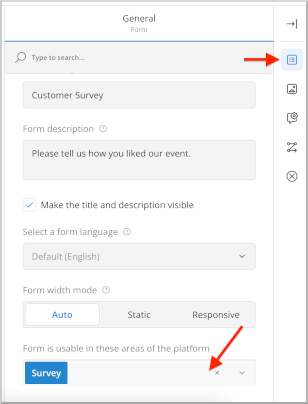
The key to enabling a form to be used as a survey is to assign it the "Survey" label. In the form editor, click the background of the form near the Title/Description area. Then in the right-hand configuration panel, make sure "Survey" is selected.
Sending options
Surveys can be sent to vendors in several ways:
- To all vendors in a particular event day (from the Event Day record)
- To a single vendor (from the Vendor record)
- To a group of vendors selected in your main Vendor list
Surveys can also be sent to customers or the public from the Surveys section in your left-hand toolbar.
Walkthrough: Event day vendor survey
This example walks through sending a survey to all vendors after a market event.
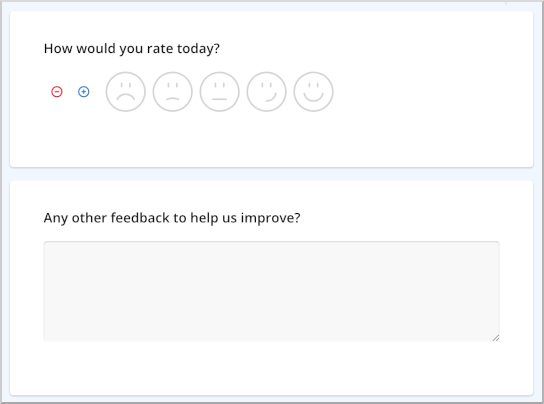
For this walkthrough, we have a form configured as a survey with two simple questions:
Step 1: Find the event day
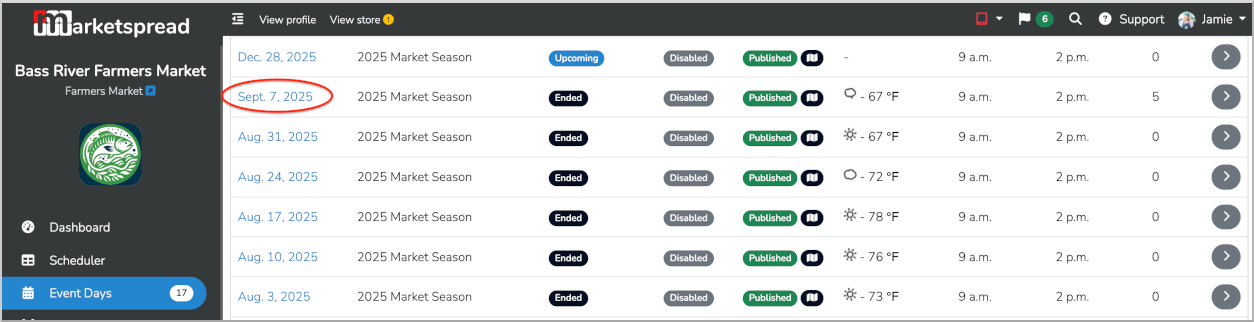
Go to Event Days in your left-hand toolbar and scroll to the most recently ended event. In this case, that would be Sept. 7th, 2025.
Step 2: Create a new survey
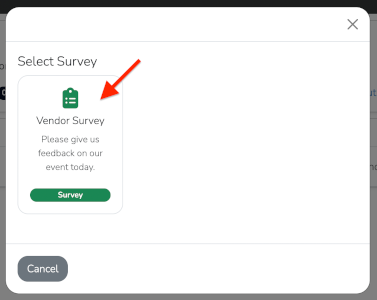
Click the + button on the Surveys tab within the event day record.
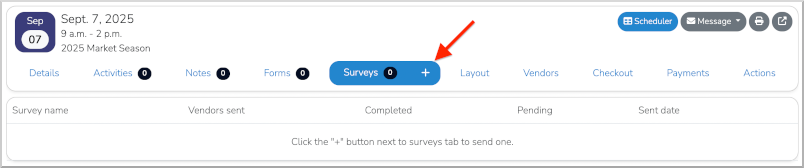
You will be presented with a list of all forms published as surveys. In this example, we only have one.
Step 3: Configure and send
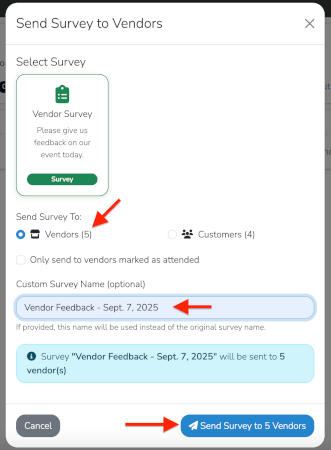
Click the survey form to select it. This will reveal additional options including the recipient type and a name field.
Select Vendors as the audience and fill in a descriptive survey name. Then click the blue Send Survey button at the bottom right.
Tip
Use a descriptive name like "Sept 7 Vendor Feedback" so you can easily identify the survey later. Avoid generic names like "Survey 1."
Step 4: Confirm the survey was sent
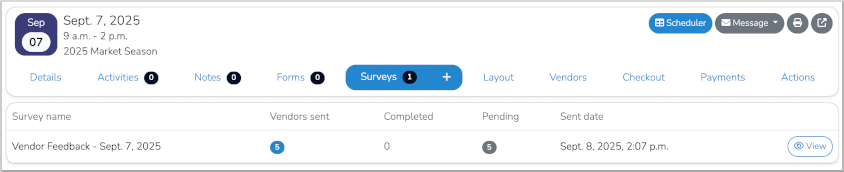
The survey list for the event day now includes the survey you just sent to all 5 vendors booked for that day.
Step 5: View survey details
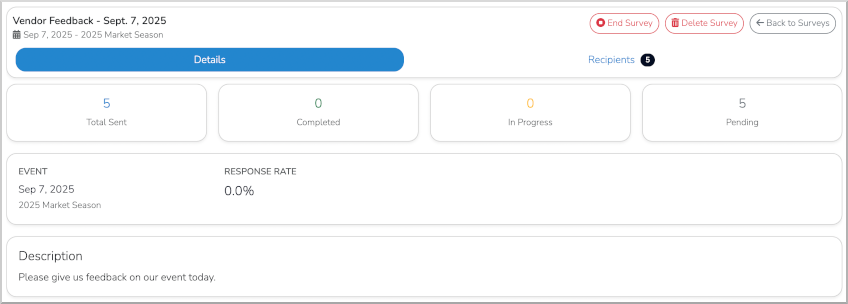
Click the View button to the right of the list entry to see the full survey detail page. From here you can:
- End the survey --- Stops accepting new responses
- Delete the survey --- Permanently removes the survey and all its data
Caution
Deleting a survey permanently removes all collected responses. This cannot be undone. If you just want to stop collecting responses, use End Survey instead.
Step 6: Review recipients
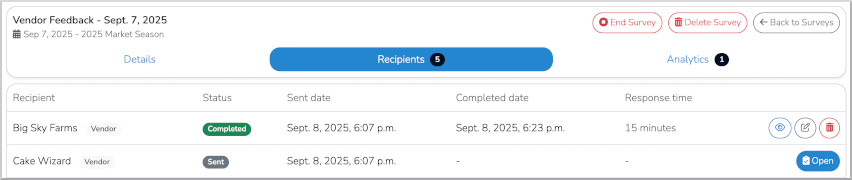
The Recipients tab shows everyone who received the survey along with their current status.
Step 7: Review analytics
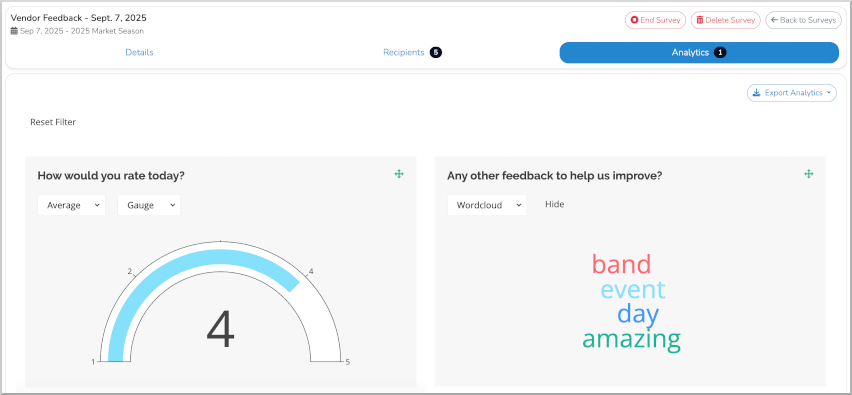
As soon as a recipient responds, an Analytics tab appears. This gives you aggregate data across all responses. You can export this data using the Export Analytics button, or access it through your standard Data Reports.
Walkthrough: Direct vendor survey
You can also send surveys to vendors outside the context of a specific event day.
Navigate to Vendors in your left-hand toolbar, select the vendors you want to survey using the checkboxes, and use the bulk actions menu to send them a survey directly.
This approach is useful when your survey is not tied to a specific event --- for example, a seasonal feedback form, an interest survey for an upcoming program, or a general satisfaction check-in.
Syncing surveys to the latest form version
After you send a survey, you may realize you need to update the underlying form --- perhaps to add a question you forgot, fix a typo, or remove something no longer relevant. When you publish changes to a form, surveys that have already been sent will continue using the older version. The Sync to Latest feature lets you update an active survey so all recipients see the most current version of your form.
Important
Surveys do not update automatically when you edit their underlying form. You must explicitly sync each survey to pick up form changes.
When to sync
Use Sync to Latest when you have:
- Added new questions to your survey form after it was already sent
- Removed or edited questions and want those changes reflected for recipients who haven't responded yet
- Published a new revision of your form and need outstanding surveys to match
How to sync
Step 1: Open the survey
Navigate to the survey you want to update. On the survey detail page, you'll see response statistics and an action bar at the top.
Step 2: Click "Sync to Latest"
Click the Sync to Latest button in the top-right action bar. This opens the sync dialog.
Note
This button only appears when a newer revision of the form exists than what the survey is currently using. If you don't see it, the survey is already on the latest version.
Step 3: Review field changes
The dialog shows you exactly what will change:
- Preserved --- Fields that exist in both the old and new versions. Responses already collected for these fields are kept intact.
- New --- Fields that have been added in the latest revision. These will appear as new questions for recipients.
Step 4: Select responses to sync
Below the field changes, you'll see a table listing every recipient along with their current Status and Data Risk level.
Use the filter buttons to quickly make your selection:
| Button | Behavior |
|---|---|
| Safe Only | Selects only responses where syncing carries no risk of data loss |
| All | Selects every response |
| None | Deselects all responses |
You can also check or uncheck individual recipients. Once ready, click Continue to Confirm.
Step 5: Confirm and sync
On the confirmation screen, review the summary:
- The survey name and which revision it will be updated to
- How many responses will be affected
- The Preserve existing response data checkbox (enabled by default)
Warning
When "Preserve existing response data" is unchecked, answers to questions that no longer exist in the new form version will be permanently deleted. In most cases, you should leave this checked. Preserved data stays in the background but is hidden from the new form --- nothing is lost.
Click Sync Now to apply the update.
Step 6: Reload the page
After the sync completes, you'll see a success message showing how many responses were updated. Click Reload Page to refresh the view.
Key sync terms
| Term | Definition |
|---|---|
| Revision | A version of your survey form. Each time you publish changes, a new revision is created. |
| Preserved fields | Questions that exist in both the current and latest revision. |
| New fields | Questions added in the latest revision that recipients haven't seen yet. |
| Data Risk | Whether syncing a particular response could affect existing answer data. "None" means no risk. |
| Orphaned field data | Answers to questions that no longer exist in the updated form. When preserved, kept but hidden. |
Best practices
Designing your survey
- Keep it short. Aim for 5--10 questions. Vendors and customers are far more likely to complete a brief survey than a lengthy one.
- Use clear, simple language. Avoid jargon. Write questions the way you'd ask them in person.
- Mix question types. Combine rating scales, multiple choice, and one or two open-ended questions. This gives you both quantifiable data and qualitative insight.
- Put the most important questions first. If someone abandons the survey partway through, you'll still capture what matters most.
- Test before sending. Preview your form and fill it out yourself to catch confusing wording, missing options, or layout issues.
Sending surveys
- Name your surveys descriptively. Use names like "Sept 7 Vendor Feedback" or "2026 Season Customer Survey" so you can find them later.
- Send promptly. For event day surveys, send within 24 hours while the experience is still fresh.
- Choose the right audience. Use event day surveys for event-specific feedback. Use direct vendor surveys for general or seasonal topics.
- Don't over-survey. Sending too many surveys leads to fatigue and lower response rates. One survey per event or one per month is a reasonable cadence.
Managing active surveys
- Monitor response rates. Check the survey detail page regularly. Low response rates may mean the survey is too long or was sent at a bad time.
- Use End Survey when you're done collecting. This prevents late responses from trickling in after you've already reviewed the data.
- Export analytics promptly. Download your data while it's relevant so you can share findings with your team or board.
Syncing and form updates
- Finalize your form before sending. The best way to avoid needing to sync is to thoroughly review your form before the first send.
- Sync early if you must. If you need to update the form, sync before most recipients have responded. It's cleaner to get everyone on the same version early.
- Always keep "Preserve existing response data" checked unless you have a specific reason to discard old answers.
- Review field changes carefully. Before confirming a sync, verify the preserved and new fields look correct. This is your last chance to catch issues.
What not to do
Caution
These are common mistakes that can lead to lost data or a poor experience for your recipients. Review this list before sending your first survey.
- Don't delete a survey to "start over." Deleting removes all collected responses permanently. If you need to make changes, use Sync to Latest instead.
- Don't send the same survey to the same people multiple times. This creates duplicate entries and confuses recipients. If you need to remind people, follow up through Messenger instead of re-sending.
- Don't edit a form and assume surveys update automatically. They don't. Existing surveys stay on the version they were sent with until you explicitly sync.
- Don't uncheck "Preserve existing response data" unless you're certain. Removing orphaned data is irreversible. In almost all cases, keeping it hidden is the safer choice.
- Don't ignore incomplete responses. "In Progress" responses mean someone started but didn't finish. This could signal that the survey is too long or a question is confusing.
- Don't wait too long to review results. Survey data is most actionable when it's fresh. Build a habit of reviewing responses within a few days of the survey closing.
- Don't use surveys for time-sensitive communication. Surveys are for data collection, not urgent announcements. Use Messenger or email for anything that needs an immediate response.
Frequently asked questions
Can I reuse the same form for multiple surveys?
Yes. A form is just a template. You can send it as a survey as many times as you like --- for different event days, different vendor groups, or different seasons.
Will syncing affect responses that vendors have already completed?
Completed responses will be updated to the new form revision if you select them during the sync. With "Preserve existing response data" enabled, their existing answers are retained.
Can I undo a sync?
No. Syncing cannot be reversed. Review the field changes and selected responses carefully before confirming.
What happens if I don't sync after updating my form?
Recipients will continue to see and fill out the older version of the form. New questions or changes won't appear for them until you sync.
Can customers and the public fill out surveys without an account?
Yes. Surveys sent to customers or the public generate a unique link that does not require a Marketspread account.
Where do I find survey data in reports?
Survey response data is available through the standard Data Reports section. You can also export directly from the Analytics tab on any individual survey.