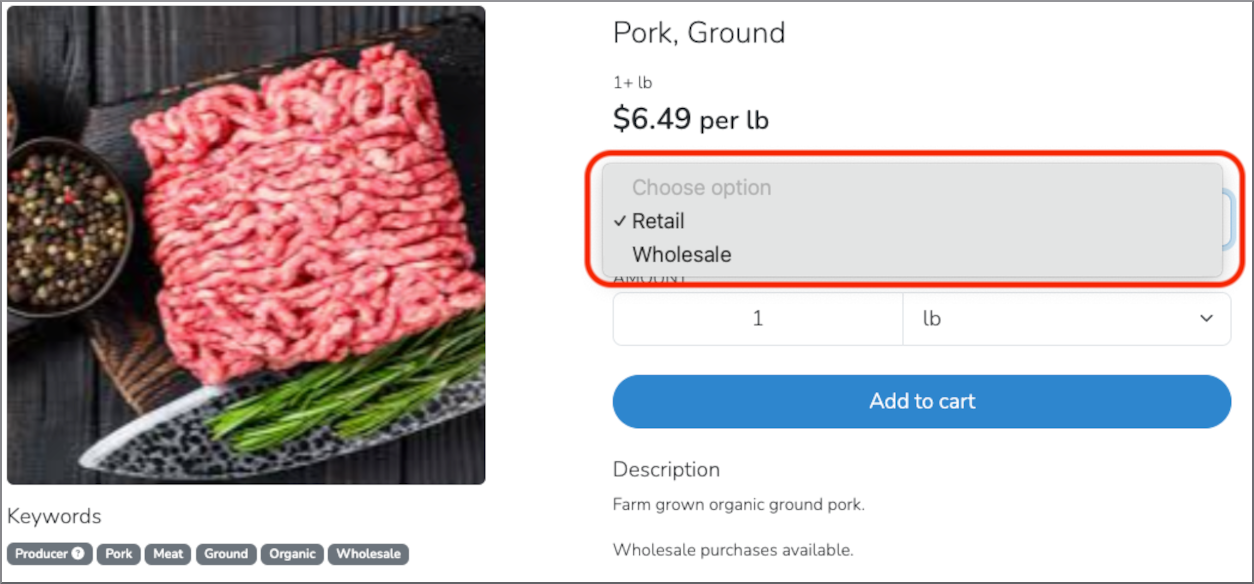

There are two main ways to set up products for wholesale sales in your online store.
Create a Dedicated Product Listing for Wholesale Sales
This option uses a separate product listing specifically for wholesale orders. Recommended steps:
Create a separate product listing
Set up a dedicated product listing for wholesale orders using the same process you would follow for a standard product listing.
Label it clearly
To make it clear that the product is intended for bulk purchasing at wholesale pricing, consider adding Wholesale to the product name.
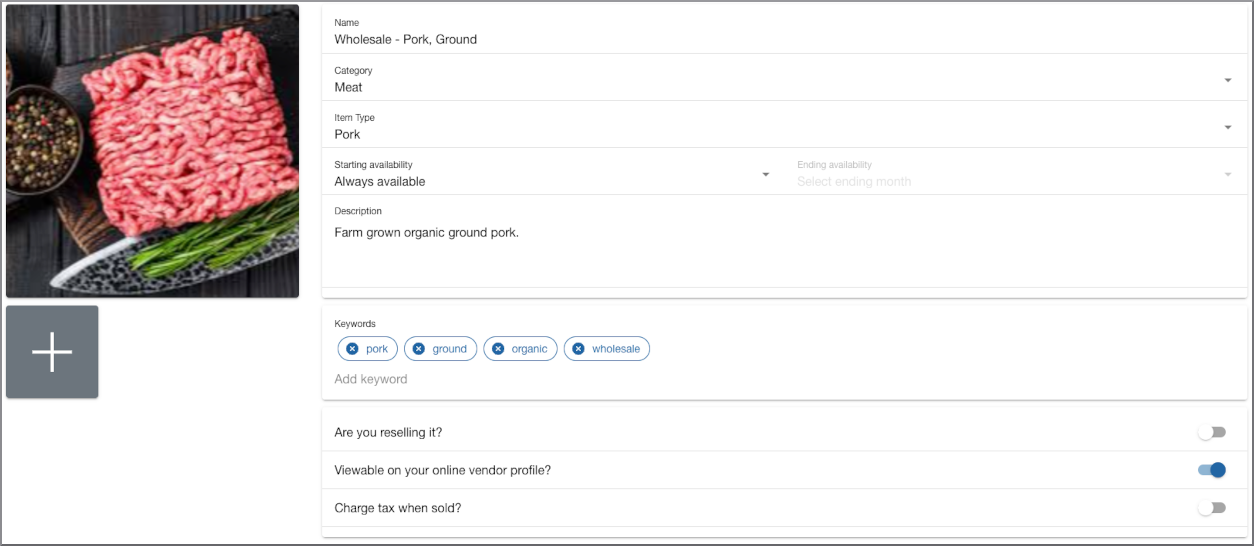
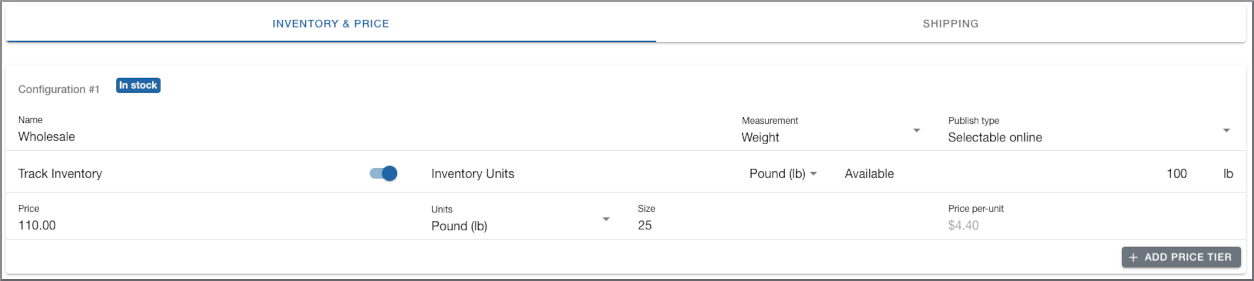
With this option, one product configuration is usually sufficient, as shown above.
If you choose to create separate product listings for Retail and Wholesale, you will need to manage inventory across both listings unless you assign fixed stock amounts to each sale type.
Use a Single Product Listing with Two Configurations
This option uses one product listing with separate configurations for retail and wholesale sales. Recommended steps:
Create your product listing
Set up the product listing as you normally would.
Inform buyers
In the product description, note that wholesale purchasing is available.
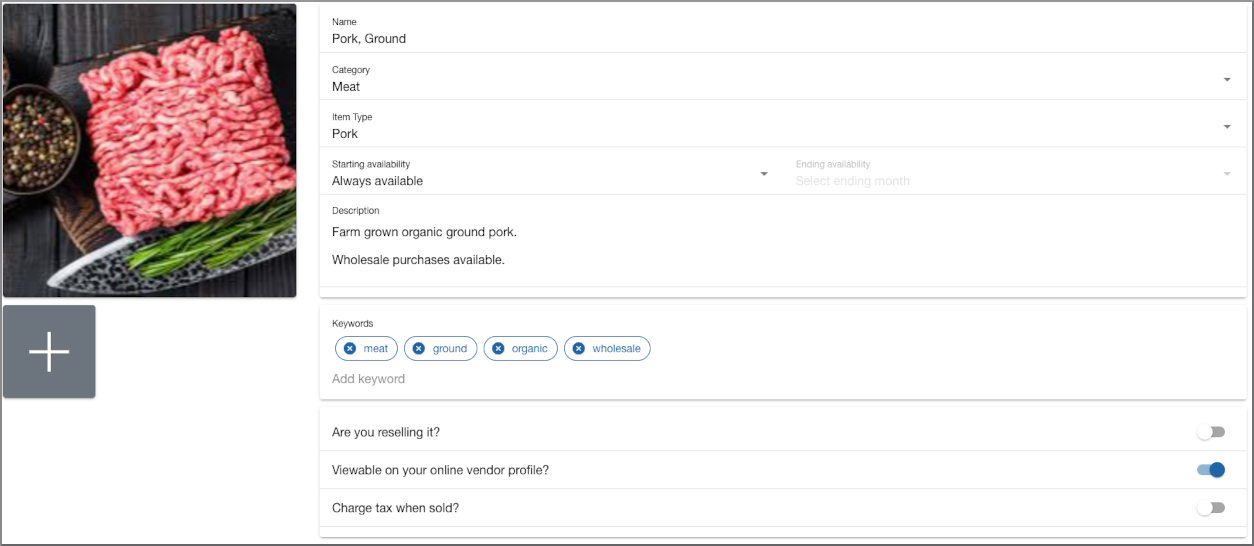
Create the retail configuration
Set up the first configuration for retail sales.
Add a second configuration
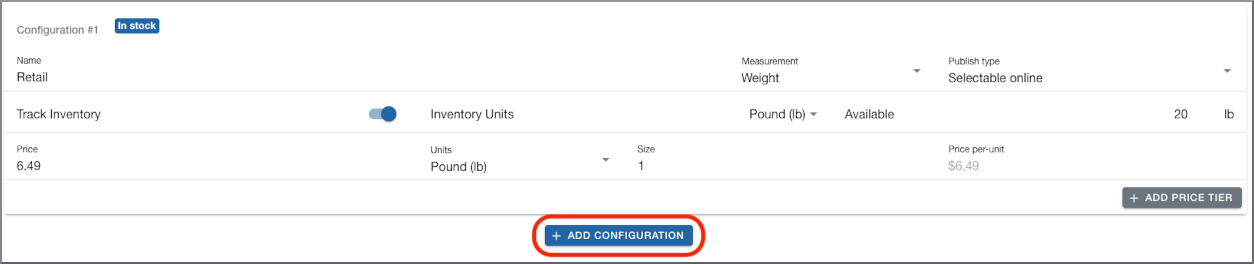
After entering your retail inventory and pricing, click the blue + Add Configuration button at the bottom of the screen.
Create the wholesale configuration
Set up the second configuration for wholesale sales, then click Save at the top of the product listing page.
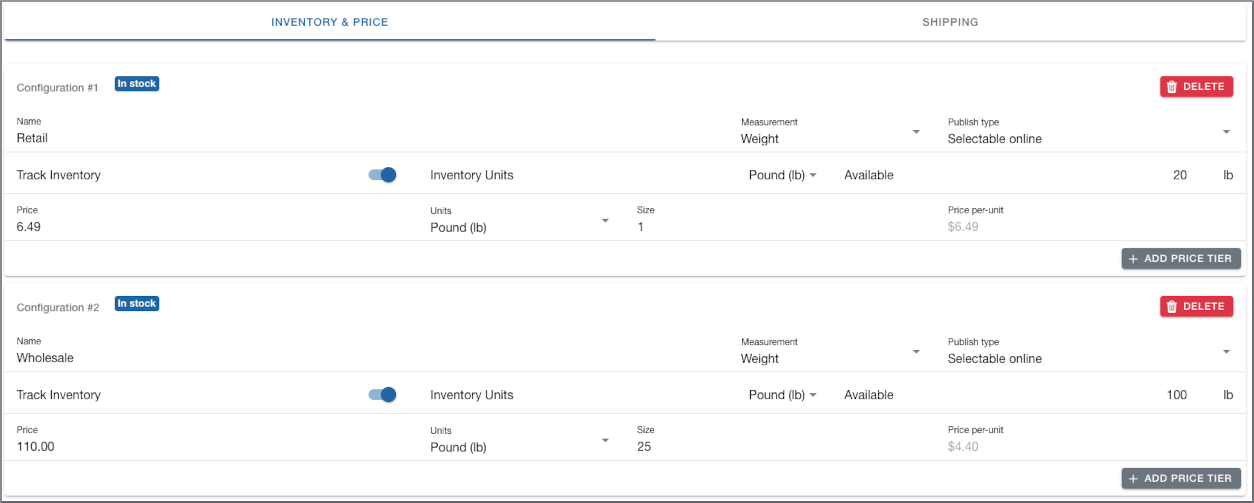
Your completed product listing should look similar to the example below.
Important Considerations
With this approach, you will use one product listing with two configurations.
Keep in mind:
- You will need to manage inventory by assigning fixed stock amounts to each sale type.
- Configuration names will be visible to customers in your online store, as shown in the example below.