


Navigating to Vendor Types
Your global list of vendor types is managed under: Settings → Customizations
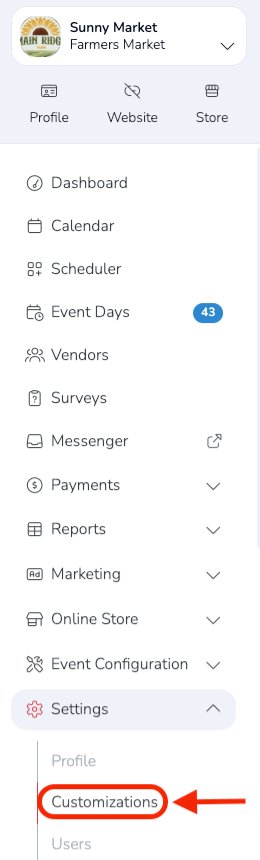
Marketspread includes a default set of vendor types. These are the same types that were previously hardcoded into the platform.

Each vendor type includes an associated color and description. To view a description, hover over the vendor type. See the example below.

Edit A Vendor Type
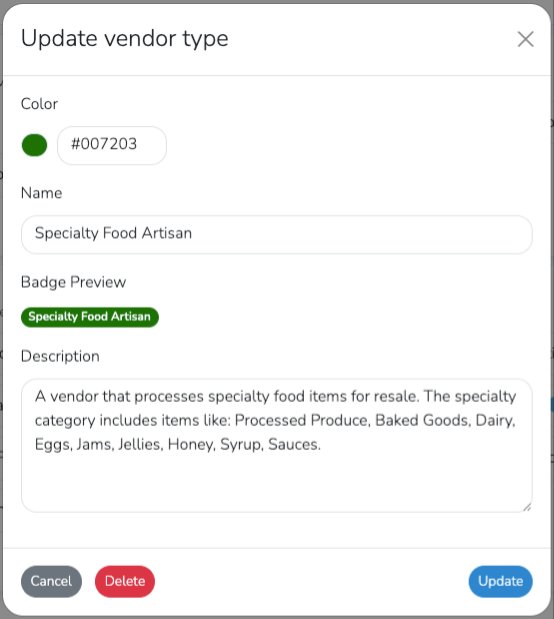
To edit an existing vendor type, click it in the list. This will open the edit window, where you can update the color, name, and description.
Add a New Vendor Type
To create a new vendor type, click the blue + Add Vendor Type button.

This will open the Add vendor type window, as shown below. In this example, a blue color was selected, the vendor type was named Antique Dealer, and a description was added.
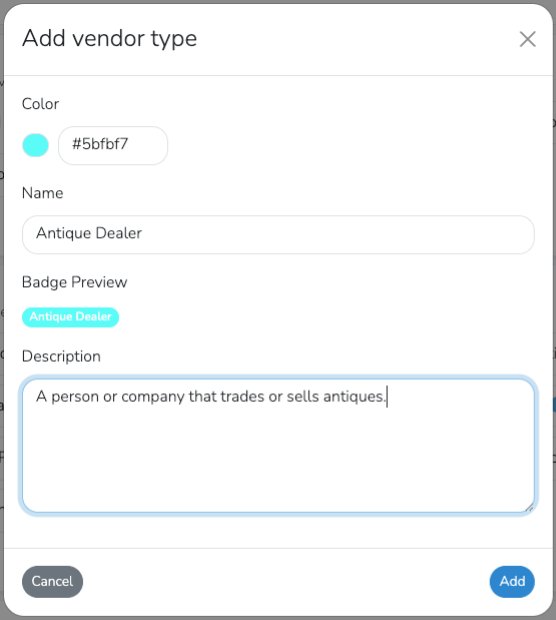
Click the blue Add button to save the new vendor type to your global vendor type list.
In this example, the new Antique Dealer vendor type is now available in the global list.

Remove a Vendor Type
To remove a vendor type, click the red trash icon.

In the example below, Service, Speciality Food Artisan, and Youth Vendor were selected.

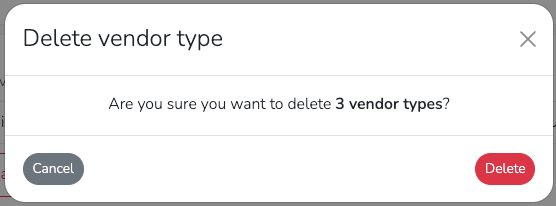
Clicking the red Delete button will open a confirmation window. Click the red Delete button again in the confirmation window to permanently remove the selected vendor types.
Start from Scratch with Your Own Vendor Types
If you would like to build your own set of vendor types, you can remove the default vendor types and create your own.
Manage a Market or Event Without Vendor Types
Some markets and events may not want to track vendor types at all. To do this, remove all vendor types from the global list.
When no vendor types are defined, vendors will not be asked to select a type during the application process.