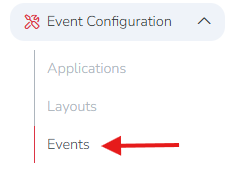

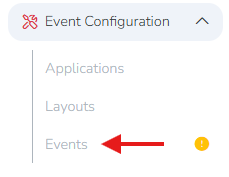
To get started, find the event you would like to clone under Event Configuration -> Events.
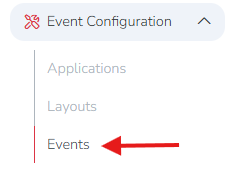
Then, click on the Clone button to the right of the Event or Event Season you would like to clone.

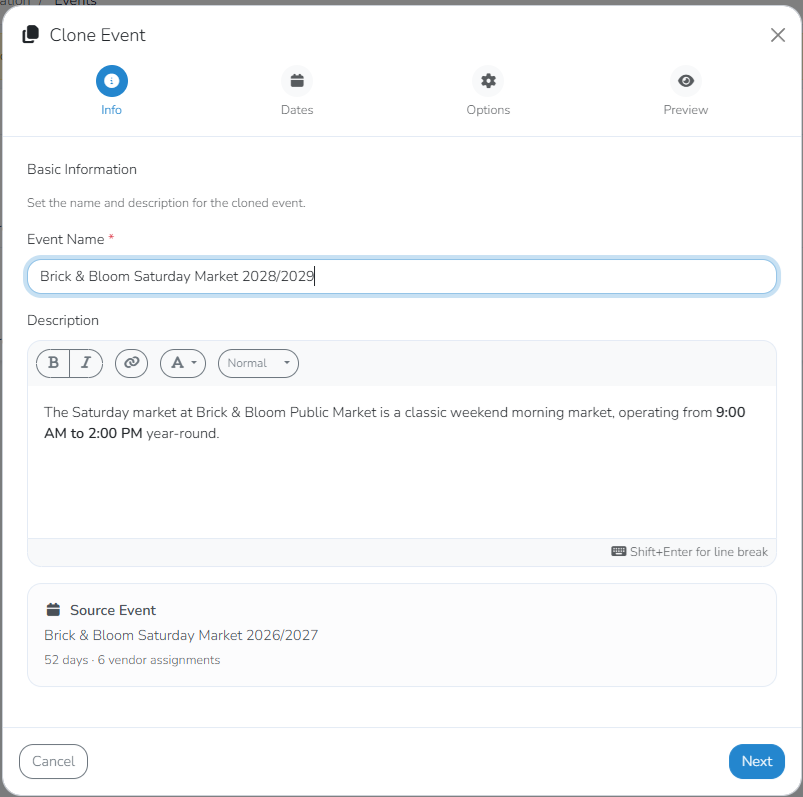
This will open your cloned Event or Event Season for editing (as seen below). You will first be prompted to update the general info for the cloned Event or Event Season, including name and description. You can confirm the event that you are cloning under Source Event.
Click Next to move on to Dates for your cloned Event or Event Season.
Under Dates you can choose between the following-
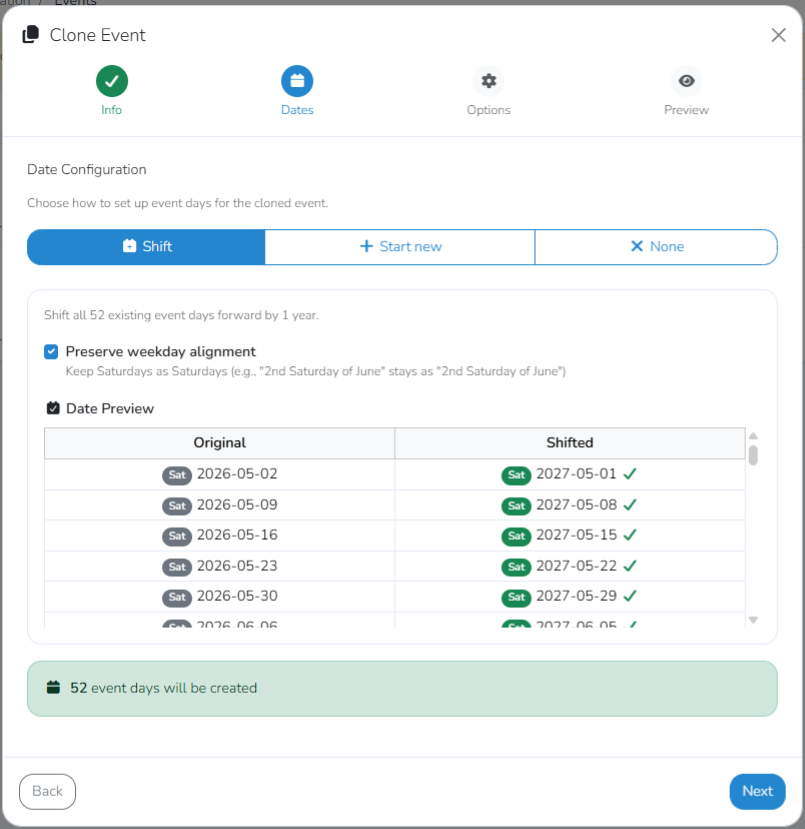
Shift: Moves all selected event dates forward by exactly one year.
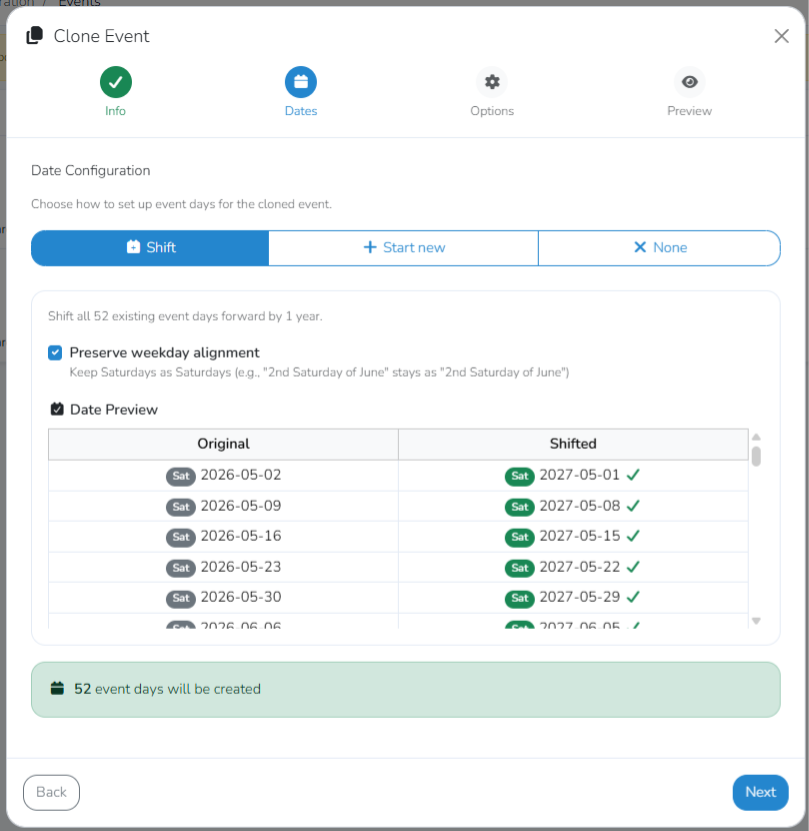
When selecting the Shift feature you can also choose to Preserve Weekday Alignment which shifts events to the next year while keeping the same day of the week (e.g., keeping a Saturday event on a Saturday) by automatically adjusting the calendar dates.
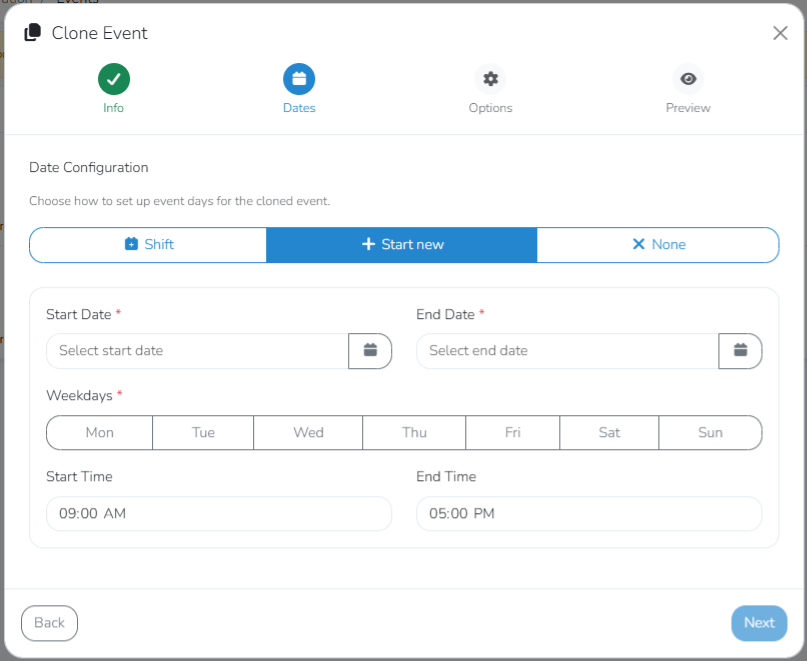
Start New- allows you to select new dates and times for your cloned Event or Event Season.
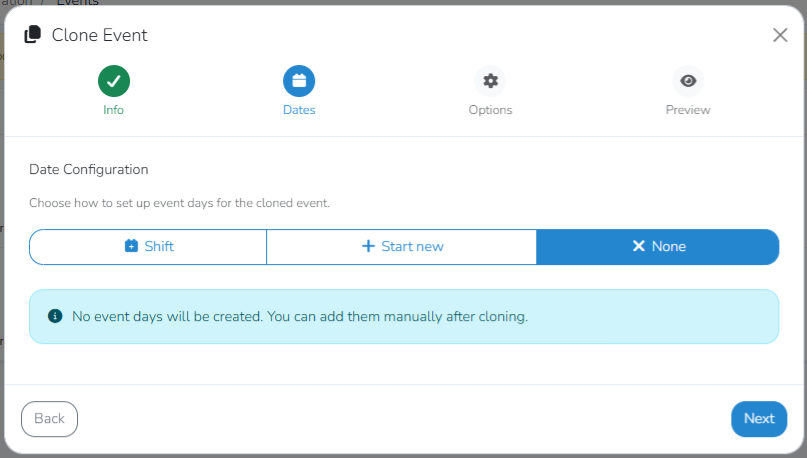
None- No event days will be created. You can add them manually after cloning.
Click Next to move on to Options.
Under Options, you can select what to copy from the original event (fee structure, vendors and application settings).
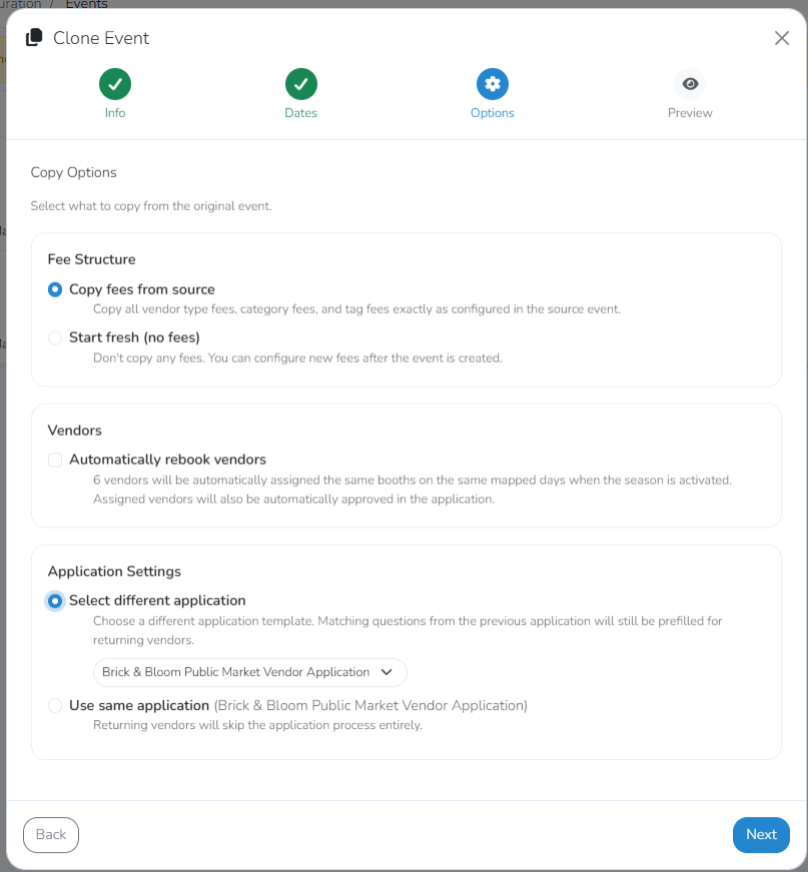
Fee Structure- Here you have the option to Copy fees from source (the event you are cloning from), or you can Start Fresh with no fees and configure the new fees after the event is created.
Vendors- You have the option to Automatically rebook vendors. This copies all vendors from the original event. When the new season is activated, these vendors will be automatically approved and assigned to the same booths on their corresponding days.
Application Settings-There are two options for applications. You can select a different application for your cloned Event or Event Season by choosing a different application template (note that any Matching questions from the previous application will be prefilled for returning vendors), or you can use the same application from your original Event or Event Season. Note that when using the same application for your original Event or Event Season, returning vendors skip the application process and will not be charged application or approval fees when re-applying. If this is not your desired outcome, select “select different application” — matching questions will still be prefilled for returning vendors.
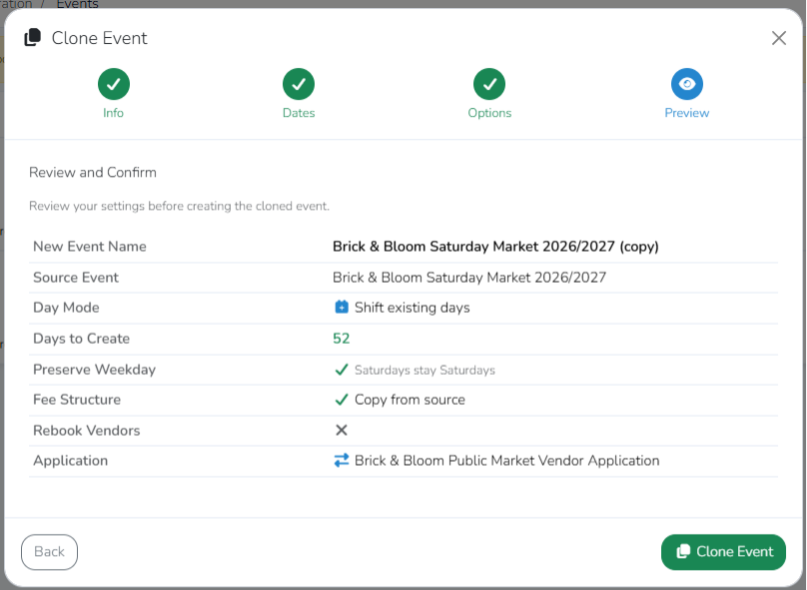
Click Next to move on to Preview to review your settings before creating the cloned Event or Event Season.
After confirming the settings for your new Event or Event Season, select Clone Event.
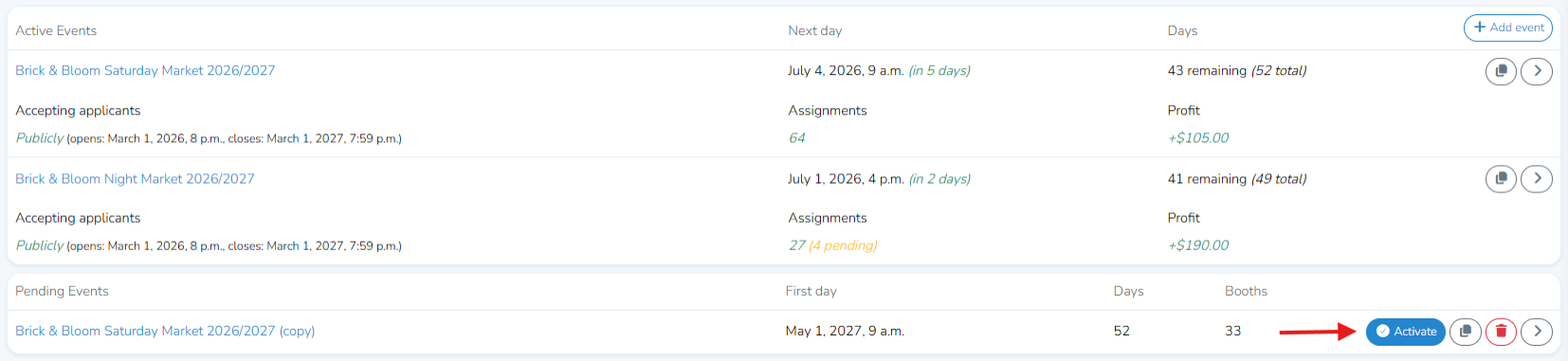
After cloning, you will need to activate the cloned Event or Event Season under the Events tab. Notice the yellow alert symbol that indicates a newly cloned event that requires activation before going live.
Go to Pending Events and click Activate.
To fully activate your cloned event or season, please select your Marketspread billing plan. Choose between Market Based and Vendor Pass-through.
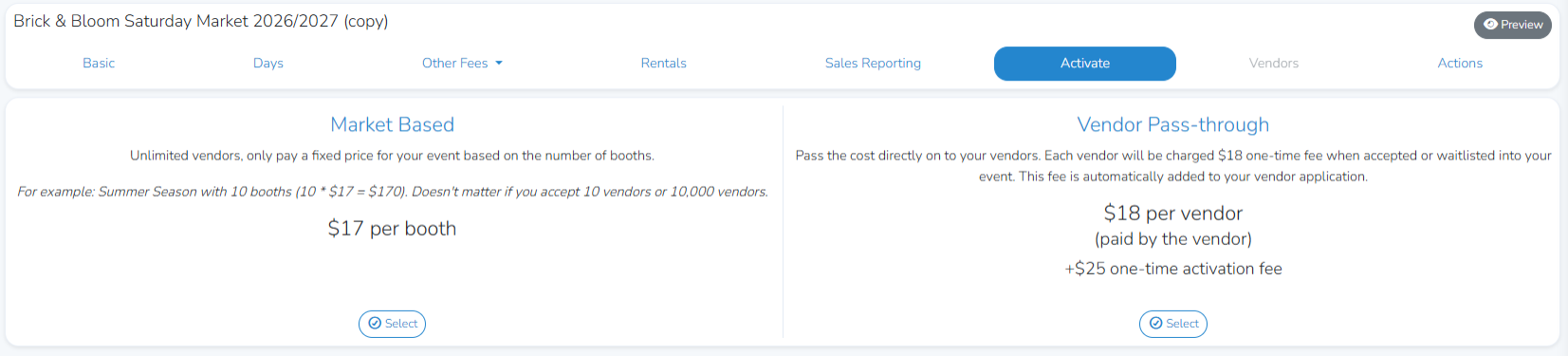
Market Based- allows for unlimited vendors. You will only pay a fixed price for your event based on the number of booths. When selecting Market Based you will have the option to pay Monthly (payment spread evenly across your season’s active months), Split (50% payment upfront and 50% payment mid-season), and Seasonally (100% payment upfront).

After choosing your Event Based payment plan, you can review your payment overview, enter a coupon code if you have one and submit your payment using a saved payment method or entering in a new card.
Click Pay to proceed.
Vendor Pass-through- pass the cost directly on to your vendors. Each vendor will be charged an $18 one-time fee when accepted or waitlisted into your event. This fee is automatically added to your vendor application.

After choosing the Vendor Pass through option, you can review your payment overview, submit your payment using a saved payment method or enter in a new card (please note there is a $25 activation fee).
Click Pay to proceed.
After your payment has been received, your Event or Event Season will be activated.

You can then view your activated cloned Event or Event Season under the Events tab.