


Types of Document Requests
There are three types of Document Requests in Marketspread.
-
Presented documents - Documents presented to you that may required acceptance or signatures
-
Requested documents - Documents that are requested for you to provide
-
Images - Similar to Requested documents but specifically for image files
Accessing Your Documents
Vendors can access all their documents via the Documents section of their vendor dashboard.
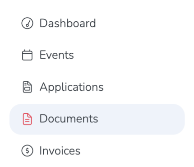
In the Documents section vendors will have access to all their documents .
If you have submitted an application an need to upload or replace a docment first find your application under Applications in your side navigation panel.
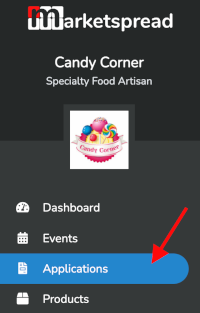
Then, find your application and click the grey righthand overview button as seen below:

Once you click that application, click the "documents" tab.
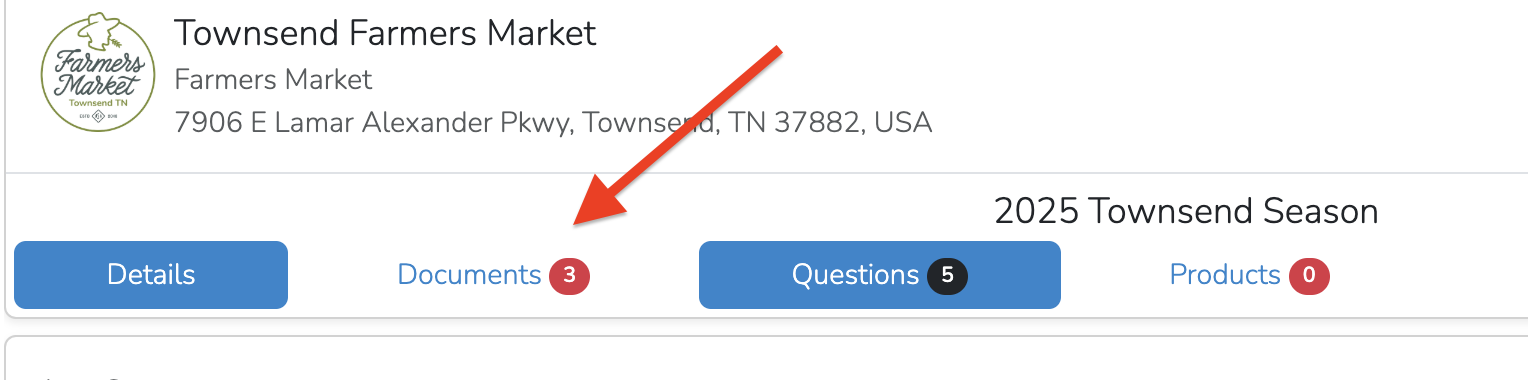
From that tab- you will see all documents the market has presented to you for agreement or signature, and you will see all of the market's required documents. Whether you need to replace a document that is there, or upload a new document, click the "upload" icon at far right.
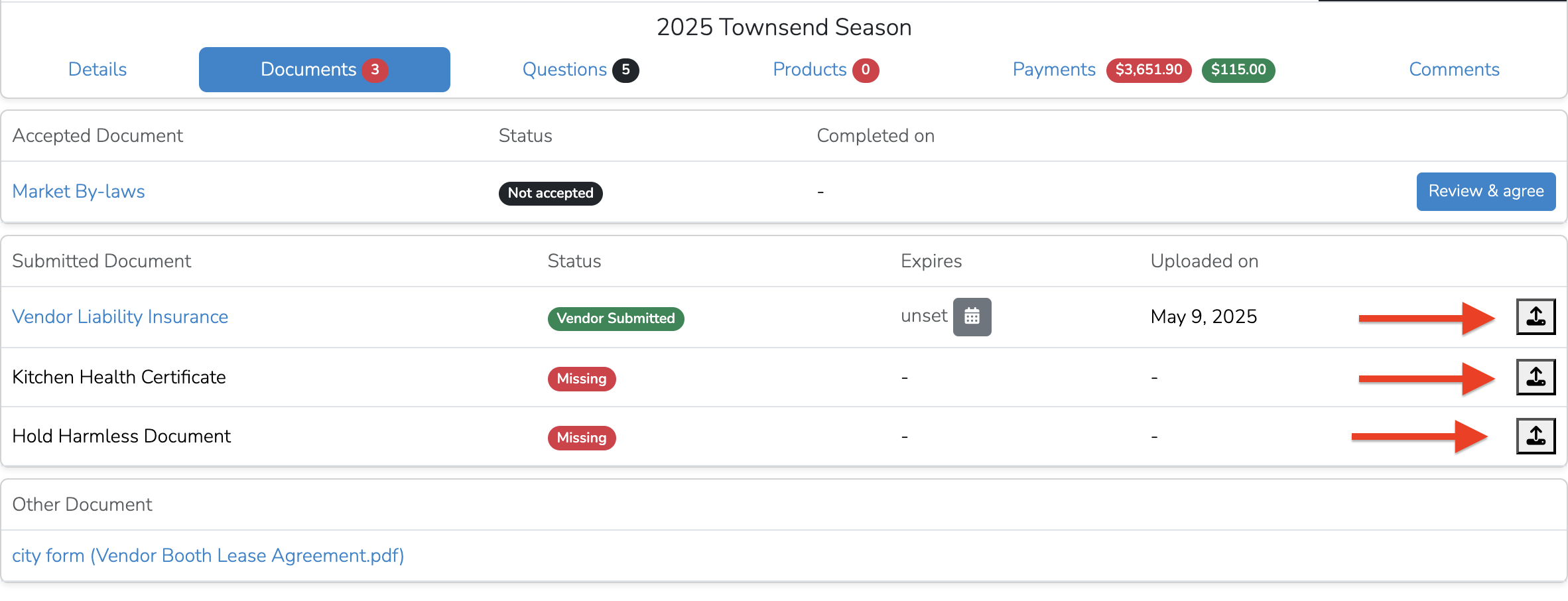
Choose your document from that pop up window and set an experiation date if relevant.